How to
Create a
Poster in
MS PowerPoint
1© florangeles.com | Ideal Virtual Professional - How to Create a Poster in MS PowerPoint
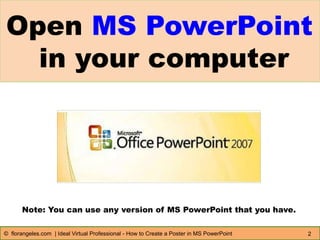
Open MS PowerPoint
in your computer
2© florangeles.com | Ideal Virtual Professional - How to Create a Poster in MS PowerPoint
Note: You can use any version of MS PowerPoint that you have.
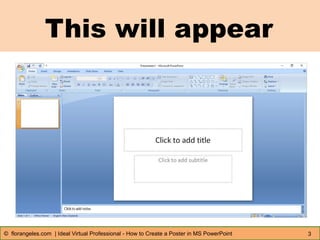
This will appear
3© florangeles.com | Ideal Virtual Professional - How to Create a Poster in MS PowerPoint
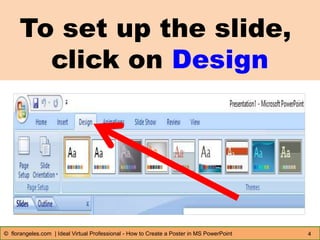
To set up the slide,
click on Design
4© florangeles.com | Ideal Virtual Professional - How to Create a Poster in MS PowerPoint
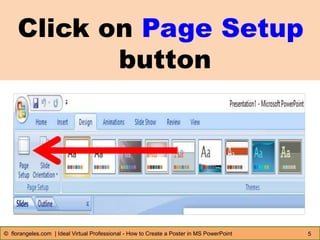
Click on Page Setup
button
5© florangeles.com | Ideal Virtual Professional - How to Create a Poster in MS PowerPoint
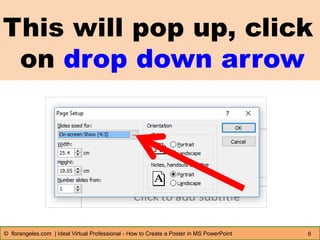
This will pop up, click
on drop down arrow
6© florangeles.com | Ideal Virtual Professional - How to Create a Poster in MS PowerPoint
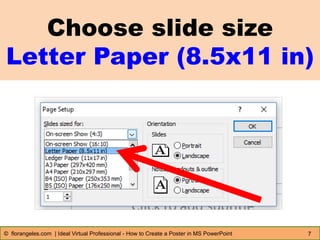
Choose slide size
Letter Paper (8.5x11 in)
7© florangeles.com | Ideal Virtual Professional - How to Create a Poster in MS PowerPoint
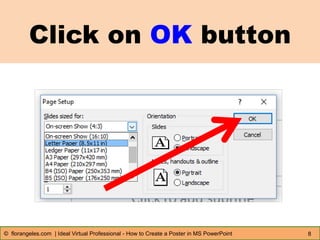
Click on OK button
8© florangeles.com | Ideal Virtual Professional - How to Create a Poster in MS PowerPoint
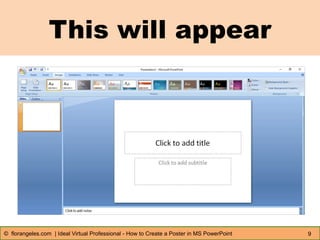
This will appear
9© florangeles.com | Ideal Virtual Professional - How to Create a Poster in MS PowerPoint
10© florangeles.com | Ideal Virtual Professional - How to Create a Poster in MS PowerPoint
Now look for a
background
image for your
poster
11© florangeles.com | Ideal Virtual Professional - How to Create a Poster in MS PowerPoint
For free
photos/ images
you can go to
these websites
12© florangeles.com | Ideal Virtual Professional - How to Create a Poster in MS PowerPoint
pixabay.com
or
www.freepik.com
or
www.flickr.com
13© florangeles.com | Ideal Virtual Professional - How to Create a Poster in MS PowerPoint
Download the
image from the
website to your
computer
14© florangeles.com | Ideal Virtual Professional - How to Create a Poster in MS PowerPoint
Let’s add
an image
to your
slide
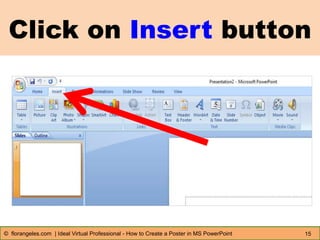
Click on Insert button
15© florangeles.com | Ideal Virtual Professional - How to Create a Poster in MS PowerPoint
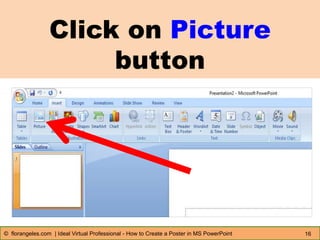
Click on Picture
button
16© florangeles.com | Ideal Virtual Professional - How to Create a Poster in MS PowerPoint
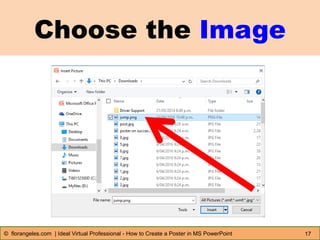
Choose the Image
17© florangeles.com | Ideal Virtual Professional - How to Create a Poster in MS PowerPoint
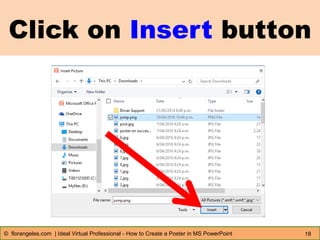
Click on Insert button
18© florangeles.com | Ideal Virtual Professional - How to Create a Poster in MS PowerPoint
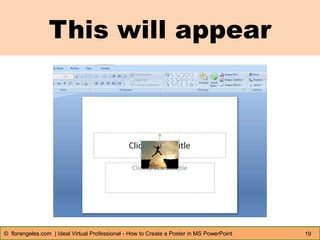
This will appear
19© florangeles.com | Ideal Virtual Professional - How to Create a Poster in MS PowerPoint
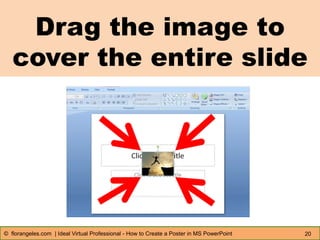
Drag the image to
cover the entire slide
20© florangeles.com | Ideal Virtual Professional - How to Create a Poster in MS PowerPoint
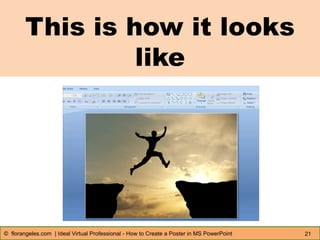
This is how it looks
like
21© florangeles.com | Ideal Virtual Professional - How to Create a Poster in MS PowerPoint
22© florangeles.com | Ideal Virtual Professional - How to Create a Poster in MS PowerPoint
Now let’s
add text
on the
slide
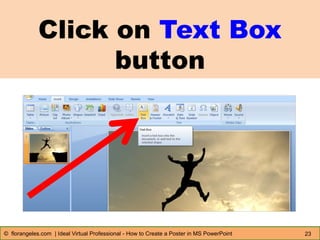
Click on Text Box
button
23© florangeles.com | Ideal Virtual Professional - How to Create a Poster in MS PowerPoint
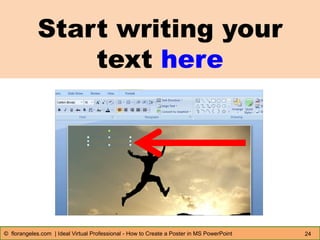
Start writing your
text here
24© florangeles.com | Ideal Virtual Professional - How to Create a Poster in MS PowerPoint
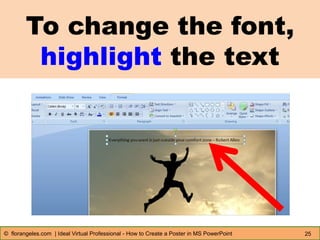
To change the font,
highlight the text
25© florangeles.com | Ideal Virtual Professional - How to Create a Poster in MS PowerPoint
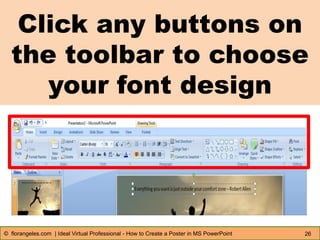
Click any buttons on
the toolbar to choose
your font design
26© florangeles.com | Ideal Virtual Professional - How to Create a Poster in MS PowerPoint
27© florangeles.com | Ideal Virtual Professional - How to Create a Poster in MS PowerPoint
Always choose
a readable
font for your
poster
28© florangeles.com | Ideal Virtual Professional - How to Create a Poster in MS PowerPoint
How to save
your poster
in image
format?
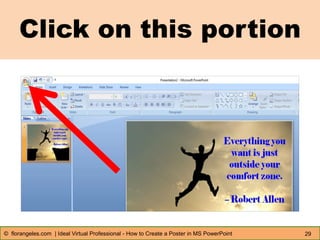
Click on this portion
29© florangeles.com | Ideal Virtual Professional - How to Create a Poster in MS PowerPoint
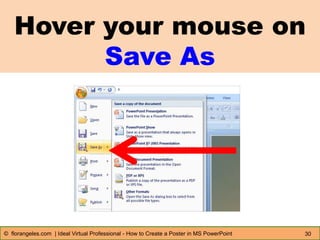
Hover your mouse on
Save As
30© florangeles.com | Ideal Virtual Professional - How to Create a Poster in MS PowerPoint
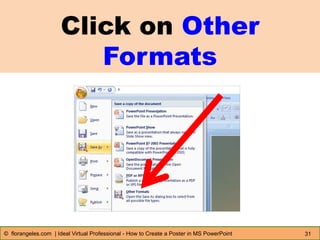
Click on Other
Formats
31© florangeles.com | Ideal Virtual Professional - How to Create a Poster in MS PowerPoint
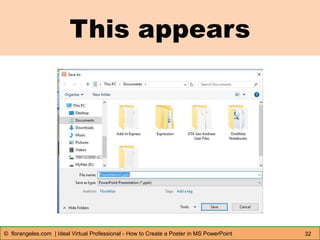
This appears
32© florangeles.com | Ideal Virtual Professional - How to Create a Poster in MS PowerPoint
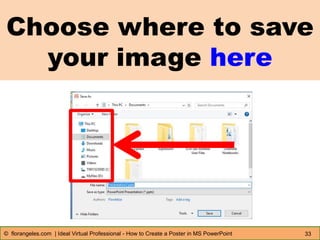
Choose where to save
your image here
33© florangeles.com | Ideal Virtual Professional - How to Create a Poster in MS PowerPoint
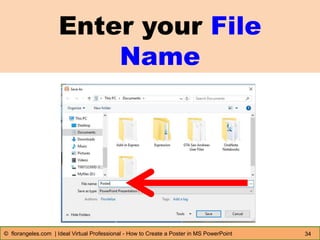
Enter your File
Name
34© florangeles.com | Ideal Virtual Professional - How to Create a Poster in MS PowerPoint
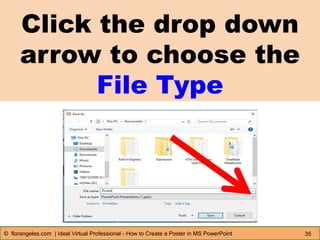
Click the drop down
arrow to choose the
File Type
35© florangeles.com | Ideal Virtual Professional - How to Create a Poster in MS PowerPoint
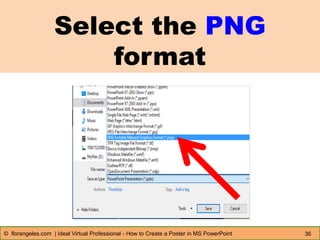
Select the PNG
format
36© florangeles.com | Ideal Virtual Professional - How to Create a Poster in MS PowerPoint
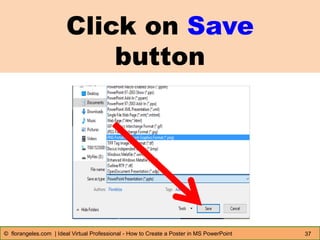
Click on Save
button
37© florangeles.com | Ideal Virtual Professional - How to Create a Poster in MS PowerPoint
38© florangeles.com | Ideal Virtual Professional - How to Create a Poster in MS PowerPoint
Good job!
You have
now created
39© florangeles.com | Ideal Virtual Professional - How to Create a Poster in MS PowerPoint
your poster
in MS
PowerPoint

Everything you
want is just
outside your
comfort zone.

– Robert Allen

How to Create a Poster in Ms PowerPoint

  • 1.
    How to Create a Posterin MS PowerPoint 1© florangeles.com | Ideal Virtual Professional - How to Create a Poster in MS PowerPoint
  • 2.
    Open MS PowerPoint inyour computer 2© florangeles.com | Ideal Virtual Professional - How to Create a Poster in MS PowerPoint Note: You can use any version of MS PowerPoint that you have.
  • 3.
    This will appear 3©florangeles.com | Ideal Virtual Professional - How to Create a Poster in MS PowerPoint
  • 4.
    To set upthe slide, click on Design 4© florangeles.com | Ideal Virtual Professional - How to Create a Poster in MS PowerPoint
  • 5.
    Click on PageSetup button 5© florangeles.com | Ideal Virtual Professional - How to Create a Poster in MS PowerPoint
  • 6.
    This will popup, click on drop down arrow 6© florangeles.com | Ideal Virtual Professional - How to Create a Poster in MS PowerPoint
  • 7.
    Choose slide size LetterPaper (8.5x11 in) 7© florangeles.com | Ideal Virtual Professional - How to Create a Poster in MS PowerPoint
  • 8.
    Click on OKbutton 8© florangeles.com | Ideal Virtual Professional - How to Create a Poster in MS PowerPoint
  • 9.
    This will appear 9©florangeles.com | Ideal Virtual Professional - How to Create a Poster in MS PowerPoint
  • 10.
    10© florangeles.com |Ideal Virtual Professional - How to Create a Poster in MS PowerPoint Now look for a background image for your poster
  • 11.
    11© florangeles.com |Ideal Virtual Professional - How to Create a Poster in MS PowerPoint For free photos/ images you can go to these websites
  • 12.
    12© florangeles.com |Ideal Virtual Professional - How to Create a Poster in MS PowerPoint pixabay.com or www.freepik.com or www.flickr.com
  • 13.
    13© florangeles.com |Ideal Virtual Professional - How to Create a Poster in MS PowerPoint Download the image from the website to your computer
  • 14.
    14© florangeles.com |Ideal Virtual Professional - How to Create a Poster in MS PowerPoint Let’s add an image to your slide
  • 15.
    Click on Insertbutton 15© florangeles.com | Ideal Virtual Professional - How to Create a Poster in MS PowerPoint
  • 16.
    Click on Picture button 16©florangeles.com | Ideal Virtual Professional - How to Create a Poster in MS PowerPoint
  • 17.
    Choose the Image 17©florangeles.com | Ideal Virtual Professional - How to Create a Poster in MS PowerPoint
  • 18.
    Click on Insertbutton 18© florangeles.com | Ideal Virtual Professional - How to Create a Poster in MS PowerPoint
  • 19.
    This will appear 19©florangeles.com | Ideal Virtual Professional - How to Create a Poster in MS PowerPoint
  • 20.
    Drag the imageto cover the entire slide 20© florangeles.com | Ideal Virtual Professional - How to Create a Poster in MS PowerPoint
  • 21.
    This is howit looks like 21© florangeles.com | Ideal Virtual Professional - How to Create a Poster in MS PowerPoint
  • 22.
    22© florangeles.com |Ideal Virtual Professional - How to Create a Poster in MS PowerPoint Now let’s add text on the slide
  • 23.
    Click on TextBox button 23© florangeles.com | Ideal Virtual Professional - How to Create a Poster in MS PowerPoint
  • 24.
    Start writing your texthere 24© florangeles.com | Ideal Virtual Professional - How to Create a Poster in MS PowerPoint
  • 25.
    To change thefont, highlight the text 25© florangeles.com | Ideal Virtual Professional - How to Create a Poster in MS PowerPoint
  • 26.
    Click any buttonson the toolbar to choose your font design 26© florangeles.com | Ideal Virtual Professional - How to Create a Poster in MS PowerPoint
  • 27.
    27© florangeles.com |Ideal Virtual Professional - How to Create a Poster in MS PowerPoint Always choose a readable font for your poster
  • 28.
    28© florangeles.com |Ideal Virtual Professional - How to Create a Poster in MS PowerPoint How to save your poster in image format?
  • 29.
    Click on thisportion 29© florangeles.com | Ideal Virtual Professional - How to Create a Poster in MS PowerPoint
  • 30.
    Hover your mouseon Save As 30© florangeles.com | Ideal Virtual Professional - How to Create a Poster in MS PowerPoint
  • 31.
    Click on Other Formats 31©florangeles.com | Ideal Virtual Professional - How to Create a Poster in MS PowerPoint
  • 32.
    This appears 32© florangeles.com| Ideal Virtual Professional - How to Create a Poster in MS PowerPoint
  • 33.
    Choose where tosave your image here 33© florangeles.com | Ideal Virtual Professional - How to Create a Poster in MS PowerPoint
  • 34.
    Enter your File Name 34©florangeles.com | Ideal Virtual Professional - How to Create a Poster in MS PowerPoint
  • 35.
    Click the dropdown arrow to choose the File Type 35© florangeles.com | Ideal Virtual Professional - How to Create a Poster in MS PowerPoint
  • 36.
    Select the PNG format 36©florangeles.com | Ideal Virtual Professional - How to Create a Poster in MS PowerPoint
  • 37.
    Click on Save button 37©florangeles.com | Ideal Virtual Professional - How to Create a Poster in MS PowerPoint
  • 38.
    38© florangeles.com |Ideal Virtual Professional - How to Create a Poster in MS PowerPoint Good job! You have now created
  • 39.
    39© florangeles.com |Ideal Virtual Professional - How to Create a Poster in MS PowerPoint your poster in MS PowerPoint 
  • 40.
    Everything you want isjust outside your comfort zone. – Robert Allen