Power Point Tutorial
Sharon Lipka,BS.,C-RT(R)
• PowerPoint uses a graphical approach to
presentations in the form of slide shows that
accompany the oral delivery of the topic. This
program is widely used in class rooms and is an
effective tool when used for training purposes.
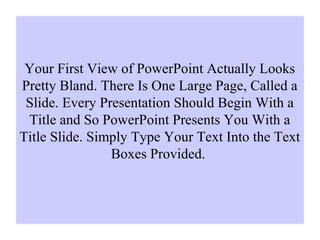
Your First View of PowerPoint Actually Looks
Pretty Bland. There Is One Large Page, Called a
Slide. Every Presentation Should Begin With a
Title and So PowerPoint Presents You With a
Title Slide. Simply Type Your Text Into the Text
Boxes Provided.
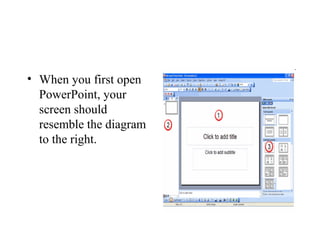
• When you first open
PowerPoint, your
screen should
resemble the diagram
to the right.
Areas of the Screen
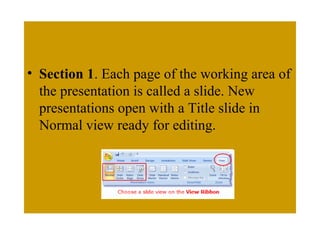
• Section 1. Each page of the working area of
the presentation is called a slide. New
presentations open with a Title slide in
Normal view ready for editing.
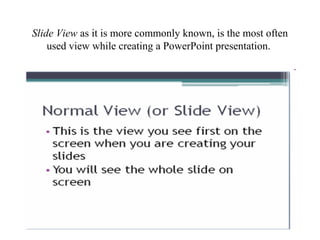
Slide View as it is more commonly known, is the most often
used view while creating a PowerPoint presentation.
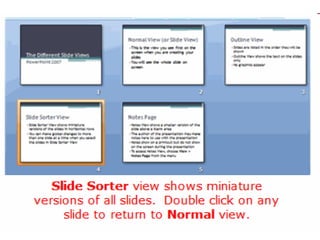
• Section 2. This area toggles between Slides view
and Outline View. Slides view shows a tiny
picture of all the slides in your presentation.
Outline view shows the hierarchy of the text in
your slides.
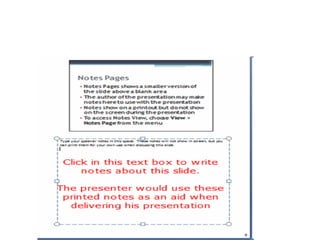
Notes for the Presenter
• Notes Pages show a smaller version of the
slide with an area below for printed notes.
Each slide is created on its own notes page.
The speaker can print these pages out to use
as a reference while making his
presentation. The notes do not show on the
screen during the presentation.
It's Show Time
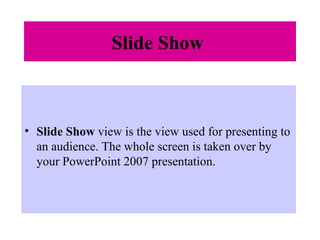
Slide Show
• Slide Show view is the view used for presenting to
an audience. The whole screen is taken over by
your PowerPoint 2007 presentation.
Slide Show view can be accessed from the View
tab of the ribbon or by pressing the F5 key on the
keyboard.
Outline View in PowerPoint
Text Summaries
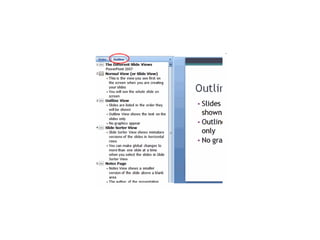
Outline View can be accessed by selecting the
Outline tab on the Slides/Outline pane at the left
of the PowerPoint 2007 screen. Outline view
shows all the text of all slides in a list. No
graphics are shown in Outline view.
• Outline view is useful for quick editing
purposes and can be exported out as a
Word document to use as a summary
handout.
Quick Access Buttons to
Different Slide Views
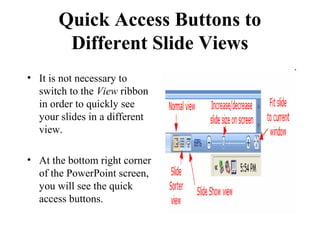
• It is not necessary to
switch to the View ribbon
in order to quickly see
your slides in a different
view.
• At the bottom right corner
of the PowerPoint screen,
you will see the quick
access buttons.
Add Clip Art and Pictures
Using a Content Slide Layout
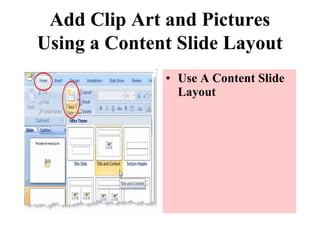
• Use A Content Slide
Layout
• There are a number of different Content
slide layouts available for you to choose
from. To add a single picture or a piece of
clip art, click on a simple layout such as
Title and Content and the layout of your
current slide will change to match your
choice.
Adding Clip Art
Click on the Clip Art Icon on the
Title and Content Slide Layout
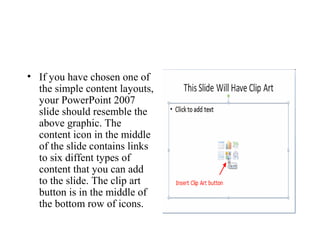
• If you have chosen one of
the simple content layouts,
your PowerPoint 2007
slide should resemble the
above graphic. The
content icon in the middle
of the slide contains links
to six diffent types of
content that you can add
to the slide. The clip art
button is in the middle of
the bottom row of icons.
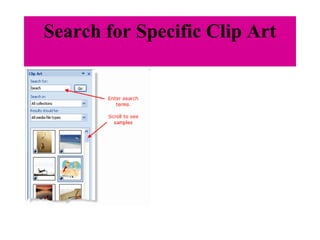
Search for Specific Clip Art
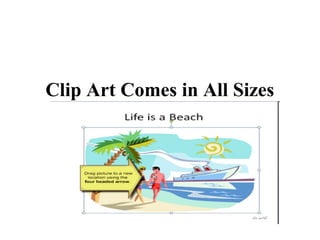
Clip Art Comes in All Sizes
Resize Clip Art
• Clip art comes in different sizes. Some will be
larger than your slide while others will be tiny.
Either way you may need to resize the image you
want to include in your presentation.
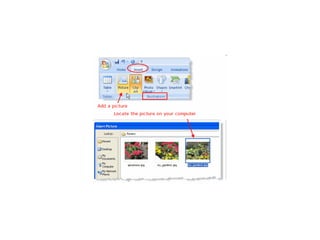
Insert a Picture into a
PowerPoint
References
• The 10 Most Common PowerPoint Terms
http://presentationsoft.about.com/od/firststeps/a/ppt_terms.htm

Power point tutorial

  • 1.
    Power Point Tutorial SharonLipka,BS.,C-RT(R)
  • 2.
    • PowerPoint usesa graphical approach to presentations in the form of slide shows that accompany the oral delivery of the topic. This program is widely used in class rooms and is an effective tool when used for training purposes.
  • 3.
    Your First Viewof PowerPoint Actually Looks Pretty Bland. There Is One Large Page, Called a Slide. Every Presentation Should Begin With a Title and So PowerPoint Presents You With a Title Slide. Simply Type Your Text Into the Text Boxes Provided.
  • 4.
    • When youfirst open PowerPoint, your screen should resemble the diagram to the right.
  • 5.
  • 6.
    • Section 1.Each page of the working area of the presentation is called a slide. New presentations open with a Title slide in Normal view ready for editing.
  • 7.
    Slide View asit is more commonly known, is the most often used view while creating a PowerPoint presentation.
  • 9.
    • Section 2.This area toggles between Slides view and Outline View. Slides view shows a tiny picture of all the slides in your presentation. Outline view shows the hierarchy of the text in your slides.
  • 10.
    Notes for thePresenter • Notes Pages show a smaller version of the slide with an area below for printed notes. Each slide is created on its own notes page. The speaker can print these pages out to use as a reference while making his presentation. The notes do not show on the screen during the presentation.
  • 11.
  • 12.
    Slide Show • SlideShow view is the view used for presenting to an audience. The whole screen is taken over by your PowerPoint 2007 presentation.
  • 13.
    Slide Show viewcan be accessed from the View tab of the ribbon or by pressing the F5 key on the keyboard.
  • 15.
    Outline View inPowerPoint Text Summaries
  • 16.
    Outline View canbe accessed by selecting the Outline tab on the Slides/Outline pane at the left of the PowerPoint 2007 screen. Outline view shows all the text of all slides in a list. No graphics are shown in Outline view.
  • 18.
    • Outline viewis useful for quick editing purposes and can be exported out as a Word document to use as a summary handout.
  • 19.
    Quick Access Buttonsto Different Slide Views • It is not necessary to switch to the View ribbon in order to quickly see your slides in a different view. • At the bottom right corner of the PowerPoint screen, you will see the quick access buttons.
  • 20.
    Add Clip Artand Pictures Using a Content Slide Layout • Use A Content Slide Layout
  • 21.
    • There area number of different Content slide layouts available for you to choose from. To add a single picture or a piece of clip art, click on a simple layout such as Title and Content and the layout of your current slide will change to match your choice.
  • 22.
    Adding Clip Art Clickon the Clip Art Icon on the Title and Content Slide Layout
  • 23.
    • If youhave chosen one of the simple content layouts, your PowerPoint 2007 slide should resemble the above graphic. The content icon in the middle of the slide contains links to six diffent types of content that you can add to the slide. The clip art button is in the middle of the bottom row of icons.
  • 24.
  • 25.
    Clip Art Comesin All Sizes
  • 26.
    Resize Clip Art •Clip art comes in different sizes. Some will be larger than your slide while others will be tiny. Either way you may need to resize the image you want to include in your presentation.
  • 27.
    Insert a Pictureinto a PowerPoint
  • 29.
    References • The 10Most Common PowerPoint Terms http://presentationsoft.about.com/od/firststeps/a/ppt_terms.htm