PowerPoint
Tutorials
Balakrishnan Unny R
TABLE OF CONTENTS
Creating A New And Opening An Existing Presentation.........................................................................................2
Creating A New PowerPoint Presentation From Scratch....................................................................................2
Saving Your New PowerPoint Presentation........................................................................................................2
Save Time And Effort By Using A PowerPoint Template ....................................................................................3
Open Existing Presentations...............................................................................................................................4
PowerPoint Basic Tasks ..........................................................................................................................................5
Adding New Slides To A PowerPoint Presentation.............................................................................................5
Deleting Slides In PowerPoint.............................................................................................................................6
Moving Slides In Powerpoint..............................................................................................................................7
PowerPoint Views...............................................................................................................................................7
Creating A Powerpoint Background ...................................................................................................................8
PowerPoint Text ...................................................................................................................................................12
Adding A Textbox In PowerPoint ......................................................................................................................12
Content Placeholders In PowerPoint................................................................................................................13
How To Format Text In Powerpoint .................................................................................................................15
Graphics................................................................................................................................................................16
Inserting Images In PowerPoint........................................................................................................................16
Insert A Picture .................................................................................................................................................17
Insert Clip Art....................................................................................................................................................17
Searching Clip Art In PowerPoint......................................................................................................................17
Adding Transitions To Your PowerPoint Presentation .....................................................................................18
Animation For PowerPoint ...............................................................................................................................19
Inserting Sound In PowerPoint.........................................................................................................................21
Miscellaneous PowerPoint Task ...........................................................................................................................23
PowerPoint Spelling..........................................................................................................................................23
Slide Show Presentation...................................................................................................................................25
PowerPoint Pointer ..........................................................................................................................................26
Saving Your New PowerPoint Presentation......................................................................................................27
Save Your PowerPoint Presentation As A Web Page........................................................................................28
Preparing To Print In Powerpoint .....................................................................................................................29
CREATING A NEW AND OPENING AN EXISTING PRESENTATION
CREATING A NEW POWERPOINT PRESENTATION FROM SCRATCH
There are a variety of ways of creating your PowerPoint presentation, and one of them is to start from scratch.
In doing so, you are creating your presentation from a blank presentation, and you have much more flexibility
over how it looks. In another tutorial, we will look at how to create a presentation using templates, but for
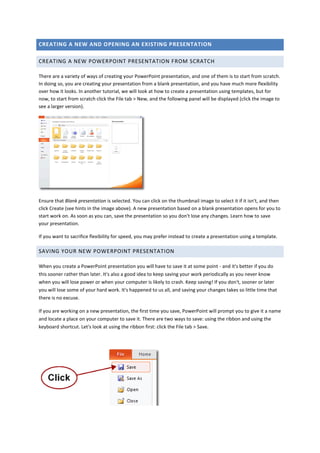
now, to start from scratch click the File tab > New, and the following panel will be displayed (click the image to
see a larger version).
Ensure that Blank presentation is selected. You can click on the thumbnail image to select it if it isn't, and then
click Create (see hints in the image above). A new presentation based on a blank presentation opens for you to
start work on. As soon as you can, save the presentation so you don't lose any changes. Learn how to save
your presentation.
If you want to sacrifice flexibility for speed, you may prefer instead to create a presentation using a template.
SAVING YOUR NEW POWERPOINT PRESENTATION
When you create a PowerPoint presentation you will have to save it at some point - and it's better if you do
this sooner rather than later. It's also a good idea to keep saving your work periodically as you never know
when you will lose power or when your computer is likely to crash. Keep saving! If you don't, sooner or later
you will lose some of your hard work. It's happened to us all, and saving your changes takes so little time that
there is no excuse.
If you are working on a new presentation, the first time you save, PowerPoint will prompt you to give it a name
and locate a place on your computer to save it. There are two ways to save: using the ribbon and using the
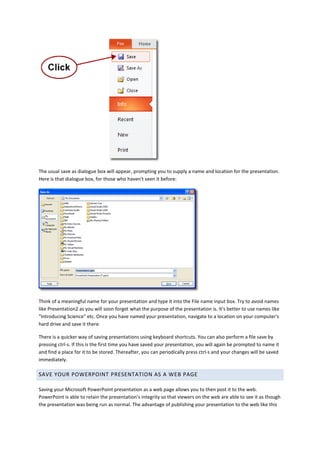
keyboard shortcut. Let's look at using the ribbon first: click the File tab > Save.
The usual save as dialogue box will appear, prompting you to supply a name and location for the presentation.
Here is that dialogue box, for those who haven't seen it before:
Think of a meaningful name for your presentation and type it into the File name input box. Try to avoid names
like Presentation2 as you will soon forget what the purpose of the presentation is. It's better to use names like
"Introducing Science" etc. Once you have named your presentation, navigate to a location on your computer's
hard drive and save it there.
There is a quicker way of saving presentations using keyboard shortcuts. You can also perform a file save by
pressing ctrl-s. If this is the first time you have saved your presentation, you will again be prompted to name it
and find a place for it to be stored. Thereafter, you can periodically press ctrl-s and your changes will be saved
immediately.
SAVE TIME AND EFFORT BY USING A POWERPOINT TEMPLATE
One way of creating a presentation is to start from scratch. However, you can save time and effort if you base
your new presentation on a template. A template defines the background, font styles, colours and sizes for
your placeholders, as well as selected bullets that match the template. Using a template means that you don't
need to worry about defining those aspects yourself. PowerPoint comes with a number of stylish templates
built in that you can use immediately, and you can download additional ones from office.com.
To create a PowerPoint presentation using a template, click the File tab > New, and the following panel will be
displayed.
Clicking on a template category will display thumbnail images of all the templates within that category. When
you find a template you like the look of, click on its thumbnail to select it and you will see a preview of it on
the right of the panel. You can then click Create to create your PowerPoint presentation based on this
template.
Sometimes you just can't find a template that precisely matches what you need, and in these circumstances,
what many people do is use a template that is the closest fit and then modify it.
There are many free templates available from within PowerPoint, and also freely downloadable from other
websites on the internet. In addition to using those that ship with PowerPoint, you can also purchase stylish
and professionally designed templates for PowerPoint presentations from vendors.
OPEN EXISTING PRESENTATIONS
There are several reasons why you might need to open an existing Microsoft PowerPoint presentation instead
of creating a new one. You might have previously saved an incomplete presentation and now need to dos ome
more work on it. Alternatively, you might want to open a complete presentation and actually run it for an
audience. Whatever the reason, opening an existing presentation is quite easy.
Start PowerPoint and then click the File tab > Open. The usual Open file dialogue box that you may already be
familiar with opens and you use this to locate your presentation.
When you find your presentation, either double click it to open it, or select it and then click Open. The
presentation will then open for you to either work on it or run it.
The keyboard shortcut for opening a presentation the same as that for opening existing documents in other
Microsoft Office programs: ctrl-o
POWERPOINT BASIC TASKS
ADDING NEW SLIDES TO A POWERPOINT PRESENTATION
There are a couple of ways to add a new slide. In each way, the slide that is currently selected is important as
the new slide will be placed after the selected one. This means that if you want to insert a slide before the end
of the presentation, you will need to select the slide that appears before the one you want to insert. To select
the slide, just click on it. You can select the slide in whichever view you happen to be using, whether it's Slides
View or Outline View.
Once you have selected a slide, click Home > Slides > New Slide. You'll notice that the New Slide button is in
two halves.
If you click the top half of the New Slide button, the default Title and Content type slide will be added. If,
instead, you click the bottom half of the button, you will be able to select what type of slide is added.
Once the new slide has been added, you can click into one of the editable content boxes to make your
changes.
The keyboard shortcut for adding new slides is ctrl-m.
DELETING SLIDES IN POWERPOINT
Now that you've learned how to add slides to a presentation, the time has come to learn how to delete
unwanted slides. Deleting slides can be performed in three ways. Select the slide and then
 Press the delete key on the keyboard
 Press the backspace key on the keyboard
 Right click on the slide and select Delete Slide
Also, there are a variety of places that you can delete the slide in question. The easiest way is to work in
Normal View (on the View tab, in the Presentation Views group, click Normal). You can then work on either
Slides or Outline tab: find and select the slide you want to delete and then press the delete key. You can select
multiple slides by holding down the control key as you click on additional slides. If you press the delete key
now, you will delete all the selected slides. If you have a group of slides that run in sequence, you can select
them all by selecting the first one and then holding down the shift key whilst you click on the last slide.
If you have many slides to delete, you may find it easier from an organisational point of view to work in Slide
Sorter View (read all about PowerPoint Views). The same process applies: select single or multiple slides and
then press the delete key.
MOVING SLIDES IN POWERPOINT
You've spent time planning how you want your presentation to look and you've painstakingly designed it's look
and feel. You've taken great care with every stylish slide you've added. But oh oh, you know see that slide 6
actually belongs before slide 5! What do you do, start again from scratch? There is no need. All you have to do
is move the slide. You can change the sequence of your slides by moving them around your presentation.
To move a slide in your presentation, all you have to do is drag and drop it where you need it. As you drag the
slide, you should see an insertion point that looks like either a horizontal or vertical line, depending on which
PowerPoint view you are using, that tells you where your slide will appear.
If you have many slides to move around, and want to get an overall view of how your slides are organised,
using the Slide sorter view is your best option.
You can move several slides around as a group by selecting them all first and then dragging and dropping
them. To select multiple slides, hold down the control key on your keyboard as you click on additional slides.
Alternatively, if the slides you need to select occur in an unbroken sequence, you can select the first slide and
then hold down the shift key as you click on the last slide.
MOVING SLIDES WITH KEYBOARD SHORTCUTS
Another way to move slides around is to cut and paste them. Select the slide(s) you want to move and then
right click > Cut. Select the slide that is positioned before where you want the slide to go and then right click >
Paste. The slide(s) will appear after the selected slide. If you want to speed things up, you can use keyboard
shortcuts: select the slide you want to move, press ctrl-x to cut it and then ctrl-v to paste it.
Dragging and dropping your slides is probably the easiest method to use.
POWERPOINT VIEWS
There are 6 different views you can use to look at your PowerPoint presentation and each one has its
advantages over the others. The default view in PowerPoint is normal view. This means that when you start
PowerPoint, and as long as you don't change the view, you will be working in Normal View. There are two
place to change to a different view: at the top of the left side panel and at the bottom of the workspace to the
right (next to the zoom slider). OK, make that three, as you can also see the presentation views on the View
tab!
To change to Slides View or Outline view, click the corresponding tab at the top of the left side panel:
Slides View and Outline View
To change to any of the other PowerPoint view, use the small toolbar at the bottom:
Normal View, Slide Sorter View, Reading View, Slide Show
Here is an explanation of how you should use the different views:
PowerPoint
View
Description
Slides View This is a great place to view the slides in your presentation as thumbnail-sized images while
you edit. The thumbnails make it easy for you to navigate through your presentation and to
see the effects of any design changes. You can also easily rearrange, add, or delete slides here
Outline View This is a great place to start writing your content, to capture your ideas, plan how you want to
present them, and move slides and text around. The Outline tab shows your slide text in
outline form.
Normal View Normal view is the main editing view, where you write and design your presentations.
Slide Sorter
View
Slide Sorter view gives you a view of your slides in thumbnail form. This view makes it easy for
you to sort and organize the sequence of your slides as you create your presentation, and then
also as you prepare your presentation for printing.
Reading
View
Use reading view to deliver your presentation not to an audience (via a large screen, for
example), but instead to someone viewing your presentation on their own computer. Or, use
Reading view on your own computer when you want to view a presentation not in full-screen
Slide Show view, but in a window with simple controls that make the presentation easy to
review. You can always switch from Reading view to one of the other views if you want to
change the presentation.
Slide Show
View
Use Slide Show view to deliver your presentation to your audience. Slide Show view occupies
the full computer screen, exactly like an actual presentation. In this view, you see your
presentation the way your audience will. You can see how your graphics, timings, movies,
animated effects, and transition effects will look during the actual presentation.
CREATING A POWERPOINT BACKGROUND
the background to your PowerPoint presentation, you can specify the following:
 A solid fill
 A gradient fill
 A picture or texture fill
 A Pattern fill
To change your presentation background, click Design > Background > Background Styles > Format
Background. Alternatively, you can right click on a free area on a slide (and area that doesn't contain an object)
and then select Format Background from there.
You should now see the Format Background window.
Ensure that the fill tab is selected (as in the image above) and then make changes according to what kind of
background you want for your presentation.
SOLID FILL
To specify a solid fill colour, ensure that the appropriate radio button is selected and then click on the Fill
Colour swatch. A panel is displayed for you to select a colour.
The colours in the main part of the grid are all theme colours, so if you select one, you can be pretty confident
that the background will blend in well with the rest of the presentation's colours. At the bottom of the colour
selection panel are standard colours and if you want even more colours to choose from, you can click More
Colours at the bottom.
GRADIENT FILL
A gradient is the smooth transition of one colour into another.
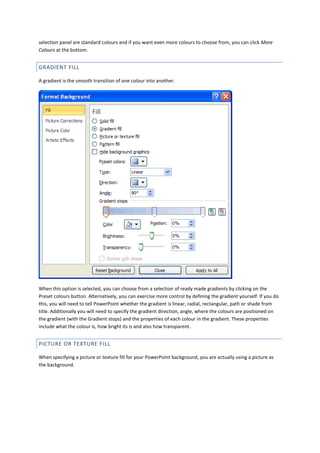
When this option is selected, you can choose from a selection of ready made gradients by clicking on the
Preset colours button. Alternatively, you can exercise more control by defining the gradient yourself. If you do
this, you will need to tell PowerPoint whether the gradient is linear, radial, rectangular, path or shade from
title. Additionally you will need to specify the gradient direction, angle, where the colours are positioned on
the gradient (with the Gradient stops) and the properties of each colour in the gradient. These properties
include what the colour is, how bright its is and also how transparent.
PICTURE OR TEXTURE FILL
When specifying a picture or texture fill for your PowerPoint background, you are actually using a picture as
the background.
PowerPoint comes with some built in textures you can use, or you can select an image that is stored on your
hard drive. When you select an image in this way, you can choose to have the image appearing just once in the
background, or to have it repeating like a texture. As you can see from the screenshot, there are many other
attributes you can set that control the picture's appearance.
PATTERN FILL
As with textures, PowerPoint ships with a selection of pre-made patterns that you can use as your background.
Patterns available for selection include dots, stripes, zig zags, brickwork and many more. You can specify
whatever foreground and background colours you want to use.
RESETTING THE POWERPOINT BACKGROUND
If you decide to reset your background, but you've made so many changes that it would take too long to
reverse each one, you can use the Reset Background button at the bottom of the Format Background window.
You can also tell PowerPoint to apply the background you just designed to all slides in the presentation - using
the Apply to All button. If you don't apply the background to all slides, then only the currently selected slide is
affected.
POWERPOINT TEXT
ADDING A TEXTBOX IN POWERPOINT
When adding text to their PowerPoint presentations, many people limit themselves to using only the
placeholder boxes that are present by default when you add a new slide. For example, when you add a title
and content slide, there is always a title placeholder in which you will see the words "Click to add title" and a
content placeholder that displays the words "Click to add text". It's then a simple case of clicking into each of
those boxes and then typing your content.
However, another way of adding text that gives you more flexibility over positioning is to add a textbox. Click
Insert > Text > Text Box, and the cursor will change to this shape:
Left click with the mouse and drag out the textbox. Once the text box has been drawn, you can start typing in
it. When you drag out your initial text box, it retains it's width, but the height contracts temporarily to be the
height of one line of text. When you type multiple lines, the height will adjust to fit, but the width of the
textbox will remain fixed.
This is what the textbox looks like:
You can see resizing handles at each corner and also halfway along each edge. You can resize the textbox by
clicking and dragging on any of those handles.
Moving A Textbox In PowerPoint
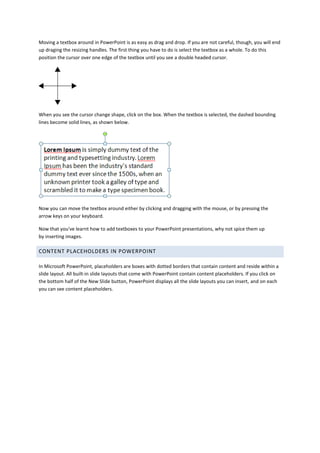
Moving a textbox around in PowerPoint is as easy as drag and drop. If you are not careful, though, you will end
up draging the resizing handles. The first thing you have to do is select the textbox as a whole. To do this
position the cursor over one edge of the textbox until you see a double headed cursor.
When you see the cursor change shape, click on the box. When the textbox is selected, the dashed bounding
lines become solid lines, as shown below.
Now you can move the textbox around either by clicking and dragging with the mouse, or by pressing the
arrow keys on your keyboard.
Now that you've learnt how to add textboxes to your PowerPoint presentations, why not spice them up
by inserting images.
CONTENT PLACEHOLDERS IN POWERPOINT
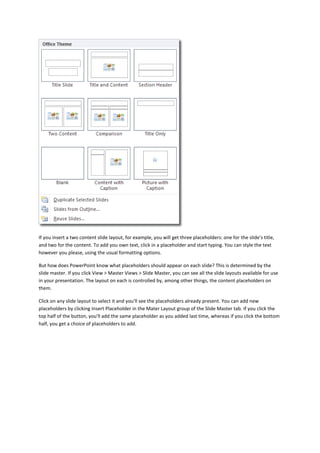
In Microsoft PowerPoint, placeholders are boxes with dotted borders that contain content and reside within a
slide layout. All built-in slide layouts that come with PowerPoint contain content placeholders. If you click on
the bottom half of the New Slide button, PowerPoint displays all the slide layouts you can insert, and on each
you can see content placeholders.
If you insert a two content slide layout, for example, you will get three placeholders: one for the slide's title,
and two for the content. To add you own text, click in a placeholder and start typing. You can style the text
however you please, using the usual formatting options.
But how does PowerPoint know what placeholders should appear on each slide? This is determined by the
slide master. If you click View > Master Views > Slide Master, you can see all the slide layouts available for use
in your presentation. The layout on each is controlled by, among other things, the content placeholders on
them.
Click on any slide layout to select it and you'll see the placeholders already present. You can add new
placeholders by clicking Insert Placeholder in the Mater Layout group of the Slide Master tab. If you click the
top half of the button, you'll add the same placeholder as you added last time, whereas if you click the bottom
half, you get a choice of placeholders to add.
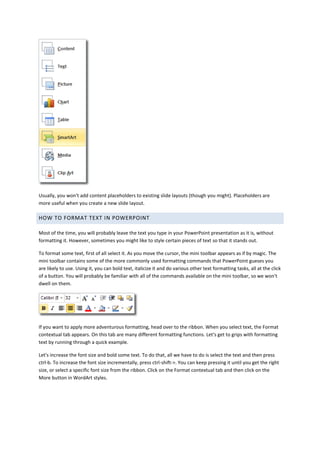
Usually, you won't add content placeholders to existing slide layouts (though you might). Placeholders are
more useful when you create a new slide layout.
HOW TO FORMAT TEXT IN POWERPOINT
Most of the time, you will probably leave the text you type in your PowerPoint presentation as it is, without
formatting it. However, sometimes you might like to style certain pieces of text so that it stands out.
To format some text, first of all select it. As you move the cursor, the mini toolbar appears as if by magic. The
mini toolbar contains some of the more commonly used formatting commands that PowerPoint gueses you
are likely to use. Using it, you can bold text, italicize it and do various other text formatting tasks, all at the click
of a button. You will probably be familiar with all of the commands available on the mini toolbar, so we won't
dwell on them.
If you want to apply more adventurous formatting, head over to the ribbon. When you select text, the Format
contextual tab appears. On this tab are many different formatting functions. Let's get to grips with formatting
text by running through a quick example.
Let's increase the font size and bold some text. To do that, all we have to do is select the text and then press
ctrl-b. To increase the font size incrementally, press ctrl-shift->. You can keep pressing it until you get the right
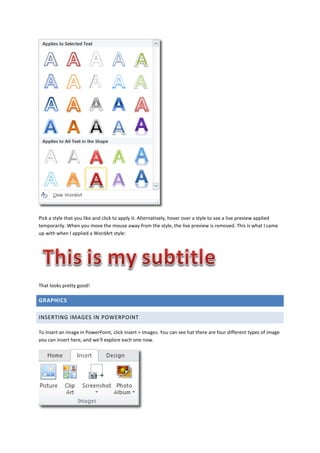
size, or select a specific font size from the ribbon. Click on the Format contextual tab and then click on the
More button in WordArt styles.
Pick a style that you like and click to apply it. Alternatively, hover over a style to see a live preview applied
temporarily. When you move the mouse away from the style, the live preview is removed. This is what I came
up with when I applied a WordArt style:
That looks pretty good!
GRAPHICS
INSERTING IMAGES IN POWERPOINT
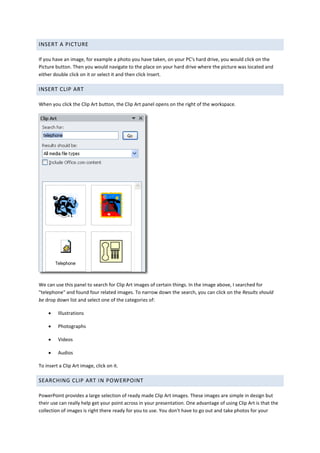
To insert an image in PowerPoint, click Insert > Images. You can see hat there are four different types of image
you can insert here, and we'll explore each one now.
INSERT A PICTURE
If you have an image, for example a photo you have taken, on your PC's hard drive, you would click on the
Picture button. Then you would navigate to the place on your hard drive where the picture was located and
either double click on it or select it and then click Insert.
INSERT CLIP ART
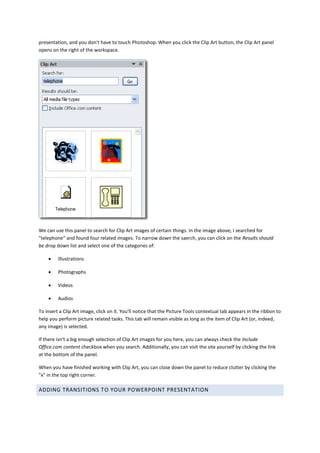
When you click the Clip Art button, the Clip Art panel opens on the right of the workspace.
We can use this panel to search for Clip Art images of certain things. In the image above, I searched for
"telephone" and found four related images. To narrow down the search, you can click on the Results should
be drop down list and select one of the categories of:
 Illustrations
 Photographs
 Videos
 Audios
To insert a Clip Art image, click on it.
SEARCHING CLIP ART IN POWERPOINT
PowerPoint provides a large selection of ready made Clip Art images. These images are simple in design but
their use can really help get your point across in your presentation. One advantage of using Clip Art is that the
collection of images is right there ready for you to use. You don't have to go out and take photos for your
presentation, and you don't have to touch Photoshop. When you click the Clip Art button, the Clip Art panel
opens on the right of the workspace.
We can use this panel to search for Clip Art images of certain things. In the image above, I searched for
"telephone" and found four related images. To narrow down the saerch, you can click on the Results should
be drop down list and select one of the categories of:
 Illustrations
 Photographs
 Videos
 Audios
To insert a Clip Art image, click on it. You'll notice that the Picture Tools contextual tab appears in the ribbon to
help you perform picture related tasks. This tab will remain visible as long as the item of Clip Art (or, indeed,
any image) is selected.
If there isn't a big enough selection of Clip Art images for you here, you can always check the Include
Office.com content checkbox when you search. Additionally, you can visit the site yourself by clicking the link
at the bottom of the panel.
When you have finished working with Clip Art, you can close down the panel to reduce clutter by clicking the
"x" in the top right corner.
ADDING TRANSITIONS TO YOUR POWERPOINT PRESENTATION
In Microsoft PowerPoint, slide transitions are motion effects that occur in Slide Show view when you move
from one slide to the next during a presentation. You can control the speed, add sound, and even customize
the properties of transition effects. To add a transition first of all select a slide in the left hand panel that
contains the Slides and Outline tabs (I'd keep it simple and work in the Slides tab). The transition will occur
immediately before the selected slide is displayed. Click Transitions > Transition To This Slide, and then click on
the transition you want to use. If you want to see a larger selection of transitions, click on the more buttons
(the down arrow at the bottom right of the group.
When you hover over a thumbnail image of a transition, you can see a live preview of it applied to your slide.
When you move the cursor away, the preview is removed.
If, after having applied a transition to the selected slide, you decide that you want the transition applied to all
slides, click on the Apply To All button in the Timing Group on the same tab.
ANIMATION FOR POWERPOINT
To add a custom animation to an object in Microsoft PowerPoint, first of all select the object, then click
animation in the ribbon to see all the animation options we have at our disposal. We can see a few thumbnail
images representing entrance effects in the animation group.
That's not a very big selection of effects. To see more effects, click on the dialogue launcher at the bottom
right of the Animation group. A more comprehensive selection of effects is then displayed in a thumbnail
gallery, in the categories of:
 Entrance - this kind of animation brings the object onto the PowerPoint slide from a location off the
slide
 Emphasis - once the object is on the slide, you can give it some emphasis with this kind of animation
 Exit - animations in this category remove the object from a slide
 Motion Paths - applying this kind of animation allows us to plot a path for the object to follow
PREVIEWING ANIMATIONS
When you hover your mouse over the thumbnail image of an animation, you can see a preview of what that
animation would look like if applied. The animation plays once. You also get to see what the animation looks
like when you actually apply it to the object. If you want to see a preview of the animation at any other time,
click the Preview button to the far left of the Animations tab.
All slides that include an animation display a wooshing star next to the slide in slide view and slide sorter view
(read more about PowerPoint Views).
To remove an animation from an object, click on the dialogue box launcher and select None at the top.
INSERTING SOUND IN POWERPOINT
Careful use of sound in your Microsoft PowerPoint presentation can do wonders to enhance it. However, it's
easy to get carried away and if you are not careful, you may confuse and distract the audience too much from
the message you are trying to convey. Bear this in mind and be careful to use sound clips sparingly. Used
wisely, sound (and video) effects can quickly catch your viewers’ attention.
There are a few different ways to add a sound clip in PowerPoint.
POWERPOINT SOUND CLIPS
To insert a sound clip into your PowerPoint presentation, click Insert > Media > Ausio. You'll notice that the
audio button is split into two. Click on the lower half of the button and you'll find the following options
available to you:
We'll go through each option now.
AUDIO FROM FILE
This is the most straight forward option. If you have a sound file stored somewhere on your computer, use this
option to navigate to it, select it and insert it. The icon representing a sound clip is inserted onto the slide you
had selected.
While the sound clip is selected, you will be able to see the basic sound playback tools below the clip: play,
rewind, fast forward and volume controls. You can also position the playback point to a specific place in
playback using the timeline. The progress in minutes and seconds also appears to the right of the timeline, to
let you know how far through the recording you've progressed.
While the audio clip is selected, you'll also see the Adio Tools contextual tab displayed in the ribbon, allowing
you to perform a variety of audio tasks on the clip.
The Format tab mostly contains commands for use with video, but the Playback tab can be used with sound
clips.
CLIP ART AUDIO
You can use the Clip Art library to insert pre made audio clips in much the same way that you would insert Clip
Art images. When you click The Clip Art Audio option, the Clip Art panel appears to the right of the work space
but the Results should be selection list is set to Audio.
Type in the type of sound you need into the search box and press Enter or click Go. A selection of sound clips
will be displayed for you to insert. Click on a particular clip and it will be inserted.
RECORD AUDIO
The record audio option gives you the ability to record your own sound clip within PowerPoint. All you need is
a microphone to record your voice. When you take this option, PowerPoint displays a dialogue box that you
can use to start and stop recording your voice. Type the name of the clip in the Name box and then click the
round and red record button on the right. Stop the recording by clicking the blue rectangle button in the
centre and start playback using the blue triangle button on the left.
MISCELLANEOUS POWERPOINT TASK
POWERPOINT SPELLING
You've spent a lot of time and effort into planning the structure of your presentation, designing it and then
adding the whistles and bells in the form of graphics, video or animation. There's one last thing you need to
check. Spelling! Poor spelling can really let down an otherwise professional presentation, so you shouldn't
neglect this important but often overlooked step. Spelling and grammar mistakes can distract readers from the
work that you put into your documents, so you want to eliminate these mistakes. Fortunately, PowerPoint has
it's own tools to perform your proofing tasks.
You have different options when it comes to checking your spelling. You can allow PowerPoint to use its
automatic spellchecker as you create your presentation (the wavy red, blue, and green lines). Alternatively you
can postpone the spellchecking until you have completed your presentation.
VIEWING POWERPOINT PROOFING OPTIONS
You can view your current PowerPoint proofing options by clicking the File tab > Options > Proofing.
This window gives you a lot of control over how PowerPoint will proof your presentation. The first button
allows you to set the auto correction settings (more on that in another tutorial).
Some of the options shown in the window that is displayed apply to all Microsoft Office programs. Regardless
of which program you are using to change the option, the setting that you select applies to all the programs.
These options are titled when correcting spelling in Microsoft Office programs. Towards the bottom you can
set PowerPoint specific proofing options in the section titled when correcting spelling in PowerPoint.
The following is an explanation of what the proofing options do.
Proofing Option Explanation
Ignore words in
UPPERCASE
Ignore words in which all letters are uppercase. For example, if you select this option,
the spelling checker does not flag ABC as a mistake.
Ignore words that
contain numbers
Ignore words that contain numbers. For example, if you select this option, the spelling
checker does not flag a1b2c3 as a mistake.
Ignore Internet
and file addresses
Ignore words that are Internet and file addresses.
Flag repeated
words
Ignore repeated words. For example, if you select this option, the spelling checker does
not flag beep beep as a mistake.
Enforce accented
uppercase in
French
Alert you to French words that contain uppercase letters that are missing an accent
mark. When you are using the French (Canadian) dialect, by default this option is always
turned on, because the dictionary for this language includes the accented uppercase
form of words in this language.
Suggest from main
dictionary only
Suggest words only from the main dictionary that is built into the spelling checker. If you
select this option, words from your custom dictionaries are not included in the list of
suggested words when you check the spelling of a document.
Check spelling as
you type
While you work in a document, the spelling checker can work in the background,
searching for mistakes. As a result, when you finish the draft that you are working on,
the check spelling process goes faster. This can save you time, especially with large
documents.
Use contextual
spelling
PowerPoint will use context to determine whether a word is misspelled. For example, "a
pear of shoes" would flag "pear" as being misspelled.
Hide spelling
errors
Your PowerPoint flags misspelled words while you work, so that you can easily see them.
If you don't want PowerPoint to do this, check this box.
MANUALLY PROOFING YOUR POWERPOINT PRESENTATION
At any point you can decide to spell check your entire presentation. Click Review > Proofing > Spelling. The
next misspelled word in the presentation is highlighted in the spelling window, together with a brief
description of the mistake and also possible actions on the word. For example, this is a word that wasn't found
in the PowerPoint dictionary:
There is a variety of buttons to the right of the window that allow us to take different actions, such as to ignore
the misspelling, add it to the dictionary or change it to one of the words that PowerPoint suggested as a
replacement.
Moving on to the next example misspelling and we can see a contextual misuse of the word "pear" in "a pear
of shoes":
SLIDE SHOW PRESENTATION
Many times during the creation of your PowerPoint presentation, you can run it to see a preview. This will
show you how your presentation looks when you run it for real.
There are several ways to start your presentation. You can:
 click on the Slide Show button at the bottom of your workspace (next to the zoom slide)
 press F5
 Click Slide Show in the ribbon > Start Slide Show, and then choose the most appropriate way to run
your slide show.
Generally speaking, you have two options: to start the presentation from the current slide, or from the
beginning. In addition, PowerPoint 2010 brings you the power to broadcast slide shows!
SELF-RUNNING POWERPOINT PRESENTATIONS
Microsoft give you the ability to create self-running PowerPoint presentations, which are a great way to
communicate information without having to have someone available to run a slide show presentation. For
example, you might want to set up a presentation to run unattended in a booth or kiosk at a trade show or
convention, or send a CD with a self-running slide show to a client. A self-running presentation restarts when it
has finished and also when it has been idle on a manually advanced slide for longer than five minutes.
POWERPOINT POINTER
The pointer in PowerPoint is a really good tool to draw attention to elements you want your audience to focus
on. While you are running your presentation, you can activate the pointer and then draw, write or highlight
anything you want on the screen. This is a visual aid for your audience and so this tool is only available when
you are running your presentation.
To activate the pointer, right click on any slide and select Pointer Options > Pen. There are three options
available for the pointer:
 Arrow - this is the default pointer and is good for pointing at things.
 Pen - the pen pointer is good for drawing a circle around things and for impromptu writing.
 Highlighter - the highlighter pointer applies a highlight background, similar to the highlighting you can
do in Microsoft Word.
To use the pen and highlighter, you will need to click and drag.
Here's an example of the pen pointer in use:
You can change the colour of the ink used by right clicking again and selecting Pointer Options > Ink Colour.
Select the new colour and it will be used on all new drawings. It won't affect anything you've already drawn.
Here's an example of the highlighter in use:
You can change the ink colour of the highlighter in the same way that you can change the ink colour for the
pen pointer.
At the end of your presentation, if you've drawn anything on a slides, PowerPoint asks whether you'd like to
keep your ink annotations.
If you choose Keep, what you have drawn is saved on the slide and will be displayed next time the
presentation is run. The drawing is saved as an object that you can edit afterwards.
SAVING YOUR NEW POWERPOINT PRESENTATION
When you create a PowerPoint presentation you will have to save it at some point - and it's better if you do
this sooner rather than later. It's also a good idea to keep saving your work periodically as you never know
when you will lose power or when your computer is likely to crash. Keep saving! If you don't, sooner or later
you will lose some of your hard work. It's happened to us all, and saving your changes takes so little time that
there is no excuse.
If you are working on a new presentation, the first time you save, PowerPoint will prompt you to give it a name
and locate a place on your computer to save it. There are two ways to save: using the ribbon and using the
keyboard shortcut. Let's look at using the ribbon first: click the File tab > Save.
The usual save as dialogue box will appear, prompting you to supply a name and location for the presentation.
Here is that dialogue box, for those who haven't seen it before:
Think of a meaningful name for your presentation and type it into the File name input box. Try to avoid names
like Presentation2 as you will soon forget what the purpose of the presentation is. It's better to use names like
"Introducing Science" etc. Once you have named your presentation, navigate to a location on your computer's
hard drive and save it there.
There is a quicker way of saving presentations using keyboard shortcuts. You can also perform a file save by
pressing ctrl-s. If this is the first time you have saved your presentation, you will again be prompted to name it
and find a place for it to be stored. Thereafter, you can periodically press ctrl-s and your changes will be saved
immediately.
SAVE YOUR POWERPOINT PRESENTATION AS A WEB PAGE
Saving your Microsoft PowerPoint presentation as a web page allows you to then post it to the web.
PowerPoint is able to retain the presentation's integrity so that viewers on the web are able to see it as though
the presentation was being run as normal. The advantage of publishing your presentation to the web like this
is that you always have it available to you - provided that you have internet access, of course. The bad news is
that PowerPoint 2010 does not have that functionality - boo! However, in Microsoft Office 2010, there is a
web versions of PowerPoint, so that may be the reason this functionality has been removed.
Nevertheless, if you have a version of PowerPoint between 2000 and 2007 inclusive, you will be able to save
your presentation as a web page.
To save a PowerPoint presentation as a web page, click File > Save As A Web Page. When the Save As dialogue
box appears, use the Save In box to navigate to the location of your web server. Don't forget to name your
presentation and then click Publish.
The Publish as a Web Page dialog box will appear. Here, you need to make selections to customise how your
presentation will be displayed. Under Publish What, select Complete presentation if you want to publish all
slides or choose a selection of slides you want to publish. Leave the check next to Display speaker notes if you
want them to be available.
In the Browser Support section, select the following:
 Microsoft Internet Explorer 4.0 or later ( high fidelity) if you want your presentation to be viewed only
in Internet Explorer. This takes full advantage of the presentation and allows you to view in full
screen. If you know your audience will be using Internet Explorer then this is the best choice to make.
It will, however, work in the Latest version of Netscape. You just can’t do the full screen.) This method
of saving usually (or used to!) looks the best.
 Microsoft Internet Explorer or Netscape 3.0 or later. If some of your audience will be using Netscape
(older versions than the newest one), then you should make this your choice.
 All browsers listed above. This will create larger files but if your audience is using IE or Netscape and
file size is not an issue then you can choose this type.
In the File name box, type in the path to where you want to save (on your web server) or click on the Browse
button to browse to it.
Click the Web Options button and then click on the drop down next to the Colours box and choose the colours
you want for the text and background of the outline. Here the default options are usually sufficient, but modify
them to suit your needs. Click OK and then click Publish.
This creates two files. If you called your show "Improving Efficiency" then after saving the file you will have
created a folder called Improving Efficiency_files and a .htm file called ImprovingEfficiency.htm. If you are
using FrontPage you can import these files into your web site. Create a link to the ImprovingEfficiency.htm file.
When your visitors click on this link it will open up the PowerPoint show.
The show should open up in a browser to preview it.
PREPARING TO PRINT IN POWERPOINT
In PowerPoint you can print notes pages, slides (one slide per page) and handouts of your presentation. A
presentation that has been printed out allows your audience to follow along as you give your presentation and
to gives them a record to refer to after the presentation. Before you print anything, you need to prepare your
presentation by setting the slide size, page orientation, and starting slide number. Click Design > Page Setup >
Page Setup, and in the Page Setup dialogue we can change things like the slide orientation (portrait or
landscape) and also the dimensions of the printable area.
The Slides sized for drop down list allows you to select some commonly used sizes for printouts, but you can
also change the width and height manually using their respective input boxes. If you want to print an overhead
transparency, select overhead from the Slides sized for list. The Number slides from box allows you to change
what page number prints on the very first slide or handout.
By default, PowerPoint slide layouts appear in landscape orientation but you can change this using the Page
Setup or Slide Orientation button.
Printing The Presentation
Once you have made all the preliminary preparations outlined above, you are ready to print. Click File > Print
On this panel you can specify how many copies you want to print and using what printer. If you want to print
only a selection of slides in the presentation, you can use the Slides drop down list to select one of:
 Print All Slides
 Print Selection (only prints the slides you have selected)
 Print Current Slide
 Custom Range (then use the Slides input box below to type in the page numbers you want to print)
The next drop down list allows you to select full page slides, notes pages or the presentation's outline to print,
or if you want to print handout you can specify how many slides per page.
Moving down, you can choose to print your presentation on one slide only or on both sides of the paper. If
printing on both sides you can select which edge (the short or long edge) of the paper separates consecutive
pages.
The remaining selections allow you to choose whether to collate your printouts and whether to print in colour,
grayscale or in black and white. There is also a sneaky little link at the bottom for editing header and footer
details. Once all the settings have been addressed, click the big Print button at the top.

Powerpoint tutorials

  • 1.
  • 2.
    TABLE OF CONTENTS CreatingA New And Opening An Existing Presentation.........................................................................................2 Creating A New PowerPoint Presentation From Scratch....................................................................................2 Saving Your New PowerPoint Presentation........................................................................................................2 Save Time And Effort By Using A PowerPoint Template ....................................................................................3 Open Existing Presentations...............................................................................................................................4 PowerPoint Basic Tasks ..........................................................................................................................................5 Adding New Slides To A PowerPoint Presentation.............................................................................................5 Deleting Slides In PowerPoint.............................................................................................................................6 Moving Slides In Powerpoint..............................................................................................................................7 PowerPoint Views...............................................................................................................................................7 Creating A Powerpoint Background ...................................................................................................................8 PowerPoint Text ...................................................................................................................................................12 Adding A Textbox In PowerPoint ......................................................................................................................12 Content Placeholders In PowerPoint................................................................................................................13 How To Format Text In Powerpoint .................................................................................................................15 Graphics................................................................................................................................................................16 Inserting Images In PowerPoint........................................................................................................................16 Insert A Picture .................................................................................................................................................17 Insert Clip Art....................................................................................................................................................17 Searching Clip Art In PowerPoint......................................................................................................................17 Adding Transitions To Your PowerPoint Presentation .....................................................................................18 Animation For PowerPoint ...............................................................................................................................19 Inserting Sound In PowerPoint.........................................................................................................................21 Miscellaneous PowerPoint Task ...........................................................................................................................23 PowerPoint Spelling..........................................................................................................................................23 Slide Show Presentation...................................................................................................................................25 PowerPoint Pointer ..........................................................................................................................................26 Saving Your New PowerPoint Presentation......................................................................................................27 Save Your PowerPoint Presentation As A Web Page........................................................................................28 Preparing To Print In Powerpoint .....................................................................................................................29
  • 3.
    CREATING A NEWAND OPENING AN EXISTING PRESENTATION CREATING A NEW POWERPOINT PRESENTATION FROM SCRATCH There are a variety of ways of creating your PowerPoint presentation, and one of them is to start from scratch. In doing so, you are creating your presentation from a blank presentation, and you have much more flexibility over how it looks. In another tutorial, we will look at how to create a presentation using templates, but for now, to start from scratch click the File tab > New, and the following panel will be displayed (click the image to see a larger version). Ensure that Blank presentation is selected. You can click on the thumbnail image to select it if it isn't, and then click Create (see hints in the image above). A new presentation based on a blank presentation opens for you to start work on. As soon as you can, save the presentation so you don't lose any changes. Learn how to save your presentation. If you want to sacrifice flexibility for speed, you may prefer instead to create a presentation using a template. SAVING YOUR NEW POWERPOINT PRESENTATION When you create a PowerPoint presentation you will have to save it at some point - and it's better if you do this sooner rather than later. It's also a good idea to keep saving your work periodically as you never know when you will lose power or when your computer is likely to crash. Keep saving! If you don't, sooner or later you will lose some of your hard work. It's happened to us all, and saving your changes takes so little time that there is no excuse. If you are working on a new presentation, the first time you save, PowerPoint will prompt you to give it a name and locate a place on your computer to save it. There are two ways to save: using the ribbon and using the keyboard shortcut. Let's look at using the ribbon first: click the File tab > Save.
  • 4.
    The usual saveas dialogue box will appear, prompting you to supply a name and location for the presentation. Here is that dialogue box, for those who haven't seen it before: Think of a meaningful name for your presentation and type it into the File name input box. Try to avoid names like Presentation2 as you will soon forget what the purpose of the presentation is. It's better to use names like "Introducing Science" etc. Once you have named your presentation, navigate to a location on your computer's hard drive and save it there. There is a quicker way of saving presentations using keyboard shortcuts. You can also perform a file save by pressing ctrl-s. If this is the first time you have saved your presentation, you will again be prompted to name it and find a place for it to be stored. Thereafter, you can periodically press ctrl-s and your changes will be saved immediately. SAVE TIME AND EFFORT BY USING A POWERPOINT TEMPLATE One way of creating a presentation is to start from scratch. However, you can save time and effort if you base your new presentation on a template. A template defines the background, font styles, colours and sizes for your placeholders, as well as selected bullets that match the template. Using a template means that you don't need to worry about defining those aspects yourself. PowerPoint comes with a number of stylish templates built in that you can use immediately, and you can download additional ones from office.com. To create a PowerPoint presentation using a template, click the File tab > New, and the following panel will be displayed.
  • 5.
    Clicking on atemplate category will display thumbnail images of all the templates within that category. When you find a template you like the look of, click on its thumbnail to select it and you will see a preview of it on the right of the panel. You can then click Create to create your PowerPoint presentation based on this template. Sometimes you just can't find a template that precisely matches what you need, and in these circumstances, what many people do is use a template that is the closest fit and then modify it. There are many free templates available from within PowerPoint, and also freely downloadable from other websites on the internet. In addition to using those that ship with PowerPoint, you can also purchase stylish and professionally designed templates for PowerPoint presentations from vendors. OPEN EXISTING PRESENTATIONS There are several reasons why you might need to open an existing Microsoft PowerPoint presentation instead of creating a new one. You might have previously saved an incomplete presentation and now need to dos ome more work on it. Alternatively, you might want to open a complete presentation and actually run it for an audience. Whatever the reason, opening an existing presentation is quite easy. Start PowerPoint and then click the File tab > Open. The usual Open file dialogue box that you may already be familiar with opens and you use this to locate your presentation.
  • 6.
    When you findyour presentation, either double click it to open it, or select it and then click Open. The presentation will then open for you to either work on it or run it. The keyboard shortcut for opening a presentation the same as that for opening existing documents in other Microsoft Office programs: ctrl-o POWERPOINT BASIC TASKS ADDING NEW SLIDES TO A POWERPOINT PRESENTATION There are a couple of ways to add a new slide. In each way, the slide that is currently selected is important as the new slide will be placed after the selected one. This means that if you want to insert a slide before the end of the presentation, you will need to select the slide that appears before the one you want to insert. To select the slide, just click on it. You can select the slide in whichever view you happen to be using, whether it's Slides View or Outline View. Once you have selected a slide, click Home > Slides > New Slide. You'll notice that the New Slide button is in two halves. If you click the top half of the New Slide button, the default Title and Content type slide will be added. If, instead, you click the bottom half of the button, you will be able to select what type of slide is added.
  • 7.
    Once the newslide has been added, you can click into one of the editable content boxes to make your changes. The keyboard shortcut for adding new slides is ctrl-m. DELETING SLIDES IN POWERPOINT Now that you've learned how to add slides to a presentation, the time has come to learn how to delete unwanted slides. Deleting slides can be performed in three ways. Select the slide and then  Press the delete key on the keyboard  Press the backspace key on the keyboard  Right click on the slide and select Delete Slide Also, there are a variety of places that you can delete the slide in question. The easiest way is to work in Normal View (on the View tab, in the Presentation Views group, click Normal). You can then work on either Slides or Outline tab: find and select the slide you want to delete and then press the delete key. You can select multiple slides by holding down the control key as you click on additional slides. If you press the delete key now, you will delete all the selected slides. If you have a group of slides that run in sequence, you can select them all by selecting the first one and then holding down the shift key whilst you click on the last slide.
  • 8.
    If you havemany slides to delete, you may find it easier from an organisational point of view to work in Slide Sorter View (read all about PowerPoint Views). The same process applies: select single or multiple slides and then press the delete key. MOVING SLIDES IN POWERPOINT You've spent time planning how you want your presentation to look and you've painstakingly designed it's look and feel. You've taken great care with every stylish slide you've added. But oh oh, you know see that slide 6 actually belongs before slide 5! What do you do, start again from scratch? There is no need. All you have to do is move the slide. You can change the sequence of your slides by moving them around your presentation. To move a slide in your presentation, all you have to do is drag and drop it where you need it. As you drag the slide, you should see an insertion point that looks like either a horizontal or vertical line, depending on which PowerPoint view you are using, that tells you where your slide will appear. If you have many slides to move around, and want to get an overall view of how your slides are organised, using the Slide sorter view is your best option. You can move several slides around as a group by selecting them all first and then dragging and dropping them. To select multiple slides, hold down the control key on your keyboard as you click on additional slides. Alternatively, if the slides you need to select occur in an unbroken sequence, you can select the first slide and then hold down the shift key as you click on the last slide. MOVING SLIDES WITH KEYBOARD SHORTCUTS Another way to move slides around is to cut and paste them. Select the slide(s) you want to move and then right click > Cut. Select the slide that is positioned before where you want the slide to go and then right click > Paste. The slide(s) will appear after the selected slide. If you want to speed things up, you can use keyboard shortcuts: select the slide you want to move, press ctrl-x to cut it and then ctrl-v to paste it. Dragging and dropping your slides is probably the easiest method to use. POWERPOINT VIEWS There are 6 different views you can use to look at your PowerPoint presentation and each one has its advantages over the others. The default view in PowerPoint is normal view. This means that when you start PowerPoint, and as long as you don't change the view, you will be working in Normal View. There are two place to change to a different view: at the top of the left side panel and at the bottom of the workspace to the right (next to the zoom slider). OK, make that three, as you can also see the presentation views on the View tab! To change to Slides View or Outline view, click the corresponding tab at the top of the left side panel: Slides View and Outline View To change to any of the other PowerPoint view, use the small toolbar at the bottom: Normal View, Slide Sorter View, Reading View, Slide Show Here is an explanation of how you should use the different views:
  • 9.
    PowerPoint View Description Slides View Thisis a great place to view the slides in your presentation as thumbnail-sized images while you edit. The thumbnails make it easy for you to navigate through your presentation and to see the effects of any design changes. You can also easily rearrange, add, or delete slides here Outline View This is a great place to start writing your content, to capture your ideas, plan how you want to present them, and move slides and text around. The Outline tab shows your slide text in outline form. Normal View Normal view is the main editing view, where you write and design your presentations. Slide Sorter View Slide Sorter view gives you a view of your slides in thumbnail form. This view makes it easy for you to sort and organize the sequence of your slides as you create your presentation, and then also as you prepare your presentation for printing. Reading View Use reading view to deliver your presentation not to an audience (via a large screen, for example), but instead to someone viewing your presentation on their own computer. Or, use Reading view on your own computer when you want to view a presentation not in full-screen Slide Show view, but in a window with simple controls that make the presentation easy to review. You can always switch from Reading view to one of the other views if you want to change the presentation. Slide Show View Use Slide Show view to deliver your presentation to your audience. Slide Show view occupies the full computer screen, exactly like an actual presentation. In this view, you see your presentation the way your audience will. You can see how your graphics, timings, movies, animated effects, and transition effects will look during the actual presentation. CREATING A POWERPOINT BACKGROUND the background to your PowerPoint presentation, you can specify the following:  A solid fill  A gradient fill  A picture or texture fill  A Pattern fill To change your presentation background, click Design > Background > Background Styles > Format Background. Alternatively, you can right click on a free area on a slide (and area that doesn't contain an object) and then select Format Background from there. You should now see the Format Background window.
  • 10.
    Ensure that thefill tab is selected (as in the image above) and then make changes according to what kind of background you want for your presentation. SOLID FILL To specify a solid fill colour, ensure that the appropriate radio button is selected and then click on the Fill Colour swatch. A panel is displayed for you to select a colour. The colours in the main part of the grid are all theme colours, so if you select one, you can be pretty confident that the background will blend in well with the rest of the presentation's colours. At the bottom of the colour
  • 11.
    selection panel arestandard colours and if you want even more colours to choose from, you can click More Colours at the bottom. GRADIENT FILL A gradient is the smooth transition of one colour into another. When this option is selected, you can choose from a selection of ready made gradients by clicking on the Preset colours button. Alternatively, you can exercise more control by defining the gradient yourself. If you do this, you will need to tell PowerPoint whether the gradient is linear, radial, rectangular, path or shade from title. Additionally you will need to specify the gradient direction, angle, where the colours are positioned on the gradient (with the Gradient stops) and the properties of each colour in the gradient. These properties include what the colour is, how bright its is and also how transparent. PICTURE OR TEXTURE FILL When specifying a picture or texture fill for your PowerPoint background, you are actually using a picture as the background.
  • 12.
    PowerPoint comes withsome built in textures you can use, or you can select an image that is stored on your hard drive. When you select an image in this way, you can choose to have the image appearing just once in the background, or to have it repeating like a texture. As you can see from the screenshot, there are many other attributes you can set that control the picture's appearance. PATTERN FILL As with textures, PowerPoint ships with a selection of pre-made patterns that you can use as your background.
  • 13.
    Patterns available forselection include dots, stripes, zig zags, brickwork and many more. You can specify whatever foreground and background colours you want to use. RESETTING THE POWERPOINT BACKGROUND If you decide to reset your background, but you've made so many changes that it would take too long to reverse each one, you can use the Reset Background button at the bottom of the Format Background window. You can also tell PowerPoint to apply the background you just designed to all slides in the presentation - using the Apply to All button. If you don't apply the background to all slides, then only the currently selected slide is affected. POWERPOINT TEXT ADDING A TEXTBOX IN POWERPOINT When adding text to their PowerPoint presentations, many people limit themselves to using only the placeholder boxes that are present by default when you add a new slide. For example, when you add a title and content slide, there is always a title placeholder in which you will see the words "Click to add title" and a content placeholder that displays the words "Click to add text". It's then a simple case of clicking into each of those boxes and then typing your content. However, another way of adding text that gives you more flexibility over positioning is to add a textbox. Click Insert > Text > Text Box, and the cursor will change to this shape: Left click with the mouse and drag out the textbox. Once the text box has been drawn, you can start typing in it. When you drag out your initial text box, it retains it's width, but the height contracts temporarily to be the height of one line of text. When you type multiple lines, the height will adjust to fit, but the width of the textbox will remain fixed. This is what the textbox looks like: You can see resizing handles at each corner and also halfway along each edge. You can resize the textbox by clicking and dragging on any of those handles. Moving A Textbox In PowerPoint
  • 14.
    Moving a textboxaround in PowerPoint is as easy as drag and drop. If you are not careful, though, you will end up draging the resizing handles. The first thing you have to do is select the textbox as a whole. To do this position the cursor over one edge of the textbox until you see a double headed cursor. When you see the cursor change shape, click on the box. When the textbox is selected, the dashed bounding lines become solid lines, as shown below. Now you can move the textbox around either by clicking and dragging with the mouse, or by pressing the arrow keys on your keyboard. Now that you've learnt how to add textboxes to your PowerPoint presentations, why not spice them up by inserting images. CONTENT PLACEHOLDERS IN POWERPOINT In Microsoft PowerPoint, placeholders are boxes with dotted borders that contain content and reside within a slide layout. All built-in slide layouts that come with PowerPoint contain content placeholders. If you click on the bottom half of the New Slide button, PowerPoint displays all the slide layouts you can insert, and on each you can see content placeholders.
  • 15.
    If you inserta two content slide layout, for example, you will get three placeholders: one for the slide's title, and two for the content. To add you own text, click in a placeholder and start typing. You can style the text however you please, using the usual formatting options. But how does PowerPoint know what placeholders should appear on each slide? This is determined by the slide master. If you click View > Master Views > Slide Master, you can see all the slide layouts available for use in your presentation. The layout on each is controlled by, among other things, the content placeholders on them. Click on any slide layout to select it and you'll see the placeholders already present. You can add new placeholders by clicking Insert Placeholder in the Mater Layout group of the Slide Master tab. If you click the top half of the button, you'll add the same placeholder as you added last time, whereas if you click the bottom half, you get a choice of placeholders to add.
  • 16.
    Usually, you won'tadd content placeholders to existing slide layouts (though you might). Placeholders are more useful when you create a new slide layout. HOW TO FORMAT TEXT IN POWERPOINT Most of the time, you will probably leave the text you type in your PowerPoint presentation as it is, without formatting it. However, sometimes you might like to style certain pieces of text so that it stands out. To format some text, first of all select it. As you move the cursor, the mini toolbar appears as if by magic. The mini toolbar contains some of the more commonly used formatting commands that PowerPoint gueses you are likely to use. Using it, you can bold text, italicize it and do various other text formatting tasks, all at the click of a button. You will probably be familiar with all of the commands available on the mini toolbar, so we won't dwell on them. If you want to apply more adventurous formatting, head over to the ribbon. When you select text, the Format contextual tab appears. On this tab are many different formatting functions. Let's get to grips with formatting text by running through a quick example. Let's increase the font size and bold some text. To do that, all we have to do is select the text and then press ctrl-b. To increase the font size incrementally, press ctrl-shift->. You can keep pressing it until you get the right size, or select a specific font size from the ribbon. Click on the Format contextual tab and then click on the More button in WordArt styles.
  • 17.
    Pick a stylethat you like and click to apply it. Alternatively, hover over a style to see a live preview applied temporarily. When you move the mouse away from the style, the live preview is removed. This is what I came up with when I applied a WordArt style: That looks pretty good! GRAPHICS INSERTING IMAGES IN POWERPOINT To insert an image in PowerPoint, click Insert > Images. You can see hat there are four different types of image you can insert here, and we'll explore each one now.
  • 18.
    INSERT A PICTURE Ifyou have an image, for example a photo you have taken, on your PC's hard drive, you would click on the Picture button. Then you would navigate to the place on your hard drive where the picture was located and either double click on it or select it and then click Insert. INSERT CLIP ART When you click the Clip Art button, the Clip Art panel opens on the right of the workspace. We can use this panel to search for Clip Art images of certain things. In the image above, I searched for "telephone" and found four related images. To narrow down the search, you can click on the Results should be drop down list and select one of the categories of:  Illustrations  Photographs  Videos  Audios To insert a Clip Art image, click on it. SEARCHING CLIP ART IN POWERPOINT PowerPoint provides a large selection of ready made Clip Art images. These images are simple in design but their use can really help get your point across in your presentation. One advantage of using Clip Art is that the collection of images is right there ready for you to use. You don't have to go out and take photos for your
  • 19.
    presentation, and youdon't have to touch Photoshop. When you click the Clip Art button, the Clip Art panel opens on the right of the workspace. We can use this panel to search for Clip Art images of certain things. In the image above, I searched for "telephone" and found four related images. To narrow down the saerch, you can click on the Results should be drop down list and select one of the categories of:  Illustrations  Photographs  Videos  Audios To insert a Clip Art image, click on it. You'll notice that the Picture Tools contextual tab appears in the ribbon to help you perform picture related tasks. This tab will remain visible as long as the item of Clip Art (or, indeed, any image) is selected. If there isn't a big enough selection of Clip Art images for you here, you can always check the Include Office.com content checkbox when you search. Additionally, you can visit the site yourself by clicking the link at the bottom of the panel. When you have finished working with Clip Art, you can close down the panel to reduce clutter by clicking the "x" in the top right corner. ADDING TRANSITIONS TO YOUR POWERPOINT PRESENTATION
  • 20.
    In Microsoft PowerPoint,slide transitions are motion effects that occur in Slide Show view when you move from one slide to the next during a presentation. You can control the speed, add sound, and even customize the properties of transition effects. To add a transition first of all select a slide in the left hand panel that contains the Slides and Outline tabs (I'd keep it simple and work in the Slides tab). The transition will occur immediately before the selected slide is displayed. Click Transitions > Transition To This Slide, and then click on the transition you want to use. If you want to see a larger selection of transitions, click on the more buttons (the down arrow at the bottom right of the group. When you hover over a thumbnail image of a transition, you can see a live preview of it applied to your slide. When you move the cursor away, the preview is removed. If, after having applied a transition to the selected slide, you decide that you want the transition applied to all slides, click on the Apply To All button in the Timing Group on the same tab. ANIMATION FOR POWERPOINT To add a custom animation to an object in Microsoft PowerPoint, first of all select the object, then click animation in the ribbon to see all the animation options we have at our disposal. We can see a few thumbnail images representing entrance effects in the animation group.
  • 21.
    That's not avery big selection of effects. To see more effects, click on the dialogue launcher at the bottom right of the Animation group. A more comprehensive selection of effects is then displayed in a thumbnail gallery, in the categories of:  Entrance - this kind of animation brings the object onto the PowerPoint slide from a location off the slide  Emphasis - once the object is on the slide, you can give it some emphasis with this kind of animation  Exit - animations in this category remove the object from a slide  Motion Paths - applying this kind of animation allows us to plot a path for the object to follow
  • 22.
    PREVIEWING ANIMATIONS When youhover your mouse over the thumbnail image of an animation, you can see a preview of what that animation would look like if applied. The animation plays once. You also get to see what the animation looks like when you actually apply it to the object. If you want to see a preview of the animation at any other time, click the Preview button to the far left of the Animations tab. All slides that include an animation display a wooshing star next to the slide in slide view and slide sorter view (read more about PowerPoint Views). To remove an animation from an object, click on the dialogue box launcher and select None at the top. INSERTING SOUND IN POWERPOINT Careful use of sound in your Microsoft PowerPoint presentation can do wonders to enhance it. However, it's easy to get carried away and if you are not careful, you may confuse and distract the audience too much from the message you are trying to convey. Bear this in mind and be careful to use sound clips sparingly. Used wisely, sound (and video) effects can quickly catch your viewers’ attention. There are a few different ways to add a sound clip in PowerPoint. POWERPOINT SOUND CLIPS To insert a sound clip into your PowerPoint presentation, click Insert > Media > Ausio. You'll notice that the audio button is split into two. Click on the lower half of the button and you'll find the following options available to you: We'll go through each option now. AUDIO FROM FILE This is the most straight forward option. If you have a sound file stored somewhere on your computer, use this option to navigate to it, select it and insert it. The icon representing a sound clip is inserted onto the slide you had selected.
  • 23.
    While the soundclip is selected, you will be able to see the basic sound playback tools below the clip: play, rewind, fast forward and volume controls. You can also position the playback point to a specific place in playback using the timeline. The progress in minutes and seconds also appears to the right of the timeline, to let you know how far through the recording you've progressed. While the audio clip is selected, you'll also see the Adio Tools contextual tab displayed in the ribbon, allowing you to perform a variety of audio tasks on the clip. The Format tab mostly contains commands for use with video, but the Playback tab can be used with sound clips. CLIP ART AUDIO You can use the Clip Art library to insert pre made audio clips in much the same way that you would insert Clip Art images. When you click The Clip Art Audio option, the Clip Art panel appears to the right of the work space but the Results should be selection list is set to Audio. Type in the type of sound you need into the search box and press Enter or click Go. A selection of sound clips will be displayed for you to insert. Click on a particular clip and it will be inserted.
  • 24.
    RECORD AUDIO The recordaudio option gives you the ability to record your own sound clip within PowerPoint. All you need is a microphone to record your voice. When you take this option, PowerPoint displays a dialogue box that you can use to start and stop recording your voice. Type the name of the clip in the Name box and then click the round and red record button on the right. Stop the recording by clicking the blue rectangle button in the centre and start playback using the blue triangle button on the left. MISCELLANEOUS POWERPOINT TASK POWERPOINT SPELLING You've spent a lot of time and effort into planning the structure of your presentation, designing it and then adding the whistles and bells in the form of graphics, video or animation. There's one last thing you need to check. Spelling! Poor spelling can really let down an otherwise professional presentation, so you shouldn't neglect this important but often overlooked step. Spelling and grammar mistakes can distract readers from the work that you put into your documents, so you want to eliminate these mistakes. Fortunately, PowerPoint has it's own tools to perform your proofing tasks. You have different options when it comes to checking your spelling. You can allow PowerPoint to use its automatic spellchecker as you create your presentation (the wavy red, blue, and green lines). Alternatively you can postpone the spellchecking until you have completed your presentation. VIEWING POWERPOINT PROOFING OPTIONS You can view your current PowerPoint proofing options by clicking the File tab > Options > Proofing.
  • 25.
    This window givesyou a lot of control over how PowerPoint will proof your presentation. The first button allows you to set the auto correction settings (more on that in another tutorial). Some of the options shown in the window that is displayed apply to all Microsoft Office programs. Regardless of which program you are using to change the option, the setting that you select applies to all the programs. These options are titled when correcting spelling in Microsoft Office programs. Towards the bottom you can set PowerPoint specific proofing options in the section titled when correcting spelling in PowerPoint. The following is an explanation of what the proofing options do. Proofing Option Explanation Ignore words in UPPERCASE Ignore words in which all letters are uppercase. For example, if you select this option, the spelling checker does not flag ABC as a mistake. Ignore words that contain numbers Ignore words that contain numbers. For example, if you select this option, the spelling checker does not flag a1b2c3 as a mistake. Ignore Internet and file addresses Ignore words that are Internet and file addresses. Flag repeated words Ignore repeated words. For example, if you select this option, the spelling checker does not flag beep beep as a mistake. Enforce accented uppercase in French Alert you to French words that contain uppercase letters that are missing an accent mark. When you are using the French (Canadian) dialect, by default this option is always turned on, because the dictionary for this language includes the accented uppercase form of words in this language. Suggest from main dictionary only Suggest words only from the main dictionary that is built into the spelling checker. If you select this option, words from your custom dictionaries are not included in the list of suggested words when you check the spelling of a document. Check spelling as you type While you work in a document, the spelling checker can work in the background, searching for mistakes. As a result, when you finish the draft that you are working on, the check spelling process goes faster. This can save you time, especially with large documents. Use contextual spelling PowerPoint will use context to determine whether a word is misspelled. For example, "a pear of shoes" would flag "pear" as being misspelled. Hide spelling errors Your PowerPoint flags misspelled words while you work, so that you can easily see them. If you don't want PowerPoint to do this, check this box.
  • 26.
    MANUALLY PROOFING YOURPOWERPOINT PRESENTATION At any point you can decide to spell check your entire presentation. Click Review > Proofing > Spelling. The next misspelled word in the presentation is highlighted in the spelling window, together with a brief description of the mistake and also possible actions on the word. For example, this is a word that wasn't found in the PowerPoint dictionary: There is a variety of buttons to the right of the window that allow us to take different actions, such as to ignore the misspelling, add it to the dictionary or change it to one of the words that PowerPoint suggested as a replacement. Moving on to the next example misspelling and we can see a contextual misuse of the word "pear" in "a pear of shoes": SLIDE SHOW PRESENTATION Many times during the creation of your PowerPoint presentation, you can run it to see a preview. This will show you how your presentation looks when you run it for real. There are several ways to start your presentation. You can:  click on the Slide Show button at the bottom of your workspace (next to the zoom slide)  press F5  Click Slide Show in the ribbon > Start Slide Show, and then choose the most appropriate way to run your slide show. Generally speaking, you have two options: to start the presentation from the current slide, or from the beginning. In addition, PowerPoint 2010 brings you the power to broadcast slide shows!
  • 27.
    SELF-RUNNING POWERPOINT PRESENTATIONS Microsoftgive you the ability to create self-running PowerPoint presentations, which are a great way to communicate information without having to have someone available to run a slide show presentation. For example, you might want to set up a presentation to run unattended in a booth or kiosk at a trade show or convention, or send a CD with a self-running slide show to a client. A self-running presentation restarts when it has finished and also when it has been idle on a manually advanced slide for longer than five minutes. POWERPOINT POINTER The pointer in PowerPoint is a really good tool to draw attention to elements you want your audience to focus on. While you are running your presentation, you can activate the pointer and then draw, write or highlight anything you want on the screen. This is a visual aid for your audience and so this tool is only available when you are running your presentation. To activate the pointer, right click on any slide and select Pointer Options > Pen. There are three options available for the pointer:  Arrow - this is the default pointer and is good for pointing at things.  Pen - the pen pointer is good for drawing a circle around things and for impromptu writing.  Highlighter - the highlighter pointer applies a highlight background, similar to the highlighting you can do in Microsoft Word. To use the pen and highlighter, you will need to click and drag. Here's an example of the pen pointer in use:
  • 28.
    You can changethe colour of the ink used by right clicking again and selecting Pointer Options > Ink Colour. Select the new colour and it will be used on all new drawings. It won't affect anything you've already drawn. Here's an example of the highlighter in use: You can change the ink colour of the highlighter in the same way that you can change the ink colour for the pen pointer. At the end of your presentation, if you've drawn anything on a slides, PowerPoint asks whether you'd like to keep your ink annotations. If you choose Keep, what you have drawn is saved on the slide and will be displayed next time the presentation is run. The drawing is saved as an object that you can edit afterwards. SAVING YOUR NEW POWERPOINT PRESENTATION When you create a PowerPoint presentation you will have to save it at some point - and it's better if you do this sooner rather than later. It's also a good idea to keep saving your work periodically as you never know when you will lose power or when your computer is likely to crash. Keep saving! If you don't, sooner or later you will lose some of your hard work. It's happened to us all, and saving your changes takes so little time that there is no excuse. If you are working on a new presentation, the first time you save, PowerPoint will prompt you to give it a name and locate a place on your computer to save it. There are two ways to save: using the ribbon and using the keyboard shortcut. Let's look at using the ribbon first: click the File tab > Save.
  • 29.
    The usual saveas dialogue box will appear, prompting you to supply a name and location for the presentation. Here is that dialogue box, for those who haven't seen it before: Think of a meaningful name for your presentation and type it into the File name input box. Try to avoid names like Presentation2 as you will soon forget what the purpose of the presentation is. It's better to use names like "Introducing Science" etc. Once you have named your presentation, navigate to a location on your computer's hard drive and save it there. There is a quicker way of saving presentations using keyboard shortcuts. You can also perform a file save by pressing ctrl-s. If this is the first time you have saved your presentation, you will again be prompted to name it and find a place for it to be stored. Thereafter, you can periodically press ctrl-s and your changes will be saved immediately. SAVE YOUR POWERPOINT PRESENTATION AS A WEB PAGE Saving your Microsoft PowerPoint presentation as a web page allows you to then post it to the web. PowerPoint is able to retain the presentation's integrity so that viewers on the web are able to see it as though the presentation was being run as normal. The advantage of publishing your presentation to the web like this
  • 30.
    is that youalways have it available to you - provided that you have internet access, of course. The bad news is that PowerPoint 2010 does not have that functionality - boo! However, in Microsoft Office 2010, there is a web versions of PowerPoint, so that may be the reason this functionality has been removed. Nevertheless, if you have a version of PowerPoint between 2000 and 2007 inclusive, you will be able to save your presentation as a web page. To save a PowerPoint presentation as a web page, click File > Save As A Web Page. When the Save As dialogue box appears, use the Save In box to navigate to the location of your web server. Don't forget to name your presentation and then click Publish. The Publish as a Web Page dialog box will appear. Here, you need to make selections to customise how your presentation will be displayed. Under Publish What, select Complete presentation if you want to publish all slides or choose a selection of slides you want to publish. Leave the check next to Display speaker notes if you want them to be available. In the Browser Support section, select the following:  Microsoft Internet Explorer 4.0 or later ( high fidelity) if you want your presentation to be viewed only in Internet Explorer. This takes full advantage of the presentation and allows you to view in full screen. If you know your audience will be using Internet Explorer then this is the best choice to make. It will, however, work in the Latest version of Netscape. You just can’t do the full screen.) This method of saving usually (or used to!) looks the best.  Microsoft Internet Explorer or Netscape 3.0 or later. If some of your audience will be using Netscape (older versions than the newest one), then you should make this your choice.  All browsers listed above. This will create larger files but if your audience is using IE or Netscape and file size is not an issue then you can choose this type. In the File name box, type in the path to where you want to save (on your web server) or click on the Browse button to browse to it. Click the Web Options button and then click on the drop down next to the Colours box and choose the colours you want for the text and background of the outline. Here the default options are usually sufficient, but modify them to suit your needs. Click OK and then click Publish. This creates two files. If you called your show "Improving Efficiency" then after saving the file you will have created a folder called Improving Efficiency_files and a .htm file called ImprovingEfficiency.htm. If you are using FrontPage you can import these files into your web site. Create a link to the ImprovingEfficiency.htm file. When your visitors click on this link it will open up the PowerPoint show. The show should open up in a browser to preview it. PREPARING TO PRINT IN POWERPOINT In PowerPoint you can print notes pages, slides (one slide per page) and handouts of your presentation. A presentation that has been printed out allows your audience to follow along as you give your presentation and to gives them a record to refer to after the presentation. Before you print anything, you need to prepare your presentation by setting the slide size, page orientation, and starting slide number. Click Design > Page Setup > Page Setup, and in the Page Setup dialogue we can change things like the slide orientation (portrait or landscape) and also the dimensions of the printable area.
  • 31.
    The Slides sizedfor drop down list allows you to select some commonly used sizes for printouts, but you can also change the width and height manually using their respective input boxes. If you want to print an overhead transparency, select overhead from the Slides sized for list. The Number slides from box allows you to change what page number prints on the very first slide or handout. By default, PowerPoint slide layouts appear in landscape orientation but you can change this using the Page Setup or Slide Orientation button. Printing The Presentation Once you have made all the preliminary preparations outlined above, you are ready to print. Click File > Print On this panel you can specify how many copies you want to print and using what printer. If you want to print only a selection of slides in the presentation, you can use the Slides drop down list to select one of:
  • 32.
     Print AllSlides  Print Selection (only prints the slides you have selected)  Print Current Slide  Custom Range (then use the Slides input box below to type in the page numbers you want to print) The next drop down list allows you to select full page slides, notes pages or the presentation's outline to print, or if you want to print handout you can specify how many slides per page. Moving down, you can choose to print your presentation on one slide only or on both sides of the paper. If printing on both sides you can select which edge (the short or long edge) of the paper separates consecutive pages. The remaining selections allow you to choose whether to collate your printouts and whether to print in colour, grayscale or in black and white. There is also a sneaky little link at the bottom for editing header and footer details. Once all the settings have been addressed, click the big Print button at the top.