PRESENTATION
MANAGEMENT
By: Mam Ruby A. Corona
Creating
a
New
Presentation
3 Methods of Creating
Presentation
a) AUTOCONTENT WIZARD
 The easiest
approach to
presentation,
information
creates a set
around the
specify.

and quickest
create a new
ask for the
and then it
of slides built
theme you
3 Methods of Creating
Presentation
b) DESIGN TEMPLATE
 Which allows you more
latitude, lets you apply
predesigned outlines, color
schemes, and background to
create sets of slides for
standard
types
of
presentation.
3 Methods of Creating
Presentation
c) BLANK PRESENTATION
 Gives you a plain canvas on
which to create a single slide.
Saving
a
Presentation
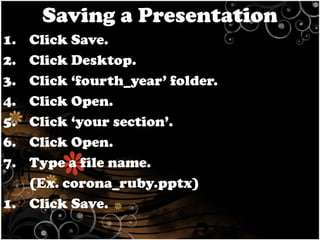
Saving a Presentation
1.
2.
3.
4.
5.
6.
7.

Click Save.
Click Desktop.
Click ‘fourth_year’ folder.
Click Open.
Click ‘your section’.
Click Open.
Type a file name.
(Ex. corona_ruby.pptx)
1. Click Save.
Adding
New
Slide
Adding New Slide
1. Click the last slide.
2. Press Enter.
Entering Text
into a SLIDE
Entering Text into a Slide
a) By Using Placeholder
b) By Using Text Box
c) By Using WordArt Objects
d) By Using Outline View
Sizing Objects
Sizing Objects
1. Click the object.
2. Use double-headed arrow to resize.
Moving Objects
Moving Objects
1. Click the object.
2. Use four-headed arrow to move.
Deleting Objects
Deleting Objects
1. Click the object.
2. Press Delete.
Deleting
Slide
Deleting Slide
1. Click the slide to be deleted.
2. Press Delete.
Inserting
Clip Art
Inserting Clip Arts
1. Click Insert.
2. On the Clip Art Task Pane, type the clip
art you want to insert.
3. Click Go.
4. Click the clip art.
Inserting
Pictures
Inserting Picture
1. Click Insert.
2. Click Picture.
3. Locate the picture you want to insert.
(Ex. desktop/ images_files)
4. Click Open.
5. Click the picture.
6. Click Insert.
Inserting
Shapes
Inserting Shapes
1. Click Insert.
2. Click the shape you want to add.
(Ex. action button)
Inserting
Picture
to a WordArt/
AutoShape
Inserting Picture to a
WordArt/ AutoShape
1. Highlight the WordArt/ AutoShape.
2. Right
Click
on
the
WordArt/
AutoShape.
3. Click Format Text Effects/ Format
Shape.
4. Click Text Fill.
5. Click Picture or texture fill.
6. Locate from file.
7. Click the picture you want to insert.
Adding
Slide Design
Adding Slide Design
1. Click Design.
2. Choose from
Template.

the

Built-In

Design
Creating
Special Effects
Adding
Custom
Animation
Creating Special Effects
ANIMATION – moving your
text and graphics with
many different styles that
can make your presentation
alive
1. Custom Animation
2. Slide Transition
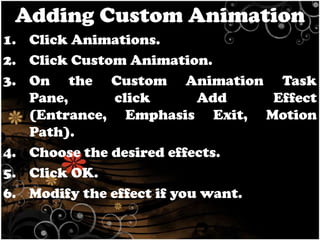
Adding Custom Animation
1. Click Animations.
2. Click Custom Animation.
3. On the Custom Animation Task
Pane,
click
Add
Effect
(Entrance, Emphasis Exit, Motion
Path).
4. Choose the desired effects.
5. Click OK.
6. Modify the effect if you want.
Adding
Slide
Transition
Adding Slide Transition
1. Click Animations.
2. Click the Transition you want to use.
Creating Links
HYPERLINK
–
a
word, symbol, image, or
other
element
in
a
hypertext document that
links to another element in
the same document or in
another
hypertext
document.
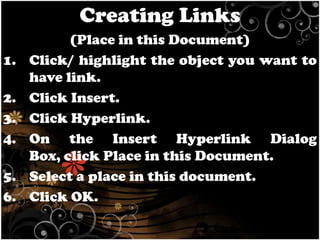
Creating
Links
Creating Links
1.
2.
3.
4.
5.
6.

(Place in this Document)
Click/ highlight the object you want to
have link.
Click Insert.
Click Hyperlink.
On the Insert Hyperlink Dialog
Box, click Place in this Document.
Select a place in this document.
Click OK.
Printing
a
Presentation
Printing a Presentation
1.
2.
3.
4.

By Slide
By Handouts
By Notes Pages
By Outline View
TIPS you need to know in
DESIGNING PRESENTATION

Observe
consistency, simplicity, neatness.
Use simple slide transition and
custom animation.
For readability, use contrasting
colors for the text, and the
background.
Stick with a single background.
Do not center bullet point.
TIPS you need to know in
DESIGNING PRESENTATION
Use no more than 3 to 4 different
fonts.
Font size should be between 36 to 44
for titles and 18 to 24 for body text.
Avoid cluttering the slides with too
much text and graphics.
Use short phrases and sentences to
convey your message.
If possible, limit your text to 7 lines
of 7 words each.
QUIZ

1. - 3. What are the 3 methods
of Creating Presentation?
QUIZ

4. It is a method of creating
presentation which is the
easiest
and
quickest
approach
to
create
a
presentation.
QUIZ

5. It is a method of creating
presentation which allows
you latitude, lets you apply
predesigned outlines, color
schemes, and background to
create sets of slides.
QUIZ

6. It is a method of creating
presentation which gives
you a plain canvas on which
to create a single slide.
QUIZ

7. What is the file format of
Microsoft PowerPoint 2007?
QUIZ

7. The easiest way to add
another
slide
to
a
presentation is to click the
last slide and then Press
______.
QUIZ

8. The easiest way to add
another
slide
to
a
presentation is to click the
last slide and then Press
______.
QUIZ

9. - 12. What are the ways to
enter text into a slide?
QUIZ

13. What mouse shape are you
going to use if you want to
resize a certain object?
QUIZ

14. What mouse shape are you
going to use if you want to
move a certain object?
QUIZ

15. What tab will you click if
you
want
to
add
picture, shape, or clip art on
your slide?
QUIZ

16. You want to insert picture
to a WordArt object, what
will you click after rightclicking on the WordArt?
QUIZ

17. You want to insert picture
to
an
AutoShape
object, what will you click
after right-clicking on the
AutoShape?
QUIZ

18. What tab will you click if
you want to add design on
your slide?
QUIZ

19. It means moving your text
and graphics with different
styles that can make your
presentation alive.
QUIZ

20. What tab will you click if
you want to put transition
and effects on you slide?
QUIZ

21. It is an element in a
hypertext document that
connects
with
other
element.
QUIZ

22-24. Give 3 ways to print a
presentation.
QUIZ

25. Give 1 tip in designing a
presentation.
Answer
1.
2.
3.
4.
5.
6.
7.
8.

AutoContent Wizard
Design Template
Blank Presentation
AutoContent Wizard
Design Template
Blank Presentation
.pptx
Enter
Answer
9. By Placeholder
10. By Text Box
11. By WordArt Objects
12. By Outline View
13. Double-Headed Arrow
14. Four-Headed Arrow
15. Insert Tab
Answer
16. Format Text Effects
17. Format Shape
18. Design Tab
19. Animation
20. Animations Tab
21. Hyperlink
22.-24. Slide, Hand-outs,
Pages, Outline View

Notes

2 presentation management