PowerPoint
presentation
GRADE 7 COMPUTER
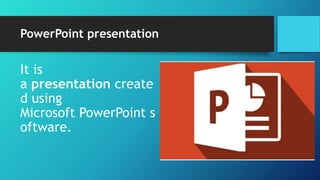
PowerPoint presentation
It is
a presentation create
d using
Microsoft PowerPoint s
oftware.
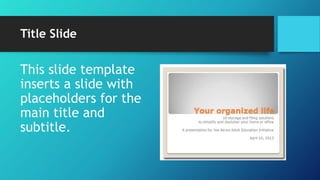
Title Slide
This slide template
inserts a slide with
placeholders for the
main title and
subtitle.
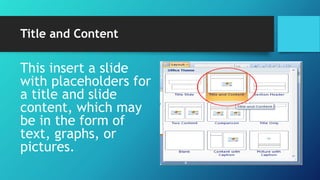
Title and Content
This insert a slide
with placeholders for
a title and slide
content, which may
be in the form of
text, graphs, or
pictures.
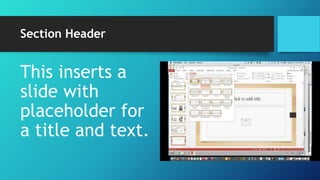
Section Header
This inserts a
slide with
placeholder for
a title and text.
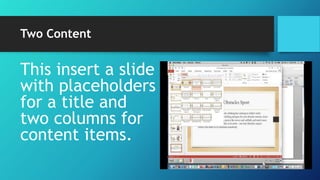
Two Content
This insert a slide
with placeholders
for a title and
two columns for
content items.
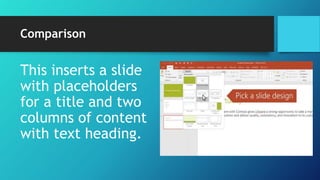
Comparison
This inserts a slide
with placeholders
for a title and two
columns of content
with text heading.
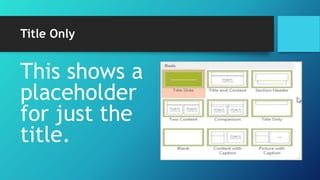
Title Only
This shows a
placeholder
for just the
title.
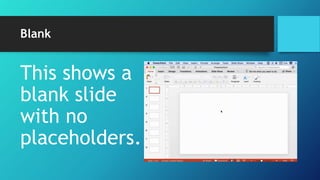
Blank
This shows a
blank slide
with no
placeholders.
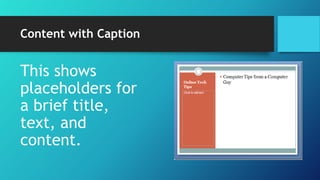
Content with Caption
This shows
placeholders for
a brief title,
text, and
content.
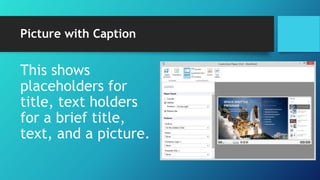
Picture with Caption
This shows
placeholders for
title, text holders
for a brief title,
text, and a picture.
Three easy ways to open the
Microsoft PowerPoint Presentation
application
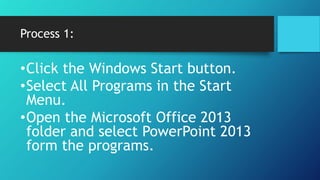
Process 1:
•Click the Windows Start button.
•Select All Programs in the Start
Menu.
•Open the Microsoft Office 2013
folder and select PowerPoint 2013
form the programs.
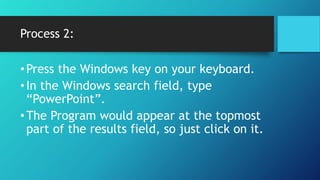
Process 2:
•Press the Windows key on your keyboard.
•In the Windows search field, type
“PowerPoint”.
•The Program would appear at the topmost
part of the results field, so just click on it.
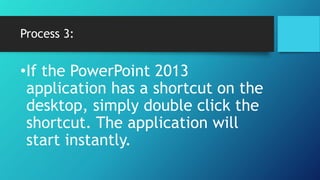
Process 3:
•If the PowerPoint 2013
application has a shortcut on the
desktop, simply double click the
shortcut. The application will
start instantly.

Grade 7 COMPUTER