Word Processing
Software (Mail
Merge & Reference)
Grade 7-ICT- Lesson 6- Quarter 1
Content
Standards
• The learners will
 Demonstrate an understanding of using
productivity software.
Performance
Standards
The learners perform the
utilization of productivity tools in
a safe and responsible manner.
Learning
Competencies
Create word documents with
page breaks, auto tables of
contents, mail merge, and
references.
Learning objectives
• At the end of the lesson, the
learners shall be able to:
1. Generate a simple
document with citations.
2. Produce a simple
document with a mail merge.
Content
• Word Processing Software
 mail merge
 references
Short
Review
Questions:
• Imagine you’re writing a book of
spells. Who can remind us what a
page break is and why we use it to
separate different sections or
chapters of our spell book?"
• 2. Now, think of our spell book
having hundreds of pages. Can
anyone explain how an auto table of
contents is like a magical map that
helps readers navigate through the
chapters? Why is this feature so
useful in a long document?
Mail Merge
• Mail merge in MS Word is a
helpful feature that allows you
to create personalized
documents, such as letters or
labels, for multiple recipients at
once. By using a list of
information, you can automate
the process of customizing
each document with individual
details like names, addresses,
and other specific content.
Examples:
1. Letter to Students: Imagine you
need to send a letter to all your
classmates about an upcoming event.
With mail merge, you can create one
template letter and automatically fill in
each person's name to make it
personal for every recipient.
2. Address Labels: If you're sending
out invitations to a party, you can use
mail merge to create address labels for
each guest on your list. This way, you
don't have to handwrite each label -
Word does it for you!
Analogies:
1. Bakery Analogy: Think of mail merge like a
bakery making personalized cakes. The bakery
has a list of orders with different names and
decorations. With mail merge, Word is the
baker, and the list of orders is your data
source. Word helps add the unique touches to
each cake just like it personalizes each
document with specific information.
2. School Yearbook Analogy: In a school
yearbook, each student has their own section
with a customized message. Mail merge works
similarly - like a magical yearbook editor that
automatically fills in the personalized details
for each student without having to write it out
by hand.
Mail Merge
Mail Merge allows you to create a batch of
personalized documents where each
document shares the same layout,
formatting, text, and graphics, except for
specific personalized parts.
These personalized parts can include
recipient names, addresses, and other
customized information.
You associate a data source (such as an
Excel spreadsheet, Outlook contact list, or
any other database) with your Word
document.
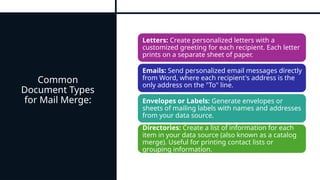
Common
Document Types
for Mail Merge:
Letters: Create personalized letters with a
customized greeting for each recipient. Each letter
prints on a separate sheet of paper.
Emails: Send personalized email messages directly
from Word, where each recipient's address is the
only address on the "To" line.
Envelopes or Labels: Generate envelopes or
sheets of mailing labels with names and addresses
from your data source.
Directories: Create a list of information for each
item in your data source (also known as a catalog
merge). Useful for printing contact lists or
grouping information.
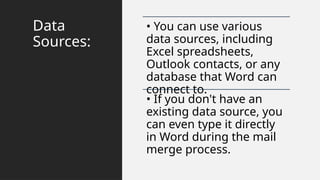
Data
Sources:
• You can use various
data sources, including
Excel spreadsheets,
Outlook contacts, or any
database that Word can
connect to.
• If you don't have an
existing data source, you
can even type it directly
in Word during the mail
merge process.
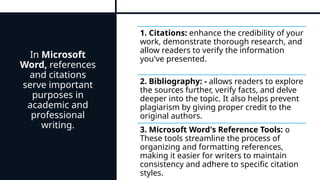
In Microsoft
Word, references
and citations
serve important
purposes in
academic and
professional
writing.
1. Citations: enhance the credibility of your
work, demonstrate thorough research, and
allow readers to verify the information
you've presented.
2. Bibliography: - allows readers to explore
the sources further, verify facts, and delve
deeper into the topic. It also helps prevent
plagiarism by giving proper credit to the
original authors.
3. Microsoft Word's Reference Tools: o
These tools streamline the process of
organizing and formatting references,
making it easier for writers to maintain
consistency and adhere to specific citation
styles.
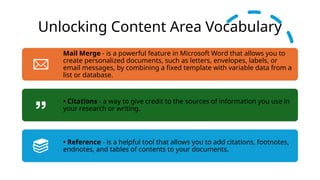
Unlocking Content Area Vocabulary
Mail Merge - is a powerful feature in Microsoft Word that allows you to
create personalized documents, such as letters, envelopes, labels, or
email messages, by combining a fixed template with variable data from a
list or database.
• Citations - a way to give credit to the sources of information you use in
your research or writing.
• Reference - is a helpful tool that allows you to add citations, footnotes,
endnotes, and tables of contents to your documents.
•Mail merge in MS
Word is a useful
tool that allows
you to personalize
documents such
as letters,
envelopes, labels,
and e-mails.
Answer
the
following
question
s
What is mail merge and how is
it typically used in document
processing?
How can mail merge help
improve efficiency when
sending out personalized
documents to a large group of
recipients?
What are some key steps
involved in setting up a mail
merge in a word processing
software?
Demonstration: Step-by-Step for Mail
Merge
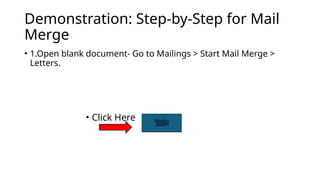
• 1.Open blank document- Go to Mailings > Start Mail Merge >
Letters.
• Click Here
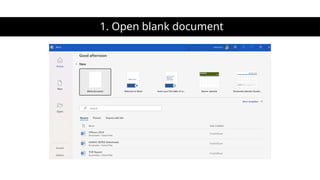
1. Open blank document
Download the Full version copy click
the link below
• Link 1:
https://www.facebook.com/mrjfoodproducts?mibextid=ZbW
KwL
• Link 2
• Grade 7 ICT: Word Processing Software (Mail Merge & Refer
ence) PPT-MATATAG Curriculum by
sirj. - Raket.PH

Grade 7 ICT: Word Processing Software (Mail Merge & Reference).pptx MATATAG Curriculum

  • 1.
    Word Processing Software (Mail Merge& Reference) Grade 7-ICT- Lesson 6- Quarter 1
  • 2.
    Content Standards • The learnerswill  Demonstrate an understanding of using productivity software.
  • 3.
    Performance Standards The learners performthe utilization of productivity tools in a safe and responsible manner.
  • 4.
    Learning Competencies Create word documentswith page breaks, auto tables of contents, mail merge, and references.
  • 5.
    Learning objectives • Atthe end of the lesson, the learners shall be able to: 1. Generate a simple document with citations. 2. Produce a simple document with a mail merge.
  • 6.
    Content • Word ProcessingSoftware  mail merge  references
  • 7.
    Short Review Questions: • Imagine you’rewriting a book of spells. Who can remind us what a page break is and why we use it to separate different sections or chapters of our spell book?" • 2. Now, think of our spell book having hundreds of pages. Can anyone explain how an auto table of contents is like a magical map that helps readers navigate through the chapters? Why is this feature so useful in a long document?
  • 8.
    Mail Merge • Mailmerge in MS Word is a helpful feature that allows you to create personalized documents, such as letters or labels, for multiple recipients at once. By using a list of information, you can automate the process of customizing each document with individual details like names, addresses, and other specific content.
  • 9.
    Examples: 1. Letter toStudents: Imagine you need to send a letter to all your classmates about an upcoming event. With mail merge, you can create one template letter and automatically fill in each person's name to make it personal for every recipient. 2. Address Labels: If you're sending out invitations to a party, you can use mail merge to create address labels for each guest on your list. This way, you don't have to handwrite each label - Word does it for you!
  • 10.
    Analogies: 1. Bakery Analogy:Think of mail merge like a bakery making personalized cakes. The bakery has a list of orders with different names and decorations. With mail merge, Word is the baker, and the list of orders is your data source. Word helps add the unique touches to each cake just like it personalizes each document with specific information. 2. School Yearbook Analogy: In a school yearbook, each student has their own section with a customized message. Mail merge works similarly - like a magical yearbook editor that automatically fills in the personalized details for each student without having to write it out by hand.
  • 11.
    Mail Merge Mail Mergeallows you to create a batch of personalized documents where each document shares the same layout, formatting, text, and graphics, except for specific personalized parts. These personalized parts can include recipient names, addresses, and other customized information. You associate a data source (such as an Excel spreadsheet, Outlook contact list, or any other database) with your Word document.
  • 12.
    Common Document Types for MailMerge: Letters: Create personalized letters with a customized greeting for each recipient. Each letter prints on a separate sheet of paper. Emails: Send personalized email messages directly from Word, where each recipient's address is the only address on the "To" line. Envelopes or Labels: Generate envelopes or sheets of mailing labels with names and addresses from your data source. Directories: Create a list of information for each item in your data source (also known as a catalog merge). Useful for printing contact lists or grouping information.
  • 13.
    Data Sources: • You canuse various data sources, including Excel spreadsheets, Outlook contacts, or any database that Word can connect to. • If you don't have an existing data source, you can even type it directly in Word during the mail merge process.
  • 14.
    In Microsoft Word, references andcitations serve important purposes in academic and professional writing. 1. Citations: enhance the credibility of your work, demonstrate thorough research, and allow readers to verify the information you've presented. 2. Bibliography: - allows readers to explore the sources further, verify facts, and delve deeper into the topic. It also helps prevent plagiarism by giving proper credit to the original authors. 3. Microsoft Word's Reference Tools: o These tools streamline the process of organizing and formatting references, making it easier for writers to maintain consistency and adhere to specific citation styles.
  • 15.
    Unlocking Content AreaVocabulary Mail Merge - is a powerful feature in Microsoft Word that allows you to create personalized documents, such as letters, envelopes, labels, or email messages, by combining a fixed template with variable data from a list or database. • Citations - a way to give credit to the sources of information you use in your research or writing. • Reference - is a helpful tool that allows you to add citations, footnotes, endnotes, and tables of contents to your documents.
  • 16.
    •Mail merge inMS Word is a useful tool that allows you to personalize documents such as letters, envelopes, labels, and e-mails.
  • 17.
    Answer the following question s What is mailmerge and how is it typically used in document processing? How can mail merge help improve efficiency when sending out personalized documents to a large group of recipients? What are some key steps involved in setting up a mail merge in a word processing software?
  • 18.
    Demonstration: Step-by-Step forMail Merge • 1.Open blank document- Go to Mailings > Start Mail Merge > Letters. • Click Here
  • 19.
    1. Open blankdocument
  • 20.
    Download the Fullversion copy click the link below • Link 1: https://www.facebook.com/mrjfoodproducts?mibextid=ZbW KwL • Link 2 • Grade 7 ICT: Word Processing Software (Mail Merge & Refer ence) PPT-MATATAG Curriculum by sirj. - Raket.PH

Editor's Notes

  • #7 Before diving into exciting new features of word processing software, let’s take a creative trip down memory lane to review the powerful tools we’ve already mastered— page breaks and auto table of contents. Imagine you're creating a magical book filled with enchanted stories. To make it reader-friendly, you need to organize it beautifully. Let’s recall how we did that using page breaks and auto tables of contents
  • #17 The teacher will ask the learners the following elicitation questions to develop understanding on the topic.