FTP (File Transfer
Protocol)
The FTP (file transfer program) utility is used to transfer files between a local machine and
remote network machine Using the File Transfer protocol. In simple terms it transfers / copies
files between two computers. You can transfer files between unix systems and also non-unix
systems like windows operating system using FTP.
The FTP command is simple to use and easy to learn. Let see useful examples of FTP command
in detail.
FTP Command Examples:
If you are using windows operating system, open the command prompt and practice the below
FTP commands. If you are using unix or linux operating systems, just simply type the ftp
command on the terminal.
1. Connecting to Remote Host
First you need to connect to a remote host before doing any operations. You can use any one of
the following methods to connect to a remote host. First method is
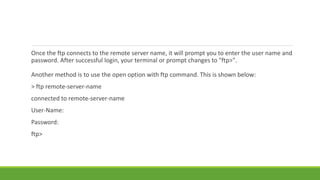
Once the ftp connects to the remote server name, it will prompt you to enter the user name and
password. After successful login, your terminal or prompt changes to "ftp>".
Another method is to use the open option with ftp command. This is shown below:
> ftp remote-server-name
connected to remote-server-name
User-Name:
Password:
ftp>
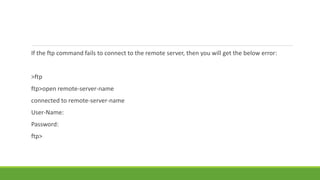
If the ftp command fails to connect to the remote server, then you will get the below error:
>ftp
ftp>open remote-server-name
connected to remote-server-name
User-Name:
Password:
ftp>
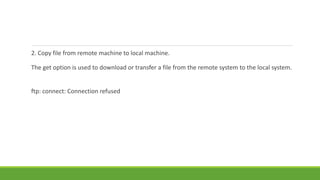
2. Copy file from remote machine to local machine.
The get option is used to download or transfer a file from the remote system to the local system.
ftp: connect: Connection refused
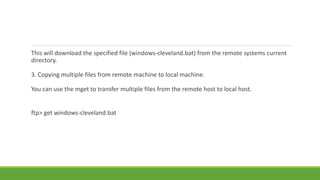
This will download the specified file (windows-cleveland.bat) from the remote systems current
directory.
3. Copying multiple files from remote machine to local machine.
You can use the mget to transfer multiple files from the remote host to local host.
ftp> get windows-cleveland.bat
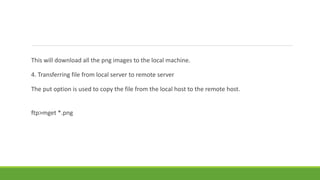
This will download all the png images to the local machine.
4. Transferring file from local server to remote server
The put option is used to copy the file from the local host to the remote host.
ftp>mget *.png
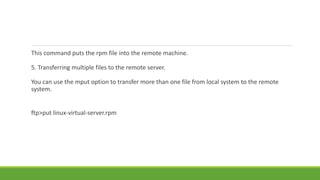
This command puts the rpm file into the remote machine.
5. Transferring multiple files to the remote server.
You can use the mput option to transfer more than one file from local system to the remote
system.
ftp>put linux-virtual-server.rpm
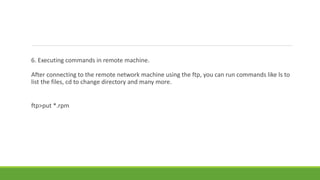
6. Executing commands in remote machine.
After connecting to the remote network machine using the ftp, you can run commands like ls to
list the files, cd to change directory and many more.
ftp>put *.rpm
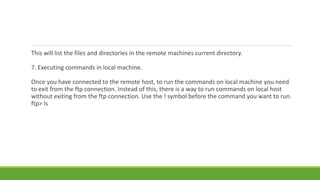
This will list the files and directories in the remote machines current directory.
7. Executing commands in local machine.
Once you have connected to the remote host, to run the commands on local machine you need
to exit from the ftp connection. Instead of this, there is a way to run commands on local host
without exiting from the ftp connection. Use the ! symbol before the command you want to run.
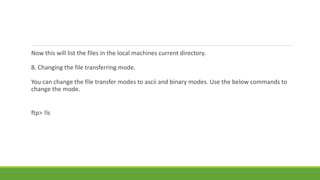
ftp> ls
Now this will list the files in the local machines current directory.
8. Changing the file transferring mode.
You can change the file transfer modes to ascii and binary modes. Use the below commands to
change the mode.
ftp> !ls
9. Deleting files on remote machine
You can use the delete or mdelete to remove a single file or multiple files in the remote
machine.
10. Disconnecting from ftp connection.
Use the quit command to close the ftp connection.
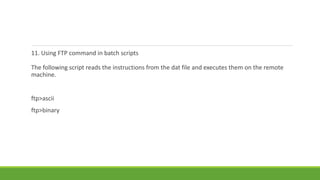
11. Using FTP command in batch scripts
The following script reads the instructions from the dat file and executes them on the remote
machine.
ftp>ascii
ftp>binary
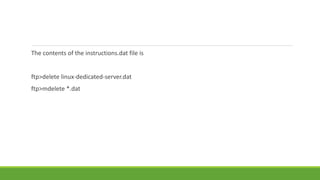
The contents of the instructions.dat file is
ftp>delete linux-dedicated-server.dat
ftp>mdelete *.dat
12. Getting the help about ftp command.
To know more about the ftp command, just type the help on the prompt. It will display the
options/commands that you can use with ftp command.
ftp>quit

Ftp (file transfer protocol)

  • 1.
  • 2.
    The FTP (filetransfer program) utility is used to transfer files between a local machine and remote network machine Using the File Transfer protocol. In simple terms it transfers / copies files between two computers. You can transfer files between unix systems and also non-unix systems like windows operating system using FTP.
  • 3.
    The FTP commandis simple to use and easy to learn. Let see useful examples of FTP command in detail. FTP Command Examples: If you are using windows operating system, open the command prompt and practice the below FTP commands. If you are using unix or linux operating systems, just simply type the ftp command on the terminal. 1. Connecting to Remote Host First you need to connect to a remote host before doing any operations. You can use any one of the following methods to connect to a remote host. First method is
  • 4.
    Once the ftpconnects to the remote server name, it will prompt you to enter the user name and password. After successful login, your terminal or prompt changes to "ftp>". Another method is to use the open option with ftp command. This is shown below: > ftp remote-server-name connected to remote-server-name User-Name: Password: ftp>
  • 5.
    If the ftpcommand fails to connect to the remote server, then you will get the below error: >ftp ftp>open remote-server-name connected to remote-server-name User-Name: Password: ftp>
  • 6.
    2. Copy filefrom remote machine to local machine. The get option is used to download or transfer a file from the remote system to the local system. ftp: connect: Connection refused
  • 7.
    This will downloadthe specified file (windows-cleveland.bat) from the remote systems current directory. 3. Copying multiple files from remote machine to local machine. You can use the mget to transfer multiple files from the remote host to local host. ftp> get windows-cleveland.bat
  • 8.
    This will downloadall the png images to the local machine. 4. Transferring file from local server to remote server The put option is used to copy the file from the local host to the remote host. ftp>mget *.png
  • 9.
    This command putsthe rpm file into the remote machine. 5. Transferring multiple files to the remote server. You can use the mput option to transfer more than one file from local system to the remote system. ftp>put linux-virtual-server.rpm
  • 10.
    6. Executing commandsin remote machine. After connecting to the remote network machine using the ftp, you can run commands like ls to list the files, cd to change directory and many more. ftp>put *.rpm
  • 11.
    This will listthe files and directories in the remote machines current directory. 7. Executing commands in local machine. Once you have connected to the remote host, to run the commands on local machine you need to exit from the ftp connection. Instead of this, there is a way to run commands on local host without exiting from the ftp connection. Use the ! symbol before the command you want to run. ftp> ls
  • 12.
    Now this willlist the files in the local machines current directory. 8. Changing the file transferring mode. You can change the file transfer modes to ascii and binary modes. Use the below commands to change the mode. ftp> !ls
  • 13.
    9. Deleting fileson remote machine You can use the delete or mdelete to remove a single file or multiple files in the remote machine.
  • 14.
    10. Disconnecting fromftp connection. Use the quit command to close the ftp connection.
  • 15.
    11. Using FTPcommand in batch scripts The following script reads the instructions from the dat file and executes them on the remote machine. ftp>ascii ftp>binary
  • 16.
    The contents ofthe instructions.dat file is ftp>delete linux-dedicated-server.dat ftp>mdelete *.dat
  • 17.
    12. Getting thehelp about ftp command. To know more about the ftp command, just type the help on the prompt. It will display the options/commands that you can use with ftp command.
  • 18.