Step by Step Guide to install DHCP role and configure
DHCP server in a Windows Server Environment
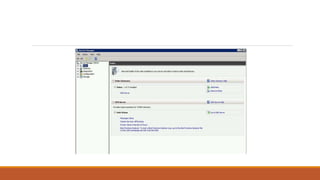
To start first need to log in to the server with administrator privileges. Then start the “server
Manager” by clicking on “Server Manager” icon on task bar. Then go to “Roles”
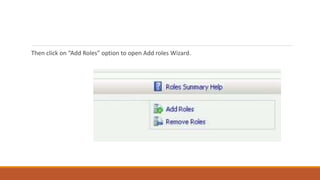
Then click on “Add Roles” option to open Add roles Wizard.
Then it will load the Roles Wizard and select the “DHCP Server” From the list and click next to
continue.
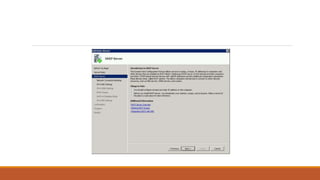
Then it will give description about the role. Click next to continue
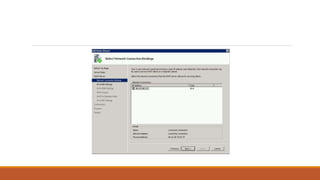
Next window is asking to use which interface to serve DHCP clients. If server has multiple NIC
with multiple IP you can add them also to serve DHCP clients.
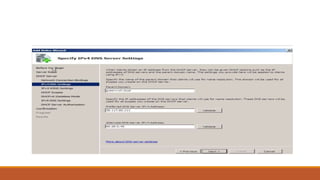
In next window it will give opportunity to add DNS settings that should apply for DHCP clients.
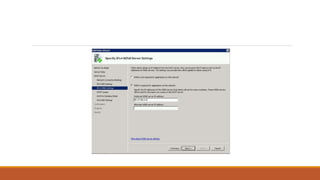
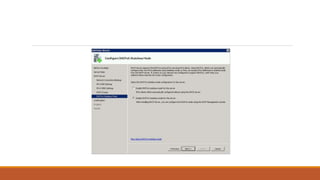
Next window is to define the WINS server details.
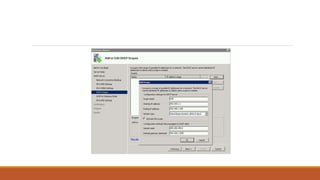
In next window we can add the scope, the Starting IP, End IP of the DHCP range, subnet mask,
default gateway, leased time etc.
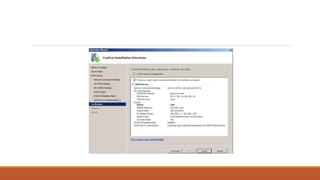
Then it will give the confirmation window before begin the install. Click on “Install”
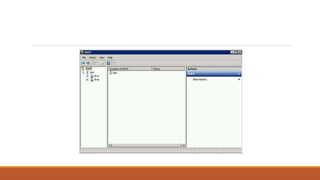
Once installation finishes DHCP server interface can open from Start > Administrative Tools >
DHCP
Step by step guide to install dhcp role

Step by step guide to install dhcp role

  • 1.
    Step by StepGuide to install DHCP role and configure
  • 2.
    DHCP server ina Windows Server Environment To start first need to log in to the server with administrator privileges. Then start the “server Manager” by clicking on “Server Manager” icon on task bar. Then go to “Roles”
  • 4.
    Then click on“Add Roles” option to open Add roles Wizard.
  • 5.
    Then it willload the Roles Wizard and select the “DHCP Server” From the list and click next to continue.
  • 7.
    Then it willgive description about the role. Click next to continue
  • 9.
    Next window isasking to use which interface to serve DHCP clients. If server has multiple NIC with multiple IP you can add them also to serve DHCP clients.
  • 11.
    In next windowit will give opportunity to add DNS settings that should apply for DHCP clients.
  • 13.
    Next window isto define the WINS server details.
  • 15.
    In next windowwe can add the scope, the Starting IP, End IP of the DHCP range, subnet mask, default gateway, leased time etc.
  • 18.
    Then it willgive the confirmation window before begin the install. Click on “Install”
  • 20.
    Once installation finishesDHCP server interface can open from Start > Administrative Tools > DHCP