FTP BASICS BY Bobbie Atchison 5/97 (As part of a cooperative “ Internet Training Module”  by the members of the  Information Technology Learning Team ,  at the  University of Arizona  Main Library,  Tucson, Arizona)
CONTENTS Introduction  Desired Outcomes What is FTP? Modes of Transfer Basic Steps Basic Commands Setting Up  QVTNet Transferring Using Point and Click Ways to Connect to FTP Servers Summary Terminology Other Miscellaneous Information You Can Brows Through At A Later Date
INTRODUCTION The objectives of this FTP session are:  1)  to promote sharing of files,  2)  to transfer data reliably and efficiently, 3)  to explain different file types, 4)  to explain different file viewing software.  5)  familiarize you with terminology relating to ftp 6)  help you navigate in ftp directories 7)  tech you the Basics of ftp
DESIRED OUTCOMES STAFF SHOULD BE ABLE TO: Use the  FTP  program inside  QVTNet . Recognize different types of file extensions. E.g.: - .txt, .avi, .jpg . Know how to login as  “anonymous”  in FTP programs Know the difference between  ASCII  files and  Binary  files. Know how to  end  an FTP session. Use  basic FTP  commands. Define  FTP. Know that FTP is  “case sensitive” . Connect  to other FTP addresses and  navigate  in them. Know you will need to have an  “Anti-virus”  program on your machine (**software on the net may have a virus).
WHAT IS FTP? FTP  works on the client/server principle.  A  client program  enables the user to interact with a server in order to access information and services on the server computer. Files that can be transferred are stored on computers called  FTP servers .  To access these files, an  FTP client program  is used.  This is an interface that allows the user to locate the file(s) to be transferred and initiate the transfer process.
MODE OF TRANSFER There are  two modes  of transfer in FTP:  ascii  and  binary . ASCII  is used only for files saved in ASCII format (this includes Postcript files) Binary  is used for files that are formatted and saved using a wordprocessing software like WordPerfect  (.txt) , spreadsheets  (.xls) , images  (.jpg, .gif) , and many executable programs  (.exe)  and videos  (.avi) .  QVTNe t ets the transfer mode automatically.
BASIC STEPS  TO USE FTP Connect  to the FTP server Navigate  the file structure to find the file you want Transfer  the file The specifics of each step will vary, depending on the  client program  being used and the type of Internet connection .
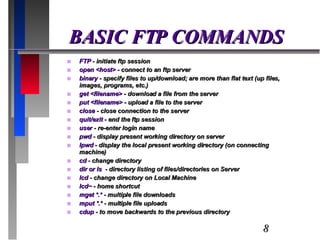
BASIC FTP COMMANDS FTP  - initiate ftp session open <host>  - connect to an ftp server binary  - specify files to up/download; are more than flat text (up files, images, programs, etc.) get <filename>  - download a file from the server put <filename>  - upload a file to the server close  - close connection to the server quit/exit  - end the ftp session user  - re-enter login name pwd  - display present working directory on server lpwd  - display the local present working directory (on connecting machine) cd  - change directory dir or ls  - directory listing of files/directories on Server lcd  - change directory on Local Machine lcd~  - home shortcut mget *.*  - multiple file downloads mput *.*  - multiple file uploads cdup  - to move backwards to the previous directory
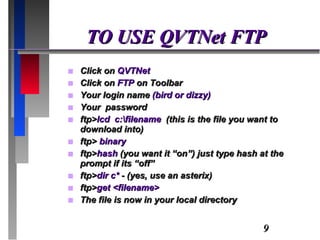
TO USE QVTNet FTP Click on  QVTNet Click on  FTP  on Toolbar Your login name  (bird or dizzy) Your  password ftp> lcd  c:\filename  (this is the file you want to download into) ftp>  binary ftp> hash  (you want it “on”) just type hash at the prompt if its “off” ftp> dir c*  - (yes, use an asterix) ftp> get <filename> The file is now in your local directory
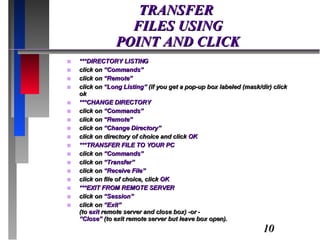
TRANSFER  FILES USING POINT AND CLICK ***DIRECTORY LISTING  click on  “Commands” click on  “Remote” click on  “Long Listing”  (if you get a pop-up box labeled (mask/dir) click ok ***CHANGE DIRECTORY click on  “Commands” click on  “Remote” click on  “Change Directory” click on directory of choice and click  OK ***TRANSFER FILE TO YOUR PC click on  “Commands” click on  “Transfer” click on  “Receive File” click on file of choice, click  OK ***EXIT FROM REMOTE SERVER click on  “Session” click on  “Exit” (to  exit  remote server and close box) -or - “Close”  (to exit remote server but leave box open).
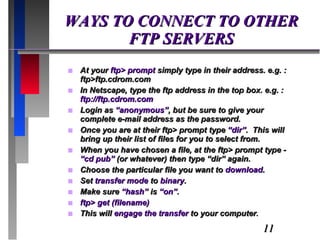
WAYS TO CONNECT TO OTHER FTP SERVERS At your  ftp> prompt  simply type in their address. e.g. : ftp>ftp.cdrom.com In Netscape, type the ftp address in the top box. e.g. :  ftp://ftp.cdrom.com Login as  “anonymous” , but be sure to give your complete e-mail address as the password. Once you are at their ftp> prompt type  “dir” .  This will bring up their list of files for you to select from. When you have chosen a file, at the ftp> prompt type -  “cd pub”  (or whatever) then type “dir” again. Choose the particular file you want to  download . Set  transfer mode  to  binary . Make sure  “hash”  is  “on” . ftp> get (filename) This will  engage the transfer  to your computer .
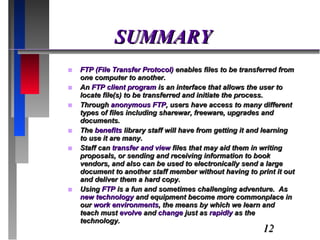
SUMMARY FTP (File Transfer Protocol)  enables files to be transferred from one computer to another.  An  FTP client program  is an interface that allows the user to locate file(s) to be transferred and initiate the process.  Through  anonymous FTP , users have access to many different types of files including sharewar, freeware, upgrades and documents. The  benefits  library staff will have from getting it and learning to use it are many.  Staff can  transfer and view  files that may aid them in writing proposals, or sending and receiving information to book vendors, and also can be used to electronically send a large document to another staff member without having to print it out and deliver them a hard copy. Using  FTP  is a fun and sometimes challenging adventure.  As  new technology  and equipment become more commonplace in our  work environments , the means by which we learn and teach must  evolve  and  change  just as  rapidly  as the technology.
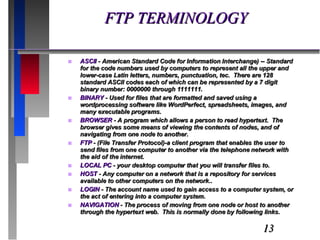
FTP TERMINOLOGY ASCII  - American Standard Code for Information Interchange) -- Standard for the code numbers used by computers to represent all the upper and lower-case Latin letters, numbers, punctuation, tec.  There are 128 standard ASCII codes each of which can be represented by a 7 digit binary number: 0000000 through 1111111. BINARY  - Used for files that are formatted and saved using a wordprocessing software like WordPerfect, spreadsheets, images, and many executable programs. BROWSER  - A program which allows a person to read hypertext.  The browser gives some means of viewing the contents of nodes, and of navigating from one node to another. FTP  - (File Transfer Protocol)-a client program that enables the user to send files from one computer to another via the telephone network with the aid of the internet. LOCAL PC  - your desktop computer that you will transfer files to. HOST  - Any computer on a network that is a repository for services available to other computers on the network.. LOGIN  - The account name used to gain access to a computer system, or the act of entering into a computer system. NAVIGATION  - The process of moving from one node or host to another through the hypertext web.  This is normally done by following links.
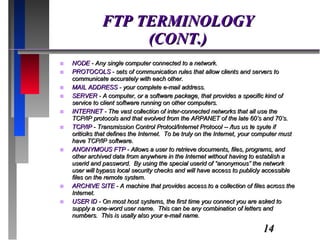
FTP TERMINOLOGY (CONT.) NODE  - Any single computer connected to a network. PROTOCOLS  - sets of communication rules that allow clients and servers to communicate accurately with each other. MAIL ADDRESS  - your complete e-mail address. SERVER  - A computer, or a software package, that provides a specific kind of service to client software running on other computers.  INTERNET  - The vast collection of inter-connected networks that all use the TCP/IP protocols and that evolved from the ARPANET of the late 60’s and 70’s. TCP/IP  - Transmission Control Protocl/Internet Protocol -- /tus us te syute if oriticiks that defines the Internet.  To be truly on the Internet, your computer must have TCP/IP software. ANONYMOUS FTP  - Allows a user to retrieve documents, files, programs, and other archived data from anywhere in the Internet without having to establish a userid and password.  By using the special userid of “anonymous” the network user will bypass local security checks and will have access to publicly accessible files on the remote system. ARCHIVE SITE  - A machine that provides access to a collection of files across the Internet. USER ID  - On most host systems, the first time you connect you are asked to supply a one-word user name.  This can be any combination of letters and numbers.  This is usally also your e-mail name.
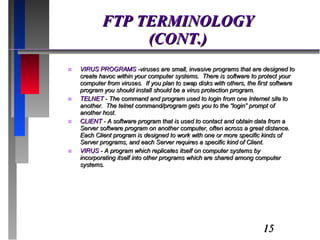
FTP TERMINOLOGY (CONT.) VIRUS PROGRAMS  -viruses are small, invasive programs that are designed to create havoc within your computer systems.  There is software to protect your computer from viruses.  If you plan to swap disks with others, the first software program you should install should be a virus protection program. TELNET  - The command and program used to login from one Internet site to another.  The telnet command/program gets you to the “login” prompt of another host. CLIENT  - A software program that is used to contact and obtain data from a Server software program on another computer, often across a great distance.  Each Client program is designed to work with one or more specific kinds of Server programs, and each Server requires a specific kind of Client. VIRUS  - A program which replicates itself on computer systems by incorporating itself into other programs which are shared among computer systems.
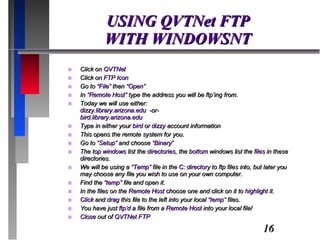
USING QVTNet FTP WITH WINDOWSNT Click on  QVTNet Click on  FTP Icon Go to  “File”  then “ Open” In “ Remote Host”  type the address you will be ftp’ing from. Today we will use either: dizzy.library.arizona.edu  -or- bird.library.arizona.edu Type in either your  bird  or  dizzy  account information This opens the remote system for you. Go to  “Setup”  and choose  “Binary” The  top windows  list the  directories , the  bottom  windows list the f iles  in these directories. We will be using a  “Temp”  file in the  C: directory  to ftp files into, but later you may choose any file you wish to use on your own computer. Find the  “temp”  file and open it. In the files on the  Remote Host  choose one and click on it to  highlight  it. Click  and  drag  this file to the left into your local  “temp”  files. You have just  ftp’d  a file from a  Remote Host  into your local file! Close  out of  QVTNet FTP
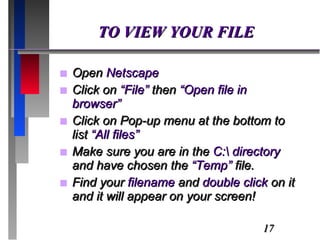
TO VIEW YOUR FILE Open  Netscape Click on  “File”  then  “Open file in browser” Click on Pop-up menu at the bottom to list  “All files” Make sure you are in the  C:\ directory  and have chosen the  “Temp”  file. Find your  filename  and  double click  on it and it will appear on your screen!
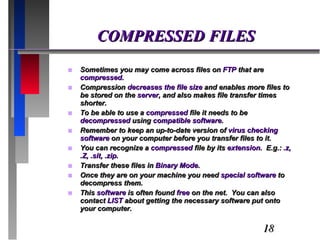
COMPRESSED FILES Sometimes you may come across files on  FTP  that are  compressed.  Compression  decreases the file size  and enables more files to be stored on the  server , and also makes file transfer times shorter.  To be able to use a  compressed  file it needs to be  decompressed  using  compatible software . Remember to keep an up-to-date version of  virus checking software  on your computer before you transfer files to it. You can recognize a  compressed  file by its  extension .  E.g.:  .z, .Z, .sit, .zip. Transfer these files in  Binary Mode . Once they are on your machine you need  special software  to decompress them. This  software  is often found  free  on the net.  You can also contact  LIST  about getting the necessary software put onto your computer.
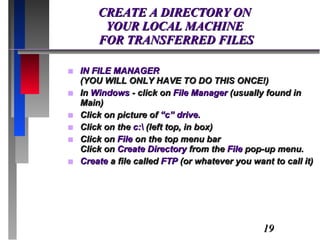
CREATE A DIRECTORY ON  YOUR LOCAL MACHINE  FOR TRANSFERRED FILES IN FILE MANAGER  (YOU WILL ONLY HAVE TO DO THIS ONCE!) In  Windows  - click on  File Manager  (usually found in Main) Click on picture of  “c” drive. Click on the  c:\  (left top, in box) Click on  File  on the top menu bar Click on  Create Directory  from the  File  pop-up menu. Create  a file called  FTP  (or whatever you want to call it)
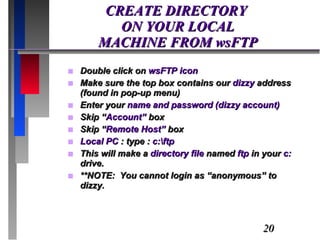
CREATE DIRECTORY  ON YOUR LOCAL  MACHINE FROM wsFTP Double click on  wsFTP icon Make sure the top box contains our  dizzy  address (found in pop-up menu) Enter your  name and password (dizzy account) Skip “ Account”  box Skip “ Remote Host”  box Local PC  : type :  c:\ftp This will make a  directory file  named  ftp  in your  c:  drive. **NOTE:  You cannot login as “anonymous” to dizzy.
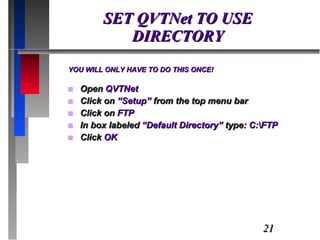
SET QVTNet TO USE DIRECTORY YOU WILL ONLY HAVE TO DO THIS ONCE! Open  QVTNet Click on  “Setup”  from the top menu bar Click on  FTP In box labeled  “Default Directory”  type:  C:\FTP Click  OK
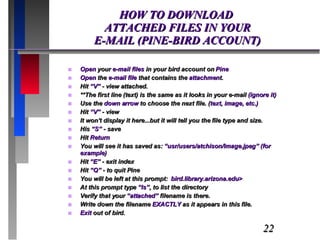
HOW TO DOWNLOAD  ATTACHED FILES IN YOUR  E-MAIL (PINE-BIRD ACCOUNT) Open  your  e-mail files  in your bird account on  Pine Open  the  e-mail file  that contains the  attachmen t. Hit  “V”  - view attached. **The first line (text) is the same as it looks in your e-mail  (ignore it) Use the  down arrow  to choose the next file. ( text, image, etc.) Hit  “V”  - view It won’t display it here...but it will tell you the file type and size. His  “S”  - save Hit  Return You will see it has saved as:  “usr/users/atchison/Image.jpeg” (for example) Hit  “E”  - exit index Hit  “Q”  - to quit Pine You will be left at this prompt:  bird.library.arizona.edu> At this prompt type  “ls” , to list the directory Verify that your  “attached”  filename is there. Write down the filename  EXACTLY  as it appears in this file. Exit  out of bird.
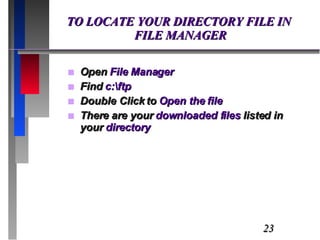
TO LOCATE YOUR DIRECTORY FILE IN  FILE MANAGER Open  File Manager Find  c:\ftp Double Click to  Open the file There are your  downloaded files  listed in your  directory
FYI & TIPS You can switch between  “Short Listings”  and  “Long Listings”  modes through (view) menu on tool bar buttons. Handling  Index Files  - Many FTP sites maintain a list of descriptions for files and directories.  However FTP protocol doesn’t provide for retrieving them, so usually descriptions are stored in text files with names like INDEX.TXT or FILES.BBS and users have to download them as normal files and view them in a text editor. Mail Address  - is your full e-mail address to be used as a password for  Anonymous logins .  It’s not checked to be a valid address in any way so you can type whatever you want here.  However, it’s a matter of  etiquette  to give your real-e-mail address to the remote system. Resolve Links  - controls a UNIX specific option, which asks the server to resolve symbolic links to either file or directory.  It’s a good idea to use this option on UNIX-based sites, but it can cause major problems with non-UNIX servers. You can easily get back into your bird e-mail by typing :  ftp> open bird. You cannot login to  Dizzy  with  “anonymous” . If the filename in the directory begins with  “l” , that means it’s a  “linked file” . To  Logout  of an FTP program you must type  EXIT  at the ftp> prompt.  When you type  CLOSE  it doesn’t exit out of the FTP program. Once a file(s) is loaded you can :  ftp>dizzy , type your name and password (dizzy), then type  “meget* .). When done  browsing  files in a  remote server  type:  ftp>close , you will still have  ftp>  on your screen since you didn’t  “exit”  the program.  You can either type  “exit”  or the word  “open”  and another  FTP address .
FYI & TIPS (CONT.) When retrieving  non-text files , you must use  Binary Mode , otherwise the file(s) get messed up. Files  reside  on disks, denoted by NAME: e.g., NETDISK: and a file on that disk could be denoted by: NETDISK:[FAQ.INTERNET]FTP.FAQ  -You can change to that directory by typing: cd netdisk:[faq.internet]  -Or you can type: cd faq  and then: cd internet To  read a file  (UNIX system) while you are connected by retrieving to the screen itself, use: get filename.idx- FTP Client programs  for MS-Windows (addresses)  ftp://ftp.cica.indiana.edu/pc/win3/winsock/  http://www.tucows.com/ Case counts  (ftp is case sensitive) Be aware that  software files  on the net may have a  virus .
INTERESTING ANONYMOUS  FTP SITES Frequently asked questions about anonymous FTP rtfm.mit.edu in the directory: /pub/usenet/news/answers/ftp-list/faq FTP Software’s anonymous FTP server ftp.ftp.com Weather Graphics vmd.cso.uiuc.edu ats.orst.edu (128.193.120.19) Recipes gatekeeper.dec.com in the directory: pub/recipes mthvax.cs.miami.edu in the directory: /recipes NASA graphics files explorer.arc.nasa.gov  and ames.arc.nasa.gov
FTP QUESTIONNAIRE (BEFORE) Define FTP? ____________________________________________________ What is the command in FTP to change directories? ____________________________________________________ What is the command to list your files? ____________________________________________________ What is the difference between ASCII and Binary files? ____________________________________________________ Once I have started the file transfer, can it be interrupted/stopped? ____________________________________________________ Will I lose my connection? ____________________________________________________ What type of file is a file with the extension: .exe? _____________________________________________ .txt?  _____________________________________________ .jpg? _____________________________________________ .avi? _____________________________________________ .zip? _____________________________________________ What do you enter as your password when logging in as “Anonymous”? ____________________________________________________ What safety measures should you take before downloading files from the Internet? ____________________________________________________ How will FTP training be beneficial to you in your Library position? ____________________________________________________ What is your name and job title?  (Optional) ____________________________________________________
FTP QUESTIONNAIRE (AFTER) Define FTP? ____________________________________________________ What is the command in FTP to change directories? ____________________________________________________ What is the command to list your files? ____________________________________________________ What is the difference between ASCII and Binary files? ____________________________________________________ What type of file is a file with the extension: .exe? _____________________________________________ .txt?  _____________________________________________ .jpg? _____________________________________________ .avi? _____________________________________________ .zip? _____________________________________________ What do you enter as your password when logging in as “Anonymous”? ____________________________________________________ What safety measures should you take before downloading files from the Internet? ____________________________________________________ After going through this basic session, will you have use of this knowledge in your Library position?  For what possible uses? ____________________________________________________ ____________________________________________________ What other types of training would you be interested in having available to Library Staff? ____________________________________________________ What is your name and job title?  (Optional) ____________________________________________________
FTP QUESTIONNAIRE (ANSWERS) Define FTP? File Transfer Protocol - the ability to send files from one computer to another via the telephone network with the aid of the internet. What is the command in FTP to change directories? cd  or  lcd What is the command to list your files? dir  or  ls What is the difference between ASCII and Binary files? ASCII is used only for files saved in ASCII format and Binary is used for files that are formatted and saved using a Word Processing software. What type of file is a file with the extension: .exe? executable .txt?  text .jpg? picture .avi? video/movie .zip? compressed What do you enter as your password when logging in as “Anonymous”? Your total e-mail address What safety measures should you take before downloading files from the Internet? Be sure to have virus detection software loaded on your computer before downloading files to be sure you don’t infect your computer with a virus.

香港六合彩

  • 1.
    FTP BASICS BYBobbie Atchison 5/97 (As part of a cooperative “ Internet Training Module” by the members of the Information Technology Learning Team , at the University of Arizona Main Library, Tucson, Arizona)
  • 2.
    CONTENTS Introduction Desired Outcomes What is FTP? Modes of Transfer Basic Steps Basic Commands Setting Up QVTNet Transferring Using Point and Click Ways to Connect to FTP Servers Summary Terminology Other Miscellaneous Information You Can Brows Through At A Later Date
  • 3.
    INTRODUCTION The objectivesof this FTP session are: 1) to promote sharing of files, 2) to transfer data reliably and efficiently, 3) to explain different file types, 4) to explain different file viewing software. 5) familiarize you with terminology relating to ftp 6) help you navigate in ftp directories 7) tech you the Basics of ftp
  • 4.
    DESIRED OUTCOMES STAFFSHOULD BE ABLE TO: Use the FTP program inside QVTNet . Recognize different types of file extensions. E.g.: - .txt, .avi, .jpg . Know how to login as “anonymous” in FTP programs Know the difference between ASCII files and Binary files. Know how to end an FTP session. Use basic FTP commands. Define FTP. Know that FTP is “case sensitive” . Connect to other FTP addresses and navigate in them. Know you will need to have an “Anti-virus” program on your machine (**software on the net may have a virus).
  • 5.
    WHAT IS FTP?FTP works on the client/server principle. A client program enables the user to interact with a server in order to access information and services on the server computer. Files that can be transferred are stored on computers called FTP servers . To access these files, an FTP client program is used. This is an interface that allows the user to locate the file(s) to be transferred and initiate the transfer process.
  • 6.
    MODE OF TRANSFERThere are two modes of transfer in FTP: ascii and binary . ASCII is used only for files saved in ASCII format (this includes Postcript files) Binary is used for files that are formatted and saved using a wordprocessing software like WordPerfect (.txt) , spreadsheets (.xls) , images (.jpg, .gif) , and many executable programs (.exe) and videos (.avi) . QVTNe t ets the transfer mode automatically.
  • 7.
    BASIC STEPS TO USE FTP Connect to the FTP server Navigate the file structure to find the file you want Transfer the file The specifics of each step will vary, depending on the client program being used and the type of Internet connection .
  • 8.
    BASIC FTP COMMANDSFTP - initiate ftp session open <host> - connect to an ftp server binary - specify files to up/download; are more than flat text (up files, images, programs, etc.) get <filename> - download a file from the server put <filename> - upload a file to the server close - close connection to the server quit/exit - end the ftp session user - re-enter login name pwd - display present working directory on server lpwd - display the local present working directory (on connecting machine) cd - change directory dir or ls - directory listing of files/directories on Server lcd - change directory on Local Machine lcd~ - home shortcut mget *.* - multiple file downloads mput *.* - multiple file uploads cdup - to move backwards to the previous directory
  • 9.
    TO USE QVTNetFTP Click on QVTNet Click on FTP on Toolbar Your login name (bird or dizzy) Your password ftp> lcd c:\filename (this is the file you want to download into) ftp> binary ftp> hash (you want it “on”) just type hash at the prompt if its “off” ftp> dir c* - (yes, use an asterix) ftp> get <filename> The file is now in your local directory
  • 10.
    TRANSFER FILESUSING POINT AND CLICK ***DIRECTORY LISTING click on “Commands” click on “Remote” click on “Long Listing” (if you get a pop-up box labeled (mask/dir) click ok ***CHANGE DIRECTORY click on “Commands” click on “Remote” click on “Change Directory” click on directory of choice and click OK ***TRANSFER FILE TO YOUR PC click on “Commands” click on “Transfer” click on “Receive File” click on file of choice, click OK ***EXIT FROM REMOTE SERVER click on “Session” click on “Exit” (to exit remote server and close box) -or - “Close” (to exit remote server but leave box open).
  • 11.
    WAYS TO CONNECTTO OTHER FTP SERVERS At your ftp> prompt simply type in their address. e.g. : ftp>ftp.cdrom.com In Netscape, type the ftp address in the top box. e.g. : ftp://ftp.cdrom.com Login as “anonymous” , but be sure to give your complete e-mail address as the password. Once you are at their ftp> prompt type “dir” . This will bring up their list of files for you to select from. When you have chosen a file, at the ftp> prompt type - “cd pub” (or whatever) then type “dir” again. Choose the particular file you want to download . Set transfer mode to binary . Make sure “hash” is “on” . ftp> get (filename) This will engage the transfer to your computer .
  • 12.
    SUMMARY FTP (FileTransfer Protocol) enables files to be transferred from one computer to another. An FTP client program is an interface that allows the user to locate file(s) to be transferred and initiate the process. Through anonymous FTP , users have access to many different types of files including sharewar, freeware, upgrades and documents. The benefits library staff will have from getting it and learning to use it are many. Staff can transfer and view files that may aid them in writing proposals, or sending and receiving information to book vendors, and also can be used to electronically send a large document to another staff member without having to print it out and deliver them a hard copy. Using FTP is a fun and sometimes challenging adventure. As new technology and equipment become more commonplace in our work environments , the means by which we learn and teach must evolve and change just as rapidly as the technology.
  • 13.
    FTP TERMINOLOGY ASCII - American Standard Code for Information Interchange) -- Standard for the code numbers used by computers to represent all the upper and lower-case Latin letters, numbers, punctuation, tec. There are 128 standard ASCII codes each of which can be represented by a 7 digit binary number: 0000000 through 1111111. BINARY - Used for files that are formatted and saved using a wordprocessing software like WordPerfect, spreadsheets, images, and many executable programs. BROWSER - A program which allows a person to read hypertext. The browser gives some means of viewing the contents of nodes, and of navigating from one node to another. FTP - (File Transfer Protocol)-a client program that enables the user to send files from one computer to another via the telephone network with the aid of the internet. LOCAL PC - your desktop computer that you will transfer files to. HOST - Any computer on a network that is a repository for services available to other computers on the network.. LOGIN - The account name used to gain access to a computer system, or the act of entering into a computer system. NAVIGATION - The process of moving from one node or host to another through the hypertext web. This is normally done by following links.
  • 14.
    FTP TERMINOLOGY (CONT.)NODE - Any single computer connected to a network. PROTOCOLS - sets of communication rules that allow clients and servers to communicate accurately with each other. MAIL ADDRESS - your complete e-mail address. SERVER - A computer, or a software package, that provides a specific kind of service to client software running on other computers. INTERNET - The vast collection of inter-connected networks that all use the TCP/IP protocols and that evolved from the ARPANET of the late 60’s and 70’s. TCP/IP - Transmission Control Protocl/Internet Protocol -- /tus us te syute if oriticiks that defines the Internet. To be truly on the Internet, your computer must have TCP/IP software. ANONYMOUS FTP - Allows a user to retrieve documents, files, programs, and other archived data from anywhere in the Internet without having to establish a userid and password. By using the special userid of “anonymous” the network user will bypass local security checks and will have access to publicly accessible files on the remote system. ARCHIVE SITE - A machine that provides access to a collection of files across the Internet. USER ID - On most host systems, the first time you connect you are asked to supply a one-word user name. This can be any combination of letters and numbers. This is usally also your e-mail name.
  • 15.
    FTP TERMINOLOGY (CONT.)VIRUS PROGRAMS -viruses are small, invasive programs that are designed to create havoc within your computer systems. There is software to protect your computer from viruses. If you plan to swap disks with others, the first software program you should install should be a virus protection program. TELNET - The command and program used to login from one Internet site to another. The telnet command/program gets you to the “login” prompt of another host. CLIENT - A software program that is used to contact and obtain data from a Server software program on another computer, often across a great distance. Each Client program is designed to work with one or more specific kinds of Server programs, and each Server requires a specific kind of Client. VIRUS - A program which replicates itself on computer systems by incorporating itself into other programs which are shared among computer systems.
  • 16.
    USING QVTNet FTPWITH WINDOWSNT Click on QVTNet Click on FTP Icon Go to “File” then “ Open” In “ Remote Host” type the address you will be ftp’ing from. Today we will use either: dizzy.library.arizona.edu -or- bird.library.arizona.edu Type in either your bird or dizzy account information This opens the remote system for you. Go to “Setup” and choose “Binary” The top windows list the directories , the bottom windows list the f iles in these directories. We will be using a “Temp” file in the C: directory to ftp files into, but later you may choose any file you wish to use on your own computer. Find the “temp” file and open it. In the files on the Remote Host choose one and click on it to highlight it. Click and drag this file to the left into your local “temp” files. You have just ftp’d a file from a Remote Host into your local file! Close out of QVTNet FTP
  • 17.
    TO VIEW YOURFILE Open Netscape Click on “File” then “Open file in browser” Click on Pop-up menu at the bottom to list “All files” Make sure you are in the C:\ directory and have chosen the “Temp” file. Find your filename and double click on it and it will appear on your screen!
  • 18.
    COMPRESSED FILES Sometimesyou may come across files on FTP that are compressed. Compression decreases the file size and enables more files to be stored on the server , and also makes file transfer times shorter. To be able to use a compressed file it needs to be decompressed using compatible software . Remember to keep an up-to-date version of virus checking software on your computer before you transfer files to it. You can recognize a compressed file by its extension . E.g.: .z, .Z, .sit, .zip. Transfer these files in Binary Mode . Once they are on your machine you need special software to decompress them. This software is often found free on the net. You can also contact LIST about getting the necessary software put onto your computer.
  • 19.
    CREATE A DIRECTORYON YOUR LOCAL MACHINE FOR TRANSFERRED FILES IN FILE MANAGER (YOU WILL ONLY HAVE TO DO THIS ONCE!) In Windows - click on File Manager (usually found in Main) Click on picture of “c” drive. Click on the c:\ (left top, in box) Click on File on the top menu bar Click on Create Directory from the File pop-up menu. Create a file called FTP (or whatever you want to call it)
  • 20.
    CREATE DIRECTORY ON YOUR LOCAL MACHINE FROM wsFTP Double click on wsFTP icon Make sure the top box contains our dizzy address (found in pop-up menu) Enter your name and password (dizzy account) Skip “ Account” box Skip “ Remote Host” box Local PC : type : c:\ftp This will make a directory file named ftp in your c: drive. **NOTE: You cannot login as “anonymous” to dizzy.
  • 21.
    SET QVTNet TOUSE DIRECTORY YOU WILL ONLY HAVE TO DO THIS ONCE! Open QVTNet Click on “Setup” from the top menu bar Click on FTP In box labeled “Default Directory” type: C:\FTP Click OK
  • 22.
    HOW TO DOWNLOAD ATTACHED FILES IN YOUR E-MAIL (PINE-BIRD ACCOUNT) Open your e-mail files in your bird account on Pine Open the e-mail file that contains the attachmen t. Hit “V” - view attached. **The first line (text) is the same as it looks in your e-mail (ignore it) Use the down arrow to choose the next file. ( text, image, etc.) Hit “V” - view It won’t display it here...but it will tell you the file type and size. His “S” - save Hit Return You will see it has saved as: “usr/users/atchison/Image.jpeg” (for example) Hit “E” - exit index Hit “Q” - to quit Pine You will be left at this prompt: bird.library.arizona.edu> At this prompt type “ls” , to list the directory Verify that your “attached” filename is there. Write down the filename EXACTLY as it appears in this file. Exit out of bird.
  • 23.
    TO LOCATE YOURDIRECTORY FILE IN FILE MANAGER Open File Manager Find c:\ftp Double Click to Open the file There are your downloaded files listed in your directory
  • 24.
    FYI & TIPSYou can switch between “Short Listings” and “Long Listings” modes through (view) menu on tool bar buttons. Handling Index Files - Many FTP sites maintain a list of descriptions for files and directories. However FTP protocol doesn’t provide for retrieving them, so usually descriptions are stored in text files with names like INDEX.TXT or FILES.BBS and users have to download them as normal files and view them in a text editor. Mail Address - is your full e-mail address to be used as a password for Anonymous logins . It’s not checked to be a valid address in any way so you can type whatever you want here. However, it’s a matter of etiquette to give your real-e-mail address to the remote system. Resolve Links - controls a UNIX specific option, which asks the server to resolve symbolic links to either file or directory. It’s a good idea to use this option on UNIX-based sites, but it can cause major problems with non-UNIX servers. You can easily get back into your bird e-mail by typing : ftp> open bird. You cannot login to Dizzy with “anonymous” . If the filename in the directory begins with “l” , that means it’s a “linked file” . To Logout of an FTP program you must type EXIT at the ftp> prompt. When you type CLOSE it doesn’t exit out of the FTP program. Once a file(s) is loaded you can : ftp>dizzy , type your name and password (dizzy), then type “meget* .). When done browsing files in a remote server type: ftp>close , you will still have ftp> on your screen since you didn’t “exit” the program. You can either type “exit” or the word “open” and another FTP address .
  • 25.
    FYI & TIPS(CONT.) When retrieving non-text files , you must use Binary Mode , otherwise the file(s) get messed up. Files reside on disks, denoted by NAME: e.g., NETDISK: and a file on that disk could be denoted by: NETDISK:[FAQ.INTERNET]FTP.FAQ -You can change to that directory by typing: cd netdisk:[faq.internet] -Or you can type: cd faq and then: cd internet To read a file (UNIX system) while you are connected by retrieving to the screen itself, use: get filename.idx- FTP Client programs for MS-Windows (addresses) ftp://ftp.cica.indiana.edu/pc/win3/winsock/ http://www.tucows.com/ Case counts (ftp is case sensitive) Be aware that software files on the net may have a virus .
  • 26.
    INTERESTING ANONYMOUS FTP SITES Frequently asked questions about anonymous FTP rtfm.mit.edu in the directory: /pub/usenet/news/answers/ftp-list/faq FTP Software’s anonymous FTP server ftp.ftp.com Weather Graphics vmd.cso.uiuc.edu ats.orst.edu (128.193.120.19) Recipes gatekeeper.dec.com in the directory: pub/recipes mthvax.cs.miami.edu in the directory: /recipes NASA graphics files explorer.arc.nasa.gov and ames.arc.nasa.gov
  • 27.
    FTP QUESTIONNAIRE (BEFORE)Define FTP? ____________________________________________________ What is the command in FTP to change directories? ____________________________________________________ What is the command to list your files? ____________________________________________________ What is the difference between ASCII and Binary files? ____________________________________________________ Once I have started the file transfer, can it be interrupted/stopped? ____________________________________________________ Will I lose my connection? ____________________________________________________ What type of file is a file with the extension: .exe? _____________________________________________ .txt? _____________________________________________ .jpg? _____________________________________________ .avi? _____________________________________________ .zip? _____________________________________________ What do you enter as your password when logging in as “Anonymous”? ____________________________________________________ What safety measures should you take before downloading files from the Internet? ____________________________________________________ How will FTP training be beneficial to you in your Library position? ____________________________________________________ What is your name and job title? (Optional) ____________________________________________________
  • 28.
    FTP QUESTIONNAIRE (AFTER)Define FTP? ____________________________________________________ What is the command in FTP to change directories? ____________________________________________________ What is the command to list your files? ____________________________________________________ What is the difference between ASCII and Binary files? ____________________________________________________ What type of file is a file with the extension: .exe? _____________________________________________ .txt? _____________________________________________ .jpg? _____________________________________________ .avi? _____________________________________________ .zip? _____________________________________________ What do you enter as your password when logging in as “Anonymous”? ____________________________________________________ What safety measures should you take before downloading files from the Internet? ____________________________________________________ After going through this basic session, will you have use of this knowledge in your Library position? For what possible uses? ____________________________________________________ ____________________________________________________ What other types of training would you be interested in having available to Library Staff? ____________________________________________________ What is your name and job title? (Optional) ____________________________________________________
  • 29.
    FTP QUESTIONNAIRE (ANSWERS)Define FTP? File Transfer Protocol - the ability to send files from one computer to another via the telephone network with the aid of the internet. What is the command in FTP to change directories? cd or lcd What is the command to list your files? dir or ls What is the difference between ASCII and Binary files? ASCII is used only for files saved in ASCII format and Binary is used for files that are formatted and saved using a Word Processing software. What type of file is a file with the extension: .exe? executable .txt? text .jpg? picture .avi? video/movie .zip? compressed What do you enter as your password when logging in as “Anonymous”? Your total e-mail address What safety measures should you take before downloading files from the Internet? Be sure to have virus detection software loaded on your computer before downloading files to be sure you don’t infect your computer with a virus.