Effective Presentations by  Chathuni B. Jayasinghe Department of HRM Faculty of Commerce & Management Studies University of Kelaniya.
Why Give a Presentation? To  Persuade   To  Sell  an idea or product To  Inform To  Impress
Presentation Planning What is the objective of the presentation Who is the audience How large is the audience Where is presentation to be given What resources are available  How much time do you have
Organization Carefully outline your presentation before getting into construction details Do not wait for preparation till the last moment  Careful use of humor Organize presentation with:  introduction body conclusion
Opening   Approaching the stage Using prime time Greeting Introduction Avoid weak openings State the objective Preview session outline
Delivery APPEARANCE PHYSICAL   Appearance   Dress neatly and tidily - first impressions are important.  Carry yourself in a confident and professional manner.
Delivery cont…. Eye   Contact Keep eye contact with the class. This will:  keep them alert.  make them feel that they are being directly spoken to.  make them feel part of the class.  give them confidence in you as the instructor/presenter.  Monitor the class' reactions to what you are saying so that you can adjust your talk accordingly.
Delivery cont…. Do not:  stare (intimidate).  move your eyes from side to side (distraction). look out the window or at the clock (indicates boredom).  look only at the training aids or chalk board (this can be perceived as impolite).  look at your feet or at the ceiling (indication of nervousness or timidity).
Delivery cont…. Body   Movements Be natural - don't move around too much or too little. move forward for emphasis (e.g. when standing at a podium).  relax when talking from behind a desk -this creates some intimacy with a group.  slowly and on occasion move from side to side to engage all parts of the class.
Delivery cont…. Gestures use meaningful and appropriate gestures to make a point.  Do not, or at least avoid:  play with keys or coins in your pocket.  use your hands too much, touching your nose or ears and excessive coughing.  use a pointer, pen, pencil or chalk to point at an individual may be perceived as offensive.
Delivery cont…. Voice   VOICE   Volume   Speak loudly enough to be heard. VOICE   Pitch   Use effectively to convey meaning.  VOICE   Rate   Speak more quickly to convey enthusiasm.  Speak more slowly to emphasize key points or issues.
Delivery cont…. Voice   cont … Do  not :  speak so quickly that no one can understand.  speak so quickly that materials are glossed over rather than well explained so that they are understood.  speak so slowly that people become bored or drowsy.
Delivery cont…. Articulation  Speak clearly, pronouncing words carefully -don't mumble. Control your lips, teeth and tongue to assist you.  Language Avoid   " expressions (e.g."O.K.","Like", "You know").  Do not use profanity. Humor   Use humor but only appropriately .
Presentations…. Who is the best?? Men or women??? If you were to meet Ranil Wickramasinghe Girls and boys should get married before 25…. You are the opponent candidate for Mervin Silva Bachelor degree without assignments
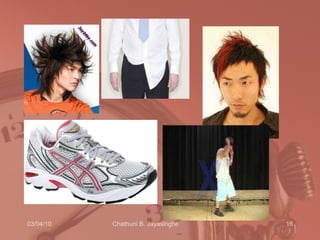
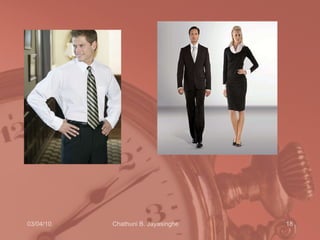
Looking Good Smile  Attire Not distracting Comfortable A good file


Dealing with questions Answer briefly and move on Answer partially Refer them to a source See them at a break Turn it back to the questioner Find the answer and get back to the questioner Simply say “I don’t know.”
Ending  Summerize Have to end on time Say something that they have to think about
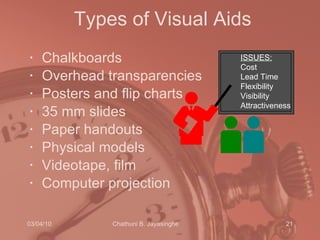
Types of Visual Aids Chalkboards Overhead transparencies Posters and flip charts 35 mm slides Paper handouts Physical models Videotape, film Computer projection ISSUES: Cost Lead Time Flexibility Visibility Attractiveness
Group Presentations  Introduction Body Conclusion Coordination
Why Use Visual Aids People are 43% more likely to be persuaded Makes your ideas easier to understand People will remember – 85% of everything we learn comes from information taken in visually One picture is worth 8 minutes of talking They are your notes!
VA Guidelines Ensure all can see Speak to the audience Make them  Big  and Simple Make  C o l or f u l  and  eye catching
The outline 1 st  or 2 nd  slide should have an outline Follow outline for your presentation Place main points on outline slide
Slide layout  Use point form, not complete sentences Maximum of six points per slide Avoid wordiness: key words only
Slide layout This page contains too many words for a presentation slide. It is not written in point form, making it difficult both for your audience to read and for you to present each point. Although there are exactly the same number of points on this slide as the previous slide, it looks much more complicated.  In short, your audience will spend too much time trying to read this paragraph instead of listening to you.
Slide layout Showing one point at a time will: focus attention on one point prevent reading ahead help keep your presentation focused
Slide layout Do not use distracting animation Do not go overboard with the animation Use consistent animation
Slide layout Slide transitions should not be distracting Be consistent with transitions – never Random Worst effects –  ‘Checkerboard or Comb’
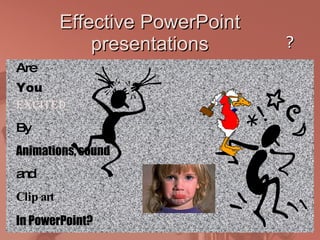
Effective PowerPoint presentations Excited By Animations, sound and Clip art In PowerPoint? You Are ?
Fonts – good Use different size to show hierarchy the  Title  font is 36-point  the  main point  font is 28-point this font is 24-point Use a standard font like Arial Use at least an 18-point font and Bold
Fonts - bad If you use a small font, your audience won’t be able to read what you have written CAPITALISE ONLY WHEN NECESSARY.  IT IS DIFFICULT TO READ AND LOOKS LIKE YOU ARE SHOUTING. Don’t use a complicated font  in your presentation
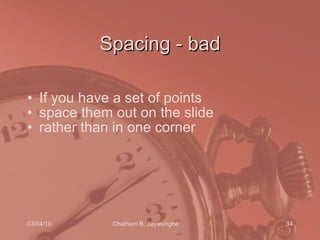
Spacing - bad If you have a set of points space them out on the slide rather than in one corner
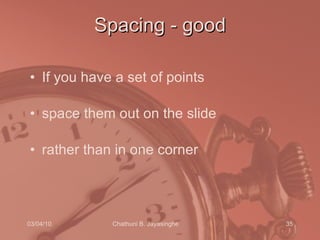
Spacing - good If you have a set of points space them out on the slide rather than in one corner
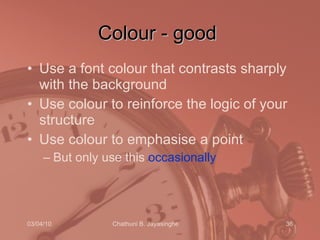
Colour - good Use a font colour that contrasts sharply with the background Use colour to reinforce the logic of your structure Use colour to emphasise a point But only use this  occasionally
Colour - bad Don’t use non-contrasting font colours  Using colour for decoration is  distracting  and  annoying Using a different colour for each point is unnecessary Using a different colour for secondary points is also unnecessary T r y i n g  t o   b e  c r e a t i v e   c a n  a l s o   b e  b a d
Background - good Use a simple background Use backgrounds that contrast with text/imagery Use the same background consistently throughout your presentation
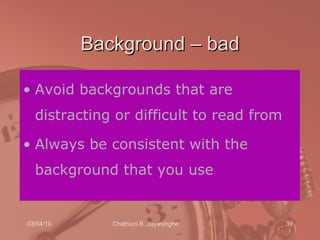
Background – bad Avoid backgrounds that are distracting or difficult to read from Always be consistent with the background that you use
Red Background A red background is not very effective
Graphs Use graphs rather than just charts and words Data in graphs is easier to comprehend and retain than raw data Trends are easier to visualise in graph form Always title your graphs
Graphs
Graphs
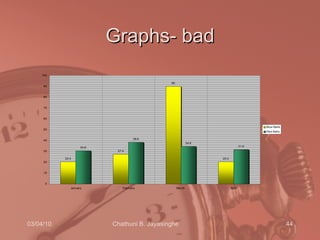
Graphs- bad
Spelling and Grammar Proof your slides for: speling mistakes the use of of repeated words grammatical errors you might have make  Have someone check your presentation
On the day Get there early Handouts Does everything work? Can your audience read the slides? Keep an eye on the time Don’t read directly from the slides
Conclusion slide Use an effective and strong closing Use a conclusion slide
Questions? End your presentation with a simple question slide to: Invite your audience to ask questions Provide a visual aid during question period Avoid ending a presentation abruptly

Effective Presentation Skills New

  • 1.
    Effective Presentations by Chathuni B. Jayasinghe Department of HRM Faculty of Commerce & Management Studies University of Kelaniya.
  • 2.
    Why Give aPresentation? To Persuade To Sell an idea or product To Inform To Impress
  • 3.
    Presentation Planning Whatis the objective of the presentation Who is the audience How large is the audience Where is presentation to be given What resources are available How much time do you have
  • 4.
    Organization Carefully outlineyour presentation before getting into construction details Do not wait for preparation till the last moment Careful use of humor Organize presentation with: introduction body conclusion
  • 5.
    Opening Approaching the stage Using prime time Greeting Introduction Avoid weak openings State the objective Preview session outline
  • 6.
    Delivery APPEARANCE PHYSICAL Appearance Dress neatly and tidily - first impressions are important. Carry yourself in a confident and professional manner.
  • 7.
    Delivery cont…. Eye Contact Keep eye contact with the class. This will: keep them alert. make them feel that they are being directly spoken to. make them feel part of the class. give them confidence in you as the instructor/presenter. Monitor the class' reactions to what you are saying so that you can adjust your talk accordingly.
  • 8.
    Delivery cont…. Donot: stare (intimidate). move your eyes from side to side (distraction). look out the window or at the clock (indicates boredom). look only at the training aids or chalk board (this can be perceived as impolite). look at your feet or at the ceiling (indication of nervousness or timidity).
  • 9.
    Delivery cont…. Body Movements Be natural - don't move around too much or too little. move forward for emphasis (e.g. when standing at a podium). relax when talking from behind a desk -this creates some intimacy with a group. slowly and on occasion move from side to side to engage all parts of the class.
  • 10.
    Delivery cont…. Gesturesuse meaningful and appropriate gestures to make a point. Do not, or at least avoid: play with keys or coins in your pocket. use your hands too much, touching your nose or ears and excessive coughing. use a pointer, pen, pencil or chalk to point at an individual may be perceived as offensive.
  • 11.
    Delivery cont…. Voice VOICE Volume Speak loudly enough to be heard. VOICE Pitch Use effectively to convey meaning. VOICE Rate Speak more quickly to convey enthusiasm. Speak more slowly to emphasize key points or issues.
  • 12.
    Delivery cont…. Voice cont … Do not : speak so quickly that no one can understand. speak so quickly that materials are glossed over rather than well explained so that they are understood. speak so slowly that people become bored or drowsy.
  • 13.
    Delivery cont…. Articulation Speak clearly, pronouncing words carefully -don't mumble. Control your lips, teeth and tongue to assist you. Language Avoid " expressions (e.g."O.K.","Like", "You know"). Do not use profanity. Humor Use humor but only appropriately .
  • 14.
    Presentations…. Who isthe best?? Men or women??? If you were to meet Ranil Wickramasinghe Girls and boys should get married before 25…. You are the opponent candidate for Mervin Silva Bachelor degree without assignments
  • 15.
    Looking Good Smile Attire Not distracting Comfortable A good file
  • 16.
  • 17.
  • 18.
  • 19.
    Dealing with questionsAnswer briefly and move on Answer partially Refer them to a source See them at a break Turn it back to the questioner Find the answer and get back to the questioner Simply say “I don’t know.”
  • 20.
    Ending SummerizeHave to end on time Say something that they have to think about
  • 21.
    Types of VisualAids Chalkboards Overhead transparencies Posters and flip charts 35 mm slides Paper handouts Physical models Videotape, film Computer projection ISSUES: Cost Lead Time Flexibility Visibility Attractiveness
  • 22.
    Group Presentations Introduction Body Conclusion Coordination
  • 23.
    Why Use VisualAids People are 43% more likely to be persuaded Makes your ideas easier to understand People will remember – 85% of everything we learn comes from information taken in visually One picture is worth 8 minutes of talking They are your notes!
  • 24.
    VA Guidelines Ensureall can see Speak to the audience Make them Big and Simple Make C o l or f u l and eye catching
  • 25.
    The outline 1st or 2 nd slide should have an outline Follow outline for your presentation Place main points on outline slide
  • 26.
    Slide layout Use point form, not complete sentences Maximum of six points per slide Avoid wordiness: key words only
  • 27.
    Slide layout Thispage contains too many words for a presentation slide. It is not written in point form, making it difficult both for your audience to read and for you to present each point. Although there are exactly the same number of points on this slide as the previous slide, it looks much more complicated. In short, your audience will spend too much time trying to read this paragraph instead of listening to you.
  • 28.
    Slide layout Showingone point at a time will: focus attention on one point prevent reading ahead help keep your presentation focused
  • 29.
    Slide layout Donot use distracting animation Do not go overboard with the animation Use consistent animation
  • 30.
    Slide layout Slidetransitions should not be distracting Be consistent with transitions – never Random Worst effects – ‘Checkerboard or Comb’
  • 31.
    Effective PowerPoint presentationsExcited By Animations, sound and Clip art In PowerPoint? You Are ?
  • 32.
    Fonts – goodUse different size to show hierarchy the Title font is 36-point the main point font is 28-point this font is 24-point Use a standard font like Arial Use at least an 18-point font and Bold
  • 33.
    Fonts - badIf you use a small font, your audience won’t be able to read what you have written CAPITALISE ONLY WHEN NECESSARY. IT IS DIFFICULT TO READ AND LOOKS LIKE YOU ARE SHOUTING. Don’t use a complicated font in your presentation
  • 34.
    Spacing - badIf you have a set of points space them out on the slide rather than in one corner
  • 35.
    Spacing - goodIf you have a set of points space them out on the slide rather than in one corner
  • 36.
    Colour - goodUse a font colour that contrasts sharply with the background Use colour to reinforce the logic of your structure Use colour to emphasise a point But only use this occasionally
  • 37.
    Colour - badDon’t use non-contrasting font colours Using colour for decoration is distracting and annoying Using a different colour for each point is unnecessary Using a different colour for secondary points is also unnecessary T r y i n g t o b e c r e a t i v e c a n a l s o b e b a d
  • 38.
    Background - goodUse a simple background Use backgrounds that contrast with text/imagery Use the same background consistently throughout your presentation
  • 39.
    Background – badAvoid backgrounds that are distracting or difficult to read from Always be consistent with the background that you use
  • 40.
    Red Background Ared background is not very effective
  • 41.
    Graphs Use graphsrather than just charts and words Data in graphs is easier to comprehend and retain than raw data Trends are easier to visualise in graph form Always title your graphs
  • 42.
  • 43.
  • 44.
  • 45.
    Spelling and GrammarProof your slides for: speling mistakes the use of of repeated words grammatical errors you might have make Have someone check your presentation
  • 46.
    On the dayGet there early Handouts Does everything work? Can your audience read the slides? Keep an eye on the time Don’t read directly from the slides
  • 47.
    Conclusion slide Usean effective and strong closing Use a conclusion slide
  • 48.
    Questions? End yourpresentation with a simple question slide to: Invite your audience to ask questions Provide a visual aid during question period Avoid ending a presentation abruptly

Editor's Notes

  • #25 20
  • #26 An outline, like what you saw on an earlier slide, is a bit like an index for your presentation. An outline will give your audience a good idea of the structure of your presentation. It will also give them an idea of when you are nearing the end of your presentation. It’s a good idea to use the outline headings in your presentation as this will deliver milestones throughout the presentation.
  • #27 Don’t whack up too many words on a slide. The less is more policy works well with powerpoint. What you are trying to do is put significant words on the slide so that your message will stay with the audience and reinforce your spoken words. The 6/6 rule is a good one to follow. No more than 6 dot points and no more than six words per dot point. You won’t always be able to stick to this but it’s a good base point.
  • #28 Obviously this is not what you do. Firstly, people will be straining their eyes to read this amount of information. Secondly, your audience will be torn between reading the text and listening to what you have to say. This is where PowerPoint becomes PowerPointless, either you or the PowerPoint could be dispensed with.
  • #29 Sometimes it can be advantageous to show one point at a time. This way you can reinforce each of the points you are saying and the audience does not read ahead of what you are saying.
  • #30 Novice users to PowerPoint tend to overuse clip art and animation effects. My suggestion would be to minimise their use. People have come to hear you speak and present your ideas, not watch a multimedia display. Also, people are fairly familiar with the clip art available on Microsoft Office so presenting this artwork can give an impression that this is just a generic presentation which will make your audience switch off. If you use animation, keep it consistent, or your audience will be wondering what animation is going to happen next, rather than concentrating on what you are saying.
  • #31 When you are moving from one slide to the next, I think simplicity is the best option, however if you want to use a particular effect, use it throughout your presentation and never, ever use the ‘Random transition option’.
  • #32 Isn’t it great? Ok, now I probably have you pretty worried. I lied. This is far from a great slide. There are sooo many things wrong with this slide. Some of these are: Content that is of no use to anyone A background that makes the text barely legible Mixtures of fonts Over-use of clip art Confusing transitions Animated text Sound effects People usually do not produce horrendous slides like this, however there are some aspects of this slide that people do include, and that’s what we will seek to avoid. At least I hope none of you are producing anything like this.
  • #33 I have put up some suggestions as to the size of font you should be using. In terms of what type of font, some people find Times New Roman preferable to Arial. However there has been some research into readability of fonts, especially for people with reading or vision difficulties, that san serif fonts such as Arial or Tehoma are preferable. This is also the recommendation from organisations such as Scope and Vision Australia.
  • #34 If you’re going to use a small sized font, you may as well not include that slide in your presentation. Most of your audience won’t be able to read it. Information in small font could be included in the handouts that you give to your audience. Avoid using a mixture of fonts and avoid complex fonts like comic sans or impact.
  • #35 You’ve got the whole page so why cram things in a corner…
  • #36 Space them out. The use of white space increases readability and your audience’s ability to scan slides quickly and return their focus back to you, the speaker.
  • #37 The main thing when using colour is to use high contrast. So, either a dark background with light text or light background with dark text. However, it can be difficult to read white text on black background, especially when the font size is not huge. It would probably be better to use a dark blue background if you are going to go with a dark background and light text.
  • #38 Telling you the obvious here, but you would not use yellow on white or black on blue. You don’t want anyone in your audience straining to read what is on your slides. You don’t need to be too obvious with highlighting specific words or giving each line a different colour.
  • #39 Be careful with your choice of background. Some standard backgrounds that you will find in PowerPoint can vary from light to dark therefore making the choice of font colour very difficult. In one part of the slide the contrast will be fine, while in other areas the words may be more difficult to see.
  • #40 This Austin Powers effect is obviously a little over the top but it shows how the green writing is visible against some colours but not others which is the danger with a variable background.
  • #42 Try to present visual graphs rather than numeric charts. They are much more scannable and accessible.
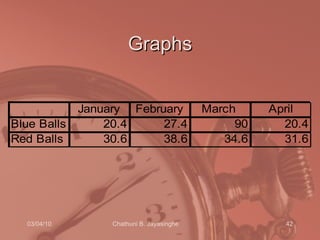
  • #43 Yes, this table does show how many coloured balls were sold in the first four months. But it is not particularly engaging, nor is it intuitive in showing the trends…
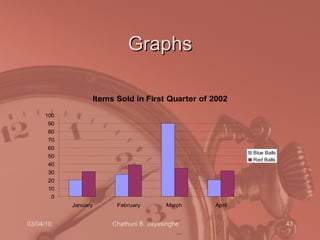
  • #44 Use PowerPoint for what it was originally created to do. Show graphs and charts more dynamically and allow your audience to easily understand what is occurring. They are much more scannable. We can easily see that March was a great month for blue balls. But even with graphs there are some rules…
  • #45 Minor gridlines are unnecessary Font is too small Colours are illogical Title is missing Shading is distracting
  • #46 Make sure you, and maybe one of your colleagues, check through the presentation to ensure there are no typos or grammatical errors. When checking it’s good to have a breather, or go for a coffee and then come back to it. You may be amazed what you pick up on a second reading. As I mentioned at the beginning, you don’t want your mistakes magnified and projected onto a wall for all to see.
  • #47 Get there early – this will allow you to iron out any last minute issues. It may be handy to have your presentation on disk just in case, and if all the technology lets you down, be prepared to give your talk without PowerPoint. Handouts – it is your decision as to whether you give out handouts prior to the presentation or after. Reasons for giving them out prior to might be that they need to take additional notes as you present or there is other information in the handouts that they need to refer to when you are speaking. However, be aware that if you give out handouts prior to the presentation, your audience may be concentrating on the handouts rather than you. Does everything work? – Check the data projector and/or laptop. Make sure there are no passwords you need to know. See whether you will need a microphone in order to be heard. Make sure you are able to see your notes. If you require an Internet connection or are using other multimedia ensure it is all in working order. Can your audience read the slides? – Check that the light levels in the room allow for your slides to be easily seen once they are projected. Try not to make the room too dark or you may soon hear the sound of snoring, especially if a large lunch has just been consumed. Keep an eye on the time – Have a watch or look at the computer clock to make sure you are running to schedule. You will have practiced your speech several times so you should know roughly where you should be according to the clock. Try not to run over, especially if you are a part of a series of presentations. Firstly, it won’t allow enough time for questions, thereby upsetting your audience, and secondly you will annoy your next presenter, who may have to cut their presentation short. Generally those more practised in presenting will require fewer slides than newcomers to presenting. Some say that you require 1 slide for every minute of your presentation, but best to practice to determine your slide need. Don’t read directly from the slides – Avoid looking at the projection on the wall. Your audience are not that interested in looking at the back of your head. An occasional glance is ok. Also, although it can be very hard, try to avoid reading directly from your notes as you will disengage your audience. Try to make as much eye contact as possible and possibly even move away from the podium, as long as that does not upset the flow of the presentation. (You don’t want to be running back to the podium to change every slide).
  • #48 Your audience is likely to remember your last words, so a good conclusion slide should summarise the main points of your presentation and give your audience the feeling of a complete presentation.
  • #49 I have been to presentations where the presenter has finished by saying. “And that’s it” followed by some stuttered applause and then the master of ceremonies getting up and saying “Ok…any questions?” To make a better transition it is best for the presenter to initiate the question time themselves which signifies the end of the presentation and makes for a smooth transition from the speaker to the master of ceremonies and hopefully for your applause.