USER
MANAGEMENT
LINUX
MUFADDAL HAIDERMOTA
BASIC COMMANDS
Local accounts or users in Linux like operating system is managed by commands such as :
 useradd – Create new accounts.
 usermod – Modify existing accounts.
 userdel – Delete local account.
 chage – View and modify users password expiry information.
 Passwd – Assign password to local accounts/users.
NOTE :
 When a user is created in Linux followings are updated:
 A home directory is created under ‘/home/<username>’
 User info is updated in ‘/etc/passwd’ file
 Group Information is stored in ‘/etc/group’
 password info is updated in ‘/etc/shadow’ file.
 File for user’s email is created under ‘/var/spool/mail/<username>’
The following hidden files are copied into the user’s home directory, and will be used to provide environment
variables for his/her user session.
 .bash_logout
 .bash_profile
 .bashrc
The full account information is stored in the /etc/passwd file. This file contains a record per system user
account and has the following format (fields are delimited by a colon).
[username]:[x]:[UID]:[GID]:[Comment]:[Home directory]:[Default shell]
 The x in the second field indicates that the account is protected by a shadowed password (in /etc/shadow),
which is needed to logon as [username].
 The [UID] and [GID] fields are integers that represent the User IDentification and the primary Group
IDentification to which [username] belongs, respectively.
 The [Home directory] indicates the absolute path to [username]’s home directory, and
 The [Default shell] is the shell that will be made available to this user when he or she logins the system.
ERROR SCENARIO 1 : PERMISSION DENIED
 The command useradd needs some special privilege to modify the system settings. Hence,
you get a permission denied when using it as a normal user.
 To be able to call useradd from a normal user, you need to configure sudo
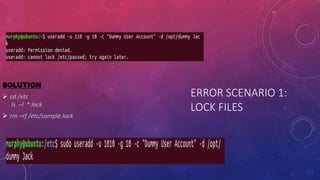
ERROR SCENARIO 1:
LOCK FILES
SOLUTION
 cd /etc
ls –l *.lock
 rm –rf /etc/sample.lock
ERROR SCENARIO 2: CANNOT VIEW/MODIFY
PASSWORD INFO. FOR OTHER USER
SOLUTION
VERIFICATION
MODIFY USER
MODIFY PASSWORD
SETTINGS
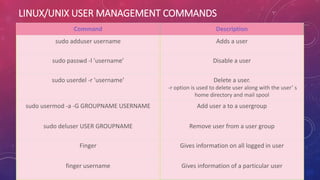
LINUX/UNIX USER MANAGEMENT COMMANDS
Command Description
sudo adduser username Adds a user
sudo passwd -l 'username’ Disable a user
sudo userdel -r 'username’ Delete a user.
-r option is used to delete user along with the user’ s
home directory and mail spool
sudo usermod -a -G GROUPNAME USERNAME Add user a to a usergroup
sudo deluser USER GROUPNAME Remove user from a user group
Finger Gives information on all logged in user
finger username Gives information of a particular user
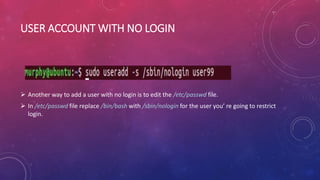
USER ACCOUNT WITH NO LOGIN
 Another way to add a user with no login is to edit the /etc/passwd file.
 In /etc/passwd file replace /bin/bash with /sbin/nologin for the user you’ re going to restrict
login.
ROOT ACESSS TO A
USER
 Run sudo -i. This will give you an
interactive root shell. Note that the $
at the end of your prompt has
changed to a #, indicating that you
have root access.
 From here you can run any sequence
of commands as root, or run the
command exit to leave the root shell.
GIVING USER ROOT
PRIVILEGES
GROUP MANAGEMENT
There are two types of groups in Linux, they are
 Primary group
 Secondary or Supplementary group
Primary group
To add a user to a Primary group, use the following user
mod command as root,
Syntax: usermod -g [groupname] [username]
Secondary Group
A user can be added to a secondary group using the
following command.
Syntax: usermod -G [groupname] [username]
FYI
 To change a password for root user on Ubuntu Linux, run: sudo passwd root
 To change your own password for Ubuntu, execute: passwd
 Create a new group with specific gid: groupadd -G 999 groupname
 Users can change their login shell with chsh / chsh -s command.
Syntax: chsh -s <newShell> Example: chsh -s /bin/sh
 https://www.linuxtechi.com/linux
-commands-to-manage-local-
accounts/
 https://www.linuxhelp.com/user-
management-commands

User management

  • 1.
  • 2.
    BASIC COMMANDS Local accountsor users in Linux like operating system is managed by commands such as :  useradd – Create new accounts.  usermod – Modify existing accounts.  userdel – Delete local account.  chage – View and modify users password expiry information.  Passwd – Assign password to local accounts/users. NOTE :  When a user is created in Linux followings are updated:  A home directory is created under ‘/home/<username>’  User info is updated in ‘/etc/passwd’ file  Group Information is stored in ‘/etc/group’  password info is updated in ‘/etc/shadow’ file.  File for user’s email is created under ‘/var/spool/mail/<username>’
  • 3.
    The following hiddenfiles are copied into the user’s home directory, and will be used to provide environment variables for his/her user session.  .bash_logout  .bash_profile  .bashrc The full account information is stored in the /etc/passwd file. This file contains a record per system user account and has the following format (fields are delimited by a colon). [username]:[x]:[UID]:[GID]:[Comment]:[Home directory]:[Default shell]  The x in the second field indicates that the account is protected by a shadowed password (in /etc/shadow), which is needed to logon as [username].  The [UID] and [GID] fields are integers that represent the User IDentification and the primary Group IDentification to which [username] belongs, respectively.  The [Home directory] indicates the absolute path to [username]’s home directory, and  The [Default shell] is the shell that will be made available to this user when he or she logins the system.
  • 4.
    ERROR SCENARIO 1: PERMISSION DENIED  The command useradd needs some special privilege to modify the system settings. Hence, you get a permission denied when using it as a normal user.  To be able to call useradd from a normal user, you need to configure sudo
  • 5.
    ERROR SCENARIO 1: LOCKFILES SOLUTION  cd /etc ls –l *.lock  rm –rf /etc/sample.lock
  • 6.
    ERROR SCENARIO 2:CANNOT VIEW/MODIFY PASSWORD INFO. FOR OTHER USER SOLUTION
  • 7.
  • 8.
  • 9.
  • 10.
    LINUX/UNIX USER MANAGEMENTCOMMANDS Command Description sudo adduser username Adds a user sudo passwd -l 'username’ Disable a user sudo userdel -r 'username’ Delete a user. -r option is used to delete user along with the user’ s home directory and mail spool sudo usermod -a -G GROUPNAME USERNAME Add user a to a usergroup sudo deluser USER GROUPNAME Remove user from a user group Finger Gives information on all logged in user finger username Gives information of a particular user
  • 11.
    USER ACCOUNT WITHNO LOGIN  Another way to add a user with no login is to edit the /etc/passwd file.  In /etc/passwd file replace /bin/bash with /sbin/nologin for the user you’ re going to restrict login.
  • 12.
    ROOT ACESSS TOA USER  Run sudo -i. This will give you an interactive root shell. Note that the $ at the end of your prompt has changed to a #, indicating that you have root access.  From here you can run any sequence of commands as root, or run the command exit to leave the root shell.
  • 13.
  • 14.
    GROUP MANAGEMENT There aretwo types of groups in Linux, they are  Primary group  Secondary or Supplementary group Primary group To add a user to a Primary group, use the following user mod command as root, Syntax: usermod -g [groupname] [username] Secondary Group A user can be added to a secondary group using the following command. Syntax: usermod -G [groupname] [username]
  • 15.
    FYI  To changea password for root user on Ubuntu Linux, run: sudo passwd root  To change your own password for Ubuntu, execute: passwd  Create a new group with specific gid: groupadd -G 999 groupname  Users can change their login shell with chsh / chsh -s command. Syntax: chsh -s <newShell> Example: chsh -s /bin/sh
  • 16.