External Commands
 Are stored in some external files which are stored
on some secondary storage device.
 Whenever an external command is executed then
the external file in which that particular
command is stored in transferred from disk to
main memory i.e. RAM
 All executable files with extensions .com, .exe
and .bat are the external commands.
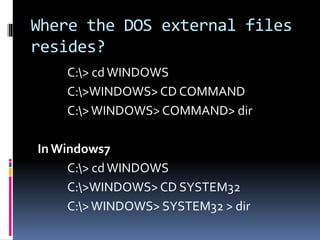
Where the DOS external files
resides?
C:> cdWINDOWS
C:>WINDOWS> CD COMMAND
C:>WINDOWS> COMMAND> dir
InWindows7
C:> cdWINDOWS
C:>WINDOWS> CD SYSTEM32
C:>WINDOWS> SYSTEM32 > dir
ATTRIB
 Change or view the attributes of one or more files.
 Stored in ATTRIB.EXE file which is needed for its
execution.
 Syntax:
ATTRIB [+R|-R] [+A|-A] [+S|-S] [+H|-H][drive:][path][filename] [/S [/D]]
 Options:
 To add an attribute attach a '+' in front of it.
 To remove an attribute attach a '-' in front of it
 Attributes include
• R - Read-only
• A - Archive
• S - System
• H - Hidden
• /D - Process folders as well.
• /S - Process matching files in the current folder and all subfolders.
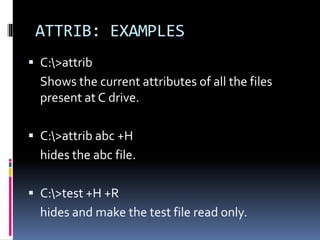
ATTRIB: EXAMPLES
 C:>attrib
Shows the current attributes of all the files
present at C drive.
 C:>attrib abc +H
hides the abc file.
 C:>test +H +R
hides and make the test file read only.
LABEL
 Requires LABEL.EXE file for its execution.
 Label is used to view or change the label of the
computer disk drives.
 Syntax:
LABEL [drive:][label]
 Example:
C:>label a: mydisk
This would label the disk currently in the drive to
"mydisk“.
BACKUP
 External command that requires BACKUP.EXE
for executing this command.
 Enables users to backup their data on their
computer.
 Syntax:
BACKUP [Source:PathFilename] [Target:] [/s]
[/m] [/a] [/d:date] [/t:time] [/f:size]
[/L:LogDrive:PathLog]
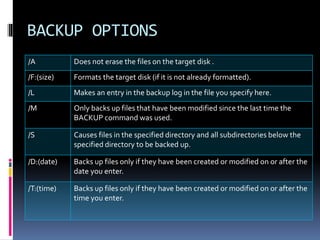
BACKUP OPTIONS
/A Does not erase the files on the target disk .
/F:(size) Formats the target disk (if it is not already formatted).
/L Makes an entry in the backup log in the file you specify here.
/M Only backs up files that have been modified since the last time the
BACKUP command was used.
/S Causes files in the specified directory and all subdirectories below the
specified directory to be backed up.
/D:(date) Backs up files only if they have been created or modified on or after the
date you enter.
/T:(time) Backs up files only if they have been created or modified on or after the
time you enter.
BACKUP: Examples
 C:>backup C:TC F:/S
Copies all the files with all subdirectories of the
TC directory to drive F.
 C:>backup c:letterssale*.* a:
All files in the drive C LETTERS directory that
begin with SALE and with any filename
extension are backed up onto the disk in drive A.
CHKDSK
 Requires CHKDSK.EXE file for execution.
 Chkdsk is a utility that checks the computer's hard
disk drives' status for any cross-linked or any
additional errors with the hard disk drive.
 Syntax:
CHKDSK [drive:][[path]filename] [/F] [/V]
CHKDSK Options
/F Fixes errors on the disk.
/V Displays the full path and name of every file
on the disk
CHKDSK: Examples
 C:>chkdsk
checks the current drive.
 C:>chkdsk a:
checks the drive a.
FORMAT
 Requires an external file FORMAT.COM.
 Used to make a disk usable for OS by dividing the
disk into magnetic tracks and sectors.
 Syntax:
FORMAT drive:/switches
FORMAT Options
/V[:label] Specifies the volume label.
/Q Performs a quick format.
/F:size Specifies the size of the floppy disk to format (such as 160,
180, 320, 360, 720, 1.2, 1.44).
/B Allocates space on the formatted disk for system files.
/S Copies system files to the formatted disk.
/T:tracks Specifies the number of tracks per disk side.
/N:sectors Specifies the number of sectors per track.
/1 Formats a single side of a floppy disk.
/8 Formats eight sectors per track.
/C Tests clusters that are currently marked "bad."
FORMAT: Examples
 C:>format A:
formats a disk A.
 C:>format A:/3
formats 31/2 inch floppy disk.
MOVE
 Executed when a file MOVE.EXE is loaded in
RAM.
 Used to move one or more files.
 Analogous to cut and paste.
 Syntax:
MOVE <source> <destination>
MOVE Options
/Y Suppresses prompting to confirm you want to overwrite
an existing destination file.
/-Y Causes prompting to confirm you want to overwrite an
existing destination file.
MOVE: Examples
 C:>move c:windowstemp*.* c:temp
Moves the files of c:windowstemp to the temp
directory in root, this is of course assuming you
have the windowstemp directory.
 C:>move abc test
renames the abc directory to test.
TREE
 Displays all the directories and subdirectories
graphically.
 Syntax
TREE <path> /switches
 Options
/F Includes the file names in each subdirectory.
/A Displays the subdirectory using standardASCII characters
rather than graphic characters .
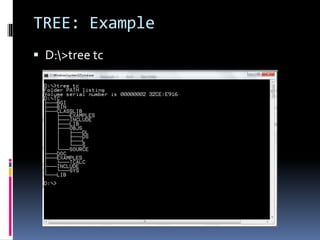
TREE: Example
 D:>tree tc
DELTREE
 Requires external file DELTREE.EXE for its
execution.
 Deletes a directory and all the subdirectories
and files in it.
 Syntax:
DELTREE [/Y] [drive:]path [[drive:]path[...]]
DELTREE: Examples
 C:>deltree c:fake010
Deletes the fake010 directory and everything
in it.
 C:>deltree D:test*.*
Deletes all the files in test directory present
on drive D.
FIND
 Requires an external file FIND.EXE.
 A filter to find lines in the input data stream that
contain or don't contain a specified string and
send these to the output data stream.
 Syntax
find "keyword" <filename>
Searches for a text string in a file or files.
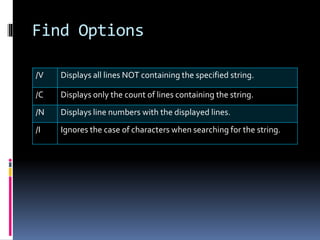
Find Options
/V Displays all lines NOT containing the specified string.
/C Displays only the count of lines containing the string.
/N Displays line numbers with the displayed lines.
/I Ignores the case of characters when searching for the string.
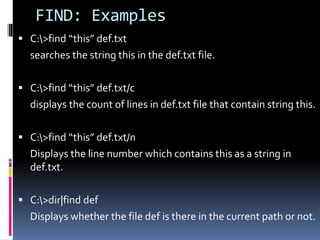
FIND: Examples
 C:>find “this” def.txt
searches the string this in the def.txt file.
 C:>find “this” def.txt/c
displays the count of lines in def.txt file that contain string this.
 C:>find “this” def.txt/n
Displays the line number which contains this as a string in
def.txt.
 C:>dir|find def
Displays whether the file def is there in the current path or not.
RESTORE
 Used to restore files from disks made using the
BACKUP command.
 Syntax:
RESTORE sourcedrive: targetdrive: [path][/switches]
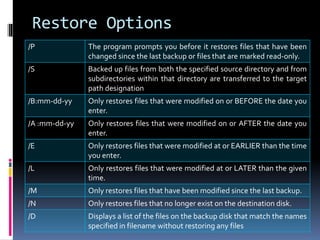
Restore Options
/P The program prompts you before it restores files that have been
changed since the last backup or files that are marked read-only.
/S Backed up files from both the specified source directory and from
subdirectories within that directory are transferred to the target
path designation
/B:mm-dd-yy Only restores files that were modified on or BEFORE the date you
enter.
/A :mm-dd-yy Only restores files that were modified on or AFTER the date you
enter.
/E Only restores files that were modified at or EARLIER than the time
you enter.
/L Only restores files that were modified at or LATER than the given
time.
/M Only restores files that have been modified since the last backup.
/N Only restores files that no longer exist on the destination disk.
/D Displays a list of the files on the backup disk that match the names
specified in filename without restoring any files
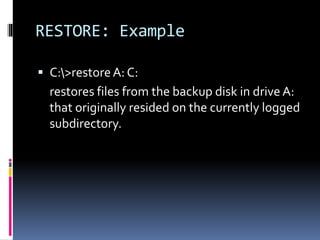
RESTORE: Example
 C:>restoreA: C:
restores files from the backup disk in drive A:
that originally resided on the currently logged
subdirectory.
SORT
 Sorts input and sends it to the screen or to a file.
 Syntax
SORT [/R][/+n] <filename>
 Options
/R Reverses the sort (sorts from Z to A).
/+n Starts sorting with column number (n) you
enter.
SORT: Examples
 C:>sort a:test d:abc
To sort the file test on drive A and send the output
to a new file abc on drive D.
 C:> sort /r a:phones.txt c:phone1
Sorts in reverse order (Z to A) the file PHONES.TXT
on drive A and send the output to a new file
PHONE1 on drive C.
 C:> sort /+3 > b:temp
Create a sorted fileTEMP, sorting on the character
in column three, by using input from the keyboard.
SYS
 Copies MS-DOS system files and command
interpreter to a disk you specify.
 Syntax:
SYS [drive1:][path] drive2:
 Example:
C:>sys a:
If you type this from c drive and you have a
formatted disk in the drive, this would copy the
system files to that disk making that disk bootable.
DISKCOMP
 Compares the contents of two disks on a track
by track basis.
 It checks whether two disks are identical or not.
 Compares only floppy disks that are of same
size.
 Syntax:
DISKCOMP <Source> <Target> /switches
 Options:
/1 Compares only the first side of the disks
/8 Compares the first 8 sectors per track.
SCANDISK
 Requires two external files SCANDISK.EXE and
SCANDISK.INI for execution.
 Disk analysis and repair tool used to check a
drive for errors and correct any problems that it
finds.
 Syntax
SCANDISK <drivename>/switches
SCANDISK Options
/all Used to check and repair all local drives.
/autofix This option will fix any errors it encounters without
prompting you first
/checkonly Use this option if you want to check a drive for errors
without repairing the damage.
DISKCOPY
 Requires an external file DISKCOPY.EXE for its
execution.
 Used to copy all the files as well as directories
from one disk to another on a track by track basis.
 Only copy floppy disks that are of the same size
and capacity.
 If target disk is unformatted, DISKCOPY will
automatically format the disk first automatically.
 Syntax
DISKCOPY [drive1: [drive2:]]/switches
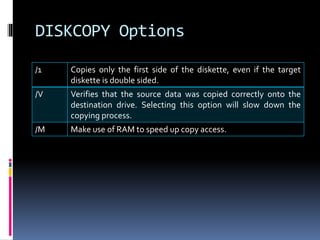
DISKCOPY Options
/1 Copies only the first side of the diskette, even if the target
diskette is double sided.
/V Verifies that the source data was copied correctly onto the
destination drive. Selecting this option will slow down the
copying process.
/M Make use of RAM to speed up copy access.
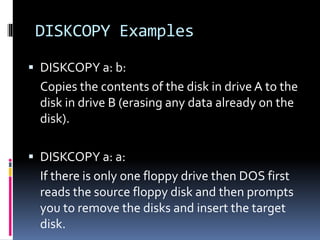
DISKCOPY Examples
 DISKCOPY a: b:
Copies the contents of the disk in drive A to the
disk in drive B (erasing any data already on the
disk).
 DISKCOPY a: a:
If there is only one floppy drive then DOS first
reads the source floppy disk and then prompts
you to remove the disks and insert the target
disk.
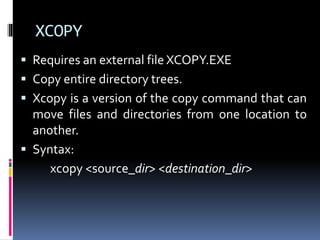
XCOPY
 Requires an external file XCOPY.EXE
 Copy entire directory trees.
 Xcopy is a version of the copy command that can
move files and directories from one location to
another.
 Syntax:
xcopy <source_dir> <destination_dir>
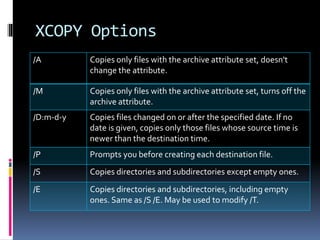
XCOPY Options
/A Copies only files with the archive attribute set, doesn't
change the attribute.
/M Copies only files with the archive attribute set, turns off the
archive attribute.
/D:m-d-y Copies files changed on or after the specified date. If no
date is given, copies only those files whose source time is
newer than the destination time.
/P Prompts you before creating each destination file.
/S Copies directories and subdirectories except empty ones.
/E Copies directories and subdirectories, including empty
ones. Same as /S /E. May be used to modify /T.
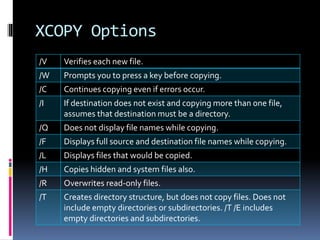
XCOPY Options
/V Verifies each new file.
/W Prompts you to press a key before copying.
/C Continues copying even if errors occur.
/I If destination does not exist and copying more than one file,
assumes that destination must be a directory.
/Q Does not display file names while copying.
/F Displays full source and destination file names while copying.
/L Displays files that would be copied.
/H Copies hidden and system files also.
/R Overwrites read-only files.
/T Creates directory structure, but does not copy files. Does not
include empty directories or subdirectories. /T /E includes
empty directories and subdirectories.
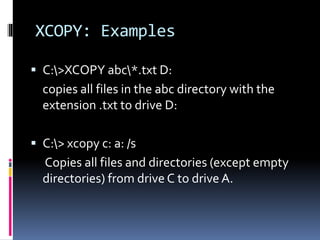
XCOPY: Examples
 C:>XCOPY abc*.txt D:
copies all files in the abc directory with the
extension .txt to drive D:
 C:> xcopy c: a: /s
Copies all files and directories (except empty
directories) from drive C to drive A.
DOSKEY
 MS-DOS utility that allows a user to keep a
history of commands used on the computer.
 Before using it, it is required to install doskey by
writing this command on the DOS prompt.
 Syntax
doskey/options
DOSKEY Options
/HISTORY Displays all commands stored in memory
/LINE: size Sets maximum size of line edit buffer(default:128)
/OVERSTRIKE Overwrites new characters onto line when typing(default)
/REINSTALL Installs a new copy of DOSKey
UP,DOWN arrows recall commands
Esc clears current command
F7 displays command history
Alt+F7 clears command history
[chars]F8 searches for command beginning with [chars]
F9 selects a command by number
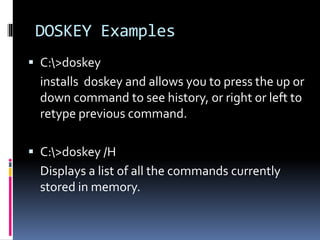
DOSKEY Examples
 C:>doskey
installs doskey and allows you to press the up or
down command to see history, or right or left to
retype previous command.
 C:>doskey /H
Displays a list of all the commands currently
stored in memory.
DEFRAG
 Optimizes disk performance by reorganizing the
files on the disk.
 Syntax:
defrag Drive: /F /U /S:order /B /Skiphigh /LCD /BW /G0 /A /H
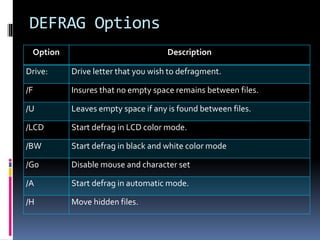
DEFRAG Options
Option Description
Drive: Drive letter that you wish to defragment.
/F Insures that no empty space remains between files.
/U Leaves empty space if any is found between files.
/LCD Start defrag in LCD color mode.
/BW Start defrag in black and white color mode
/G0 Disable mouse and character set
/A Start defrag in automatic mode.
/H Move hidden files.
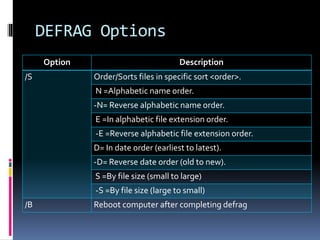
DEFRAG Options
Option Description
/S Order/Sorts files in specific sort <order>.
N =Alphabetic name order.
-N= Reverse alphabetic name order.
E =In alphabetic file extension order.
-E =Reverse alphabetic file extension order.
D= In date order (earliest to latest).
-D= Reverse date order (old to new).
S =By file size (small to large)
-S =By file size (large to small)
/B Reboot computer after completing defrag
EDIT
 Requires an external file EDIT.COM for its
execution.
 Used to create a file, change or modify the
contents of an already existing file.
 A menu driven text editor.
 Syntax:
EDIT filename.extension [/switches]
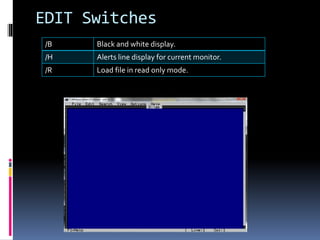
EDIT Switches
/B Black and white display.
/H Alerts line display for current monitor.
/R Load file in read only mode.
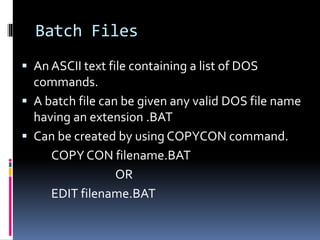
Batch Files
 An ASCII text file containing a list of DOS
commands.
 A batch file can be given any valid DOS file name
having an extension .BAT
 Can be created by using COPYCON command.
COPY CON filename.BAT
OR
EDIT filename.BAT
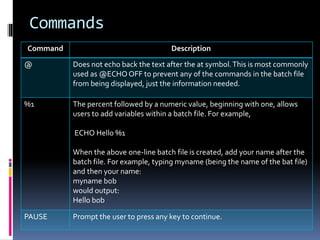
Commands
Command Description
@ Does not echo back the text after the at symbol.This is most commonly
used as @ECHO OFF to prevent any of the commands in the batch file
from being displayed, just the information needed.
%1 The percent followed by a numeric value, beginning with one, allows
users to add variables within a batch file. For example,
ECHO Hello %1
When the above one-line batch file is created, add your name after the
batch file. For example, typing myname (being the name of the bat file)
and then your name:
myname bob
would output:
Hello bob
PAUSE Prompt the user to press any key to continue.
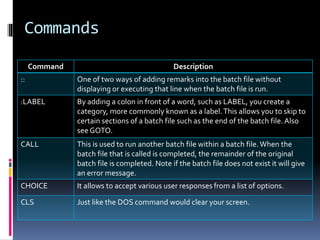
Commands
Command Description
:: One of two ways of adding remarks into the batch file without
displaying or executing that line when the batch file is run.
:LABEL By adding a colon in front of a word, such as LABEL, you create a
category, more commonly known as a label.This allows you to skip to
certain sections of a batch file such as the end of the batch file.Also
see GOTO.
CALL This is used to run another batch file within a batch file.When the
batch file that is called is completed, the remainder of the original
batch file is completed. Note if the batch file does not exist it will give
an error message.
CHOICE It allows to accept various user responses from a list of options.
CLS Just like the DOS command would clear your screen.
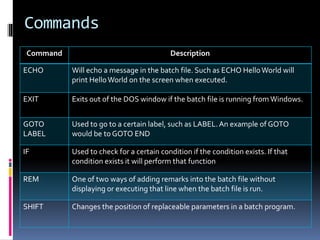
Commands
Command Description
ECHO Will echo a message in the batch file. Such as ECHO HelloWorld will
print HelloWorld on the screen when executed.
EXIT Exits out of the DOS window if the batch file is running from Windows.
GOTO
LABEL
Used to go to a certain label, such as LABEL.An example of GOTO
would be to GOTO END
IF Used to check for a certain condition if the condition exists. If that
condition exists it will perform that function
REM One of two ways of adding remarks into the batch file without
displaying or executing that line when the batch file is run.
SHIFT Changes the position of replaceable parameters in a batch program.
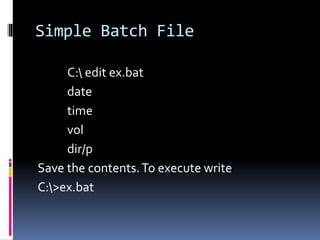
Simple Batch File
C: edit ex.bat
date
time
vol
dir/p
Save the contents.To execute write
C:>ex.bat
Use of ECHO
C: edit ex1.bat
date
pause
rem date command is executed.
echo ********************
echo
echo Hello Everyone
echo
echo *********************
rem finishesd
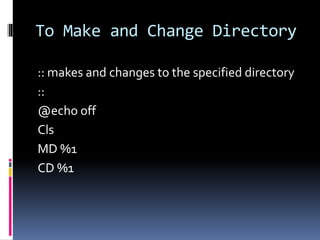
To Make and Change Directory
:: makes and changes to the specified directory
::
@echo off
Cls
MD %1
CD %1
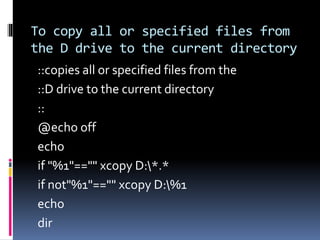
To copy all or specified files from
the D drive to the current directory
::copies all or specified files from the
::D drive to the current directory
::
@echo off
echo
if "%1"=="" xcopy D:*.*
if not"%1"=="" xcopy D:%1
echo
dir
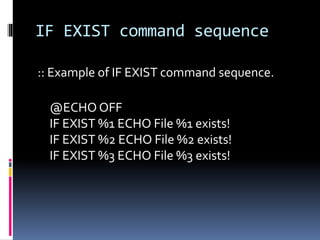
IF EXIST command sequence
:: Example of IF EXIST command sequence.
@ECHO OFF
IF EXIST %1 ECHO File %1 exists!
IF EXIST %2 ECHO File %2 exists!
IF EXIST %3 ECHO File %3 exists!
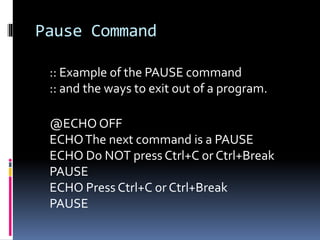
Pause Command
:: Example of the PAUSE command
:: and the ways to exit out of a program.
@ECHO OFF
ECHOThe next command is a PAUSE
ECHO Do NOT press Ctrl+C or Ctrl+Break
PAUSE
ECHO Press Ctrl+C or Ctrl+Break
PAUSE
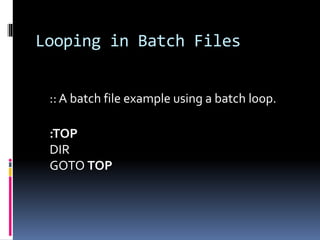
Looping in Batch Files
:: A batch file example using a batch loop.
:TOP
DIR
GOTO TOP
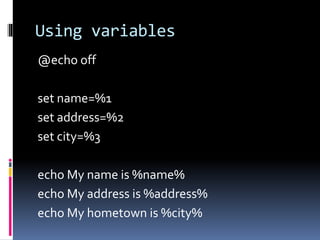
Using variables
@echo off
set name=%1
set address=%2
set city=%3
echo My name is %name%
echo My address is %address%
echo My hometown is %city%
CONFIGURING THE
SYSTEM
CONFIG.SYS
 CONFIG.SYS is an ASCII text file that contains
instructions to DOS regarding your system
configuration.
 Resides on the root directory of the default
starting drive and is read only once at the startup
time.
CONFIG.SYS Commands
 Buffer
 Specifies the size of the disk buffer. The disk buffer is
the reserved area of RAM for the disk read and write
operations.
 Syntax:
Buffer=##n
where ## represents numbers between 1-99 and n
represents read-ahead buffers which store data just
beyond the area of the disk being read.
 Example:
Buffer=20
CONFIG.SYS Commands
 Install
 Used to install some executable programs after starting
of the computer.
 This command speeds installation and minimizes
addressing problems.
 Example:
install=abcd.exe
CONFIG.SYS Commands
 Device
 Allows us to install any hardware device that is supported
by DOS.
 Helps to install the device drivers in your computer’s
memory.
 Syntax:
device=<filename>
 Example:
device=keyboard.sys
CONFIG.SYS Commands
 Files
 Used to set and specify the number of files that can be
opened simultaneously in DOS.
 By default, the number of files are 8 and the maximum
number that can be specified is 255.
 Example:
Files=20
CONFIG.SYS Commands
 Last Drive
 Used to tell how many drives are there in your computer.
 By default, the last drive assumed to be E.
 Syntax:
lastdrive=<drivename>
 Example:
lastdrive=F
CONFIG.SYS Commands
 Shell
 DOS contains a file COMMAND.COM which is root
directory of the hard disk. This command helps to
specify another location for COMMAND.COM.
 DOS
 Used to load the operating system in the
conventional, extended or reserved memory.
AUTOEXEC.BAT
 A special batch file that is executed
automatically when user boots the computer.
 Executed after CONFIG.SYS file.
 Can be used to set up the starting directory,
change system prompt, change date/time or
automatically start some program.
SETTING THE
ENVIRONMENT
SET
 Displays, sets, or removesWindows
environment variables.
 Syntax:
SET [variable=[string]]
variable Specifies the environment-variable name.
string Specifies a series of characters to assign to
the variable.
BOOTING SEQUENCE
1. The BIOS loads the boot code in the master
boot record and transfers control to it. The
master boot record code begins execution.
2. The master boot code examines the master
partition table. It is searching for two things.
 It must determine if there is an extended DOS
partition.
 It must determine if there is a bootable partition
specified in the partition table.
3. If the master boot code finds an extended
partition on the disk, it loads the extended
partition table that describes the first logical
volume in the extended partition. This
extended partition table is examined to see if
it points to another extended partition table.
If it does, then that table contains
information about the second logical volume
in the extended partition, so it is loaded and
examined. (Recall that logical volumes in the
extended partition have their extended
4. After loading the extended partition
information (if any), the code attempts to
boot the primary partition that is marked
active (bootable). If there are no partitions
marked active, then the boot process will
terminate with an error. The error message is
often the same one that occurs if the BIOS
finds no boot device, and is generally
something like "No boot device", but can be
the infamous "NO ROM BASIC - SYSTEM
HALTED".
5.If there is a primary partition marked active,
the code will boot it. The rest of the steps
assume this is a DOS primary partition.
6. The volume boot sector is loaded into
memory and tested, and the boot code that it
contains is given control of the remainder of
the boot process.
7. The volume boot code examines the
structures on the disk that it is booting to
ensure that everything is correct and in the
right place. If not, the boot process will end in
an error here as well.
8. The code searches the root directory of the
device being booted for the operating system
files that contain the operating system. For a
system running MS-DOS these are the files
"IO.SYS", "MSDOS.SYS" and
"COMMAND.COM".
9. If the operating system files are not found,
the boot program will display an error
message, which is usually something like
"Non-system disk or disk error - Replace and
press any key when ready". Some people
think that this message means the system
was never booted, that the BIOS examined
the floppy disk for example and just rejected
it because it couldn't boot it. As you can see
from this description of the boot process, the
volume boot code was indeed loaded and
10. If the operating system files are found, the
boot program will load them into memory
and transfer control to them. First, IO.SYS is
loaded and its code executed. IO.SYS will
then executed MSDOS.SYS (in pure DOS
systems--MSDOS.SYS is just a text file in
Windows 95 and later.) Then the more
complete operating system code loads and
initializes the rest of the operating system
structures. For MS-DOS, this means loading
the command interpreter (COMMAND.COM)

EXTERNAL-COMMANDS.ppt EXTERNAL-COMMANDS.ppt

  • 1.
    External Commands  Arestored in some external files which are stored on some secondary storage device.  Whenever an external command is executed then the external file in which that particular command is stored in transferred from disk to main memory i.e. RAM  All executable files with extensions .com, .exe and .bat are the external commands.
  • 2.
    Where the DOSexternal files resides? C:> cdWINDOWS C:>WINDOWS> CD COMMAND C:>WINDOWS> COMMAND> dir InWindows7 C:> cdWINDOWS C:>WINDOWS> CD SYSTEM32 C:>WINDOWS> SYSTEM32 > dir
  • 3.
    ATTRIB  Change orview the attributes of one or more files.  Stored in ATTRIB.EXE file which is needed for its execution.  Syntax: ATTRIB [+R|-R] [+A|-A] [+S|-S] [+H|-H][drive:][path][filename] [/S [/D]]  Options:  To add an attribute attach a '+' in front of it.  To remove an attribute attach a '-' in front of it  Attributes include • R - Read-only • A - Archive • S - System • H - Hidden • /D - Process folders as well. • /S - Process matching files in the current folder and all subfolders.
  • 4.
    ATTRIB: EXAMPLES  C:>attrib Showsthe current attributes of all the files present at C drive.  C:>attrib abc +H hides the abc file.  C:>test +H +R hides and make the test file read only.
  • 5.
    LABEL  Requires LABEL.EXEfile for its execution.  Label is used to view or change the label of the computer disk drives.  Syntax: LABEL [drive:][label]  Example: C:>label a: mydisk This would label the disk currently in the drive to "mydisk“.
  • 6.
    BACKUP  External commandthat requires BACKUP.EXE for executing this command.  Enables users to backup their data on their computer.  Syntax: BACKUP [Source:PathFilename] [Target:] [/s] [/m] [/a] [/d:date] [/t:time] [/f:size] [/L:LogDrive:PathLog]
  • 7.
    BACKUP OPTIONS /A Doesnot erase the files on the target disk . /F:(size) Formats the target disk (if it is not already formatted). /L Makes an entry in the backup log in the file you specify here. /M Only backs up files that have been modified since the last time the BACKUP command was used. /S Causes files in the specified directory and all subdirectories below the specified directory to be backed up. /D:(date) Backs up files only if they have been created or modified on or after the date you enter. /T:(time) Backs up files only if they have been created or modified on or after the time you enter.
  • 8.
    BACKUP: Examples  C:>backupC:TC F:/S Copies all the files with all subdirectories of the TC directory to drive F.  C:>backup c:letterssale*.* a: All files in the drive C LETTERS directory that begin with SALE and with any filename extension are backed up onto the disk in drive A.
  • 9.
    CHKDSK  Requires CHKDSK.EXEfile for execution.  Chkdsk is a utility that checks the computer's hard disk drives' status for any cross-linked or any additional errors with the hard disk drive.  Syntax: CHKDSK [drive:][[path]filename] [/F] [/V]
  • 10.
    CHKDSK Options /F Fixeserrors on the disk. /V Displays the full path and name of every file on the disk
  • 11.
    CHKDSK: Examples  C:>chkdsk checksthe current drive.  C:>chkdsk a: checks the drive a.
  • 12.
    FORMAT  Requires anexternal file FORMAT.COM.  Used to make a disk usable for OS by dividing the disk into magnetic tracks and sectors.  Syntax: FORMAT drive:/switches
  • 13.
    FORMAT Options /V[:label] Specifiesthe volume label. /Q Performs a quick format. /F:size Specifies the size of the floppy disk to format (such as 160, 180, 320, 360, 720, 1.2, 1.44). /B Allocates space on the formatted disk for system files. /S Copies system files to the formatted disk. /T:tracks Specifies the number of tracks per disk side. /N:sectors Specifies the number of sectors per track. /1 Formats a single side of a floppy disk. /8 Formats eight sectors per track. /C Tests clusters that are currently marked "bad."
  • 14.
    FORMAT: Examples  C:>formatA: formats a disk A.  C:>format A:/3 formats 31/2 inch floppy disk.
  • 15.
    MOVE  Executed whena file MOVE.EXE is loaded in RAM.  Used to move one or more files.  Analogous to cut and paste.  Syntax: MOVE <source> <destination>
  • 16.
    MOVE Options /Y Suppressesprompting to confirm you want to overwrite an existing destination file. /-Y Causes prompting to confirm you want to overwrite an existing destination file.
  • 17.
    MOVE: Examples  C:>movec:windowstemp*.* c:temp Moves the files of c:windowstemp to the temp directory in root, this is of course assuming you have the windowstemp directory.  C:>move abc test renames the abc directory to test.
  • 18.
    TREE  Displays allthe directories and subdirectories graphically.  Syntax TREE <path> /switches  Options /F Includes the file names in each subdirectory. /A Displays the subdirectory using standardASCII characters rather than graphic characters .
  • 19.
  • 20.
    DELTREE  Requires externalfile DELTREE.EXE for its execution.  Deletes a directory and all the subdirectories and files in it.  Syntax: DELTREE [/Y] [drive:]path [[drive:]path[...]]
  • 21.
    DELTREE: Examples  C:>deltreec:fake010 Deletes the fake010 directory and everything in it.  C:>deltree D:test*.* Deletes all the files in test directory present on drive D.
  • 22.
    FIND  Requires anexternal file FIND.EXE.  A filter to find lines in the input data stream that contain or don't contain a specified string and send these to the output data stream.  Syntax find "keyword" <filename> Searches for a text string in a file or files.
  • 23.
    Find Options /V Displaysall lines NOT containing the specified string. /C Displays only the count of lines containing the string. /N Displays line numbers with the displayed lines. /I Ignores the case of characters when searching for the string.
  • 24.
    FIND: Examples  C:>find“this” def.txt searches the string this in the def.txt file.  C:>find “this” def.txt/c displays the count of lines in def.txt file that contain string this.  C:>find “this” def.txt/n Displays the line number which contains this as a string in def.txt.  C:>dir|find def Displays whether the file def is there in the current path or not.
  • 25.
    RESTORE  Used torestore files from disks made using the BACKUP command.  Syntax: RESTORE sourcedrive: targetdrive: [path][/switches]
  • 26.
    Restore Options /P Theprogram prompts you before it restores files that have been changed since the last backup or files that are marked read-only. /S Backed up files from both the specified source directory and from subdirectories within that directory are transferred to the target path designation /B:mm-dd-yy Only restores files that were modified on or BEFORE the date you enter. /A :mm-dd-yy Only restores files that were modified on or AFTER the date you enter. /E Only restores files that were modified at or EARLIER than the time you enter. /L Only restores files that were modified at or LATER than the given time. /M Only restores files that have been modified since the last backup. /N Only restores files that no longer exist on the destination disk. /D Displays a list of the files on the backup disk that match the names specified in filename without restoring any files
  • 27.
    RESTORE: Example  C:>restoreA:C: restores files from the backup disk in drive A: that originally resided on the currently logged subdirectory.
  • 28.
    SORT  Sorts inputand sends it to the screen or to a file.  Syntax SORT [/R][/+n] <filename>  Options /R Reverses the sort (sorts from Z to A). /+n Starts sorting with column number (n) you enter.
  • 29.
    SORT: Examples  C:>sorta:test d:abc To sort the file test on drive A and send the output to a new file abc on drive D.  C:> sort /r a:phones.txt c:phone1 Sorts in reverse order (Z to A) the file PHONES.TXT on drive A and send the output to a new file PHONE1 on drive C.  C:> sort /+3 > b:temp Create a sorted fileTEMP, sorting on the character in column three, by using input from the keyboard.
  • 30.
    SYS  Copies MS-DOSsystem files and command interpreter to a disk you specify.  Syntax: SYS [drive1:][path] drive2:  Example: C:>sys a: If you type this from c drive and you have a formatted disk in the drive, this would copy the system files to that disk making that disk bootable.
  • 31.
    DISKCOMP  Compares thecontents of two disks on a track by track basis.  It checks whether two disks are identical or not.  Compares only floppy disks that are of same size.  Syntax: DISKCOMP <Source> <Target> /switches  Options: /1 Compares only the first side of the disks /8 Compares the first 8 sectors per track.
  • 32.
    SCANDISK  Requires twoexternal files SCANDISK.EXE and SCANDISK.INI for execution.  Disk analysis and repair tool used to check a drive for errors and correct any problems that it finds.  Syntax SCANDISK <drivename>/switches
  • 33.
    SCANDISK Options /all Usedto check and repair all local drives. /autofix This option will fix any errors it encounters without prompting you first /checkonly Use this option if you want to check a drive for errors without repairing the damage.
  • 34.
    DISKCOPY  Requires anexternal file DISKCOPY.EXE for its execution.  Used to copy all the files as well as directories from one disk to another on a track by track basis.  Only copy floppy disks that are of the same size and capacity.  If target disk is unformatted, DISKCOPY will automatically format the disk first automatically.  Syntax DISKCOPY [drive1: [drive2:]]/switches
  • 35.
    DISKCOPY Options /1 Copiesonly the first side of the diskette, even if the target diskette is double sided. /V Verifies that the source data was copied correctly onto the destination drive. Selecting this option will slow down the copying process. /M Make use of RAM to speed up copy access.
  • 36.
    DISKCOPY Examples  DISKCOPYa: b: Copies the contents of the disk in drive A to the disk in drive B (erasing any data already on the disk).  DISKCOPY a: a: If there is only one floppy drive then DOS first reads the source floppy disk and then prompts you to remove the disks and insert the target disk.
  • 37.
    XCOPY  Requires anexternal file XCOPY.EXE  Copy entire directory trees.  Xcopy is a version of the copy command that can move files and directories from one location to another.  Syntax: xcopy <source_dir> <destination_dir>
  • 38.
    XCOPY Options /A Copiesonly files with the archive attribute set, doesn't change the attribute. /M Copies only files with the archive attribute set, turns off the archive attribute. /D:m-d-y Copies files changed on or after the specified date. If no date is given, copies only those files whose source time is newer than the destination time. /P Prompts you before creating each destination file. /S Copies directories and subdirectories except empty ones. /E Copies directories and subdirectories, including empty ones. Same as /S /E. May be used to modify /T.
  • 39.
    XCOPY Options /V Verifieseach new file. /W Prompts you to press a key before copying. /C Continues copying even if errors occur. /I If destination does not exist and copying more than one file, assumes that destination must be a directory. /Q Does not display file names while copying. /F Displays full source and destination file names while copying. /L Displays files that would be copied. /H Copies hidden and system files also. /R Overwrites read-only files. /T Creates directory structure, but does not copy files. Does not include empty directories or subdirectories. /T /E includes empty directories and subdirectories.
  • 40.
    XCOPY: Examples  C:>XCOPYabc*.txt D: copies all files in the abc directory with the extension .txt to drive D:  C:> xcopy c: a: /s Copies all files and directories (except empty directories) from drive C to drive A.
  • 41.
    DOSKEY  MS-DOS utilitythat allows a user to keep a history of commands used on the computer.  Before using it, it is required to install doskey by writing this command on the DOS prompt.  Syntax doskey/options
  • 42.
    DOSKEY Options /HISTORY Displaysall commands stored in memory /LINE: size Sets maximum size of line edit buffer(default:128) /OVERSTRIKE Overwrites new characters onto line when typing(default) /REINSTALL Installs a new copy of DOSKey UP,DOWN arrows recall commands Esc clears current command F7 displays command history Alt+F7 clears command history [chars]F8 searches for command beginning with [chars] F9 selects a command by number
  • 43.
    DOSKEY Examples  C:>doskey installsdoskey and allows you to press the up or down command to see history, or right or left to retype previous command.  C:>doskey /H Displays a list of all the commands currently stored in memory.
  • 44.
    DEFRAG  Optimizes diskperformance by reorganizing the files on the disk.  Syntax: defrag Drive: /F /U /S:order /B /Skiphigh /LCD /BW /G0 /A /H
  • 45.
    DEFRAG Options Option Description Drive:Drive letter that you wish to defragment. /F Insures that no empty space remains between files. /U Leaves empty space if any is found between files. /LCD Start defrag in LCD color mode. /BW Start defrag in black and white color mode /G0 Disable mouse and character set /A Start defrag in automatic mode. /H Move hidden files.
  • 46.
    DEFRAG Options Option Description /SOrder/Sorts files in specific sort <order>. N =Alphabetic name order. -N= Reverse alphabetic name order. E =In alphabetic file extension order. -E =Reverse alphabetic file extension order. D= In date order (earliest to latest). -D= Reverse date order (old to new). S =By file size (small to large) -S =By file size (large to small) /B Reboot computer after completing defrag
  • 47.
    EDIT  Requires anexternal file EDIT.COM for its execution.  Used to create a file, change or modify the contents of an already existing file.  A menu driven text editor.  Syntax: EDIT filename.extension [/switches]
  • 48.
    EDIT Switches /B Blackand white display. /H Alerts line display for current monitor. /R Load file in read only mode.
  • 49.
    Batch Files  AnASCII text file containing a list of DOS commands.  A batch file can be given any valid DOS file name having an extension .BAT  Can be created by using COPYCON command. COPY CON filename.BAT OR EDIT filename.BAT
  • 50.
    Commands Command Description @ Doesnot echo back the text after the at symbol.This is most commonly used as @ECHO OFF to prevent any of the commands in the batch file from being displayed, just the information needed. %1 The percent followed by a numeric value, beginning with one, allows users to add variables within a batch file. For example, ECHO Hello %1 When the above one-line batch file is created, add your name after the batch file. For example, typing myname (being the name of the bat file) and then your name: myname bob would output: Hello bob PAUSE Prompt the user to press any key to continue.
  • 51.
    Commands Command Description :: Oneof two ways of adding remarks into the batch file without displaying or executing that line when the batch file is run. :LABEL By adding a colon in front of a word, such as LABEL, you create a category, more commonly known as a label.This allows you to skip to certain sections of a batch file such as the end of the batch file.Also see GOTO. CALL This is used to run another batch file within a batch file.When the batch file that is called is completed, the remainder of the original batch file is completed. Note if the batch file does not exist it will give an error message. CHOICE It allows to accept various user responses from a list of options. CLS Just like the DOS command would clear your screen.
  • 52.
    Commands Command Description ECHO Willecho a message in the batch file. Such as ECHO HelloWorld will print HelloWorld on the screen when executed. EXIT Exits out of the DOS window if the batch file is running from Windows. GOTO LABEL Used to go to a certain label, such as LABEL.An example of GOTO would be to GOTO END IF Used to check for a certain condition if the condition exists. If that condition exists it will perform that function REM One of two ways of adding remarks into the batch file without displaying or executing that line when the batch file is run. SHIFT Changes the position of replaceable parameters in a batch program.
  • 53.
    Simple Batch File C:edit ex.bat date time vol dir/p Save the contents.To execute write C:>ex.bat
  • 54.
    Use of ECHO C:edit ex1.bat date pause rem date command is executed. echo ******************** echo echo Hello Everyone echo echo ********************* rem finishesd
  • 55.
    To Make andChange Directory :: makes and changes to the specified directory :: @echo off Cls MD %1 CD %1
  • 56.
    To copy allor specified files from the D drive to the current directory ::copies all or specified files from the ::D drive to the current directory :: @echo off echo if "%1"=="" xcopy D:*.* if not"%1"=="" xcopy D:%1 echo dir
  • 57.
    IF EXIST commandsequence :: Example of IF EXIST command sequence. @ECHO OFF IF EXIST %1 ECHO File %1 exists! IF EXIST %2 ECHO File %2 exists! IF EXIST %3 ECHO File %3 exists!
  • 58.
    Pause Command :: Exampleof the PAUSE command :: and the ways to exit out of a program. @ECHO OFF ECHOThe next command is a PAUSE ECHO Do NOT press Ctrl+C or Ctrl+Break PAUSE ECHO Press Ctrl+C or Ctrl+Break PAUSE
  • 59.
    Looping in BatchFiles :: A batch file example using a batch loop. :TOP DIR GOTO TOP
  • 60.
    Using variables @echo off setname=%1 set address=%2 set city=%3 echo My name is %name% echo My address is %address% echo My hometown is %city%
  • 61.
  • 62.
    CONFIG.SYS  CONFIG.SYS isan ASCII text file that contains instructions to DOS regarding your system configuration.  Resides on the root directory of the default starting drive and is read only once at the startup time.
  • 63.
    CONFIG.SYS Commands  Buffer Specifies the size of the disk buffer. The disk buffer is the reserved area of RAM for the disk read and write operations.  Syntax: Buffer=##n where ## represents numbers between 1-99 and n represents read-ahead buffers which store data just beyond the area of the disk being read.  Example: Buffer=20
  • 64.
    CONFIG.SYS Commands  Install Used to install some executable programs after starting of the computer.  This command speeds installation and minimizes addressing problems.  Example: install=abcd.exe
  • 65.
    CONFIG.SYS Commands  Device Allows us to install any hardware device that is supported by DOS.  Helps to install the device drivers in your computer’s memory.  Syntax: device=<filename>  Example: device=keyboard.sys
  • 66.
    CONFIG.SYS Commands  Files Used to set and specify the number of files that can be opened simultaneously in DOS.  By default, the number of files are 8 and the maximum number that can be specified is 255.  Example: Files=20
  • 67.
    CONFIG.SYS Commands  LastDrive  Used to tell how many drives are there in your computer.  By default, the last drive assumed to be E.  Syntax: lastdrive=<drivename>  Example: lastdrive=F
  • 68.
    CONFIG.SYS Commands  Shell DOS contains a file COMMAND.COM which is root directory of the hard disk. This command helps to specify another location for COMMAND.COM.  DOS  Used to load the operating system in the conventional, extended or reserved memory.
  • 69.
    AUTOEXEC.BAT  A specialbatch file that is executed automatically when user boots the computer.  Executed after CONFIG.SYS file.  Can be used to set up the starting directory, change system prompt, change date/time or automatically start some program.
  • 70.
  • 71.
    SET  Displays, sets,or removesWindows environment variables.  Syntax: SET [variable=[string]] variable Specifies the environment-variable name. string Specifies a series of characters to assign to the variable.
  • 73.
  • 74.
    1. The BIOSloads the boot code in the master boot record and transfers control to it. The master boot record code begins execution. 2. The master boot code examines the master partition table. It is searching for two things.  It must determine if there is an extended DOS partition.  It must determine if there is a bootable partition specified in the partition table.
  • 75.
    3. If themaster boot code finds an extended partition on the disk, it loads the extended partition table that describes the first logical volume in the extended partition. This extended partition table is examined to see if it points to another extended partition table. If it does, then that table contains information about the second logical volume in the extended partition, so it is loaded and examined. (Recall that logical volumes in the extended partition have their extended
  • 76.
    4. After loadingthe extended partition information (if any), the code attempts to boot the primary partition that is marked active (bootable). If there are no partitions marked active, then the boot process will terminate with an error. The error message is often the same one that occurs if the BIOS finds no boot device, and is generally something like "No boot device", but can be the infamous "NO ROM BASIC - SYSTEM HALTED".
  • 77.
    5.If there isa primary partition marked active, the code will boot it. The rest of the steps assume this is a DOS primary partition. 6. The volume boot sector is loaded into memory and tested, and the boot code that it contains is given control of the remainder of the boot process.
  • 78.
    7. The volumeboot code examines the structures on the disk that it is booting to ensure that everything is correct and in the right place. If not, the boot process will end in an error here as well. 8. The code searches the root directory of the device being booted for the operating system files that contain the operating system. For a system running MS-DOS these are the files "IO.SYS", "MSDOS.SYS" and "COMMAND.COM".
  • 79.
    9. If theoperating system files are not found, the boot program will display an error message, which is usually something like "Non-system disk or disk error - Replace and press any key when ready". Some people think that this message means the system was never booted, that the BIOS examined the floppy disk for example and just rejected it because it couldn't boot it. As you can see from this description of the boot process, the volume boot code was indeed loaded and
  • 80.
    10. If theoperating system files are found, the boot program will load them into memory and transfer control to them. First, IO.SYS is loaded and its code executed. IO.SYS will then executed MSDOS.SYS (in pure DOS systems--MSDOS.SYS is just a text file in Windows 95 and later.) Then the more complete operating system code loads and initializes the rest of the operating system structures. For MS-DOS, this means loading the command interpreter (COMMAND.COM)