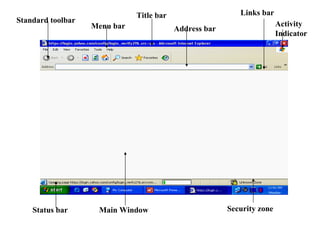
Standard toolbar Title bar  Menu bar  Address bar  Links bar  Status bar  Main Window Security zone Activity Indicator
Internet Explorer Web browser is a software application used to locate and display web pages.  Internet Explorer is online web browser designed to view multi platform based web pages or world of www. Basically it operate on Mark-up language.  HTML, XHTML, DHTML and others scripts based languages are best supporting  for online browsing.
IE Tour Title bar:  Display name of current webpage or file.   Menu bar:  Contents set of menus, some of which contains the same items that appear on other windows programmes.   Standard toolbar:  Contents several buttons which are most used in the menu bar, it also have navigation back, forward and Home buttons.  Address bar:  Possess current and visited addresses of web page.
Tour… Links bar:   Contents of short listed and selected Hyperlinks.   Activity Indicator:  Microsoft logo being animated when data sent and received shows the web activity. Main Window: Display resource, web pages, documents files which is accessed.
Tour… Status bar:  Display the information of current state of page description, URL of page on internet explorer Security zone:  Display which security is currently active.
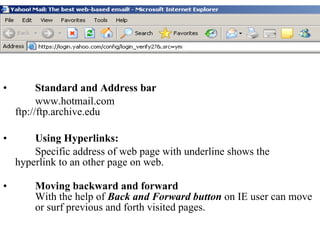
Standard and Address bar www.hotmail.com ftp://ftp.archive.edu  Using Hyperlinks:  Specific address of web page with underline shows the hyperlink to an other page on web.   Moving backward and forward  With the help of  Back and Forward button  on IE user can move or surf previous and forth visited pages.
Customize standard toolbar Once you choose to customize the bar then user can add choice of buttons on the standard toolbar.  Pick a item in the left pan and click Add button, repeat this process for an other item and finally click on close button
Adding your site in Links bar:   User can add particular page in Links bar by dragging and particular web address in links bar , it can be delete if user make right click and opt delete option.  Adding site to favorites list. User can set interested site in favorite.
Favorites Click the  Favorites  button on the webpage and work with Add to favorites.  Add:  add new webpage.  Organize:  Here user can manage saved pages by creating a new folder, rename it, move folder to an other location and delete the webpage or folder from favorites list.
History  Click the  history  button on the webpage and view by  Date, Sites,  Most visited and  Visited today pages. User can  search  any previous visited page.
Mail Read Mail & News and Sharing pages:  IE offer  mail  button to its toolbar, where you can  Read mails,  Compose mail, Send link or page  Read news  by clicking specific options, new mail receive will beep of receiving mail, user can see recent received mail in outlook express.
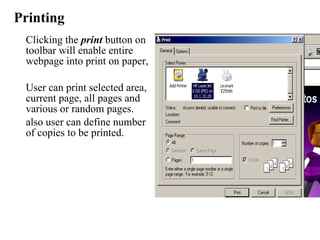
Printing Clicking the  print  button on toolbar will enable entire webpage into print on paper,  User can print selected area, current page, all pages and various or random pages.  also user can define number  of copies to be printed.
Edit with MS Word User can see webpage or edit in MS word.  Once user have permission to edit  then click then MS word button on toolbar and edit webpage in MS word.
Discuss This button was added by Office.  Search for discuss or discussion in Microsoft Office Help.
Messenger MSN messenger is available in the toolbar.  Once user is logged in then will display green and display new alerts at right bottom.
Properties
General  Home Page:  It is  first page , Opens webpage each time when user connect to internet.  Use Current page:  Browsing on  internet current page can be set as home page.  Use Default:  Clicking the option user can access default webpage.  Use blank:  Opens browser with blank screen.
Temporary Internet files: When user browsing several webpages on internet then  system stores temporary files on the hard disk for offline  access, a specified size of hard disk is allocated to save these temporary files.  Once the size become long then user can click  Delete files and  cookies  button (are small pieces of information (text) to remove these temporary files from hard disk.  Setting tab  explains the whether IE to check for newer versions of stored pages. Here user can specify that  how much hard disk space  to be given to these temporary internet files, once you made change then system needs restart.
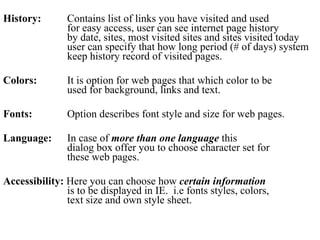
History:  Contains list of links you have visited and used for easy access, user can see internet page history  by date, sites, most visited sites and sites visited today  user can specify that how long period (# of days) system  keep history record of visited pages.  Colors:  It is option for web pages that which color to be used for background, links and text.  Fonts:  Option describes font style and size for web pages.  Language:   In case of  more than one language  this  dialog box offer you to choose character set for these web pages.  Accessibility:  Here you can choose how  certain information is to be displayed in IE.  i.e fonts styles, colors, text size and own style sheet.
Security
Security  Basically it is security zones or levels which provides  protection from viruses, malware, spyware and unsafe  softwares or programmes.  It also maintains privacy from un-authorize content on internet, IE can be set on various zones.  Internet zone:  This zone explains the IE is set internet zone and maintain  security at medium level by default, user can set this level on  high, medium low or low level.  Local Intranet zone:  If user sets IE at this zone then only he/she can browse only those  sites which are available on  organization network or server, here  we can again make strict browsing by setting its security levels,  by default is medium level.
Security  Trusted sites zone:  IE this zone set to just browsed trusted sites cateogory  of internet pages, in other words provides assurance that  this zone will damage or corrupt your system or data,  again here we can set security levels, by default it is set  on low level.  Restricted sites zone:  This zone maximum restricts or stops those sites which  can damage or loss your system as well as data.  Here by default security level is high means stop  maximum sites and offers safest browsing but user can  set its security level to medium, medium low or low.
Privacy
Privacy IE Privacy tab deals to set a level to accept cookies when you  are at internet  zone, by default cookies acceptance level is set on  medium but user can  allow or stop cookies level by setting below; Accept all cookies:  Low  Medium  Medium High  High  Block All cookies Pop-up Blocker: Block or unblock some pop-up windows (piece of programe or  installer) when you are browsing by default is set on block.
Content
Content Content tab deals the setting about restrict or allow various types  or categories of sites.  Content Advisor:  Used to control access of certain sites on internet particularly  useful when children have access on  internet, click  Enable  button and set level of content to allow user to view.  Ratings Approved sites  General sites Advanced sites (Offer Ratings services orgs)
Content… Certificate:  It is digital identity about website owners which offers  authentication, dealing authorities and website publishing  information of any website.  when user visit any authorize site then he/she can verify site’s  digital certificate.  It user is no more interest in verification then click Clear SSL  state button to remove certificate view option. Personal Info:  It is user saved profile information and permission for websites  owners can see information about you.  Auto Complete : It saves web address, forms, names and  passwords of user once it is checked.  My Profile:  It is information of end user.
Connections
Connections It specify that with which service provider your system connects to the internet. Click setup button for new connection and set user Id, password and necessary ISP information or  configure your Local Area Network (LAN) setting.
Programmes
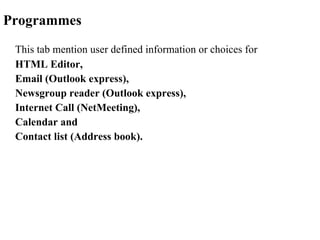
Programmes This tab mention user defined information or choices for  HTML Editor,  Email (Outlook express), Newsgroup reader (Outlook express), Internet Call (NetMeeting), Calendar and  Contact list (Address book).
Advanced
Advanced  The tab lets you to change a number of settings that control IE behavior i.e  accessibility,  browsing,  multimedia,  security,  printing and  searching.  Click check box to turn option ON or uncheck for OFF.
OTHER BROWSERS IN INTERNET MARKET
Internet Explorer Internet Explorer is the most popular web browser of present time. Since it is included to Microsoft Windows operating system that is used by all home computer users.  Its version were;  IE. 1 August 1995 IE. 2 November 1995 IE. 3 August 1996 IE. 4 September 1997 IE. 5 March 1999 IE. 6 August 2001 IE. 7 October 2006 IE. 8 March 2009
Mozila Firefox Mozilla FireFox is a free cross-platform web site browser available for Microsoft Windows, Mac OS X, and Linux.  Firefox web browser offers tabbed browsing, download manager, internal search and source code viewing facility.  Better security and privacy controls, and maybe the most significant feature… no spyware or adware.  What makes Firefox stand out to Internet Explorer is that it is an Open Source product, meaning that the source code for the browser is freely available to user.
Google Chrome Google Chrome OS is a project by Google to develop a light computer operating system devoted to using the World Wide Web. Announced on July 7, 2009, it is based on Google’s Chrome web browser.  Google Chrome is a browser that combines a minimal design with sophisticated technology to make the web faster, safer and easier. It has stated by developers for the chrome is “the web is the platform” and is designed to run on computers ranging from notbooks to desktop computers.
Apple Safari Safari web browser has been built by Apple Computers. It is included into Mac OS X operating system. Recently a beta version of Safari web browser was produced for Windows operating system.  A strong web browser that comes packages with Mac OS X from Apple, Safari has a lot of the features that make Firefox a stronger browser than Internet Explorer such as tabbed browsing, and better support for CSS and other technologies.
Opera Opera is a very flexible free web browser works on Windows, Linux, Mac OS X , Smart phones and a brilliant internet suite that also handles e-mails and chat.  Rich in useful features like tabbed and speed dial browsing, pop-up blocking, privacy control, standard support etc.
Netscape Navigator Netscape navigator once was one of most popular web browsers. In 1998 Netscape was announced to be free of charge and since then it was co-developed by Mozila open source community.  Due to large amount of features Netscape offers, it takes longer time to load.
Camino Camino is based off Firefox, but built for use with Mac OS X but also workable to other plateforms.  This browser offers choice of Net Media.

Internet explorer 06

  • 1.
    Standard toolbar Titlebar Menu bar Address bar Links bar Status bar Main Window Security zone Activity Indicator
  • 2.
    Internet Explorer Webbrowser is a software application used to locate and display web pages. Internet Explorer is online web browser designed to view multi platform based web pages or world of www. Basically it operate on Mark-up language. HTML, XHTML, DHTML and others scripts based languages are best supporting for online browsing.
  • 3.
    IE Tour Titlebar: Display name of current webpage or file. Menu bar: Contents set of menus, some of which contains the same items that appear on other windows programmes. Standard toolbar: Contents several buttons which are most used in the menu bar, it also have navigation back, forward and Home buttons. Address bar: Possess current and visited addresses of web page.
  • 4.
    Tour… Links bar: Contents of short listed and selected Hyperlinks. Activity Indicator: Microsoft logo being animated when data sent and received shows the web activity. Main Window: Display resource, web pages, documents files which is accessed.
  • 5.
    Tour… Status bar: Display the information of current state of page description, URL of page on internet explorer Security zone: Display which security is currently active.
  • 6.
    Standard and Addressbar www.hotmail.com ftp://ftp.archive.edu Using Hyperlinks: Specific address of web page with underline shows the hyperlink to an other page on web. Moving backward and forward With the help of Back and Forward button on IE user can move or surf previous and forth visited pages.
  • 7.
    Customize standard toolbarOnce you choose to customize the bar then user can add choice of buttons on the standard toolbar. Pick a item in the left pan and click Add button, repeat this process for an other item and finally click on close button
  • 8.
    Adding your sitein Links bar: User can add particular page in Links bar by dragging and particular web address in links bar , it can be delete if user make right click and opt delete option. Adding site to favorites list. User can set interested site in favorite.
  • 9.
    Favorites Click the Favorites button on the webpage and work with Add to favorites. Add: add new webpage. Organize: Here user can manage saved pages by creating a new folder, rename it, move folder to an other location and delete the webpage or folder from favorites list.
  • 10.
    History Clickthe history button on the webpage and view by Date, Sites, Most visited and Visited today pages. User can search any previous visited page.
  • 11.
    Mail Read Mail& News and Sharing pages: IE offer mail button to its toolbar, where you can Read mails, Compose mail, Send link or page Read news by clicking specific options, new mail receive will beep of receiving mail, user can see recent received mail in outlook express.
  • 12.
    Printing Clicking the print button on toolbar will enable entire webpage into print on paper, User can print selected area, current page, all pages and various or random pages. also user can define number of copies to be printed.
  • 13.
    Edit with MSWord User can see webpage or edit in MS word. Once user have permission to edit then click then MS word button on toolbar and edit webpage in MS word.
  • 14.
    Discuss This buttonwas added by Office. Search for discuss or discussion in Microsoft Office Help.
  • 15.
    Messenger MSN messengeris available in the toolbar. Once user is logged in then will display green and display new alerts at right bottom.
  • 16.
  • 17.
    General HomePage: It is first page , Opens webpage each time when user connect to internet. Use Current page: Browsing on internet current page can be set as home page. Use Default: Clicking the option user can access default webpage. Use blank: Opens browser with blank screen.
  • 18.
    Temporary Internet files:When user browsing several webpages on internet then system stores temporary files on the hard disk for offline access, a specified size of hard disk is allocated to save these temporary files. Once the size become long then user can click Delete files and cookies button (are small pieces of information (text) to remove these temporary files from hard disk. Setting tab explains the whether IE to check for newer versions of stored pages. Here user can specify that how much hard disk space to be given to these temporary internet files, once you made change then system needs restart.
  • 19.
    History: Containslist of links you have visited and used for easy access, user can see internet page history by date, sites, most visited sites and sites visited today user can specify that how long period (# of days) system keep history record of visited pages. Colors: It is option for web pages that which color to be used for background, links and text. Fonts: Option describes font style and size for web pages. Language: In case of more than one language this dialog box offer you to choose character set for these web pages. Accessibility: Here you can choose how certain information is to be displayed in IE. i.e fonts styles, colors, text size and own style sheet.
  • 20.
  • 21.
    Security Basicallyit is security zones or levels which provides protection from viruses, malware, spyware and unsafe softwares or programmes. It also maintains privacy from un-authorize content on internet, IE can be set on various zones. Internet zone: This zone explains the IE is set internet zone and maintain security at medium level by default, user can set this level on high, medium low or low level. Local Intranet zone: If user sets IE at this zone then only he/she can browse only those sites which are available on organization network or server, here we can again make strict browsing by setting its security levels, by default is medium level.
  • 22.
    Security Trustedsites zone: IE this zone set to just browsed trusted sites cateogory of internet pages, in other words provides assurance that this zone will damage or corrupt your system or data, again here we can set security levels, by default it is set on low level. Restricted sites zone: This zone maximum restricts or stops those sites which can damage or loss your system as well as data. Here by default security level is high means stop maximum sites and offers safest browsing but user can set its security level to medium, medium low or low.
  • 23.
  • 24.
    Privacy IE Privacytab deals to set a level to accept cookies when you are at internet zone, by default cookies acceptance level is set on medium but user can allow or stop cookies level by setting below; Accept all cookies: Low Medium Medium High High Block All cookies Pop-up Blocker: Block or unblock some pop-up windows (piece of programe or installer) when you are browsing by default is set on block.
  • 25.
  • 26.
    Content Content tabdeals the setting about restrict or allow various types or categories of sites. Content Advisor: Used to control access of certain sites on internet particularly useful when children have access on internet, click Enable button and set level of content to allow user to view. Ratings Approved sites General sites Advanced sites (Offer Ratings services orgs)
  • 27.
    Content… Certificate: It is digital identity about website owners which offers authentication, dealing authorities and website publishing information of any website. when user visit any authorize site then he/she can verify site’s digital certificate. It user is no more interest in verification then click Clear SSL state button to remove certificate view option. Personal Info: It is user saved profile information and permission for websites owners can see information about you. Auto Complete : It saves web address, forms, names and passwords of user once it is checked. My Profile: It is information of end user.
  • 28.
  • 29.
    Connections It specifythat with which service provider your system connects to the internet. Click setup button for new connection and set user Id, password and necessary ISP information or configure your Local Area Network (LAN) setting.
  • 30.
  • 31.
    Programmes This tabmention user defined information or choices for HTML Editor, Email (Outlook express), Newsgroup reader (Outlook express), Internet Call (NetMeeting), Calendar and Contact list (Address book).
  • 32.
  • 33.
    Advanced Thetab lets you to change a number of settings that control IE behavior i.e accessibility, browsing, multimedia, security, printing and searching. Click check box to turn option ON or uncheck for OFF.
  • 34.
    OTHER BROWSERS ININTERNET MARKET
  • 35.
    Internet Explorer InternetExplorer is the most popular web browser of present time. Since it is included to Microsoft Windows operating system that is used by all home computer users. Its version were; IE. 1 August 1995 IE. 2 November 1995 IE. 3 August 1996 IE. 4 September 1997 IE. 5 March 1999 IE. 6 August 2001 IE. 7 October 2006 IE. 8 March 2009
  • 36.
    Mozila Firefox MozillaFireFox is a free cross-platform web site browser available for Microsoft Windows, Mac OS X, and Linux. Firefox web browser offers tabbed browsing, download manager, internal search and source code viewing facility. Better security and privacy controls, and maybe the most significant feature… no spyware or adware. What makes Firefox stand out to Internet Explorer is that it is an Open Source product, meaning that the source code for the browser is freely available to user.
  • 37.
    Google Chrome GoogleChrome OS is a project by Google to develop a light computer operating system devoted to using the World Wide Web. Announced on July 7, 2009, it is based on Google’s Chrome web browser. Google Chrome is a browser that combines a minimal design with sophisticated technology to make the web faster, safer and easier. It has stated by developers for the chrome is “the web is the platform” and is designed to run on computers ranging from notbooks to desktop computers.
  • 38.
    Apple Safari Safariweb browser has been built by Apple Computers. It is included into Mac OS X operating system. Recently a beta version of Safari web browser was produced for Windows operating system. A strong web browser that comes packages with Mac OS X from Apple, Safari has a lot of the features that make Firefox a stronger browser than Internet Explorer such as tabbed browsing, and better support for CSS and other technologies.
  • 39.
    Opera Opera isa very flexible free web browser works on Windows, Linux, Mac OS X , Smart phones and a brilliant internet suite that also handles e-mails and chat. Rich in useful features like tabbed and speed dial browsing, pop-up blocking, privacy control, standard support etc.
  • 40.
    Netscape Navigator Netscapenavigator once was one of most popular web browsers. In 1998 Netscape was announced to be free of charge and since then it was co-developed by Mozila open source community. Due to large amount of features Netscape offers, it takes longer time to load.
  • 41.
    Camino Camino isbased off Firefox, but built for use with Mac OS X but also workable to other plateforms. This browser offers choice of Net Media.