Creating Charts and
Graphs in MS Excel: A
Step-by-Step Tutorial
Learn how to effectively create and enhance charts and graphs in
Microsoft Excel. This comprehensive tutorial covers everything from
choosing the right chart type to formatting and using chart templates.
Index
1 Overview
Get a quick overview of the sections covered in this tutorial.
Choosing the Right Chart Type
Column Chart
Best for displaying data
changes over a period of
time or for illustrating
comparisons among
items.
Pie Chart
Ideal for showcasing
proportional data and
illustrating percentages.
Line Chart
Great for showing trends
over time and comparing
the relationship between
different variables.
Creating a Chart from Scratch
Step 1
Ensure your data is
organized and select the
data you want to include
in the chart.
Step 2
Go to the "Insert" tab,
and click on the desired
chart type in the Charts
group.
Step 3
Customize your chart by
adding titles, labels, and
adjusting the color
scheme.
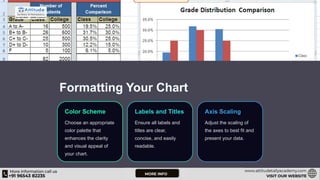
Formatting Your Chart
Color Scheme
Choose an appropriate
color palette that
enhances the clarity
and visual appeal of
your chart.
Labels and Titles
Ensure all labels and
titles are clear,
concise, and easily
readable.
Axis Scaling
Adjust the scaling of
the axes to best fit and
present your data.
Adding and Editing Chart Elements
Add Elements
Easily incorporate and edit
elements such as data
labels, trendlines, and
shapes into your chart.
Edit Elements
Effortlessly modify the
format and style of chart
elements to suit your
specific needs.
Customize Elements
Customize the appearance
and behavior of individual
chart elements for
maximum impact.
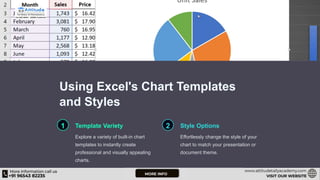
Using Excel's Chart Templates
and Styles
1 Template Variety
Explore a variety of built-in chart
templates to instantly create
professional and visually appealing
charts.
2 Style Options
Effortlessly change the style of your
chart to match your presentation or
document theme.
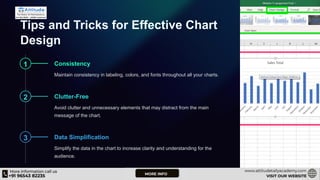
Tips and Tricks for Effective Chart
Design
1 Consistency
Maintain consistency in labeling, colors, and fonts throughout all your charts.
2 Clutter-Free
Avoid clutter and unnecessary elements that may distract from the main
message of the chart.
3 Data Simplification
Simplify the data in the chart to increase clarity and understanding for the
audience.
Conclusion and Next Steps
1
Practice
Continue practicing with
different datasets to hone
your chart creation skills.
2
Feedback
Solicit feedback on your
charts to further improve
your chart design abilities.
3
Advanced Techniques
Explore advanced charting
techniques for more
complex and detailed
visualizations.
FAQs
How can I create a combination chart in
Excel?
Learn how to display different types of
data on the same chart by combining
two or more chart types.
Can I add an image to my Excel chart? Yes, you can insert and customize an
image to your Excel chart for added
visual impact.

Creating-Charts-and-Graphs-in-MS-Excel-A-Step-by-Step-Tutorial.pptx

  • 1.
    Creating Charts and Graphsin MS Excel: A Step-by-Step Tutorial Learn how to effectively create and enhance charts and graphs in Microsoft Excel. This comprehensive tutorial covers everything from choosing the right chart type to formatting and using chart templates.
  • 2.
    Index 1 Overview Get aquick overview of the sections covered in this tutorial.
  • 3.
    Choosing the RightChart Type Column Chart Best for displaying data changes over a period of time or for illustrating comparisons among items. Pie Chart Ideal for showcasing proportional data and illustrating percentages. Line Chart Great for showing trends over time and comparing the relationship between different variables.
  • 4.
    Creating a Chartfrom Scratch Step 1 Ensure your data is organized and select the data you want to include in the chart. Step 2 Go to the "Insert" tab, and click on the desired chart type in the Charts group. Step 3 Customize your chart by adding titles, labels, and adjusting the color scheme.
  • 5.
    Formatting Your Chart ColorScheme Choose an appropriate color palette that enhances the clarity and visual appeal of your chart. Labels and Titles Ensure all labels and titles are clear, concise, and easily readable. Axis Scaling Adjust the scaling of the axes to best fit and present your data.
  • 6.
    Adding and EditingChart Elements Add Elements Easily incorporate and edit elements such as data labels, trendlines, and shapes into your chart. Edit Elements Effortlessly modify the format and style of chart elements to suit your specific needs. Customize Elements Customize the appearance and behavior of individual chart elements for maximum impact.
  • 7.
    Using Excel's ChartTemplates and Styles 1 Template Variety Explore a variety of built-in chart templates to instantly create professional and visually appealing charts. 2 Style Options Effortlessly change the style of your chart to match your presentation or document theme.
  • 8.
    Tips and Tricksfor Effective Chart Design 1 Consistency Maintain consistency in labeling, colors, and fonts throughout all your charts. 2 Clutter-Free Avoid clutter and unnecessary elements that may distract from the main message of the chart. 3 Data Simplification Simplify the data in the chart to increase clarity and understanding for the audience.
  • 9.
    Conclusion and NextSteps 1 Practice Continue practicing with different datasets to hone your chart creation skills. 2 Feedback Solicit feedback on your charts to further improve your chart design abilities. 3 Advanced Techniques Explore advanced charting techniques for more complex and detailed visualizations.
  • 10.
    FAQs How can Icreate a combination chart in Excel? Learn how to display different types of data on the same chart by combining two or more chart types. Can I add an image to my Excel chart? Yes, you can insert and customize an image to your Excel chart for added visual impact.