[Your company name] presents:Microsoft® Office Excel®2007 TrainingCreate a chart
Create a chartCourse contentsOverview: Charts make data visual
Lesson 1: Create a basic chart
Lesson 2: Customize your chartEach lesson includes a list of suggested tasks and a set of test questions.
Create a chartOverview: Charts make data visualA chart gets your point across—fast. With a chart, you can transform worksheet data to show comparisons, patterns, and trends.So instead of having to analyze columns of worksheet numbers, you can see at a glance what the data means.This course presents the basics of creating charts in Excel 2007.
Create a chartCourse goals			Learn how to create a chart using the new Excel 2007 commands.
Find out how to make changes to a chart after you create it.
Develop an understanding of basic chart terminology. Lesson 1Create a basic chart
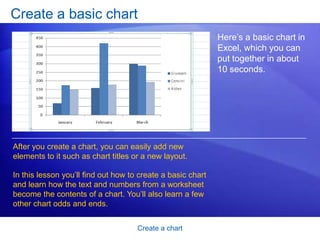
Create a chartCreate a basic chartHere’s a basic chart in Excel, which you can put together in about 10 seconds. After you create a chart, you can easily add new elements to it such as chart titles or a new layout.In this lesson you’ll find out how to create a basic chart and learn how the text and numbers from a worksheet become the contents of a chart. You’ll also learn a few other chart odds and ends.
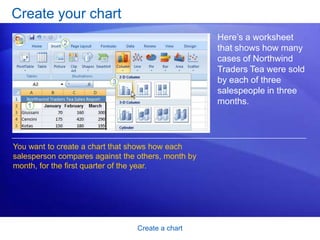
Create a chartCreate your chartHere’s a worksheet that shows how many cases of Northwind Traders Tea were sold by each of three salespeople in three months. You want to create a chart that shows how each salesperson compares against the others, month by month, for the first quarter of the year.
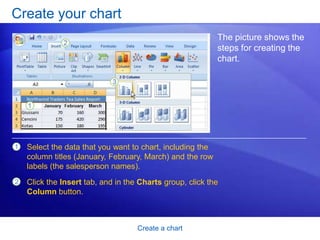
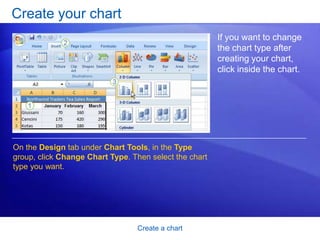
Create a chartCreate your chartThe picture shows the steps for creating the chart. Select the data that you want to chart, including the column titles (January, February, March) and the row labels (the salesperson names).Click the Insert tab, and in the Charts group, click the Column button.
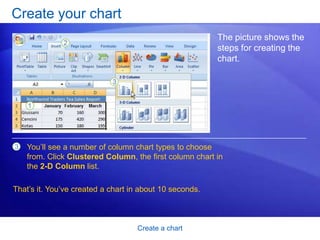
Create a chartCreate your chartThe picture shows the steps for creating the chart. You’ll see a number of column chart types to choose from. Click Clustered Column, the first column chart in the 2-D Column list. That’s it. You’ve created a chart in about 10 seconds.
Create a chartCreate your chartIf you want to change the chart type after creating your chart, click inside the chart. On the Design tab under Chart Tools, in the Type group, click Change Chart Type. Then select the chart type you want.
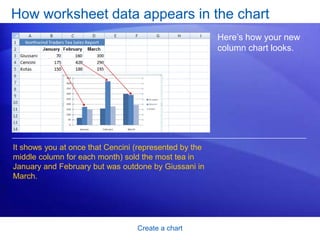
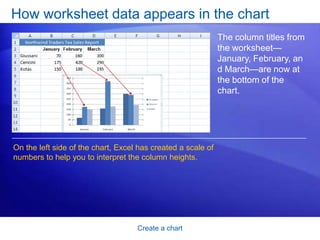
Create a chartHow worksheet data appears in the chartHere’s how your new column chart looks.It shows you at once that Cencini (represented by the middle column for each month) sold the most tea in January and February but was outdone by Giussani in March.
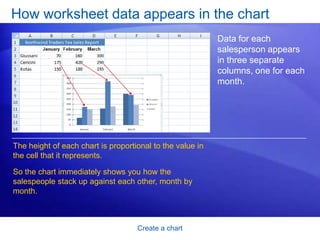
Create a chartHow worksheet data appears in the chartData for each salesperson appears in three separate columns, one for each month. The height of each chart is proportional to the value in the cell that it represents.So the chart immediately shows you how the salespeople stack up against each other, month by month.
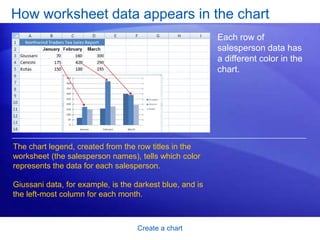
Create a chartHow worksheet data appears in the chartEach row of salesperson data has a different color in the chart. The chart legend, created from the row titles in the worksheet (the salesperson names), tells which color represents the data for each salesperson. Giussani data, for example, is the darkest blue, and is the left-most column for each month.
Create a chartHow worksheet data appears in the chartThe column titles from the worksheet—January, February, and March—are now at the bottom of the chart. On the left side of the chart, Excel has created a scale of numbers to help you to interpret the column heights.
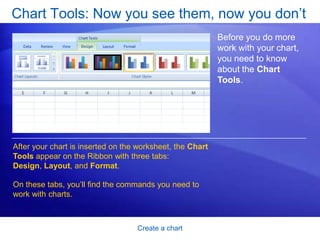
Create a chartChart Tools: Now you see them, now you don’tBefore you do more work with your chart, you need to know about the Chart Tools. After your chart is inserted on the worksheet, the Chart Tools appear on the Ribbon with three tabs: Design, Layout, and Format. On these tabs, you’ll find the commands you need to work with charts.
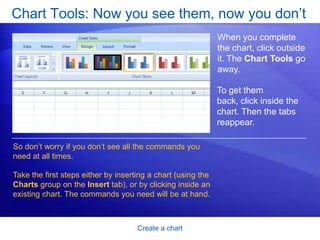
Create a chartChart Tools: Now you see them, now you don’tWhen you complete the chart, click outside it. The Chart Tools go away. To get them back, click inside the chart. Then the tabs reappear.So don’t worry if you don’t see all the commands you need at all times. Take the first steps either by inserting a chart (using the Charts group on the Insert tab), or by clicking inside an existing chart. The commands you need will be at hand.
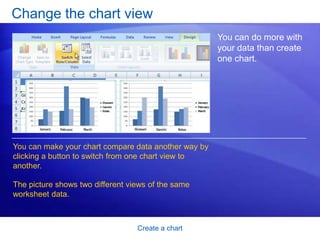
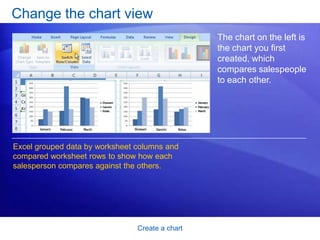
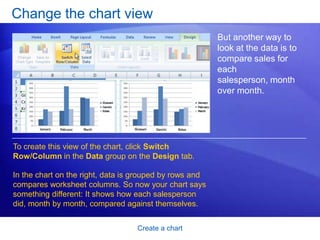
Create a chartChange the chart viewYou can do more with your data than create one chart.You can make your chart compare data another way by clicking a button to switch from one chart view to another. The picture shows two different views of the same worksheet data.
Create a chartChange the chart viewThe chart on the left is the chart you first created, which compares salespeople to each other. Excel grouped data by worksheet columns and compared worksheet rows to show how each salesperson compares against the others.
Create a chartChange the chart viewBut another way to look at the data is to compare sales for each salesperson, month over month. To create this view of the chart, click Switch Row/Column in the Data group on the Design tab. In the chart on the right, data is grouped by rows and compares worksheet columns. So now your chart says something different: It shows how each salesperson did, month by month, compared against themselves.
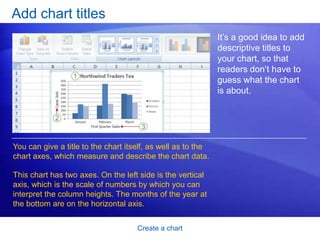
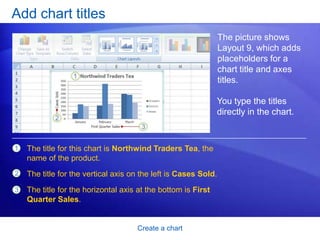
Create a chartAdd chart titlesIt’s a good idea to add descriptive titles to your chart, so that readers don’t have to guess what the chart is about. You can give a title to the chart itself, as well as to the chart axes, which measure and describe the chart data. This chart has two axes. On the left side is the vertical axis, which is the scale of numbers by which you can interpret the column heights. The months of the year at the bottom are on the horizontal axis.
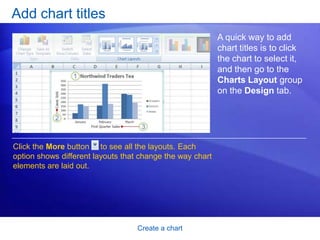
Create a chartAdd chart titlesA quick way to add chart titles is to click the chart to select it, and then go to the Charts Layout group on the Design tab. Click the More button     to see all the layouts. Each option shows different layouts that change the way chart elements are laid out.
Create a chartAdd chart titlesThe picture shows Layout 9, which adds placeholders for a chart title and axes titles.You type the titles directly in the chart.The title for this chart is Northwind Traders Tea, the name of the product.The title for the vertical axis on the left is Cases Sold.The title for the horizontal axis at the bottom is First Quarter Sales.
Create a chartSuggestions for practiceCreate a chart.Look at chart data in different ways. Update chart data.Add titles. Change chart layouts. Change the chart type. Online practice (requires Excel 2007)
Create a chartTest 1, question 1You’ve created a chart. Now you need to compare data another way. To do this, you must create a second chart. (Pick one answer.)True.False.
Create a chartTest 1, question 1: AnswerFalse. You can quickly create another view of your worksheet data by clicking the Switch Row/Column button on the Design tab.
Create a chartTest 1, question 2You create a chart. But later on you don’t see the Chart Tools. What do you do to get them back? (Pick one answer.)Create another chart. Click the Insert tab. Click inside the chart.
Create a chartTest 1, question 2: AnswerClick inside the chart.The Chart Tools will then be at hand with three tabs: Design, Layout, and Format.
Create a chartTest 1, question 3You can’t change the chart type after you create a chart. (Pick one answer.)True.False.
Create a chartTest 1, question 3: AnswerFalse. You can always change the chart type after you create your chart. Click inside the chart. On the Design tab, in the Type group, Click Change Chart Type, and then select another chart type.
Lesson 2Customize your chart
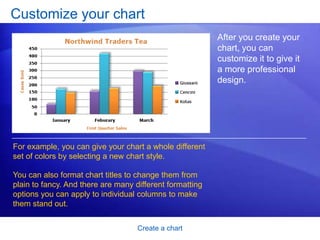
Create a chartCustomize your chartAfter you create your chart, you can customize it to give it a more professional design. For example, you can give your chart a whole different set of colors by selecting a new chart style. You can also format chart titles to change them from plain to fancy. And there are many different formatting options you can apply to individual columns to make them stand out.
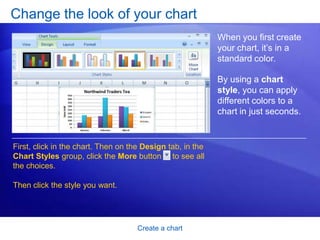
Create a chartChange the look of your chartWhen you first create your chart, it’s in a standard color. By using a chart style, you can apply different colors to a chart in just seconds.First, click in the chart. Then on the Design tab, in the Chart Styles group, click the More button     to see all the choices.Then click the style you want.
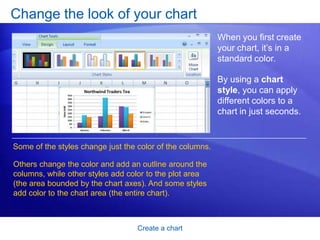
Create a chartChange the look of your chartWhen you first create your chart, it’s in a standard color. By using a chart style, you can apply different colors to a chart in just seconds.Some of the styles change just the color of the columns. Others change the color and add an outline around the columns, while other styles add color to the plot area (the area bounded by the chart axes). And some styles add color to the chart area (the entire chart).
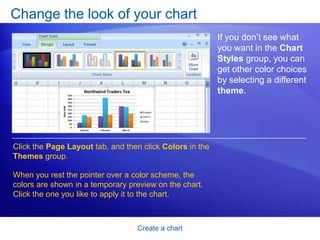
Create a chartChange the look of your chartIf you don’t see what you want in the Chart Styles group, you can get other color choices by selecting a different theme. Click the Page Layout tab, and then click Colors in the Themes group. When you rest the pointer over a color scheme, the colors are shown in a temporary preview on the chart. Click the one you like to apply it to the chart.
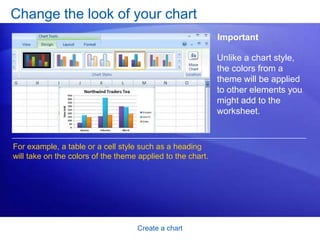
Create a chartChange the look of your chartImportantUnlike a chart style, the colors from a theme will be applied to other elements you might add to the worksheet.For example, a table or a cell style such as a heading will take on the colors of the theme applied to the chart.
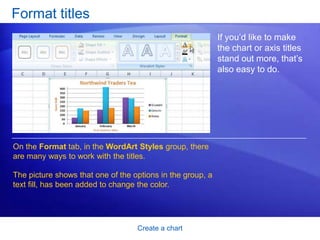
Create a chartFormat titlesIf you’d like to make the chart or axis titles stand out more, that’s also easy to do.On the Format tab, in the WordArt Styles group, there are many ways to work with the titles. The picture shows that one of the options in the group, a text fill, has been added to change the color.
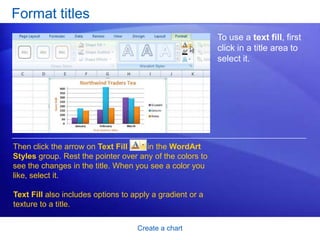
Create a chartFormat titlesTo use a text fill, first click in a title area to select it. Then click the arrow on Text Fill         in the WordArt Styles group. Rest the pointer over any of the colors to see the changes in the title. When you see a color you like, select it. Text Fill also includes options to apply a gradient or a texture to a title.
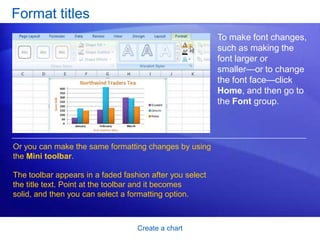
Create a chartFormat titlesTo make font changes, such as making the font larger or smaller—or to change the font face—click Home, and then go to the Font group. Or you can make the same formatting changes by using the Mini toolbar. The toolbar appears in a faded fashion after you select the title text. Point at the toolbar and it becomes solid, and then you can select a formatting option.
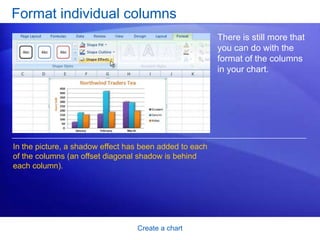
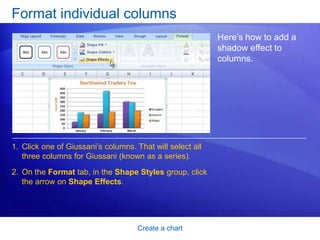
Create a chartFormat individual columnsThere is still more that you can do with the format of the columns in your chart. In the picture, a shadow effect has been added to each of the columns (an offset diagonal shadow is behind each column).
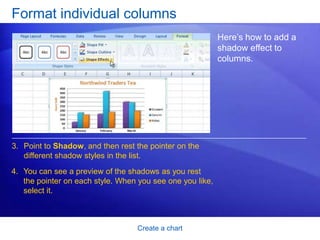
Create a chartFormat individual columnsHere’s how to add a shadow effect to columns.  Click one of Giussani’s columns. That will select all three columns for Giussani (known as a series). On the Format tab, in the Shape Styles group, click the arrow on Shape Effects.
Create a chartFormat individual columnsHere’s how to add a shadow effect to columns.Point to Shadow, and then rest the pointer on the different shadow styles in the list.You can see a preview of the shadows as you rest the pointer on each style. When you see one you like, select it.
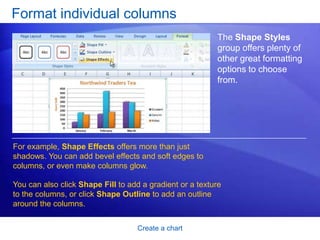
Create a chartFormat individual columnsThe Shape Styles group offers plenty of other great formatting options to choose from.  For example, Shape Effects offers more than just shadows. You can add bevel effects and soft edges to columns, or even make columns glow.You can also click Shape Fill to add a gradient or a texture to the columns, or click Shape Outline to add an outline around the columns.
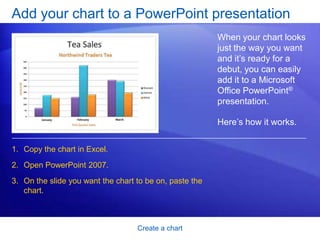
Create a chartAdd your chart to a PowerPoint presentationWhen your chart looks just the way you want and it’s ready for a debut, you can easily add it to a Microsoft Office PowerPoint®presentation. Here’s how it works.Copy the chart in Excel. Open PowerPoint 2007. On the slide you want the chart to be on, paste the chart.
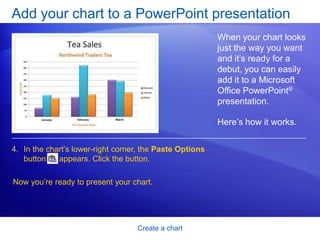
Create a chartAdd your chart to a PowerPoint presentationWhen your chart looks just the way you want and it’s ready for a debut, you can easily add it to a Microsoft Office PowerPoint®presentation. Here’s how it works.In the chart’s lower-right corner, the Paste Options  button      appears. Click the button. Now you’re ready to present your chart.
Create a chartSuggestions for practiceChange the look of a chart.Try out a color scheme by using a theme.Format the chart title. Format a column.Format other areas of the chart. Add your chart to a PowerPoint presentation. Bonus exercises: Make a pie chart, and save your chart as a template.Online practice (requires Excel 2007)
Create a chartTest 2, question 1If you don’t see all the color options you want for your chart in the Chart Styles group on the Design tab, you have another way to get more colors. (Pick one answer.)True.False.
Create a chartTest 2, question 1: AnswerTrue.You can pick other colors by selecting a theme. Click the Page Layout tab, and then click Colors in the Themes group. Remember that the colors from the themes will be applied to other elements in the worksheet such as a table or cell styles.

Excel training create a chart

  • 1.
    [Your company name]presents:Microsoft® Office Excel®2007 TrainingCreate a chart
  • 2.
    Create a chartCoursecontentsOverview: Charts make data visual
  • 3.
    Lesson 1: Createa basic chart
  • 4.
    Lesson 2: Customizeyour chartEach lesson includes a list of suggested tasks and a set of test questions.
  • 5.
    Create a chartOverview:Charts make data visualA chart gets your point across—fast. With a chart, you can transform worksheet data to show comparisons, patterns, and trends.So instead of having to analyze columns of worksheet numbers, you can see at a glance what the data means.This course presents the basics of creating charts in Excel 2007.
  • 6.
    Create a chartCoursegoals Learn how to create a chart using the new Excel 2007 commands.
  • 7.
    Find out howto make changes to a chart after you create it.
  • 8.
    Develop an understandingof basic chart terminology. Lesson 1Create a basic chart
  • 9.
    Create a chartCreatea basic chartHere’s a basic chart in Excel, which you can put together in about 10 seconds. After you create a chart, you can easily add new elements to it such as chart titles or a new layout.In this lesson you’ll find out how to create a basic chart and learn how the text and numbers from a worksheet become the contents of a chart. You’ll also learn a few other chart odds and ends.
  • 10.
    Create a chartCreateyour chartHere’s a worksheet that shows how many cases of Northwind Traders Tea were sold by each of three salespeople in three months. You want to create a chart that shows how each salesperson compares against the others, month by month, for the first quarter of the year.
  • 11.
    Create a chartCreateyour chartThe picture shows the steps for creating the chart. Select the data that you want to chart, including the column titles (January, February, March) and the row labels (the salesperson names).Click the Insert tab, and in the Charts group, click the Column button.
  • 12.
    Create a chartCreateyour chartThe picture shows the steps for creating the chart. You’ll see a number of column chart types to choose from. Click Clustered Column, the first column chart in the 2-D Column list. That’s it. You’ve created a chart in about 10 seconds.
  • 13.
    Create a chartCreateyour chartIf you want to change the chart type after creating your chart, click inside the chart. On the Design tab under Chart Tools, in the Type group, click Change Chart Type. Then select the chart type you want.
  • 14.
    Create a chartHowworksheet data appears in the chartHere’s how your new column chart looks.It shows you at once that Cencini (represented by the middle column for each month) sold the most tea in January and February but was outdone by Giussani in March.
  • 15.
    Create a chartHowworksheet data appears in the chartData for each salesperson appears in three separate columns, one for each month. The height of each chart is proportional to the value in the cell that it represents.So the chart immediately shows you how the salespeople stack up against each other, month by month.
  • 16.
    Create a chartHowworksheet data appears in the chartEach row of salesperson data has a different color in the chart. The chart legend, created from the row titles in the worksheet (the salesperson names), tells which color represents the data for each salesperson. Giussani data, for example, is the darkest blue, and is the left-most column for each month.
  • 17.
    Create a chartHowworksheet data appears in the chartThe column titles from the worksheet—January, February, and March—are now at the bottom of the chart. On the left side of the chart, Excel has created a scale of numbers to help you to interpret the column heights.
  • 18.
    Create a chartChartTools: Now you see them, now you don’tBefore you do more work with your chart, you need to know about the Chart Tools. After your chart is inserted on the worksheet, the Chart Tools appear on the Ribbon with three tabs: Design, Layout, and Format. On these tabs, you’ll find the commands you need to work with charts.
  • 19.
    Create a chartChartTools: Now you see them, now you don’tWhen you complete the chart, click outside it. The Chart Tools go away. To get them back, click inside the chart. Then the tabs reappear.So don’t worry if you don’t see all the commands you need at all times. Take the first steps either by inserting a chart (using the Charts group on the Insert tab), or by clicking inside an existing chart. The commands you need will be at hand.
  • 20.
    Create a chartChangethe chart viewYou can do more with your data than create one chart.You can make your chart compare data another way by clicking a button to switch from one chart view to another. The picture shows two different views of the same worksheet data.
  • 21.
    Create a chartChangethe chart viewThe chart on the left is the chart you first created, which compares salespeople to each other. Excel grouped data by worksheet columns and compared worksheet rows to show how each salesperson compares against the others.
  • 22.
    Create a chartChangethe chart viewBut another way to look at the data is to compare sales for each salesperson, month over month. To create this view of the chart, click Switch Row/Column in the Data group on the Design tab. In the chart on the right, data is grouped by rows and compares worksheet columns. So now your chart says something different: It shows how each salesperson did, month by month, compared against themselves.
  • 23.
    Create a chartAddchart titlesIt’s a good idea to add descriptive titles to your chart, so that readers don’t have to guess what the chart is about. You can give a title to the chart itself, as well as to the chart axes, which measure and describe the chart data. This chart has two axes. On the left side is the vertical axis, which is the scale of numbers by which you can interpret the column heights. The months of the year at the bottom are on the horizontal axis.
  • 24.
    Create a chartAddchart titlesA quick way to add chart titles is to click the chart to select it, and then go to the Charts Layout group on the Design tab. Click the More button to see all the layouts. Each option shows different layouts that change the way chart elements are laid out.
  • 25.
    Create a chartAddchart titlesThe picture shows Layout 9, which adds placeholders for a chart title and axes titles.You type the titles directly in the chart.The title for this chart is Northwind Traders Tea, the name of the product.The title for the vertical axis on the left is Cases Sold.The title for the horizontal axis at the bottom is First Quarter Sales.
  • 26.
    Create a chartSuggestionsfor practiceCreate a chart.Look at chart data in different ways. Update chart data.Add titles. Change chart layouts. Change the chart type. Online practice (requires Excel 2007)
  • 27.
    Create a chartTest1, question 1You’ve created a chart. Now you need to compare data another way. To do this, you must create a second chart. (Pick one answer.)True.False.
  • 28.
    Create a chartTest1, question 1: AnswerFalse. You can quickly create another view of your worksheet data by clicking the Switch Row/Column button on the Design tab.
  • 29.
    Create a chartTest1, question 2You create a chart. But later on you don’t see the Chart Tools. What do you do to get them back? (Pick one answer.)Create another chart. Click the Insert tab. Click inside the chart.
  • 30.
    Create a chartTest1, question 2: AnswerClick inside the chart.The Chart Tools will then be at hand with three tabs: Design, Layout, and Format.
  • 31.
    Create a chartTest1, question 3You can’t change the chart type after you create a chart. (Pick one answer.)True.False.
  • 32.
    Create a chartTest1, question 3: AnswerFalse. You can always change the chart type after you create your chart. Click inside the chart. On the Design tab, in the Type group, Click Change Chart Type, and then select another chart type.
  • 33.
  • 34.
    Create a chartCustomizeyour chartAfter you create your chart, you can customize it to give it a more professional design. For example, you can give your chart a whole different set of colors by selecting a new chart style. You can also format chart titles to change them from plain to fancy. And there are many different formatting options you can apply to individual columns to make them stand out.
  • 35.
    Create a chartChangethe look of your chartWhen you first create your chart, it’s in a standard color. By using a chart style, you can apply different colors to a chart in just seconds.First, click in the chart. Then on the Design tab, in the Chart Styles group, click the More button to see all the choices.Then click the style you want.
  • 36.
    Create a chartChangethe look of your chartWhen you first create your chart, it’s in a standard color. By using a chart style, you can apply different colors to a chart in just seconds.Some of the styles change just the color of the columns. Others change the color and add an outline around the columns, while other styles add color to the plot area (the area bounded by the chart axes). And some styles add color to the chart area (the entire chart).
  • 37.
    Create a chartChangethe look of your chartIf you don’t see what you want in the Chart Styles group, you can get other color choices by selecting a different theme. Click the Page Layout tab, and then click Colors in the Themes group. When you rest the pointer over a color scheme, the colors are shown in a temporary preview on the chart. Click the one you like to apply it to the chart.
  • 38.
    Create a chartChangethe look of your chartImportantUnlike a chart style, the colors from a theme will be applied to other elements you might add to the worksheet.For example, a table or a cell style such as a heading will take on the colors of the theme applied to the chart.
  • 39.
    Create a chartFormattitlesIf you’d like to make the chart or axis titles stand out more, that’s also easy to do.On the Format tab, in the WordArt Styles group, there are many ways to work with the titles. The picture shows that one of the options in the group, a text fill, has been added to change the color.
  • 40.
    Create a chartFormattitlesTo use a text fill, first click in a title area to select it. Then click the arrow on Text Fill in the WordArt Styles group. Rest the pointer over any of the colors to see the changes in the title. When you see a color you like, select it. Text Fill also includes options to apply a gradient or a texture to a title.
  • 41.
    Create a chartFormattitlesTo make font changes, such as making the font larger or smaller—or to change the font face—click Home, and then go to the Font group. Or you can make the same formatting changes by using the Mini toolbar. The toolbar appears in a faded fashion after you select the title text. Point at the toolbar and it becomes solid, and then you can select a formatting option.
  • 42.
    Create a chartFormatindividual columnsThere is still more that you can do with the format of the columns in your chart. In the picture, a shadow effect has been added to each of the columns (an offset diagonal shadow is behind each column).
  • 43.
    Create a chartFormatindividual columnsHere’s how to add a shadow effect to columns. Click one of Giussani’s columns. That will select all three columns for Giussani (known as a series). On the Format tab, in the Shape Styles group, click the arrow on Shape Effects.
  • 44.
    Create a chartFormatindividual columnsHere’s how to add a shadow effect to columns.Point to Shadow, and then rest the pointer on the different shadow styles in the list.You can see a preview of the shadows as you rest the pointer on each style. When you see one you like, select it.
  • 45.
    Create a chartFormatindividual columnsThe Shape Styles group offers plenty of other great formatting options to choose from. For example, Shape Effects offers more than just shadows. You can add bevel effects and soft edges to columns, or even make columns glow.You can also click Shape Fill to add a gradient or a texture to the columns, or click Shape Outline to add an outline around the columns.
  • 46.
    Create a chartAddyour chart to a PowerPoint presentationWhen your chart looks just the way you want and it’s ready for a debut, you can easily add it to a Microsoft Office PowerPoint®presentation. Here’s how it works.Copy the chart in Excel. Open PowerPoint 2007. On the slide you want the chart to be on, paste the chart.
  • 47.
    Create a chartAddyour chart to a PowerPoint presentationWhen your chart looks just the way you want and it’s ready for a debut, you can easily add it to a Microsoft Office PowerPoint®presentation. Here’s how it works.In the chart’s lower-right corner, the Paste Options button appears. Click the button. Now you’re ready to present your chart.
  • 48.
    Create a chartSuggestionsfor practiceChange the look of a chart.Try out a color scheme by using a theme.Format the chart title. Format a column.Format other areas of the chart. Add your chart to a PowerPoint presentation. Bonus exercises: Make a pie chart, and save your chart as a template.Online practice (requires Excel 2007)
  • 49.
    Create a chartTest2, question 1If you don’t see all the color options you want for your chart in the Chart Styles group on the Design tab, you have another way to get more colors. (Pick one answer.)True.False.
  • 50.
    Create a chartTest2, question 1: AnswerTrue.You can pick other colors by selecting a theme. Click the Page Layout tab, and then click Colors in the Themes group. Remember that the colors from the themes will be applied to other elements in the worksheet such as a table or cell styles.