Hour 13
Connectivity Utility
What You'll Learn in This Hour:
 Protocol problems
 Line problems
 Name resolution problems
 Network performance problems
At the completion of this hour, you will
be able to
 Identify and describe common TCP/IP
connectivity utilities
 Use connectivity utilities to troubleshoot
problems
Connectivity Problem
 Protocol dysfunction or misconfiguration— The protocol software
doesn't work or (for whatever reason) isn't configured to operate
properly on the network.
 Line problems— A cable isn't plugged in or isn't working. A hub,
router, or switch isn't working.
 Faulty name resolution— DNS or NetBIOS names can't be resolved.
Resources are accessible by IP address but not by hostname or DNS
name.
 Excessive traffic— The network appears to be working, but it is
working very slowly.
Protocol Dysfunction and Misconfiguration
 Ping— This utility is an extremely useful diagnostic tool that
initiates a simple test of network connectivity and reports on
whether the other computer responds.
 Configuration information utilities— Each OS vendor
provides some form of utility that displays TCP/IP configuration
information and lets you check whether the IP address, subnet
mask, DNS server, and other parameters are configured
properly.
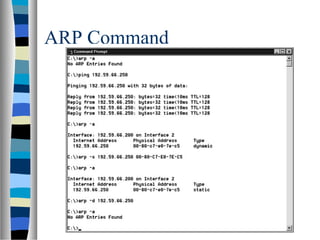
 arp— This lets you view and configure the contents of the ARP
cache, which associates IP addresses with physical/MAC
addresses.
PING
 In a typical troubleshooting scenario, a network administrator
performs the following ping commands (in this order):
1. Ping the loopback address (127.0.0.1) to verify that TCP/IP is working
properly on the local computer.
2. Ping the local IP address to verify that the network adapter is functioning
and the local IP address is configured.
3. Ping the default gateway to verify that the computer can communicate with
the local subnet and to verify that the default gateway is online.
4. Ping an address beyond the default gateway to verify that the gateway is
successfully forwarding packets beyond the local network segment.
5. Ping the local host and remote hosts by hostname to verify that name
resolution is functioning.
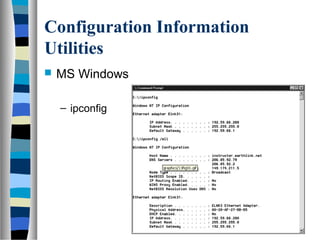
Configuration Information
Utilities
 MS Windows
– ipconfig
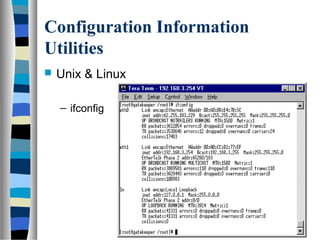
Configuration Information
Utilities
 Unix & Linux
– ifconfig
ARP Command
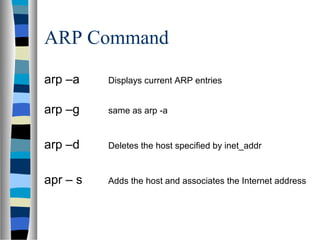
arp –a Displays current ARP entries
arp –g same as arp -a
arp –d Deletes the host specified by inet_addr
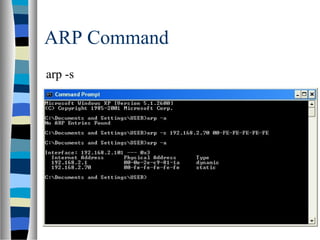
apr – s Adds the host and associates the Internet address
ARP Command
ARP Command
arp -s
Line Problem
 In general, if the network used to work and has stopped working
suddenly, a line problem is often the cause.
 Make sure all network cables are properly plugged in.
 Most network cards, hubs, and routers have display lights that indicate
whether the unit is on and ready to receive data.
 Each port of a hub, router, or switch has a link status light that shows
whether an active network connection is operating through the port.
 Several tools exist for testing network cabling. If you don't have access
to a cable testing tool, you can always unplug a suspicious cable and
plug a new cable into its place to see if that solves the problem.
Name Resolution Problem
 The hosts file is missing or incorrect.
 The name server is offline.
 The name server is referenced incorrectly in the client configuration.
 The host you are trying to reach does not have an entry in the name
server.
 The hostname used in the command is incorrect.
Many common name resolution problems are obvious
when you consider the process of name resolution .
Some common causes are:
Name Resolution Problem (Cont)
 If you are experiencing name resolution problems on a network
that uses a name server, it is a good idea to ping the name
server to make sure it is online.
 If the name server is beyond the local subnet, ping the gateway
to ensure that name resolution requests can reach the name
server.
 Double-check the name you entered to ensure that it is the
correct name for the resource. If none of these measures lead
you to a solution, you can use the nslookup utility to query the
name server about specific entries.
Network Performance Problem
 Network performance problems are problems that cause your
network to respond slowly.
 Slow performance can cause lost packets and therefore loss of
connectivity.
 Even if you don't lose connectivity, slow network performance
can be an irritation and a source of lost productivity.
 A common cause for poor network performance is excessive
traffic.
Network Performance Problem
(Cont)
 Your network might be experiencing heavy traffic because there
are too many computers on the network, or the cause might be
a malfunctioning device such as a network adapter creating
unnecessary traffic on the network in what is known as a
broadcast storm.
 Sometimes the cause for poor network performance is a
downed router that has stopped forwarding traffic and caused a
bottleneck somewhere else in the network.
Using Connectivity Utility to
Troubleshoot Problems
 Start with ipconfig to ensure you know the current IP address,
subnet mask, and default gateway parameters.
 Move on to the ping command and follow the sequence of ping
commands described earlier. If the ping commands work as
expected, you have gained some confidence in the two lower
layers, including the network adapter and the network cabling.
 Use an application such as a Web browser to access a Web
server. If this works, you know that TCP and the sockets
interface work; if it doesn't work, try another application that
uses TCP and sockets, such as the FTP client. If this doesn't
work either, you probably want to concentrate on TCP or
sockets as a source of the problem.

connectivity utility

  • 1.
  • 2.
    What You'll Learnin This Hour:  Protocol problems  Line problems  Name resolution problems  Network performance problems
  • 3.
    At the completionof this hour, you will be able to  Identify and describe common TCP/IP connectivity utilities  Use connectivity utilities to troubleshoot problems
  • 4.
    Connectivity Problem  Protocoldysfunction or misconfiguration— The protocol software doesn't work or (for whatever reason) isn't configured to operate properly on the network.  Line problems— A cable isn't plugged in or isn't working. A hub, router, or switch isn't working.  Faulty name resolution— DNS or NetBIOS names can't be resolved. Resources are accessible by IP address but not by hostname or DNS name.  Excessive traffic— The network appears to be working, but it is working very slowly.
  • 5.
    Protocol Dysfunction andMisconfiguration  Ping— This utility is an extremely useful diagnostic tool that initiates a simple test of network connectivity and reports on whether the other computer responds.  Configuration information utilities— Each OS vendor provides some form of utility that displays TCP/IP configuration information and lets you check whether the IP address, subnet mask, DNS server, and other parameters are configured properly.  arp— This lets you view and configure the contents of the ARP cache, which associates IP addresses with physical/MAC addresses.
  • 6.
    PING  In atypical troubleshooting scenario, a network administrator performs the following ping commands (in this order): 1. Ping the loopback address (127.0.0.1) to verify that TCP/IP is working properly on the local computer. 2. Ping the local IP address to verify that the network adapter is functioning and the local IP address is configured. 3. Ping the default gateway to verify that the computer can communicate with the local subnet and to verify that the default gateway is online. 4. Ping an address beyond the default gateway to verify that the gateway is successfully forwarding packets beyond the local network segment. 5. Ping the local host and remote hosts by hostname to verify that name resolution is functioning.
  • 7.
  • 8.
  • 9.
    ARP Command arp –aDisplays current ARP entries arp –g same as arp -a arp –d Deletes the host specified by inet_addr apr – s Adds the host and associates the Internet address
  • 10.
  • 11.
  • 12.
    Line Problem  Ingeneral, if the network used to work and has stopped working suddenly, a line problem is often the cause.  Make sure all network cables are properly plugged in.  Most network cards, hubs, and routers have display lights that indicate whether the unit is on and ready to receive data.  Each port of a hub, router, or switch has a link status light that shows whether an active network connection is operating through the port.  Several tools exist for testing network cabling. If you don't have access to a cable testing tool, you can always unplug a suspicious cable and plug a new cable into its place to see if that solves the problem.
  • 13.
    Name Resolution Problem The hosts file is missing or incorrect.  The name server is offline.  The name server is referenced incorrectly in the client configuration.  The host you are trying to reach does not have an entry in the name server.  The hostname used in the command is incorrect. Many common name resolution problems are obvious when you consider the process of name resolution . Some common causes are:
  • 14.
    Name Resolution Problem(Cont)  If you are experiencing name resolution problems on a network that uses a name server, it is a good idea to ping the name server to make sure it is online.  If the name server is beyond the local subnet, ping the gateway to ensure that name resolution requests can reach the name server.  Double-check the name you entered to ensure that it is the correct name for the resource. If none of these measures lead you to a solution, you can use the nslookup utility to query the name server about specific entries.
  • 15.
    Network Performance Problem Network performance problems are problems that cause your network to respond slowly.  Slow performance can cause lost packets and therefore loss of connectivity.  Even if you don't lose connectivity, slow network performance can be an irritation and a source of lost productivity.  A common cause for poor network performance is excessive traffic.
  • 16.
    Network Performance Problem (Cont) Your network might be experiencing heavy traffic because there are too many computers on the network, or the cause might be a malfunctioning device such as a network adapter creating unnecessary traffic on the network in what is known as a broadcast storm.  Sometimes the cause for poor network performance is a downed router that has stopped forwarding traffic and caused a bottleneck somewhere else in the network.
  • 17.
    Using Connectivity Utilityto Troubleshoot Problems  Start with ipconfig to ensure you know the current IP address, subnet mask, and default gateway parameters.  Move on to the ping command and follow the sequence of ping commands described earlier. If the ping commands work as expected, you have gained some confidence in the two lower layers, including the network adapter and the network cabling.  Use an application such as a Web browser to access a Web server. If this works, you know that TCP and the sockets interface work; if it doesn't work, try another application that uses TCP and sockets, such as the FTP client. If this doesn't work either, you probably want to concentrate on TCP or sockets as a source of the problem.