1
COMPUTER
ASSIGNMENT 1:
Q1. What is a Computer?.
ANS: A Computer is a programmable machine.
The two principal characteristics of a Computer are,
It responds to a specific set of instructions in a well-defined manner and it
can execute a prerecorded list of instructions (a program)
Q2. Give the Advantages and disadvantages
of computer (1st gen to 4th Gen)
ANS:
First Generation: (1940-1956)
Advantages:
i. That was the only electronic during those old days.
ii. Those computers were very fast to calculate.
iii. Vacuum tube technology made possible the advent of electronic digital
computers.
Disadvantages:
i. It is not really a reliable device.
ii. No portable
iii. It is required to be air conditioned.
Second Generation: (1956-1963)
Advantages:
i. Smaller in size compared to the first generation of computer
ii. The second generation’s computers were more reliable.
iii. Used less energy and were not heated as much as the first one.
2
COMPUTER
iv. Wider commercial use.
v. Better portability as compared to the first generation.
vi. Better speed and could calculate data in microseconds.
vii. Used faster peripherals.
viii. Used assembly language as well.
ix. Accuracy improved.
Disadvantages:
i. Cooling system was required.
ii. Constant maintenance was require.
iii. Costly and not versatile.
iv. Commercial production was difficult.
v. Only used for specific purposes.
vi. Punch cards were used for input.
Third Generation: (1964-1971)
Advantages:
i. Less energy
ii. Easily portable
iii. Maintenance cost is low because hardware failures are rare.
Disadvantages:
i. There are a lot of cases required for air conditioning.
ii. Highly sophisticated production was easier and cheaper.
Fourth Generation: (1975 - Present)
Advantages:
i. Air conditioning is not required in most cases.
ii. Faster in computation than the last generations
iii. Totally general purpose.
3
COMPUTER
iv. Heat generated is negligible
v. Smallest in size it's because of the high component density.
Disadvantages:
i. Highly sophisticated technology required for the manufacture of LSI chips.
Q3. why computer is so important in
educational institutions?
ANS: importance Of in educational institutions:
Computer education in educational institutions plays important role in
student’s career development. Computer with the internet is the most
powerful device that students can use to learn new skills and more advanced
version of current lessons. Schools are around the globe teaching student’s
basics of computers and internet.
Real life uses of Computers in Education:
i. Teaching Learning process
ii. Testing and Evaluation process
iii. Library
iv. Guidance purposes
v. School Administration
Q4. Discuss Parts of a computer.
ANS: Computer system is composed of hardware, software, data, and
users.
1. Hardware:
•A computer's hardware consists of electronic devices; the parts you can see
and touch.•The term "device" refers to any piece of hardware used by the
computer, such as a keyboard, monitor, modem, mouse, etc.
4
COMPUTER
2. Software:
•Software – also called programs – consists of organized sets of instructions
for controlling the computer. •Some programs exist for the computer's use,
to help it manage its own tasks and devices. •Other programs exist for the
user, and enable the computer to perform tasks for you, such as creating
documents.
3. Data:
Computer data is information processed or stored by a computer. This
information may be in the form of text documents, images, audio clips,
software programs, or other types of data. Computer data may be processed
by the computer's CPU and is stored in files and folders on the computer's
hard disk.
4. Users:
A user is a person who uses a computer or network service. Users generally
use a software product or operate it. To define of user can include a
programmer, novices, end user or any individual opertators who runs an
application program.
Q5. Discuss information processing cycle.
ANS: The Data Processing Cycle is a series of steps carried out to extract
information from raw data. Although each step must be taken in order, the
order is cyclic. The output and storage stage can lead to the repeat of
the data collection stage, resulting in another cycle of data processing.
INPUT OUTPUT
ALU+CU
STORAGE
5
COMPUTER
Figure:1
Q6. Discuss The essential Hardware of a
computer.
ANS: A computer is a mix of hardware and software. To build a
computer, we will need a few fundamental computer hardware items.
1. Motherboard:
a printed circuit board containing the principal components of a Computer
with connectors into which other circuit boards can be slotted.
2. Processor:
A processor is a small chip that resides in Computer. Its basic job is to receive
input and provide the appropriate output. While this may seem like a simple
task, modern processors can handle trillions of calculations per second. The
central processor of a computer is also known as the CPU, or "central
processing unit."
3. Hard disk:
A magnetic disk on which you can store computer data. The term hard is
used to distinguish it from a soft, or floppy, disk. Hard disks hold more data
and are faster than floppy disks. ... A single hard disk usually consists of
several platters.
4. RAM:
RAM (random access memory) a type of computer memory that temporarily
holds a program, objects or data.
6
COMPUTER
5. Monitor: A display Screen to provide output to the user. It is where
we view the information, what we are working on.
6. Keyboard: Keyboard is used to enter information into computer and
also for commands.
7. Mouse: Mouse is an input device, which operated by its reflector. It is
actually a screen-ponter. Mouse usually used for Commanding.
Q7. Describe Uses of Computer’s Function
keys.
ANS: Function Key is a key of keyboard, which perform certain action,
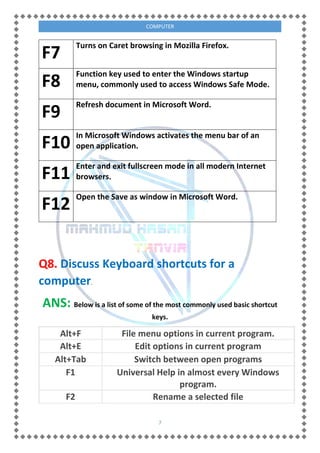
Below here a list of some uses of function keys.
F1
Open the Task Pane.
F2
Quickly rename a selected file or folder.
F3
In Windows Explorer start the search function.
F4
Open the address bar in Windows Explorer and
Internet Explorer.
F5
Refresh the list of contents in a folder.
F6
Move the cursor to the address bar in Internet
browsers
7
COMPUTER
F7
Turns on Caret browsing in Mozilla Firefox.
F8
Function key used to enter the Windows startup
menu, commonly used to access Windows Safe Mode.
F9
Refresh document in Microsoft Word.
F10
In Microsoft Windows activates the menu bar of an
open application.
F11
Enter and exit fullscreen mode in all modern Internet
browsers.
F12
Open the Save as window in Microsoft Word.
Q8. Discuss Keyboard shortcuts for a
computer.
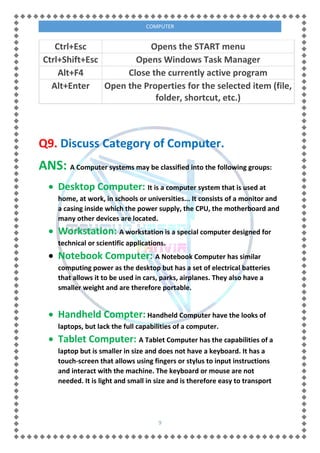
ANS: Below is a list of some of the most commonly used basic shortcut
keys.
Alt+F File menu options in current program.
Alt+E Edit options in current program
Alt+Tab Switch between open programs
F1 Universal Help in almost every Windows
program.
F2 Rename a selected file
8
COMPUTER
F5 Refresh the current program window
Ctrl+N Create a new, blank document in some
software programs
Ctrl+O Open a file in current software program
Ctrl+A Select all text.
Ctrl+B Change selected text to be Bold
Ctrl+I Change selected text to be in Italics
Ctrl+U Change selected text to be Underlined
Ctrl+F Open find window for current document or
window.
Ctrl+S Save current document file.
Ctrl+X Cut selected item.
Shift+Del Cut selected item.
Ctrl+C Copy selected item.
Ctrl+Ins Copy selected item
Ctrl+V Paste
Shift+Ins Paste
Ctrl+K Insert hyperlink for selected text
Ctrl+P Print the current page or document.
Home Goes to beginning of current line.
Ctrl+Home Goes to beginning of document.
End Goes to end of current line.
Ctrl+End Goes to end of document.
Shift+Home Highlights from current position to beginning of
line.
Shift+End Highlights from current position to end of line.
Ctrl+Left arrow Moves one word to the left at a time.
Ctrl+Right
arrow
Moves one word to the right at a time.
9
COMPUTER
Ctrl+Esc Opens the START menu
Ctrl+Shift+Esc Opens Windows Task Manager
Alt+F4 Close the currently active program
Alt+Enter Open the Properties for the selected item (file,
folder, shortcut, etc.)
Q9. Discuss Category of Computer.
ANS: A Computer systems may be classified into the following groups:
 Desktop Computer: It is a computer system that is used at
home, at work, in schools or universities... It consists of a monitor and
a casing inside which the power supply, the CPU, the motherboard and
many other devices are located.
 Workstation: A workstation is a special computer designed for
technical or scientific applications.
 Notebook Computer: A Notebook Computer has similar
computing power as the desktop but has a set of electrical batteries
that allows it to be used in cars, parks, airplanes. They also have a
smaller weight and are therefore portable.
 Handheld Compter: Handheld Computer have the looks of
laptops, but lack the full capabilities of a computer.
 Tablet Computer: A Tablet Computer has the capabilities of a
laptop but is smaller in size and does not have a keyboard. It has a
touch-screen that allows using fingers or stylus to input instructions
and interact with the machine. The keyboard or mouse are not
needed. It is light and small in size and is therefore easy to transport
10
COMPUTER
 Smart phones: Besides making telephone calls, a smartphone
runs on an operating system and has the ability to let you send and
receive e-mails, browse websites on the net and read documents.
Q10. Discuss Types Of Computer.
ANS: Computer System can be categorized according to their
processing speed and power into. The four basic types of computers are
as under:
MicroComputer: This type of computer can perform all of
its input, process, output and storage activities by itself.
MiniComputer:This type of Computer mainly used in
situations, where microcomputer cant perform well but mainframe is to
expensive. IBM’s AS/400 is an example.
Mainframe:This type of computer is very large, expensive, and
powerful. It can handle hundred or thousand users at the same time.
SuperComputer:This type of computer is Most powerful
and expensive with its large body. It calculation ability is Most remarkable
then mentioned others. It can perform on million of instruction at a
second.

Computer Fundamental

  • 1.
    1 COMPUTER ASSIGNMENT 1: Q1. Whatis a Computer?. ANS: A Computer is a programmable machine. The two principal characteristics of a Computer are, It responds to a specific set of instructions in a well-defined manner and it can execute a prerecorded list of instructions (a program) Q2. Give the Advantages and disadvantages of computer (1st gen to 4th Gen) ANS: First Generation: (1940-1956) Advantages: i. That was the only electronic during those old days. ii. Those computers were very fast to calculate. iii. Vacuum tube technology made possible the advent of electronic digital computers. Disadvantages: i. It is not really a reliable device. ii. No portable iii. It is required to be air conditioned. Second Generation: (1956-1963) Advantages: i. Smaller in size compared to the first generation of computer ii. The second generation’s computers were more reliable. iii. Used less energy and were not heated as much as the first one.
  • 2.
    2 COMPUTER iv. Wider commercialuse. v. Better portability as compared to the first generation. vi. Better speed and could calculate data in microseconds. vii. Used faster peripherals. viii. Used assembly language as well. ix. Accuracy improved. Disadvantages: i. Cooling system was required. ii. Constant maintenance was require. iii. Costly and not versatile. iv. Commercial production was difficult. v. Only used for specific purposes. vi. Punch cards were used for input. Third Generation: (1964-1971) Advantages: i. Less energy ii. Easily portable iii. Maintenance cost is low because hardware failures are rare. Disadvantages: i. There are a lot of cases required for air conditioning. ii. Highly sophisticated production was easier and cheaper. Fourth Generation: (1975 - Present) Advantages: i. Air conditioning is not required in most cases. ii. Faster in computation than the last generations iii. Totally general purpose.
  • 3.
    3 COMPUTER iv. Heat generatedis negligible v. Smallest in size it's because of the high component density. Disadvantages: i. Highly sophisticated technology required for the manufacture of LSI chips. Q3. why computer is so important in educational institutions? ANS: importance Of in educational institutions: Computer education in educational institutions plays important role in student’s career development. Computer with the internet is the most powerful device that students can use to learn new skills and more advanced version of current lessons. Schools are around the globe teaching student’s basics of computers and internet. Real life uses of Computers in Education: i. Teaching Learning process ii. Testing and Evaluation process iii. Library iv. Guidance purposes v. School Administration Q4. Discuss Parts of a computer. ANS: Computer system is composed of hardware, software, data, and users. 1. Hardware: •A computer's hardware consists of electronic devices; the parts you can see and touch.•The term "device" refers to any piece of hardware used by the computer, such as a keyboard, monitor, modem, mouse, etc.
  • 4.
    4 COMPUTER 2. Software: •Software –also called programs – consists of organized sets of instructions for controlling the computer. •Some programs exist for the computer's use, to help it manage its own tasks and devices. •Other programs exist for the user, and enable the computer to perform tasks for you, such as creating documents. 3. Data: Computer data is information processed or stored by a computer. This information may be in the form of text documents, images, audio clips, software programs, or other types of data. Computer data may be processed by the computer's CPU and is stored in files and folders on the computer's hard disk. 4. Users: A user is a person who uses a computer or network service. Users generally use a software product or operate it. To define of user can include a programmer, novices, end user or any individual opertators who runs an application program. Q5. Discuss information processing cycle. ANS: The Data Processing Cycle is a series of steps carried out to extract information from raw data. Although each step must be taken in order, the order is cyclic. The output and storage stage can lead to the repeat of the data collection stage, resulting in another cycle of data processing. INPUT OUTPUT ALU+CU STORAGE
  • 5.
    5 COMPUTER Figure:1 Q6. Discuss Theessential Hardware of a computer. ANS: A computer is a mix of hardware and software. To build a computer, we will need a few fundamental computer hardware items. 1. Motherboard: a printed circuit board containing the principal components of a Computer with connectors into which other circuit boards can be slotted. 2. Processor: A processor is a small chip that resides in Computer. Its basic job is to receive input and provide the appropriate output. While this may seem like a simple task, modern processors can handle trillions of calculations per second. The central processor of a computer is also known as the CPU, or "central processing unit." 3. Hard disk: A magnetic disk on which you can store computer data. The term hard is used to distinguish it from a soft, or floppy, disk. Hard disks hold more data and are faster than floppy disks. ... A single hard disk usually consists of several platters. 4. RAM: RAM (random access memory) a type of computer memory that temporarily holds a program, objects or data.
  • 6.
    6 COMPUTER 5. Monitor: Adisplay Screen to provide output to the user. It is where we view the information, what we are working on. 6. Keyboard: Keyboard is used to enter information into computer and also for commands. 7. Mouse: Mouse is an input device, which operated by its reflector. It is actually a screen-ponter. Mouse usually used for Commanding. Q7. Describe Uses of Computer’s Function keys. ANS: Function Key is a key of keyboard, which perform certain action, Below here a list of some uses of function keys. F1 Open the Task Pane. F2 Quickly rename a selected file or folder. F3 In Windows Explorer start the search function. F4 Open the address bar in Windows Explorer and Internet Explorer. F5 Refresh the list of contents in a folder. F6 Move the cursor to the address bar in Internet browsers
  • 7.
    7 COMPUTER F7 Turns on Caretbrowsing in Mozilla Firefox. F8 Function key used to enter the Windows startup menu, commonly used to access Windows Safe Mode. F9 Refresh document in Microsoft Word. F10 In Microsoft Windows activates the menu bar of an open application. F11 Enter and exit fullscreen mode in all modern Internet browsers. F12 Open the Save as window in Microsoft Word. Q8. Discuss Keyboard shortcuts for a computer. ANS: Below is a list of some of the most commonly used basic shortcut keys. Alt+F File menu options in current program. Alt+E Edit options in current program Alt+Tab Switch between open programs F1 Universal Help in almost every Windows program. F2 Rename a selected file
  • 8.
    8 COMPUTER F5 Refresh thecurrent program window Ctrl+N Create a new, blank document in some software programs Ctrl+O Open a file in current software program Ctrl+A Select all text. Ctrl+B Change selected text to be Bold Ctrl+I Change selected text to be in Italics Ctrl+U Change selected text to be Underlined Ctrl+F Open find window for current document or window. Ctrl+S Save current document file. Ctrl+X Cut selected item. Shift+Del Cut selected item. Ctrl+C Copy selected item. Ctrl+Ins Copy selected item Ctrl+V Paste Shift+Ins Paste Ctrl+K Insert hyperlink for selected text Ctrl+P Print the current page or document. Home Goes to beginning of current line. Ctrl+Home Goes to beginning of document. End Goes to end of current line. Ctrl+End Goes to end of document. Shift+Home Highlights from current position to beginning of line. Shift+End Highlights from current position to end of line. Ctrl+Left arrow Moves one word to the left at a time. Ctrl+Right arrow Moves one word to the right at a time.
  • 9.
    9 COMPUTER Ctrl+Esc Opens theSTART menu Ctrl+Shift+Esc Opens Windows Task Manager Alt+F4 Close the currently active program Alt+Enter Open the Properties for the selected item (file, folder, shortcut, etc.) Q9. Discuss Category of Computer. ANS: A Computer systems may be classified into the following groups:  Desktop Computer: It is a computer system that is used at home, at work, in schools or universities... It consists of a monitor and a casing inside which the power supply, the CPU, the motherboard and many other devices are located.  Workstation: A workstation is a special computer designed for technical or scientific applications.  Notebook Computer: A Notebook Computer has similar computing power as the desktop but has a set of electrical batteries that allows it to be used in cars, parks, airplanes. They also have a smaller weight and are therefore portable.  Handheld Compter: Handheld Computer have the looks of laptops, but lack the full capabilities of a computer.  Tablet Computer: A Tablet Computer has the capabilities of a laptop but is smaller in size and does not have a keyboard. It has a touch-screen that allows using fingers or stylus to input instructions and interact with the machine. The keyboard or mouse are not needed. It is light and small in size and is therefore easy to transport
  • 10.
    10 COMPUTER  Smart phones:Besides making telephone calls, a smartphone runs on an operating system and has the ability to let you send and receive e-mails, browse websites on the net and read documents. Q10. Discuss Types Of Computer. ANS: Computer System can be categorized according to their processing speed and power into. The four basic types of computers are as under: MicroComputer: This type of computer can perform all of its input, process, output and storage activities by itself. MiniComputer:This type of Computer mainly used in situations, where microcomputer cant perform well but mainframe is to expensive. IBM’s AS/400 is an example. Mainframe:This type of computer is very large, expensive, and powerful. It can handle hundred or thousand users at the same time. SuperComputer:This type of computer is Most powerful and expensive with its large body. It calculation ability is Most remarkable then mentioned others. It can perform on million of instruction at a second.