Day Two
Mohammad Rafi Haidari
Bootstrap Button Groups
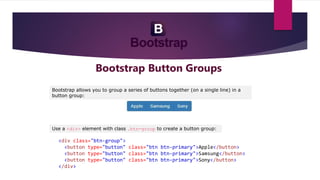
Bootstrap allows you to group a series of buttons together (on a single line) in a
button group:
Use a <div> element with class .btn-group to create a button group:
<div class="btn-group">
<button type="button" class="btn btn-primary">Apple</button>
<button type="button" class="btn btn-primary">Samsung</button>
<button type="button" class="btn btn-primary">Sony</button>
</div>
Bootstrap Button Groups
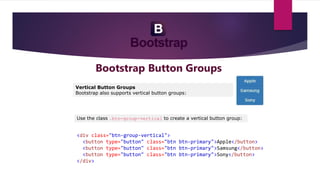
Vertical Button Groups
Bootstrap also supports vertical button groups:
Use the class .btn-group-vertical to create a vertical button group:
<div class="btn-group-vertical">
<button type="button" class="btn btn-primary">Apple</button>
<button type="button" class="btn btn-primary">Samsung</button>
<button type="button" class="btn btn-primary">Sony</button>
</div>
Bootstrap Button Groups
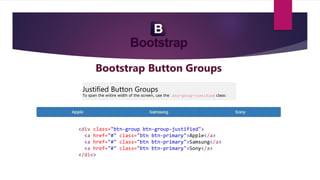
Justified Button Groups
To span the entire width of the screen, use the .btn-group-justified class:
<div class="btn-group btn-group-justified">
<a href="#" class="btn btn-primary">Apple</a>
<a href="#" class="btn btn-primary">Samsung</a>
<a href="#" class="btn btn-primary">Sony</a>
</div>
Bootstrap Button Groups
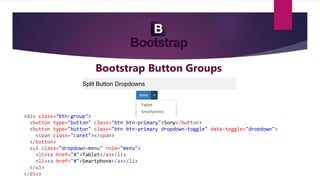
Split Button Dropdowns
<div class="btn-group">
<button type="button" class="btn btn-primary">Sony</button>
<button type="button" class="btn btn-primary dropdown-toggle" data-toggle="dropdown">
<span class="caret"></span>
</button>
<ul class="dropdown-menu" role="menu">
<li><a href="#">Tablet</a></li>
<li><a href="#">Smartphone</a></li>
</ul>
</div>
Bootstrap Glyphicons
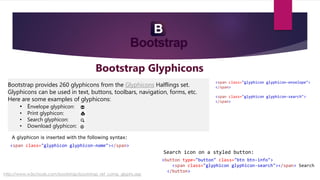
Bootstrap provides 260 glyphicons from the Glyphicons Halflings set.
Glyphicons can be used in text, buttons, toolbars, navigation, forms, etc.
Here are some examples of glyphicons:
• Envelope glyphicon:
• Print glyphicon:
• Search glyphicon:
• Download glyphicon:
A glyphicon is inserted with the following syntax:
<span class="glyphicon glyphicon-name"></span>
<span class="glyphicon glyphicon-envelope">
</span>
<span class="glyphicon glyphicon-search">
</span>
<button type="button" class="btn btn-info">
<span class="glyphicon glyphicon-search"></span> Search
</button>
Search icon on a styled button:
http://www.w3schools.com/bootstrap/bootstrap_ref_comp_glyphs.asp
Bootstrap Badges and Labels
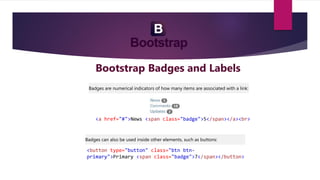
Badges are numerical indicators of how many items are associated with a link:
<a href="#">News <span class="badge">5</span></a><br>
<button type="button" class="btn btn-
primary">Primary <span class="badge">7</span></button>
Badges can also be used inside other elements, such as buttons:
Bootstrap Badges and Labels
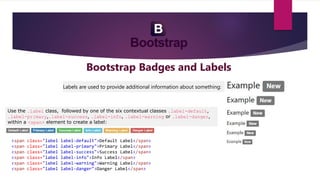
Labels are used to provide additional information about something:
Use the .label class, followed by one of the six contextual classes .label-default,
.label-primary,.label-success, .label-info, .label-warning or .label-danger,
within a <span> element to create a label:
<span class="label label-default">Default Label</span>
<span class="label label-primary">Primary Label</span>
<span class="label label-success">Success Label</span>
<span class="label label-info">Info Label</span>
<span class="label label-warning">Warning Label</span>
<span class="label label-danger">Danger Label</span>
Bootstrap Progress Bars
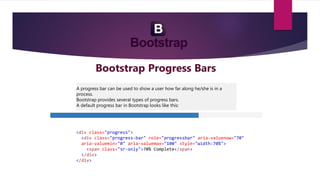
A progress bar can be used to show a user how far along he/she is in a
process.
Bootstrap provides several types of progress bars.
A default progress bar in Bootstrap looks like this:
<div class="progress">
<div class="progress-bar" role="progressbar" aria-valuenow="70"
aria-valuemin="0" aria-valuemax="100" style="width:70%">
<span class="sr-only">70% Complete</span>
</div>
</div>
Bootstrap Progress Bars
Colored Progress Bars
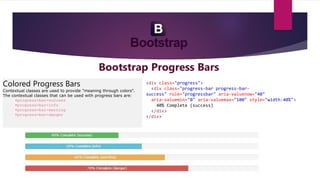
Contextual classes are used to provide "meaning through colors".
The contextual classes that can be used with progress bars are:
•progress-bar-success
•progress-bar-info
•progress-bar-warning
•progress-bar-danger
<div class="progress">
<div class="progress-bar progress-bar-
success" role="progressbar" aria-valuenow="40"
aria-valuemin="0" aria-valuemax="100" style="width:40%">
40% Complete (success)
</div>
</div>
Bootstrap Progress Bars
Striped Progress Bars
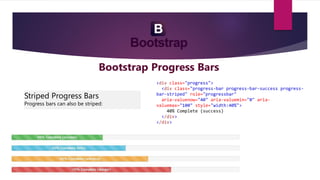
Progress bars can also be striped:
<div class="progress">
<div class="progress-bar progress-bar-success progress-
bar-striped" role="progressbar"
aria-valuenow="40" aria-valuemin="0" aria-
valuemax="100" style="width:40%">
40% Complete (success)
</div>
</div>
Bootstrap Progress Bars
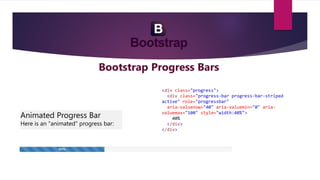
Animated Progress Bar
Here is an "animated" progress bar:
<div class="progress">
<div class="progress-bar progress-bar-striped
active" role="progressbar"
aria-valuenow="40" aria-valuemin="0" aria-
valuemax="100" style="width:40%">
40%
</div>
</div>
Any Question?
Thank You.

Bootstrap day2

  • 1.
  • 2.
    Bootstrap Button Groups Bootstrapallows you to group a series of buttons together (on a single line) in a button group: Use a <div> element with class .btn-group to create a button group: <div class="btn-group"> <button type="button" class="btn btn-primary">Apple</button> <button type="button" class="btn btn-primary">Samsung</button> <button type="button" class="btn btn-primary">Sony</button> </div>
  • 3.
    Bootstrap Button Groups VerticalButton Groups Bootstrap also supports vertical button groups: Use the class .btn-group-vertical to create a vertical button group: <div class="btn-group-vertical"> <button type="button" class="btn btn-primary">Apple</button> <button type="button" class="btn btn-primary">Samsung</button> <button type="button" class="btn btn-primary">Sony</button> </div>
  • 4.
    Bootstrap Button Groups JustifiedButton Groups To span the entire width of the screen, use the .btn-group-justified class: <div class="btn-group btn-group-justified"> <a href="#" class="btn btn-primary">Apple</a> <a href="#" class="btn btn-primary">Samsung</a> <a href="#" class="btn btn-primary">Sony</a> </div>
  • 5.
    Bootstrap Button Groups SplitButton Dropdowns <div class="btn-group"> <button type="button" class="btn btn-primary">Sony</button> <button type="button" class="btn btn-primary dropdown-toggle" data-toggle="dropdown"> <span class="caret"></span> </button> <ul class="dropdown-menu" role="menu"> <li><a href="#">Tablet</a></li> <li><a href="#">Smartphone</a></li> </ul> </div>
  • 6.
    Bootstrap Glyphicons Bootstrap provides260 glyphicons from the Glyphicons Halflings set. Glyphicons can be used in text, buttons, toolbars, navigation, forms, etc. Here are some examples of glyphicons: • Envelope glyphicon: • Print glyphicon: • Search glyphicon: • Download glyphicon: A glyphicon is inserted with the following syntax: <span class="glyphicon glyphicon-name"></span> <span class="glyphicon glyphicon-envelope"> </span> <span class="glyphicon glyphicon-search"> </span> <button type="button" class="btn btn-info"> <span class="glyphicon glyphicon-search"></span> Search </button> Search icon on a styled button: http://www.w3schools.com/bootstrap/bootstrap_ref_comp_glyphs.asp
  • 7.
    Bootstrap Badges andLabels Badges are numerical indicators of how many items are associated with a link: <a href="#">News <span class="badge">5</span></a><br> <button type="button" class="btn btn- primary">Primary <span class="badge">7</span></button> Badges can also be used inside other elements, such as buttons:
  • 8.
    Bootstrap Badges andLabels Labels are used to provide additional information about something: Use the .label class, followed by one of the six contextual classes .label-default, .label-primary,.label-success, .label-info, .label-warning or .label-danger, within a <span> element to create a label: <span class="label label-default">Default Label</span> <span class="label label-primary">Primary Label</span> <span class="label label-success">Success Label</span> <span class="label label-info">Info Label</span> <span class="label label-warning">Warning Label</span> <span class="label label-danger">Danger Label</span>
  • 9.
    Bootstrap Progress Bars Aprogress bar can be used to show a user how far along he/she is in a process. Bootstrap provides several types of progress bars. A default progress bar in Bootstrap looks like this: <div class="progress"> <div class="progress-bar" role="progressbar" aria-valuenow="70" aria-valuemin="0" aria-valuemax="100" style="width:70%"> <span class="sr-only">70% Complete</span> </div> </div>
  • 10.
    Bootstrap Progress Bars ColoredProgress Bars Contextual classes are used to provide "meaning through colors". The contextual classes that can be used with progress bars are: •progress-bar-success •progress-bar-info •progress-bar-warning •progress-bar-danger <div class="progress"> <div class="progress-bar progress-bar- success" role="progressbar" aria-valuenow="40" aria-valuemin="0" aria-valuemax="100" style="width:40%"> 40% Complete (success) </div> </div>
  • 11.
    Bootstrap Progress Bars StripedProgress Bars Progress bars can also be striped: <div class="progress"> <div class="progress-bar progress-bar-success progress- bar-striped" role="progressbar" aria-valuenow="40" aria-valuemin="0" aria- valuemax="100" style="width:40%"> 40% Complete (success) </div> </div>
  • 12.
    Bootstrap Progress Bars AnimatedProgress Bar Here is an "animated" progress bar: <div class="progress"> <div class="progress-bar progress-bar-striped active" role="progressbar" aria-valuenow="40" aria-valuemin="0" aria- valuemax="100" style="width:40%"> 40% </div> </div>
  • 13.
  • 14.