Prepared By: Seble N
 What is Bootstrap?
 Bootstrap is a free front-end framework for faster and
easier web development
 Bootstrap includes HTML and CSS based design
templates for typography, forms, buttons, tables,
navigation, modals, image carousels and many other,
as well as optional JavaScript plugins
 Bootstrap also gives you the ability to easily create
responsive designs
Prepared By: Seble N
 Advantages of Bootstrap:
 Easy to use: Anybody with just basic knowledge of
HTML and CSS can start using Bootstrap
 Responsive features: Bootstrap's responsive CSS
adjusts to phones, tablets, and desktops
 Mobile-first approach: In Bootstrap 3, mobile-first
styles are part of the core framework
 Browser compatibility: Bootstrap is compatible with
all modern browsers (Chrome, Firefox, Internet
Explorer, Safari, and Opera)
Prepared By: Seble N
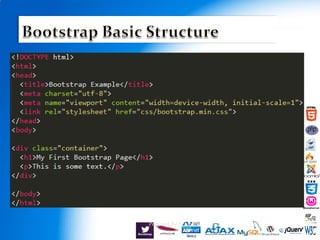
 There are two ways to start using Bootstrap on
your own web site.
 Download Bootstrap from getbootstrap.com
 Include Bootstrap from a CDN
<link rel="stylesheet"
href="https://maxcdn.bootstrapcdn.com/bootstrap/3.3.7/cs
s/bootstrap.min.css">
Prepared By: Seble N
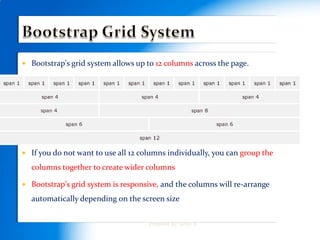
 Bootstrap's grid system allows up to 12 columns across the page.
 If you do not want to use all 12 columns individually, you can group the
columns together to create wider columns
 Bootstrap's grid system is responsive, and the columns will re-arrange
automatically depending on the screen size
Prepared By: Seble N
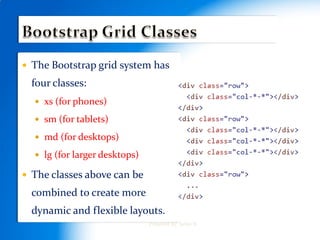
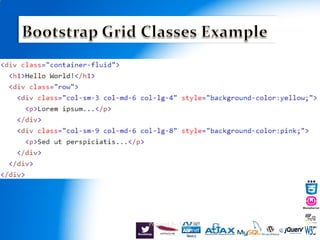
 The Bootstrap grid system has
four classes:
 xs (for phones)
 sm (for tablets)
 md (for desktops)
 lg (for larger desktops)
 The classes above can be
combined to create more
dynamic and flexible layouts.
Prepared By: Seble N
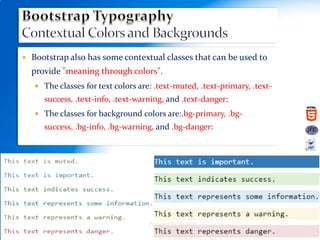
 Bootstrap also has some contextual classes that can be used to
provide "meaning through colors".
 The classes for text colors are: .text-muted, .text-primary, .text-
success, .text-info, .text-warning, and .text-danger:
 The classes for background colors are:.bg-primary, .bg-
success, .bg-info, .bg-warning, and .bg-danger:
Prepared By: Seble N
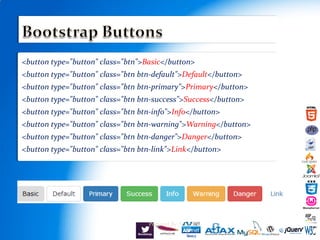
<button type="button" class="btn">Basic</button>
<button type="button" class="btn btn-default">Default</button>
<button type="button" class="btn btn-primary">Primary</button>
<button type="button" class="btn btn-success">Success</button>
<button type="button" class="btn btn-info">Info</button>
<button type="button" class="btn btn-warning">Warning</button>
<button type="button" class="btn btn-danger">Danger</button>
<button type="button" class="btn btn-link">Link</button>
Prepared By: Seble N
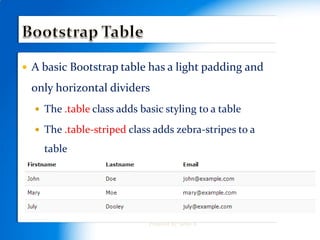
 A basic Bootstrap table has a light padding and
only horizontal dividers
 The .table class adds basic styling to a table
 The .table-striped class adds zebra-stripes to a
table
Prepared By: Seble N
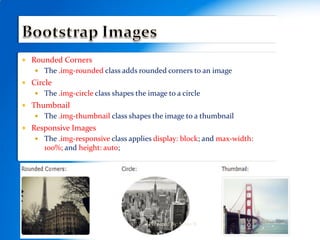
 Rounded Corners
 The .img-rounded class adds rounded corners to an image
 Circle
 The .img-circle class shapes the image to a circle
 Thumbnail
 The .img-thumbnail class shapes the image to a thumbnail
 Responsive Images
 The .img-responsive class applies display: block; and max-width:
100%; and height: auto;
Prepared By: Seble N
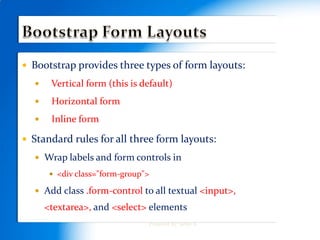
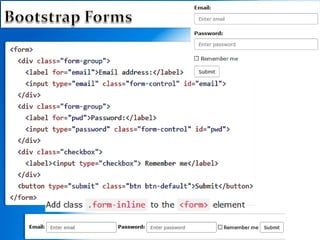
 Bootstrap provides three types of form layouts:
 Vertical form (this is default)
 Horizontal form
 Inline form
 Standard rules for all three form layouts:
 Wrap labels and form controls in
 <div class="form-group">
 Add class .form-control to all textual <input>,
<textarea>, and <select> elements
Prepared By: Seble N
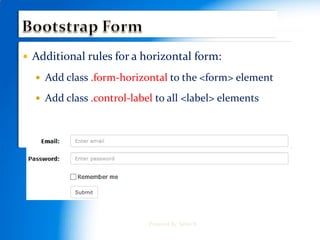
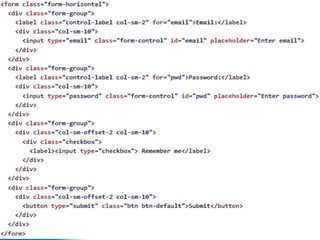
 Additional rules for a horizontal form:
 Add class .form-horizontal to the <form> element
 Add class .control-label to all <label> elements
Prepared By: Seble N
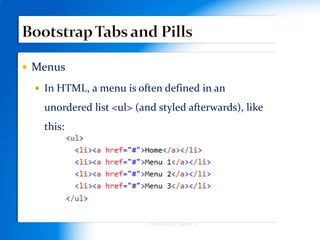
 Menus
 In HTML, a menu is often defined in an
unordered list <ul> (and styled afterwards), like
this:
Prepared By: Seble N

Introduction to Bootstrap

  • 1.
  • 2.
     What isBootstrap?  Bootstrap is a free front-end framework for faster and easier web development  Bootstrap includes HTML and CSS based design templates for typography, forms, buttons, tables, navigation, modals, image carousels and many other, as well as optional JavaScript plugins  Bootstrap also gives you the ability to easily create responsive designs Prepared By: Seble N
  • 3.
     Advantages ofBootstrap:  Easy to use: Anybody with just basic knowledge of HTML and CSS can start using Bootstrap  Responsive features: Bootstrap's responsive CSS adjusts to phones, tablets, and desktops  Mobile-first approach: In Bootstrap 3, mobile-first styles are part of the core framework  Browser compatibility: Bootstrap is compatible with all modern browsers (Chrome, Firefox, Internet Explorer, Safari, and Opera) Prepared By: Seble N
  • 4.
     There aretwo ways to start using Bootstrap on your own web site.  Download Bootstrap from getbootstrap.com  Include Bootstrap from a CDN <link rel="stylesheet" href="https://maxcdn.bootstrapcdn.com/bootstrap/3.3.7/cs s/bootstrap.min.css"> Prepared By: Seble N
  • 5.
  • 6.
     Bootstrap's gridsystem allows up to 12 columns across the page.  If you do not want to use all 12 columns individually, you can group the columns together to create wider columns  Bootstrap's grid system is responsive, and the columns will re-arrange automatically depending on the screen size Prepared By: Seble N
  • 7.
     The Bootstrapgrid system has four classes:  xs (for phones)  sm (for tablets)  md (for desktops)  lg (for larger desktops)  The classes above can be combined to create more dynamic and flexible layouts. Prepared By: Seble N
  • 8.
  • 9.
     Bootstrap alsohas some contextual classes that can be used to provide "meaning through colors".  The classes for text colors are: .text-muted, .text-primary, .text- success, .text-info, .text-warning, and .text-danger:  The classes for background colors are:.bg-primary, .bg- success, .bg-info, .bg-warning, and .bg-danger: Prepared By: Seble N
  • 10.
    <button type="button" class="btn">Basic</button> <buttontype="button" class="btn btn-default">Default</button> <button type="button" class="btn btn-primary">Primary</button> <button type="button" class="btn btn-success">Success</button> <button type="button" class="btn btn-info">Info</button> <button type="button" class="btn btn-warning">Warning</button> <button type="button" class="btn btn-danger">Danger</button> <button type="button" class="btn btn-link">Link</button> Prepared By: Seble N
  • 11.
     A basicBootstrap table has a light padding and only horizontal dividers  The .table class adds basic styling to a table  The .table-striped class adds zebra-stripes to a table Prepared By: Seble N
  • 12.
     Rounded Corners The .img-rounded class adds rounded corners to an image  Circle  The .img-circle class shapes the image to a circle  Thumbnail  The .img-thumbnail class shapes the image to a thumbnail  Responsive Images  The .img-responsive class applies display: block; and max-width: 100%; and height: auto; Prepared By: Seble N
  • 13.
     Bootstrap providesthree types of form layouts:  Vertical form (this is default)  Horizontal form  Inline form  Standard rules for all three form layouts:  Wrap labels and form controls in  <div class="form-group">  Add class .form-control to all textual <input>, <textarea>, and <select> elements Prepared By: Seble N
  • 14.
  • 15.
     Additional rulesfor a horizontal form:  Add class .form-horizontal to the <form> element  Add class .control-label to all <label> elements Prepared By: Seble N
  • 16.
  • 17.
     Menus  InHTML, a menu is often defined in an unordered list <ul> (and styled afterwards), like this: Prepared By: Seble N
  • 18.