Web Technologies – CS 382
Shehzad Aslam
Lecture 3
3 Hrs
 Bootstrap grid model
 Creating responsive sites – controlling device
 Some components
 Use of media queries
 And of course CSS …
 Collection of tools for creating website
 Contains HTML & CSS based design
templates
 Typography
 Forms
 Buttons
 Navigations
 And much more
 Create web sites with few lines of code
 Websites are responsive
 Adjust according to devices width
 Really helpful for small devices
 One page multiple type of views
 Its awesome !!!
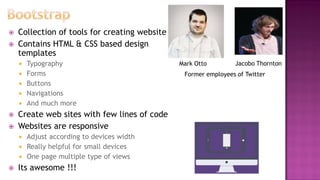
Mark Otto Jacobo Thornton
Former employees of Twitter
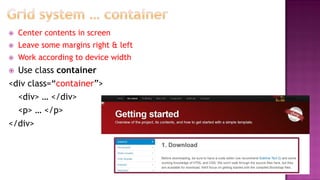
 www.getbootstrap.com
 Go to Getting started
 There are two ways
 Online
 You need internet connection
 Offline
 Download the files … can later use them
 Preferred is second one
 Copy the basic template
 Download the html5shiv.js and
respond.js if want offline
 its ready!
 Center contents in screen
 Leave some margins right & left
 Work according to device width
 Use class container
<div class=“container”>
<div> … </div>
<p> … </p>
</div>
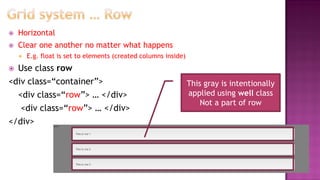
 Horizontal
 Clear one another no matter what happens
 E.g. float is set to elements (created columns inside)
 Use class row
<div class=“container”>
<div class=“row”> … </div>
</div>
This gray is intentionally
applied using well class
Not a part of row
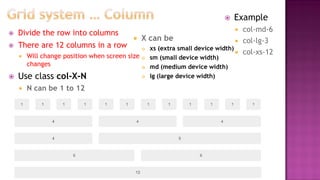
 Divide the row into columns
 There are 12 columns in a row
 Will change position when screen size
changes
 Use class col-X-N
 N can be 1 to 12
 Example
 col-md-6
 col-lg-3
 col-xs-12
 X can be
 xs (extra small device width)
 sm (small device width)
 md (medium device width)
 lg (large device width)
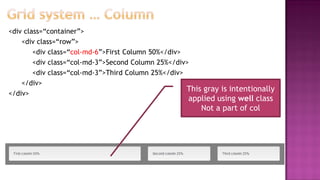
<div class=“container”>
<div class=“row”>
<div class=“col-md-6”>First Column 50%</div>
<div class=“col-md-3”>Second Column 25%</div>
<div class=“col-md-3”>Third Column 25%</div>
</div>
</div>
This gray is intentionally
applied using well class
Not a part of col
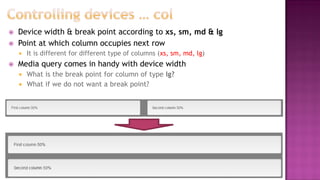
 Device width & break point according to xs, sm, md & lg
 Point at which column occupies next row
 It is different for different type of columns (xs, sm, md, lg)
 Media query comes in handy with device width
 What is the break point for column of type lg?
 What if we do not want a break point?
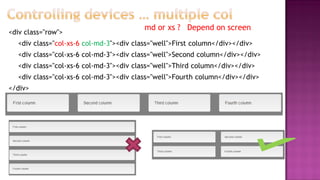
<div class="row">
<div class="col-xs-6 col-md-3"><div class="well">First column</div></div>
<div class="col-xs-6 col-md-3"><div class="well">Second column</div></div>
<div class="col-xs-6 col-md-3"><div class="well">Third column</div></div>
<div class="col-xs-6 col-md-3"><div class="well">Fourth column</div></div>
</div>
md or xs ? Depend on screen
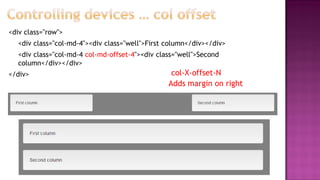
<div class="row">
<div class="col-md-4"><div class="well">First column</div></div>
<div class="col-md-4 col-md-offset-4"><div class="well">Second
column</div></div>
</div> col-X-offset-N
Adds margin on right
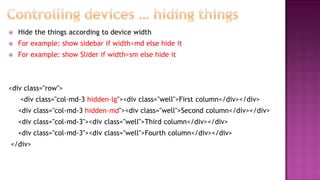
 Hide the things according to device width
 For example: show sidebar if width>md else hide it
 For example: show Slider if width>sm else hide it
<div class="row">
<div class="col-md-3 hidden-lg"><div class="well">First column</div></div>
<div class="col-md-3 hidden-md"><div class="well">Second column</div></div>
<div class="col-md-3"><div class="well">Third column</div></div>
<div class="col-md-3"><div class="well">Fourth column</div></div>
</div>
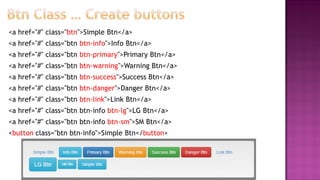
<a href="#" class="btn">Simple Btn</a>
<a href="#" class="btn btn-info">Info Btn</a>
<a href="#" class="btn btn-primary">Primary Btn</a>
<a href="#" class="btn btn-warning">Warning Btn</a>
<a href="#" class="btn btn-success">Success Btn</a>
<a href="#" class="btn btn-danger">Danger Btn</a>
<a href="#" class="btn btn-link">Link Btn</a>
<a href="#" class="btn btn-info btn-lg">LG Btn</a>
<a href="#" class="btn btn-info btn-sm">SM Btn</a>
<button class="btn btn-info">Simple Btn</button>
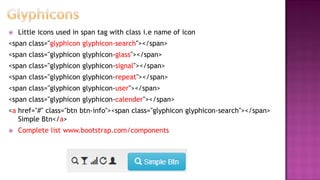
 Little icons used in span tag with class i.e name of icon
<span class="glyphicon glyphicon-search"></span>
<span class="glyphicon glyphicon-glass"></span>
<span class="glyphicon glyphicon-signal"></span>
<span class="glyphicon glyphicon-repeat"></span>
<span class="glyphicon glyphicon-user"></span>
<span class="glyphicon glyphicon-calender"></span>
<a href="#" class="btn btn-info"><span class="glyphicon glyphicon-search"></span>
Simple Btn</a>
 Complete list www.bootstrap.com/components
 Different styles of tables
<table class="table table-hover">
<tr><th>Name</th><th>Regno</th></tr>
<tr><td>Zeshan</td><td>2014-CS-101</td></tr>
<tr class="danger"><td>Arslan</td><td>2016-CS-404</td></tr>
<tr class="success"><td>Quyam</td><td>2013-CS-106</td></tr>
</table>
Table Classes
 table-hover
 table-bordered
 table-striped
 table-condensed
Table Row Classes
 success
 warning
 danger
 You can define your
own
 If screen width is going smaller than table may be it will overflow
 To avoid this wrap the table in div with class table-responsive
 It will create scrollbar when above situation occur
<div class=“table-responsive”
<table class="table table-hover">
…
</table>
</div>
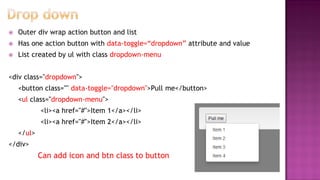
 Outer div wrap action button and list
 Has one action button with data-toggle=“dropdown” attribute and value
 List created by ul with class dropdown-menu
<div class="dropdown">
<button class="" data-toggle="dropdown">Pull me</button>
<ul class="dropdown-menu">
<li><a href="#">Item 1</a></li>
<li><a href="#">Item 2</a></li>
</ul>
</div>
Can add icon and btn class to button
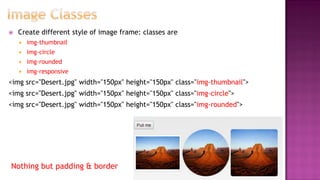
 Create different style of image frame: classes are
 img-thumbnail
 img-circle
 img-rounded
 img-responsive
<img src="Desert.jpg" width="150px" height="150px" class="img-thumbnail">
<img src="Desert.jpg" width="150px" height="150px" class="img-circle">
<img src="Desert.jpg" width="150px" height="150px" class="img-rounded">
Nothing but padding & border
@media (min-width: 768px) { .container { width: 750px; } }
@media (min-width: 1200px) { .container { width: 1100px; } }
@media print {.no-print { display: none; } }
Control element view
 Go to bootstrap.com
 Read out documentation & find about other components
like form, carousel, tabs, thumbnails, navs & much more
 Convert your last assignment to bootstrap
 Still you can use you own styles
 But layout defined with bootstrap
 Book Reading
 Google

Lec 3

  • 1.
    Web Technologies –CS 382 Shehzad Aslam Lecture 3 3 Hrs
  • 2.
     Bootstrap gridmodel  Creating responsive sites – controlling device  Some components  Use of media queries  And of course CSS …
  • 3.
     Collection oftools for creating website  Contains HTML & CSS based design templates  Typography  Forms  Buttons  Navigations  And much more  Create web sites with few lines of code  Websites are responsive  Adjust according to devices width  Really helpful for small devices  One page multiple type of views  Its awesome !!! Mark Otto Jacobo Thornton Former employees of Twitter
  • 4.
     www.getbootstrap.com  Goto Getting started  There are two ways  Online  You need internet connection  Offline  Download the files … can later use them  Preferred is second one  Copy the basic template  Download the html5shiv.js and respond.js if want offline  its ready!
  • 5.
     Center contentsin screen  Leave some margins right & left  Work according to device width  Use class container <div class=“container”> <div> … </div> <p> … </p> </div>
  • 6.
     Horizontal  Clearone another no matter what happens  E.g. float is set to elements (created columns inside)  Use class row <div class=“container”> <div class=“row”> … </div> <div class=“row”> … </div> </div> This gray is intentionally applied using well class Not a part of row
  • 7.
     Divide therow into columns  There are 12 columns in a row  Will change position when screen size changes  Use class col-X-N  N can be 1 to 12  Example  col-md-6  col-lg-3  col-xs-12  X can be  xs (extra small device width)  sm (small device width)  md (medium device width)  lg (large device width)
  • 8.
    <div class=“container”> <div class=“row”> <divclass=“col-md-6”>First Column 50%</div> <div class=“col-md-3”>Second Column 25%</div> <div class=“col-md-3”>Third Column 25%</div> </div> </div> This gray is intentionally applied using well class Not a part of col
  • 9.
     Device width& break point according to xs, sm, md & lg  Point at which column occupies next row  It is different for different type of columns (xs, sm, md, lg)  Media query comes in handy with device width  What is the break point for column of type lg?  What if we do not want a break point?
  • 10.
    <div class="row"> <div class="col-xs-6col-md-3"><div class="well">First column</div></div> <div class="col-xs-6 col-md-3"><div class="well">Second column</div></div> <div class="col-xs-6 col-md-3"><div class="well">Third column</div></div> <div class="col-xs-6 col-md-3"><div class="well">Fourth column</div></div> </div> md or xs ? Depend on screen
  • 11.
    <div class="row"> <div class="col-md-4"><divclass="well">First column</div></div> <div class="col-md-4 col-md-offset-4"><div class="well">Second column</div></div> </div> col-X-offset-N Adds margin on right
  • 12.
     Hide thethings according to device width  For example: show sidebar if width>md else hide it  For example: show Slider if width>sm else hide it <div class="row"> <div class="col-md-3 hidden-lg"><div class="well">First column</div></div> <div class="col-md-3 hidden-md"><div class="well">Second column</div></div> <div class="col-md-3"><div class="well">Third column</div></div> <div class="col-md-3"><div class="well">Fourth column</div></div> </div>
  • 13.
    <a href="#" class="btn">SimpleBtn</a> <a href="#" class="btn btn-info">Info Btn</a> <a href="#" class="btn btn-primary">Primary Btn</a> <a href="#" class="btn btn-warning">Warning Btn</a> <a href="#" class="btn btn-success">Success Btn</a> <a href="#" class="btn btn-danger">Danger Btn</a> <a href="#" class="btn btn-link">Link Btn</a> <a href="#" class="btn btn-info btn-lg">LG Btn</a> <a href="#" class="btn btn-info btn-sm">SM Btn</a> <button class="btn btn-info">Simple Btn</button>
  • 14.
     Little iconsused in span tag with class i.e name of icon <span class="glyphicon glyphicon-search"></span> <span class="glyphicon glyphicon-glass"></span> <span class="glyphicon glyphicon-signal"></span> <span class="glyphicon glyphicon-repeat"></span> <span class="glyphicon glyphicon-user"></span> <span class="glyphicon glyphicon-calender"></span> <a href="#" class="btn btn-info"><span class="glyphicon glyphicon-search"></span> Simple Btn</a>  Complete list www.bootstrap.com/components
  • 15.
     Different stylesof tables <table class="table table-hover"> <tr><th>Name</th><th>Regno</th></tr> <tr><td>Zeshan</td><td>2014-CS-101</td></tr> <tr class="danger"><td>Arslan</td><td>2016-CS-404</td></tr> <tr class="success"><td>Quyam</td><td>2013-CS-106</td></tr> </table> Table Classes  table-hover  table-bordered  table-striped  table-condensed Table Row Classes  success  warning  danger  You can define your own
  • 16.
     If screenwidth is going smaller than table may be it will overflow  To avoid this wrap the table in div with class table-responsive  It will create scrollbar when above situation occur <div class=“table-responsive” <table class="table table-hover"> … </table> </div>
  • 17.
     Outer divwrap action button and list  Has one action button with data-toggle=“dropdown” attribute and value  List created by ul with class dropdown-menu <div class="dropdown"> <button class="" data-toggle="dropdown">Pull me</button> <ul class="dropdown-menu"> <li><a href="#">Item 1</a></li> <li><a href="#">Item 2</a></li> </ul> </div> Can add icon and btn class to button
  • 18.
     Create differentstyle of image frame: classes are  img-thumbnail  img-circle  img-rounded  img-responsive <img src="Desert.jpg" width="150px" height="150px" class="img-thumbnail"> <img src="Desert.jpg" width="150px" height="150px" class="img-circle"> <img src="Desert.jpg" width="150px" height="150px" class="img-rounded"> Nothing but padding & border
  • 19.
    @media (min-width: 768px){ .container { width: 750px; } } @media (min-width: 1200px) { .container { width: 1100px; } } @media print {.no-print { display: none; } } Control element view
  • 21.
     Go tobootstrap.com  Read out documentation & find about other components like form, carousel, tabs, thumbnails, navs & much more  Convert your last assignment to bootstrap  Still you can use you own styles  But layout defined with bootstrap  Book Reading  Google