Three quick tips for
Accessibility and

HTML5
Charles has just given you a
broad overview of HTML 5
accessibility.
I am now going to focus on
a few quick aspects about
HTML5 and accessibility - a
micro view.
The <section>
element
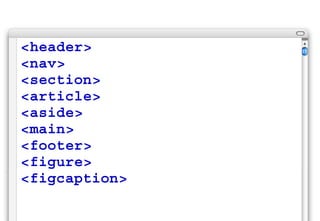
HTML5 provides us with a
range of new “semantic
elements”.
<header>
<nav>
<section>
<article>
<aside>
<main>
<footer>
<figure>
<figcaption>
The <section> element
is used for a “thematic
grouping of content” - a
chunk of content that has a
single theme.
The theme of each section
should be identified with a
heading element (h1-h6).
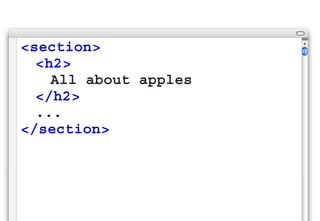
<section>
	 <h2>
		 All about apples
	 </h2>
	 ...
</section>
The <section> element is not
a replacement for a <div>.
The <div> element should be
always be used for generic
containers.
The section element is
also available to assistive
technologies. The section
element is mapped as a
region.
For assistive technologies
that support HTML5
elements, the <section>
element is announced
with “Region start” and then
“Region end”.
For this reason:
1. only use a section element
for the intended purpose
2. always include a heading
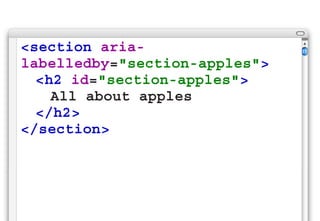
Additional meaning can
be applied to the section
element using the “arialabelledby” attribute.
<section arialabelledby="section-apples">
	 <h2 id="section-apples">
		 All about apples
	 </h2>
</section>
the summary
attribute
Some attributes from HTML4
are no longer allowed in
HTML5.
One of these is the
“summary” attribute which
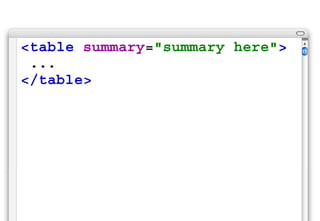
is applied to the <table>
element.
The summary attribute is
used to provide assistive
technologies with additional
information about the table.
<table summary="summary here">
...
</table>
A lot of accessibility experts
are not happy with this
attribute being removed!
So, how can we provide
this additional summary
information?
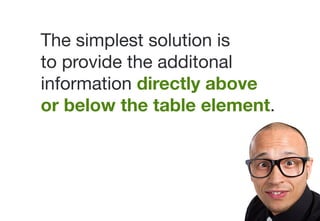
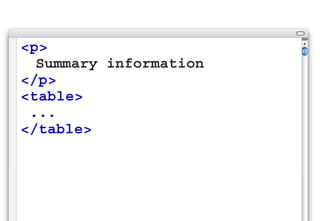
The simplest solution is
to provide the additonal
information directly above
or below the table element.
<p>
	 Summary information
</p>
<table>
...
</table>
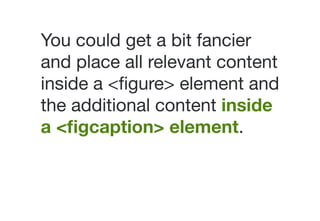
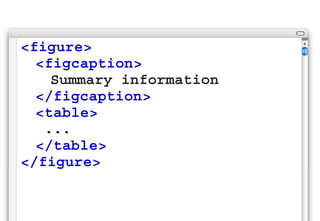
You could get a bit fancier
and place all relevant content
inside a <figure> element and
the additional content inside
a <figcaption> element.
<figure>
	 <figcaption>
		 Summary information
	 </figcaption>
	 <table>
	 ...
	 </table>
</figure>
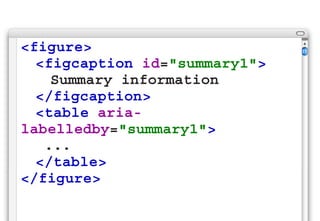
You could also provide
additional meaning by
using the “aria-labelledby”
attribute.
<figure>
	 <figcaption id="summary1">
		 Summary information
	 </figcaption>
	 <table arialabelledby="summary1">
	 ...
	 </table>
</figure>
The <a>
element
In the past, the <a> element
was always considered an
inline element.
Inline elements were never
allowed to wrap around
block level elements.
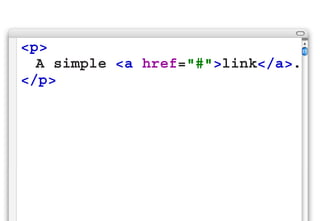
<p>
	 A simple <a href="#">link</a>.
</p>
With HTML5, the <a>
element is now allowed to
wrap around entire blocks
of content - creating a block
link.
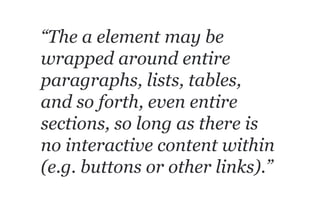
“The a element may be
wrapped around entire
paragraphs, lists, tables,
and so forth, even entire
sections, so long as there is
no interactive content within
(e.g. buttons or other links).”
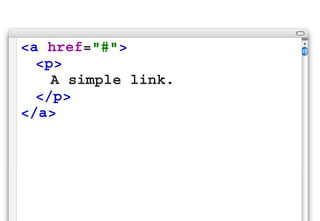
<a href="#">
	 <p>
		 A simple link.
	 </p>
</a>
But why would this be
allowed, when it breaks the
very laws of nature?
There may be times when
you want to link multiple
elements inside a container
to the same location - such
as a link on a thumbnail, a
heading and even some text.
In the past, this meant
multiple links going to the
same location - which could
be confusing for some
assistive technologies.
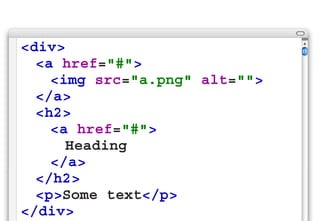
<div>
	 <a href="#">
		 <img src="a.png" alt="">
	 </a>
	 <h2>
		 <a href="#">
			 Heading
		 </a>
	 </h2>
	 <p>Some text</p>
</div>
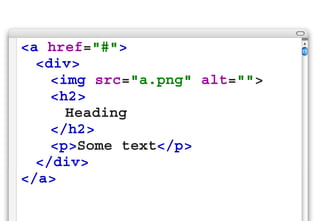
By wrapping the <a>
element around the entire
block, there is only one link
required.
<a href="#">
	 <div>
		 <img src="a.png" alt="">
		 <h2>
			 Heading
		 </h2>
		 <p>Some text</p>
	 </div>
</a>
While this can reduce
confusion for some assistive
technologies, it can make
things more confusing for
others.
For a full list of all issues,
read “HTML5 Accessibility
Chops: Block Links”
http://blog.paciellogroup.com/2011/06/
html5-accessibility-chops-block-links/
Bottom line:
“A link should contain a
brief description of the link
target... include the key
information at the start of a
link”
More issues? Some
browsers do not display
block links correctly.
Issues can include
missing underlines, cursor
not changing, everything
underlined...
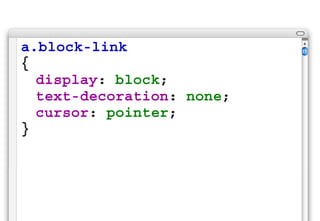
A safe way to solve the
problem is to apply a class
to any instance of block links
and then use the following
three declarations for the
class...
a.block-link
{
	 display: block;
	 text-decoration: none;
	 cursor: pointer;
}
So, if you want to use block
links, be aware of the
potential issues as well is
the potential benefits!
Russ Weakley
Max Design

Site: maxdesign.com.au
Twitter: twitter.com/russmaxdesign
Slideshare: slideshare.net/maxdesign
Linkedin: linkedin.com/in/russweakley

Three quick accessibility tips for HTML5