The document provides an overview of Bootstrap, including:
- Bootstrap is an open-source HTML, CSS, and JS framework for developing responsive mobile-first websites and web apps.
- It contains utilities for typography, forms, buttons, navigation, and other interface components, as well as optional JavaScript extensions.
- The document describes various Bootstrap components like grids, navigation, buttons, forms, images, alerts, progress bars, and panels. It provides code examples for how to implement these components.
Introduction
WhyBootstrap
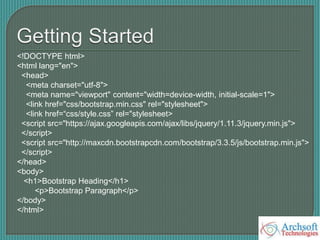
Getting Started Bootstrap
Grid System of Bootstrap
Components of Bootstrap
3.
Bootstrap wasdeveloped by Mark Otto and Jacob
Thornton at Twitter, and released as an open source
product in August 2011 on GitHub.
In june 2014, no. 1 project on GitHub.
Bootstrap is the most popular HTML, CSS, and
JavaScript framework for developing responsive,
mobile-first web sites.
Bootstrap is completely free to download and use!
4.
Responsive webdesign is about creating web sites
which automatically adjust themselves to look good on all
devices, from small phones to large desktops.
Bootstrap gives you the ability to easily create responsive
designs.
5.
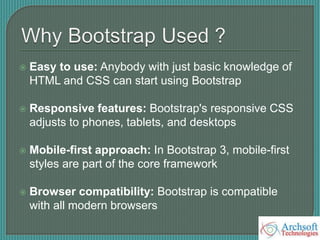
Easy touse: Anybody with just basic knowledge of
HTML and CSS can start using Bootstrap
Responsive features: Bootstrap's responsive CSS
adjusts to phones, tablets, and desktops
Mobile-first approach: In Bootstrap 3, mobile-first
styles are part of the core framework
Browser compatibility: Bootstrap is compatible
with all modern browsers
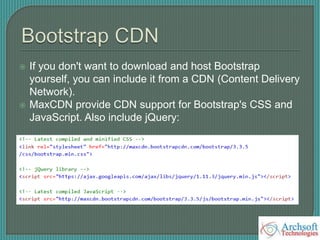
If youdon't want to download and host Bootstrap
yourself, you can include it from a CDN (Content Delivery
Network).
MaxCDN provide CDN support for Bootstrap's CSS and
JavaScript. Also include jQuery:
8.
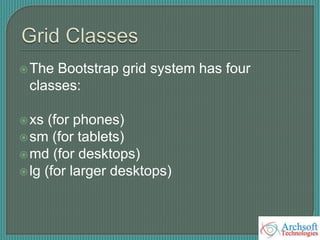
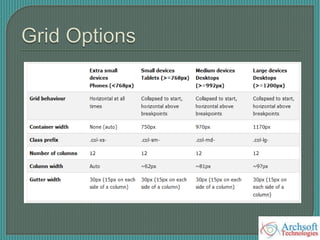
The Bootstrap gridsystem has four
classes:
xs (for phones)
sm (for tablets)
md (for desktops)
lg (for larger desktops)
9.
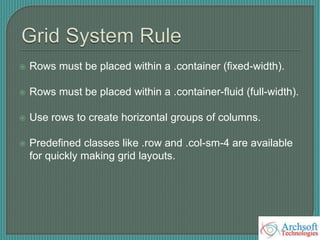
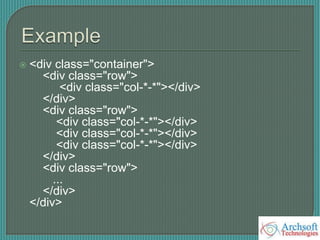
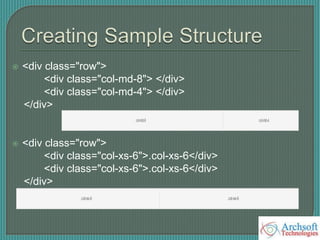
Rows mustbe placed within a .container (fixed-width).
Rows must be placed within a .container-fluid (full-width).
Use rows to create horizontal groups of columns.
Predefined classes like .row and .col-sm-4 are available
for quickly making grid layouts.
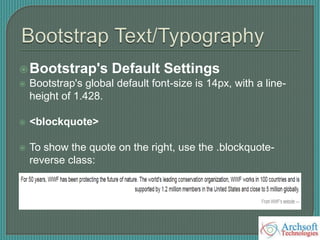
Bootstrap's Default Settings
Bootstrap's global default font-size is 14px, with a line-
height of 1.428.
<blockquote>
To show the quote on the right, use the .blockquote-
reverse class:
14.
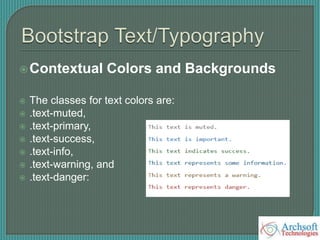
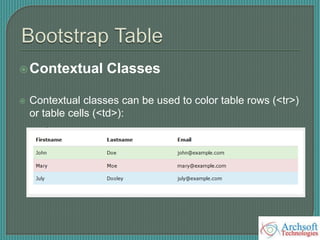
Contextual Colors andBackgrounds
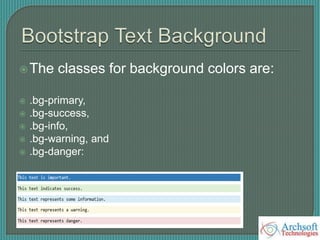
The classes for text colors are:
.text-muted,
.text-primary,
.text-success,
.text-info,
.text-warning, and
.text-danger:
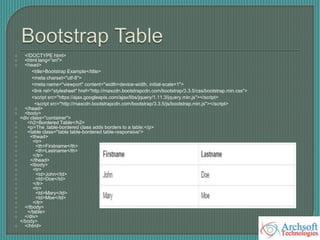
Responsive Tables
The .table-responsive class creates a responsive table.
The table will then scroll horizontally on small devices
<div class="table-responsive">
<table class="table">
...
</table>
</div>
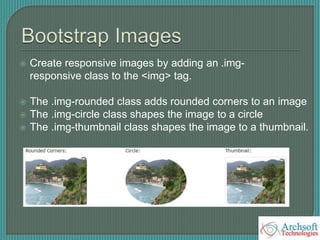
Create responsiveimages by adding an .img-
responsive class to the <img> tag.
The .img-rounded class adds rounded corners to an image
The .img-circle class shapes the image to a circle
The .img-thumbnail class shapes the image to a thumbnail.
24.
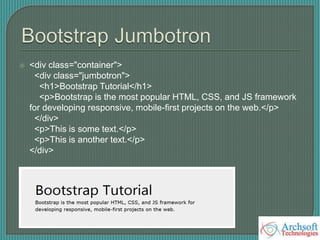
A jumbotronindicates a big box for calling extra attention
to some special content or information.
A jumbotron is displayed as a grey box with rounded
corners.
Its created with .jumbotron class.
Header created with .page-header class.
.jumbotron class may contain inside or outside of
container
25.
<div class="container">
<divclass="jumbotron">
<h1>Bootstrap Tutorial</h1>
<p>Bootstrap is the most popular HTML, CSS, and JS framework
for developing responsive, mobile-first projects on the web.</p>
</div>
<p>This is some text.</p>
<p>This is another text.</p>
</div>
26.
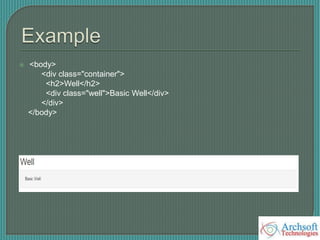
The .wellclass adds a rounded border around an
element with a gray background color and some padding:
<div class="well">Basic Well</div>
<div class="well well-sm">Small Well</div>
<div class="well well-lg">Large Well</div>
27.
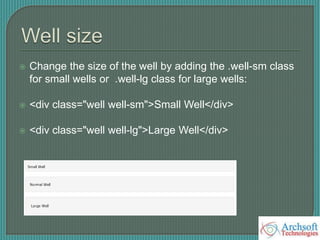
Change thesize of the well by adding the .well-sm class
for small wells or .well-lg class for large wells:
<div class="well well-sm">Small Well</div>
<div class="well well-lg">Large Well</div>
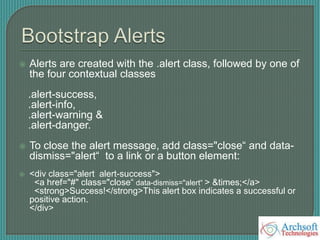
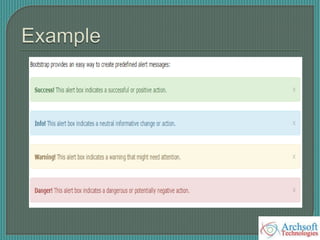
Alerts arecreated with the .alert class, followed by one of
the four contextual classes
.alert-success,
.alert-info,
.alert-warning &
.alert-danger.
To close the alert message, add class="close“ and data-
dismiss="alert“ to a link or a button element:
<div class="alert alert-success">
<a href="#" class="close“ data-dismiss="alert“ > ×</a>
<strong>Success!</strong>This alert box indicates a successful or
positive action.
</div>
30.
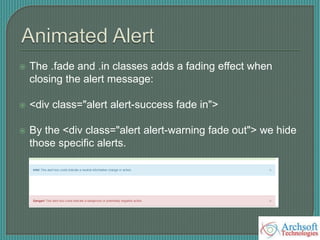
The .fadeand .in classes adds a fading effect when
closing the alert message:
<div class="alert alert-success fade in">
By the <div class="alert alert-warning fade out"> we hide
those specific alerts.
Bootstrap allowsyou to group a series of buttons
together (on a single line or Vertical line)
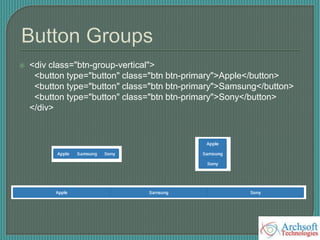
Use the class .btn-group to create a horizontal button
group
Use the class .btn-group-vertical to create a vertical
button group
Use the class .btn-group-justify to create a justify button
group
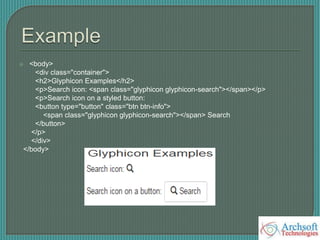
Glyphicons canbe used in text, buttons, toolbars, navigation,
forms, etc.
Here are some examples of glyphicons:
Envelope glyphicon:
Print glyphicon:
Search glyphicon:
Download glyphicon:
<span class="glyphicon glyphicon-name"></span>
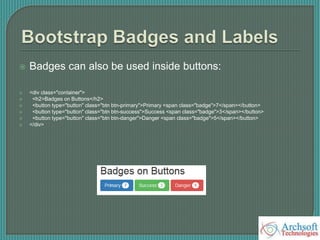
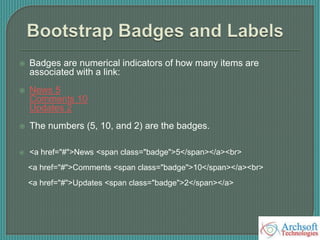
Badges arenumerical indicators of how many items are
associated with a link:
News 5
Comments 10
Updates 2
The numbers (5, 10, and 2) are the badges.
<a href="#">News <span class="badge">5</span></a><br>
<a href="#">Comments <span class="badge">10</span></a><br>
<a href="#">Updates <span class="badge">2</span></a>
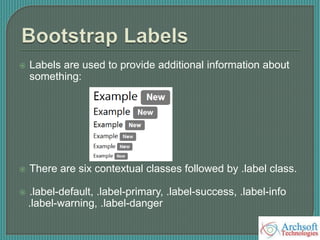
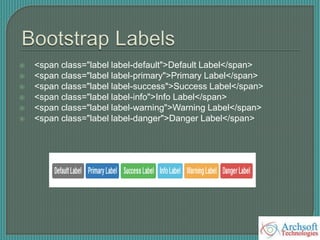
Labels areused to provide additional information about
something:
There are six contextual classes followed by .label class.
.label-default, .label-primary, .label-success, .label-info
.label-warning, .label-danger
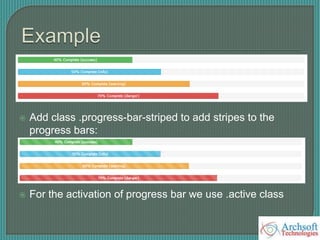
A progressbar can be used to show a user how far along
he/she is in a process.
Bootstrap provides several types of progress bars.
.progress-bar-success
.progress-bar-info
.progress-bar-warning
.progress-bar-danger
<div class="progress">
<div class="progress-bar progress-bar success" role = "progressbar" aria-
valuenow="40“ aria-valuemin="0" aria-valuemax="100" style="width:40%">
40% Complete (success)
</div>
</div>
43.
Add class.progress-bar-striped to add stripes to the
progress bars:
For the activation of progress bar we use .active class
44.
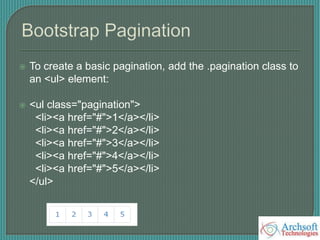
To createa basic pagination, add the .pagination class to
an <ul> element:
<ul class="pagination">
<li><a href="#">1</a></li>
<li><a href="#">2</a></li>
<li><a href="#">3</a></li>
<li><a href="#">4</a></li>
<li><a href="#">5</a></li>
</ul>
45.
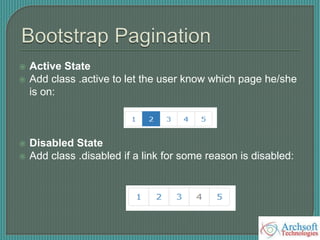
Active State
Add class .active to let the user know which page he/she
is on:
Disabled State
Add class .disabled if a link for some reason is disabled:
46.
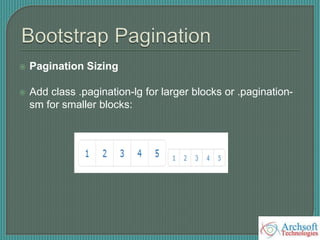
Pagination Sizing
Add class .pagination-lg for larger blocks or .pagination-
sm for smaller blocks:
47.
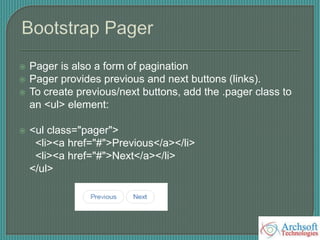
Pager isalso a form of pagination
Pager provides previous and next buttons (links).
To create previous/next buttons, add the .pager class to
an <ul> element:
<ul class="pager">
<li><a href="#">Previous</a></li>
<li><a href="#">Next</a></li>
</ul>
48.
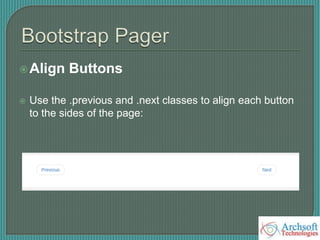
Align Buttons
Usethe .previous and .next classes to align each button
to the sides of the page:
49.
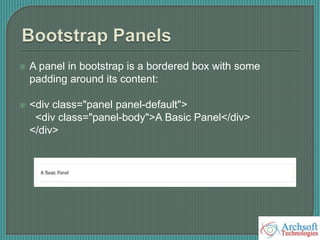
A panelin bootstrap is a bordered box with some
padding around its content:
<div class="panel panel-default">
<div class="panel-body">A Basic Panel</div>
</div>
50.
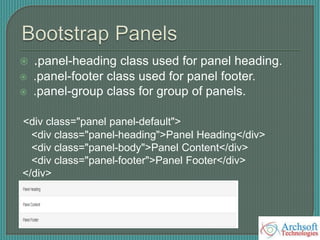
.panel-heading classused for panel heading.
.panel-footer class used for panel footer.
.panel-group class for group of panels.
<div class="panel panel-default">
<div class="panel-heading">Panel Heading</div>
<div class="panel-body">Panel Content</div>
<div class="panel-footer">Panel Footer</div>
</div>
51.
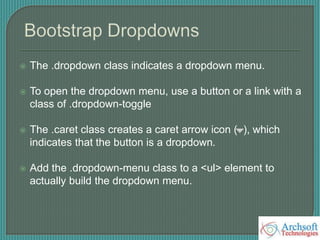
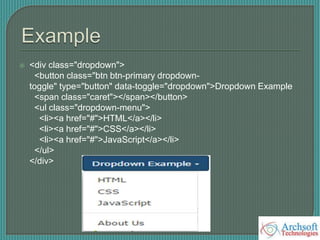
The .dropdownclass indicates a dropdown menu.
To open the dropdown menu, use a button or a link with a
class of .dropdown-toggle
The .caret class creates a caret arrow icon ( ), which
indicates that the button is a dropdown.
Add the .dropdown-menu class to a <ul> element to
actually build the dropdown menu.
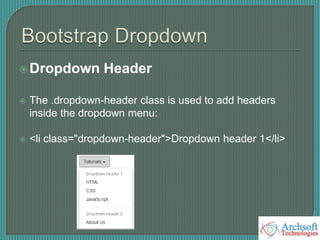
Dropdown Header
The.dropdown-header class is used to add headers
inside the dropdown menu:
<li class="dropdown-header">Dropdown header 1</li>
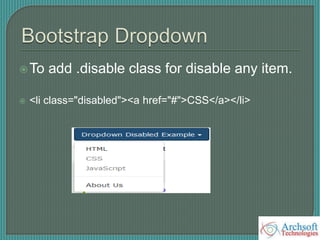
54.
To add .disableclass for disable any item.
<li class="disabled"><a href="#">CSS</a></li>
55.
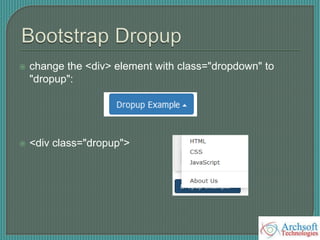
change the<div> element with class="dropdown" to
"dropup":
<div class="dropup">
56.
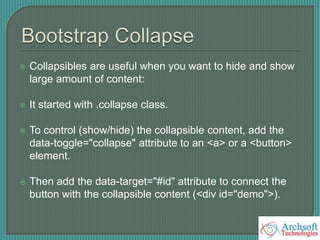
Collapsibles areuseful when you want to hide and show
large amount of content:
It started with .collapse class.
To control (show/hide) the collapsible content, add the
data-toggle="collapse" attribute to an <a> or a <button>
element.
Then add the data-target="#id" attribute to connect the
button with the collapsible content (<div id="demo">).
57.
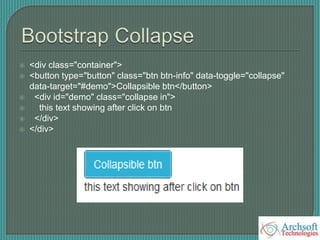
<div class="container">
<button type="button" class="btn btn-info" data-toggle="collapse"
data-target="#demo">Collapsible btn</button>
<div id="demo" class="collapse in">
this text showing after click on btn
</div>
</div>
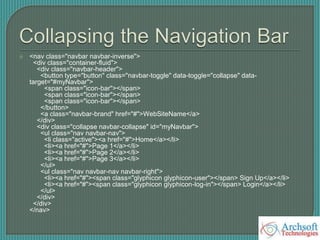
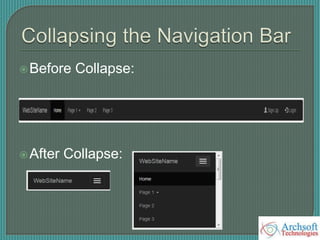
The navigationbar takes up too much space on a small
screen.
We should hide the navigation bar; and only show it
when it is needed.
Navigation bar is replaced by a button in the top right
corner. Only when the button is clicked, the navigation
bar will be displayed:
Its created by .navbar-collapse with .collapse class.
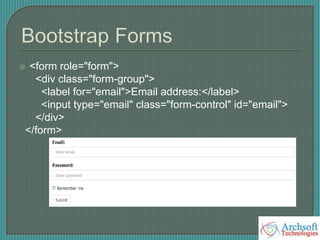
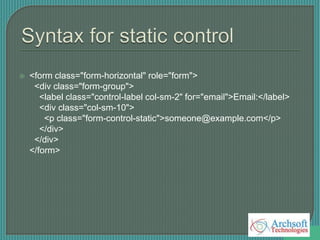
Bootstrap providesthree types of form layouts:
Vertical form (this is default)
Horizontal form
Inline form
Always use <form role="form"> (helps improve accessibility for
people using screen readers)
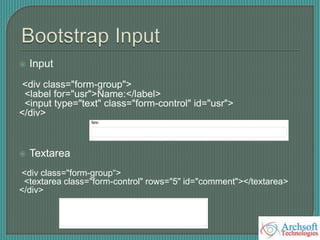
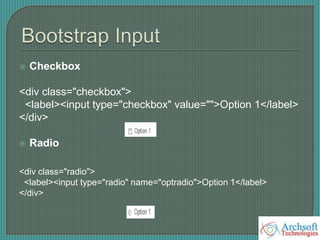
Wrap labels and form controls in <div class="form-
group"> (needed for optimum spacing)
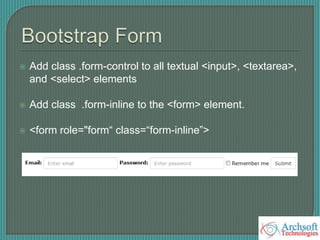
69.
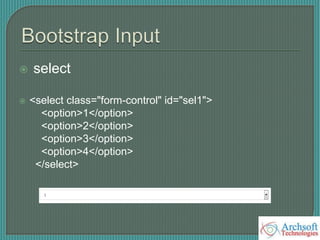
Add class.form-control to all textual <input>, <textarea>,
and <select> elements
Add class .form-inline to the <form> element.
<form role="form“ class=“form-inline”>
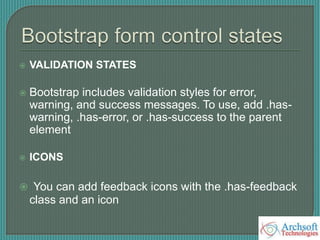
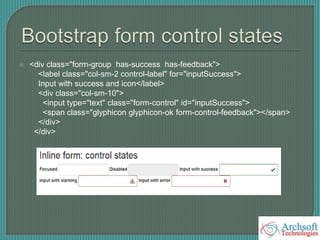
VALIDATION STATES
Bootstrap includes validation styles for error,
warning, and success messages. To use, add .has-
warning, .has-error, or .has-success to the parent
element
ICONS
You can add feedback icons with the .has-feedback
class and an icon
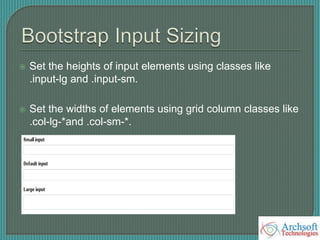
Set theheights of input elements using classes like
.input-lg and .input-sm.
Set the widths of elements using grid column classes like
.col-lg-*and .col-sm-*.
79.
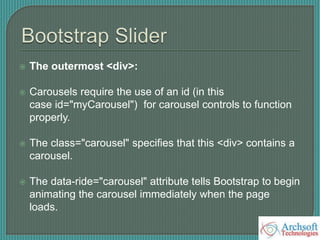
The outermost<div>:
Carousels require the use of an id (in this
case id="myCarousel") for carousel controls to function
properly.
The class="carousel" specifies that this <div> contains a
carousel.
The data-ride="carousel" attribute tells Bootstrap to begin
animating the carousel immediately when the page
loads.
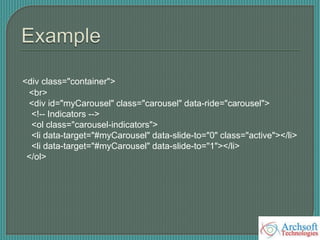
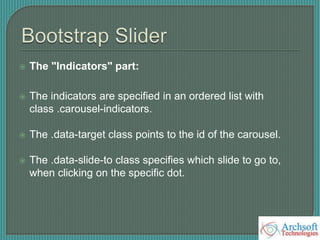
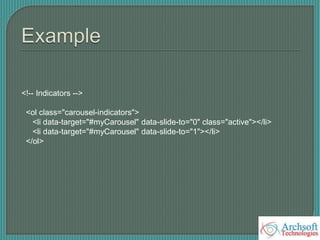
The "Indicators"part:
The indicators are specified in an ordered list with
class .carousel-indicators.
The .data-target class points to the id of the carousel.
The .data-slide-to class specifies which slide to go to,
when clicking on the specific dot.
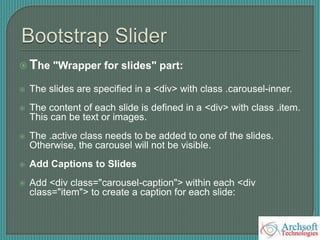
The "Wrapperfor slides" part:
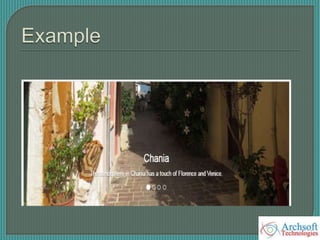
The slides are specified in a <div> with class .carousel-inner.
The content of each slide is defined in a <div> with class .item.
This can be text or images.
The .active class needs to be added to one of the slides.
Otherwise, the carousel will not be visible.
Add Captions to Slides
Add <div class="carousel-caption"> within each <div
class="item"> to create a caption for each slide:
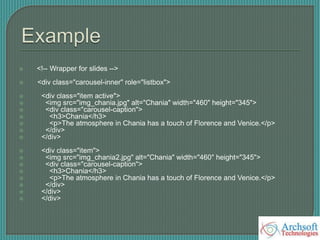
84.
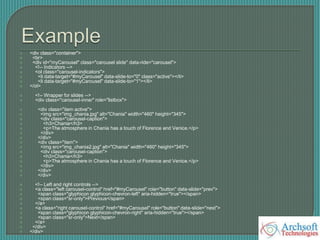
<!-- Wrapperfor slides -->
<div class="carousel-inner" role="listbox">
<div class="item active">
<img src="img_chania.jpg" alt="Chania" width="460" height="345">
<div class="carousel-caption">
<h3>Chania</h3>
<p>The atmosphere in Chania has a touch of Florence and Venice.</p>
</div>
</div>
<div class="item">
<img src="img_chania2.jpg" alt="Chania" width="460" height="345">
<div class="carousel-caption">
<h3>Chania</h3>
<p>The atmosphere in Chania has a touch of Florence and Venice.</p>
</div>
</div>
</div>
85.
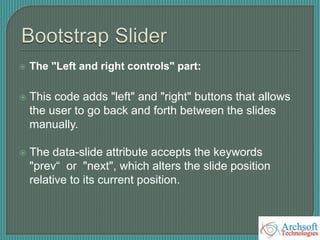
The "Leftand right controls" part:
This code adds "left" and "right" buttons that allows
the user to go back and forth between the slides
manually.
The data-slide attribute accepts the keywords
"prev“ or "next", which alters the slide position
relative to its current position.
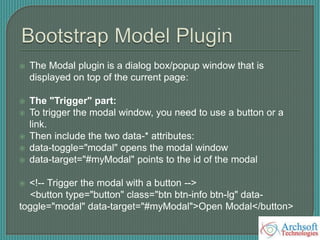
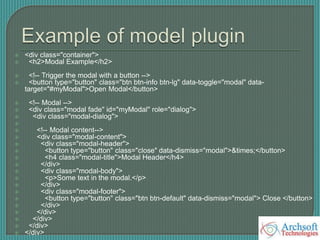
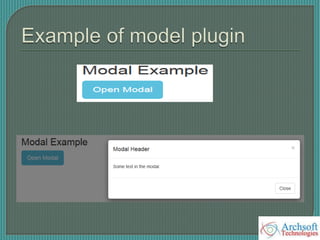
The Modalplugin is a dialog box/popup window that is
displayed on top of the current page:
The "Trigger" part:
To trigger the modal window, you need to use a button or a
link.
Then include the two data-* attributes:
data-toggle="modal" opens the modal window
data-target="#myModal" points to the id of the modal
<!-- Trigger the modal with a button -->
<button type="button" class="btn btn-info btn-lg" data-
toggle="modal" data-target="#myModal">Open Modal</button>
90.
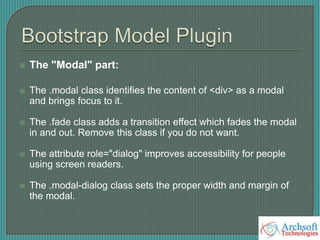
The "Modal"part:
The .modal class identifies the content of <div> as a modal
and brings focus to it.
The .fade class adds a transition effect which fades the modal
in and out. Remove this class if you do not want.
The attribute role="dialog" improves accessibility for people
using screen readers.
The .modal-dialog class sets the proper width and margin of
the modal.
91.
The "Modalcontent" part:
Class="modal-content" styles the modal (border, background-
color, etc.).
The .modal-header class is used to define the style for the
header of the modal.
The <button> inside the header has a data-dismiss="modal"
attribute which closes the modal if you click on it.
The .close class styles the close button, and the .modal-title
class styles the header with a proper line-height.
92.
The .modal-bodyclass is used to define the style for the
body of the modal. Add any HTML markup here;
paragraphs, images, videos, etc.
The .modal-footer class is used to define the style for the
footer of the modal. Note that this area is right aligned by
default.
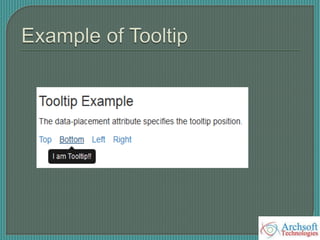
The Tooltipplugin is small pop-up box that appears when
the user moves the mouse pointer over an element:
To create a tooltip, add the data-toggle="tooltip" attribute
to an element.
Use the title attribute to specify the text that should be
displayed inside the tooltip:
Tooltips must be initialized with jQuery: select the
specified element and call the tooltip() method.
The Popoverplugin is similar to tooltips.
it is a pop-up box that appears when the user clicks on an
element.
The difference is that the popover can contain much more
content.
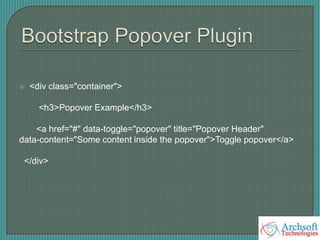
To create a popover, add the data-toggle="popover"
attribute to an element.