Application of ICT Presentation
Presented by
Izza Noor (24-Arid-765)
Muhammad Hamza (24-Arid-800)
Muqaddus Zahid NAZIR(24-Arid-831)
Malik arhamyar(24-Arid-778)
Presented TO
Dr.Muhammad Habib
Bootstrap 5
Course
In This Course we will be covering
key topics of bootstrap
on how we can use bootstrap to
create a fully responsive and
amazing website,We Can create
amazing layouts using this
course, Everything is explained in
complete detail,First Features are
explained, Bootstrap Classes are
Explored. In This Presentation All
the Key Points of these course are
explained thoroughly.
Introduction
To Bootstrap
5
Bootstrap 5 is a popular, open-source front-
end framework for building responsive,
mobile-first websites and web applications. It
offers a comprehensive collection of pre-
designed components, utilities, and a flexible
grid system, making it easier for developers to
create modern, professional-looking websites
with minimal custom CSS and JavaScript.
01.
02.
03.
Mobile-First Design: Built with mobile-first principles,
ensuring that designs are optimized for smaller screens
and scale up as needed.
Responsive Grid System: A powerful and flexible grid
layout system based on a 12-column structure, which
allows for creating layouts that adapt seamlessly to
different screen sizes.
Customizable Components: Includes ready-to-use
components like buttons, navbars, cards, modals,
alerts, carousels, and more.
Utility Classes: Provides a vast library of utility classes
for common CSS tasks like spacing, alignment, colors,
typography, and more, enabling quick and consistent
styling.
No jQuery Dependency: Bootstrap 5 has removed
the dependency on jQuery, resulting in lighter and
more modern JavaScript components.
Improved Forms: Redesigned form controls with
better aesthetics, accessibility, and flexibility.
CSS Variables: Introduces CSS variables for easier
theme customization and dynamic styling.
Icons: Supports custom SVG icons through the
Bootstrap Icons.
Padding
Manages The Spacing Inside The Box
Prefix For Padding is P
01 02
P (All
Directions)
Px (Left/Right)
Py(Top/Bottom)
Pt(Top)
Pb(Bottom)
Ps(left)
Pe(right)
03
P-0 / P-1 So
on P-5 (Same
as Margin)
It is also
Screen
Oriented
04
Padding
and it’s
classes
have same
value as
margin.
Spacing
Utilities Classes
Bootstrap's Spacing
Utility Classes provide a
simple and flexible way to
control the spacing
(margin and padding) of
elements using predefined
classes. These classes
help ensure consistent
spacing across your
layout without the need
to write custom CSS.
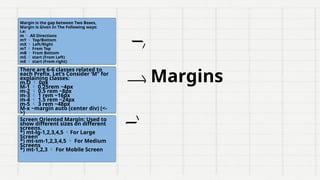
Margin is the gap between Two Boxes,
Margin is Given In The Following ways:
i.e:
m  All Directions
mY  Top/Bottom
mX  Left/Right
mT  From Top
mB  From Bottom
mS  start (From Left)
mE  start (From right)
There are 6-6 classes related to
each Prefix, Let’s Consider ‘M” for
explaining classes:
m.O  0px
M-1  0.25rem ~4px
m-2  0.5 rem ~8px
m-3  1 rem ~16px
m-4  1.5 rem ~24px
m-5  3 rem ~48px
M-x ~margin auto (center div) (<-
>)
Screen Oriented Margin: Used to
show different sizes on different
screens.
*) mt-lg-1,2,3,4,5 For Large
Screen
*) mt-sm-1,2,3,4,5  For Medium
Screens
*) mt-1,2,3  For Mobile Screen
Margins
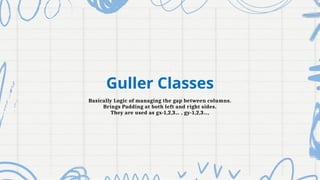
Guller Classes
Basically Logic of managing the gap between columns.
Brings Padding at both left and right sides.
They are used as gx-1,2,3… , gy-1,2,3…,
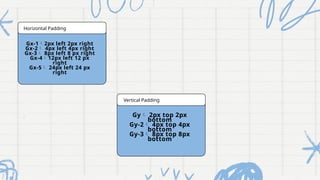
Horizontal Padding
Vertical Padding
Gx-12px left 2px right
Gx-2 4px left 4px right
Gx-3 8px left 8 px right
Gx-412px left 12 px
right
Gx-5 24px left 24 px
right
Gy 2px top 2px
bottom
Gy-2 4px top 4px
bottom
Gy-3 8px top 8px
bottom
.
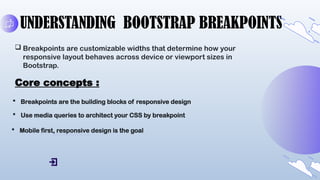
UNDERSTANDING BOOTSTRAP BREAKPOINTS
 Breakpoints are customizable widths that determine how your
responsive layout behaves across device or viewport sizes in
Bootstrap.
Core concepts :
 Breakpoints are the building blocks of responsive design
 Use media queries to architect your CSS by breakpoint
 Mobile first, responsive design is the goal
.
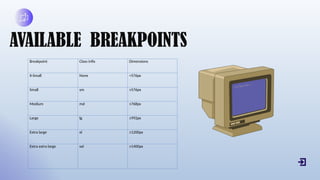
AVAILABLE BREAKPOINTS
Breakpoint Class infix Dimensions
X-Small None <576px
Small sm ≥576px
Medium md ≥768px
Large lg ≥992px
Extra large xl ≥1200px
Extra extra large xxl ≥1400px
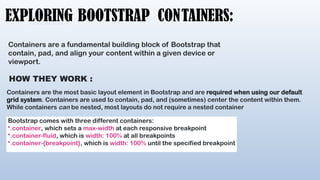
EXPLORING BOOTSTRAP CONTAINERS:
Containers are a fundamental building block of Bootstrap that
contain, pad, and align your content within a given device or
viewport.
HOW THEY WORK :
Containers are the most basic layout element in Bootstrap and are required when using our default
grid system. Containers are used to contain, pad, and (sometimes) center the content within them.
While containers can be nested, most layouts do not require a nested container
Bootstrap comes with three different containers:
•.container, which sets a max-width at each responsive breakpoint
•.container-fluid, which is width: 100% at all breakpoints
•.container-{breakpoint}, which is width: 100% until the specified breakpoint
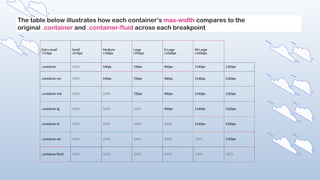
The table below illustrates how each container’s max-width compares to the
original .container and .container-fluid across each breakpoint.
Extra small
<576px
Small
≥576px
Medium
≥768px
Large
≥992px
X-Large
≥1200px
XX-Large
≥1400px
.container 100% 540px 720px 960px 1140px 1320px
.container-sm 100% 540px 720px 960px 1140px 1320px
.container-md 100% 100% 720px 960px 1140px 1320px
.container-lg 100% 100% 100% 960px 1140px 1320px
.container-xl 100% 100% 100% 100% 1140px 1320px
.container-xxl 100% 100% 100% 100% 100% 1320px
.container-fluid 100% 100% 100% 100% 100% 100%
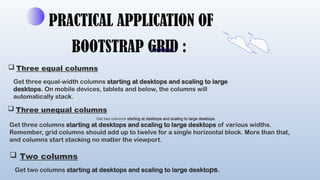
PRACTICAL APPLICATION OF
BOOTSTRAP GRID :
 Three equal columns
Get three equal-width columns starting at desktops and scaling to large
desktops. On mobile devices, tablets and below, the columns will
automatically stack.
 Three unequal columns
Get three columns starting at desktops and scaling to large desktops of various widths.
Remember, grid columns should add up to twelve for a single horizontal block. More than that,
and columns start stacking no matter the viewport.
 Two columns
Get two columns starting at desktops and scaling to large desktops.
 Full width, single column;
No grid classes are necessary for full-
width elements.
 Two columns with two nested columns
nesting is easy—just put a row of columns within an existing column. This gives
you two columns starting at desktops and scaling to large desktops, with another
two (equal widths) within the larger column.
NAVBA
R
To add a navbar we simply go on
bootstrap website and copy the whole
code of navbar and paste it.And then
do the further editing.
So now you can do different type of
changes in navbar code according to
your need.
If you want a menu on right side so you
just simply add ‘justify-content-end’
CAROUSEL
First of all add div then use class=“carousel slide”
After this use another attribute “data-bs-ride=“carousel”
Data-bs-ride tell us about the automation of sliding.If
You want more than one slider then add id attribute
BOOTSTR
AP
ACCORD
ION
1. Set up a container element for the accordion.
2. Add individual accordion items inside the container.
3. Add the class .accordion to the accordion container and assign a unique ID.
4. Add the class .accordion-item to every child of the .accordion element.
5. Add the class .accordion-header to the <h*> element base class and provide a
unique ID.
6. Place a button inside the <h*> element.
7.Assign the data attribute data-bs-toggle="collapse" to every button.
8.Add the data attribute data-bs-target="#AccordionBodyContainerId" to every
button.
9.Assign the class .accordion-collapse.collapse to the accordion body parent
container
Tabbing
To create a tabbed interface in
Bootstrap, you can use the .nav-tabs
class and add the data-toggle="tab"
attribute to each link:
1. Add the .nav-tabs class: This generates a
tabbed interface.
2. Add the data-toggle="tab" attribute: This
makes the tabs toggleable.
3.Add a .tab-pane class: Add a unique ID for
each tab.
4.Wrap the tabs in a <div> element: Use the
class .tab-content.
Pophov
er
 Popovers rely on the 3rd party
library Popper for
positioning. ...
 Popovers require the tooltip
plugin as a dependency.
 Popovers are opt-in for
performance reasons, so you
must initialize them yourself.
 Zero-length title and content
values will never show a
popover..
The required markup
for a
tooltip is only a data
attribute
and title on the HTML
element you wish to
have a tooltip. The
generated markup of
a tooltip is rather
simple, though it
does require a
position (by default,
set to top by the
plugin).
You must include
popper.min.js before
bootstrap.js or use
bootstrap.bundle.min.
js /
bootstrap.bundle.js
which contains
Popper.js in order for
tooltips to work.
Toolti
p
Thank you
very much!
BSCS(B) (1st
Semester)

ICT Presentjrjdjdjdkkdkeeation Final.pptx

  • 1.
    Application of ICTPresentation Presented by Izza Noor (24-Arid-765) Muhammad Hamza (24-Arid-800) Muqaddus Zahid NAZIR(24-Arid-831) Malik arhamyar(24-Arid-778) Presented TO Dr.Muhammad Habib
  • 2.
    Bootstrap 5 Course In ThisCourse we will be covering key topics of bootstrap on how we can use bootstrap to create a fully responsive and amazing website,We Can create amazing layouts using this course, Everything is explained in complete detail,First Features are explained, Bootstrap Classes are Explored. In This Presentation All the Key Points of these course are explained thoroughly.
  • 3.
    Introduction To Bootstrap 5 Bootstrap 5is a popular, open-source front- end framework for building responsive, mobile-first websites and web applications. It offers a comprehensive collection of pre- designed components, utilities, and a flexible grid system, making it easier for developers to create modern, professional-looking websites with minimal custom CSS and JavaScript. 01. 02. 03. Mobile-First Design: Built with mobile-first principles, ensuring that designs are optimized for smaller screens and scale up as needed. Responsive Grid System: A powerful and flexible grid layout system based on a 12-column structure, which allows for creating layouts that adapt seamlessly to different screen sizes. Customizable Components: Includes ready-to-use components like buttons, navbars, cards, modals, alerts, carousels, and more. Utility Classes: Provides a vast library of utility classes for common CSS tasks like spacing, alignment, colors, typography, and more, enabling quick and consistent styling. No jQuery Dependency: Bootstrap 5 has removed the dependency on jQuery, resulting in lighter and more modern JavaScript components. Improved Forms: Redesigned form controls with better aesthetics, accessibility, and flexibility. CSS Variables: Introduces CSS variables for easier theme customization and dynamic styling. Icons: Supports custom SVG icons through the Bootstrap Icons.
  • 4.
    Padding Manages The SpacingInside The Box Prefix For Padding is P 01 02 P (All Directions) Px (Left/Right) Py(Top/Bottom) Pt(Top) Pb(Bottom) Ps(left) Pe(right) 03 P-0 / P-1 So on P-5 (Same as Margin) It is also Screen Oriented 04 Padding and it’s classes have same value as margin.
  • 5.
    Spacing Utilities Classes Bootstrap's Spacing UtilityClasses provide a simple and flexible way to control the spacing (margin and padding) of elements using predefined classes. These classes help ensure consistent spacing across your layout without the need to write custom CSS.
  • 6.
    Margin is thegap between Two Boxes, Margin is Given In The Following ways: i.e: m  All Directions mY  Top/Bottom mX  Left/Right mT  From Top mB  From Bottom mS  start (From Left) mE  start (From right) There are 6-6 classes related to each Prefix, Let’s Consider ‘M” for explaining classes: m.O  0px M-1  0.25rem ~4px m-2  0.5 rem ~8px m-3  1 rem ~16px m-4  1.5 rem ~24px m-5  3 rem ~48px M-x ~margin auto (center div) (<- >) Screen Oriented Margin: Used to show different sizes on different screens. *) mt-lg-1,2,3,4,5 For Large Screen *) mt-sm-1,2,3,4,5  For Medium Screens *) mt-1,2,3  For Mobile Screen Margins
  • 7.
    Guller Classes Basically Logicof managing the gap between columns. Brings Padding at both left and right sides. They are used as gx-1,2,3… , gy-1,2,3…,
  • 8.
    Horizontal Padding Vertical Padding Gx-12pxleft 2px right Gx-2 4px left 4px right Gx-3 8px left 8 px right Gx-412px left 12 px right Gx-5 24px left 24 px right Gy 2px top 2px bottom Gy-2 4px top 4px bottom Gy-3 8px top 8px bottom .
  • 9.
    UNDERSTANDING BOOTSTRAP BREAKPOINTS Breakpoints are customizable widths that determine how your responsive layout behaves across device or viewport sizes in Bootstrap. Core concepts :  Breakpoints are the building blocks of responsive design  Use media queries to architect your CSS by breakpoint  Mobile first, responsive design is the goal
  • 10.
    . AVAILABLE BREAKPOINTS Breakpoint Classinfix Dimensions X-Small None <576px Small sm ≥576px Medium md ≥768px Large lg ≥992px Extra large xl ≥1200px Extra extra large xxl ≥1400px
  • 11.
    EXPLORING BOOTSTRAP CONTAINERS: Containersare a fundamental building block of Bootstrap that contain, pad, and align your content within a given device or viewport. HOW THEY WORK : Containers are the most basic layout element in Bootstrap and are required when using our default grid system. Containers are used to contain, pad, and (sometimes) center the content within them. While containers can be nested, most layouts do not require a nested container Bootstrap comes with three different containers: •.container, which sets a max-width at each responsive breakpoint •.container-fluid, which is width: 100% at all breakpoints •.container-{breakpoint}, which is width: 100% until the specified breakpoint
  • 12.
    The table belowillustrates how each container’s max-width compares to the original .container and .container-fluid across each breakpoint. Extra small <576px Small ≥576px Medium ≥768px Large ≥992px X-Large ≥1200px XX-Large ≥1400px .container 100% 540px 720px 960px 1140px 1320px .container-sm 100% 540px 720px 960px 1140px 1320px .container-md 100% 100% 720px 960px 1140px 1320px .container-lg 100% 100% 100% 960px 1140px 1320px .container-xl 100% 100% 100% 100% 1140px 1320px .container-xxl 100% 100% 100% 100% 100% 1320px .container-fluid 100% 100% 100% 100% 100% 100%
  • 13.
    PRACTICAL APPLICATION OF BOOTSTRAPGRID :  Three equal columns Get three equal-width columns starting at desktops and scaling to large desktops. On mobile devices, tablets and below, the columns will automatically stack.  Three unequal columns Get three columns starting at desktops and scaling to large desktops of various widths. Remember, grid columns should add up to twelve for a single horizontal block. More than that, and columns start stacking no matter the viewport.  Two columns Get two columns starting at desktops and scaling to large desktops. Get two columns starting at desktops and scaling to large desktops.
  • 14.
     Full width,single column; No grid classes are necessary for full- width elements.  Two columns with two nested columns nesting is easy—just put a row of columns within an existing column. This gives you two columns starting at desktops and scaling to large desktops, with another two (equal widths) within the larger column.
  • 15.
    NAVBA R To add anavbar we simply go on bootstrap website and copy the whole code of navbar and paste it.And then do the further editing. So now you can do different type of changes in navbar code according to your need. If you want a menu on right side so you just simply add ‘justify-content-end’
  • 16.
    CAROUSEL First of alladd div then use class=“carousel slide” After this use another attribute “data-bs-ride=“carousel” Data-bs-ride tell us about the automation of sliding.If You want more than one slider then add id attribute
  • 17.
    BOOTSTR AP ACCORD ION 1. Set upa container element for the accordion. 2. Add individual accordion items inside the container. 3. Add the class .accordion to the accordion container and assign a unique ID. 4. Add the class .accordion-item to every child of the .accordion element. 5. Add the class .accordion-header to the <h*> element base class and provide a unique ID. 6. Place a button inside the <h*> element. 7.Assign the data attribute data-bs-toggle="collapse" to every button. 8.Add the data attribute data-bs-target="#AccordionBodyContainerId" to every button. 9.Assign the class .accordion-collapse.collapse to the accordion body parent container
  • 18.
    Tabbing To create atabbed interface in Bootstrap, you can use the .nav-tabs class and add the data-toggle="tab" attribute to each link: 1. Add the .nav-tabs class: This generates a tabbed interface. 2. Add the data-toggle="tab" attribute: This makes the tabs toggleable. 3.Add a .tab-pane class: Add a unique ID for each tab. 4.Wrap the tabs in a <div> element: Use the class .tab-content.
  • 19.
    Pophov er  Popovers relyon the 3rd party library Popper for positioning. ...  Popovers require the tooltip plugin as a dependency.  Popovers are opt-in for performance reasons, so you must initialize them yourself.  Zero-length title and content values will never show a popover..
  • 20.
    The required markup fora tooltip is only a data attribute and title on the HTML element you wish to have a tooltip. The generated markup of a tooltip is rather simple, though it does require a position (by default, set to top by the plugin). You must include popper.min.js before bootstrap.js or use bootstrap.bundle.min. js / bootstrap.bundle.js which contains Popper.js in order for tooltips to work. Toolti p
  • 21.