1
Building
“HelloWorld”
Android Application
Step by Step.
Topics
• Installation and configuration
• Building blocks of Android application
> Activities
> Layout resource files
> AndroidManifest.xml
> Resource files - strings.xml
> R.java
Installation & Configuration
Software Needed
• JDK (Java Development Kit)
> Java programming language is used to build
Android application
• Eclipse IDE
> Editor, Debugger, profiler, deployment
• Android SDK
> Libraries, samples, documentation, handset
emulators, debugger, command line tools
• Eclipse ADT (Android Development Tools) plug-
in
> Give you a powerful, integrated Android
development environment
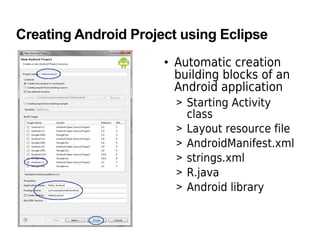
Creating Android Project using Eclipse
• Automatic creation
building blocks of an
Android application
> Starting Activity
class
> Layout resource file
> AndroidManifest.xml
> strings.xml
> R.java
> Android library
Building Blocks of
Android Application
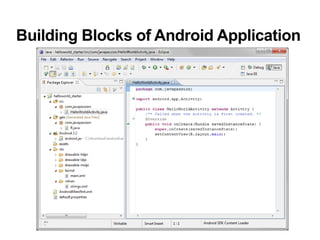
Building Blocks of Android Application
• Activity classes
• Layout resource files
• Resource files
> strings.xml
• AndroidManifest.xml
• R.java (automatically created from resource
files)
• Android library (automatically configured)
Building Blocks of Android Application
Activity Class
• Each Activity class typically represents a screen
> Like a JSP page in a Web application
• The onCreate() method of Activity class gets
called by the Android system when your
Activity starts
> You create your UI inside the onCreate() method
• Every Activity has to be described in the
AndroidManifest.xml file
• An Activity is typically chosen as a starting one
of your application - like a class that has a
main() method in Java
> Special configuration in AndroidManifest.xml
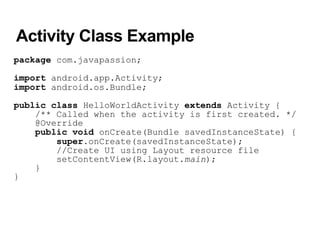
Activity Class Example
package com.javapassion;
import android.app.Activity;
import android.os.Bundle;
public class HelloWorldActivity extends Activity {
/** Called when the activity is first created. */
@Override
public void onCreate(Bundle savedInstanceState) {
super.onCreate(savedInstanceState);
//Create UI using Layout resource file
setContentView(R.layout.main);
}
}
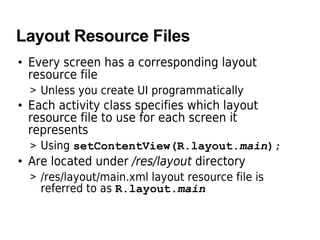
Layout Resource Files
• Every screen has a corresponding layout
resource file
> Unless you create UI programmatically
• Each activity class specifies which layout
resource file to use for each screen it
represents
> Using setContentView(R.layout.main);
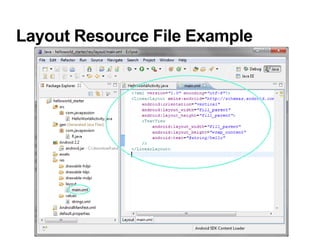
• Are located under /res/layout directory
> /res/layout/main.xml layout resource file is
referred to as R.layout.main
Layout Resource File Example
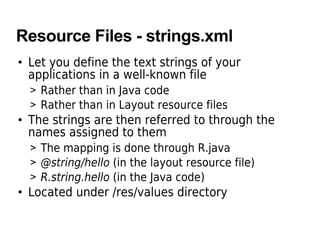
Resource Files - strings.xml
• Let you define the text strings of your
applications in a well-known file
> Rather than in Java code
> Rather than in Layout resource files
• The strings are then referred to through the
names assigned to them
> The mapping is done through R.java
> @string/hello (in the layout resource file)
> R.string.hello (in the Java code)
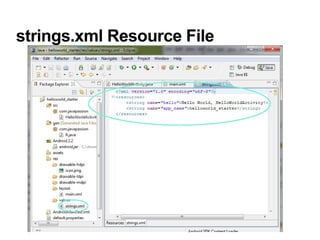
• Located under /res/values directory
strings.xml Resource File
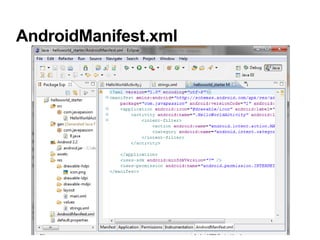
AndroidManifest.xml file
• Every application must have a manifest file
called AndroidManifest.xml file (with precisely
that name) in its root directory.
• The manifest presents essential information
about the application to the Android system,
information the system must have before it can
run any of the application's code.
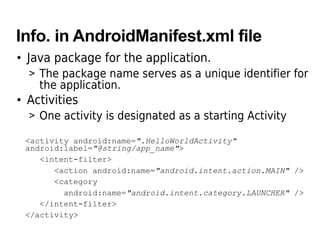
Info. in AndroidManifest.xml file
• Java package for the application.
> The package name serves as a unique identifier for
the application.
• Activities
> One activity is designated as a starting Activity
<activity android:name=".HelloWorldActivity"
android:label="@string/app_name">
<intent-filter>
<action android:name="android.intent.action.MAIN" />
<category
android:name="android.intent.category.LAUNCHER" />
</intent-filter>
</activity>
AndroidManifest.xml
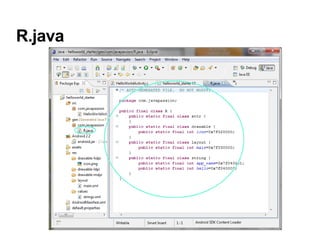
R.java
• Automatically created by Android system for all
resources defined
R.java
Thank you

Android stepbystep

  • 1.
  • 2.
    Topics • Installation andconfiguration • Building blocks of Android application > Activities > Layout resource files > AndroidManifest.xml > Resource files - strings.xml > R.java
  • 3.
  • 4.
    Software Needed • JDK(Java Development Kit) > Java programming language is used to build Android application • Eclipse IDE > Editor, Debugger, profiler, deployment • Android SDK > Libraries, samples, documentation, handset emulators, debugger, command line tools • Eclipse ADT (Android Development Tools) plug- in > Give you a powerful, integrated Android development environment
  • 5.
    Creating Android Projectusing Eclipse • Automatic creation building blocks of an Android application > Starting Activity class > Layout resource file > AndroidManifest.xml > strings.xml > R.java > Android library
  • 6.
  • 7.
    Building Blocks ofAndroid Application • Activity classes • Layout resource files • Resource files > strings.xml • AndroidManifest.xml • R.java (automatically created from resource files) • Android library (automatically configured)
  • 8.
    Building Blocks ofAndroid Application
  • 9.
    Activity Class • EachActivity class typically represents a screen > Like a JSP page in a Web application • The onCreate() method of Activity class gets called by the Android system when your Activity starts > You create your UI inside the onCreate() method • Every Activity has to be described in the AndroidManifest.xml file • An Activity is typically chosen as a starting one of your application - like a class that has a main() method in Java > Special configuration in AndroidManifest.xml
  • 10.
    Activity Class Example packagecom.javapassion; import android.app.Activity; import android.os.Bundle; public class HelloWorldActivity extends Activity { /** Called when the activity is first created. */ @Override public void onCreate(Bundle savedInstanceState) { super.onCreate(savedInstanceState); //Create UI using Layout resource file setContentView(R.layout.main); } }
  • 11.
    Layout Resource Files •Every screen has a corresponding layout resource file > Unless you create UI programmatically • Each activity class specifies which layout resource file to use for each screen it represents > Using setContentView(R.layout.main); • Are located under /res/layout directory > /res/layout/main.xml layout resource file is referred to as R.layout.main
  • 12.
  • 13.
    Resource Files -strings.xml • Let you define the text strings of your applications in a well-known file > Rather than in Java code > Rather than in Layout resource files • The strings are then referred to through the names assigned to them > The mapping is done through R.java > @string/hello (in the layout resource file) > R.string.hello (in the Java code) • Located under /res/values directory
  • 14.
  • 15.
    AndroidManifest.xml file • Everyapplication must have a manifest file called AndroidManifest.xml file (with precisely that name) in its root directory. • The manifest presents essential information about the application to the Android system, information the system must have before it can run any of the application's code.
  • 16.
    Info. in AndroidManifest.xmlfile • Java package for the application. > The package name serves as a unique identifier for the application. • Activities > One activity is designated as a starting Activity <activity android:name=".HelloWorldActivity" android:label="@string/app_name"> <intent-filter> <action android:name="android.intent.action.MAIN" /> <category android:name="android.intent.category.LAUNCHER" /> </intent-filter> </activity>
  • 17.
  • 18.
    R.java • Automatically createdby Android system for all resources defined
  • 19.
  • 20.