Android Application Development
101
Mike Rivera
TresMax Asia
March 12, 2010
What’s in store today?
• What is Android?
• Android Architecture
• Getting Android?
• Application Components
• User Interfaces
• Resources
• The Manifest File
• Understanding Hello Android
What’s in store today?
• What is Android?
• Android Architecture
• Getting Android?
• Application Components
• User Interfaces
• Resources
• The Manifest File
• Understanding Hello Android
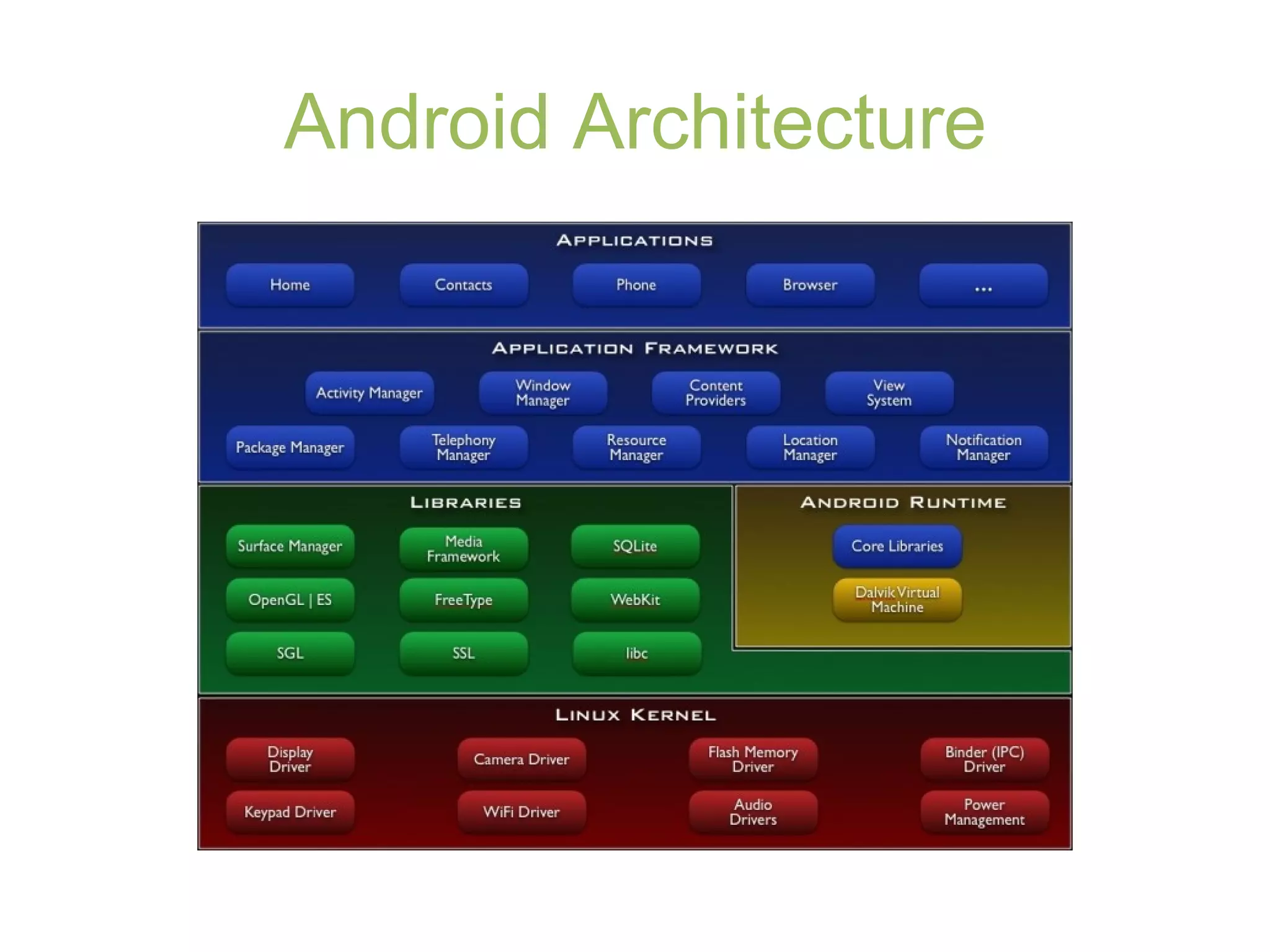
What is Android
• Android is a software stack for mobile devices
that includes:
– Operating System
• Linux version 2.6
– Services include hardware drivers; power, process and memory
management; security and network.
– Middleware
• Libraries (i.e. SQLite, OpenGL, WebKit, etc.)
• Android Runtime (Dalvik Virtual Machine and core libraries)
• Application Framework
– Abstraction for hardware access; manages application resources and the UI;
provides classes for developing applications for Android
– Applications
• Native apps: Contacts, Phone, Browser, etc.
• Third-party apps: developer’s applications.
Next is the...
• What is Android?
• Android Architecture
• Getting Android?
• Application Components
• User Interfaces
• Resources
• The Manifest File
• Understanding Hello Android
Android Architecture
Next is ...
• What is Android?
• Android Architecture
• Getting Android?
• Application Components
• User Interfaces
• Resources
• The Manifest File
• Understanding Hello Android
Getting Android

Install JDK (5 or 6) & Eclipse (3.4 or 3.5)

Download & Install the Android SDK (2.1)
- http://developer.android.com/sdk/index.html
- simply unpack the starter package to a safe location and then add
the location to your PATH.

Install and Configure ADT (Android
Development Tool) plug-in for Eclipse

Add Android Platforms & other components
to your SDK
Next is the...
• What is Android?
• Android Architecture
• Getting Android?
• Application Components
• User Interfaces
• Resources
• The Manifest File
• Understanding Hello Android
Application Components
• Components of your application:
– Activities
• Presentation layer for the application you are building
• For each screen you have, their will be a matching
Activity
• An Activity uses Views to build the user interface
– Services
• Components that run in the background
• Do not interact with the user
• Can update your data sources and Activities, and trigger
specific notifications
Application Components
• Components of your application:
– Content Providers
• Manage and share application databases
– Intents
• Specify what intentions you have in terms of a specific
action being performed
– Broadcast Receivers
• Listen for broadcast Intents that match some defined filter
criteria
• Can automatically start your application as a response to
an intent
Next is the...
• What is Android?
• Android Architecture
• Getting Android?
• Application Components
• User Interfaces
• Resources
• The Manifest File
• Understanding Hello Android
User Interfaces
• Views
– The basic UI component
– Responsible for drawing and event handling
– Define your View through:
• Layout Resources (i.e. defined in main.xml file):
<ListView
android:id="@+id/myListView"
android:layout_width="fill_parent"
android:layout_height="wrap_content"
/>
From your Activity class code:
setContentView(R.layout.main);
ListView myListView = (ListView)findViewById(R.id.myListView);
• Inside your code:
ListView myListView = new ListView(this);
setContentView(myTextView);
14
User Interfaces (cont.)
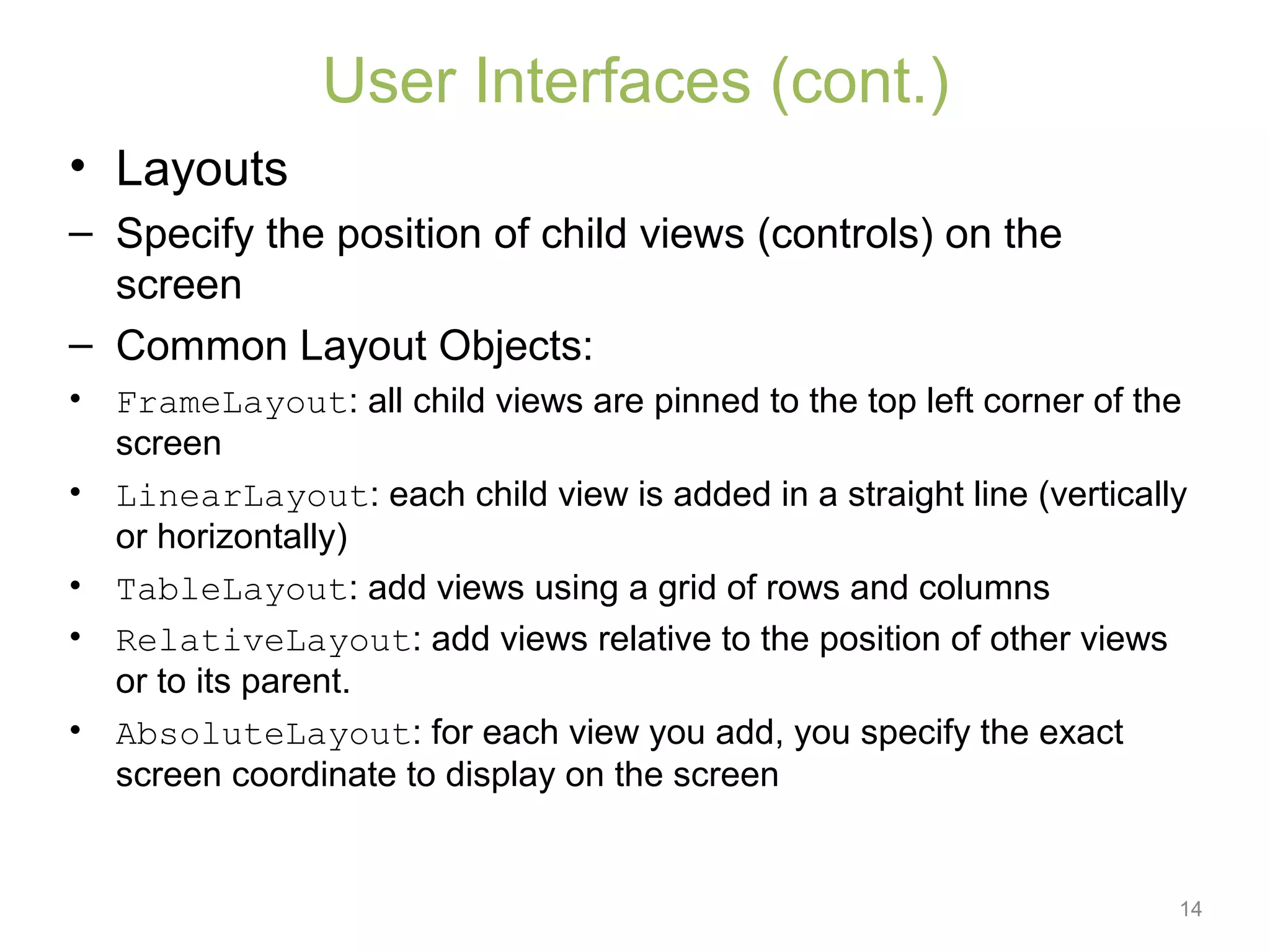
• Layouts
– Specify the position of child views (controls) on the
screen
– Common Layout Objects:
• FrameLayout: all child views are pinned to the top left corner of the
screen
• LinearLayout: each child view is added in a straight line (vertically
or horizontally)
• TableLayout: add views using a grid of rows and columns
• RelativeLayout: add views relative to the position of other views
or to its parent.
• AbsoluteLayout: for each view you add, you specify the exact
screen coordinate to display on the screen
15
User Interfaces (cont.)
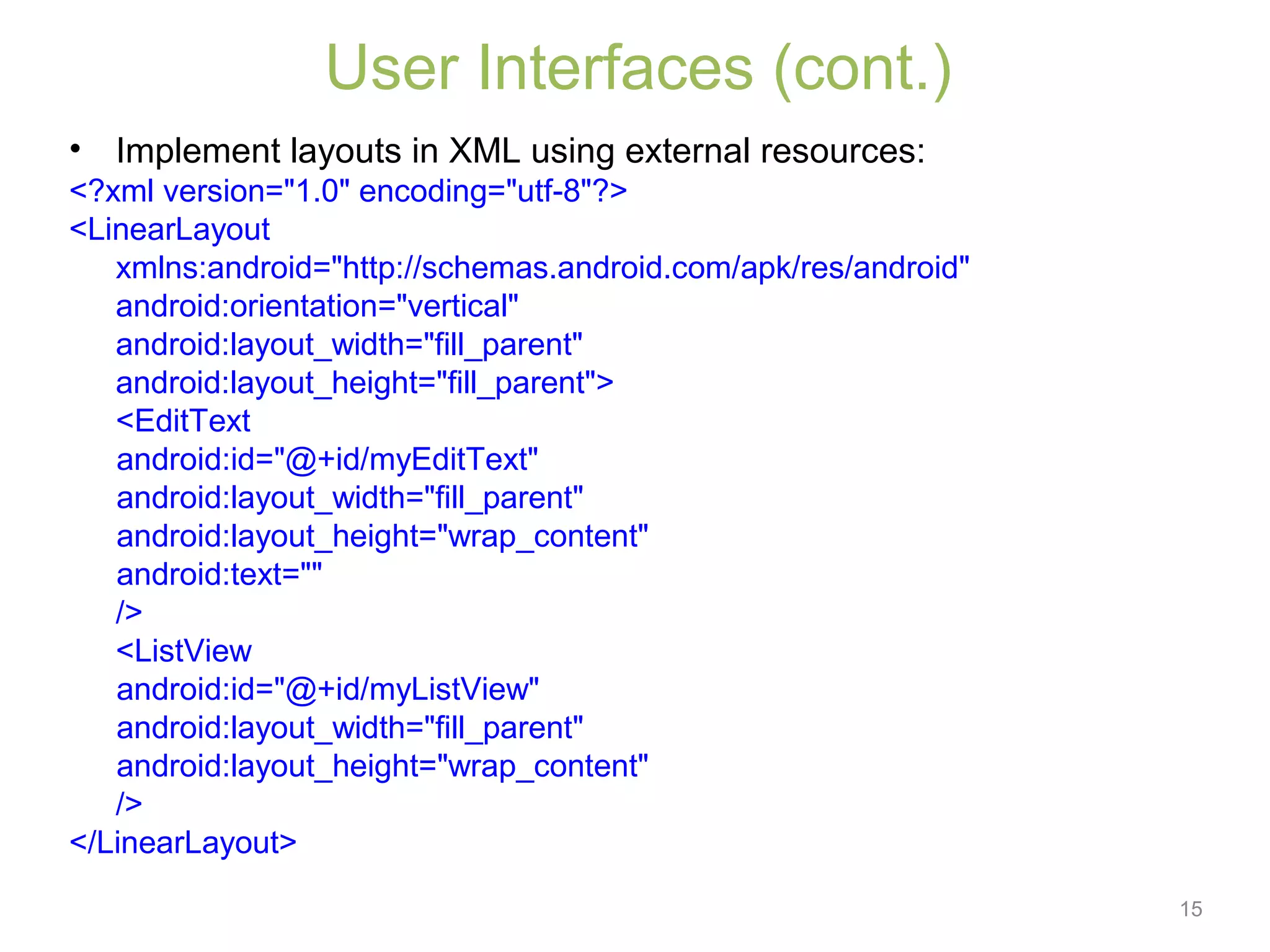
• Implement layouts in XML using external resources:
<?xml version="1.0" encoding="utf-8"?>
<LinearLayout
xmlns:android="http://schemas.android.com/apk/res/android"
android:orientation="vertical"
android:layout_width="fill_parent"
android:layout_height="fill_parent">
<EditText
android:id="@+id/myEditText"
android:layout_width="fill_parent"
android:layout_height="wrap_content"
android:text=""
/>
<ListView
android:id="@+id/myListView"
android:layout_width="fill_parent"
android:layout_height="wrap_content"
/>
</LinearLayout>
16
User Interfaces (cont.)
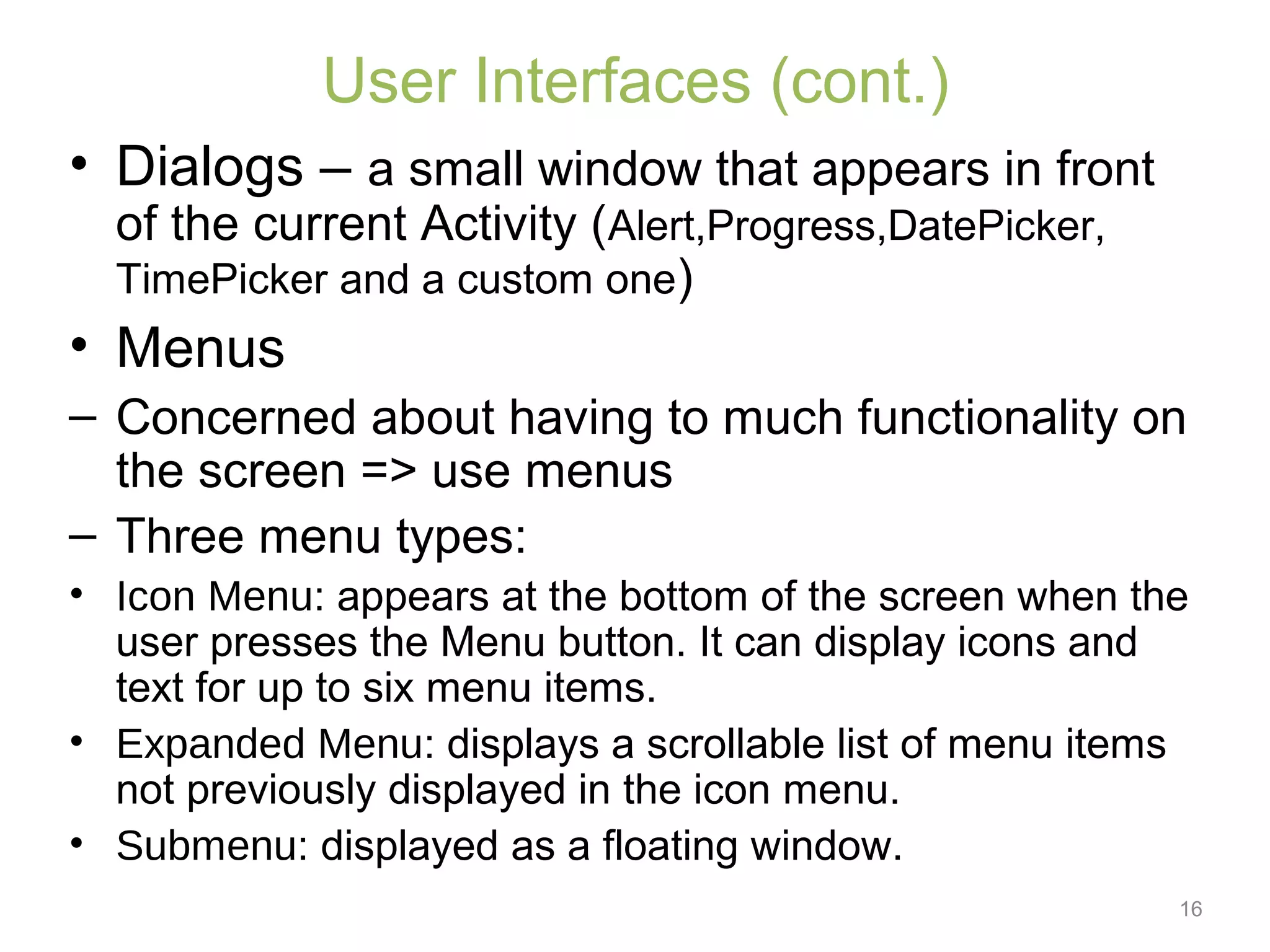
• Dialogs – a small window that appears in front
of the current Activity (Alert,Progress,DatePicker,
TimePicker and a custom one)
• Menus
– Concerned about having to much functionality on
the screen => use menus
– Three menu types:
• Icon Menu: appears at the bottom of the screen when the
user presses the Menu button. It can display icons and
text for up to six menu items.
• Expanded Menu: displays a scrollable list of menu items
not previously displayed in the icon menu.
• Submenu: displayed as a floating window.
Next is the...
• What is Android?
• Android Architecture
• Getting Android?
• Application Components
• User Interfaces
• Resources
• The Manifest File
• Understanding Hello Android
Resources
External files (that is, non-code files) that are used by your
code and compiled into your application at build time.
Android supports a number of different kinds of resource
files, including XML, PNG, and JPEG files.
• res/anim - XML files for animations
• res/drawable – image files
• res/layout – XML files for screen layouts
• res/values – XML files that can be compiled into many kinds of
resources
• res/xml – Arbitrary XML files that are compiled and can be read at run
time.
• res/raw – Arbitrary files to copy directly to the device
At compile time, Android generates a class named R that contains
resource identifiers to all the resources in your program. This class
contains several subclasses, one for each type of resource supported
by Android, and for which you provided a resource file.
What’s in store today?

What is Android?

Android Architecture

Getting Android?

Application Components

User Interfaces

Resources

The Manifest File

Understanding Hello Android
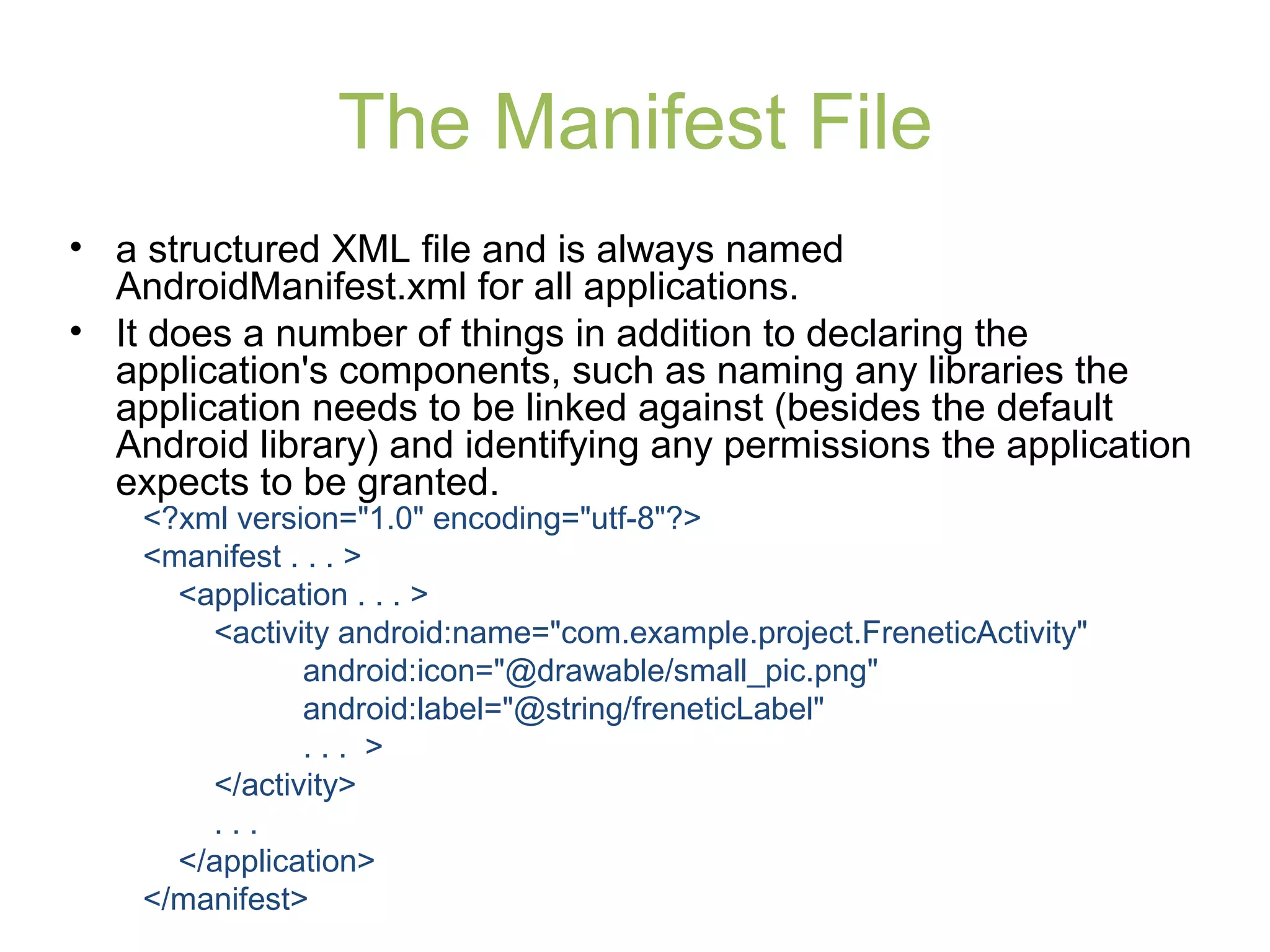
The Manifest File
• a structured XML file and is always named
AndroidManifest.xml for all applications.
• It does a number of things in addition to declaring the
application's components, such as naming any libraries the
application needs to be linked against (besides the default
Android library) and identifying any permissions the application
expects to be granted.
<?xml version="1.0" encoding="utf-8"?>
<manifest . . . >
<application . . . >
<activity android:name="com.example.project.FreneticActivity"
android:icon="@drawable/small_pic.png"
android:label="@string/freneticLabel"
. . . >
</activity>
. . .
</application>
</manifest>
What’s in store today?

What is Android?

Android Architecture

Getting Android?

Application Components

User Interfaces

Resources

The Manifest File

Understanding Hello Android
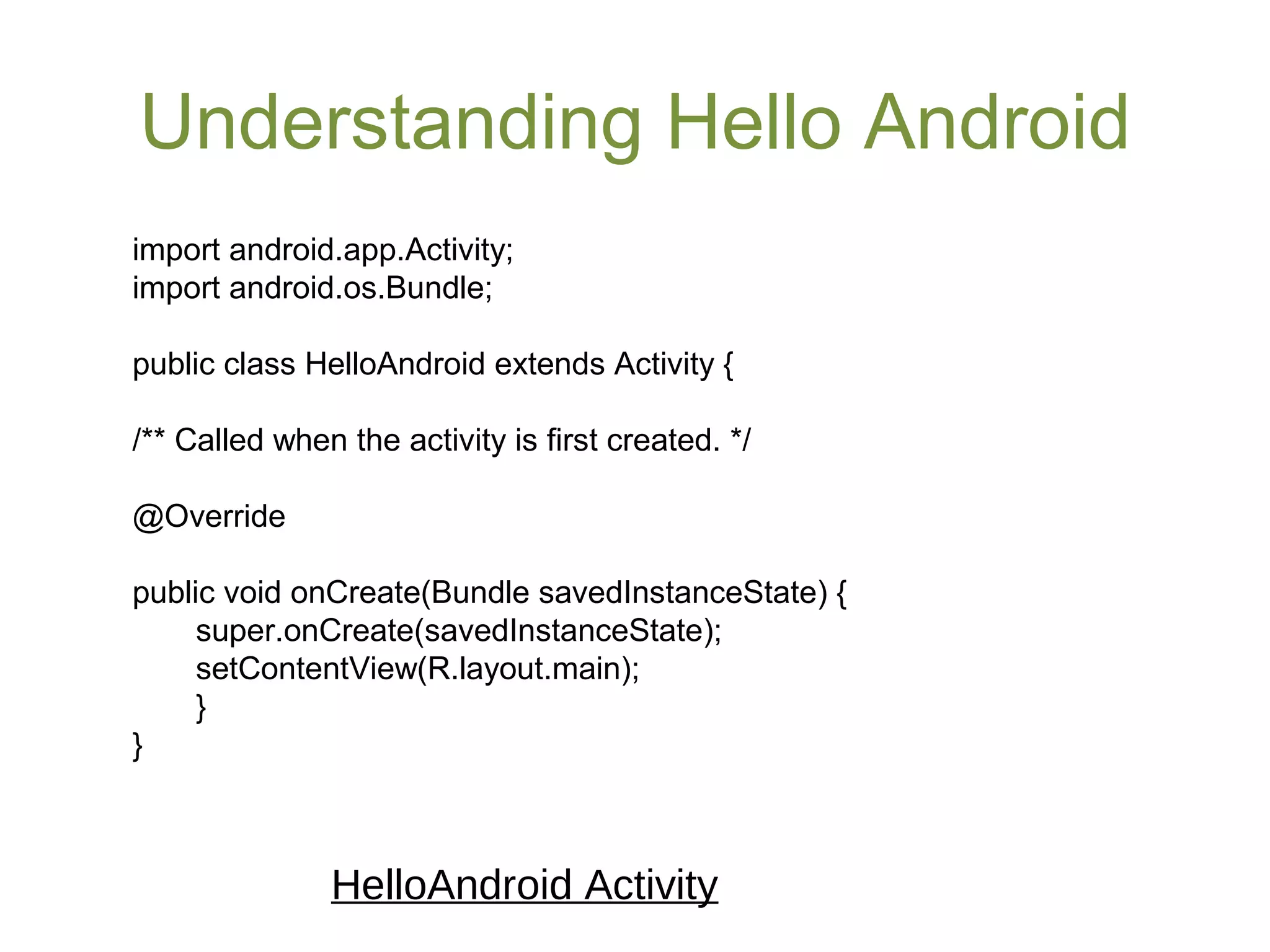
import android.app.Activity;
import android.os.Bundle;
public class HelloAndroid extends Activity {
/** Called when the activity is first created. */
@Override
public void onCreate(Bundle savedInstanceState) {
super.onCreate(savedInstanceState);
setContentView(R.layout.main);
}
}
HelloAndroid Activity
Understanding Hello Android
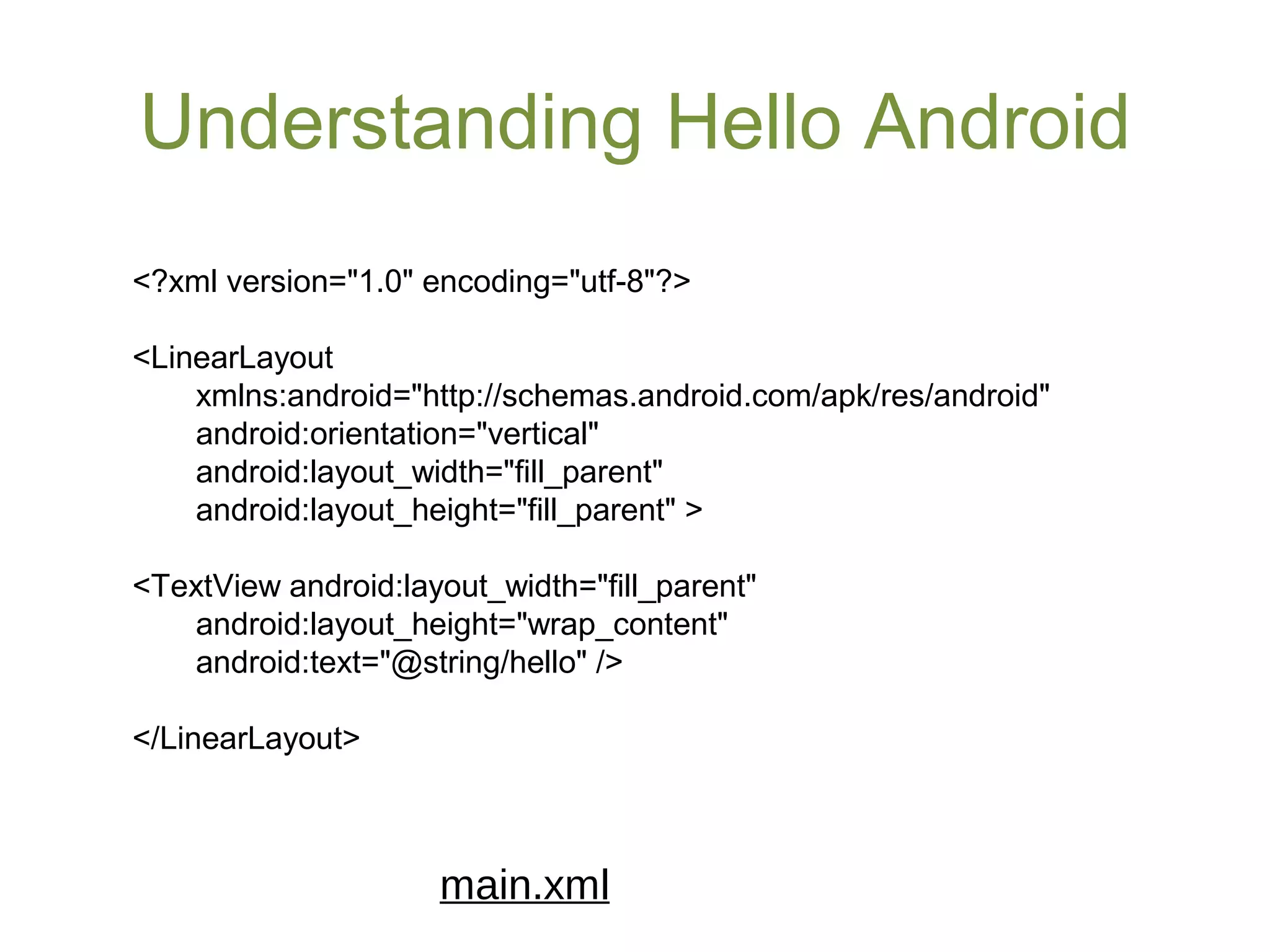
<?xml version="1.0" encoding="utf-8"?>
<LinearLayout
xmlns:android="http://schemas.android.com/apk/res/android"
android:orientation="vertical"
android:layout_width="fill_parent"
android:layout_height="fill_parent" >
<TextView android:layout_width="fill_parent"
android:layout_height="wrap_content"
android:text="@string/hello" />
</LinearLayout>
main.xml
Understanding Hello Android
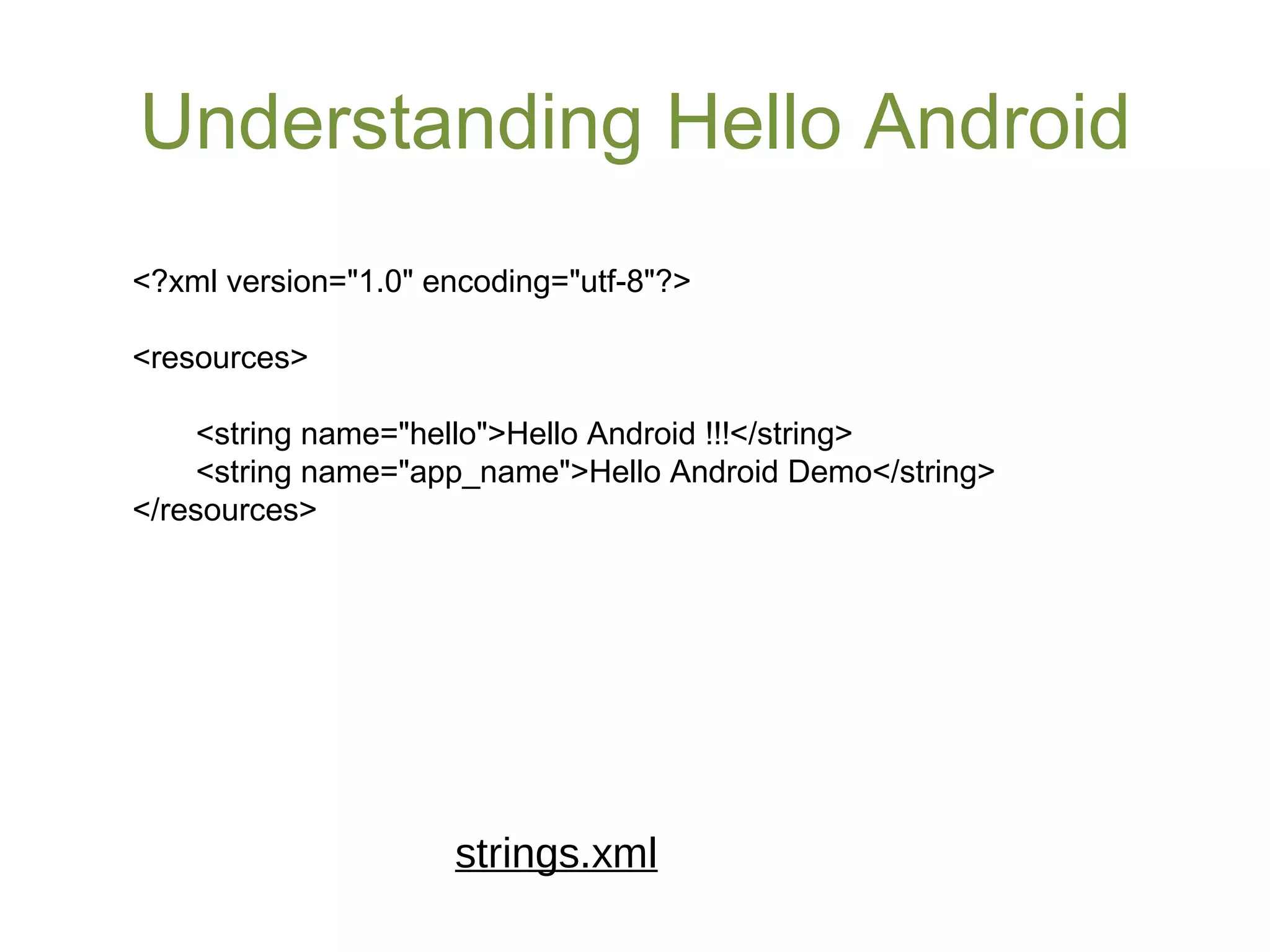
<?xml version="1.0" encoding="utf-8"?>
<resources>
<string name="hello">Hello Android !!!</string>
<string name="app_name">Hello Android Demo</string>
</resources>
strings.xml
Understanding Hello Android
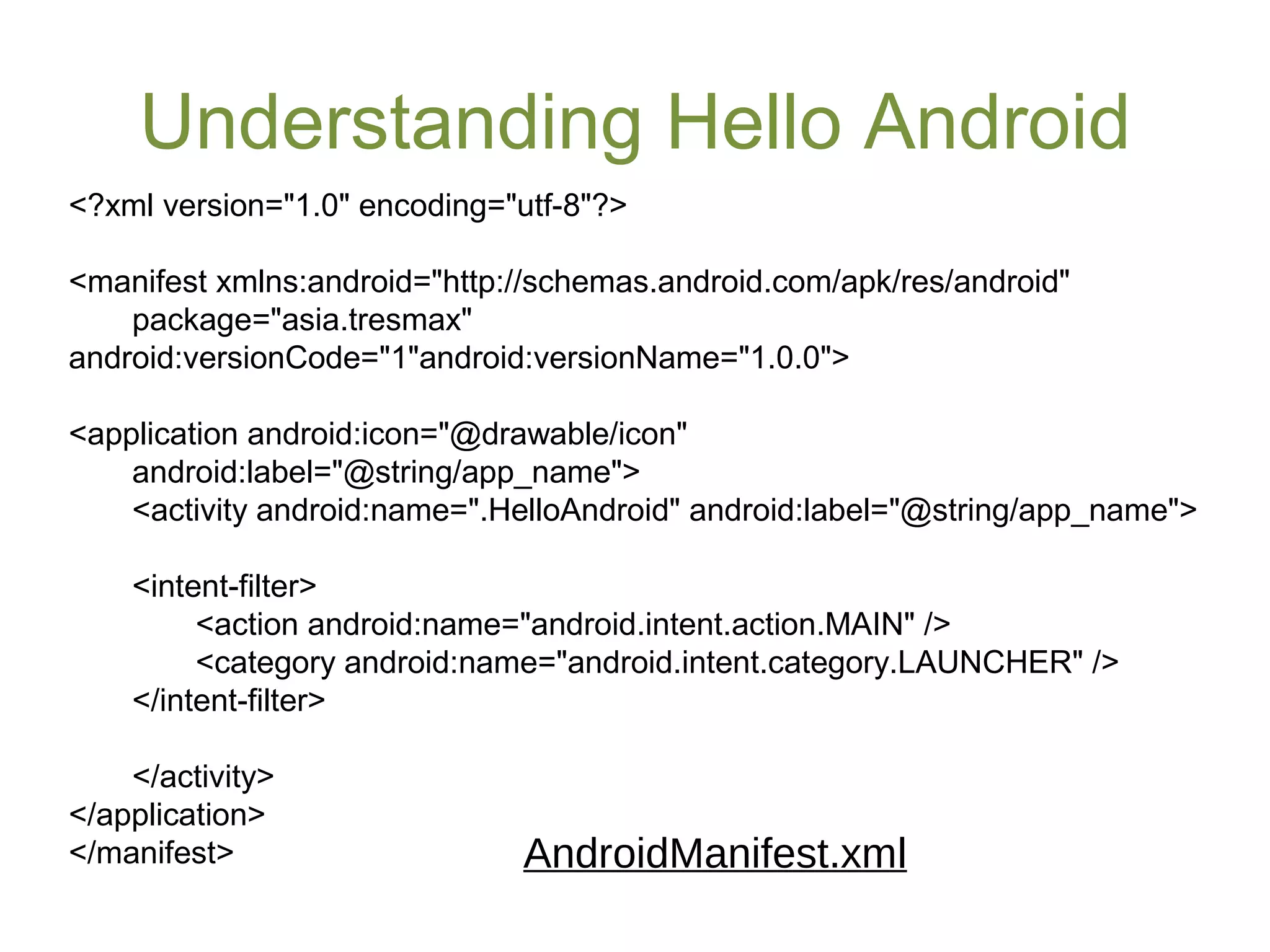
<?xml version="1.0" encoding="utf-8"?>
<manifest xmlns:android="http://schemas.android.com/apk/res/android"
package="asia.tresmax"
android:versionCode="1"android:versionName="1.0.0">
<application android:icon="@drawable/icon"
android:label="@string/app_name">
<activity android:name=".HelloAndroid" android:label="@string/app_name">
<intent-filter>
<action android:name="android.intent.action.MAIN" />
<category android:name="android.intent.category.LAUNCHER" />
</intent-filter>
</activity>
</application>
</manifest> AndroidManifest.xml
Reference
• http://developer.android.com/guide/index.ht
ml
Droid Time !!!
Very Simple Twitter Client in
Android

Android application development for TresmaxAsia

  • 1.
    Android Application Development 101 MikeRivera TresMax Asia March 12, 2010
  • 2.
    What’s in storetoday? • What is Android? • Android Architecture • Getting Android? • Application Components • User Interfaces • Resources • The Manifest File • Understanding Hello Android
  • 3.
    What’s in storetoday? • What is Android? • Android Architecture • Getting Android? • Application Components • User Interfaces • Resources • The Manifest File • Understanding Hello Android
  • 4.
    What is Android •Android is a software stack for mobile devices that includes: – Operating System • Linux version 2.6 – Services include hardware drivers; power, process and memory management; security and network. – Middleware • Libraries (i.e. SQLite, OpenGL, WebKit, etc.) • Android Runtime (Dalvik Virtual Machine and core libraries) • Application Framework – Abstraction for hardware access; manages application resources and the UI; provides classes for developing applications for Android – Applications • Native apps: Contacts, Phone, Browser, etc. • Third-party apps: developer’s applications.
  • 5.
    Next is the... •What is Android? • Android Architecture • Getting Android? • Application Components • User Interfaces • Resources • The Manifest File • Understanding Hello Android
  • 6.
  • 7.
    Next is ... •What is Android? • Android Architecture • Getting Android? • Application Components • User Interfaces • Resources • The Manifest File • Understanding Hello Android
  • 8.
    Getting Android  Install JDK(5 or 6) & Eclipse (3.4 or 3.5)  Download & Install the Android SDK (2.1) - http://developer.android.com/sdk/index.html - simply unpack the starter package to a safe location and then add the location to your PATH.  Install and Configure ADT (Android Development Tool) plug-in for Eclipse  Add Android Platforms & other components to your SDK
  • 9.
    Next is the... •What is Android? • Android Architecture • Getting Android? • Application Components • User Interfaces • Resources • The Manifest File • Understanding Hello Android
  • 10.
    Application Components • Componentsof your application: – Activities • Presentation layer for the application you are building • For each screen you have, their will be a matching Activity • An Activity uses Views to build the user interface – Services • Components that run in the background • Do not interact with the user • Can update your data sources and Activities, and trigger specific notifications
  • 11.
    Application Components • Componentsof your application: – Content Providers • Manage and share application databases – Intents • Specify what intentions you have in terms of a specific action being performed – Broadcast Receivers • Listen for broadcast Intents that match some defined filter criteria • Can automatically start your application as a response to an intent
  • 12.
    Next is the... •What is Android? • Android Architecture • Getting Android? • Application Components • User Interfaces • Resources • The Manifest File • Understanding Hello Android
  • 13.
    User Interfaces • Views –The basic UI component – Responsible for drawing and event handling – Define your View through: • Layout Resources (i.e. defined in main.xml file): <ListView android:id="@+id/myListView" android:layout_width="fill_parent" android:layout_height="wrap_content" /> From your Activity class code: setContentView(R.layout.main); ListView myListView = (ListView)findViewById(R.id.myListView); • Inside your code: ListView myListView = new ListView(this); setContentView(myTextView);
  • 14.
    14 User Interfaces (cont.) •Layouts – Specify the position of child views (controls) on the screen – Common Layout Objects: • FrameLayout: all child views are pinned to the top left corner of the screen • LinearLayout: each child view is added in a straight line (vertically or horizontally) • TableLayout: add views using a grid of rows and columns • RelativeLayout: add views relative to the position of other views or to its parent. • AbsoluteLayout: for each view you add, you specify the exact screen coordinate to display on the screen
  • 15.
    15 User Interfaces (cont.) •Implement layouts in XML using external resources: <?xml version="1.0" encoding="utf-8"?> <LinearLayout xmlns:android="http://schemas.android.com/apk/res/android" android:orientation="vertical" android:layout_width="fill_parent" android:layout_height="fill_parent"> <EditText android:id="@+id/myEditText" android:layout_width="fill_parent" android:layout_height="wrap_content" android:text="" /> <ListView android:id="@+id/myListView" android:layout_width="fill_parent" android:layout_height="wrap_content" /> </LinearLayout>
  • 16.
    16 User Interfaces (cont.) •Dialogs – a small window that appears in front of the current Activity (Alert,Progress,DatePicker, TimePicker and a custom one) • Menus – Concerned about having to much functionality on the screen => use menus – Three menu types: • Icon Menu: appears at the bottom of the screen when the user presses the Menu button. It can display icons and text for up to six menu items. • Expanded Menu: displays a scrollable list of menu items not previously displayed in the icon menu. • Submenu: displayed as a floating window.
  • 17.
    Next is the... •What is Android? • Android Architecture • Getting Android? • Application Components • User Interfaces • Resources • The Manifest File • Understanding Hello Android
  • 18.
    Resources External files (thatis, non-code files) that are used by your code and compiled into your application at build time. Android supports a number of different kinds of resource files, including XML, PNG, and JPEG files. • res/anim - XML files for animations • res/drawable – image files • res/layout – XML files for screen layouts • res/values – XML files that can be compiled into many kinds of resources • res/xml – Arbitrary XML files that are compiled and can be read at run time. • res/raw – Arbitrary files to copy directly to the device At compile time, Android generates a class named R that contains resource identifiers to all the resources in your program. This class contains several subclasses, one for each type of resource supported by Android, and for which you provided a resource file.
  • 19.
    What’s in storetoday?  What is Android?  Android Architecture  Getting Android?  Application Components  User Interfaces  Resources  The Manifest File  Understanding Hello Android
  • 20.
    The Manifest File •a structured XML file and is always named AndroidManifest.xml for all applications. • It does a number of things in addition to declaring the application's components, such as naming any libraries the application needs to be linked against (besides the default Android library) and identifying any permissions the application expects to be granted. <?xml version="1.0" encoding="utf-8"?> <manifest . . . > <application . . . > <activity android:name="com.example.project.FreneticActivity" android:icon="@drawable/small_pic.png" android:label="@string/freneticLabel" . . . > </activity> . . . </application> </manifest>
  • 21.
    What’s in storetoday?  What is Android?  Android Architecture  Getting Android?  Application Components  User Interfaces  Resources  The Manifest File  Understanding Hello Android
  • 22.
    Understanding Hello Android importandroid.app.Activity; import android.os.Bundle; public class HelloAndroid extends Activity { /** Called when the activity is first created. */ @Override public void onCreate(Bundle savedInstanceState) { super.onCreate(savedInstanceState); setContentView(R.layout.main); } } HelloAndroid Activity
  • 23.
    Understanding Hello Android <?xmlversion="1.0" encoding="utf-8"?> <LinearLayout xmlns:android="http://schemas.android.com/apk/res/android" android:orientation="vertical" android:layout_width="fill_parent" android:layout_height="fill_parent" > <TextView android:layout_width="fill_parent" android:layout_height="wrap_content" android:text="@string/hello" /> </LinearLayout> main.xml
  • 24.
    Understanding Hello Android <?xmlversion="1.0" encoding="utf-8"?> <resources> <string name="hello">Hello Android !!!</string> <string name="app_name">Hello Android Demo</string> </resources> strings.xml
  • 25.
    Understanding Hello Android <?xmlversion="1.0" encoding="utf-8"?> <manifest xmlns:android="http://schemas.android.com/apk/res/android" package="asia.tresmax" android:versionCode="1"android:versionName="1.0.0"> <application android:icon="@drawable/icon" android:label="@string/app_name"> <activity android:name=".HelloAndroid" android:label="@string/app_name"> <intent-filter> <action android:name="android.intent.action.MAIN" /> <category android:name="android.intent.category.LAUNCHER" /> </intent-filter> </activity> </application> </manifest> AndroidManifest.xml
  • 26.
  • 27.
    Droid Time !!! VerySimple Twitter Client in Android