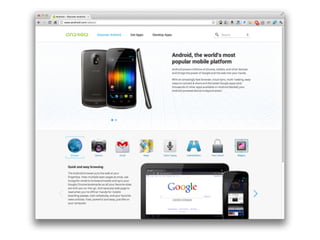
Android Workshop
Getting started with Android application development
About Myself


      View slides @ http://www.slideshare.net/samwize
My Hobby Projects


      just2us.com
My Hobby Projects

                    Top App


      just2us.com
My Full Time


  developer.hoiio.com


            View slides @ http://www.slideshare.net/samwize
Hoiio API


    View slides @ http://www.slideshare.net/samwize
Hoiio API


Mr Brown Podcast Over The Phone!!

     Call 6602 8104

                View slides @ http://www.slideshare.net/samwize
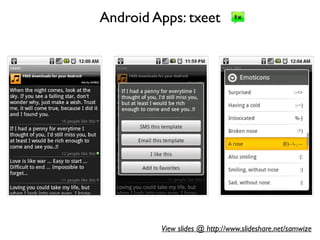
Android Apps: txeet


         View slides @ http://www.slideshare.net/samwize
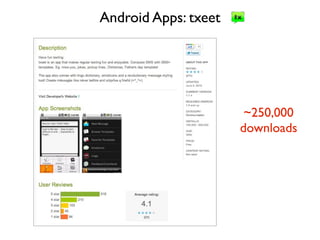
Android Apps: txeet


                       ~250,000
                      downloads
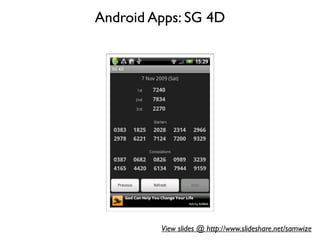
Android Apps: SG 4D


         View slides @ http://www.slideshare.net/samwize
Android Apps: Hoiio Phone


            View slides @ http://www.slideshare.net/samwize
Android Apps: Hoiio Chat


            View slides @ http://www.slideshare.net/samwize
Contact Me


• twitter @ samwize
• Google+


                      View slides @ http://www.slideshare.net/samwize
Schedule


1. Introduction to Android
2. Hands On 1 [45 min]
3. Application Fundamentals & User Interfaces
4. Hands On II [45 min]
5. Advanced Topics - Preferences, Database, Network, Multimedia
6. What’s next?


                                  View slides @ http://www.slideshare.net/samwize
1. Introduction to Android
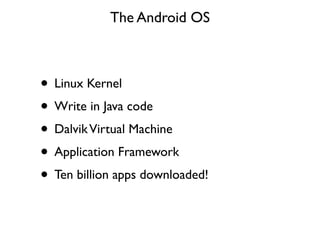
The Android OS


• Linux Kernel
• Write in Java code
• Dalvik Virtual Machine
• Application Framework
• Ten billion apps downloaded!
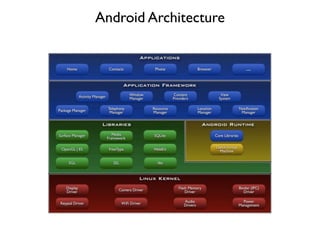
Android Architecture
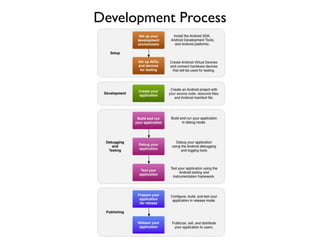
Development Process
Platform Versions
2. Hands On I [45 min]
A couple of steps


• Install SDK
• Setup Emulator
• Run Emulator
• Create Project
• Run Project
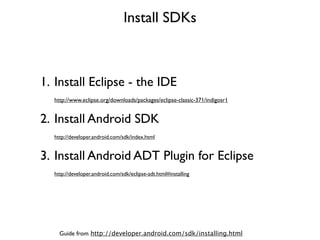
Install SDKs


1. Install Eclipse - the IDE
  http://www.eclipse.org/downloads/packages/eclipse-classic-371/indigosr1


2. Install Android SDK
  http://developer.android.com/sdk/index.html


3. Install Android ADT Plugin for Eclipse
  http://developer.android.com/sdk/eclipse-adt.html#installing


    Guide from http://developer.android.com/sdk/installing.html
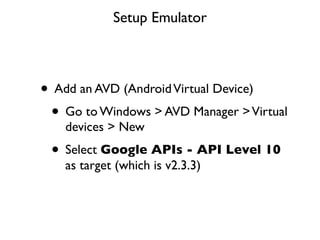
Setup Emulator


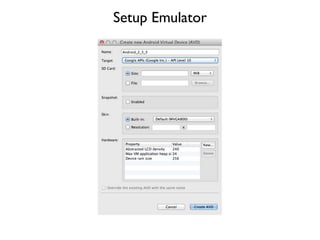
• Add an AVD (Android Virtual Device)
 • Go to Windows > AVD Manager > Virtual
    devices > New
 • Select Google APIs - API Level 10
    as target (which is v2.3.3)
Setup Emulator
Run Emulator


• In AVD Manager, select the newly created
  AVD > Start
Run Emulator
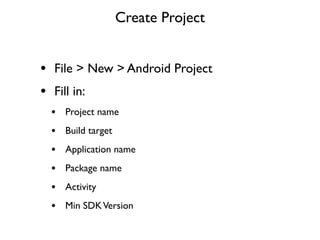
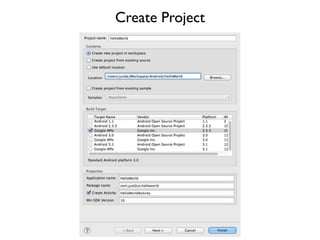
Create Project


• File > New > Android Project
• Fill in:
 •   Project name
 •   Build target
 •   Application name
 •   Package name
 •   Activity
 •   Min SDK Version
Create Project
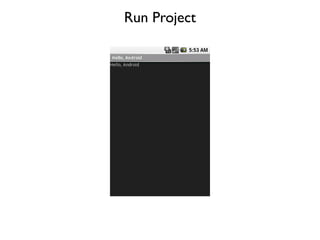
Run Project


• Run > Run as > Android Application
Run Project
Run on Actual Device


• To run on actual Android device, connect
  device to computer via USB
• From device, go to Settings > Applications
  > Development > enabled USB debugging
• Run project
3. Application Fundamentals &
         User Interface
Now that you see “Hello World”, let’s examine the project..
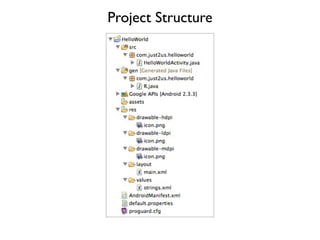
Project Structure
Project Structure


                    R.drawable.icon
                     R.layout.main
                     R.string.hello
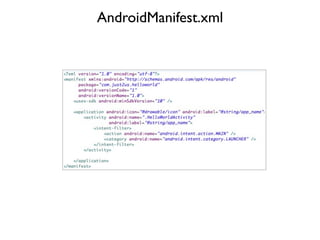
AndroidManifest.xml
Fundamentals


• 4 main components:
 1. Activity
 2. Service
 3. ContentProvider
 4. BroadcastReceiver
Activity


• Activity = Screen
• An app is made up of multiple activities
• Stack of activities/screens
• Activity lifecycle
HelloWorldActivity
HelloWorldActivity


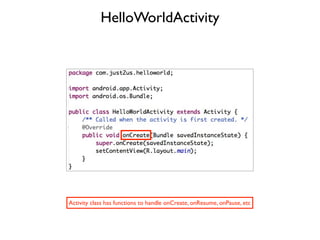
Activity class has functions to handle onCreate, onResume, onPause, etc
Activity


• Launch an Activity by calling
  startActivity(intent)

  Launch a known Activity
  Intent intent = new Intent(this, SignInActivity.class);
  startActivity(intent);
Activity


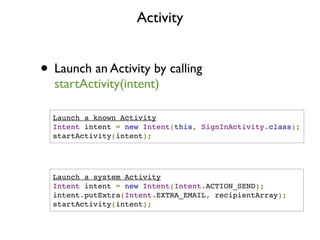
• Launch an Activity by calling
  startActivity(intent)

  Launch a known Activity
  Intent intent = new Intent(this, SignInActivity.class);
  startActivity(intent);


  Launch a system Activity
  Intent intent = new Intent(Intent.ACTION_SEND);
  intent.putExtra(Intent.EXTRA_EMAIL, recipientArray);
  startActivity(intent);
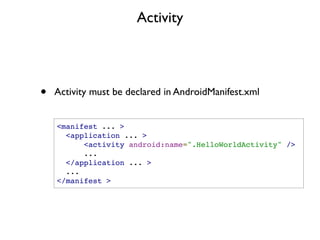
Activity


•   Activity must be declared in AndroidManifest.xml


    <manifest ... >
      <application ... >
          <activity android:name=".HelloWorldActivity" />
          ...
      </application ... >
      ...
    </manifest >
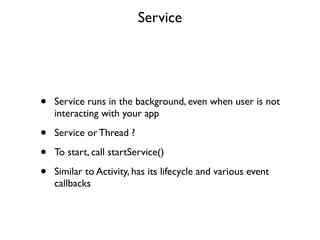
Service


•   Service runs in the background, even when user is not
    interacting with your app

•   Service or Thread ?

•   To start, call startService()

•   Similar to Activity, has its lifecycle and various event
    callbacks
ContentProvider

• A way to share data across applications,
   including apps such as phonebook,
   calendar, etc.
• In other words, you can access the
   phonebook using a ContentProvider
• Have query, insert, delete methods (SQLite)
ContentResolver cr = getContentResolver();
cr.query(“content://android.provider.Contacts.Phones.CONTACT_URI”,
         projection,
         selection, selectionArg,
         sortOrder)
BroadcastReceiver


• Responds to system-wide broadcast
  announcements such as incoming phone
  call, SMS sent, picture captured, etc
User Interfaces


                  Slides on http://www.slideshare.net/samwize
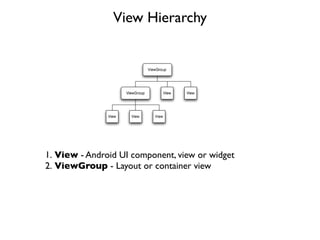
View Hierarchy


1. View - Android UI component, view or widget
2. ViewGroup - Layout or container view
View

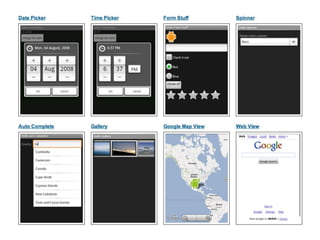
• UI components can be found in
    android.widget package
•   Basic UI:

    •   TextView

    •   Button

    •   TextField

    •   Progress bar

    •   List

    •   etc..
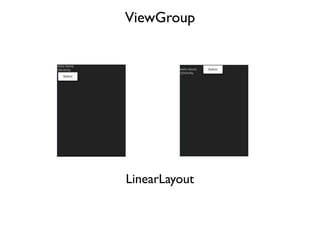
ViewGroup


LinearLayout
ViewGroup


TableLayout
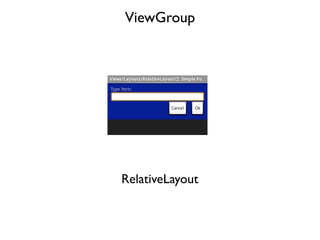
ViewGroup


RelativeLayout
User Interfaces


• 2 ways to construct UI
 1. XML
 2. Code
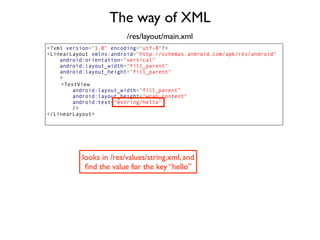
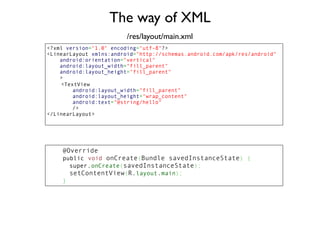
The way of XML
                         /res/layout/main.xml
<?xml version="1.0" encoding="utf-8"?>
<LinearLayout xmlns:android="http://schemas.android.com/apk/res/android"
    android:orientation="vertical"
    android:layout_width="fill_parent"
    android:layout_height="fill_parent"
    >
    <TextView
        android:layout_width="fill_parent"
        android:layout_height="wrap_content"
        android:text="@string/hello"
        />
</LinearLayout>
The way of XML
                         /res/layout/main.xml
<?xml version="1.0" encoding="utf-8"?>
<LinearLayout xmlns:android="http://schemas.android.com/apk/res/android"
    android:orientation="vertical"
    android:layout_width="fill_parent"
    android:layout_height="fill_parent"
    >
    <TextView
        android:layout_width="fill_parent"
        android:layout_height="wrap_content"
        android:text="@string/hello"
        />
</LinearLayout>


           looks in /res/values/string.xml, and
            find the value for the key “hello”
The way of XML
                         /res/layout/main.xml
<?xml version="1.0" encoding="utf-8"?>
<LinearLayout xmlns:android="http://schemas.android.com/apk/res/android"
    android:orientation="vertical"
    android:layout_width="fill_parent"
    android:layout_height="fill_parent"
    >
    <TextView
        android:layout_width="fill_parent"
        android:layout_height="wrap_content"
        android:text="@string/hello"
        />
</LinearLayout>


             Equivalently..
             android:text="Hello world too!"
The way of XML
                         /res/layout/main.xml
<?xml version="1.0" encoding="utf-8"?>
<LinearLayout xmlns:android="http://schemas.android.com/apk/res/android"
    android:orientation="vertical"
    android:layout_width="fill_parent"
    android:layout_height="fill_parent"
    >
    <TextView
        android:layout_width="fill_parent"
        android:layout_height="wrap_content"
        android:text="@string/hello"
        />
</LinearLayout>


    @Override
    public void onCreate(Bundle savedInstanceState) {
      super.onCreate(savedInstanceState);
      setContentView(R.layout.main);
    }
The way of XML
                         /res/layout/main.xml
<?xml version="1.0" encoding="utf-8"?>
<LinearLayout xmlns:android="http://schemas.android.com/apk/res/android"
    android:orientation="vertical"
    android:layout_width="fill_parent"
    android:layout_height="fill_parent"
    >
    <TextView
        android:layout_width="fill_parent"
        android:layout_height="wrap_content"
        android:text="@string/hello"
        />
</LinearLayout>


    @Override
    public void onCreate(Bundle savedInstanceState) {
      super.onCreate(savedInstanceState);
      setContentView(R.layout.main);
    }


        setContentView() inflate main.xml and set the views
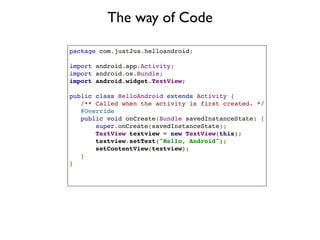
The way of Code

package com.just2us.helloandroid;

import android.app.Activity;
import android.os.Bundle;
import android.widget.TextView;

public class HelloAndroid extends Activity {
   /** Called when the activity is first created. */
   @Override
   public void onCreate(Bundle savedInstanceState) {
       super.onCreate(savedInstanceState);
       TextView textview = new TextView(this);
       textview.setText("Hello, Android");
       setContentView(textview);
   }
}
The way of Code

package com.just2us.helloandroid;

import android.app.Activity;
import android.os.Bundle;
import android.widget.TextView;

public class HelloAndroid extends Activity {
   /** Called when the activity is first created. */
   @Override
   public void onCreate(Bundle savedInstanceState) {
       super.onCreate(savedInstanceState);
       TextView textview = new TextView(this);
       textview.setText("Hello, Android");
       setContentView(textview);
   }
}


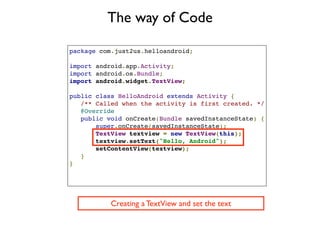
           Creating a TextView and set the text
The way of Code

package com.just2us.helloandroid;

import android.app.Activity;
import android.os.Bundle;
import android.widget.TextView;

public class HelloAndroid extends Activity {
   /** Called when the activity is first created. */
   @Override
   public void onCreate(Bundle savedInstanceState) {
       super.onCreate(savedInstanceState);
       TextView textview = new TextView(this);
       textview.setText("Hello, Android");
       setContentView(textview);
   }
}


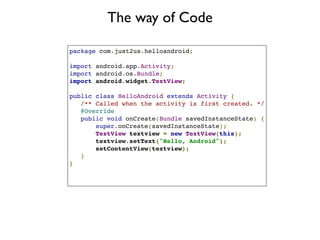
      Similarly to the way of XML, setContentView()
The way of Code

package com.just2us.helloandroid;

import android.app.Activity;
import android.os.Bundle;
import android.widget.TextView;

public class HelloAndroid extends Activity {
   /** Called when the activity is first created. */
   @Override
   public void onCreate(Bundle savedInstanceState) {
       super.onCreate(savedInstanceState);
       TextView textview = new TextView(this);
       textview.setText("Hello, Android");
       setContentView(textview);
   }
}
4. Hands On II [45 min]
1) Linear Layout


• Follow tutorial from:
  http://developer.android.com/resources/
  tutorials/views/hello-linearlayout.html
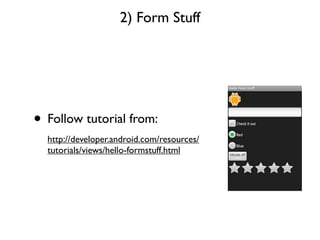
2) Form Stuff


• Follow tutorial from:
  http://developer.android.com/resources/
  tutorials/views/hello-formstuff.html
More tutorial..


• “Hello View” tutorials
    •   http://developer.android.com/resources/tutorials/views/index.html

•   “Api Demo” sample code
    •   http://developer.android.com/resources/samples/ApiDemos/
        index.html
5. Advanced Topics
Preferences, Database, Network, Multimedia
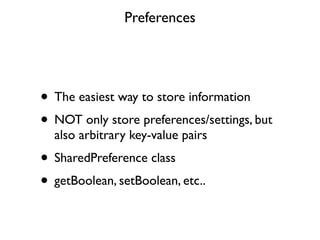
Preferences


• The easiest way to store information
• NOT only store preferences/settings, but
  also arbitrary key-value pairs
• SharedPreference class
• getBoolean, setBoolean, etc..
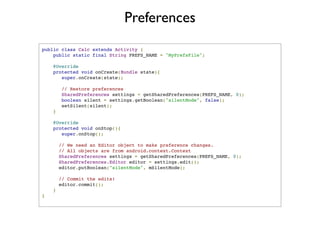
Preferences
public class Calc extends Activity {
    public static final String PREFS_NAME = "MyPrefsFile";

    @Override
    protected void onCreate(Bundle state){
       super.onCreate(state);

             // Restore preferences
             SharedPreferences settings = getSharedPreferences(PREFS_NAME, 0);
             boolean silent = settings.getBoolean("silentMode", false);
             setSilent(silent);
        }

    @Override
    protected void onStop(){
       super.onStop();

            // We need an Editor object to make preference changes.
            // All objects are from android.context.Context
            SharedPreferences settings = getSharedPreferences(PREFS_NAME, 0);
            SharedPreferences.Editor editor = settings.edit();
            editor.putBoolean("silentMode", mSilentMode);

      // Commit the edits!
      editor.commit();
    }
}
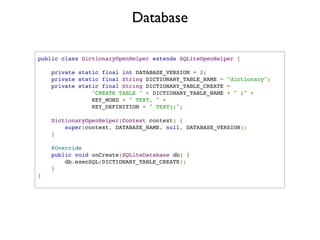
Database


• Tabular data
• SQLite behind the scenes
• Extend SQLiteOpenHelper
Database

public class DictionaryOpenHelper extends SQLiteOpenHelper {

        private   static final int DATABASE_VERSION = 2;
        private   static final String DICTIONARY_TABLE_NAME = "dictionary";
        private   static final String DICTIONARY_TABLE_CREATE =
                      "CREATE TABLE " + DICTIONARY_TABLE_NAME + " (" +
                      KEY_WORD + " TEXT, " +
                      KEY_DEFINITION + " TEXT);";

    DictionaryOpenHelper(Context context) {
        super(context, DATABASE_NAME, null, DATABASE_VERSION);
    }

        @Override
        public void onCreate(SQLiteDatabase db) {
            db.execSQL(DICTIONARY_TABLE_CREATE);
        }
}
Database


• Call getWritableDatabase() or
  getReadableDatabase() to get an
  SQLiteDatabase object
• With SQLiteDatabase, call query() to
  execute SQL queries
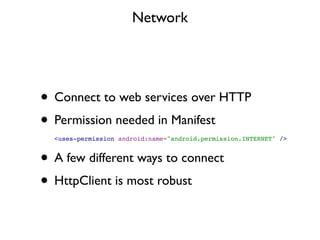
Network


• Connect to web services over HTTP
• Permission needed in Manifest
  <uses-permission android:name="android.permission.INTERNET" />


• A few different ways to connect
• HttpClient is most robust
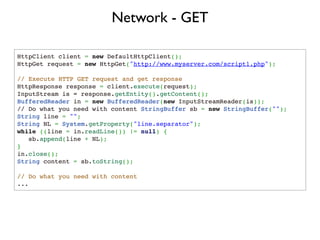
Network - GET

HttpClient client = new DefaultHttpClient();
HttpGet request = new HttpGet("http://www.myserver.com/script1.php");

// Execute HTTP GET request and get response
HttpResponse response = client.execute(request);
InputStream is = response.getEntity().getContent();
BufferedReader in = new BufferedReader(new InputStreamReader(is));
// Do what you need with content StringBuffer sb = new StringBuffer("");
String line = "";
String NL = System.getProperty("line.separator");
while ((line = in.readLine()) != null) {
   sb.append(line + NL);
}
in.close();
String content = sb.toString();

// Do what you need with content
...
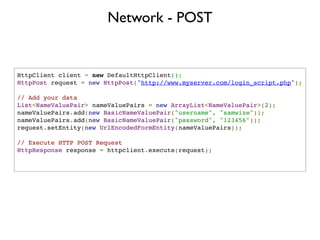
Network - POST


HttpClient client = new DefaultHttpClient();
HttpPost request = new HttpPost("http://www.myserver.com/login_script.php");

// Add your data
List<NameValuePair> nameValuePairs = new ArrayList<NameValuePair>(2);
nameValuePairs.add(new BasicNameValuePair("username", "samwize"));
nameValuePairs.add(new BasicNameValuePair("password", "123456"));
request.setEntity(new UrlEncodedFormEntity(nameValuePairs));

// Execute HTTP POST Request
HttpResponse response = httpclient.execute(request);
       
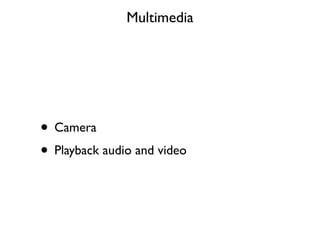
Multimedia


• Camera
• Playback audio and video
Multimedia - Camera


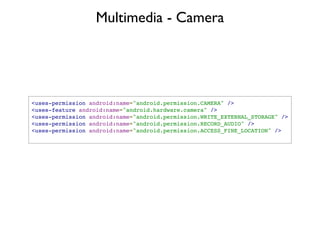
<uses-permission android:name="android.permission.CAMERA" />
<uses-feature android:name="android.hardware.camera" />
<uses-permission android:name="android.permission.WRITE_EXTERNAL_STORAGE" />
<uses-permission android:name="android.permission.RECORD_AUDIO" />
<uses-permission android:name="android.permission.ACCESS_FINE_LOCATION" />
Multimedia - Camera


• 2 ways to capture photo
 • Using capture intent
 • Using Camera class directly
Multimedia - Camera


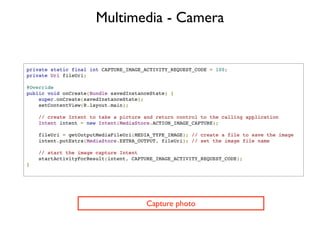
private static final int CAPTURE_IMAGE_ACTIVITY_REQUEST_CODE = 100;
private Uri fileUri;

@Override
public void onCreate(Bundle savedInstanceState) {
    super.onCreate(savedInstanceState);
    setContentView(R.layout.main);

    // create Intent to take a picture and return control to the calling application
    Intent intent = new Intent(MediaStore.ACTION_IMAGE_CAPTURE);

    fileUri = getOutputMediaFileUri(MEDIA_TYPE_IMAGE); // create a file to save the image
    intent.putExtra(MediaStore.EXTRA_OUTPUT, fileUri); // set the image file name

    // start the image capture Intent
    startActivityForResult(intent, CAPTURE_IMAGE_ACTIVITY_REQUEST_CODE);
}


                                       Capture photo
Multimedia - Camera

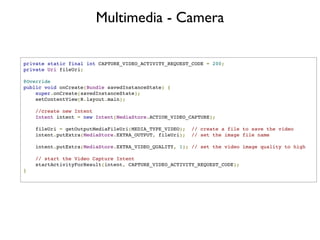
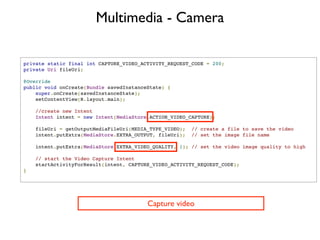
private static final int CAPTURE_VIDEO_ACTIVITY_REQUEST_CODE = 200;
private Uri fileUri;

@Override
public void onCreate(Bundle savedInstanceState) {
    super.onCreate(savedInstanceState);
    setContentView(R.layout.main);

    //create new Intent
    Intent intent = new Intent(MediaStore.ACTION_VIDEO_CAPTURE);

    fileUri = getOutputMediaFileUri(MEDIA_TYPE_VIDEO);  // create a file to save the video
    intent.putExtra(MediaStore.EXTRA_OUTPUT, fileUri);  // set the image file name

    intent.putExtra(MediaStore.EXTRA_VIDEO_QUALITY, 1); // set the video image quality to high

    // start the Video Capture Intent
    startActivityForResult(intent, CAPTURE_VIDEO_ACTIVITY_REQUEST_CODE);
}
Multimedia - Camera

private static final int CAPTURE_VIDEO_ACTIVITY_REQUEST_CODE = 200;
private Uri fileUri;

@Override
public void onCreate(Bundle savedInstanceState) {
    super.onCreate(savedInstanceState);
    setContentView(R.layout.main);

    //create new Intent
    Intent intent = new Intent(MediaStore.ACTION_VIDEO_CAPTURE);

    fileUri = getOutputMediaFileUri(MEDIA_TYPE_VIDEO);  // create a file to save the video
    intent.putExtra(MediaStore.EXTRA_OUTPUT, fileUri);  // set the image file name

    intent.putExtra(MediaStore.EXTRA_VIDEO_QUALITY, 1); // set the video image quality to high

    // start the Video Capture Intent
    startActivityForResult(intent, CAPTURE_VIDEO_ACTIVITY_REQUEST_CODE);
}


                                         Capture video
Multimedia - Camera

private static final int CAPTURE_IMAGE_ACTIVITY_REQUEST_CODE = 100;
private static final int CAPTURE_VIDEO_ACTIVITY_REQUEST_CODE = 200;

@Override
protected void onActivityResult(int requestCode, int resultCode, Intent data) {
    if (requestCode == CAPTURE_IMAGE_ACTIVITY_REQUEST_CODE) {
        if (resultCode == RESULT_OK) {
            // Image captured and saved to fileUri specified in the Intent
            Toast.makeText(this, "Image saved to:n" +
                     data.getData(), Toast.LENGTH_LONG).show();
        } else if (resultCode == RESULT_CANCELED) {
            // User cancelled the image capture
        } else {
            // Image capture failed, advise user
        }
    }

        if (requestCode == CAPTURE_VIDEO_ACTIVITY_REQUEST_CODE) {
            if (resultCode == RESULT_OK) {
                // Video captured and saved to fileUri specified in the Intent
                Toast.makeText(this, "Video saved to:n" +
                         data.getData(), Toast.LENGTH_LONG).show();
            } else if (resultCode == RESULT_CANCELED) {
                // User cancelled the video capture
            } else {
                // Video capture failed, advise user
            }
        }
}


        Handling after photo/video is captured by camera app
Multimedia - MediaPlayer


• Play audio and video from:
 • /res/raw/
 • File system (internal or external)
 • Stream over Internet
• MediaPlayer class
Multimedia - MediaPlayer


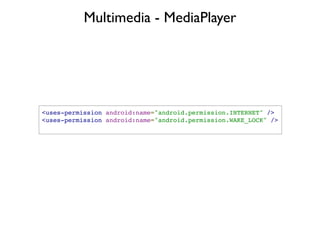
<uses-permission android:name="android.permission.INTERNET" />
<uses-permission android:name="android.permission.WAKE_LOCK" />
Multimedia - MediaPlayer


MediaPlayer mediaPlayer = MediaPlayer.create(context, R.raw.sound_file_1);
mediaPlayer.start();
...
mediaPlayer.stop();


                      Playing /res/raw/sound_file_1.mp3
Multimedia - MediaPlayer


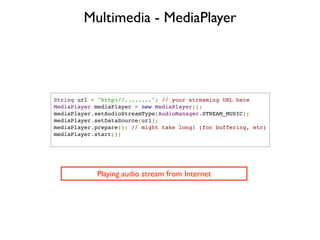
String url = "http://........"; // your streaming URL here
MediaPlayer mediaPlayer = new MediaPlayer();
mediaPlayer.setAudioStreamType(AudioManager.STREAM_MUSIC);
mediaPlayer.setDataSource(url);
mediaPlayer.prepare(); // might take long! (for buffering, etc)
mediaPlayer.start();


            Playing audio stream from Internet
Multimedia - MediaPlayer


• Playing video is similar to audio
• Pass a SurfaceHolder (view class) which the
  MediaPlayer can render the video on
6. What’s next?
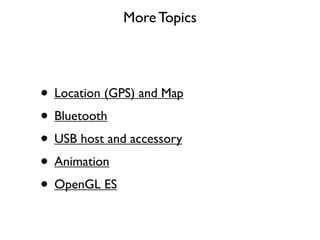
More Topics


• Location (GPS) and Map
• Bluetooth
• USB host and accessory
• Animation
• OpenGL ES
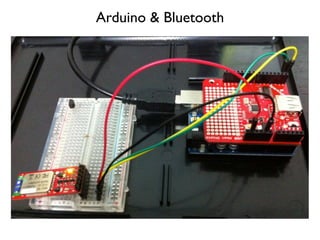
Arduino & Bluetooth
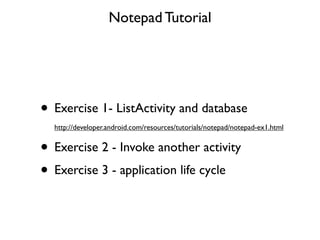
Notepad Tutorial


• Exercise 1- ListActivity and database
  http://developer.android.com/resources/tutorials/notepad/notepad-ex1.html


• Exercise 2 - Invoke another activity
• Exercise 3 - application life cycle
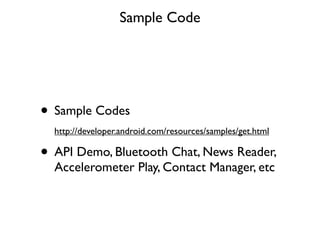
Sample Code


• Sample Codes
  http://developer.android.com/resources/samples/get.html

• API Demo, Bluetooth Chat, News Reader,
  Accelerometer Play, Contact Manager, etc
User Interfaces


• Supporting different screen sizes
  http://developer.android.com/guide/practices/screens_support.html


• Common UI Patterns
  http://www.androidpatterns.com/
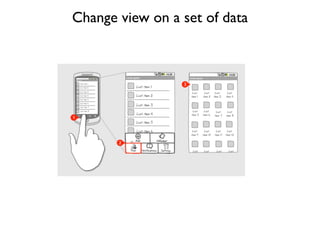
Change view on a set of data
Select multiple items
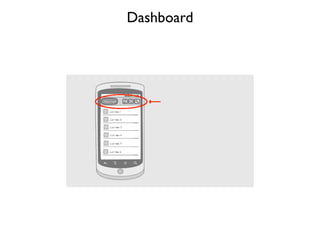
Dashboard
Important Resources


• http://developer.android.com
• http://stackoverflow.com/
• http://www.google.com/

Android Workshop

  • 1.
    Android Workshop Getting startedwith Android application development
  • 2.
    About Myself View slides @ http://www.slideshare.net/samwize
  • 3.
    My Hobby Projects just2us.com
  • 4.
    My Hobby Projects Top App just2us.com
  • 5.
    My Full Time developer.hoiio.com View slides @ http://www.slideshare.net/samwize
  • 6.
    Hoiio API View slides @ http://www.slideshare.net/samwize
  • 7.
    Hoiio API Mr BrownPodcast Over The Phone!! Call 6602 8104 View slides @ http://www.slideshare.net/samwize
  • 8.
    Android Apps: txeet View slides @ http://www.slideshare.net/samwize
  • 9.
    Android Apps: txeet ~250,000 downloads
  • 10.
    Android Apps: SG4D View slides @ http://www.slideshare.net/samwize
  • 11.
    Android Apps: HoiioPhone View slides @ http://www.slideshare.net/samwize
  • 12.
    Android Apps: HoiioChat View slides @ http://www.slideshare.net/samwize
  • 13.
    Contact Me • twitter@ samwize • Google+ View slides @ http://www.slideshare.net/samwize
  • 14.
    Schedule 1. Introduction toAndroid 2. Hands On 1 [45 min] 3. Application Fundamentals & User Interfaces 4. Hands On II [45 min] 5. Advanced Topics - Preferences, Database, Network, Multimedia 6. What’s next? View slides @ http://www.slideshare.net/samwize
  • 15.
  • 17.
    The Android OS •Linux Kernel • Write in Java code • Dalvik Virtual Machine • Application Framework • Ten billion apps downloaded!
  • 18.
  • 19.
  • 20.
  • 21.
    2. Hands OnI [45 min]
  • 22.
    A couple ofsteps • Install SDK • Setup Emulator • Run Emulator • Create Project • Run Project
  • 23.
    Install SDKs 1. InstallEclipse - the IDE http://www.eclipse.org/downloads/packages/eclipse-classic-371/indigosr1 2. Install Android SDK http://developer.android.com/sdk/index.html 3. Install Android ADT Plugin for Eclipse http://developer.android.com/sdk/eclipse-adt.html#installing Guide from http://developer.android.com/sdk/installing.html
  • 24.
    Setup Emulator • Addan AVD (Android Virtual Device) • Go to Windows > AVD Manager > Virtual devices > New • Select Google APIs - API Level 10 as target (which is v2.3.3)
  • 25.
  • 26.
    Run Emulator • InAVD Manager, select the newly created AVD > Start
  • 27.
  • 28.
    Create Project • File> New > Android Project • Fill in: • Project name • Build target • Application name • Package name • Activity • Min SDK Version
  • 29.
  • 30.
    Run Project • Run> Run as > Android Application
  • 31.
  • 32.
    Run on ActualDevice • To run on actual Android device, connect device to computer via USB • From device, go to Settings > Applications > Development > enabled USB debugging • Run project
  • 33.
  • 34.
    Now that yousee “Hello World”, let’s examine the project..
  • 35.
  • 36.
    Project Structure R.drawable.icon R.layout.main R.string.hello
  • 37.
  • 38.
    Fundamentals • 4 maincomponents: 1. Activity 2. Service 3. ContentProvider 4. BroadcastReceiver
  • 39.
    Activity • Activity =Screen • An app is made up of multiple activities • Stack of activities/screens • Activity lifecycle
  • 41.
  • 42.
    HelloWorldActivity Activity class hasfunctions to handle onCreate, onResume, onPause, etc
  • 43.
    Activity • Launch anActivity by calling startActivity(intent) Launch a known Activity Intent intent = new Intent(this, SignInActivity.class); startActivity(intent);
  • 44.
    Activity • Launch anActivity by calling startActivity(intent) Launch a known Activity Intent intent = new Intent(this, SignInActivity.class); startActivity(intent); Launch a system Activity Intent intent = new Intent(Intent.ACTION_SEND); intent.putExtra(Intent.EXTRA_EMAIL, recipientArray); startActivity(intent);
  • 45.
    Activity • Activity must be declared in AndroidManifest.xml <manifest ... >   <application ... >       <activity android:name=".HelloWorldActivity" />       ...   </application ... >   ... </manifest >
  • 46.
    Service • Service runs in the background, even when user is not interacting with your app • Service or Thread ? • To start, call startService() • Similar to Activity, has its lifecycle and various event callbacks
  • 47.
    ContentProvider • A wayto share data across applications, including apps such as phonebook, calendar, etc. • In other words, you can access the phonebook using a ContentProvider • Have query, insert, delete methods (SQLite) ContentResolver cr = getContentResolver(); cr.query(“content://android.provider.Contacts.Phones.CONTACT_URI”, projection, selection, selectionArg, sortOrder)
  • 48.
    BroadcastReceiver • Responds tosystem-wide broadcast announcements such as incoming phone call, SMS sent, picture captured, etc
  • 49.
    User Interfaces Slides on http://www.slideshare.net/samwize
  • 51.
    View Hierarchy 1. View- Android UI component, view or widget 2. ViewGroup - Layout or container view
  • 52.
    View • UI componentscan be found in android.widget package • Basic UI: • TextView • Button • TextField • Progress bar • List • etc..
  • 53.
  • 54.
  • 55.
  • 56.
    User Interfaces • 2ways to construct UI 1. XML 2. Code
  • 57.
    The way ofXML /res/layout/main.xml <?xml version="1.0" encoding="utf-8"?> <LinearLayout xmlns:android="http://schemas.android.com/apk/res/android" android:orientation="vertical" android:layout_width="fill_parent" android:layout_height="fill_parent" > <TextView android:layout_width="fill_parent" android:layout_height="wrap_content" android:text="@string/hello" /> </LinearLayout>
  • 58.
    The way ofXML /res/layout/main.xml <?xml version="1.0" encoding="utf-8"?> <LinearLayout xmlns:android="http://schemas.android.com/apk/res/android" android:orientation="vertical" android:layout_width="fill_parent" android:layout_height="fill_parent" > <TextView android:layout_width="fill_parent" android:layout_height="wrap_content" android:text="@string/hello" /> </LinearLayout> looks in /res/values/string.xml, and find the value for the key “hello”
  • 59.
    The way ofXML /res/layout/main.xml <?xml version="1.0" encoding="utf-8"?> <LinearLayout xmlns:android="http://schemas.android.com/apk/res/android" android:orientation="vertical" android:layout_width="fill_parent" android:layout_height="fill_parent" > <TextView android:layout_width="fill_parent" android:layout_height="wrap_content" android:text="@string/hello" /> </LinearLayout> Equivalently.. android:text="Hello world too!"
  • 60.
    The way ofXML /res/layout/main.xml <?xml version="1.0" encoding="utf-8"?> <LinearLayout xmlns:android="http://schemas.android.com/apk/res/android" android:orientation="vertical" android:layout_width="fill_parent" android:layout_height="fill_parent" > <TextView android:layout_width="fill_parent" android:layout_height="wrap_content" android:text="@string/hello" /> </LinearLayout> @Override public void onCreate(Bundle savedInstanceState) { super.onCreate(savedInstanceState); setContentView(R.layout.main); }
  • 61.
    The way ofXML /res/layout/main.xml <?xml version="1.0" encoding="utf-8"?> <LinearLayout xmlns:android="http://schemas.android.com/apk/res/android" android:orientation="vertical" android:layout_width="fill_parent" android:layout_height="fill_parent" > <TextView android:layout_width="fill_parent" android:layout_height="wrap_content" android:text="@string/hello" /> </LinearLayout> @Override public void onCreate(Bundle savedInstanceState) { super.onCreate(savedInstanceState); setContentView(R.layout.main); } setContentView() inflate main.xml and set the views
  • 62.
    The way ofCode package com.just2us.helloandroid; import android.app.Activity; import android.os.Bundle; import android.widget.TextView; public class HelloAndroid extends Activity {    /** Called when the activity is first created. */    @Override    public void onCreate(Bundle savedInstanceState) {        super.onCreate(savedInstanceState);        TextView textview = new TextView(this);        textview.setText("Hello, Android");        setContentView(textview);    } }
  • 63.
    The way ofCode package com.just2us.helloandroid; import android.app.Activity; import android.os.Bundle; import android.widget.TextView; public class HelloAndroid extends Activity {    /** Called when the activity is first created. */    @Override    public void onCreate(Bundle savedInstanceState) {        super.onCreate(savedInstanceState);        TextView textview = new TextView(this);        textview.setText("Hello, Android");        setContentView(textview);    } } Creating a TextView and set the text
  • 64.
    The way ofCode package com.just2us.helloandroid; import android.app.Activity; import android.os.Bundle; import android.widget.TextView; public class HelloAndroid extends Activity {    /** Called when the activity is first created. */    @Override    public void onCreate(Bundle savedInstanceState) {        super.onCreate(savedInstanceState);        TextView textview = new TextView(this);        textview.setText("Hello, Android");        setContentView(textview);    } } Similarly to the way of XML, setContentView()
  • 65.
    The way ofCode package com.just2us.helloandroid; import android.app.Activity; import android.os.Bundle; import android.widget.TextView; public class HelloAndroid extends Activity {    /** Called when the activity is first created. */    @Override    public void onCreate(Bundle savedInstanceState) {        super.onCreate(savedInstanceState);        TextView textview = new TextView(this);        textview.setText("Hello, Android");        setContentView(textview);    } }
  • 66.
    4. Hands OnII [45 min]
  • 67.
    1) Linear Layout •Follow tutorial from: http://developer.android.com/resources/ tutorials/views/hello-linearlayout.html
  • 68.
    2) Form Stuff •Follow tutorial from: http://developer.android.com/resources/ tutorials/views/hello-formstuff.html
  • 69.
    More tutorial.. • “HelloView” tutorials • http://developer.android.com/resources/tutorials/views/index.html • “Api Demo” sample code • http://developer.android.com/resources/samples/ApiDemos/ index.html
  • 70.
    5. Advanced Topics Preferences,Database, Network, Multimedia
  • 71.
    Preferences • The easiestway to store information • NOT only store preferences/settings, but also arbitrary key-value pairs • SharedPreference class • getBoolean, setBoolean, etc..
  • 72.
    Preferences public class Calcextends Activity {     public static final String PREFS_NAME = "MyPrefsFile";     @Override     protected void onCreate(Bundle state){        super.onCreate(state);        // Restore preferences        SharedPreferences settings = getSharedPreferences(PREFS_NAME, 0);        boolean silent = settings.getBoolean("silentMode", false);        setSilent(silent);     }     @Override     protected void onStop(){        super.onStop();       // We need an Editor object to make preference changes.       // All objects are from android.context.Context       SharedPreferences settings = getSharedPreferences(PREFS_NAME, 0);       SharedPreferences.Editor editor = settings.edit();       editor.putBoolean("silentMode", mSilentMode);       // Commit the edits!       editor.commit();     } }
  • 73.
    Database • Tabular data •SQLite behind the scenes • Extend SQLiteOpenHelper
  • 74.
    Database public class DictionaryOpenHelperextends SQLiteOpenHelper {     private static final int DATABASE_VERSION = 2;     private static final String DICTIONARY_TABLE_NAME = "dictionary";     private static final String DICTIONARY_TABLE_CREATE =                 "CREATE TABLE " + DICTIONARY_TABLE_NAME + " (" +                 KEY_WORD + " TEXT, " +                 KEY_DEFINITION + " TEXT);";     DictionaryOpenHelper(Context context) {         super(context, DATABASE_NAME, null, DATABASE_VERSION);     }     @Override     public void onCreate(SQLiteDatabase db) {         db.execSQL(DICTIONARY_TABLE_CREATE);     } }
  • 75.
    Database • Call getWritableDatabase()or getReadableDatabase() to get an SQLiteDatabase object • With SQLiteDatabase, call query() to execute SQL queries
  • 76.
    Network • Connect toweb services over HTTP • Permission needed in Manifest <uses-permission android:name="android.permission.INTERNET" /> • A few different ways to connect • HttpClient is most robust
  • 77.
    Network - GET HttpClientclient = new DefaultHttpClient(); HttpGet request = new HttpGet("http://www.myserver.com/script1.php"); // Execute HTTP GET request and get response HttpResponse response = client.execute(request); InputStream is = response.getEntity().getContent(); BufferedReader in = new BufferedReader(new InputStreamReader(is)); // Do what you need with content StringBuffer sb = new StringBuffer(""); String line = ""; String NL = System.getProperty("line.separator"); while ((line = in.readLine()) != null) { sb.append(line + NL); } in.close(); String content = sb.toString(); // Do what you need with content ...
  • 78.
    Network - POST HttpClientclient = new DefaultHttpClient(); HttpPost request = new HttpPost("http://www.myserver.com/login_script.php"); // Add your data List<NameValuePair> nameValuePairs = new ArrayList<NameValuePair>(2); nameValuePairs.add(new BasicNameValuePair("username", "samwize")); nameValuePairs.add(new BasicNameValuePair("password", "123456")); request.setEntity(new UrlEncodedFormEntity(nameValuePairs)); // Execute HTTP POST Request HttpResponse response = httpclient.execute(request);        
  • 79.
  • 80.
    Multimedia - Camera <uses-permissionandroid:name="android.permission.CAMERA" /> <uses-feature android:name="android.hardware.camera" /> <uses-permission android:name="android.permission.WRITE_EXTERNAL_STORAGE" /> <uses-permission android:name="android.permission.RECORD_AUDIO" /> <uses-permission android:name="android.permission.ACCESS_FINE_LOCATION" />
  • 81.
    Multimedia - Camera •2 ways to capture photo • Using capture intent • Using Camera class directly
  • 82.
    Multimedia - Camera privatestatic final int CAPTURE_IMAGE_ACTIVITY_REQUEST_CODE = 100; private Uri fileUri; @Override public void onCreate(Bundle savedInstanceState) {     super.onCreate(savedInstanceState);     setContentView(R.layout.main);     // create Intent to take a picture and return control to the calling application     Intent intent = new Intent(MediaStore.ACTION_IMAGE_CAPTURE);     fileUri = getOutputMediaFileUri(MEDIA_TYPE_IMAGE); // create a file to save the image     intent.putExtra(MediaStore.EXTRA_OUTPUT, fileUri); // set the image file name     // start the image capture Intent     startActivityForResult(intent, CAPTURE_IMAGE_ACTIVITY_REQUEST_CODE); } Capture photo
  • 83.
    Multimedia - Camera privatestatic final int CAPTURE_VIDEO_ACTIVITY_REQUEST_CODE = 200; private Uri fileUri; @Override public void onCreate(Bundle savedInstanceState) {     super.onCreate(savedInstanceState);     setContentView(R.layout.main);     //create new Intent     Intent intent = new Intent(MediaStore.ACTION_VIDEO_CAPTURE);     fileUri = getOutputMediaFileUri(MEDIA_TYPE_VIDEO);  // create a file to save the video     intent.putExtra(MediaStore.EXTRA_OUTPUT, fileUri);  // set the image file name     intent.putExtra(MediaStore.EXTRA_VIDEO_QUALITY, 1); // set the video image quality to high     // start the Video Capture Intent     startActivityForResult(intent, CAPTURE_VIDEO_ACTIVITY_REQUEST_CODE); }
  • 84.
    Multimedia - Camera privatestatic final int CAPTURE_VIDEO_ACTIVITY_REQUEST_CODE = 200; private Uri fileUri; @Override public void onCreate(Bundle savedInstanceState) {     super.onCreate(savedInstanceState);     setContentView(R.layout.main);     //create new Intent     Intent intent = new Intent(MediaStore.ACTION_VIDEO_CAPTURE);     fileUri = getOutputMediaFileUri(MEDIA_TYPE_VIDEO);  // create a file to save the video     intent.putExtra(MediaStore.EXTRA_OUTPUT, fileUri);  // set the image file name     intent.putExtra(MediaStore.EXTRA_VIDEO_QUALITY, 1); // set the video image quality to high     // start the Video Capture Intent     startActivityForResult(intent, CAPTURE_VIDEO_ACTIVITY_REQUEST_CODE); } Capture video
  • 85.
    Multimedia - Camera privatestatic final int CAPTURE_IMAGE_ACTIVITY_REQUEST_CODE = 100; private static final int CAPTURE_VIDEO_ACTIVITY_REQUEST_CODE = 200; @Override protected void onActivityResult(int requestCode, int resultCode, Intent data) {     if (requestCode == CAPTURE_IMAGE_ACTIVITY_REQUEST_CODE) {         if (resultCode == RESULT_OK) {             // Image captured and saved to fileUri specified in the Intent             Toast.makeText(this, "Image saved to:n" +                      data.getData(), Toast.LENGTH_LONG).show();         } else if (resultCode == RESULT_CANCELED) {             // User cancelled the image capture         } else {             // Image capture failed, advise user         }     }     if (requestCode == CAPTURE_VIDEO_ACTIVITY_REQUEST_CODE) {         if (resultCode == RESULT_OK) {             // Video captured and saved to fileUri specified in the Intent             Toast.makeText(this, "Video saved to:n" +                      data.getData(), Toast.LENGTH_LONG).show();         } else if (resultCode == RESULT_CANCELED) {             // User cancelled the video capture         } else {             // Video capture failed, advise user         }     } } Handling after photo/video is captured by camera app
  • 86.
    Multimedia - MediaPlayer •Play audio and video from: • /res/raw/ • File system (internal or external) • Stream over Internet • MediaPlayer class
  • 87.
    Multimedia - MediaPlayer <uses-permissionandroid:name="android.permission.INTERNET" /> <uses-permission android:name="android.permission.WAKE_LOCK" />
  • 88.
    Multimedia - MediaPlayer MediaPlayermediaPlayer = MediaPlayer.create(context, R.raw.sound_file_1); mediaPlayer.start(); ... mediaPlayer.stop(); Playing /res/raw/sound_file_1.mp3
  • 89.
    Multimedia - MediaPlayer Stringurl = "http://........"; // your streaming URL here MediaPlayer mediaPlayer = new MediaPlayer(); mediaPlayer.setAudioStreamType(AudioManager.STREAM_MUSIC); mediaPlayer.setDataSource(url); mediaPlayer.prepare(); // might take long! (for buffering, etc) mediaPlayer.start(); Playing audio stream from Internet
  • 90.
    Multimedia - MediaPlayer •Playing video is similar to audio • Pass a SurfaceHolder (view class) which the MediaPlayer can render the video on
  • 91.
  • 92.
    More Topics • Location(GPS) and Map • Bluetooth • USB host and accessory • Animation • OpenGL ES
  • 93.
  • 94.
    Notepad Tutorial • Exercise1- ListActivity and database http://developer.android.com/resources/tutorials/notepad/notepad-ex1.html • Exercise 2 - Invoke another activity • Exercise 3 - application life cycle
  • 95.
    Sample Code • SampleCodes http://developer.android.com/resources/samples/get.html • API Demo, Bluetooth Chat, News Reader, Accelerometer Play, Contact Manager, etc
  • 96.
    User Interfaces • Supportingdifferent screen sizes http://developer.android.com/guide/practices/screens_support.html • Common UI Patterns http://www.androidpatterns.com/
  • 97.
    Change view ona set of data
  • 98.
  • 99.
  • 100.
    Important Resources • http://developer.android.com •http://stackoverflow.com/ • http://www.google.com/

Editor's Notes

  • #2 4-hour Android workshop\nGet started\nZero Android, but some programming knowledge\n\nFor NTU School of EEE, Design &amp; Innovation Project (DIP)\n12 teams (of 10 members)\nhttp://www.eee.ntu.edu.sg/events/Design%20and%20Innovation%20Project/Pages/Introduction.aspx\n
  • #3 Get to know me, my experience\nFor you to ask relevant questions\nEven as a consultant to your projects\nDOWNLOAD the slides\n
  • #4 write lots mobile apps\nStarted with WAP &gt; Java ME &gt; BB &gt; iPhone &gt; Android &gt; WP7\nSkipped Symbian.. \nMy hobby apps, now..\n
  • #5 write lots mobile apps\nStarted with WAP &gt; Java ME &gt; BB &gt; iPhone &gt; Android &gt; WP7\nSkipped Symbian.. \nMy hobby apps, now..\n
  • #6 write lots mobile apps\nStarted with WAP &gt; Java ME &gt; BB &gt; iPhone &gt; Android &gt; WP7\nSkipped Symbian.. \nMy hobby apps, now..\n
  • #7 Hoiio, startup\nEx-mobile lead\nAPI Lead, developer product\n\n
  • #8 \n
  • #9 Voice/SMS for your project\n
  • #10 Some of my Android apps\nSecret to do this that\nSMS template app\n
  • #11 \n
  • #12 \n
  • #13 \n
  • #14 \n
  • #15 \n
  • #16 Android as an OS\nHands On Coding, and break if done\nGuidance to life after this 4hr\n
  • #17 Fun Company\nGreen robot\nFav desserts\nhttp://developer.android.com/guide/basics/what-is-android.html\nhttp://kschang.hubpages.com/slide/Cupcake-Donut-Eclair-Froyo-Gingerbread-Honeycomb-Android-OS-Version-Codenames-and-Why/4609964\n
  • #18 Android is everywhere - Phones, tablets, Google TV. Future: Cars, tanks.\nPhone - most prevalent. A device with lots of I/O. Also small.\n\n
  • #19 Android != Linux\nUsed Linux security, mem mgmt, threading, etc\nEach app, 1 VM instance\nOptimized for mobile\nAndroid Package. A zip. Like Jar.\nApplication Framework = APIs - Storage, Network, Multimedia, GPS, Phone services (see next)\n
  • #20 An open development platform.\n4 Abstraction layers\nAndroid offers developers the ability to build extremely rich and innovative applications - take advantage of the device hardware, etc\nDevelopers have full access to the same framework APIs used by the core applications. \nThe application architecture is designed to simplify the reuse of components. allows components to be replaced by the user.\nhttp://developer.android.com/guide/basics/what-is-android.html\n
  • #21 http://developer.android.com/guide/developing/index.html\n
  • #22 http://developer.android.com/resources/dashboard/platform-versions.html\n
  • #23 Hello World!\nGo thru slides first, quickly - reference\nDemo once first\n
  • #24 I will go through the steps first. Show it to you. Then you try out.\n
  • #25 Tools, compiler, emulators\n
  • #26 \n
  • #27 \n
  • #28 \n
  • #29 \n
  • #30 http://developer.android.com/resources/tutorials/hello-world.html\n
  • #31 http://developer.android.com/resources/tutorials/hello-world.html\n
  • #32 http://developer.android.com/resources/tutorials/hello-world.html\n
  • #33 DDMS, LogCat\nDebugging!\n
  • #34 \n
  • #35 http://developer.android.com/guide/topics/fundamentals.html\n
  • #36 \n
  • #37 All files under res are parsed and accessible in code by eg. R.layout.main and R.drawable.icon\n
  • #38 All files under res are parsed and accessible in code by eg. R.layout.main and R.drawable.icon\n
  • #39 All files under res are parsed and accessible in code by eg. R.layout.main and R.drawable.icon\n
  • #40 All files under res are parsed and accessible in code by eg. R.layout.main and R.drawable.icon\n
  • #41 All files under res are parsed and accessible in code by eg. R.layout.main and R.drawable.icon\n
  • #42 All files under res are parsed and accessible in code by eg. R.layout.main and R.drawable.icon\n
  • #43 All files under res are parsed and accessible in code by eg. R.layout.main and R.drawable.icon\n
  • #44 Foundation for an app is contained in this xml - the activities, services, intents, and so on. \nWhich activity appear on device&amp;#x2019;s launcher\nApp name, icon, etc\n
  • #45 Activity - A single screen (UI)\nService - background activity eg. play music globally\nContentProvider - Even share data across apps. SQLite. eg. contacts. ContentResolver\nBroadcastReceiver - Responds to system wide broadcast announcements. Usually from the system eg. Send Message, Picture captured\n\nhttp://developer.android.com/guide/topics/fundamentals.html\n
  • #46 It is a screen/window to draw your UI.\nAn app makes up of 1 or more activities\nScreens stack up. When BACK is pressed, the top screen is removed, and the one below is shown. \nFIFO\nhttp://developer.android.com/guide/topics/fundamentals/activities.html\n
  • #47 Activity lifecycle\nPause - a call comes in, a notification is shown over the screen\nStop - screen is no longer visible\n
  • #48 \n
  • #49 \n
  • #50 In an Activity class, call startActivity with an Intent.\nConcept of intent\nA few different ways to construct the intent.\n
  • #51 \n
  • #52 Thread, does NOT run when app is in background\nhttp://developer.android.com/guide/topics/fundamentals/services.html\n\n
  • #53 http://developer.android.com/guide/topics/providers/content-providers.html\nhttp://developer.android.com/reference/android/provider/package-summary.html\n
  • #54 http://developer.android.com/reference/android/content/BroadcastReceiver.html\n
  • #55 http://developer.android.com/guide/topics/fundamentals.html\n
  • #56 http://developer.android.com/resources/tutorials/views/index.html\n
  • #57 ViewGroup contains 1 or more View\n
  • #58 http://developer.android.com/reference/android/widget/package-summary.html \nhttp://developer.android.com/reference/android/view/View.html\nhttp://developer.android.com/resources/samples/ApiDemos/src/com/example/android/apis/view/index.html\n\n
  • #59  http://developer.android.com/guide/topics/ui/layout-objects.html \n
  • #60  http://developer.android.com/guide/topics/ui/layout-objects.html \n
  • #61  http://developer.android.com/guide/topics/ui/layout-objects.html \n
  • #62 \n
  • #63 \n
  • #64 \n
  • #65 \n
  • #66 \n
  • #67 \n
  • #68 \n
  • #69 \n
  • #70 \n
  • #71 \n
  • #72 \n
  • #73 \n
  • #74 \n
  • #75 \n
  • #76 \n
  • #77 \n
  • #78 \n
  • #79 \n
  • #80 API Demo has several small &amp;#x2018;applications&amp;#x2019; to illustrate different APIs, including UI widgets. The holy demo app to install.\n
  • #81 \n
  • #82 http://developer.android.com/reference/android/content/SharedPreferences.html\nhttp://developer.android.com/guide/topics/data/data-storage.html#pref\nPreferenceActivity: http://developer.android.com/reference/android/preference/PreferenceActivity.html\n
  • #83 Call edit() from sharedPreferences\nputBoolean\ncommit - thread safe transactions\n
  • #84 \n
  • #85 \n
  • #86 \n
  • #87 Eg. Facebook API, yahoo weather API, connects to your backend, etc\nMore permissions: http://developer.android.com/reference/android/Manifest.permission.html\n
  • #88 http://developer.android.com/reference/org/apache/http/client/HttpClient.html\n
  • #89 http://developer.android.com/reference/org/apache/http/client/HttpClient.html\n
  • #90 Camera for taking photo or video\n
  • #91 http://developer.android.com/guide/topics/media/camera.html\nPermission and feature in manifest again\n
  • #92 \n
  • #93 \n
  • #94 \n
  • #95 \n
  • #96 \n
  • #97 \n
  • #98 http://developer.android.com/guide/topics/media/mediaplayer.html\nhttp://developer.android.com/reference/android/media/MediaPlayer.html\n
  • #99 \n
  • #100 \n
  • #101 \n
  • #102 \n
  • #103 Life after this 4hr workshop, is long ahead..\n
  • #104 \n
  • #105 \n
  • #106 \n
  • #107 \n
  • #108 \n
  • #109 \n
  • #110 \n
  • #111 \n
  • #112 \n