Android Application Architecture
By : NicheTech
info@nichetechsolutions.com
© NicheTech Com. Sol. Pvt. Ltd.
Content
• 2. Android Application Architecture
– 2.1. AndroidManifest.xml
– 2.2. R.java, Resources and Assets
– 2.3. Reference to resources in XML files
– 2.4. Activities and Layouts
– 2.5. Activities and Lifecycle
– 2.6. Context
AndroidManifest.xml
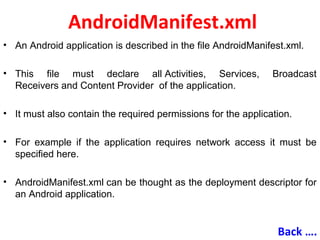
• An Android application is described in the file AndroidManifest.xml.
• This file must declare all Activities, Services, Broadcast
Receivers and Content Provider of the application.
• It must also contain the required permissions for the application.
• For example if the application requires network access it must be
specified here.
• AndroidManifest.xml can be thought as the deployment descriptor for
an Android application.
Back ….
Continue …
Back ….
Continue ...
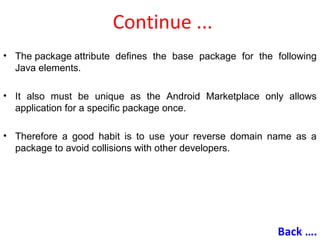
• The package attribute defines the base package for the following
Java elements.
• It also must be unique as the Android Marketplace only allows
application for a specific package once.
• Therefore a good habit is to use your reverse domain name as a
package to avoid collisions with other developers.
Back ….
Continue …
• android:versionName and android:versionCode specify the
version of your application.
• versionNameis what the user sees and can be any string.
• versionCode must be an integer and the Android Market uses
this to determine if you provided a newer version to trigger the
update on devices which have your application installed.
• You typically start with "1" and increase this value by one if you
roll-out a new version of your application.
Back ….
Continue …
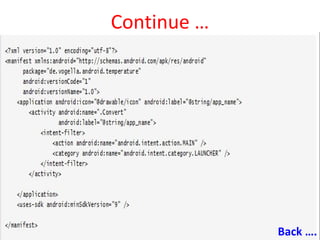
• The tag <activity> defines an Activity, in this example pointing to the
class "de.vogella.android.temperature.Convert".
• An intent filter is registered for this class which defines that
thisActivity is started once the application starts
(action android:name="android.intent.action.MAIN").
• The category definition category
android:name="android.intent.category.LAUNCHER" defines that this
application is added to the application directory on the Android
device.
Back ….
Continue …
• The @string/app_name value refer to resource files which contain the
actual values.
• This makes it easy to provide different resources, e.g. strings, colors,
icons, for different devices and makes it easy to translate
applications.
• The "uses-sdk" part of the "AndroidManifest.xml" defines the minimal
SDK version your application is valid for.
• This will prevent your application being installed on devices with older
SDK versions.
Back ….
Resources
• The directory gen in an Android project contains generated
values.
• R.java is a generated class which contains references to
resources of the res folder in the project.
• These resources are defined in the res directory and can be
values, menus, layouts, icons or pictures or animations.
• For example a resource can be an image or an XML file which
defines strings.
Back ….
R.java, Resources and Assets
Continue …
• If you create a new resource, the corresponding reference is
automatically created in R.java.
• The references are static int values, the Android system provides
methods to access the corresponding resource.
• For example to access a String with the reference
id R.string.yourString use the methodgetString (R.string.yourString));.
• R.java is automatically maintained by the Eclipse development
environment, manual changes are not necessary.
Back ….
Continue …
• While the directory res contains structured values which are known to
the Android platform the directory assetscan be used to store any
kind of data.
• In Java you can access this data via the AssetsManager and the
methodgetAssets().
Back ….
Reference to resources in XML files
• In your XML files, e.g. your layout files you can refer to other
resources via the @ sign.
• For example if you want to refer to a color you defined as resources
you can refer to it via @color/your_id or
• if you have defined a "hello" string as resource you can access it
via @string/hello .
Back ….
Activities and Layouts
• The user interface for Activities is defined via layouts. At
runtime,layouts are instances of android.view.ViewGroups.
• The layout defines the UI elements, their properties and their
arrangement.
• UI elements are based on the class android.view.View .
• ViewGroup is a subclass of the class View and a layout can contain
UI components ( Views ) or other layouts ( ViewGroups ).
Back ….
Continue …
• You should not nestleViewGroups too deeply as this has a negative
impact on performance.
• A layout can be defined via Java code or via XML.
• You typically uses Java code to generate the layout if you don't know
the content until runtime;
• for example if your layout depends on content which you read from
the Internet.
Back ….
Continue …
• XML based layouts are defined via a resource file in the
folder /res/layout .
• This file specifies theViewGroups , Views , their relationship and their
attributes for a specific layout.
• If a UI element needs to be accessed via Java code you have to give
the UI element an unique id via the android:id attribute.
• To assign a new id to an UI element use @+id/yourvalue.
Back ….
Continue …
• By conversion this will create and assign a new id yourvalueto the
corresponding UI element.
• In your Java code you can later access these UI elements via the
methodfindViewById (R.id.yourvalue) .
• Defining layouts via XML is usually the preferred way as this
separates the programming logic from the layout definition.
• It also allows the definition of different layouts for different devices.
• You can also mix both approaches.
Back ….
Activities and Lifecycle
• The operating system controls the life cycle of your application.
• At any time the Android system may stop or destroy your application,
• e.g. because of an incoming call.
• The Android system defines a life cycle for activities via pre-defined
methods.
Back ….
Continue …
• The most important methods are:
• onSaveInstanceState() - called if the activity is stopped. Used to save
data so that the activity can restore its states if re-started
• onPause() - always called if the Activity ends, can be used to release
resource or save data
• onResume() - called if the Activity is re-started, can be used to
initialize fields
Back ….
Continue …
• The activity will also be restarted if a so called "configuration change"
happens.
• A configuration change for example happens if the user changes the
orientation of the device (vertical or horizontal).
• The activity is in this case restarted to enable the Android platform to
load different resources for these configuration,
• e.g. layouts for vertical or horizontal mode. In the emulator you can
simulate the change of the orientation via CNTR+F11.
Back ….
Continue …
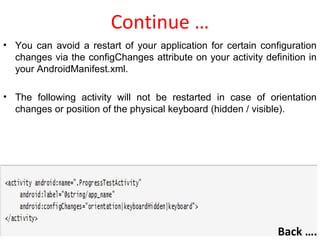
• You can avoid a restart of your application for certain configuration
changes via the configChanges attribute on your activity definition in
your AndroidManifest.xml.
• The following activity will not be restarted in case of orientation
changes or position of the physical keyboard (hidden / visible).
Back ….
Context
• The class android.content.Context provides the connections to the
Android system.
• It is the interface to global information about the application
environment.
• Context also provides access to Android Services,
• e.g. theLocation Service.
• As Activities and Services extend the class Context you can directly
access the context viathis.
Back ….

Android Training Ahmedabad , Android Course Ahmedabad, Android architecture

  • 1.
    Android Application Architecture By: NicheTech info@nichetechsolutions.com © NicheTech Com. Sol. Pvt. Ltd.
  • 2.
    Content • 2. AndroidApplication Architecture – 2.1. AndroidManifest.xml – 2.2. R.java, Resources and Assets – 2.3. Reference to resources in XML files – 2.4. Activities and Layouts – 2.5. Activities and Lifecycle – 2.6. Context
  • 3.
    AndroidManifest.xml • An Androidapplication is described in the file AndroidManifest.xml. • This file must declare all Activities, Services, Broadcast Receivers and Content Provider of the application. • It must also contain the required permissions for the application. • For example if the application requires network access it must be specified here. • AndroidManifest.xml can be thought as the deployment descriptor for an Android application. Back ….
  • 4.
  • 5.
    Continue ... • Thepackage attribute defines the base package for the following Java elements. • It also must be unique as the Android Marketplace only allows application for a specific package once. • Therefore a good habit is to use your reverse domain name as a package to avoid collisions with other developers. Back ….
  • 6.
    Continue … • android:versionNameand android:versionCode specify the version of your application. • versionNameis what the user sees and can be any string. • versionCode must be an integer and the Android Market uses this to determine if you provided a newer version to trigger the update on devices which have your application installed. • You typically start with "1" and increase this value by one if you roll-out a new version of your application. Back ….
  • 7.
    Continue … • Thetag <activity> defines an Activity, in this example pointing to the class "de.vogella.android.temperature.Convert". • An intent filter is registered for this class which defines that thisActivity is started once the application starts (action android:name="android.intent.action.MAIN"). • The category definition category android:name="android.intent.category.LAUNCHER" defines that this application is added to the application directory on the Android device. Back ….
  • 8.
    Continue … • The@string/app_name value refer to resource files which contain the actual values. • This makes it easy to provide different resources, e.g. strings, colors, icons, for different devices and makes it easy to translate applications. • The "uses-sdk" part of the "AndroidManifest.xml" defines the minimal SDK version your application is valid for. • This will prevent your application being installed on devices with older SDK versions. Back ….
  • 9.
    Resources • The directorygen in an Android project contains generated values. • R.java is a generated class which contains references to resources of the res folder in the project. • These resources are defined in the res directory and can be values, menus, layouts, icons or pictures or animations. • For example a resource can be an image or an XML file which defines strings. Back …. R.java, Resources and Assets
  • 10.
    Continue … • Ifyou create a new resource, the corresponding reference is automatically created in R.java. • The references are static int values, the Android system provides methods to access the corresponding resource. • For example to access a String with the reference id R.string.yourString use the methodgetString (R.string.yourString));. • R.java is automatically maintained by the Eclipse development environment, manual changes are not necessary. Back ….
  • 11.
    Continue … • Whilethe directory res contains structured values which are known to the Android platform the directory assetscan be used to store any kind of data. • In Java you can access this data via the AssetsManager and the methodgetAssets(). Back ….
  • 12.
    Reference to resourcesin XML files • In your XML files, e.g. your layout files you can refer to other resources via the @ sign. • For example if you want to refer to a color you defined as resources you can refer to it via @color/your_id or • if you have defined a "hello" string as resource you can access it via @string/hello . Back ….
  • 13.
    Activities and Layouts •The user interface for Activities is defined via layouts. At runtime,layouts are instances of android.view.ViewGroups. • The layout defines the UI elements, their properties and their arrangement. • UI elements are based on the class android.view.View . • ViewGroup is a subclass of the class View and a layout can contain UI components ( Views ) or other layouts ( ViewGroups ). Back ….
  • 14.
    Continue … • Youshould not nestleViewGroups too deeply as this has a negative impact on performance. • A layout can be defined via Java code or via XML. • You typically uses Java code to generate the layout if you don't know the content until runtime; • for example if your layout depends on content which you read from the Internet. Back ….
  • 15.
    Continue … • XMLbased layouts are defined via a resource file in the folder /res/layout . • This file specifies theViewGroups , Views , their relationship and their attributes for a specific layout. • If a UI element needs to be accessed via Java code you have to give the UI element an unique id via the android:id attribute. • To assign a new id to an UI element use @+id/yourvalue. Back ….
  • 16.
    Continue … • Byconversion this will create and assign a new id yourvalueto the corresponding UI element. • In your Java code you can later access these UI elements via the methodfindViewById (R.id.yourvalue) . • Defining layouts via XML is usually the preferred way as this separates the programming logic from the layout definition. • It also allows the definition of different layouts for different devices. • You can also mix both approaches. Back ….
  • 17.
    Activities and Lifecycle •The operating system controls the life cycle of your application. • At any time the Android system may stop or destroy your application, • e.g. because of an incoming call. • The Android system defines a life cycle for activities via pre-defined methods. Back ….
  • 18.
    Continue … • Themost important methods are: • onSaveInstanceState() - called if the activity is stopped. Used to save data so that the activity can restore its states if re-started • onPause() - always called if the Activity ends, can be used to release resource or save data • onResume() - called if the Activity is re-started, can be used to initialize fields Back ….
  • 19.
    Continue … • Theactivity will also be restarted if a so called "configuration change" happens. • A configuration change for example happens if the user changes the orientation of the device (vertical or horizontal). • The activity is in this case restarted to enable the Android platform to load different resources for these configuration, • e.g. layouts for vertical or horizontal mode. In the emulator you can simulate the change of the orientation via CNTR+F11. Back ….
  • 20.
    Continue … • Youcan avoid a restart of your application for certain configuration changes via the configChanges attribute on your activity definition in your AndroidManifest.xml. • The following activity will not be restarted in case of orientation changes or position of the physical keyboard (hidden / visible). Back ….
  • 21.
    Context • The classandroid.content.Context provides the connections to the Android system. • It is the interface to global information about the application environment. • Context also provides access to Android Services, • e.g. theLocation Service. • As Activities and Services extend the class Context you can directly access the context viathis. Back ….