Introduction to

Application Development

         Surendra Bajracharya
                Feb 4th, 2013
Android Development
                      Agenda

• What is Android?
• Installation (Eclipse)
• Android Application Fundamentals
• Hello World/Android Demo using Eclipse
• Demo using IntelliJ (Login UI)
• Google Maps application demo
• Comments/Feedback
Android Development
                  What is Android?
• Android is an open source operating system, created
by Google specifically for use on mobile devices (cell
phones and tablets)

• Linux based (2.6 kernel)

• Can be programmed in C/C++ but most app
development is done in Java (Java access to C Libraries
via JNI (Java Native Interface))
Android Development
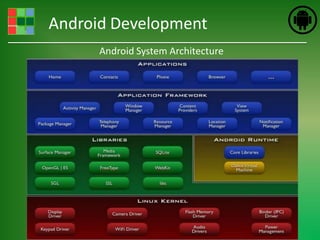
      Android System Architecture
Android Development
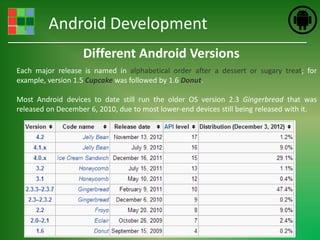
                   Different Android Versions
Each major release is named in alphabetical order after a dessert or sugary treat; for
example, version 1.5 Cupcake was followed by 1.6 Donut.

Most Android devices to date still run the older OS version 2.3 Gingerbread that was
released on December 6, 2010, due to most lower-end devices still being released with it.
Android Development
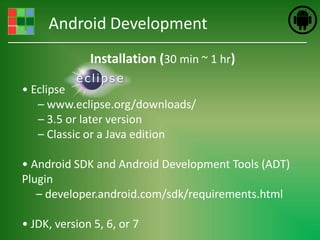
              Installation (30 min ~ 1 hr)

• Eclipse
   – www.eclipse.org/downloads/
   – 3.5 or later version
   – Classic or a Java edition

• Android SDK and Android Development Tools (ADT)
Plugin
   – developer.android.com/sdk/requirements.html

• JDK, version 5, 6, or 7
Android Development
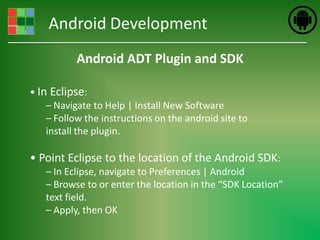
           Android ADT Plugin and SDK

• In Eclipse:
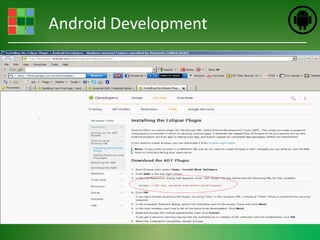
    – Navigate to Help | Install New Software
    – Follow the instructions on the android site to
    install the plugin.

• Point Eclipse to the location of the Android SDK:
   – In Eclipse, navigate to Preferences | Android
   – Browse to or enter the location in the “SDK Location”
   text field.
   – Apply, then OK
Android Development
Android Development
                 Install packages

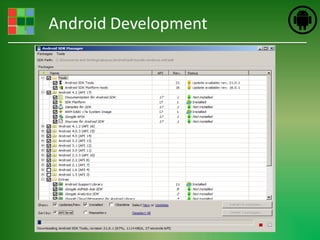
•In Eclipse, navigate to Window | Android SDK
 Manager

• Install packages from the list
    – At least 2.2 and 2.3 for current phone
    development
    – One tablet package.
Android Development
Android Development

                 IntelliJ IDEA (another IDE)
•IntelliJ IDEA 12 offers advanced support for development Android
applications with the latest Android 4.2 SDK.
•Code Assistance
•Refactorings
•Deploy, run and debug Android applications either in emulator or on
a real device.
•UI Designer: With IntelliJ IDEA you can build rich UI for your Android
applications easily by drag and drop. The designer provides support
for layouts, custom components, device profiles, refactorings,
morphing and quick-fixes.
Android Development
         Android Application Fundamentals

•Android Applications are Collections of reusable
components.

•An Android App may have multiple entry points, and may
use components from other applications.

•In Android, the flow of user interaction across one or
more applications is called a “Task.”
Android Development
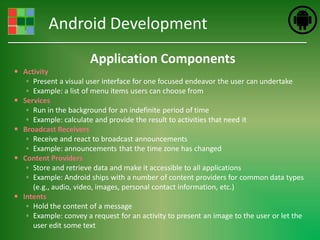
                       Application Components
 Activity
   ◦ Present a visual user interface for one focused endeavor the user can undertake
   ◦ Example: a list of menu items users can choose from
 Services
   ◦ Run in the background for an indefinite period of time
   ◦ Example: calculate and provide the result to activities that need it
 Broadcast Receivers
   ◦ Receive and react to broadcast announcements
   ◦ Example: announcements that the time zone has changed
 Content Providers
   ◦ Store and retrieve data and make it accessible to all applications
   ◦ Example: Android ships with a number of content providers for common data types
     (e.g., audio, video, images, personal contact information, etc.)
 Intents
   ◦ Hold the content of a message
   ◦ Example: convey a request for an activity to present an image to the user or let the
     user edit some text
Android Development

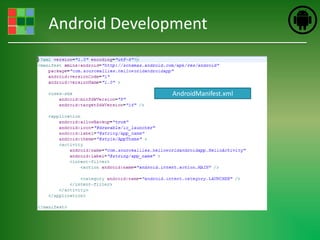
                     AndroidManifest.xml
•An application's contents are described in the AndroidManifest.xml
file.

•All Activities, Services, Content Providers, and Broadcast Receivers in
an app must have an entry in this file.

•Activities register the Intents they respond to using “Intent Filters”.

•Security permissions, version info, and the minimum sdk version are
also registered in AndroidManifest.xml.
Android Development

                             Resources
• An application's resources are described in .xml files in the /res
path

• Include UI layouts, drawables, values (such as strings and styles),
and even raw .xml files and other data.

• Resources are accessed using Context.getResources() and the
R class
    – The R class is defined in R.java, which is generated for each
    application.
    – Each resource is assigned a public static final int id (compile –
    time constant) in the R class.
Android Development

                             Activities
• An Activity is a unit of user interaction within an android
application.

• Activities are represented by the Activity class
    – All android apps subclass Activity
    – Activities have methods that can be overridden to detect stages
    in the activity lifecycle.
Android Development

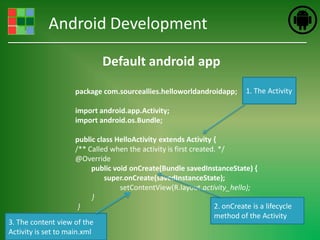
                              Default android app
                     package com.sourceallies.helloworldandroidapp;          1. The Activity

                     import android.app.Activity;
                     import android.os.Bundle;

                      public class HelloActivity extends Activity {
                      /** Called when the activity is first created. */
                      @Override
                           public void onCreate(Bundle savedInstanceState) {
                               super.onCreate(savedInstanceState);
                                    setContentView(R.layout.activity_hello);
                            }
                       }                                           2. onCreate is a lifecycle
                                                                   method of the Activity
3. The content view of the
Activity is set to main.xml
Android Development
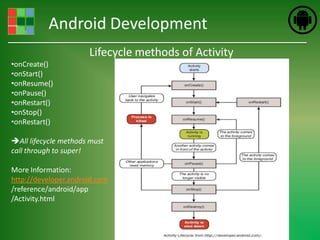
                      Lifecycle methods of Activity
•onCreate()
•onStart()
•onResume()
•onPause()
•onRestart()
•onStop()
•onRestart()

All lifecycle methods must
call through to super!

More Information:
http://developer.android.com
/reference/android/app
/Activity.html
Android Development

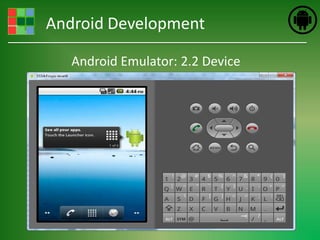
   Android Emulator: 2.2 Device
Android Development
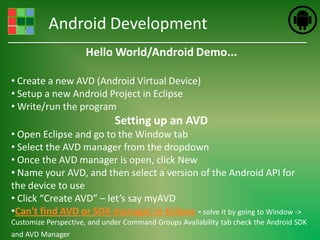
                     Hello World/Android Demo...

• Create a new AVD (Android Virtual Device)
• Setup a new Android Project in Eclipse
• Write/run the program
                              Setting up an AVD
• Open Eclipse and go to the Window tab
• Select the AVD manager from the dropdown
• Once the AVD manager is open, click New
• Name your AVD, and then select a version of the Android API for
the device to use
• Click “Create AVD” – let’s say myAVD
•Can't find AVD or SDK manager in Eclipse - solve it by going to Window ->
Customize Perspective, and under Command Groups Availability tab check the Android SDK
and AVD Manager
Android Development
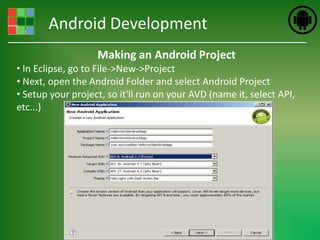
                   Making an Android Project
• In Eclipse, go to File->New->Project
• Next, open the Android Folder and select Android Project
• Setup your project, so it'll run on your AVD (name it, select API,
etc...)
Android Development
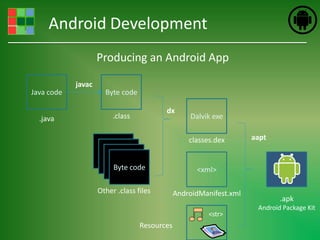
                    Producing an Android App

            javac
Java code             Byte code

                                         dx
  .java                  .class                   Dalvik exe

                                                  classes.dex       aapt


                         Byte code                  <xml>

                    Other .class files        AndroidManifest.xml
                                                                            .apk
                                                                     Android Package Kit
                                                        <str>
                                  Resources
Android Development
Android Development
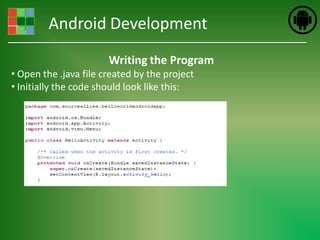
                       Writing the Program
• Open the .java file created by the project
• Initially the code should look like this:
Android Development
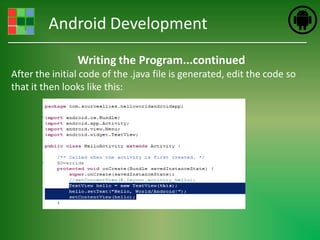
                Writing the Program...continued
After the initial code of the .java file is generated, edit the code so
that it then looks like this:
Android Development
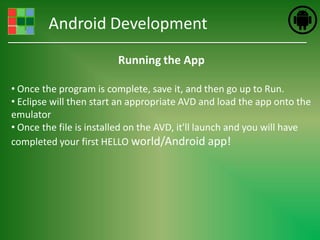
                         Running the App

• Once the program is complete, save it, and then go up to Run.
• Eclipse will then start an appropriate AVD and load the app onto the
emulator
• Once the file is installed on the AVD, it'll launch and you will have
completed your first HELLO world/Android app!
Android Development
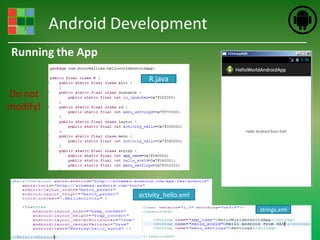
Running the App

                       R.java
Do not
modify!


                    activity_hello.xml

                                         strings.xml
Android Development


              AndroidManifest.xml
Android Development
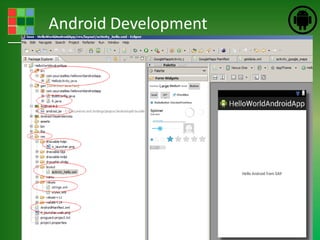
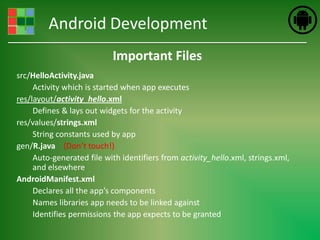
                           Important Files
src/HelloActivity.java
     Activity which is started when app executes
res/layout/activity_hello.xml
     Defines & lays out widgets for the activity
res/values/strings.xml
     String constants used by app
gen/R.java (Don’t touch!)
     Auto-generated file with identifiers from activity_hello.xml, strings.xml,
     and elsewhere
AndroidManifest.xml
     Declares all the app’s components
     Names libraries app needs to be linked against
     Identifies permissions the app expects to be granted
Android Development
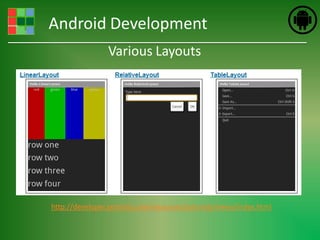
                Various Layouts


http://developer.android.com/resources/tutorials/views/index.html
Android Development
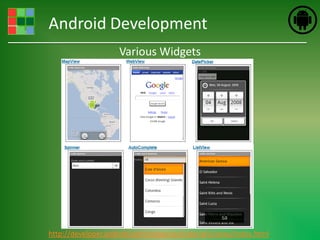
                    Various Widgets


http://developer.android.com/resources/tutorials/views/index.html
Android Development
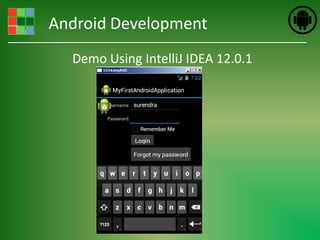
  Demo Using IntelliJ IDEA 12.0.1
Android Development
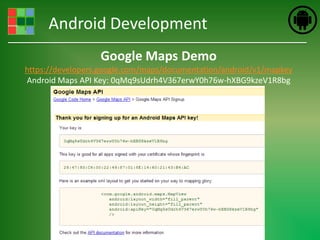
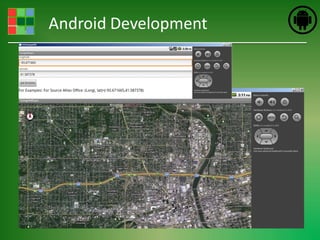
                  Google Maps Demo
https://developers.google.com/maps/documentation/android/v1/mapkey
Android Maps API Key: 0qMq9sUdrh4V367erwY0h76w-hXBG9kzeV1R8bg
Android Development
Android Development


          THANKS!!!
          Comments/Feedback
     sbajracharya@sourceallies.com

Android application development

  • 1.
    Introduction to Application Development Surendra Bajracharya Feb 4th, 2013
  • 2.
    Android Development Agenda • What is Android? • Installation (Eclipse) • Android Application Fundamentals • Hello World/Android Demo using Eclipse • Demo using IntelliJ (Login UI) • Google Maps application demo • Comments/Feedback
  • 3.
    Android Development What is Android? • Android is an open source operating system, created by Google specifically for use on mobile devices (cell phones and tablets) • Linux based (2.6 kernel) • Can be programmed in C/C++ but most app development is done in Java (Java access to C Libraries via JNI (Java Native Interface))
  • 4.
    Android Development Android System Architecture
  • 5.
    Android Development Different Android Versions Each major release is named in alphabetical order after a dessert or sugary treat; for example, version 1.5 Cupcake was followed by 1.6 Donut. Most Android devices to date still run the older OS version 2.3 Gingerbread that was released on December 6, 2010, due to most lower-end devices still being released with it.
  • 6.
    Android Development Installation (30 min ~ 1 hr) • Eclipse – www.eclipse.org/downloads/ – 3.5 or later version – Classic or a Java edition • Android SDK and Android Development Tools (ADT) Plugin – developer.android.com/sdk/requirements.html • JDK, version 5, 6, or 7
  • 7.
    Android Development Android ADT Plugin and SDK • In Eclipse: – Navigate to Help | Install New Software – Follow the instructions on the android site to install the plugin. • Point Eclipse to the location of the Android SDK: – In Eclipse, navigate to Preferences | Android – Browse to or enter the location in the “SDK Location” text field. – Apply, then OK
  • 8.
  • 9.
    Android Development Install packages •In Eclipse, navigate to Window | Android SDK Manager • Install packages from the list – At least 2.2 and 2.3 for current phone development – One tablet package.
  • 10.
  • 11.
    Android Development IntelliJ IDEA (another IDE) •IntelliJ IDEA 12 offers advanced support for development Android applications with the latest Android 4.2 SDK. •Code Assistance •Refactorings •Deploy, run and debug Android applications either in emulator or on a real device. •UI Designer: With IntelliJ IDEA you can build rich UI for your Android applications easily by drag and drop. The designer provides support for layouts, custom components, device profiles, refactorings, morphing and quick-fixes.
  • 12.
    Android Development Android Application Fundamentals •Android Applications are Collections of reusable components. •An Android App may have multiple entry points, and may use components from other applications. •In Android, the flow of user interaction across one or more applications is called a “Task.”
  • 13.
    Android Development Application Components  Activity ◦ Present a visual user interface for one focused endeavor the user can undertake ◦ Example: a list of menu items users can choose from  Services ◦ Run in the background for an indefinite period of time ◦ Example: calculate and provide the result to activities that need it  Broadcast Receivers ◦ Receive and react to broadcast announcements ◦ Example: announcements that the time zone has changed  Content Providers ◦ Store and retrieve data and make it accessible to all applications ◦ Example: Android ships with a number of content providers for common data types (e.g., audio, video, images, personal contact information, etc.)  Intents ◦ Hold the content of a message ◦ Example: convey a request for an activity to present an image to the user or let the user edit some text
  • 14.
    Android Development AndroidManifest.xml •An application's contents are described in the AndroidManifest.xml file. •All Activities, Services, Content Providers, and Broadcast Receivers in an app must have an entry in this file. •Activities register the Intents they respond to using “Intent Filters”. •Security permissions, version info, and the minimum sdk version are also registered in AndroidManifest.xml.
  • 15.
    Android Development Resources • An application's resources are described in .xml files in the /res path • Include UI layouts, drawables, values (such as strings and styles), and even raw .xml files and other data. • Resources are accessed using Context.getResources() and the R class – The R class is defined in R.java, which is generated for each application. – Each resource is assigned a public static final int id (compile – time constant) in the R class.
  • 16.
    Android Development Activities • An Activity is a unit of user interaction within an android application. • Activities are represented by the Activity class – All android apps subclass Activity – Activities have methods that can be overridden to detect stages in the activity lifecycle.
  • 17.
    Android Development Default android app package com.sourceallies.helloworldandroidapp; 1. The Activity import android.app.Activity; import android.os.Bundle; public class HelloActivity extends Activity { /** Called when the activity is first created. */ @Override public void onCreate(Bundle savedInstanceState) { super.onCreate(savedInstanceState); setContentView(R.layout.activity_hello); } } 2. onCreate is a lifecycle method of the Activity 3. The content view of the Activity is set to main.xml
  • 18.
    Android Development Lifecycle methods of Activity •onCreate() •onStart() •onResume() •onPause() •onRestart() •onStop() •onRestart() All lifecycle methods must call through to super! More Information: http://developer.android.com /reference/android/app /Activity.html
  • 19.
    Android Development Android Emulator: 2.2 Device
  • 20.
    Android Development Hello World/Android Demo... • Create a new AVD (Android Virtual Device) • Setup a new Android Project in Eclipse • Write/run the program Setting up an AVD • Open Eclipse and go to the Window tab • Select the AVD manager from the dropdown • Once the AVD manager is open, click New • Name your AVD, and then select a version of the Android API for the device to use • Click “Create AVD” – let’s say myAVD •Can't find AVD or SDK manager in Eclipse - solve it by going to Window -> Customize Perspective, and under Command Groups Availability tab check the Android SDK and AVD Manager
  • 21.
    Android Development Making an Android Project • In Eclipse, go to File->New->Project • Next, open the Android Folder and select Android Project • Setup your project, so it'll run on your AVD (name it, select API, etc...)
  • 22.
    Android Development Producing an Android App javac Java code Byte code dx .java .class Dalvik exe classes.dex aapt Byte code <xml> Other .class files AndroidManifest.xml .apk Android Package Kit <str> Resources
  • 23.
  • 24.
    Android Development Writing the Program • Open the .java file created by the project • Initially the code should look like this:
  • 25.
    Android Development Writing the Program...continued After the initial code of the .java file is generated, edit the code so that it then looks like this:
  • 26.
    Android Development Running the App • Once the program is complete, save it, and then go up to Run. • Eclipse will then start an appropriate AVD and load the app onto the emulator • Once the file is installed on the AVD, it'll launch and you will have completed your first HELLO world/Android app!
  • 27.
    Android Development Running theApp R.java Do not modify! activity_hello.xml strings.xml
  • 28.
    Android Development AndroidManifest.xml
  • 29.
    Android Development Important Files src/HelloActivity.java Activity which is started when app executes res/layout/activity_hello.xml Defines & lays out widgets for the activity res/values/strings.xml String constants used by app gen/R.java (Don’t touch!) Auto-generated file with identifiers from activity_hello.xml, strings.xml, and elsewhere AndroidManifest.xml Declares all the app’s components Names libraries app needs to be linked against Identifies permissions the app expects to be granted
  • 30.
    Android Development Various Layouts http://developer.android.com/resources/tutorials/views/index.html
  • 31.
    Android Development Various Widgets http://developer.android.com/resources/tutorials/views/index.html
  • 32.
    Android Development Demo Using IntelliJ IDEA 12.0.1
  • 33.
    Android Development Google Maps Demo https://developers.google.com/maps/documentation/android/v1/mapkey Android Maps API Key: 0qMq9sUdrh4V367erwY0h76w-hXBG9kzeV1R8bg
  • 34.
  • 35.
    Android Development THANKS!!! Comments/Feedback sbajracharya@sourceallies.com