App Widgets
Topics
• What is an App Widget?
• App Widget framework
• Steps for creating an App Widget
• Creating App Widget configuration Activity
What is App Widget?
What is App Widget?
• App Widgets are
miniature application
views that can be
embedded in other
applications (such as
the Home screen) and
receive periodic
updates.
Widdget
Usage Examples of App Widgets
• People can drop widgets onto their home
screen and interact with
• Widgets can provide a quick glimpse into full-
featured apps, such as showing upcoming
calendar events, or viewing details about a
song playing in the background.
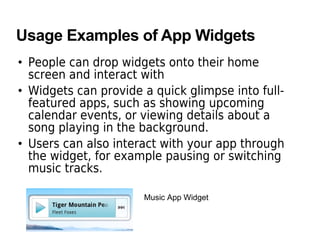
• Users can also interact with your app through
the widget, for example pausing or switching
music tracks.
Music App Widget
AppWidget Framework
Things that make up an App Widget
• AppWidgetProviderInfo object
> Describes the metadata for an App Widget, such as
the App Widget's layout, update frequency, and the
AppWidgetProvider class.
> This should be defined in XML.
• AppWidgetProvider class
> Defines the basic methods that allow you to
programmatically interface with the App Widget,
based on broadcast events. (AppWidgetProvider
class is a child class of BroadcastReceiver class.)
> Through it, you will receive broadcasts when the App
Widget is updated, enabled, disabled and deleted.
Things that make up an App Widget
• View layout
> Defines the initial layout for the App Widget, defined
in XML.
• Additionally, you can implement an App Widget
configuration Activity.
> This is an optional Activity that launches when the
user adds your App Widget and allows him or her to
modify App Widget settings at create-time.
Steps for Building
an
App Widget
Steps for Building an App Widget
1.Declare an AppWidgetProvider in the Manifest
file
2.Create the AppWidgetProviderInfo Metadata
XML file
3.Create the App Widget Layout XML file
4.Write the AppWidgetProvider Class
1. Declare AppWidgetProvider in Manifest
• The <receiver> element requires the android:name
attribute, which specifies the AppWidgetProvider
• The <intent-filter> element must include an <action>
element with the android:name attribute. This attribute
specifies that the AppWidgetProvider accepts the
ACTION_APPWIDGET_UPDATE broadcast.
• The <meta-data> element specifies the location of the
AppWidgetProviderInfo meta-data resource file
<receiver android:name="ExampleAppWidgetProvider" >
<intent-filter>
<action android:name="android.appwidget.action.APPWIDGET_UPDATE" />
</intent-filter>
<meta-data android:name="android.appwidget.provider"
android:resource="@xml/example_appwidget_info" />
</receiver>
2. Create AppWidgetProviderInfo Metadata
• Define the AppWidgetProviderInfo object in an XML
resource using a single <appwidget-provider> element
and save it in the project's res/xml/ folder.
> This file is referenced from the manifest file
• Defines the essential qualities of an App Widget, such
as its minimum layout dimensions, its initial layout
resource, how often to update the App Widget, and
(optionally) a configuration Activity to launch at create-
time.
<appwidget-provider
xmlns:android="http://schemas.android.com/apk/res/android"
android:minWidth="294dp"
android:minHeight="72dp"
android:updatePeriodMillis="86400000"
android:initialLayout="@layout/example_appwidget"
android:configure="com.example.android.ExampleAppWidgetConfigure" >
</appwidget-provider>
3. Create App Widget Layout
• App Widget layouts are based on RemoteViews,
which do not support every kind of layout or
view widget.
• A RemoteViews object (and, consequently, an
App Widget) can support the following layouts
and Widget classes
> FrameLayout, LinearLayout, RelativeLayoyt
> AnalogClock, Button, Chronometer, ImageButton,
ImageView, ProgressBar, TextView
4. Write AppWidgetProvider Class
• The AppWidgetProvider class extends
BroadcastReceiver as a convenience class to
handle the App Widget broadcasts
• Methods to override
> onUpdate(Context, AppWidgetManager, int[]) - called
when each App Widget is added to a host (unless you
use a configuration Activity), Typically the only
method that needs to be present
> onDeleted(Context, int[])
> onEnabled(Context)
> onDisabled(Context)
> onReceive(Context, Intent)
Example AppWidgetProvider
public class ExampleAppWidgetProvider extends AppWidgetProvider {
public void onUpdate(Context context, AppWidgetManager appWidgetManager,
int[] appWidgetIds) {
final int N = appWidgetIds.length;
// Perform this loop procedure for each App Widget that belongs to this provider
for (int i=0; i<N; i++) {
int appWidgetId = appWidgetIds[i];
// Create an Intent to launch ExampleActivity
Intent intent = new Intent(context, ExampleActivity.class);
PendingIntent pendingIntent = PendingIntent.getActivity(context, 0, intent, 0);
// Get the layout for the App Widget and attach an on-click listener to the button
RemoteViews views = new RemoteViews(context.getPackageName(),
R.layout.appwidget_provider_layout);
views.setOnClickPendingIntent(R.id.button, pendingIntent);
// Tell the AppWidgetManager to perform an update on the current App Widget
appWidgetManager.updateAppWidget(appWidgetId, views);
}
}
}
Create App Widget Configuration
Why App Widget Configuration Activity?
• If you would like the user to configure settings
when he or she adds a new App Widget, you
can create an App Widget configuration
Activity.
• This Activity will be automatically launched by
the App Widget host and allows the user to
configure available settings for the App Widget
at create-time, such as the App Widget color,
size, update period or other functionality
settings.
Declare it in Manifest File
• The configuration Activity should be declared as a normal
Activity in the Android manifest file.
• However, it will be launched by the App Widget host with
the ACTION_APPWIDGET_CONFIGURE action, so the Activity
needs to accept this Intent
<activity android:name=".ExampleAppWidgetConfigure">
<intent-filter>
<action
android:name="android.appwidget.action.APPWIDGET_CONFIGURE" />
</intent-filter>
</activity>
Declare it in Metadata Config file
• Also, the Activity must be declared in the
AppWidgetProviderInfo XML file, with the android:configure
attribute
<appwidget-provider
xmlns:android="http://schemas.android.com/apk/res/android"
...
android:configure="com.example.android.ExampleAppWidgetConfigure"
... >
</appwidget-provider>
Thank you

Android appwidget

  • 1.
  • 2.
    Topics • What isan App Widget? • App Widget framework • Steps for creating an App Widget • Creating App Widget configuration Activity
  • 3.
    What is AppWidget?
  • 4.
    What is AppWidget? • App Widgets are miniature application views that can be embedded in other applications (such as the Home screen) and receive periodic updates. Widdget
  • 5.
    Usage Examples ofApp Widgets • People can drop widgets onto their home screen and interact with • Widgets can provide a quick glimpse into full- featured apps, such as showing upcoming calendar events, or viewing details about a song playing in the background. • Users can also interact with your app through the widget, for example pausing or switching music tracks. Music App Widget
  • 6.
  • 7.
    Things that makeup an App Widget • AppWidgetProviderInfo object > Describes the metadata for an App Widget, such as the App Widget's layout, update frequency, and the AppWidgetProvider class. > This should be defined in XML. • AppWidgetProvider class > Defines the basic methods that allow you to programmatically interface with the App Widget, based on broadcast events. (AppWidgetProvider class is a child class of BroadcastReceiver class.) > Through it, you will receive broadcasts when the App Widget is updated, enabled, disabled and deleted.
  • 8.
    Things that makeup an App Widget • View layout > Defines the initial layout for the App Widget, defined in XML. • Additionally, you can implement an App Widget configuration Activity. > This is an optional Activity that launches when the user adds your App Widget and allows him or her to modify App Widget settings at create-time.
  • 9.
  • 10.
    Steps for Buildingan App Widget 1.Declare an AppWidgetProvider in the Manifest file 2.Create the AppWidgetProviderInfo Metadata XML file 3.Create the App Widget Layout XML file 4.Write the AppWidgetProvider Class
  • 11.
    1. Declare AppWidgetProviderin Manifest • The <receiver> element requires the android:name attribute, which specifies the AppWidgetProvider • The <intent-filter> element must include an <action> element with the android:name attribute. This attribute specifies that the AppWidgetProvider accepts the ACTION_APPWIDGET_UPDATE broadcast. • The <meta-data> element specifies the location of the AppWidgetProviderInfo meta-data resource file <receiver android:name="ExampleAppWidgetProvider" > <intent-filter> <action android:name="android.appwidget.action.APPWIDGET_UPDATE" /> </intent-filter> <meta-data android:name="android.appwidget.provider" android:resource="@xml/example_appwidget_info" /> </receiver>
  • 12.
    2. Create AppWidgetProviderInfoMetadata • Define the AppWidgetProviderInfo object in an XML resource using a single <appwidget-provider> element and save it in the project's res/xml/ folder. > This file is referenced from the manifest file • Defines the essential qualities of an App Widget, such as its minimum layout dimensions, its initial layout resource, how often to update the App Widget, and (optionally) a configuration Activity to launch at create- time. <appwidget-provider xmlns:android="http://schemas.android.com/apk/res/android" android:minWidth="294dp" android:minHeight="72dp" android:updatePeriodMillis="86400000" android:initialLayout="@layout/example_appwidget" android:configure="com.example.android.ExampleAppWidgetConfigure" > </appwidget-provider>
  • 13.
    3. Create AppWidget Layout • App Widget layouts are based on RemoteViews, which do not support every kind of layout or view widget. • A RemoteViews object (and, consequently, an App Widget) can support the following layouts and Widget classes > FrameLayout, LinearLayout, RelativeLayoyt > AnalogClock, Button, Chronometer, ImageButton, ImageView, ProgressBar, TextView
  • 14.
    4. Write AppWidgetProviderClass • The AppWidgetProvider class extends BroadcastReceiver as a convenience class to handle the App Widget broadcasts • Methods to override > onUpdate(Context, AppWidgetManager, int[]) - called when each App Widget is added to a host (unless you use a configuration Activity), Typically the only method that needs to be present > onDeleted(Context, int[]) > onEnabled(Context) > onDisabled(Context) > onReceive(Context, Intent)
  • 15.
    Example AppWidgetProvider public classExampleAppWidgetProvider extends AppWidgetProvider { public void onUpdate(Context context, AppWidgetManager appWidgetManager, int[] appWidgetIds) { final int N = appWidgetIds.length; // Perform this loop procedure for each App Widget that belongs to this provider for (int i=0; i<N; i++) { int appWidgetId = appWidgetIds[i]; // Create an Intent to launch ExampleActivity Intent intent = new Intent(context, ExampleActivity.class); PendingIntent pendingIntent = PendingIntent.getActivity(context, 0, intent, 0); // Get the layout for the App Widget and attach an on-click listener to the button RemoteViews views = new RemoteViews(context.getPackageName(), R.layout.appwidget_provider_layout); views.setOnClickPendingIntent(R.id.button, pendingIntent); // Tell the AppWidgetManager to perform an update on the current App Widget appWidgetManager.updateAppWidget(appWidgetId, views); } } }
  • 16.
    Create App WidgetConfiguration
  • 17.
    Why App WidgetConfiguration Activity? • If you would like the user to configure settings when he or she adds a new App Widget, you can create an App Widget configuration Activity. • This Activity will be automatically launched by the App Widget host and allows the user to configure available settings for the App Widget at create-time, such as the App Widget color, size, update period or other functionality settings.
  • 18.
    Declare it inManifest File • The configuration Activity should be declared as a normal Activity in the Android manifest file. • However, it will be launched by the App Widget host with the ACTION_APPWIDGET_CONFIGURE action, so the Activity needs to accept this Intent <activity android:name=".ExampleAppWidgetConfigure"> <intent-filter> <action android:name="android.appwidget.action.APPWIDGET_CONFIGURE" /> </intent-filter> </activity>
  • 19.
    Declare it inMetadata Config file • Also, the Activity must be declared in the AppWidgetProviderInfo XML file, with the android:configure attribute <appwidget-provider xmlns:android="http://schemas.android.com/apk/res/android" ... android:configure="com.example.android.ExampleAppWidgetConfigure" ... > </appwidget-provider>
  • 20.