Flutter Widgets
Sameeha moogab
2024
Outline
• What is Flutter
• Flutter Application Project
• Widgets
• The widget tree
• Code in Default Application
• Type of widgets
What is Flutter?
• Flutter is not a language (like JavaScript, for example). Flutter uses
Dart for its language.
• Flutter is Google’s mobile SDK / UI framework that enables
developers to build native apps that run on Android and iOS
devices. Developers write code in a single codebase that works on
both platforms.
• In Dart, you don’t have to develop everything from scratch. There is
a packaging system where developers can develop packages and
publish them. Other people can then use these packages.
Flutter Application Project
• The purpose of this flutter application is to take a
look at the default Flutter application, examine the
project files and how a default Flutter project is
organized.
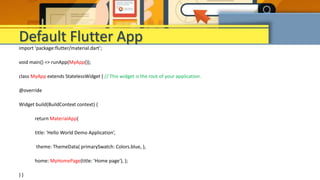
import 'package:flutter/material.dart’;
void main() => runApp(MyApp());
class MyApp extends StatelessWidget { // This widget is the root of your application.
@override
Widget build(BuildContext context) {
return MaterialApp(
title: 'Hello World Demo Application’,
theme: ThemeData( primarySwatch: Colors.blue, ),
home: MyHomePage(title: 'Home page'), );
} }
Default Flutter App
Default Flutter App
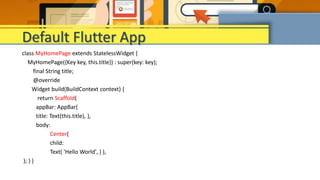
class MyHomePage extends StatelessWidget {
MyHomePage({Key key, this.title}) : super(key: key);
final String title;
@override
Widget build(BuildContext context) {
return Scaffold(
appBar: AppBar(
title: Text(this.title), ),
body:
Center(
child:
Text( 'Hello World', ) ),
); } }
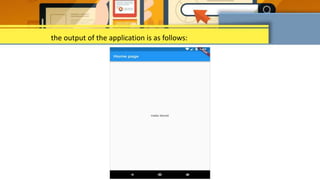
the output of the application is as follows:
Whenever we build a user interface in Flutter, it is composed of
Widgets. Putting your widgets together is called Composition.
Widgets
Widgets are basically user interface components used to
create the user interface of the application.
In Flutter, the application is itself a widget. The application is the top-
level widget and its UI is build using one or more children (widgets),
which again build using its children widgets. This composability
feature helps us to create a user interface of any complexity.
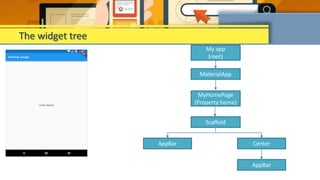
For example, the widget hierarchy of the hello world application
Widgets
My app
(root)
MaterialApp
MyHomePage
(Property:home)
Scaffold
AppBar
The widget tree
Center
AppBar
Code in Default Application
void main() =>
runApp(MyApp());
• Every Dart app must start with a main function as a starting point. In this case the
main function creates an instance of the MyApp object, a StatelessWidget. The
method ‘runApp’ accepts an instance of a widget (in this case an instance of MyApp)
and uses it as the root Widget of the App, rendering it to fit the screen, taking up all
the available space.
 A main function
 MyApp Widget
• The MyApp object is a StatelessWidget. It sets up a Material App that contains a
MyHomePage widget. The MaterialApp widget is a built-in Flutter widget that
serves as the container for your whole app and its Widgets.
Code in Default Application
class MyApp extends StatelessWidget { // This widget is the root of your application.
@override
Widget build(BuildContext context) {
return MaterialApp(
title: 'Hello World Demo Application’,
theme: ThemeData( primarySwatch: Colors.blue, ),
home: MyHomePage(title: 'Home page'), ); } }
 MyHomePage Widget
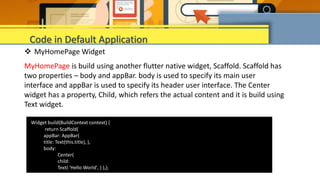
MyHomePage is build using another flutter native widget, Scaffold. Scaffold has
two properties – body and appBar. body is used to specify its main user
interface and appBar is used to specify its header user interface. The Center
widget has a property, Child, which refers the actual content and it is build using
Text widget.
Code in Default Application
Widget build(BuildContext context) {
return Scaffold(
appBar: AppBar(
title: Text(this.title), ),
body:
Center(
child:
Text( 'Hello World', ) ),);
 We can classify the widgets based on ‘state’ that means ‘data contained in the
widget’.
 The rest of the widgets are used to display something, not interact with the
user. That is stateless widgets such as Icon, IconButton, and Text are examples
of stateless widgets. Stateless widgets subclass StatelessWidget.
 A stateful widget is dynamic: for example, it can change its appearance in
response to events triggered by user interactions or when it receives data.
 Checkbox, Radio, Slider, InkWell, Form, and TextField are examples of stateful
widgets. Stateful widgets subclass StatefulWidget.
Type of widgets
Stateful widgets are useful when the part of the user interface you are
describing can change dynamically. User interfaces need to respond to a
variety of things:
The user doing something in the user interface.
Receiving data from another computer.
Time passing.
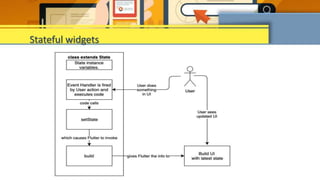
This is what Stateful Widgets are for. They store data (state) in an associated
State class and they can respond when that data (state) changes as the result
of the user doing something.
Stateful widgets
Stateful widgets
We can split the Flutter widget into two categories
 Visible (Output and Input)
 Invisible (Layout and Control)
Type of widgets
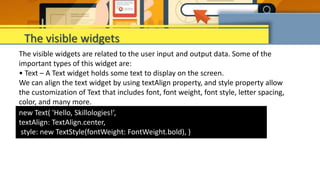
The visible widgets are related to the user input and output data. Some of the
important types of this widget are:
• Text – A Text widget holds some text to display on the screen.
We can align the text widget by using textAlign property, and style property allow
the customization of Text that includes font, font weight, font style, letter spacing,
color, and many more.
The visible widgets
new Text( 'Hello, Skillologies!’,
textAlign: TextAlign.center,
style: new TextStyle(fontWeight: FontWeight.bold), )
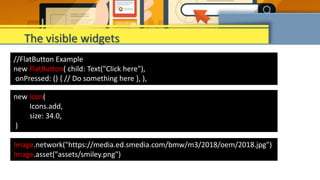
//FlatButton Example
new FlatButton( child: Text("Click here"),
onPressed: () { // Do something here }, ),
new Icon(
Icons.add,
size: 34.0,
)
Image.network("https://media.ed.smedia.com/bmw/m3/2018/oem/2018.jpg")
Image.asset("assets/smiley.png")
The visible widgets
The invisible widgets are related to the layout and control of widgets. It provides
controlling how the widgets actually behave and how they will look onto the screen.
Some of the important types of these widgets are:
• Column
A column widget is a type of widget that arranges all its children's widgets in a
vertical alignment.
Widget build(BuildContext context) {
return Center(
child:
Column(children:
[ Text(make), Text(model), Image.network(imageSrc) ]
));
Invisible Widget
Type of Layout Widgets
Topic to Search

App_development22222222222222222222.pptx

  • 1.
  • 2.
    Outline • What isFlutter • Flutter Application Project • Widgets • The widget tree • Code in Default Application • Type of widgets
  • 3.
    What is Flutter? •Flutter is not a language (like JavaScript, for example). Flutter uses Dart for its language. • Flutter is Google’s mobile SDK / UI framework that enables developers to build native apps that run on Android and iOS devices. Developers write code in a single codebase that works on both platforms. • In Dart, you don’t have to develop everything from scratch. There is a packaging system where developers can develop packages and publish them. Other people can then use these packages.
  • 4.
    Flutter Application Project •The purpose of this flutter application is to take a look at the default Flutter application, examine the project files and how a default Flutter project is organized.
  • 5.
    import 'package:flutter/material.dart’; void main()=> runApp(MyApp()); class MyApp extends StatelessWidget { // This widget is the root of your application. @override Widget build(BuildContext context) { return MaterialApp( title: 'Hello World Demo Application’, theme: ThemeData( primarySwatch: Colors.blue, ), home: MyHomePage(title: 'Home page'), ); } } Default Flutter App
  • 6.
    Default Flutter App classMyHomePage extends StatelessWidget { MyHomePage({Key key, this.title}) : super(key: key); final String title; @override Widget build(BuildContext context) { return Scaffold( appBar: AppBar( title: Text(this.title), ), body: Center( child: Text( 'Hello World', ) ), ); } }
  • 7.
    the output ofthe application is as follows:
  • 8.
    Whenever we builda user interface in Flutter, it is composed of Widgets. Putting your widgets together is called Composition. Widgets Widgets are basically user interface components used to create the user interface of the application.
  • 9.
    In Flutter, theapplication is itself a widget. The application is the top- level widget and its UI is build using one or more children (widgets), which again build using its children widgets. This composability feature helps us to create a user interface of any complexity. For example, the widget hierarchy of the hello world application Widgets
  • 10.
  • 11.
    Code in DefaultApplication void main() => runApp(MyApp()); • Every Dart app must start with a main function as a starting point. In this case the main function creates an instance of the MyApp object, a StatelessWidget. The method ‘runApp’ accepts an instance of a widget (in this case an instance of MyApp) and uses it as the root Widget of the App, rendering it to fit the screen, taking up all the available space.  A main function
  • 12.
     MyApp Widget •The MyApp object is a StatelessWidget. It sets up a Material App that contains a MyHomePage widget. The MaterialApp widget is a built-in Flutter widget that serves as the container for your whole app and its Widgets. Code in Default Application class MyApp extends StatelessWidget { // This widget is the root of your application. @override Widget build(BuildContext context) { return MaterialApp( title: 'Hello World Demo Application’, theme: ThemeData( primarySwatch: Colors.blue, ), home: MyHomePage(title: 'Home page'), ); } }
  • 13.
     MyHomePage Widget MyHomePageis build using another flutter native widget, Scaffold. Scaffold has two properties – body and appBar. body is used to specify its main user interface and appBar is used to specify its header user interface. The Center widget has a property, Child, which refers the actual content and it is build using Text widget. Code in Default Application Widget build(BuildContext context) { return Scaffold( appBar: AppBar( title: Text(this.title), ), body: Center( child: Text( 'Hello World', ) ),);
  • 14.
     We canclassify the widgets based on ‘state’ that means ‘data contained in the widget’.  The rest of the widgets are used to display something, not interact with the user. That is stateless widgets such as Icon, IconButton, and Text are examples of stateless widgets. Stateless widgets subclass StatelessWidget.  A stateful widget is dynamic: for example, it can change its appearance in response to events triggered by user interactions or when it receives data.  Checkbox, Radio, Slider, InkWell, Form, and TextField are examples of stateful widgets. Stateful widgets subclass StatefulWidget. Type of widgets
  • 15.
    Stateful widgets areuseful when the part of the user interface you are describing can change dynamically. User interfaces need to respond to a variety of things: The user doing something in the user interface. Receiving data from another computer. Time passing. This is what Stateful Widgets are for. They store data (state) in an associated State class and they can respond when that data (state) changes as the result of the user doing something. Stateful widgets
  • 16.
  • 17.
    We can splitthe Flutter widget into two categories  Visible (Output and Input)  Invisible (Layout and Control) Type of widgets
  • 18.
    The visible widgetsare related to the user input and output data. Some of the important types of this widget are: • Text – A Text widget holds some text to display on the screen. We can align the text widget by using textAlign property, and style property allow the customization of Text that includes font, font weight, font style, letter spacing, color, and many more. The visible widgets new Text( 'Hello, Skillologies!’, textAlign: TextAlign.center, style: new TextStyle(fontWeight: FontWeight.bold), )
  • 19.
    //FlatButton Example new FlatButton(child: Text("Click here"), onPressed: () { // Do something here }, ), new Icon( Icons.add, size: 34.0, ) Image.network("https://media.ed.smedia.com/bmw/m3/2018/oem/2018.jpg") Image.asset("assets/smiley.png") The visible widgets
  • 20.
    The invisible widgetsare related to the layout and control of widgets. It provides controlling how the widgets actually behave and how they will look onto the screen. Some of the important types of these widgets are: • Column A column widget is a type of widget that arranges all its children's widgets in a vertical alignment. Widget build(BuildContext context) { return Center( child: Column(children: [ Text(make), Text(model), Image.network(imageSrc) ] )); Invisible Widget
  • 21.
    Type of LayoutWidgets Topic to Search