Using Action Bar in Android: A Tutorial
http://eglobiotraining.com/
Prof. Erwin M. Globio, MSIT
Android Development Expert
http://eglobiotraining.com
Introduction to the ActionBar
What is the ActionBar
The ActionBar is located at the top of the activity. It can display
the activity title, icon, actions which can be triggered, additional
views Views other interactive items. It can also be used for
navigation in your application.
Older Android devices have a hardware Option button which
would open a menu at the bottom of the application once
pressed, i.e. the OptionsMenu. The ActionBar is superior to the
OptionsMenu, in that it is clearly visible, while the OptionsMenu
is only shown on request and the user may not recognize that
options are available.
http://eglobiotraining.com
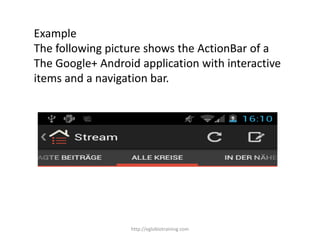
Example
The following picture shows the ActionBar of a
The Google+ Android application with interactive
items and a navigation bar.
http://eglobiotraining.com
Using the ActionBar on older devices
The ActionBar has introduced in Android 3.0. The
ActionBar Sherlock library allows to use the ActionBar
on Android devices as of Android 1.6. You find this
library under the following link.
http://actionbarsherlock.com
http://eglobiotraining.com
Using the ActionBar
Creating actions in the ActionBar
An activity populates the ActionBar in its
onCreateOptionsMenu() method. We call these entries actions.
The actions for the ActionBar are typically defined in an XML
resource file. The MenuInflator class allows to inflate actions
defined in an XML file and add them to the ActionBar.
The showAsAction attribute allows you to define how the action
is displayed. For example the ifRoom attribute defines that the
action is on y displayed in the ActionBar if there is sufficient
space available.
http://eglobiotraining.com
<menu
xmlns:android="http://schemas.android.com/apk/res/android"
>
<item
android:id="@+id/action_refresh"
android:orderInCategory="100"
android:showAsAction="always"
android:icon="@drawable/ic_action_search"
android:title="Refresh"/>
<item
android:id="@+id/action_settings"
android:title="Settings">
</item>
</menu>
http://eglobiotraining.com
Search an actions in the ActionBar
To search for a menu item in a menu you can use the
findItem() method of the Menu class. This method allows to
search by id.
Reacting to actions selection
If an actions in the ActionBar is selected, the
onOptionsItemSelected() method is called. It receives the
selected action as parameter. Based on this information you
code can decide what to do.
http://eglobiotraining.com
@Override
public boolean onOptionsItemSelected(MenuItem item) {
switch (item.getItemId()) {
case R.id.menuitem1:
Toast.makeText(this, "Menu Item 1 selected",
Toast.LENGTH_SHORT)
.show();
break;
case R.id.menuitem2:
Toast.makeText(this, "Menu item 2 selected",
Toast.LENGTH_SHORT)
.show();
break;
default:
break;
}
return true;
} http://eglobiotraining.com
Changing the menu
The onCreateOptionsMenu() method is only called once. If
you want to change the menu later you have to call the
invalidateOptionsMenu() method. Afterwards this
onCreateOptionsMenu() method is called again.
http://eglobiotraining.com
Customizing the ActionBar
Adjusting the ActionBar
You can change the visibility of the ActionBar at runtime. The
following code demonstrates that.
ActionBar actionBar = getActionBar();
actionBar.hide();
// More stuff here...
actionBar.show();
http://eglobiotraining.com
You can also change the text which is displayed
alongside the application icon at runtime. The
following example shows that.
ActionBar actionBar = getActionBar();
actionBar.setSubtitle("mytest");
actionBar.setTitle(“eglobiotraining.com");
http://eglobiotraining.com
Assiging a Drawable
You also add a drawable to the ActionBar background via the
ActionBar.setBackgroundDrawable() method.
The ActionBar scales the image therefore it is best practice to
provide a scalable drawable, e.g. an 9-patch or XML drawable.
As of Android 4.2 the drawable for the ActionBar can also be an
animated.
http://eglobiotraining.com
Dimming the Android default navigation Buttons
You can also hide the software navigation button in your Android application
to have more space available. If the user touches the button of the screen the
navigation button are automatically shown again.
You can dim the navigation buttons in an activity with the following code.
getWindow().
getDecorView().
setSystemUiVisibility(View.SYSTEM_UI_FLAG_HIDE_NAVIGATION);
http://eglobiotraining.com
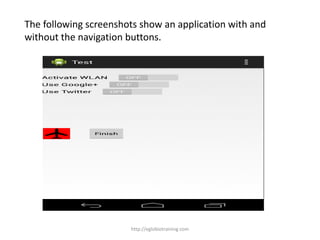
The following screenshots show an application with and
without the navigation buttons.
http://eglobiotraining.com
Further options for the ActionBar
Using the home icon
The action bar shows an icon of your application, this is called the
home icon. You can add an action to this icon. If you select this
icon the onOptionsItemSelected() method will be called with the
value android.R.id.home. The recommendation is to return to the
main activity in your program.
// If home icon is clicked return to main Activity
case android.R.id.home:
Intent intent = new Intent(this, OverviewActivity.class);
intent.addFlags(Intent.FLAG_ACTIVITY_CLEAR_TOP);
startActivity(intent);
break;
http://eglobiotraining.com
As of Android 4.1 this code is not required anymore, you can
simply set the parentActivityName in the AndroidManifest.xml
file, pointing to the parent activity.
<activity
android:name="com.vogella.android.actionbar.customviews.S
econdActivity"
android:label="@string/app_name"
android:parentActivityName="MainActivity">
</activity>
http://eglobiotraining.com
Navigation via the home icon
The home icon can also be used for an "up" navigation in your
application. In practice this is not frequently used by Android
applications and should therefore be avoided.
Enabling the split action bar
You can define that the action bar should be automatically split
by the system if not enough space is available.
You can activate that via the
android:uiOptions="SplitActionBarWhenNarrow" parameter in
the declaration of your application or activity in the
AndroidManifest.xml file.
http://eglobiotraining.com
Making the ActioinBar dynamic
Custom Views in the ActionBar
You can also add a custom View to the ActionBar. For this you use the setCustomView
method for the ActionView class. You also have to enable the display of custom views
via the setDisplayOptions() method by passing in the
ActionBar.DISPLAY_SHOW_CUSTOM flag.
For example you can define a layout file which contains a EditText element.
<?xml version="1.0" encoding="utf-8"?>
<EditText xmlns:android="http://schemas.android.com/apk/res/android"
android:id="@+id/searchfield"
android:layout_width="match_parent"
android:layout_height="match_parent"
android:inputType="textFilter" >
</EditText>
This layout can be assigned to the ActionBar via the following code. The example
code allow attaches a listener to the custom view.
http://eglobiotraining.com
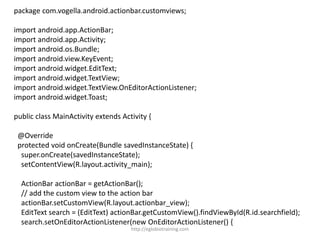
package com.vogella.android.actionbar.customviews;
import android.app.ActionBar;
import android.app.Activity;
import android.os.Bundle;
import android.view.KeyEvent;
import android.widget.EditText;
import android.widget.TextView;
import android.widget.TextView.OnEditorActionListener;
import android.widget.Toast;
public class MainActivity extends Activity {
@Override
protected void onCreate(Bundle savedInstanceState) {
super.onCreate(savedInstanceState);
setContentView(R.layout.activity_main);
ActionBar actionBar = getActionBar();
// add the custom view to the action bar
actionBar.setCustomView(R.layout.actionbar_view);
EditText search = (EditText) actionBar.getCustomView().findViewById(R.id.searchfield);
search.setOnEditorActionListener(new OnEditorActionListener() {
http://eglobiotraining.com
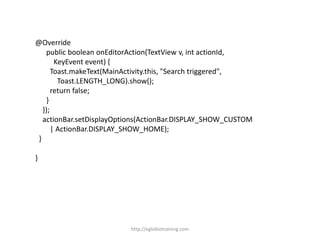
@Override
public boolean onEditorAction(TextView v, int actionId,
KeyEvent event) {
Toast.makeText(MainActivity.this, "Search triggered",
Toast.LENGTH_LONG).show();
return false;
}
});
actionBar.setDisplayOptions(ActionBar.DISPLAY_SHOW_CUSTOM
| ActionBar.DISPLAY_SHOW_HOME);
}
}
http://eglobiotraining.com
Contextual ActionBar
A contextual action mode activates a temporary ActionBar that overlays the
application ActionBar for the duration of a particular sub-task.
The contextual action mode is typically activated by selecting an item or by
long clicking on it.
To implemented this, call the startActionMode() method on a View or on your
activity. This method gets an ActionMode.Callback object which is responsible
for the lifecycle of the contextual ActionBar.
You could also assign a context menu to a View via the
registerForContextMenu(view) method. A context menu is also activated if the
user "long presses" the view. The onCreateContextMenu() method is called
every time a context menu is activated as the context menu is discarded after
its usage. You should prefer the contextual action mode over the usage of
context menus.
http://eglobiotraining.com
Action view
An action view is a widget that appears in the action bar as a substitute
for an action item's button. You can for example use this feature to
replace an action item with a ProgressBar view. An action view for an
action can be defined via the android:actionLayout or
android:actionViewClass attribute to specify either a layout resource or
widget class to use.
This replacement is depicted in the following screenshots.
http://eglobiotraining.com
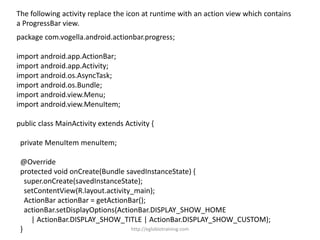
The following activity replace the icon at runtime with an action view which contains
a ProgressBar view.
package com.vogella.android.actionbar.progress;
import android.app.ActionBar;
import android.app.Activity;
import android.os.AsyncTask;
import android.os.Bundle;
import android.view.Menu;
import android.view.MenuItem;
public class MainActivity extends Activity {
private MenuItem menuItem;
@Override
protected void onCreate(Bundle savedInstanceState) {
super.onCreate(savedInstanceState);
setContentView(R.layout.activity_main);
ActionBar actionBar = getActionBar();
actionBar.setDisplayOptions(ActionBar.DISPLAY_SHOW_HOME
| ActionBar.DISPLAY_SHOW_TITLE | ActionBar.DISPLAY_SHOW_CUSTOM);
} http://eglobiotraining.com
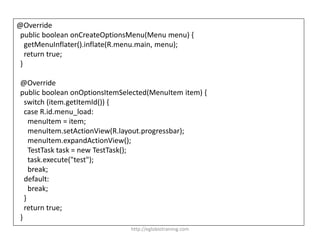
@Override
public boolean onCreateOptionsMenu(Menu menu) {
getMenuInflater().inflate(R.menu.main, menu);
return true;
}
@Override
public boolean onOptionsItemSelected(MenuItem item) {
switch (item.getItemId()) {
case R.id.menu_load:
menuItem = item;
menuItem.setActionView(R.layout.progressbar);
menuItem.expandActionView();
TestTask task = new TestTask();
task.execute("test");
break;
default:
break;
}
return true;
}
http://eglobiotraining.com
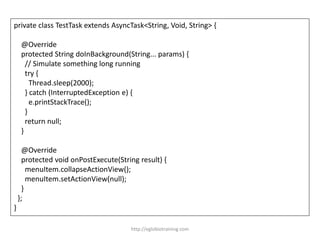
private class TestTask extends AsyncTask<String, Void, String> {
@Override
protected String doInBackground(String... params) {
// Simulate something long running
try {
Thread.sleep(2000);
} catch (InterruptedException e) {
e.printStackTrace();
}
return null;
}
@Override
protected void onPostExecute(String result) {
menuItem.collapseActionView();
menuItem.setActionView(null);
}
};
}
http://eglobiotraining.com
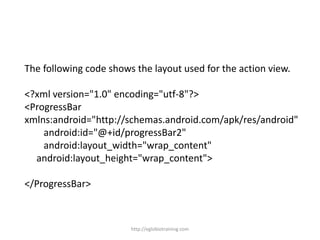
The following code shows the layout used for the action view.
<?xml version="1.0" encoding="utf-8"?>
<ProgressBar
xmlns:android="http://schemas.android.com/apk/res/android"
android:id="@+id/progressBar2"
android:layout_width="wrap_content"
android:layout_height="wrap_content">
</ProgressBar>
http://eglobiotraining.com
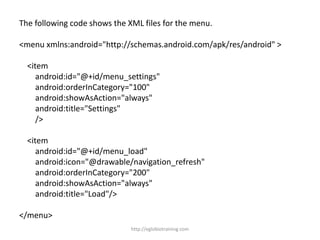
The following code shows the XML files for the menu.
<menu xmlns:android="http://schemas.android.com/apk/res/android" >
<item
android:id="@+id/menu_settings"
android:orderInCategory="100"
android:showAsAction="always"
android:title="Settings"
/>
<item
android:id="@+id/menu_load"
android:icon="@drawable/navigation_refresh"
android:orderInCategory="200"
android:showAsAction="always"
android:title="Load"/>
</menu>
http://eglobiotraining.com
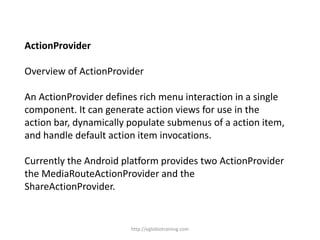
ActionProvider
Overview of ActionProvider
An ActionProvider defines rich menu interaction in a single
component. It can generate action views for use in the
action bar, dynamically populate submenus of a action item,
and handle default action item invocations.
Currently the Android platform provides two ActionProvider
the MediaRouteActionProvider and the
ShareActionProvider.
http://eglobiotraining.com
Example: usage of the ShareActionProvider
The following uses the ShareActionProvider to demonstrate
the usage of ActionProviders.
This ActionProvider allows you to use share selected content
using application which have registered the
Intent.ACTION_SEND intent.
To use ShareActionProvider you have to define a special
menu entry for it and assign an intent which contain the
sharing data to it.
http://eglobiotraining.com
<?xml version="1.0" encoding="utf-8"?>
<menu
xmlns:android="http://schemas.android.com/apk/res/android" >
<item android:id="@+id/menu_share"
android:title="Share"
android:showAsAction="ifRoom"
android:actionProviderClass="android.widget.ShareActionProvid
er" />
<item
android:id="@+id/item1"
android:showAsAction="ifRoom"
android:title="More entries...">
</item>
</menu>
http://eglobiotraining.com
@Override
public boolean onCreateOptionsMenu(Menu menu) {
getMenuInflater().inflate(R.menu.activity_main, menu);
// Get the ActionProvider
provider = (ShareActionProvider)
menu.findItem(R.id.menu_share)
.getActionProvider();
// Initialize the share intent
Intent intent = new Intent(Intent.ACTION_SEND);
intent.setType("text/plain");
provider.setShareIntent(intent);
return true;
}
http://eglobiotraining.com
@Override
public boolean onOptionsItemSelected(MenuItem item)
{
switch (item.getItemId()) {
case R.id.menu_share:
doShare();
break;
default:
break;
}
return true;
}
http://eglobiotraining.com
public void doShare() {
// Populare the share intent with data
Intent intent = new Intent(Intent.ACTION_SEND);
intent.setType("text/plain");
intent.putExtra(Intent.EXTRA_TEXT, "This is a message
for you");
provider.setShareIntent(intent);
}
http://eglobiotraining.com
Navigation with the ActionBar
Tab navigation
Fragments can also be used in combination with the
ActionBar for navigation. For this your main activity needs
to implement a TabListener which is responsible for
moving between the tabs.
The ActionBar allows to add tabs to it via the newTab()
method.
The following code shows such an activity. It uses dummy
activities to demonstrate the switch.
http://eglobiotraining.com
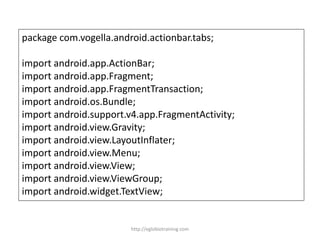
package com.vogella.android.actionbar.tabs;
import android.app.ActionBar;
import android.app.Fragment;
import android.app.FragmentTransaction;
import android.os.Bundle;
import android.support.v4.app.FragmentActivity;
import android.view.Gravity;
import android.view.LayoutInflater;
import android.view.Menu;
import android.view.View;
import android.view.ViewGroup;
import android.widget.TextView;
http://eglobiotraining.com
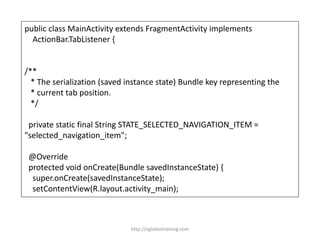
public class MainActivity extends FragmentActivity implements
ActionBar.TabListener {
/**
* The serialization (saved instance state) Bundle key representing the
* current tab position.
*/
private static final String STATE_SELECTED_NAVIGATION_ITEM =
"selected_navigation_item";
@Override
protected void onCreate(Bundle savedInstanceState) {
super.onCreate(savedInstanceState);
setContentView(R.layout.activity_main);
http://eglobiotraining.com
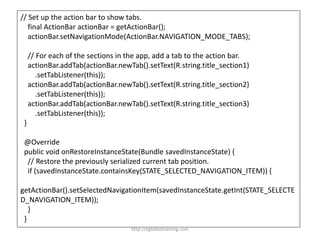
// Set up the action bar to show tabs.
final ActionBar actionBar = getActionBar();
actionBar.setNavigationMode(ActionBar.NAVIGATION_MODE_TABS);
// For each of the sections in the app, add a tab to the action bar.
actionBar.addTab(actionBar.newTab().setText(R.string.title_section1)
.setTabListener(this));
actionBar.addTab(actionBar.newTab().setText(R.string.title_section2)
.setTabListener(this));
actionBar.addTab(actionBar.newTab().setText(R.string.title_section3)
.setTabListener(this));
}
@Override
public void onRestoreInstanceState(Bundle savedInstanceState) {
// Restore the previously serialized current tab position.
if (savedInstanceState.containsKey(STATE_SELECTED_NAVIGATION_ITEM)) {
getActionBar().setSelectedNavigationItem(savedInstanceState.getInt(STATE_SELECTE
D_NAVIGATION_ITEM));
}
}
http://eglobiotraining.com
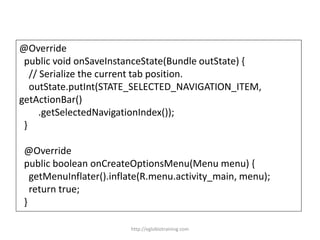
@Override
public void onSaveInstanceState(Bundle outState) {
// Serialize the current tab position.
outState.putInt(STATE_SELECTED_NAVIGATION_ITEM,
getActionBar()
.getSelectedNavigationIndex());
}
@Override
public boolean onCreateOptionsMenu(Menu menu) {
getMenuInflater().inflate(R.menu.activity_main, menu);
return true;
}
http://eglobiotraining.com
@Override
public void onTabSelected(ActionBar.Tab tab,
FragmentTransaction fragmentTransaction) {
// When the given tab is selected, show the tab contents in the
// container view.
Fragment fragment = new DummySectionFragment();
Bundle args = new Bundle();
args.putInt(DummySectionFragment.ARG_SECTION_NUMBER,
tab.getPosition() + 1);
fragment.setArguments(args);
getFragmentManager().beginTransaction()
.replace(R.id.container, fragment).commit();
}
@Override
public void onTabUnselected(ActionBar.Tab tab,
FragmentTransaction fragmentTransaction) {
}
http://eglobiotraining.com
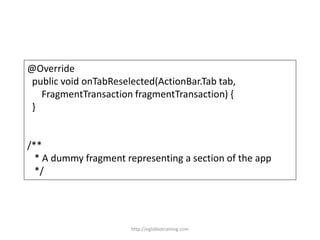
@Override
public void onTabReselected(ActionBar.Tab tab,
FragmentTransaction fragmentTransaction) {
}
/**
* A dummy fragment representing a section of the app
*/
http://eglobiotraining.com
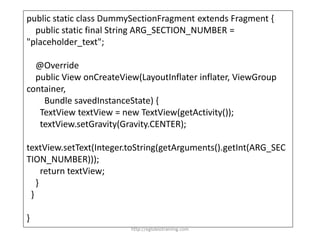
public static class DummySectionFragment extends Fragment {
public static final String ARG_SECTION_NUMBER =
"placeholder_text";
@Override
public View onCreateView(LayoutInflater inflater, ViewGroup
container,
Bundle savedInstanceState) {
TextView textView = new TextView(getActivity());
textView.setGravity(Gravity.CENTER);
textView.setText(Integer.toString(getArguments().getInt(ARG_SEC
TION_NUMBER)));
return textView;
}
}
}
http://eglobiotraining.com
Dropdown menu navigation
You can also use a spinner in the action bar for navigation. The
following code demonstrates that.
package com.vogella.android.actionbar.spinner;
import android.app.ActionBar;
import android.app.Fragment;
import android.os.Bundle;
import android.support.v4.app.FragmentActivity;
import android.view.Gravity;
import android.view.LayoutInflater;
import android.view.Menu;
import android.view.View;
import android.view.ViewGroup;
import android.widget.ArrayAdapter;
import android.widget.TextView;
http://eglobiotraining.com
public class MainActivity extends FragmentActivity
implements
ActionBar.OnNavigationListener {
/**
* The serialization (saved instance state) Bundle key
representing the
* current dropdown position.
*/
private static final String
STATE_SELECTED_NAVIGATION_ITEM =
"selected_navigation_item";
http://eglobiotraining.com
@Override
protected void onCreate(Bundle savedInstanceState) {
super.onCreate(savedInstanceState);
setContentView(R.layout.activity_main);
// Set up the action bar to show a dropdown list.
final ActionBar actionBar = getActionBar();
actionBar.setDisplayShowTitleEnabled(false);
actionBar.setNavigationMode(ActionBar.NAVIGATION_MODE_LIST);
final String[] dropdownValues =
getResources().getStringArray(R.array.dropdown);
// Specify a SpinnerAdapter to populate the dropdown list.
ArrayAdapter<String> adapter = new
ArrayAdapter<String>(actionBar.getThemedContext(),
http://eglobiotraining.com
android.R.layout.simple_spinner_item, android.R.id.text1,
dropdownValues);
adapter.setDropDownViewResource(android.R.layout.simple_
spinner_dropdown_item);
// Set up the dropdown list navigation in the action bar.
actionBar.setListNavigationCallbacks(adapter, this);
// Use getActionBar().getThemedContext() to ensure
// that the text color is always appropriate for the action
bar
// background rather than the activity background.
}
http://eglobiotraining.com
@Override
public void onRestoreInstanceState(Bundle savedInstanceState) {
// Restore the previously serialized current dropdown position.
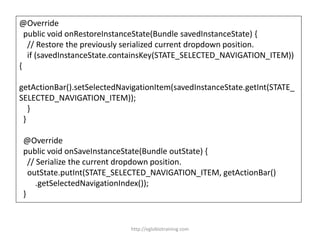
if (savedInstanceState.containsKey(STATE_SELECTED_NAVIGATION_ITEM))
{
getActionBar().setSelectedNavigationItem(savedInstanceState.getInt(STATE_
SELECTED_NAVIGATION_ITEM));
}
}
@Override
public void onSaveInstanceState(Bundle outState) {
// Serialize the current dropdown position.
outState.putInt(STATE_SELECTED_NAVIGATION_ITEM, getActionBar()
.getSelectedNavigationIndex());
}
http://eglobiotraining.com
@Override
public boolean onCreateOptionsMenu(Menu menu) {
getMenuInflater().inflate(R.menu.activity_main, menu);
return true;
}
@Override
public boolean onNavigationItemSelected(int position, long id) {
// When the given dropdown item is selected, show its contents in the
// container view.
Fragment fragment = new DummySectionFragment();
Bundle args = new Bundle();
args.putInt(DummySectionFragment.ARG_SECTION_NUMBER, position + 1);
fragment.setArguments(args);
getFragmentManager().beginTransaction()
.replace(R.id.container, fragment).commit();
return true;
}
http://eglobiotraining.com
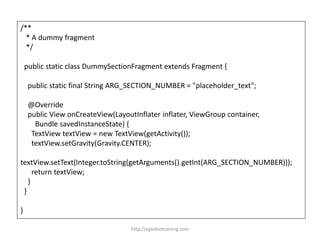
/**
* A dummy fragment
*/
public static class DummySectionFragment extends Fragment {
public static final String ARG_SECTION_NUMBER = "placeholder_text";
@Override
public View onCreateView(LayoutInflater inflater, ViewGroup container,
Bundle savedInstanceState) {
TextView textView = new TextView(getActivity());
textView.setGravity(Gravity.CENTER);
textView.setText(Integer.toString(getArguments().getInt(ARG_SECTION_NUMBER)));
return textView;
}
}
}
http://eglobiotraining.com
Prof. Erwin M. Globio, MSIT
Managing Director of eglobiotraining.com
Senior IT Professor of Far Eastern University
Mobile: 09393741359 | 09323956678
Landline: (02) 428-7127
Email: erwin_globio@yahoo.com
Skype: erwinglobio
Website: http://eglobiotraining.com/
http://eglobiotraining.com

Action Bar in Android

  • 1.
    Using Action Barin Android: A Tutorial http://eglobiotraining.com/ Prof. Erwin M. Globio, MSIT Android Development Expert http://eglobiotraining.com
  • 2.
    Introduction to theActionBar What is the ActionBar The ActionBar is located at the top of the activity. It can display the activity title, icon, actions which can be triggered, additional views Views other interactive items. It can also be used for navigation in your application. Older Android devices have a hardware Option button which would open a menu at the bottom of the application once pressed, i.e. the OptionsMenu. The ActionBar is superior to the OptionsMenu, in that it is clearly visible, while the OptionsMenu is only shown on request and the user may not recognize that options are available. http://eglobiotraining.com
  • 3.
    Example The following pictureshows the ActionBar of a The Google+ Android application with interactive items and a navigation bar. http://eglobiotraining.com
  • 4.
    Using the ActionBaron older devices The ActionBar has introduced in Android 3.0. The ActionBar Sherlock library allows to use the ActionBar on Android devices as of Android 1.6. You find this library under the following link. http://actionbarsherlock.com http://eglobiotraining.com
  • 5.
    Using the ActionBar Creatingactions in the ActionBar An activity populates the ActionBar in its onCreateOptionsMenu() method. We call these entries actions. The actions for the ActionBar are typically defined in an XML resource file. The MenuInflator class allows to inflate actions defined in an XML file and add them to the ActionBar. The showAsAction attribute allows you to define how the action is displayed. For example the ifRoom attribute defines that the action is on y displayed in the ActionBar if there is sufficient space available. http://eglobiotraining.com
  • 6.
  • 7.
    Search an actionsin the ActionBar To search for a menu item in a menu you can use the findItem() method of the Menu class. This method allows to search by id. Reacting to actions selection If an actions in the ActionBar is selected, the onOptionsItemSelected() method is called. It receives the selected action as parameter. Based on this information you code can decide what to do. http://eglobiotraining.com
  • 8.
    @Override public boolean onOptionsItemSelected(MenuItemitem) { switch (item.getItemId()) { case R.id.menuitem1: Toast.makeText(this, "Menu Item 1 selected", Toast.LENGTH_SHORT) .show(); break; case R.id.menuitem2: Toast.makeText(this, "Menu item 2 selected", Toast.LENGTH_SHORT) .show(); break; default: break; } return true; } http://eglobiotraining.com
  • 9.
    Changing the menu TheonCreateOptionsMenu() method is only called once. If you want to change the menu later you have to call the invalidateOptionsMenu() method. Afterwards this onCreateOptionsMenu() method is called again. http://eglobiotraining.com
  • 10.
    Customizing the ActionBar Adjustingthe ActionBar You can change the visibility of the ActionBar at runtime. The following code demonstrates that. ActionBar actionBar = getActionBar(); actionBar.hide(); // More stuff here... actionBar.show(); http://eglobiotraining.com
  • 11.
    You can alsochange the text which is displayed alongside the application icon at runtime. The following example shows that. ActionBar actionBar = getActionBar(); actionBar.setSubtitle("mytest"); actionBar.setTitle(“eglobiotraining.com"); http://eglobiotraining.com
  • 12.
    Assiging a Drawable Youalso add a drawable to the ActionBar background via the ActionBar.setBackgroundDrawable() method. The ActionBar scales the image therefore it is best practice to provide a scalable drawable, e.g. an 9-patch or XML drawable. As of Android 4.2 the drawable for the ActionBar can also be an animated. http://eglobiotraining.com
  • 13.
    Dimming the Androiddefault navigation Buttons You can also hide the software navigation button in your Android application to have more space available. If the user touches the button of the screen the navigation button are automatically shown again. You can dim the navigation buttons in an activity with the following code. getWindow(). getDecorView(). setSystemUiVisibility(View.SYSTEM_UI_FLAG_HIDE_NAVIGATION); http://eglobiotraining.com
  • 14.
    The following screenshotsshow an application with and without the navigation buttons. http://eglobiotraining.com
  • 15.
    Further options forthe ActionBar Using the home icon The action bar shows an icon of your application, this is called the home icon. You can add an action to this icon. If you select this icon the onOptionsItemSelected() method will be called with the value android.R.id.home. The recommendation is to return to the main activity in your program. // If home icon is clicked return to main Activity case android.R.id.home: Intent intent = new Intent(this, OverviewActivity.class); intent.addFlags(Intent.FLAG_ACTIVITY_CLEAR_TOP); startActivity(intent); break; http://eglobiotraining.com
  • 16.
    As of Android4.1 this code is not required anymore, you can simply set the parentActivityName in the AndroidManifest.xml file, pointing to the parent activity. <activity android:name="com.vogella.android.actionbar.customviews.S econdActivity" android:label="@string/app_name" android:parentActivityName="MainActivity"> </activity> http://eglobiotraining.com
  • 17.
    Navigation via thehome icon The home icon can also be used for an "up" navigation in your application. In practice this is not frequently used by Android applications and should therefore be avoided. Enabling the split action bar You can define that the action bar should be automatically split by the system if not enough space is available. You can activate that via the android:uiOptions="SplitActionBarWhenNarrow" parameter in the declaration of your application or activity in the AndroidManifest.xml file. http://eglobiotraining.com
  • 18.
    Making the ActioinBardynamic Custom Views in the ActionBar You can also add a custom View to the ActionBar. For this you use the setCustomView method for the ActionView class. You also have to enable the display of custom views via the setDisplayOptions() method by passing in the ActionBar.DISPLAY_SHOW_CUSTOM flag. For example you can define a layout file which contains a EditText element. <?xml version="1.0" encoding="utf-8"?> <EditText xmlns:android="http://schemas.android.com/apk/res/android" android:id="@+id/searchfield" android:layout_width="match_parent" android:layout_height="match_parent" android:inputType="textFilter" > </EditText> This layout can be assigned to the ActionBar via the following code. The example code allow attaches a listener to the custom view. http://eglobiotraining.com
  • 19.
    package com.vogella.android.actionbar.customviews; import android.app.ActionBar; importandroid.app.Activity; import android.os.Bundle; import android.view.KeyEvent; import android.widget.EditText; import android.widget.TextView; import android.widget.TextView.OnEditorActionListener; import android.widget.Toast; public class MainActivity extends Activity { @Override protected void onCreate(Bundle savedInstanceState) { super.onCreate(savedInstanceState); setContentView(R.layout.activity_main); ActionBar actionBar = getActionBar(); // add the custom view to the action bar actionBar.setCustomView(R.layout.actionbar_view); EditText search = (EditText) actionBar.getCustomView().findViewById(R.id.searchfield); search.setOnEditorActionListener(new OnEditorActionListener() { http://eglobiotraining.com
  • 20.
    @Override public boolean onEditorAction(TextViewv, int actionId, KeyEvent event) { Toast.makeText(MainActivity.this, "Search triggered", Toast.LENGTH_LONG).show(); return false; } }); actionBar.setDisplayOptions(ActionBar.DISPLAY_SHOW_CUSTOM | ActionBar.DISPLAY_SHOW_HOME); } } http://eglobiotraining.com
  • 21.
    Contextual ActionBar A contextualaction mode activates a temporary ActionBar that overlays the application ActionBar for the duration of a particular sub-task. The contextual action mode is typically activated by selecting an item or by long clicking on it. To implemented this, call the startActionMode() method on a View or on your activity. This method gets an ActionMode.Callback object which is responsible for the lifecycle of the contextual ActionBar. You could also assign a context menu to a View via the registerForContextMenu(view) method. A context menu is also activated if the user "long presses" the view. The onCreateContextMenu() method is called every time a context menu is activated as the context menu is discarded after its usage. You should prefer the contextual action mode over the usage of context menus. http://eglobiotraining.com
  • 22.
    Action view An actionview is a widget that appears in the action bar as a substitute for an action item's button. You can for example use this feature to replace an action item with a ProgressBar view. An action view for an action can be defined via the android:actionLayout or android:actionViewClass attribute to specify either a layout resource or widget class to use. This replacement is depicted in the following screenshots. http://eglobiotraining.com
  • 23.
    The following activityreplace the icon at runtime with an action view which contains a ProgressBar view. package com.vogella.android.actionbar.progress; import android.app.ActionBar; import android.app.Activity; import android.os.AsyncTask; import android.os.Bundle; import android.view.Menu; import android.view.MenuItem; public class MainActivity extends Activity { private MenuItem menuItem; @Override protected void onCreate(Bundle savedInstanceState) { super.onCreate(savedInstanceState); setContentView(R.layout.activity_main); ActionBar actionBar = getActionBar(); actionBar.setDisplayOptions(ActionBar.DISPLAY_SHOW_HOME | ActionBar.DISPLAY_SHOW_TITLE | ActionBar.DISPLAY_SHOW_CUSTOM); } http://eglobiotraining.com
  • 24.
    @Override public boolean onCreateOptionsMenu(Menumenu) { getMenuInflater().inflate(R.menu.main, menu); return true; } @Override public boolean onOptionsItemSelected(MenuItem item) { switch (item.getItemId()) { case R.id.menu_load: menuItem = item; menuItem.setActionView(R.layout.progressbar); menuItem.expandActionView(); TestTask task = new TestTask(); task.execute("test"); break; default: break; } return true; } http://eglobiotraining.com
  • 25.
    private class TestTaskextends AsyncTask<String, Void, String> { @Override protected String doInBackground(String... params) { // Simulate something long running try { Thread.sleep(2000); } catch (InterruptedException e) { e.printStackTrace(); } return null; } @Override protected void onPostExecute(String result) { menuItem.collapseActionView(); menuItem.setActionView(null); } }; } http://eglobiotraining.com
  • 26.
    The following codeshows the layout used for the action view. <?xml version="1.0" encoding="utf-8"?> <ProgressBar xmlns:android="http://schemas.android.com/apk/res/android" android:id="@+id/progressBar2" android:layout_width="wrap_content" android:layout_height="wrap_content"> </ProgressBar> http://eglobiotraining.com
  • 27.
    The following codeshows the XML files for the menu. <menu xmlns:android="http://schemas.android.com/apk/res/android" > <item android:id="@+id/menu_settings" android:orderInCategory="100" android:showAsAction="always" android:title="Settings" /> <item android:id="@+id/menu_load" android:icon="@drawable/navigation_refresh" android:orderInCategory="200" android:showAsAction="always" android:title="Load"/> </menu> http://eglobiotraining.com
  • 28.
    ActionProvider Overview of ActionProvider AnActionProvider defines rich menu interaction in a single component. It can generate action views for use in the action bar, dynamically populate submenus of a action item, and handle default action item invocations. Currently the Android platform provides two ActionProvider the MediaRouteActionProvider and the ShareActionProvider. http://eglobiotraining.com
  • 29.
    Example: usage ofthe ShareActionProvider The following uses the ShareActionProvider to demonstrate the usage of ActionProviders. This ActionProvider allows you to use share selected content using application which have registered the Intent.ACTION_SEND intent. To use ShareActionProvider you have to define a special menu entry for it and assign an intent which contain the sharing data to it. http://eglobiotraining.com
  • 30.
    <?xml version="1.0" encoding="utf-8"?> <menu xmlns:android="http://schemas.android.com/apk/res/android"> <item android:id="@+id/menu_share" android:title="Share" android:showAsAction="ifRoom" android:actionProviderClass="android.widget.ShareActionProvid er" /> <item android:id="@+id/item1" android:showAsAction="ifRoom" android:title="More entries..."> </item> </menu> http://eglobiotraining.com
  • 31.
    @Override public boolean onCreateOptionsMenu(Menumenu) { getMenuInflater().inflate(R.menu.activity_main, menu); // Get the ActionProvider provider = (ShareActionProvider) menu.findItem(R.id.menu_share) .getActionProvider(); // Initialize the share intent Intent intent = new Intent(Intent.ACTION_SEND); intent.setType("text/plain"); provider.setShareIntent(intent); return true; } http://eglobiotraining.com
  • 32.
    @Override public boolean onOptionsItemSelected(MenuItemitem) { switch (item.getItemId()) { case R.id.menu_share: doShare(); break; default: break; } return true; } http://eglobiotraining.com
  • 33.
    public void doShare(){ // Populare the share intent with data Intent intent = new Intent(Intent.ACTION_SEND); intent.setType("text/plain"); intent.putExtra(Intent.EXTRA_TEXT, "This is a message for you"); provider.setShareIntent(intent); } http://eglobiotraining.com
  • 34.
    Navigation with theActionBar Tab navigation Fragments can also be used in combination with the ActionBar for navigation. For this your main activity needs to implement a TabListener which is responsible for moving between the tabs. The ActionBar allows to add tabs to it via the newTab() method. The following code shows such an activity. It uses dummy activities to demonstrate the switch. http://eglobiotraining.com
  • 35.
    package com.vogella.android.actionbar.tabs; import android.app.ActionBar; importandroid.app.Fragment; import android.app.FragmentTransaction; import android.os.Bundle; import android.support.v4.app.FragmentActivity; import android.view.Gravity; import android.view.LayoutInflater; import android.view.Menu; import android.view.View; import android.view.ViewGroup; import android.widget.TextView; http://eglobiotraining.com
  • 36.
    public class MainActivityextends FragmentActivity implements ActionBar.TabListener { /** * The serialization (saved instance state) Bundle key representing the * current tab position. */ private static final String STATE_SELECTED_NAVIGATION_ITEM = "selected_navigation_item"; @Override protected void onCreate(Bundle savedInstanceState) { super.onCreate(savedInstanceState); setContentView(R.layout.activity_main); http://eglobiotraining.com
  • 37.
    // Set upthe action bar to show tabs. final ActionBar actionBar = getActionBar(); actionBar.setNavigationMode(ActionBar.NAVIGATION_MODE_TABS); // For each of the sections in the app, add a tab to the action bar. actionBar.addTab(actionBar.newTab().setText(R.string.title_section1) .setTabListener(this)); actionBar.addTab(actionBar.newTab().setText(R.string.title_section2) .setTabListener(this)); actionBar.addTab(actionBar.newTab().setText(R.string.title_section3) .setTabListener(this)); } @Override public void onRestoreInstanceState(Bundle savedInstanceState) { // Restore the previously serialized current tab position. if (savedInstanceState.containsKey(STATE_SELECTED_NAVIGATION_ITEM)) { getActionBar().setSelectedNavigationItem(savedInstanceState.getInt(STATE_SELECTE D_NAVIGATION_ITEM)); } } http://eglobiotraining.com
  • 38.
    @Override public void onSaveInstanceState(BundleoutState) { // Serialize the current tab position. outState.putInt(STATE_SELECTED_NAVIGATION_ITEM, getActionBar() .getSelectedNavigationIndex()); } @Override public boolean onCreateOptionsMenu(Menu menu) { getMenuInflater().inflate(R.menu.activity_main, menu); return true; } http://eglobiotraining.com
  • 39.
    @Override public void onTabSelected(ActionBar.Tabtab, FragmentTransaction fragmentTransaction) { // When the given tab is selected, show the tab contents in the // container view. Fragment fragment = new DummySectionFragment(); Bundle args = new Bundle(); args.putInt(DummySectionFragment.ARG_SECTION_NUMBER, tab.getPosition() + 1); fragment.setArguments(args); getFragmentManager().beginTransaction() .replace(R.id.container, fragment).commit(); } @Override public void onTabUnselected(ActionBar.Tab tab, FragmentTransaction fragmentTransaction) { } http://eglobiotraining.com
  • 40.
    @Override public void onTabReselected(ActionBar.Tabtab, FragmentTransaction fragmentTransaction) { } /** * A dummy fragment representing a section of the app */ http://eglobiotraining.com
  • 41.
    public static classDummySectionFragment extends Fragment { public static final String ARG_SECTION_NUMBER = "placeholder_text"; @Override public View onCreateView(LayoutInflater inflater, ViewGroup container, Bundle savedInstanceState) { TextView textView = new TextView(getActivity()); textView.setGravity(Gravity.CENTER); textView.setText(Integer.toString(getArguments().getInt(ARG_SEC TION_NUMBER))); return textView; } } } http://eglobiotraining.com
  • 42.
    Dropdown menu navigation Youcan also use a spinner in the action bar for navigation. The following code demonstrates that. package com.vogella.android.actionbar.spinner; import android.app.ActionBar; import android.app.Fragment; import android.os.Bundle; import android.support.v4.app.FragmentActivity; import android.view.Gravity; import android.view.LayoutInflater; import android.view.Menu; import android.view.View; import android.view.ViewGroup; import android.widget.ArrayAdapter; import android.widget.TextView; http://eglobiotraining.com
  • 43.
    public class MainActivityextends FragmentActivity implements ActionBar.OnNavigationListener { /** * The serialization (saved instance state) Bundle key representing the * current dropdown position. */ private static final String STATE_SELECTED_NAVIGATION_ITEM = "selected_navigation_item"; http://eglobiotraining.com
  • 44.
    @Override protected void onCreate(BundlesavedInstanceState) { super.onCreate(savedInstanceState); setContentView(R.layout.activity_main); // Set up the action bar to show a dropdown list. final ActionBar actionBar = getActionBar(); actionBar.setDisplayShowTitleEnabled(false); actionBar.setNavigationMode(ActionBar.NAVIGATION_MODE_LIST); final String[] dropdownValues = getResources().getStringArray(R.array.dropdown); // Specify a SpinnerAdapter to populate the dropdown list. ArrayAdapter<String> adapter = new ArrayAdapter<String>(actionBar.getThemedContext(), http://eglobiotraining.com
  • 45.
    android.R.layout.simple_spinner_item, android.R.id.text1, dropdownValues); adapter.setDropDownViewResource(android.R.layout.simple_ spinner_dropdown_item); // Setup the dropdown list navigation in the action bar. actionBar.setListNavigationCallbacks(adapter, this); // Use getActionBar().getThemedContext() to ensure // that the text color is always appropriate for the action bar // background rather than the activity background. } http://eglobiotraining.com
  • 46.
    @Override public void onRestoreInstanceState(BundlesavedInstanceState) { // Restore the previously serialized current dropdown position. if (savedInstanceState.containsKey(STATE_SELECTED_NAVIGATION_ITEM)) { getActionBar().setSelectedNavigationItem(savedInstanceState.getInt(STATE_ SELECTED_NAVIGATION_ITEM)); } } @Override public void onSaveInstanceState(Bundle outState) { // Serialize the current dropdown position. outState.putInt(STATE_SELECTED_NAVIGATION_ITEM, getActionBar() .getSelectedNavigationIndex()); } http://eglobiotraining.com
  • 47.
    @Override public boolean onCreateOptionsMenu(Menumenu) { getMenuInflater().inflate(R.menu.activity_main, menu); return true; } @Override public boolean onNavigationItemSelected(int position, long id) { // When the given dropdown item is selected, show its contents in the // container view. Fragment fragment = new DummySectionFragment(); Bundle args = new Bundle(); args.putInt(DummySectionFragment.ARG_SECTION_NUMBER, position + 1); fragment.setArguments(args); getFragmentManager().beginTransaction() .replace(R.id.container, fragment).commit(); return true; } http://eglobiotraining.com
  • 48.
    /** * A dummyfragment */ public static class DummySectionFragment extends Fragment { public static final String ARG_SECTION_NUMBER = "placeholder_text"; @Override public View onCreateView(LayoutInflater inflater, ViewGroup container, Bundle savedInstanceState) { TextView textView = new TextView(getActivity()); textView.setGravity(Gravity.CENTER); textView.setText(Integer.toString(getArguments().getInt(ARG_SECTION_NUMBER))); return textView; } } } http://eglobiotraining.com
  • 49.
  • 50.
    Prof. Erwin M.Globio, MSIT Managing Director of eglobiotraining.com Senior IT Professor of Far Eastern University Mobile: 09393741359 | 09323956678 Landline: (02) 428-7127 Email: erwin_globio@yahoo.com Skype: erwinglobio Website: http://eglobiotraining.com/ http://eglobiotraining.com