Mobile Application Development
Menus
Menus
The three fundamental types of menus:
• Options Menu
• Context Menu
• Popup Menu
Menus
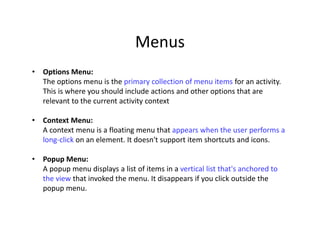
• Options Menu:
The options menu is the primary collection of menu items for an activity.
This is where you should include actions and other options that are
relevant to the current activity context
• Context Menu:
A context menu is a floating menu that appears when the user performs a
long‐click on an element. It doesn't support item shortcuts and icons.
• Popup Menu:
A popup menu displays a list of items in a vertical list that's anchored to
the view that invoked the menu. It disappears if you click outside the
popup menu.
Menus
• For all menu types, Android provides a standard XML format to define
menu items ‐ you should define a menu and all its items in an XML menu
resource.
• You can then inflate the menu resource (load it as a Menu object) in your
activity.
XML Menu Resource
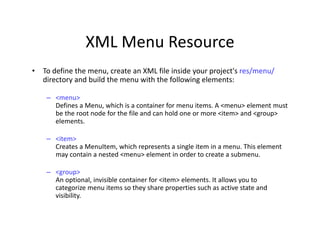
• To define the menu, create an XML file inside your project's res/menu/
directory and build the menu with the following elements:
– <menu>
Defines a Menu, which is a container for menu items. A <menu> element must
be the root node for the file and can hold one or more <item> and <group>
elements.
– <item>
Creates a MenuItem, which represents a single item in a menu. This element
may contain a nested <menu> element in order to create a submenu.
– <group>
An optional, invisible container for <item> elements. It allows you to
categorize menu items so they share properties such as active state and
visibility.
XML Menu Resource
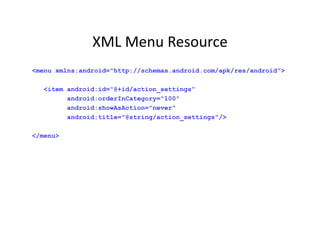
<menu xmlns:android="http://schemas.android.com/apk/res/android">
<item android:id="@+id/action_settings“
android:orderInCategory="100"
android:showAsAction="never"
android:title="@string/action_settings"/>
</menu>
XML Menu Resource
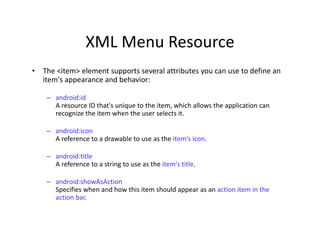
• The <item> element supports several attributes you can use to define an
item's appearance and behavior:
– android:id
A resource ID that's unique to the item, which allows the application can
recognize the item when the user selects it.
– android:icon
A reference to a drawable to use as the item's icon.
– android:title
A reference to a string to use as the item's title.
– android:showAsAction
Specifies when and how this item should appear as an action item in the
action bar.
XML Menu Resource
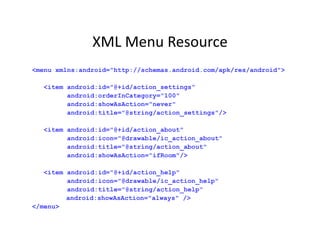
<menu xmlns:android="http://schemas.android.com/apk/res/android">
<item android:id="@+id/action_settings“
android:orderInCategory="100"
android:showAsAction="never"
android:title="@string/action_settings"/>
<item android:id="@+id/action_about"
android:icon="@drawable/ic_action_about"
android:title="@string/action_about"
android:showAsAction="ifRoom"/>
<item android:id="@+id/action_help"
android:icon="@drawable/ic_action_help"
android:title="@string/action_help“
android:showAsAction="always" />
</menu>
XML Menu Resource
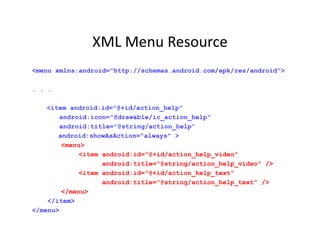
<menu xmlns:android="http://schemas.android.com/apk/res/android">
. . .
<item android:id="@+id/action_help"
android:icon="@drawable/ic_action_help"
android:title="@string/action_help“
android:showAsAction="always" >
<menu>
<item android:id="@+id/action_help_video"
android:title="@string/action_help_video" />
<item android:id="@+id/action_help_text"
android:title="@string/action_help_text" />
</menu>
</item>
</menu>
OPTIONS MENU
Creating Options Menu
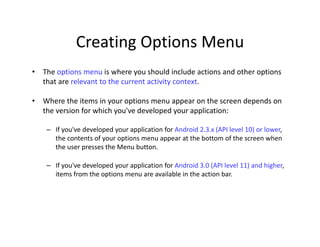
• The options menu is where you should include actions and other options
that are relevant to the current activity context.
• Where the items in your options menu appear on the screen depends on
the version for which you've developed your application:
– If you've developed your application for Android 2.3.x (API level 10) or lower,
the contents of your options menu appear at the bottom of the screen when
the user presses the Menu button.
– If you've developed your application for Android 3.0 (API level 11) and higher,
items from the options menu are available in the action bar.
Creating Options Menu
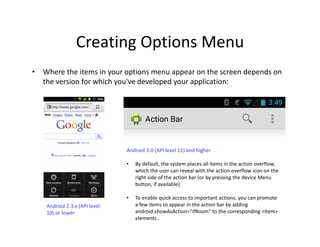
• Where the items in your options menu appear on the screen depends on
the version for which you've developed your application:
Android 2.3.x (API level
10) or lower
Android 3.0 (API level 11) and higher
• By default, the system places all items in the action overflow,
which the user can reveal with the action overflow icon on the
right side of the action bar (or by pressing the device Menu
button, if available).
• To enable quick access to important actions, you can promote
a few items to appear in the action bar by adding
android:showAsAction="ifRoom" to the corresponding <item>
elements .
Creating Options Menu
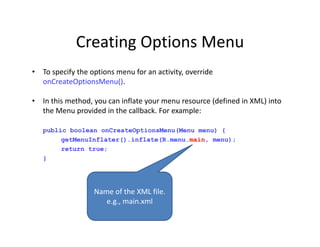
• To specify the options menu for an activity, override
onCreateOptionsMenu().
• In this method, you can inflate your menu resource (defined in XML) into
the Menu provided in the callback. For example:
public boolean onCreateOptionsMenu(Menu menu) {
getMenuInflater().inflate(R.menu.main, menu);
return true;
}
Name of the XML file.
e.g., main.xml
Handling Click Events
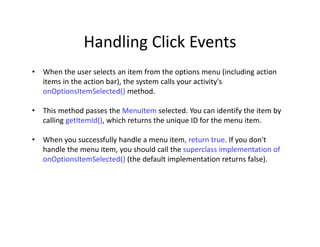
• When the user selects an item from the options menu (including action
items in the action bar), the system calls your activity's
onOptionsItemSelected() method.
• This method passes the MenuItem selected. You can identify the item by
calling getItemId(), which returns the unique ID for the menu item.
• When you successfully handle a menu item, return true. If you don't
handle the menu item, you should call the superclass implementation of
onOptionsItemSelected() (the default implementation returns false).
Handling Click Events
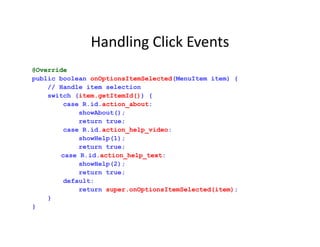
@Override
public boolean onOptionsItemSelected(MenuItem item) {
// Handle item selection
switch (item.getItemId()) {
case R.id.action_about:
showAbout();
return true;
case R.id.action_help_video:
showHelp(1);
return true;
case R.id.action_help_text:
showHelp(2);
return true;
default:
return super.onOptionsItemSelected(item);
}
}
CONTEXT MENU
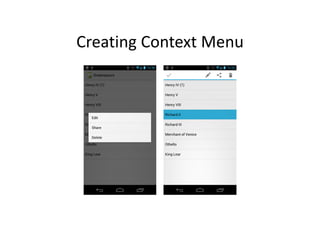
Creating Context Menu
• A contextual menu offers actions that affect a specific item or context
frame in the UI. You can provide a context menu for any view, but they are
most often used for items in a ListView, GridView, or other view collections
in which the user can perform direct actions on each item.
• There are two ways to provide contextual actions:
– In a floating context menu. A menu appears as a floating list of menu items
(similar to a dialog) when the user performs a long‐click (press and hold) on a
view that declares support for a context menu. Users can perform a contextual
action on one item at a time.
– In the contextual action mode. This mode is a system implementation of
ActionMode that displays a contextual action bar at the top of the screen with
action items that affect the selected item(s). When this mode is active, users
can perform an action on multiple items at once (if your app allows it).
Creating Context Menu
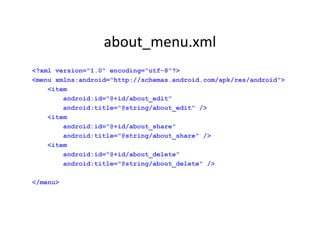
about_menu.xml
<?xml version="1.0" encoding="utf-8"?>
<menu xmlns:android="http://schemas.android.com/apk/res/android">
<item
android:id="@+id/about_edit"
android:title="@string/about_edit" />
<item
android:id="@+id/about_share"
android:title="@string/about_share" />
<item
android:id="@+id/about_delete"
android:title="@string/about_delete" />
</menu>
Creating ListView
. . .
String[] aboutlist;
. . .
aboutlist = getResources().getStringArray(R.array.aboutlist);
ArrayAdapter<String> adapter=new
ArrayAdapter<String>(this,android.R.layout.simple_list_item_1,a
boutlist);
ListView listview = (ListView) findViewById(R.id.listView1);
listview.setAdapter(adapter);
. . .
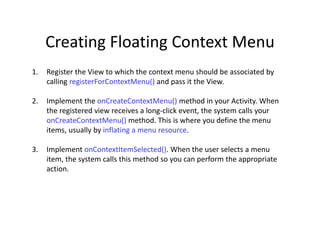
Creating Floating Context Menu
1. Register the View to which the context menu should be associated by
calling registerForContextMenu() and pass it the View.
2. Implement the onCreateContextMenu() method in your Activity. When
the registered view receives a long‐click event, the system calls your
onCreateContextMenu() method. This is where you define the menu
items, usually by inflating a menu resource.
3. Implement onContextItemSelected(). When the user selects a menu
item, the system calls this method so you can perform the appropriate
action.
1. Register the View
. . .
String[] aboutlist;
. . .
aboutlist = getResources().getStringArray(R.array.aboutlist);
ArrayAdapter<String> adapter=new
ArrayAdapter<String>(this,android.R.layout.simple_list_item_1,a
boutlist);
ListView listview = (ListView) findViewById(R.id.listView1);
listview.setAdapter(adapter);
. . .
registerForContextMenu(listview);
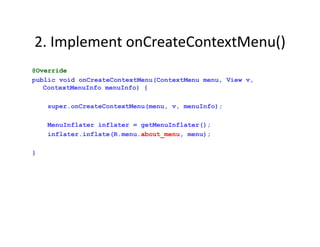
2. Implement onCreateContextMenu()
@Override
public void onCreateContextMenu(ContextMenu menu, View v,
ContextMenuInfo menuInfo) {
super.onCreateContextMenu(menu, v, menuInfo);
MenuInflater inflater = getMenuInflater();
inflater.inflate(R.menu.about_menu, menu);
}
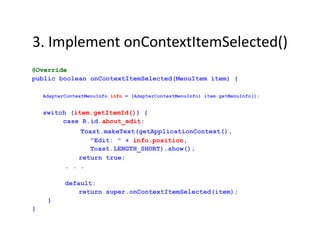
3. Implement onContextItemSelected()
@Override
public boolean onContextItemSelected(MenuItem item) {
AdapterContextMenuInfo info = (AdapterContextMenuInfo) item.getMenuInfo();
switch (item.getItemId()) {
case R.id.about_edit:
Toast.makeText(getApplicationContext(),
"Edit: " + info.position,
Toast.LENGTH_SHORT).show();
return true;
. . .
default:
return super.onContextItemSelected(item);
}
}
POPUP MENU
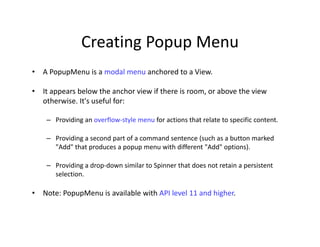
Creating Popup Menu
• A PopupMenu is a modal menu anchored to a View.
• It appears below the anchor view if there is room, or above the view
otherwise. It's useful for:
– Providing an overflow‐style menu for actions that relate to specific content.
– Providing a second part of a command sentence (such as a button marked
"Add" that produces a popup menu with different "Add" options).
– Providing a drop‐down similar to Spinner that does not retain a persistent
selection.
• Note: PopupMenu is available with API level 11 and higher.
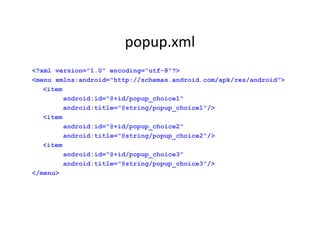
popup.xml
<?xml version="1.0" encoding="utf-8"?>
<menu xmlns:android="http://schemas.android.com/apk/res/android">
<item
android:id="@+id/popup_choice1"
android:title="@string/popup_choice1"/>
<item
android:id="@+id/popup_choice2"
android:title="@string/popup_choice2"/>
<item
android:id="@+id/popup_choice3"
android:title="@string/popup_choice3"/>
</menu>
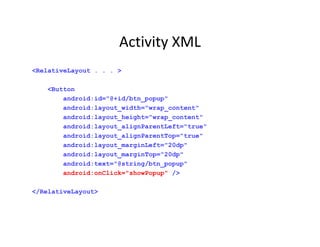
Activity XML
<RelativeLayout . . . >
<Button
android:id="@+id/btn_popup"
android:layout_width="wrap_content"
android:layout_height="wrap_content"
android:layout_alignParentLeft="true"
android:layout_alignParentTop="true"
android:layout_marginLeft="20dp"
android:layout_marginTop="20dp"
android:text="@string/btn_popup"
android:onClick="showPopup" />
</RelativeLayout>
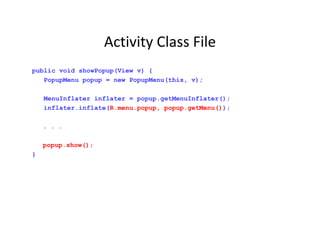
Activity Class File
public void showPopup(View v) {
PopupMenu popup = new PopupMenu(this, v);
MenuInflater inflater = popup.getMenuInflater();
inflater.inflate(R.menu.popup, popup.getMenu());
. . .
popup.show();
}
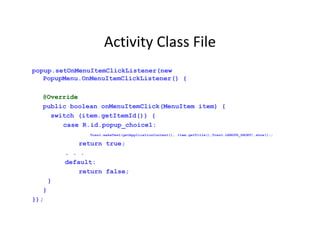
Activity Class File
popup.setOnMenuItemClickListener(new
PopupMenu.OnMenuItemClickListener() {
@Override
public boolean onMenuItemClick(MenuItem item) {
switch (item.getItemId()) {
case R.id.popup_choice1:
Toast.makeText(getApplicationContext(), item.getTitle(),Toast.LENGTH_SHORT).show();;
return true;
. . .
default:
return false;
}
}
});
Summary
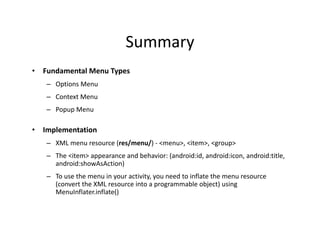
• Fundamental Menu Types
– Options Menu
– Context Menu
– Popup Menu
• Implementation
– XML menu resource (res/menu/) ‐ <menu>, <item>, <group>
– The <item> appearance and behavior: (android:id, android:icon, android:title,
android:showAsAction)
– To use the menu in your activity, you need to inflate the menu resource
(convert the XML resource into a programmable object) using
MenuInflater.inflate()
Summary
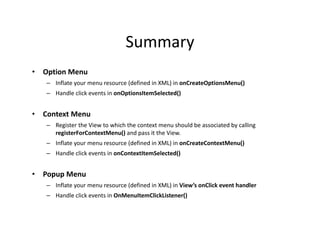
• Option Menu
– Inflate your menu resource (defined in XML) in onCreateOptionsMenu()
– Handle click events in onOptionsItemSelected()
• Context Menu
– Register the View to which the context menu should be associated by calling
registerForContextMenu() and pass it the View.
– Inflate your menu resource (defined in XML) in onCreateContextMenu()
– Handle click events in onContextItemSelected()
• Popup Menu
– Inflate your menu resource (defined in XML) in View’s onClick event handler
– Handle click events in OnMenuItemClickListener()
Lecture-10-Menus.pdf of Mobile Application Development

Lecture-10-Menus.pdf of Mobile Application Development

  • 1.
  • 2.
    Menus The three fundamentaltypes of menus: • Options Menu • Context Menu • Popup Menu
  • 3.
    Menus • Options Menu: Theoptions menu is the primary collection of menu items for an activity. This is where you should include actions and other options that are relevant to the current activity context • Context Menu: A context menu is a floating menu that appears when the user performs a long‐click on an element. It doesn't support item shortcuts and icons. • Popup Menu: A popup menu displays a list of items in a vertical list that's anchored to the view that invoked the menu. It disappears if you click outside the popup menu.
  • 4.
    Menus • For allmenu types, Android provides a standard XML format to define menu items ‐ you should define a menu and all its items in an XML menu resource. • You can then inflate the menu resource (load it as a Menu object) in your activity.
  • 5.
    XML Menu Resource •To define the menu, create an XML file inside your project's res/menu/ directory and build the menu with the following elements: – <menu> Defines a Menu, which is a container for menu items. A <menu> element must be the root node for the file and can hold one or more <item> and <group> elements. – <item> Creates a MenuItem, which represents a single item in a menu. This element may contain a nested <menu> element in order to create a submenu. – <group> An optional, invisible container for <item> elements. It allows you to categorize menu items so they share properties such as active state and visibility.
  • 6.
    XML Menu Resource <menuxmlns:android="http://schemas.android.com/apk/res/android"> <item android:id="@+id/action_settings“ android:orderInCategory="100" android:showAsAction="never" android:title="@string/action_settings"/> </menu>
  • 7.
    XML Menu Resource •The <item> element supports several attributes you can use to define an item's appearance and behavior: – android:id A resource ID that's unique to the item, which allows the application can recognize the item when the user selects it. – android:icon A reference to a drawable to use as the item's icon. – android:title A reference to a string to use as the item's title. – android:showAsAction Specifies when and how this item should appear as an action item in the action bar.
  • 8.
    XML Menu Resource <menuxmlns:android="http://schemas.android.com/apk/res/android"> <item android:id="@+id/action_settings“ android:orderInCategory="100" android:showAsAction="never" android:title="@string/action_settings"/> <item android:id="@+id/action_about" android:icon="@drawable/ic_action_about" android:title="@string/action_about" android:showAsAction="ifRoom"/> <item android:id="@+id/action_help" android:icon="@drawable/ic_action_help" android:title="@string/action_help“ android:showAsAction="always" /> </menu>
  • 9.
    XML Menu Resource <menuxmlns:android="http://schemas.android.com/apk/res/android"> . . . <item android:id="@+id/action_help" android:icon="@drawable/ic_action_help" android:title="@string/action_help“ android:showAsAction="always" > <menu> <item android:id="@+id/action_help_video" android:title="@string/action_help_video" /> <item android:id="@+id/action_help_text" android:title="@string/action_help_text" /> </menu> </item> </menu>
  • 10.
  • 11.
    Creating Options Menu •The options menu is where you should include actions and other options that are relevant to the current activity context. • Where the items in your options menu appear on the screen depends on the version for which you've developed your application: – If you've developed your application for Android 2.3.x (API level 10) or lower, the contents of your options menu appear at the bottom of the screen when the user presses the Menu button. – If you've developed your application for Android 3.0 (API level 11) and higher, items from the options menu are available in the action bar.
  • 12.
    Creating Options Menu •Where the items in your options menu appear on the screen depends on the version for which you've developed your application: Android 2.3.x (API level 10) or lower Android 3.0 (API level 11) and higher • By default, the system places all items in the action overflow, which the user can reveal with the action overflow icon on the right side of the action bar (or by pressing the device Menu button, if available). • To enable quick access to important actions, you can promote a few items to appear in the action bar by adding android:showAsAction="ifRoom" to the corresponding <item> elements .
  • 13.
    Creating Options Menu •To specify the options menu for an activity, override onCreateOptionsMenu(). • In this method, you can inflate your menu resource (defined in XML) into the Menu provided in the callback. For example: public boolean onCreateOptionsMenu(Menu menu) { getMenuInflater().inflate(R.menu.main, menu); return true; } Name of the XML file. e.g., main.xml
  • 14.
    Handling Click Events •When the user selects an item from the options menu (including action items in the action bar), the system calls your activity's onOptionsItemSelected() method. • This method passes the MenuItem selected. You can identify the item by calling getItemId(), which returns the unique ID for the menu item. • When you successfully handle a menu item, return true. If you don't handle the menu item, you should call the superclass implementation of onOptionsItemSelected() (the default implementation returns false).
  • 15.
    Handling Click Events @Override publicboolean onOptionsItemSelected(MenuItem item) { // Handle item selection switch (item.getItemId()) { case R.id.action_about: showAbout(); return true; case R.id.action_help_video: showHelp(1); return true; case R.id.action_help_text: showHelp(2); return true; default: return super.onOptionsItemSelected(item); } }
  • 16.
  • 17.
    Creating Context Menu •A contextual menu offers actions that affect a specific item or context frame in the UI. You can provide a context menu for any view, but they are most often used for items in a ListView, GridView, or other view collections in which the user can perform direct actions on each item. • There are two ways to provide contextual actions: – In a floating context menu. A menu appears as a floating list of menu items (similar to a dialog) when the user performs a long‐click (press and hold) on a view that declares support for a context menu. Users can perform a contextual action on one item at a time. – In the contextual action mode. This mode is a system implementation of ActionMode that displays a contextual action bar at the top of the screen with action items that affect the selected item(s). When this mode is active, users can perform an action on multiple items at once (if your app allows it).
  • 18.
  • 19.
    about_menu.xml <?xml version="1.0" encoding="utf-8"?> <menuxmlns:android="http://schemas.android.com/apk/res/android"> <item android:id="@+id/about_edit" android:title="@string/about_edit" /> <item android:id="@+id/about_share" android:title="@string/about_share" /> <item android:id="@+id/about_delete" android:title="@string/about_delete" /> </menu>
  • 20.
    Creating ListView . .. String[] aboutlist; . . . aboutlist = getResources().getStringArray(R.array.aboutlist); ArrayAdapter<String> adapter=new ArrayAdapter<String>(this,android.R.layout.simple_list_item_1,a boutlist); ListView listview = (ListView) findViewById(R.id.listView1); listview.setAdapter(adapter); . . .
  • 21.
    Creating Floating ContextMenu 1. Register the View to which the context menu should be associated by calling registerForContextMenu() and pass it the View. 2. Implement the onCreateContextMenu() method in your Activity. When the registered view receives a long‐click event, the system calls your onCreateContextMenu() method. This is where you define the menu items, usually by inflating a menu resource. 3. Implement onContextItemSelected(). When the user selects a menu item, the system calls this method so you can perform the appropriate action.
  • 22.
    1. Register theView . . . String[] aboutlist; . . . aboutlist = getResources().getStringArray(R.array.aboutlist); ArrayAdapter<String> adapter=new ArrayAdapter<String>(this,android.R.layout.simple_list_item_1,a boutlist); ListView listview = (ListView) findViewById(R.id.listView1); listview.setAdapter(adapter); . . . registerForContextMenu(listview);
  • 23.
    2. Implement onCreateContextMenu() @Override publicvoid onCreateContextMenu(ContextMenu menu, View v, ContextMenuInfo menuInfo) { super.onCreateContextMenu(menu, v, menuInfo); MenuInflater inflater = getMenuInflater(); inflater.inflate(R.menu.about_menu, menu); }
  • 24.
    3. Implement onContextItemSelected() @Override publicboolean onContextItemSelected(MenuItem item) { AdapterContextMenuInfo info = (AdapterContextMenuInfo) item.getMenuInfo(); switch (item.getItemId()) { case R.id.about_edit: Toast.makeText(getApplicationContext(), "Edit: " + info.position, Toast.LENGTH_SHORT).show(); return true; . . . default: return super.onContextItemSelected(item); } }
  • 25.
  • 26.
    Creating Popup Menu •A PopupMenu is a modal menu anchored to a View. • It appears below the anchor view if there is room, or above the view otherwise. It's useful for: – Providing an overflow‐style menu for actions that relate to specific content. – Providing a second part of a command sentence (such as a button marked "Add" that produces a popup menu with different "Add" options). – Providing a drop‐down similar to Spinner that does not retain a persistent selection. • Note: PopupMenu is available with API level 11 and higher.
  • 27.
    popup.xml <?xml version="1.0" encoding="utf-8"?> <menuxmlns:android="http://schemas.android.com/apk/res/android"> <item android:id="@+id/popup_choice1" android:title="@string/popup_choice1"/> <item android:id="@+id/popup_choice2" android:title="@string/popup_choice2"/> <item android:id="@+id/popup_choice3" android:title="@string/popup_choice3"/> </menu>
  • 28.
    Activity XML <RelativeLayout .. . > <Button android:id="@+id/btn_popup" android:layout_width="wrap_content" android:layout_height="wrap_content" android:layout_alignParentLeft="true" android:layout_alignParentTop="true" android:layout_marginLeft="20dp" android:layout_marginTop="20dp" android:text="@string/btn_popup" android:onClick="showPopup" /> </RelativeLayout>
  • 29.
    Activity Class File publicvoid showPopup(View v) { PopupMenu popup = new PopupMenu(this, v); MenuInflater inflater = popup.getMenuInflater(); inflater.inflate(R.menu.popup, popup.getMenu()); . . . popup.show(); }
  • 30.
    Activity Class File popup.setOnMenuItemClickListener(new PopupMenu.OnMenuItemClickListener(){ @Override public boolean onMenuItemClick(MenuItem item) { switch (item.getItemId()) { case R.id.popup_choice1: Toast.makeText(getApplicationContext(), item.getTitle(),Toast.LENGTH_SHORT).show();; return true; . . . default: return false; } } });
  • 31.
    Summary • Fundamental MenuTypes – Options Menu – Context Menu – Popup Menu • Implementation – XML menu resource (res/menu/) ‐ <menu>, <item>, <group> – The <item> appearance and behavior: (android:id, android:icon, android:title, android:showAsAction) – To use the menu in your activity, you need to inflate the menu resource (convert the XML resource into a programmable object) using MenuInflater.inflate()
  • 32.
    Summary • Option Menu –Inflate your menu resource (defined in XML) in onCreateOptionsMenu() – Handle click events in onOptionsItemSelected() • Context Menu – Register the View to which the context menu should be associated by calling registerForContextMenu() and pass it the View. – Inflate your menu resource (defined in XML) in onCreateContextMenu() – Handle click events in onContextItemSelected() • Popup Menu – Inflate your menu resource (defined in XML) in View’s onClick event handler – Handle click events in OnMenuItemClickListener()