Microsoft Excel 2007 - Illustrated Programming with Excel
View VBA code Analyze VBA code Write VBA code Add a conditional statement Microsoft Office Excel 2007 - Illustrated Objectives
Prompt the user for data Debug a macro Create a main procedure Run a main procedure Microsoft Office Excel 2007 - Illustrated Objectives
Unit Introduction Excel macros are written in a programming language called Visual Basic for Applications, or  VBA Create a macro with the Excel macro recorder The recorder writes the VBA instructions for you Enter VBA instructions manually Sequence of VBA statements is called a  procedure Microsoft Office Excel 2007 - Illustrated
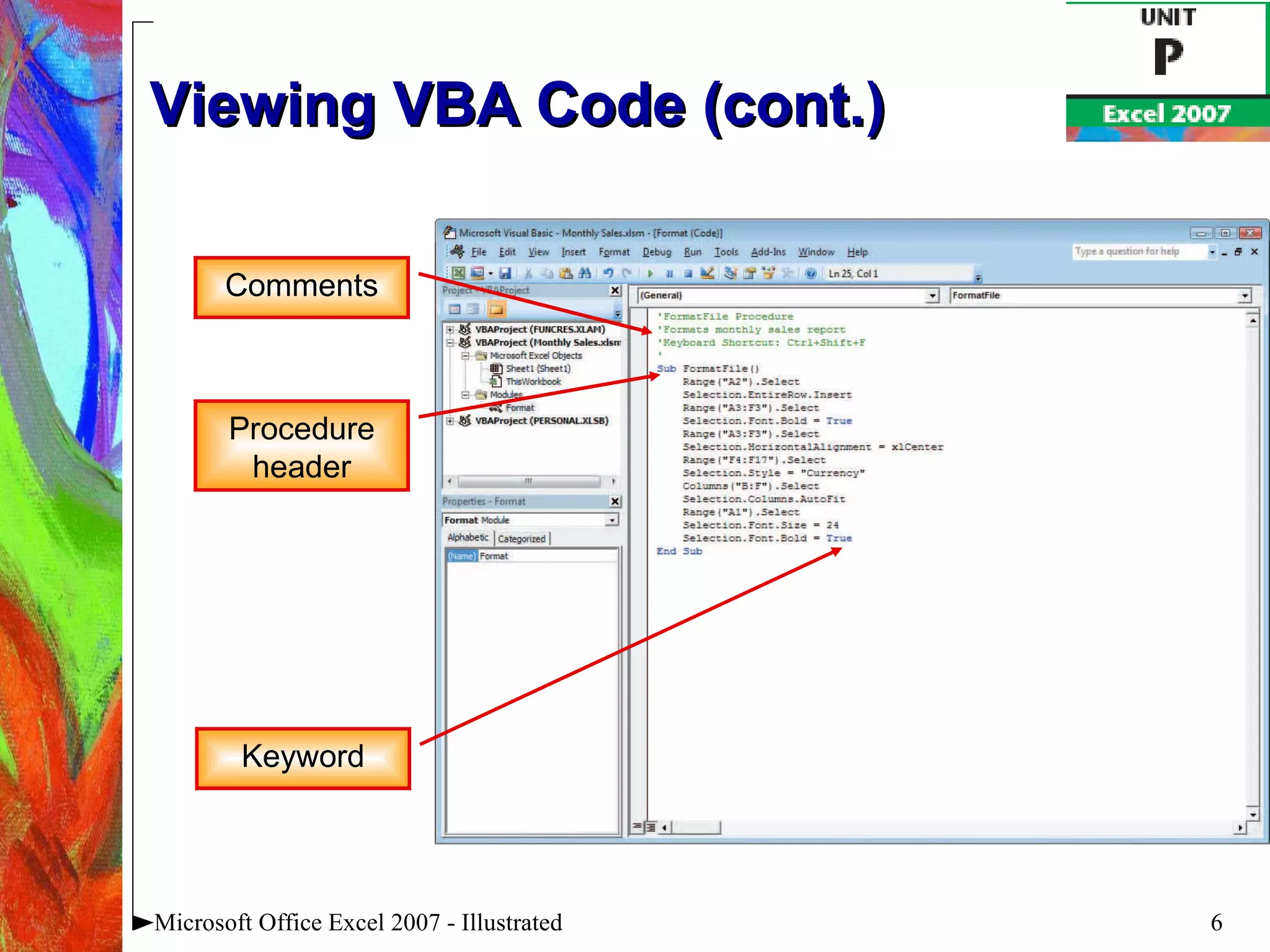
Viewing VBA Code View existing VBA code to learn the language To view VBA code, open the Visual Basic Editor Contains a Project Explorer window, a Properties window, and a Code window VBA code appears in the Code window The first line of a procedure is called the  procedure header Items displayed in blue are  keywords Green notes explaining the code are called  comments Microsoft Office Excel 2007 - Illustrated
Viewing VBA Code (cont.) Microsoft Office Excel 2007 - Illustrated Comments Procedure header Keyword
Viewing VBA Code (cont.) Understanding the Visual Basic Editor A  module  is the Visual Basic equivalent of a worksheet Store macro procedures A module is stored in a workbook, or  project , along with worksheets View and edit modules in the Visual Basic Editor Microsoft Office Excel 2007 - Illustrated
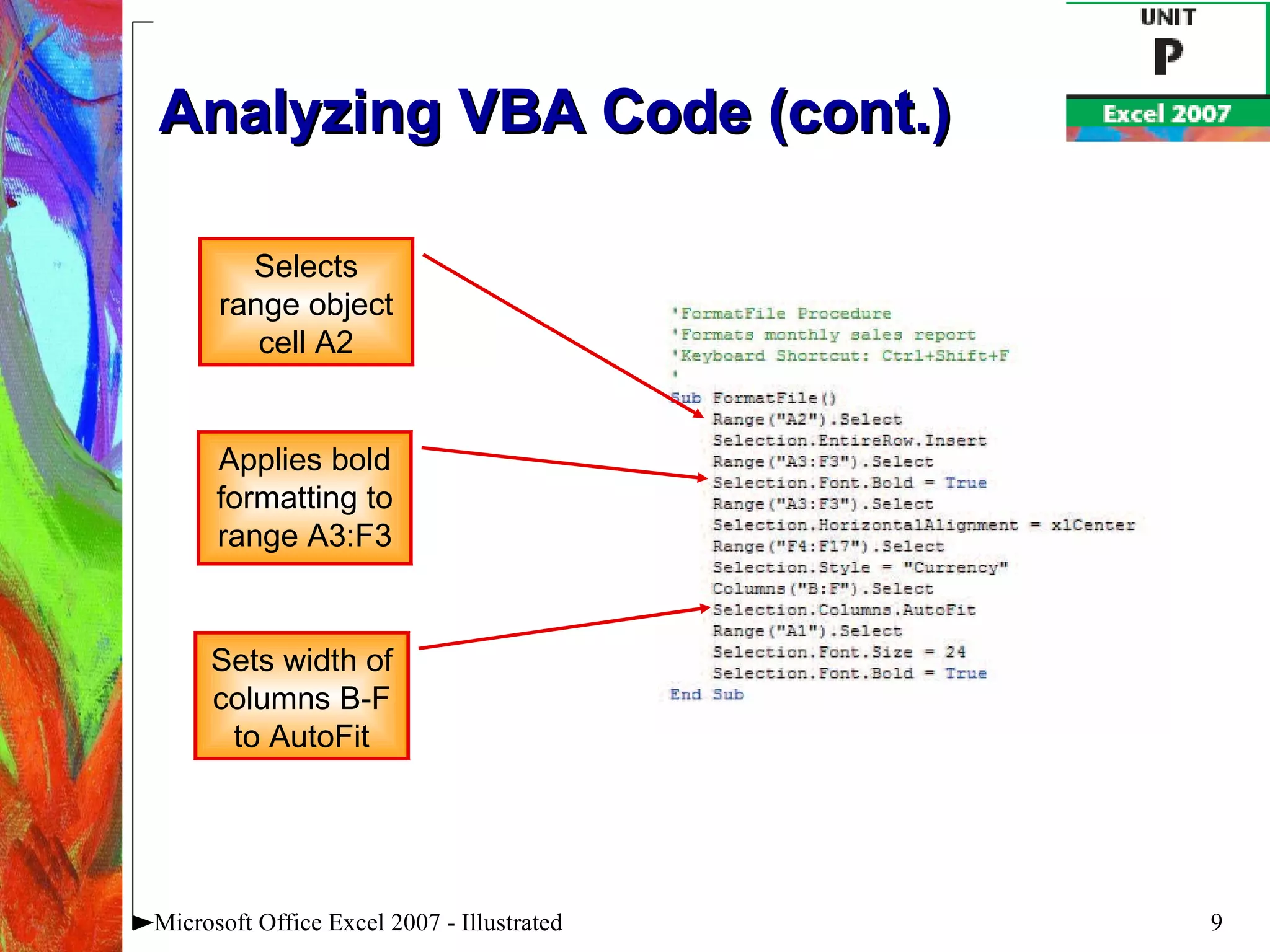
Analyzing VBA Code Analyzing VBA code Every element of Excel, including a range, is considered an  object A  range object  represents a cell or a range of cells A  property  is an attribute of an object that defines one of the object’s characteristics, such as size The last line in VBA code is the  procedure footer Microsoft Office Excel 2007 - Illustrated
Analyzing VBA Code (cont.) Microsoft Office Excel 2007 - Illustrated Selects range object cell A2 Applies bold formatting to range A3:F3 Sets width of columns B-F to AutoFit
Writing VBA Code To write your own code, open the Visual Basic Editor and add a module to the workbook You must follow the formatting rules, or  syntax , of the VBA programming language exactly A misspelled keyword of variable name will cause a procedure to fail Microsoft Office Excel 2007 - Illustrated
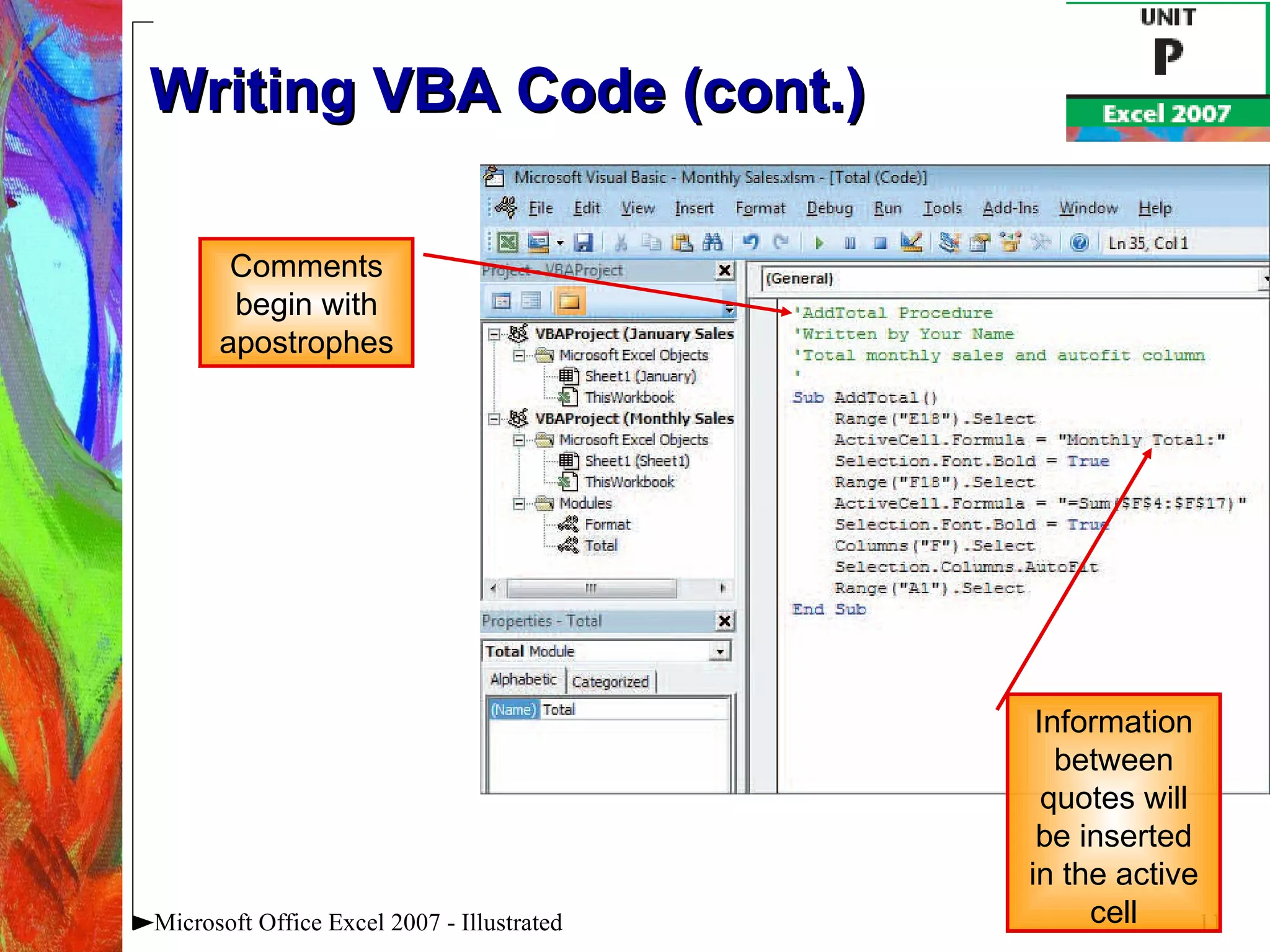
Writing VBA Code (cont.) Microsoft Office Excel 2007 - Illustrated Comments begin with apostrophes Information between quotes will be inserted in the active cell
Writing VBA Code (cont.) Entering code using AutoComplete To assist you in entering the VBA code, the Editor often displays a list of words that can be used in the macro statement Typically the list appears after you press period [.] Microsoft Office Excel 2007 - Illustrated
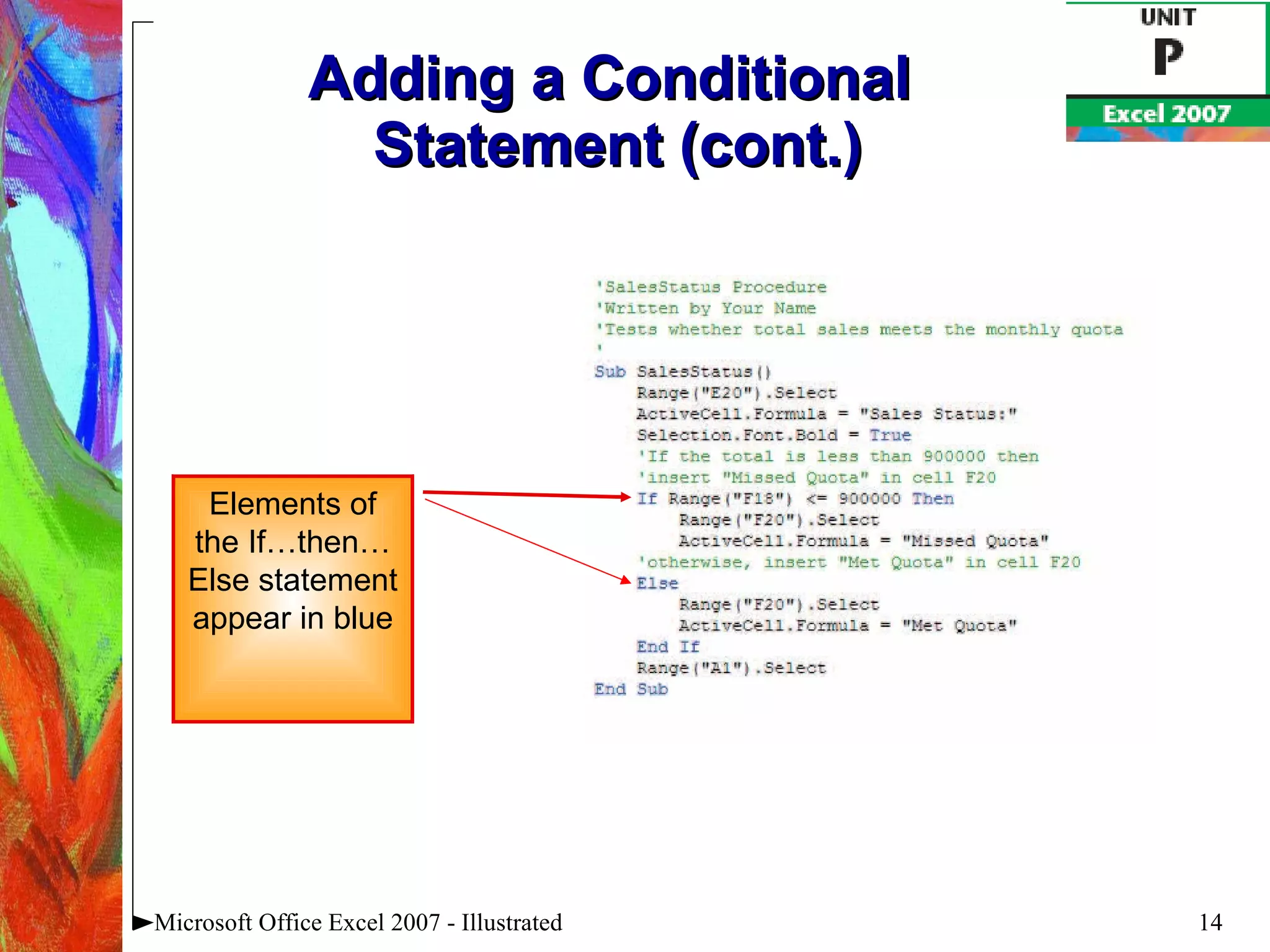
Adding a Conditional Statement Sometimes you may want a procedure to take an action based on a certain condition or set of conditions One way to add this type of statement is by using an  If...Then…Else statement The syntax for this statement is: If  condition  then  statements  Else [ else statements ] Microsoft Office Excel 2007 - Illustrated
Adding a Conditional  Statement (cont.) Microsoft Office Excel 2007 - Illustrated Elements of the If…then…Else statement appear in blue
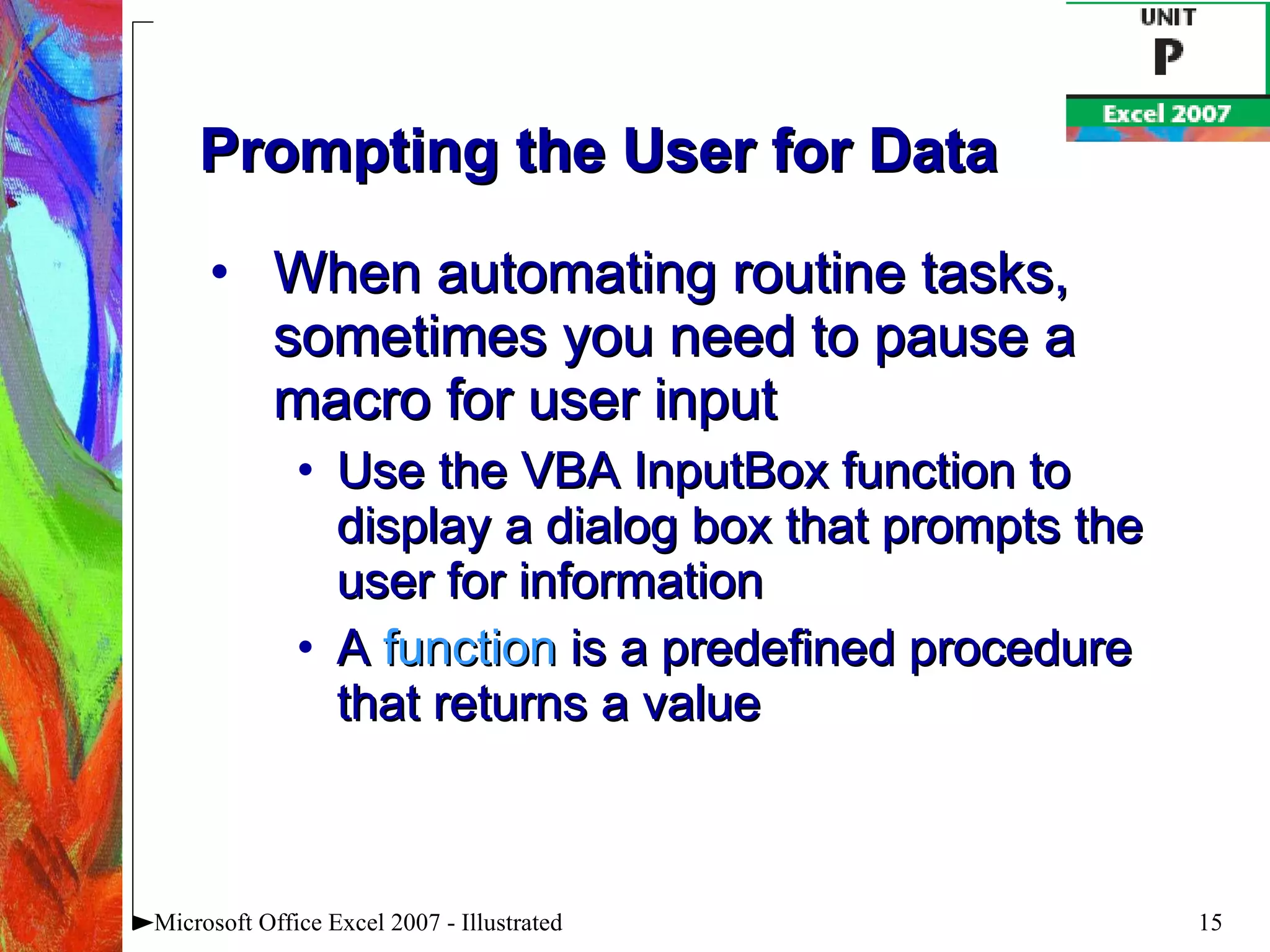
Prompting the User for Data When automating routine tasks, sometimes you need to pause a macro for user input Use the VBA InputBox function to display a dialog box that prompts the user for information A  function  is a predefined procedure that returns a value Microsoft Office Excel 2007 - Illustrated
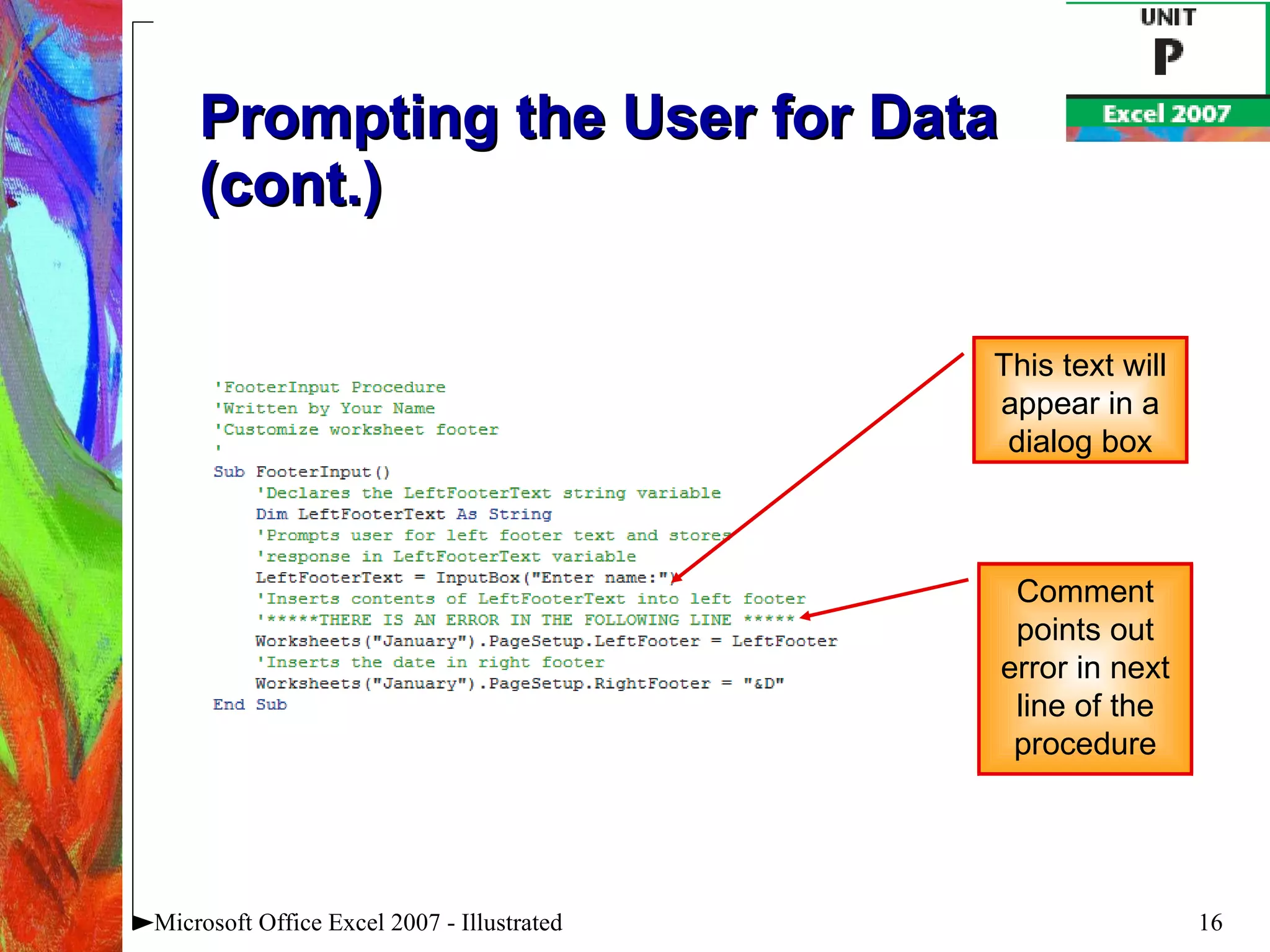
Prompting the User for Data (cont.) Microsoft Office Excel 2007 - Illustrated This text will appear in a dialog box Comment points out error in next line of the procedure
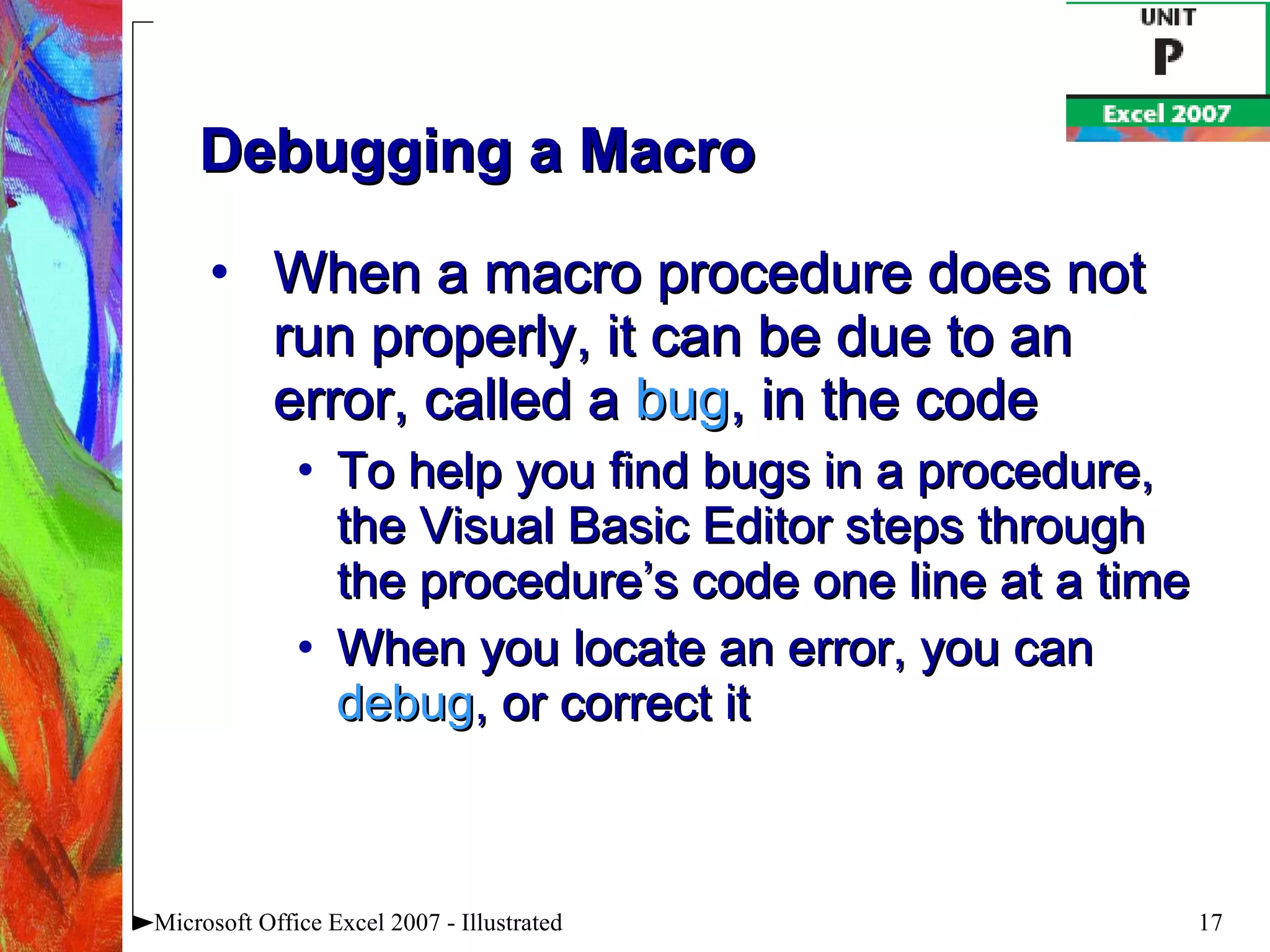
Debugging a Macro When a macro procedure does not run properly, it can be due to an error, called a  bug , in the code To help you find bugs in a procedure, the Visual Basic Editor steps through the procedure’s code one line at a time When you locate an error, you can  debug , or correct it Microsoft Office Excel 2007 - Illustrated
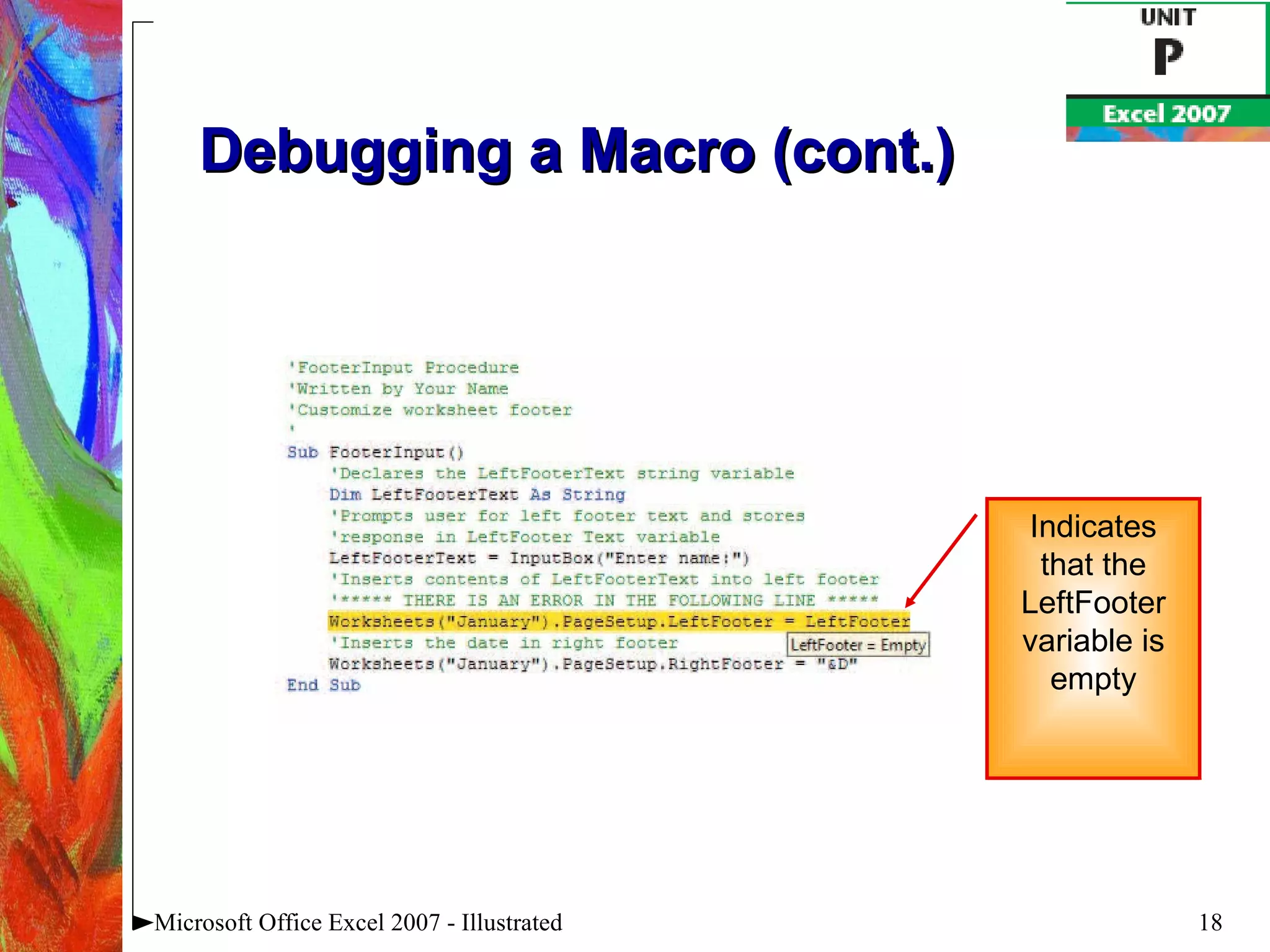
Debugging a Macro (cont.) Microsoft Office Excel 2007 - Illustrated Indicates that the LeftFooter variable is empty
Creating a Main Procedure Combine several macros that you routinely run together into a procedure This is a  main procedure To create a main procedure, type a Call statement for each procedure you want to run Microsoft Office Excel 2007 - Illustrated
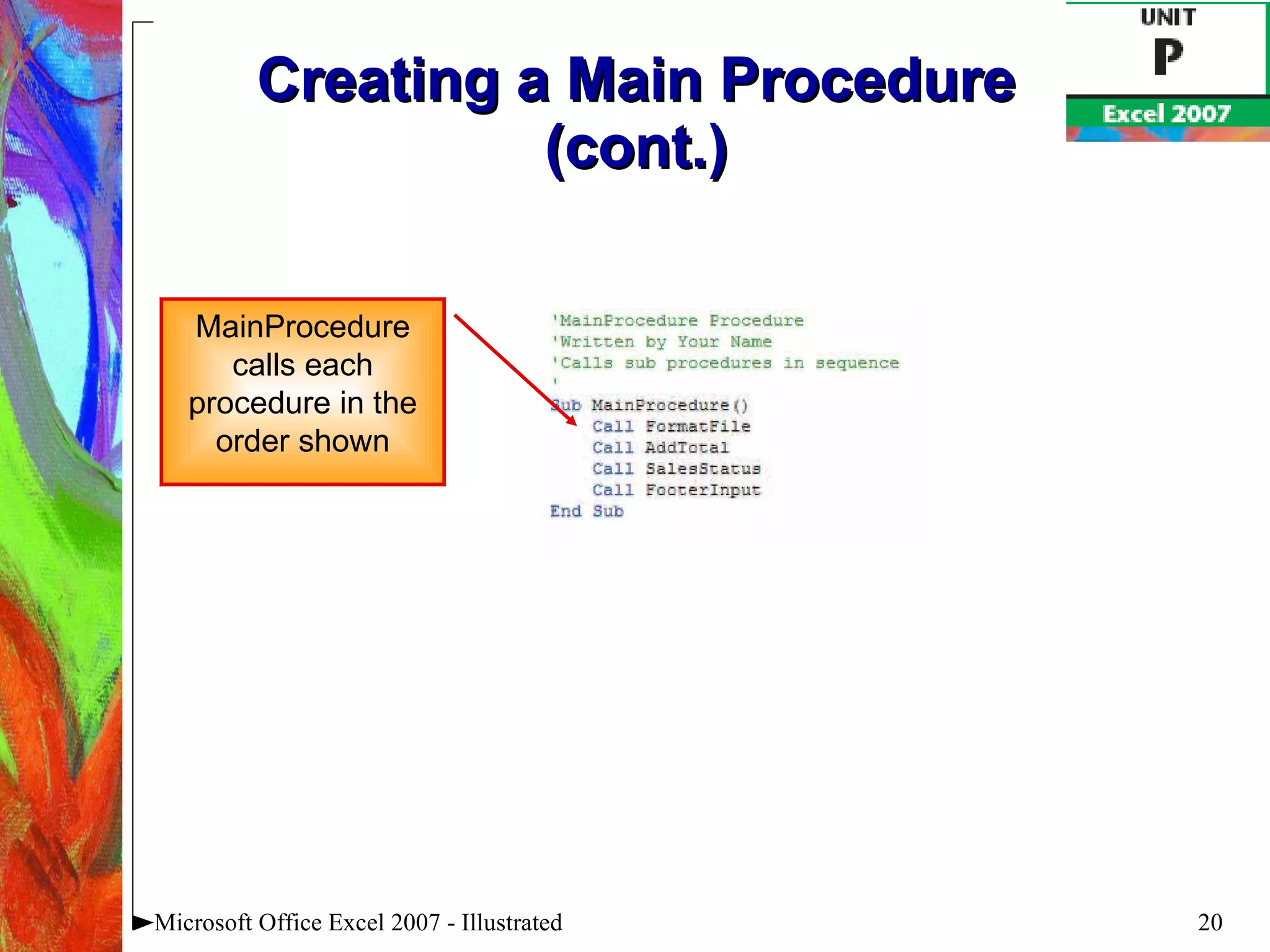
Creating a Main Procedure (cont.) Microsoft Office Excel 2007 - Illustrated MainProcedure calls each procedure in the order shown
Running a Main Procedure Running a main procedure allows you to run several macros in sequence Run a main procedure as you would any other macro Microsoft Office Excel 2007 - Illustrated
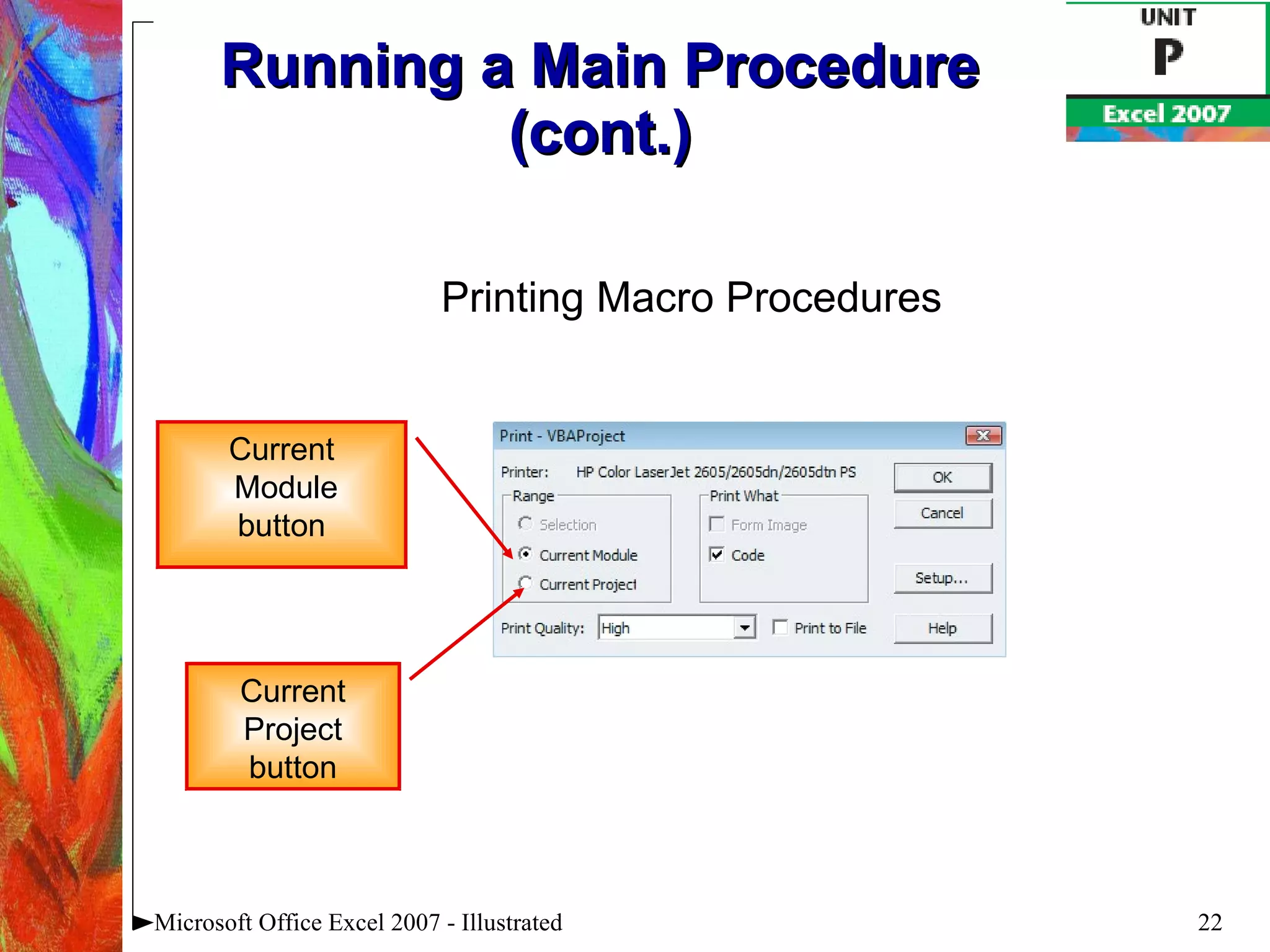
Running a Main Procedure (cont.) Microsoft Office Excel 2007 - Illustrated Current Module button Printing Macro Procedures Current Project button
Summary Learn by viewing and analyzing VBA code Write VBA code using the Visual Basic Editor Use If..Then..Else statements for conditional actions Prompt user for data to automate input tasks Use the “Step Into” feature of the Visual Basic Editor to debug macros Use Main procedures to combine several macros Microsoft Office Excel 2007 - Illustrated

Excel 2007 Unit P

  • 1.
    Microsoft Excel 2007- Illustrated Programming with Excel
  • 2.
    View VBA codeAnalyze VBA code Write VBA code Add a conditional statement Microsoft Office Excel 2007 - Illustrated Objectives
  • 3.
    Prompt the userfor data Debug a macro Create a main procedure Run a main procedure Microsoft Office Excel 2007 - Illustrated Objectives
  • 4.
    Unit Introduction Excelmacros are written in a programming language called Visual Basic for Applications, or VBA Create a macro with the Excel macro recorder The recorder writes the VBA instructions for you Enter VBA instructions manually Sequence of VBA statements is called a procedure Microsoft Office Excel 2007 - Illustrated
  • 5.
    Viewing VBA CodeView existing VBA code to learn the language To view VBA code, open the Visual Basic Editor Contains a Project Explorer window, a Properties window, and a Code window VBA code appears in the Code window The first line of a procedure is called the procedure header Items displayed in blue are keywords Green notes explaining the code are called comments Microsoft Office Excel 2007 - Illustrated
  • 6.
    Viewing VBA Code(cont.) Microsoft Office Excel 2007 - Illustrated Comments Procedure header Keyword
  • 7.
    Viewing VBA Code(cont.) Understanding the Visual Basic Editor A module is the Visual Basic equivalent of a worksheet Store macro procedures A module is stored in a workbook, or project , along with worksheets View and edit modules in the Visual Basic Editor Microsoft Office Excel 2007 - Illustrated
  • 8.
    Analyzing VBA CodeAnalyzing VBA code Every element of Excel, including a range, is considered an object A range object represents a cell or a range of cells A property is an attribute of an object that defines one of the object’s characteristics, such as size The last line in VBA code is the procedure footer Microsoft Office Excel 2007 - Illustrated
  • 9.
    Analyzing VBA Code(cont.) Microsoft Office Excel 2007 - Illustrated Selects range object cell A2 Applies bold formatting to range A3:F3 Sets width of columns B-F to AutoFit
  • 10.
    Writing VBA CodeTo write your own code, open the Visual Basic Editor and add a module to the workbook You must follow the formatting rules, or syntax , of the VBA programming language exactly A misspelled keyword of variable name will cause a procedure to fail Microsoft Office Excel 2007 - Illustrated
  • 11.
    Writing VBA Code(cont.) Microsoft Office Excel 2007 - Illustrated Comments begin with apostrophes Information between quotes will be inserted in the active cell
  • 12.
    Writing VBA Code(cont.) Entering code using AutoComplete To assist you in entering the VBA code, the Editor often displays a list of words that can be used in the macro statement Typically the list appears after you press period [.] Microsoft Office Excel 2007 - Illustrated
  • 13.
    Adding a ConditionalStatement Sometimes you may want a procedure to take an action based on a certain condition or set of conditions One way to add this type of statement is by using an If...Then…Else statement The syntax for this statement is: If condition then statements Else [ else statements ] Microsoft Office Excel 2007 - Illustrated
  • 14.
    Adding a Conditional Statement (cont.) Microsoft Office Excel 2007 - Illustrated Elements of the If…then…Else statement appear in blue
  • 15.
    Prompting the Userfor Data When automating routine tasks, sometimes you need to pause a macro for user input Use the VBA InputBox function to display a dialog box that prompts the user for information A function is a predefined procedure that returns a value Microsoft Office Excel 2007 - Illustrated
  • 16.
    Prompting the Userfor Data (cont.) Microsoft Office Excel 2007 - Illustrated This text will appear in a dialog box Comment points out error in next line of the procedure
  • 17.
    Debugging a MacroWhen a macro procedure does not run properly, it can be due to an error, called a bug , in the code To help you find bugs in a procedure, the Visual Basic Editor steps through the procedure’s code one line at a time When you locate an error, you can debug , or correct it Microsoft Office Excel 2007 - Illustrated
  • 18.
    Debugging a Macro(cont.) Microsoft Office Excel 2007 - Illustrated Indicates that the LeftFooter variable is empty
  • 19.
    Creating a MainProcedure Combine several macros that you routinely run together into a procedure This is a main procedure To create a main procedure, type a Call statement for each procedure you want to run Microsoft Office Excel 2007 - Illustrated
  • 20.
    Creating a MainProcedure (cont.) Microsoft Office Excel 2007 - Illustrated MainProcedure calls each procedure in the order shown
  • 21.
    Running a MainProcedure Running a main procedure allows you to run several macros in sequence Run a main procedure as you would any other macro Microsoft Office Excel 2007 - Illustrated
  • 22.
    Running a MainProcedure (cont.) Microsoft Office Excel 2007 - Illustrated Current Module button Printing Macro Procedures Current Project button
  • 23.
    Summary Learn byviewing and analyzing VBA code Write VBA code using the Visual Basic Editor Use If..Then..Else statements for conditional actions Prompt user for data to automate input tasks Use the “Step Into” feature of the Visual Basic Editor to debug macros Use Main procedures to combine several macros Microsoft Office Excel 2007 - Illustrated