Tutorial 2:
Formatting a Workbook

Microsoft Excel 2010
         ®     ®
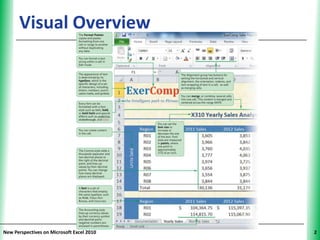
Visual Overview                      XP


New Perspectives on Microsoft Excel 2010        2
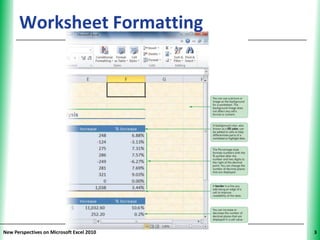
Worksheet Formatting                 XP


New Perspectives on Microsoft Excel 2010        3
Formatting Cell Text                                    XP

      • Formatting
         – Process of changing workbook’s appearance by
           defining fonts, styles, colors, and graphical effects
            • Only the appearance of data changes, not data
              itself
         – Enhances readability and appeal
         – Live Preview shows the effects of formatting
           options before you apply them
      • Themes
         – Named collections of formatting effects

New Perspectives on Microsoft Excel 2010                           4
Applying Fonts and Font Styles              XP


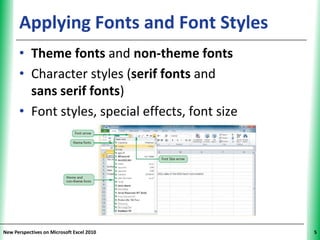
      • Theme fonts and non-theme fonts
      • Character styles (serif fonts and
        sans serif fonts)
      • Font styles, special effects, font size


New Perspectives on Microsoft Excel 2010               5
Applying a Font Color                         XP


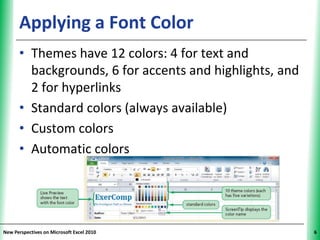
      • Themes have 12 colors: 4 for text and
        backgrounds, 6 for accents and highlights, and
        2 for hyperlinks
      • Standard colors (always available)
      • Custom colors
      • Automatic colors


New Perspectives on Microsoft Excel 2010                 6
Working with Colors and Backgrounds
                                        XP


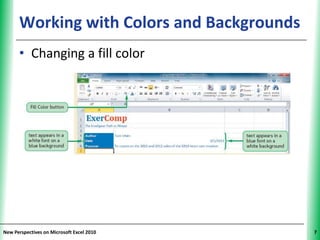
      • Changing a fill color


New Perspectives on Microsoft Excel 2010     7
Working with Colors and Backgrounds
                                        XP


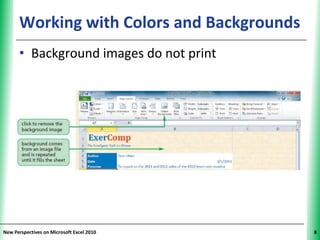
      • Background images do not print


New Perspectives on Microsoft Excel 2010     8
Formatting Calculated Values                XP


      • Goal: Make workbook easier to interpret
        – Add a comma as a thousands separator
        – Control number of decimal places
        – Use percentage and currency symbols


New Perspectives on Microsoft Excel 2010               9
Formatting Calculated Values                     XP


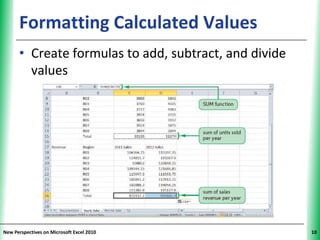
      • Create formulas to add, subtract, and divide
        values


New Perspectives on Microsoft Excel 2010                    10
Formatting Calculated Values                       XP

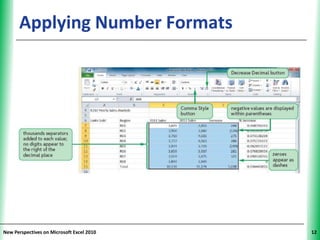
      • Applying number formats
         – Use General number format for simple
           calculations
         – Apply Excel’s additional formatting to make
           numbers easier to interpret
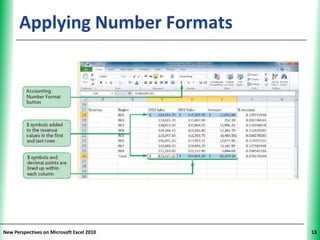
            • Accounting style
               –Lines up currency values within a column by
                 currency symbol and decimal point
               –Encloses negative numbers within
                 parentheses

New Perspectives on Microsoft Excel 2010                      11
Applying Number Formats              XP


New Perspectives on Microsoft Excel 2010        12
Applying Number Formats              XP


New Perspectives on Microsoft Excel 2010        13
Formatting Calculated Values                          XP

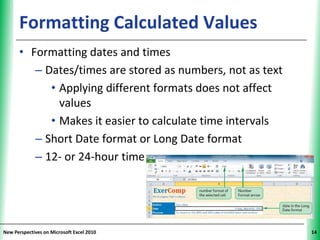
      • Formatting dates and times
         – Dates/times are stored as numbers, not as text
            • Applying different formats does not affect
              values
            • Makes it easier to calculate time intervals
         – Short Date format or Long Date format
         – 12- or 24-hour time


New Perspectives on Microsoft Excel 2010                         14
Formatting Worksheet Cells                         XP


      • Format appearance of individual cells by:
         – Modifying alignment of text within the cell
         – Indenting cell text
         – Adding borders of different styles and
           colors to individual cells or ranges


New Perspectives on Microsoft Excel 2010                      15
Formatting Worksheet Cells           XP

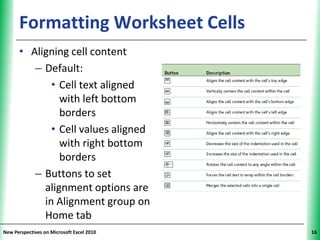
      • Aligning cell content
         – Default:
             • Cell text aligned
               with left bottom
               borders
             • Cell values aligned
               with right bottom
               borders
         – Buttons to set
           alignment options are
           in Alignment group on
           Home tab
New Perspectives on Microsoft Excel 2010        16
Formatting Worksheet Cells                     XP


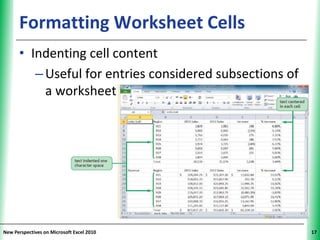
      • Indenting cell content
         – Useful for entries considered subsections of
           a worksheet


New Perspectives on Microsoft Excel 2010                  17
Formatting Worksheet Cells                      XP

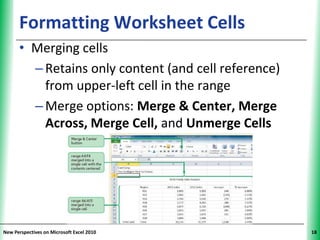
      • Merging cells
        – Retains only content (and cell reference)
          from upper-left cell in the range
        – Merge options: Merge & Center, Merge
          Across, Merge Cell, and Unmerge Cells


New Perspectives on Microsoft Excel 2010                   18
Formatting Worksheet Cells                 XP


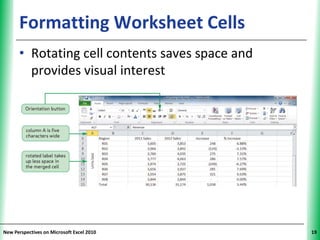
      • Rotating cell contents saves space and
        provides visual interest


New Perspectives on Microsoft Excel 2010              19
Formatting Worksheet Cells                       XP


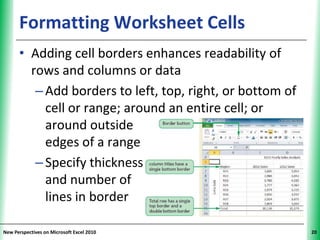
      • Adding cell borders enhances readability of
        rows and columns or data
         – Add borders to left, top, right, or bottom of
           cell or range; around an entire cell; or
           around outside
           edges of a range
         – Specify thickness
           and number of
           lines in border

New Perspectives on Microsoft Excel 2010                    20
Options in the Format Cells Dialog Box
                                           XP


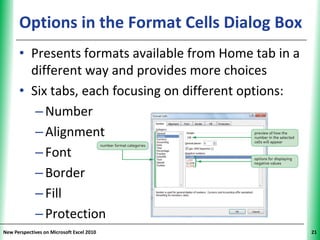
      • Presents formats available from Home tab in a
        different way and provides more choices
      • Six tabs, each focusing on different options:
         – Number
         – Alignment
         – Font
         – Border
         – Fill
         – Protection
New Perspectives on Microsoft Excel 2010                21
Options in the Format Cells Dialog Box
                                           XP


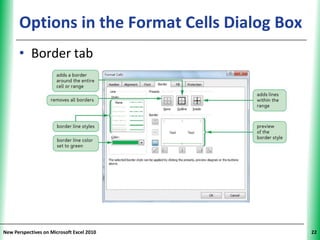
      • Border tab


New Perspectives on Microsoft Excel 2010        22
Copying and Pasting Formats                   XP


      • Copying formats with Format Painter
         – Fast and efficient way of maintaining a
           consistent look and feel throughout a
           workbook
         – Copies formatting without duplicating data


New Perspectives on Microsoft Excel 2010                 23
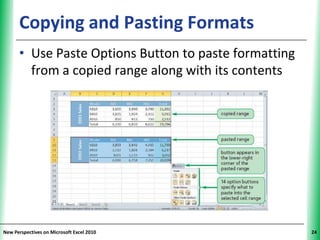
Copying and Pasting Formats                  XP


      • Use Paste Options Button to paste formatting
        from a copied range along with its contents


New Perspectives on Microsoft Excel 2010                24
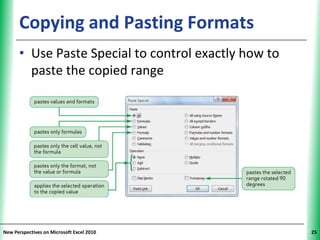
Copying and Pasting Formats                     XP


      • Use Paste Special to control exactly how to
        paste the copied range


New Perspectives on Microsoft Excel 2010                   25
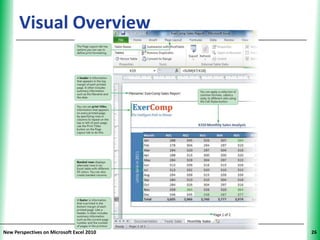
Visual Overview                      XP


New Perspectives on Microsoft Excel 2010        26
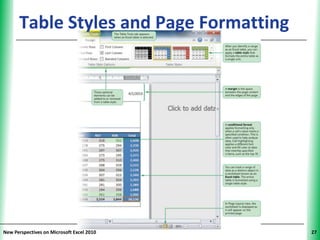
Table Styles and Page Formatting XP


New Perspectives on Microsoft Excel 2010    27
Applying Cell Styles                           XP


      • Use styles to ensure that cells displaying same
        type of data use the same format
      • Style
         – Selection of formatting options using a
           specific font and color from the current
           theme
         – If style is later revised, appearance of any
           cell formatted with that style is updated
           automatically; saves time and effort

New Perspectives on Microsoft Excel 2010                  28
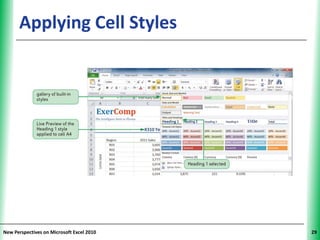
Applying Cell Styles                 XP


New Perspectives on Microsoft Excel 2010        29
Working with Themes                          XP


      • Appearance of fonts, colors, and cell styles
        depends on workbook’s current theme
      • If theme is changed, formatting of fonts,
        colors, and cell styles changes throughout
        entire workbook
      • Only elements directly tied to a theme change
        when you select a different theme


New Perspectives on Microsoft Excel 2010                30
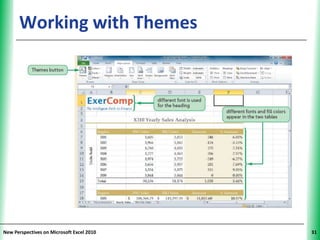
Working with Themes                  XP


New Perspectives on Microsoft Excel 2010        31
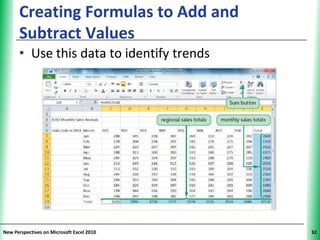
Creating Formulas to Add and         XP
      Subtract Values
      • Use this data to identify trends


New Perspectives on Microsoft Excel 2010        32
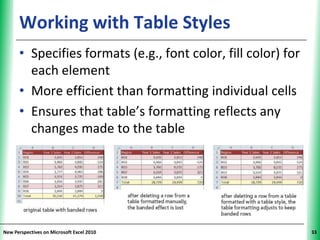
Working with Table Styles                           XP


      • Specifies formats (e.g., font color, fill color) for
        each element
      • More efficient than formatting individual cells
      • Ensures that table’s formatting reflects any
        changes made to the table


New Perspectives on Microsoft Excel 2010                       33
Working with Table Styles                        XP


      • Table style elements can be turned on or off
         – Header Row
         – Total Row
         – First Column
         – Last Column
         – Banded Rows
         – Banded Columns


New Perspectives on Microsoft Excel 2010                    34
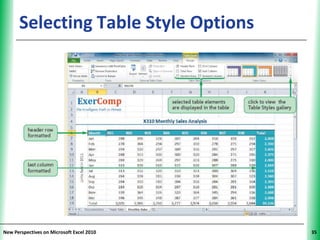
Selecting Table Style Options        XP


New Perspectives on Microsoft Excel 2010        35
Highlighting Cells with Conditional             XP
      Formats
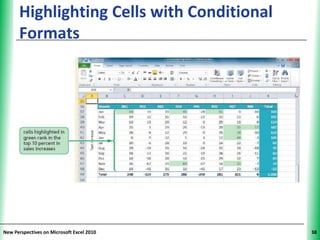
      • Goal of highlighting: Provide strong visual clue
        of important data or results
      • Format applied to a cell depends upon value
        or content of the cell
      • Dynamic: If cell’s value changes, cell’s format
        also changes as needed
      • Excel has four conditional formats: data bars,
        highlighting, color scales, and icon sets


New Perspectives on Microsoft Excel 2010                   36
Highlighting Rules                             XP


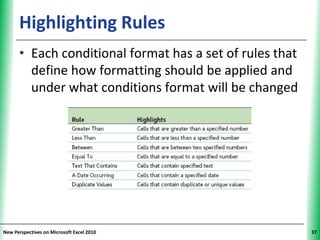
      • Each conditional format has a set of rules that
        define how formatting should be applied and
        under what conditions format will be changed


New Perspectives on Microsoft Excel 2010                  37
Highlighting Cells with Conditional   XP
      Formats


New Perspectives on Microsoft Excel 2010         38
Highlighting Cells with Conditional              XP
      Formats
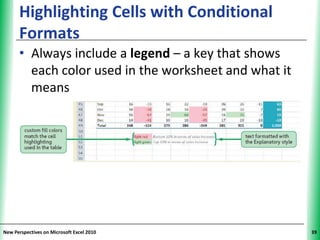
      • Always include a legend – a key that shows
        each color used in the worksheet and what it
        means


New Perspectives on Microsoft Excel 2010                    39
Hiding Worksheet Data                          XP


      • Manage contents of a large worksheet by
        selectively hiding rows and columns of
        extraneous data
      • Allows you to focus attention on only a select
        few data points
      • Does not affect other formulas in workbook
      • Never hide data that is crucial to
        understanding a workbook


New Perspectives on Microsoft Excel 2010                  40
Formatting the Worksheet for Printing
                                          XP


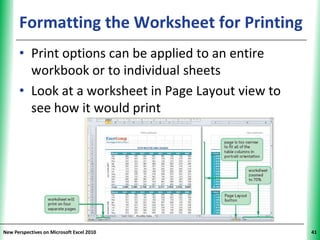
      • Print options can be applied to an entire
        workbook or to individual sheets
      • Look at a worksheet in Page Layout view to
        see how it would print


New Perspectives on Microsoft Excel 2010             41
Formatting the Worksheet for Printing
                                          XP

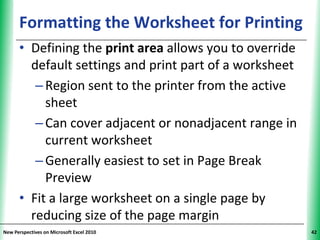
      • Defining the print area allows you to override
        default settings and print part of a worksheet
         – Region sent to the printer from the active
           sheet
         – Can cover adjacent or nonadjacent range in
           current worksheet
         – Generally easiest to set in Page Break
           Preview
      • Fit a large worksheet on a single page by
        reducing size of the page margin
New Perspectives on Microsoft Excel 2010                 42
Formatting the Worksheet for Printing
                                          XP


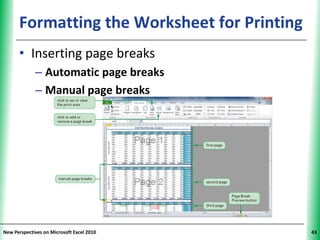
      • Inserting page breaks
             – Automatic page breaks
             – Manual page breaks


New Perspectives on Microsoft Excel 2010       43
Formatting the Worksheet for Printing
                                          XP


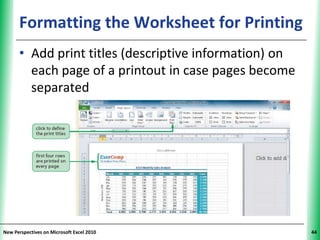
      • Add print titles (descriptive information) on
        each page of a printout in case pages become
        separated


New Perspectives on Microsoft Excel 2010                44
Formatting the Worksheet for Printing
                                          XP


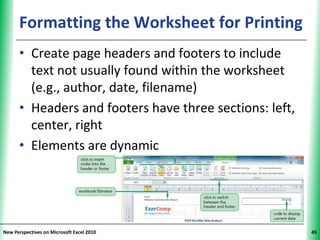
      • Create page headers and footers to include
        text not usually found within the worksheet
        (e.g., author, date, filename)
      • Headers and footers have three sections: left,
        center, right
      • Elements are dynamic


New Perspectives on Microsoft Excel 2010                 45

Tutorial 2

  • 1.
    Tutorial 2: Formatting aWorkbook Microsoft Excel 2010 ® ®
  • 2.
    Visual Overview XP New Perspectives on Microsoft Excel 2010 2
  • 3.
    Worksheet Formatting XP New Perspectives on Microsoft Excel 2010 3
  • 4.
    Formatting Cell Text XP • Formatting – Process of changing workbook’s appearance by defining fonts, styles, colors, and graphical effects • Only the appearance of data changes, not data itself – Enhances readability and appeal – Live Preview shows the effects of formatting options before you apply them • Themes – Named collections of formatting effects New Perspectives on Microsoft Excel 2010 4
  • 5.
    Applying Fonts andFont Styles XP • Theme fonts and non-theme fonts • Character styles (serif fonts and sans serif fonts) • Font styles, special effects, font size New Perspectives on Microsoft Excel 2010 5
  • 6.
    Applying a FontColor XP • Themes have 12 colors: 4 for text and backgrounds, 6 for accents and highlights, and 2 for hyperlinks • Standard colors (always available) • Custom colors • Automatic colors New Perspectives on Microsoft Excel 2010 6
  • 7.
    Working with Colorsand Backgrounds XP • Changing a fill color New Perspectives on Microsoft Excel 2010 7
  • 8.
    Working with Colorsand Backgrounds XP • Background images do not print New Perspectives on Microsoft Excel 2010 8
  • 9.
    Formatting Calculated Values XP • Goal: Make workbook easier to interpret – Add a comma as a thousands separator – Control number of decimal places – Use percentage and currency symbols New Perspectives on Microsoft Excel 2010 9
  • 10.
    Formatting Calculated Values XP • Create formulas to add, subtract, and divide values New Perspectives on Microsoft Excel 2010 10
  • 11.
    Formatting Calculated Values XP • Applying number formats – Use General number format for simple calculations – Apply Excel’s additional formatting to make numbers easier to interpret • Accounting style –Lines up currency values within a column by currency symbol and decimal point –Encloses negative numbers within parentheses New Perspectives on Microsoft Excel 2010 11
  • 12.
    Applying Number Formats XP New Perspectives on Microsoft Excel 2010 12
  • 13.
    Applying Number Formats XP New Perspectives on Microsoft Excel 2010 13
  • 14.
    Formatting Calculated Values XP • Formatting dates and times – Dates/times are stored as numbers, not as text • Applying different formats does not affect values • Makes it easier to calculate time intervals – Short Date format or Long Date format – 12- or 24-hour time New Perspectives on Microsoft Excel 2010 14
  • 15.
    Formatting Worksheet Cells XP • Format appearance of individual cells by: – Modifying alignment of text within the cell – Indenting cell text – Adding borders of different styles and colors to individual cells or ranges New Perspectives on Microsoft Excel 2010 15
  • 16.
    Formatting Worksheet Cells XP • Aligning cell content – Default: • Cell text aligned with left bottom borders • Cell values aligned with right bottom borders – Buttons to set alignment options are in Alignment group on Home tab New Perspectives on Microsoft Excel 2010 16
  • 17.
    Formatting Worksheet Cells XP • Indenting cell content – Useful for entries considered subsections of a worksheet New Perspectives on Microsoft Excel 2010 17
  • 18.
    Formatting Worksheet Cells XP • Merging cells – Retains only content (and cell reference) from upper-left cell in the range – Merge options: Merge & Center, Merge Across, Merge Cell, and Unmerge Cells New Perspectives on Microsoft Excel 2010 18
  • 19.
    Formatting Worksheet Cells XP • Rotating cell contents saves space and provides visual interest New Perspectives on Microsoft Excel 2010 19
  • 20.
    Formatting Worksheet Cells XP • Adding cell borders enhances readability of rows and columns or data – Add borders to left, top, right, or bottom of cell or range; around an entire cell; or around outside edges of a range – Specify thickness and number of lines in border New Perspectives on Microsoft Excel 2010 20
  • 21.
    Options in theFormat Cells Dialog Box XP • Presents formats available from Home tab in a different way and provides more choices • Six tabs, each focusing on different options: – Number – Alignment – Font – Border – Fill – Protection New Perspectives on Microsoft Excel 2010 21
  • 22.
    Options in theFormat Cells Dialog Box XP • Border tab New Perspectives on Microsoft Excel 2010 22
  • 23.
    Copying and PastingFormats XP • Copying formats with Format Painter – Fast and efficient way of maintaining a consistent look and feel throughout a workbook – Copies formatting without duplicating data New Perspectives on Microsoft Excel 2010 23
  • 24.
    Copying and PastingFormats XP • Use Paste Options Button to paste formatting from a copied range along with its contents New Perspectives on Microsoft Excel 2010 24
  • 25.
    Copying and PastingFormats XP • Use Paste Special to control exactly how to paste the copied range New Perspectives on Microsoft Excel 2010 25
  • 26.
    Visual Overview XP New Perspectives on Microsoft Excel 2010 26
  • 27.
    Table Styles andPage Formatting XP New Perspectives on Microsoft Excel 2010 27
  • 28.
    Applying Cell Styles XP • Use styles to ensure that cells displaying same type of data use the same format • Style – Selection of formatting options using a specific font and color from the current theme – If style is later revised, appearance of any cell formatted with that style is updated automatically; saves time and effort New Perspectives on Microsoft Excel 2010 28
  • 29.
    Applying Cell Styles XP New Perspectives on Microsoft Excel 2010 29
  • 30.
    Working with Themes XP • Appearance of fonts, colors, and cell styles depends on workbook’s current theme • If theme is changed, formatting of fonts, colors, and cell styles changes throughout entire workbook • Only elements directly tied to a theme change when you select a different theme New Perspectives on Microsoft Excel 2010 30
  • 31.
    Working with Themes XP New Perspectives on Microsoft Excel 2010 31
  • 32.
    Creating Formulas toAdd and XP Subtract Values • Use this data to identify trends New Perspectives on Microsoft Excel 2010 32
  • 33.
    Working with TableStyles XP • Specifies formats (e.g., font color, fill color) for each element • More efficient than formatting individual cells • Ensures that table’s formatting reflects any changes made to the table New Perspectives on Microsoft Excel 2010 33
  • 34.
    Working with TableStyles XP • Table style elements can be turned on or off – Header Row – Total Row – First Column – Last Column – Banded Rows – Banded Columns New Perspectives on Microsoft Excel 2010 34
  • 35.
    Selecting Table StyleOptions XP New Perspectives on Microsoft Excel 2010 35
  • 36.
    Highlighting Cells withConditional XP Formats • Goal of highlighting: Provide strong visual clue of important data or results • Format applied to a cell depends upon value or content of the cell • Dynamic: If cell’s value changes, cell’s format also changes as needed • Excel has four conditional formats: data bars, highlighting, color scales, and icon sets New Perspectives on Microsoft Excel 2010 36
  • 37.
    Highlighting Rules XP • Each conditional format has a set of rules that define how formatting should be applied and under what conditions format will be changed New Perspectives on Microsoft Excel 2010 37
  • 38.
    Highlighting Cells withConditional XP Formats New Perspectives on Microsoft Excel 2010 38
  • 39.
    Highlighting Cells withConditional XP Formats • Always include a legend – a key that shows each color used in the worksheet and what it means New Perspectives on Microsoft Excel 2010 39
  • 40.
    Hiding Worksheet Data XP • Manage contents of a large worksheet by selectively hiding rows and columns of extraneous data • Allows you to focus attention on only a select few data points • Does not affect other formulas in workbook • Never hide data that is crucial to understanding a workbook New Perspectives on Microsoft Excel 2010 40
  • 41.
    Formatting the Worksheetfor Printing XP • Print options can be applied to an entire workbook or to individual sheets • Look at a worksheet in Page Layout view to see how it would print New Perspectives on Microsoft Excel 2010 41
  • 42.
    Formatting the Worksheetfor Printing XP • Defining the print area allows you to override default settings and print part of a worksheet – Region sent to the printer from the active sheet – Can cover adjacent or nonadjacent range in current worksheet – Generally easiest to set in Page Break Preview • Fit a large worksheet on a single page by reducing size of the page margin New Perspectives on Microsoft Excel 2010 42
  • 43.
    Formatting the Worksheetfor Printing XP • Inserting page breaks – Automatic page breaks – Manual page breaks New Perspectives on Microsoft Excel 2010 43
  • 44.
    Formatting the Worksheetfor Printing XP • Add print titles (descriptive information) on each page of a printout in case pages become separated New Perspectives on Microsoft Excel 2010 44
  • 45.
    Formatting the Worksheetfor Printing XP • Create page headers and footers to include text not usually found within the worksheet (e.g., author, date, filename) • Headers and footers have three sections: left, center, right • Elements are dynamic New Perspectives on Microsoft Excel 2010 45