COSC 426: Augmented Reality

            Mark Billinghurst
     mark.billinghurst@hitlabnz.org

              Sept 5th 2012

    Lecture 7: Designing AR Interfaces
AR Interfaces
  Browsing Interfaces
    simple (conceptually!), unobtrusive
  3D AR Interfaces
    expressive, creative, require attention
  Tangible Interfaces
    Embedded into conventional environments
  Tangible AR
    Combines TUI input + AR display
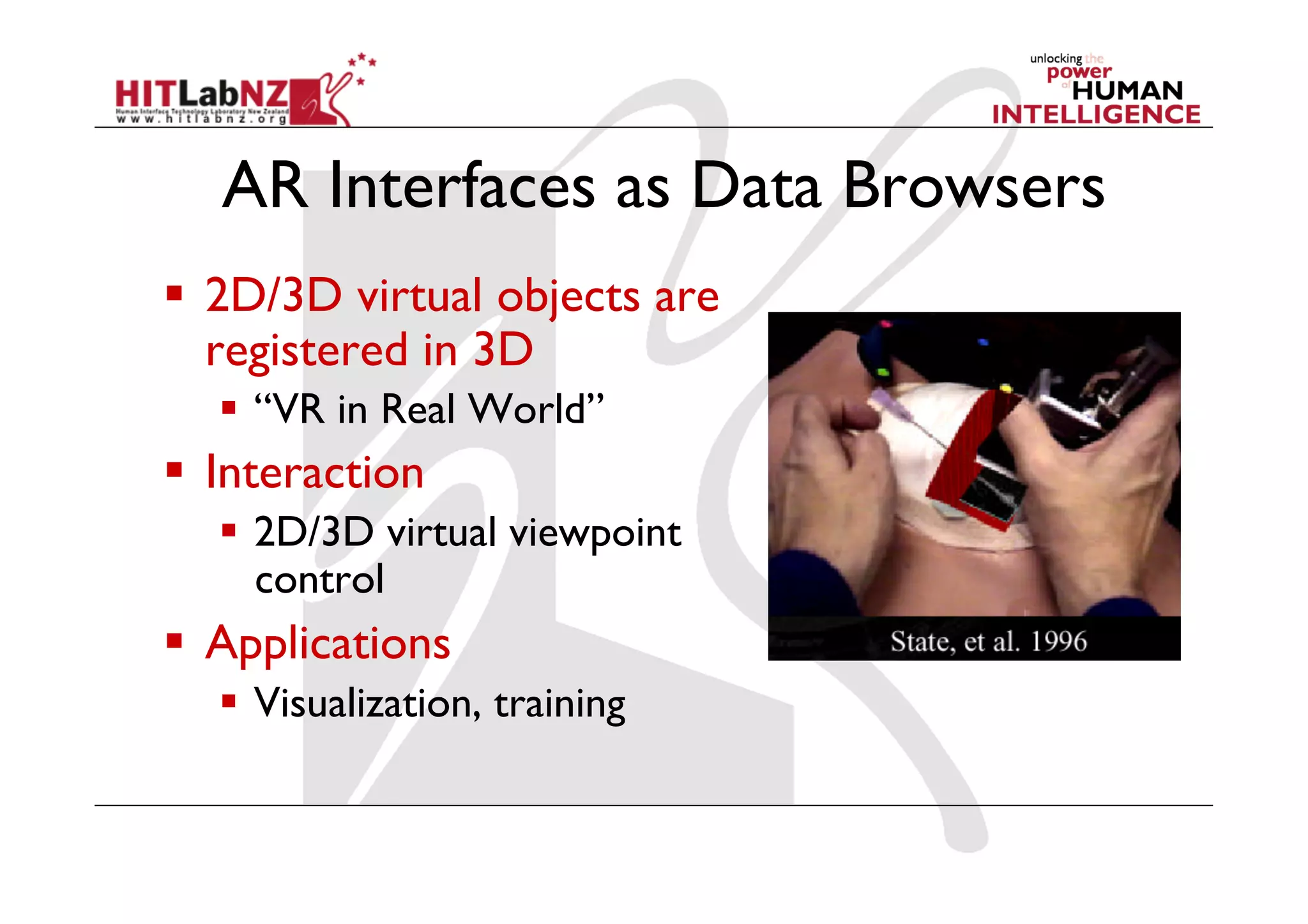
AR Interfaces as Data Browsers
  2D/3D virtual objects are
   registered in 3D
    “VR in Real World”
  Interaction
    2D/3D virtual viewpoint
     control
  Applications
    Visualization, training
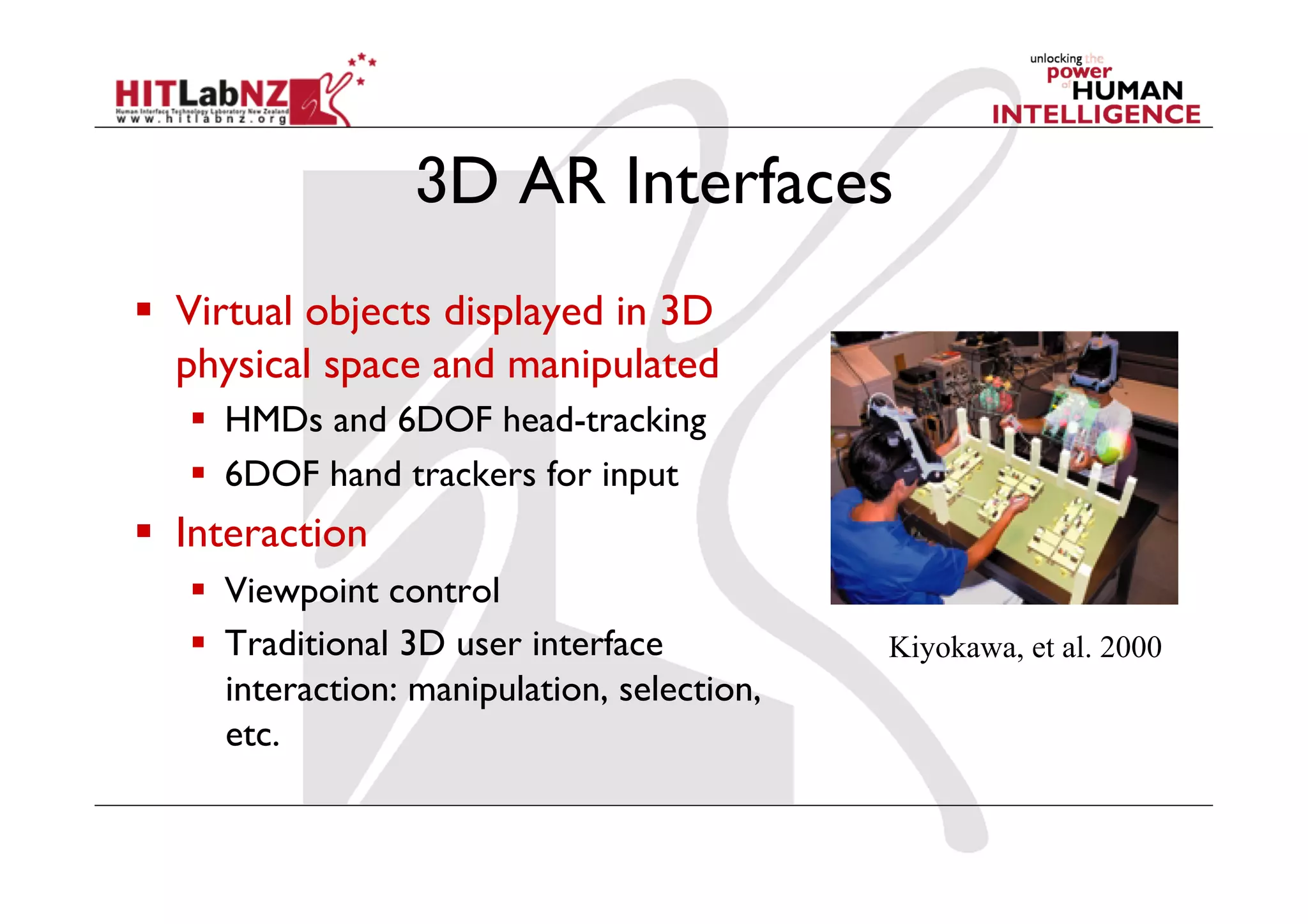
3D AR Interfaces
  Virtual objects displayed in 3D
   physical space and manipulated
     HMDs and 6DOF head-tracking
     6DOF hand trackers for input
  Interaction
     Viewpoint control
     Traditional 3D user interface           Kiyokawa, et al. 2000
      interaction: manipulation, selection,
      etc.
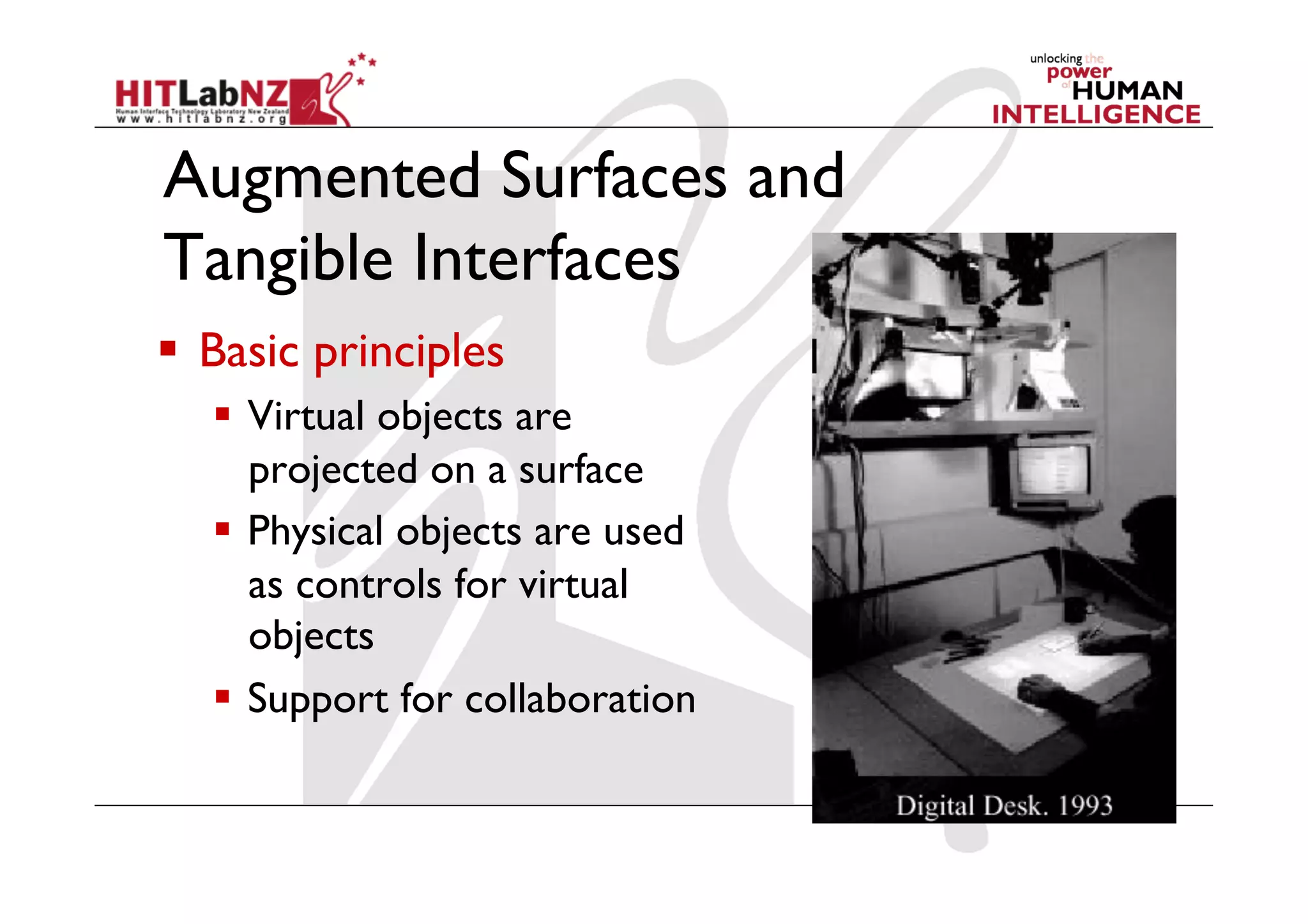
Augmented Surfaces and
Tangible Interfaces
  Basic principles
     Virtual objects are
      projected on a surface
     Physical objects are used
      as controls for virtual
      objects
     Support for collaboration
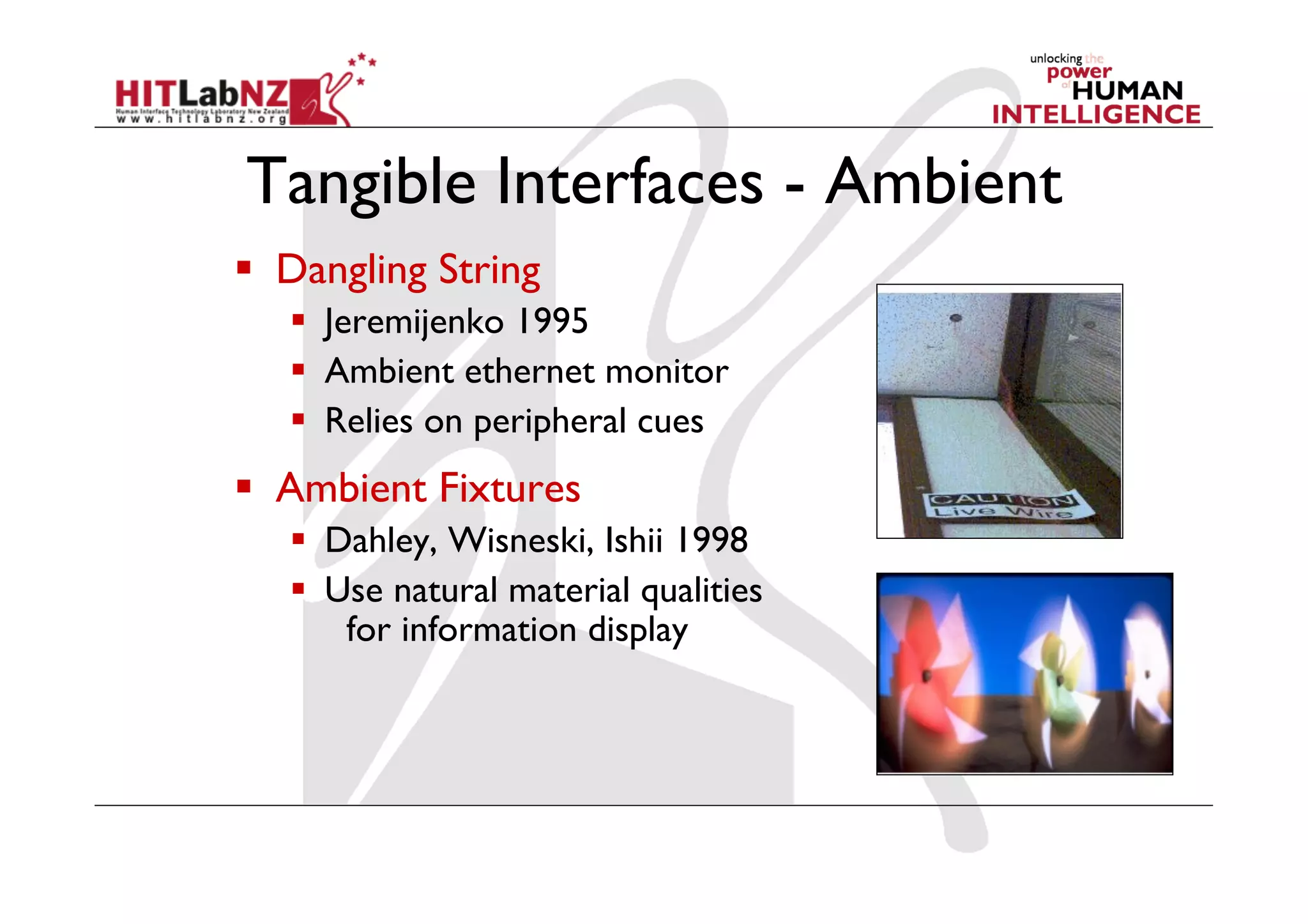
Tangible Interfaces - Ambient
  Dangling String
     Jeremijenko 1995
     Ambient ethernet monitor
     Relies on peripheral cues
  Ambient Fixtures
     Dahley, Wisneski, Ishii 1998
     Use natural material qualities
       for information display
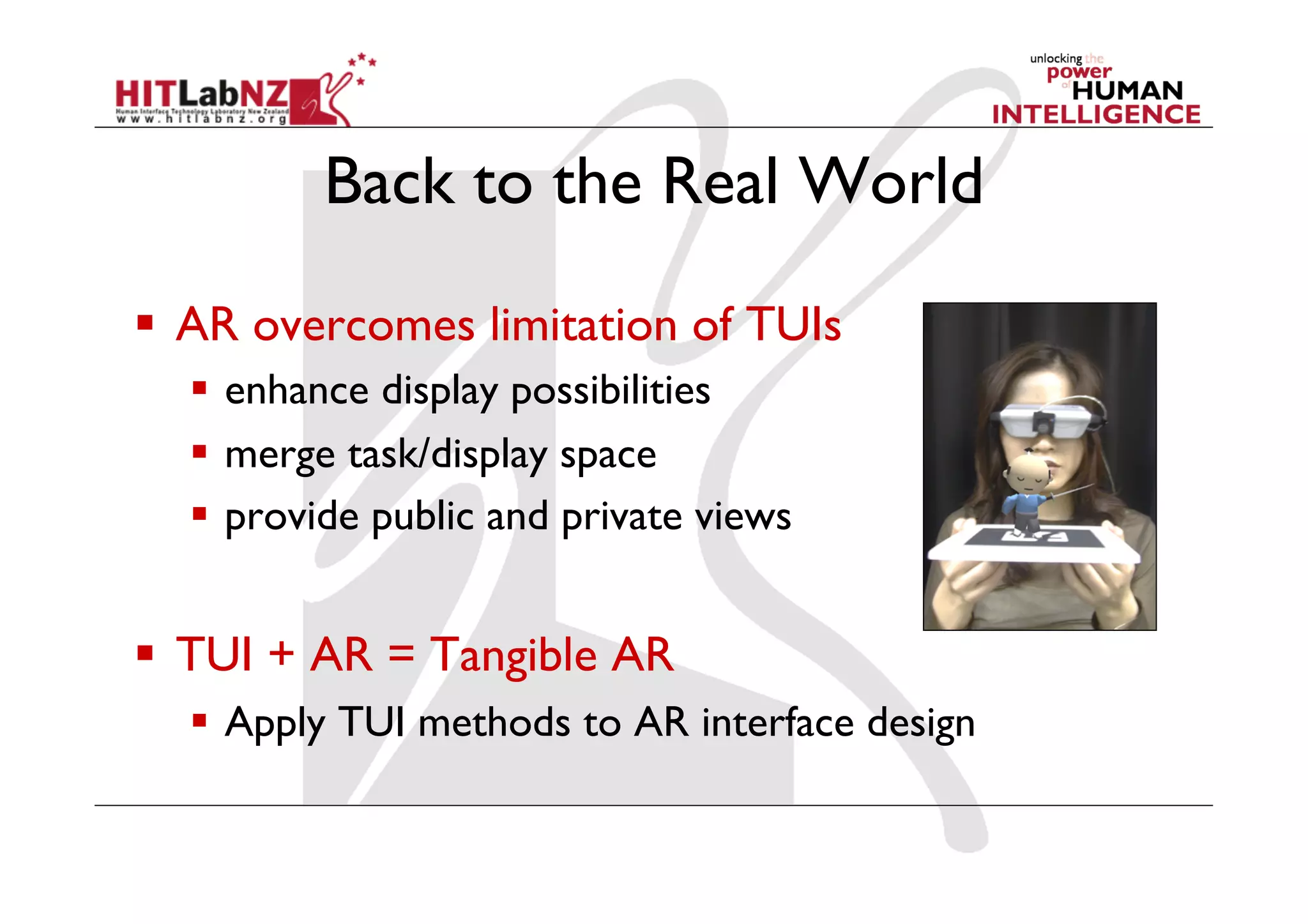
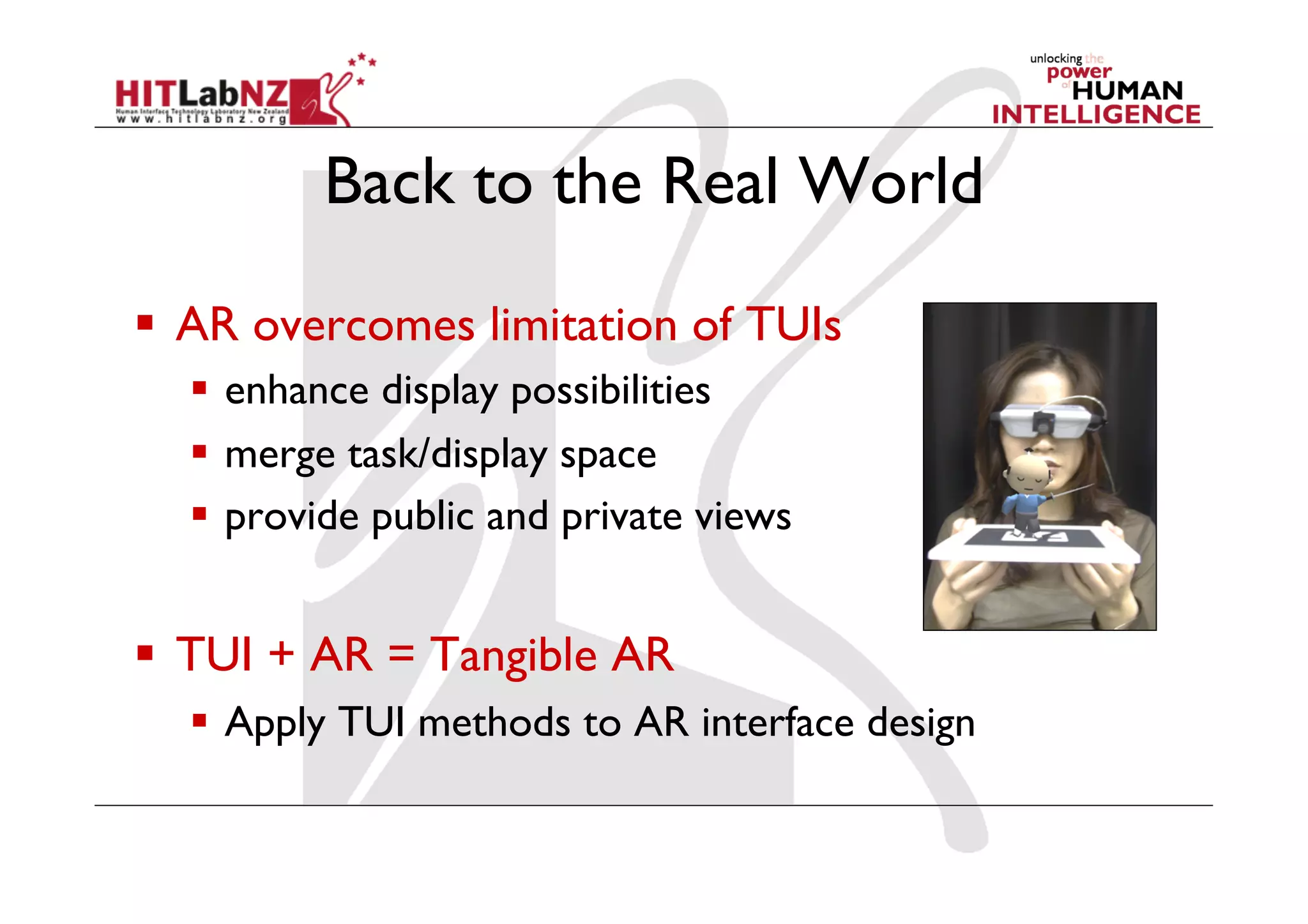
Back to the Real World

  AR overcomes limitation of TUIs
    enhance display possibilities
    merge task/display space
    provide public and private views


  TUI + AR = Tangible AR
    Apply TUI methods to AR interface design
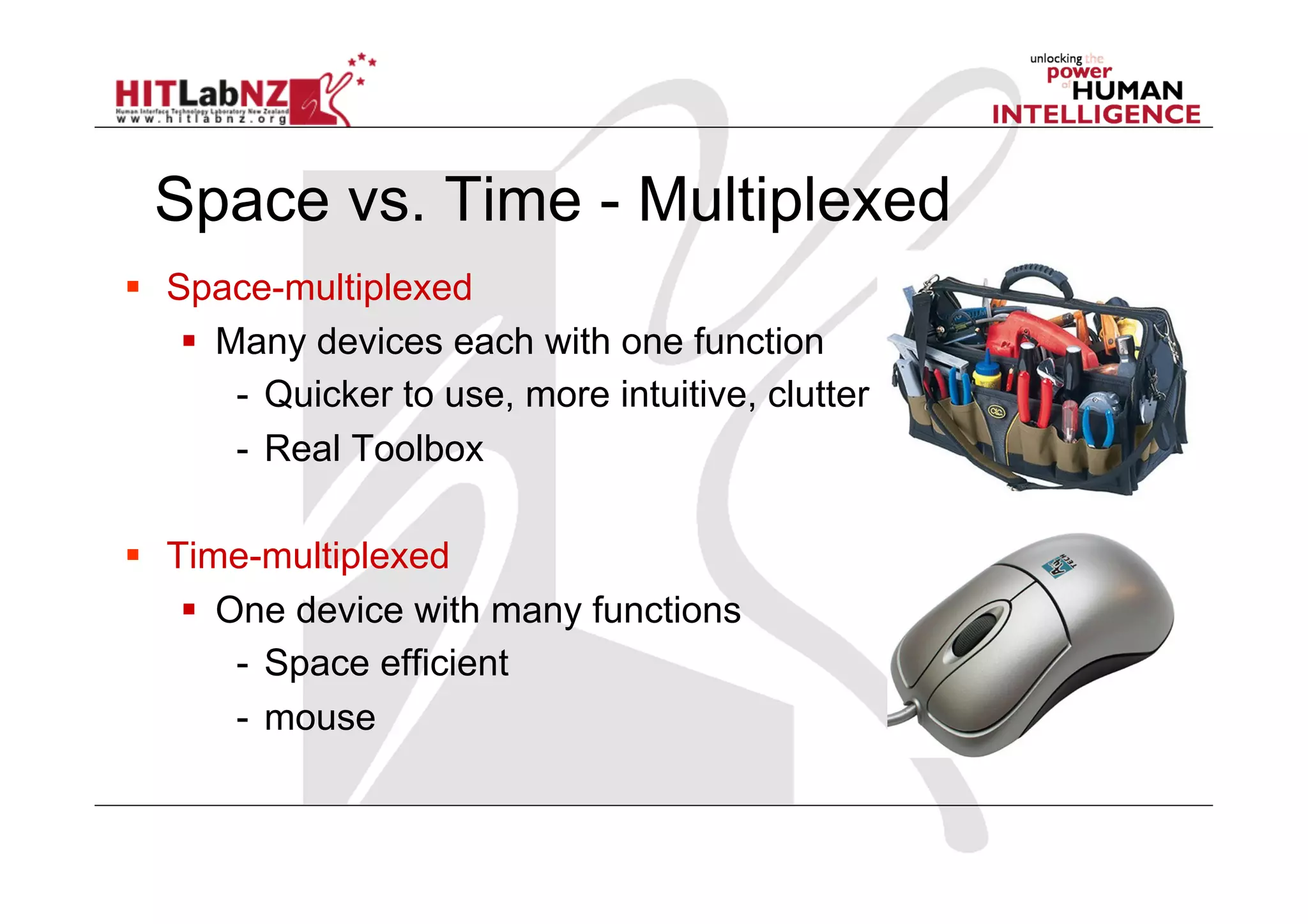
  Space-multiplexed
      Many devices each with one function
        -  Quicker to use, more intuitive, clutter
        -  Real Toolbox

  Time-multiplexed
      One device with many functions
        -  Space efficient
        -  mouse
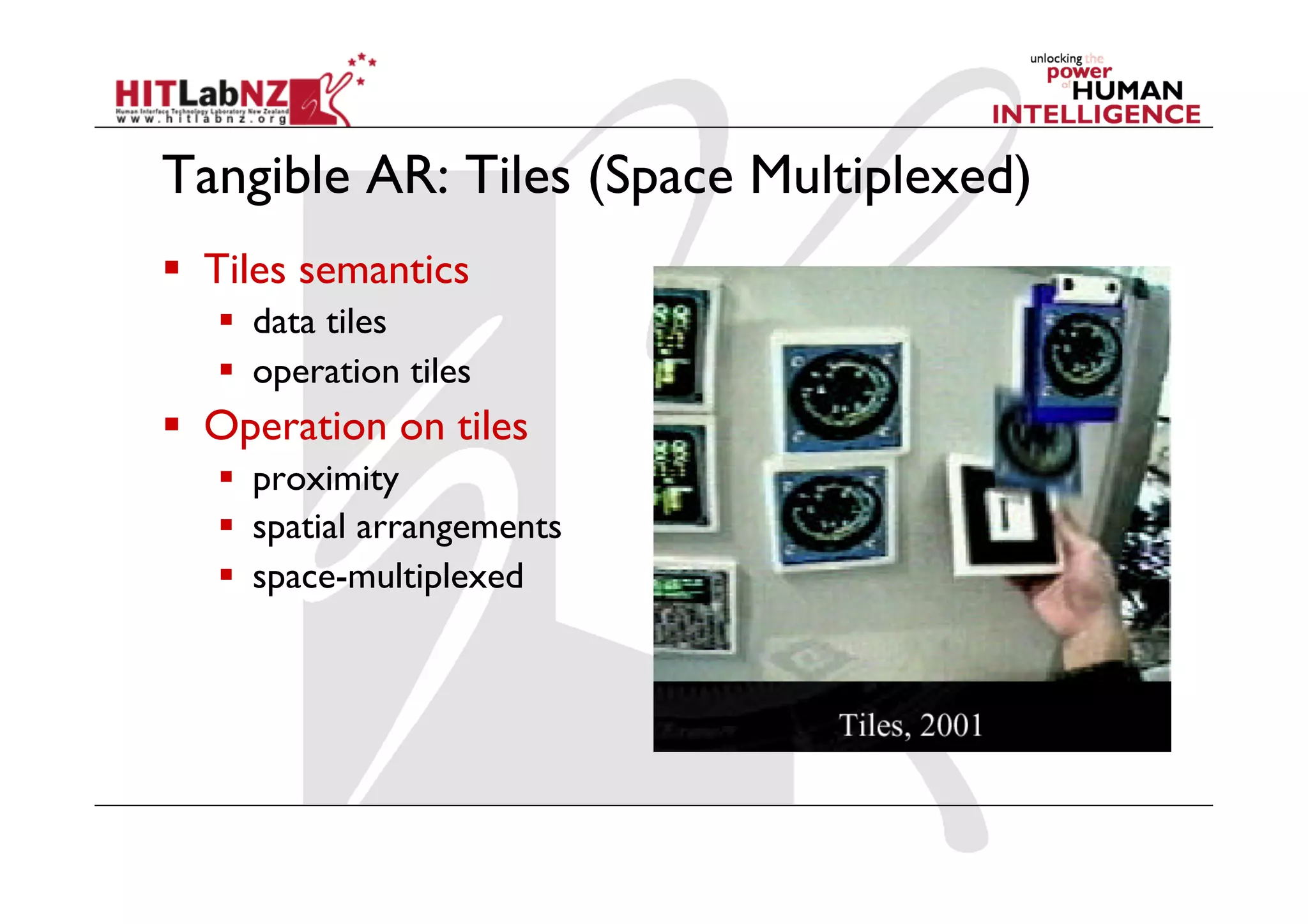
Tangible AR: Tiles (Space Multiplexed)
  Tiles semantics
     data tiles
     operation tiles
  Operation on tiles
     proximity
     spatial arrangements
     space-multiplexed
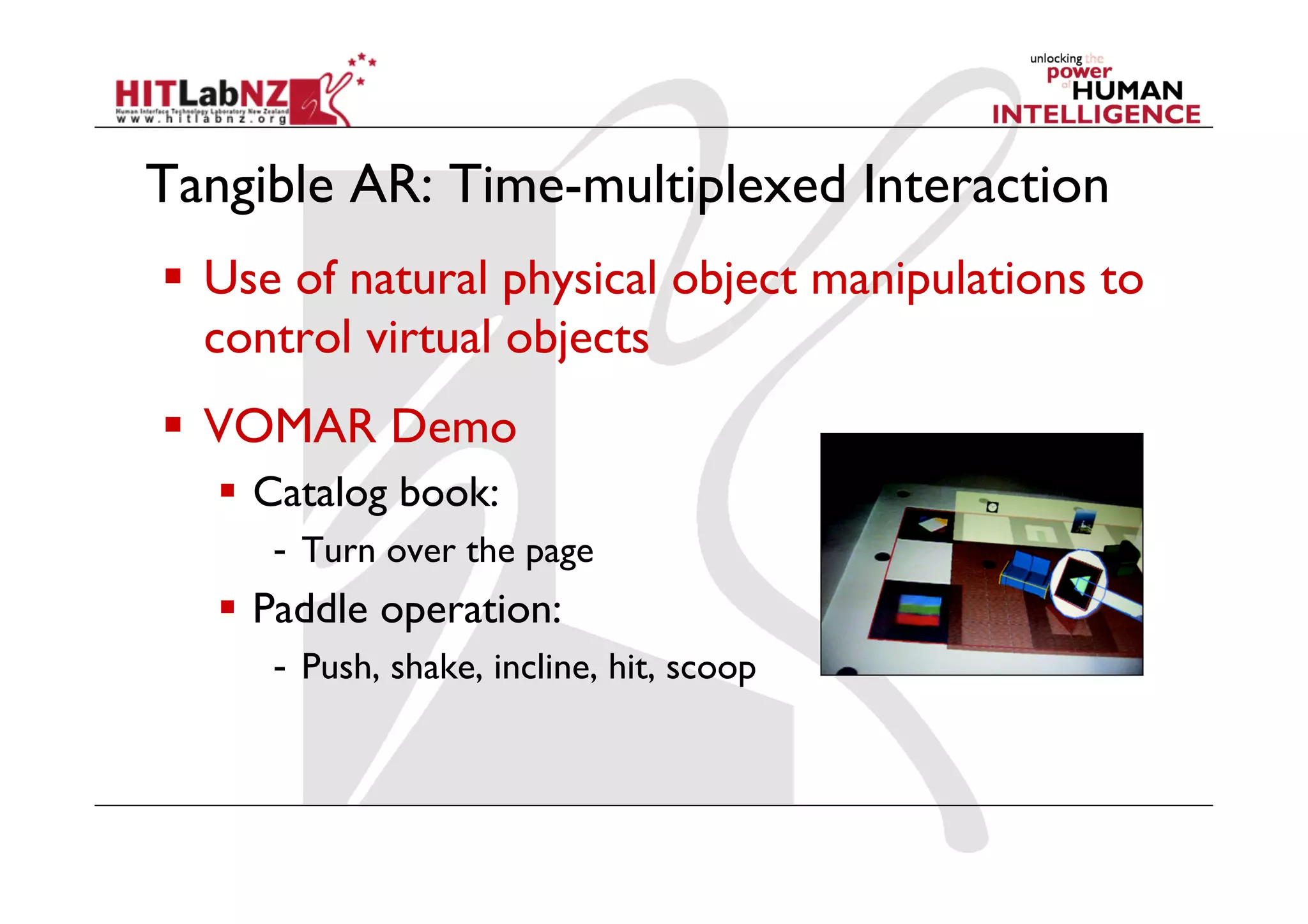
Tangible AR: Time-multiplexed Interaction
  Use of natural physical object manipulations to
   control virtual objects
  VOMAR Demo
     Catalog book:
      -  Turn over the page
     Paddle operation:
      -  Push, shake, incline, hit, scoop
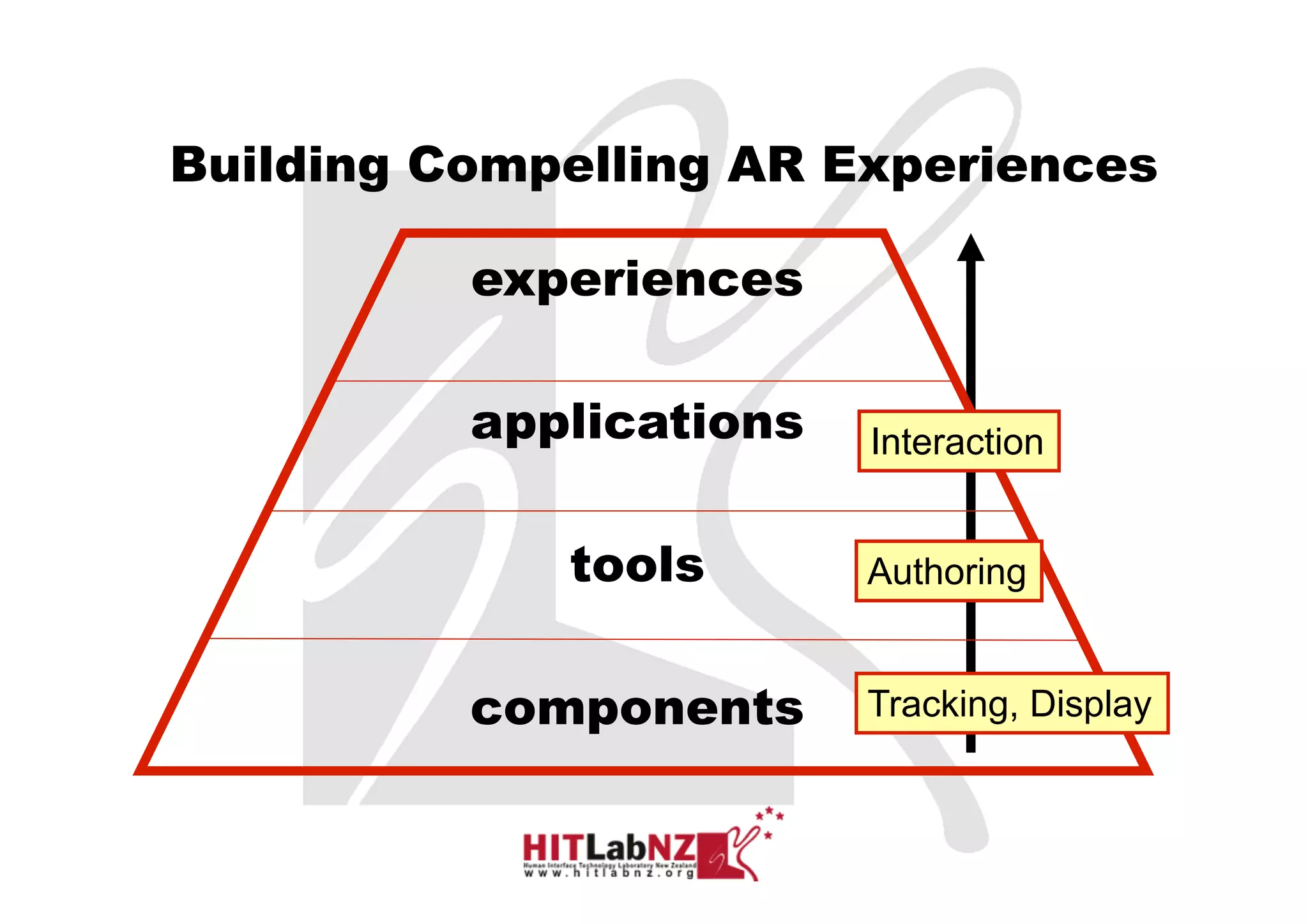
Building Compelling AR Experiences

          experiences

          applications   Interaction


             tools       Authoring


          components     Tracking, Display


                                       Sony CSL © 2004
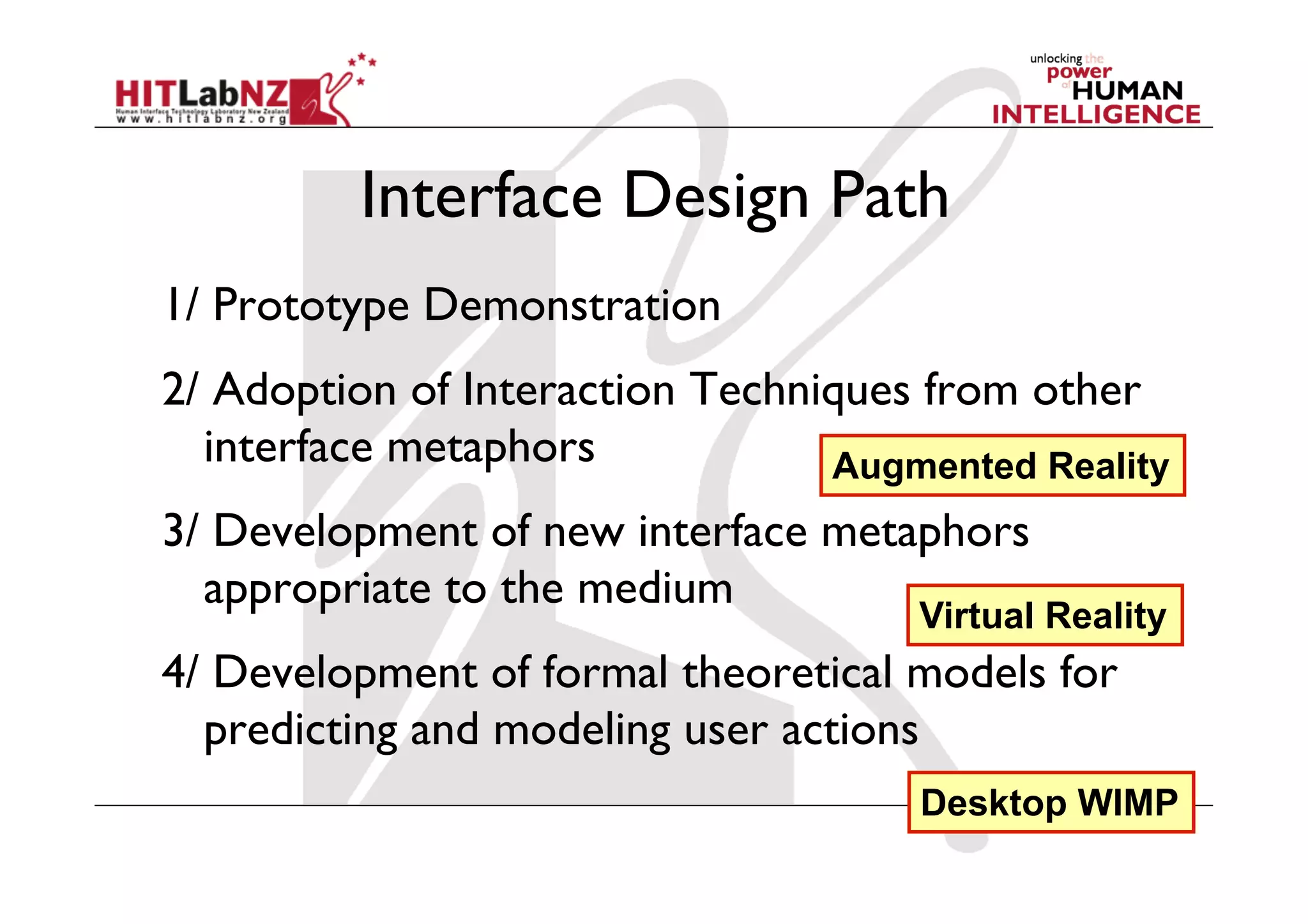
Interface Design Path
1/ Prototype Demonstration
2/ Adoption of Interaction Techniques from other
  interface metaphors            Augmented Reality
3/ Development of new interface metaphors
  appropriate to the medium
                                     Virtual Reality
4/ Development of formal theoretical models for
  predicting and modeling user actions
                                     Desktop WIMP
Interface metaphors
  Designed to be similar to a physical entity but also has own
   properties
      e.g. desktop metaphor, search engine
  Exploit user’s familiar knowledge, helping them to understand
   ‘the unfamiliar’
  Conjures up the essence of the unfamiliar activity, enabling
   users to leverage of this to understand more aspects of the
   unfamiliar functionality
  People find it easier to learn and talk about what they are
   doing at the computer interface in terms familiar to them
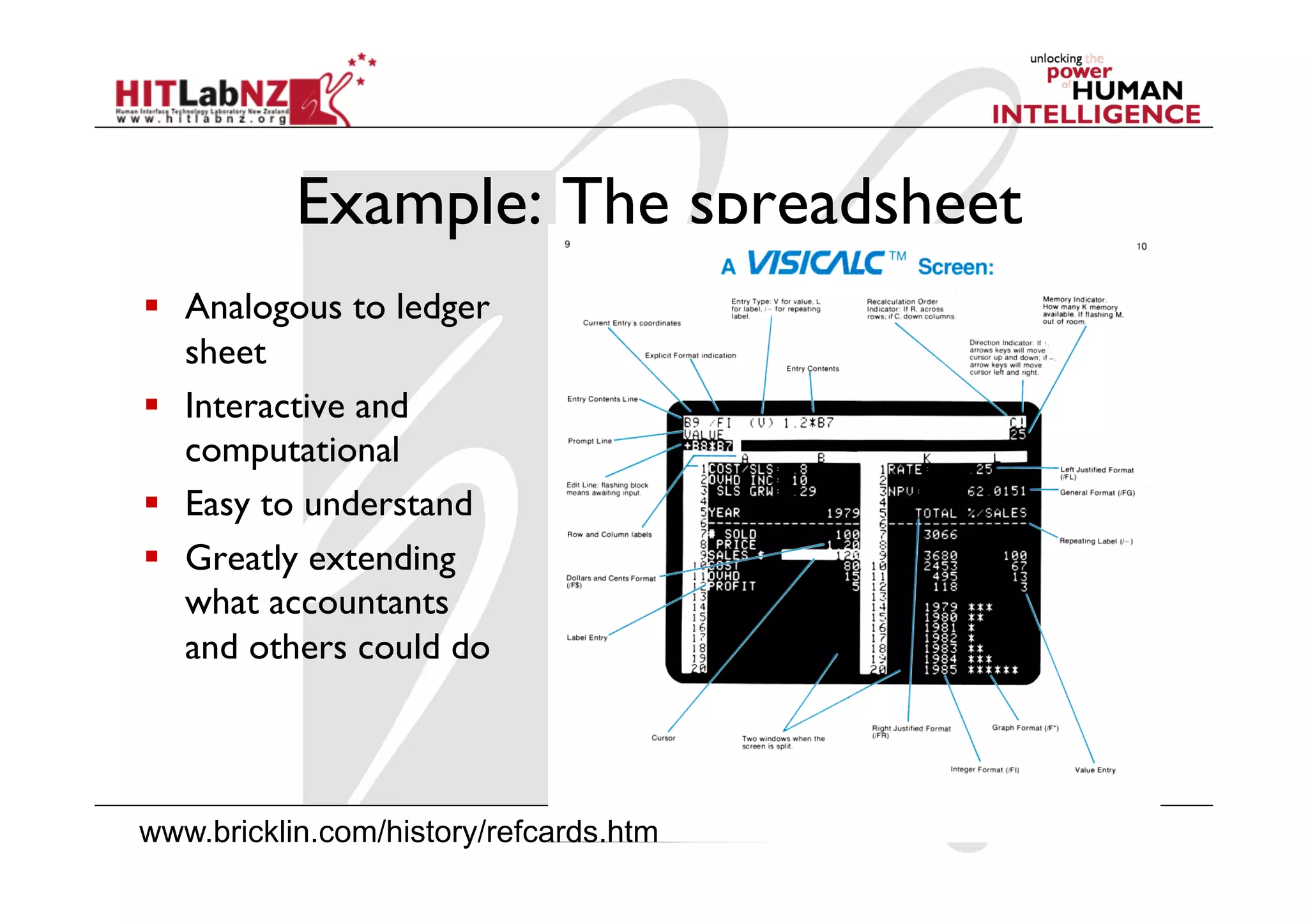
Example: The spreadsheet
  Analogous to ledger
   sheet
  Interactive and
   computational
  Easy to understand
  Greatly extending
   what accountants
   and others could do


www.bricklin.com/history/refcards.htm
Why was it so good?
  It was simple, clear, and obvious to the users how to
   use the application and what it could do
  “it is just a tool to allow others to work out their
   ideas and reduce the tedium of repeating the same
   calculations.”
  capitalized on user’s familiarity with ledger sheets
  Got the computer to perform a range of different
   calculations in response to user input
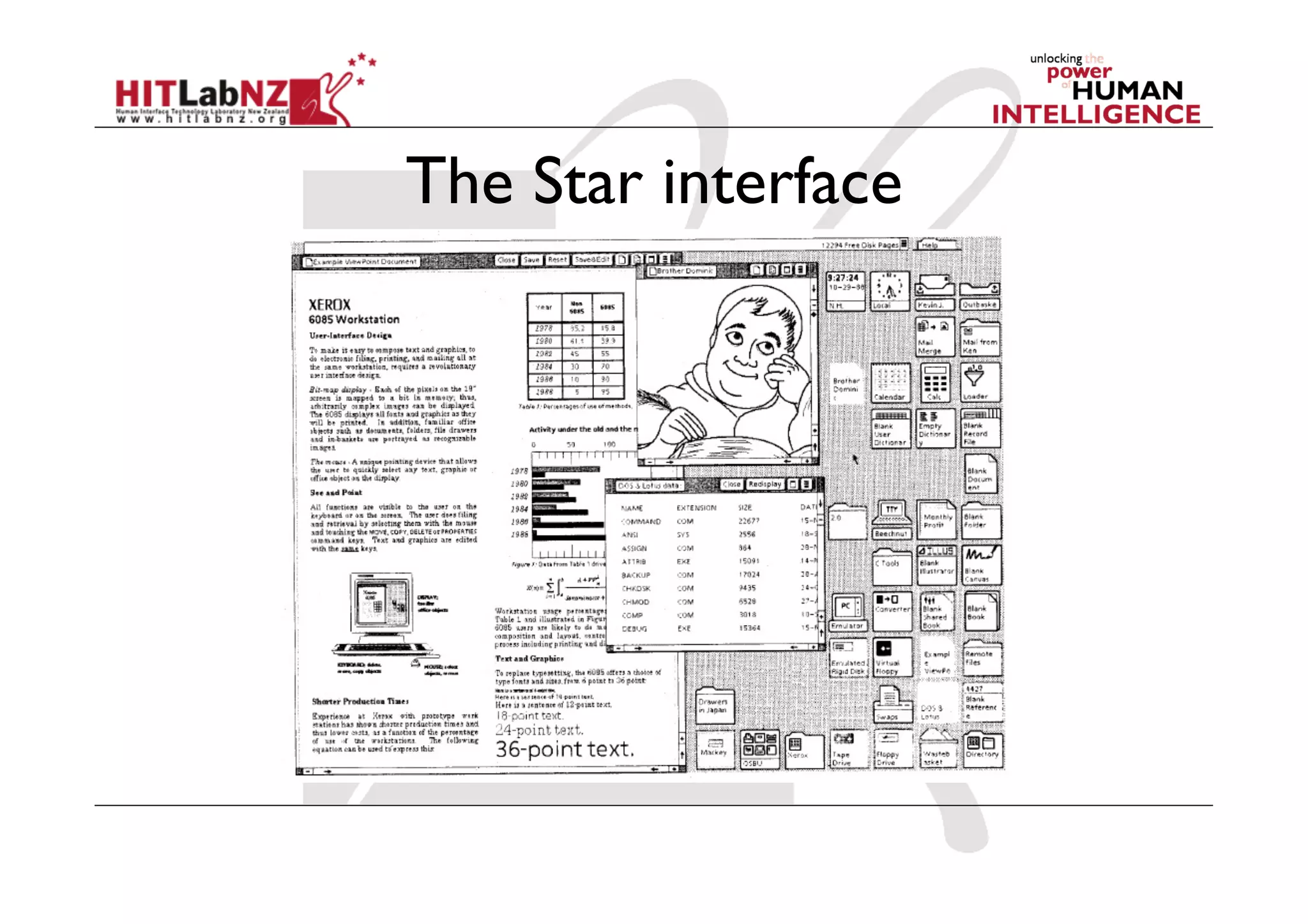
Another classic
  8010 Star office system targeted at workers not
   interested in computing per se
  Spent several person-years at beginning working out
   the conceptual model
  Simplified the electronic world, making it seem more
   familiar, less alien, and easier to learn


  Johnson et al (1989)
The Star interface
Benefits of interface metaphors
  Makes learning new systems easier
  Helps users understand the underlying
   conceptual model
  Can be innovative and enable the realm of
   computers and their applications to be made
   more accessible to a greater diversity of users
Problems with interface metaphors
              (Nielson, 1990)
  Break conventional and cultural rules
      e.g., recycle bin placed on desktop
  Can constrain designers in the way they conceptualize a problem
  Conflict with design principles
  Forces users to only understand the system in terms of the
   metaphor
  Designers can inadvertently use bad existing designs and transfer
   the bad parts over
  Limits designers’ imagination with new conceptual models
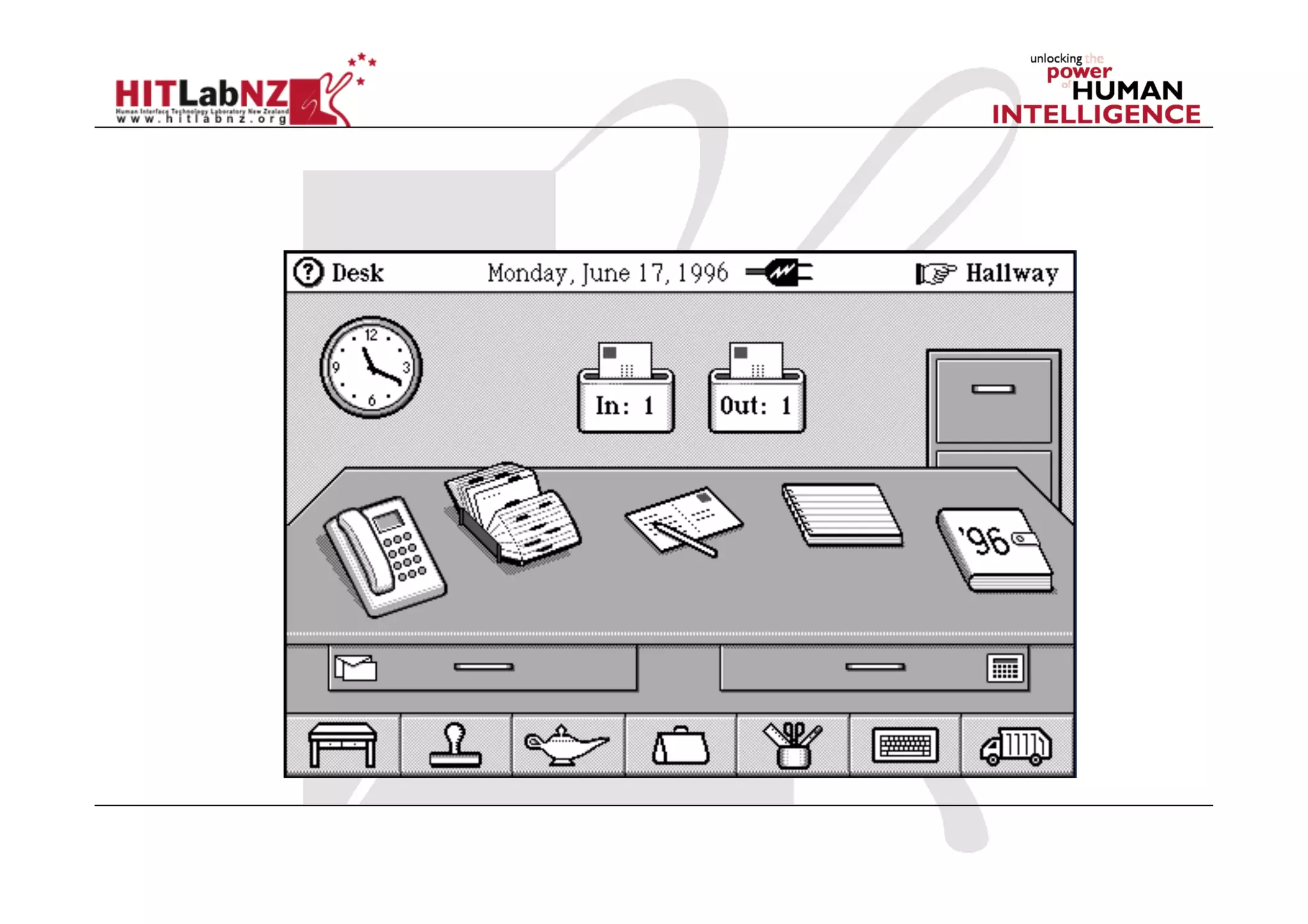
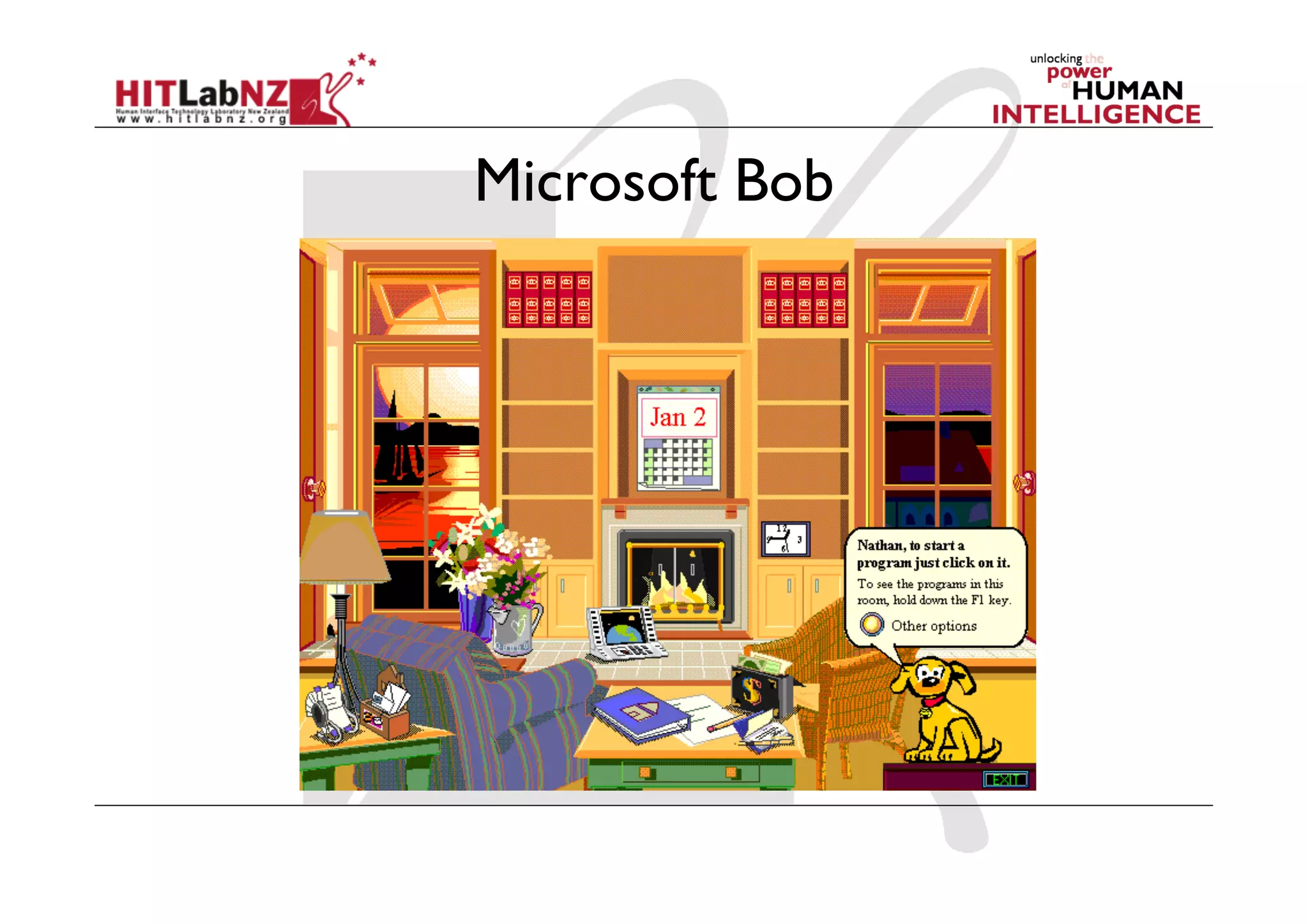
Microsoft Bob
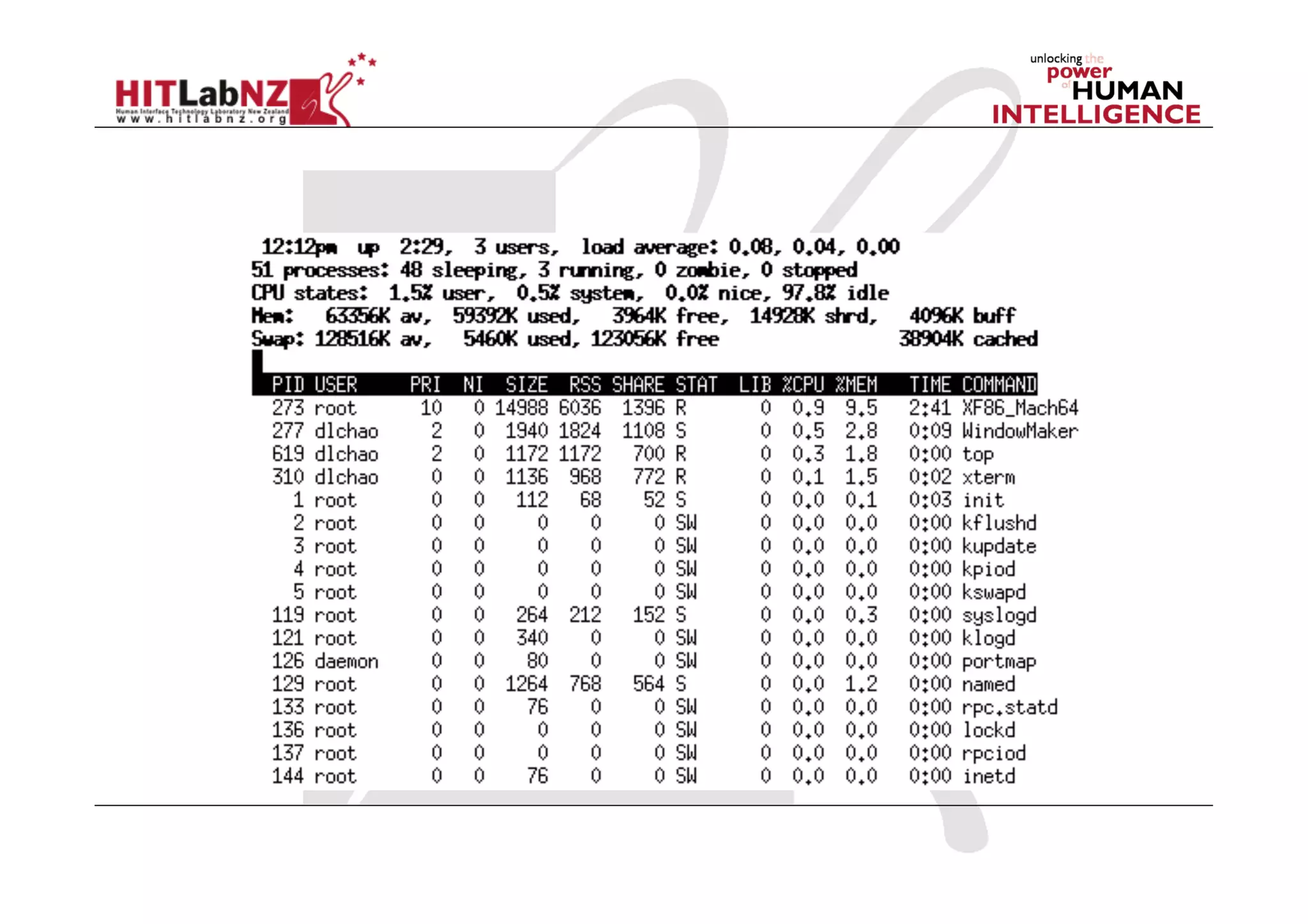
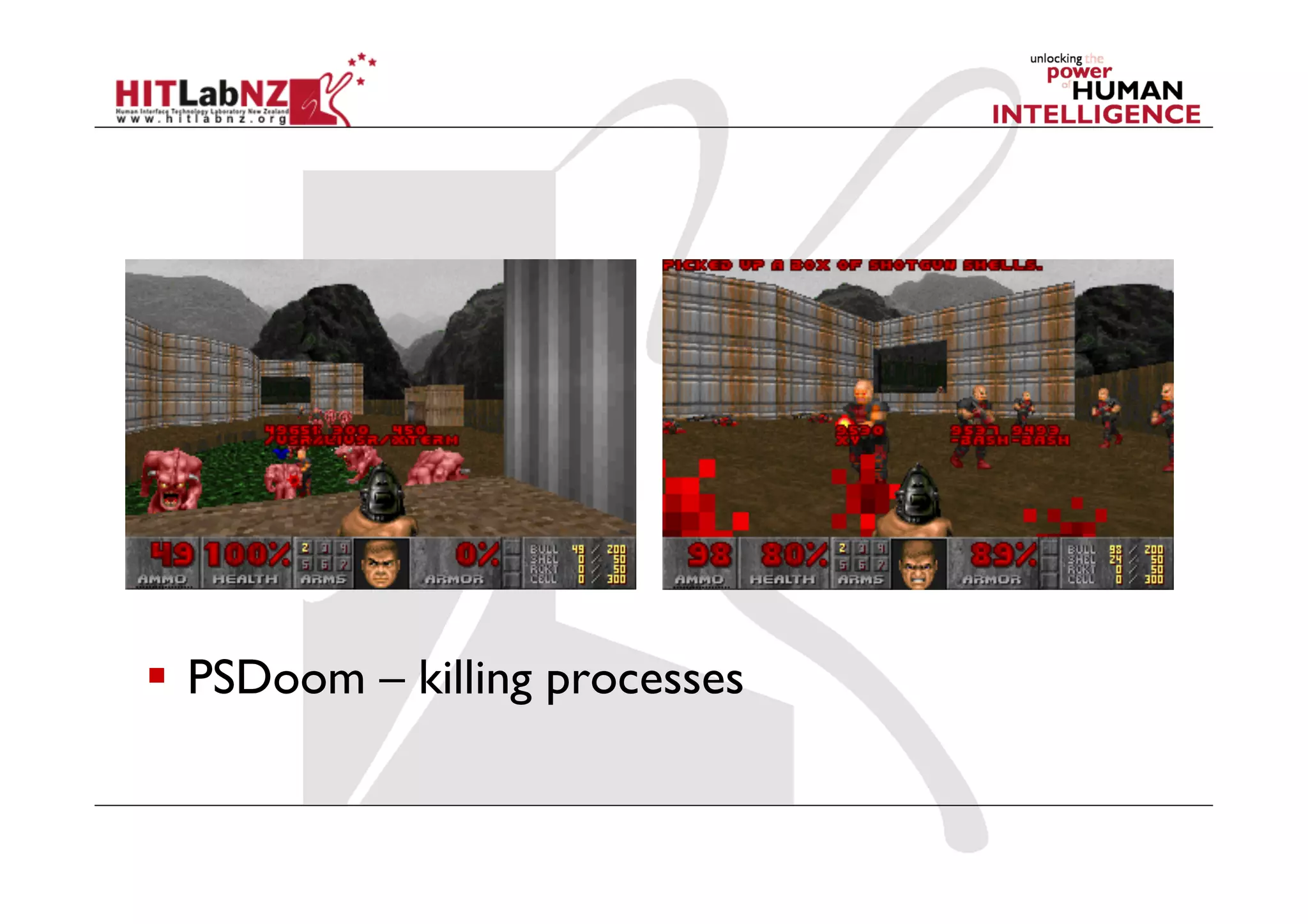
  PSDoom – killing processes
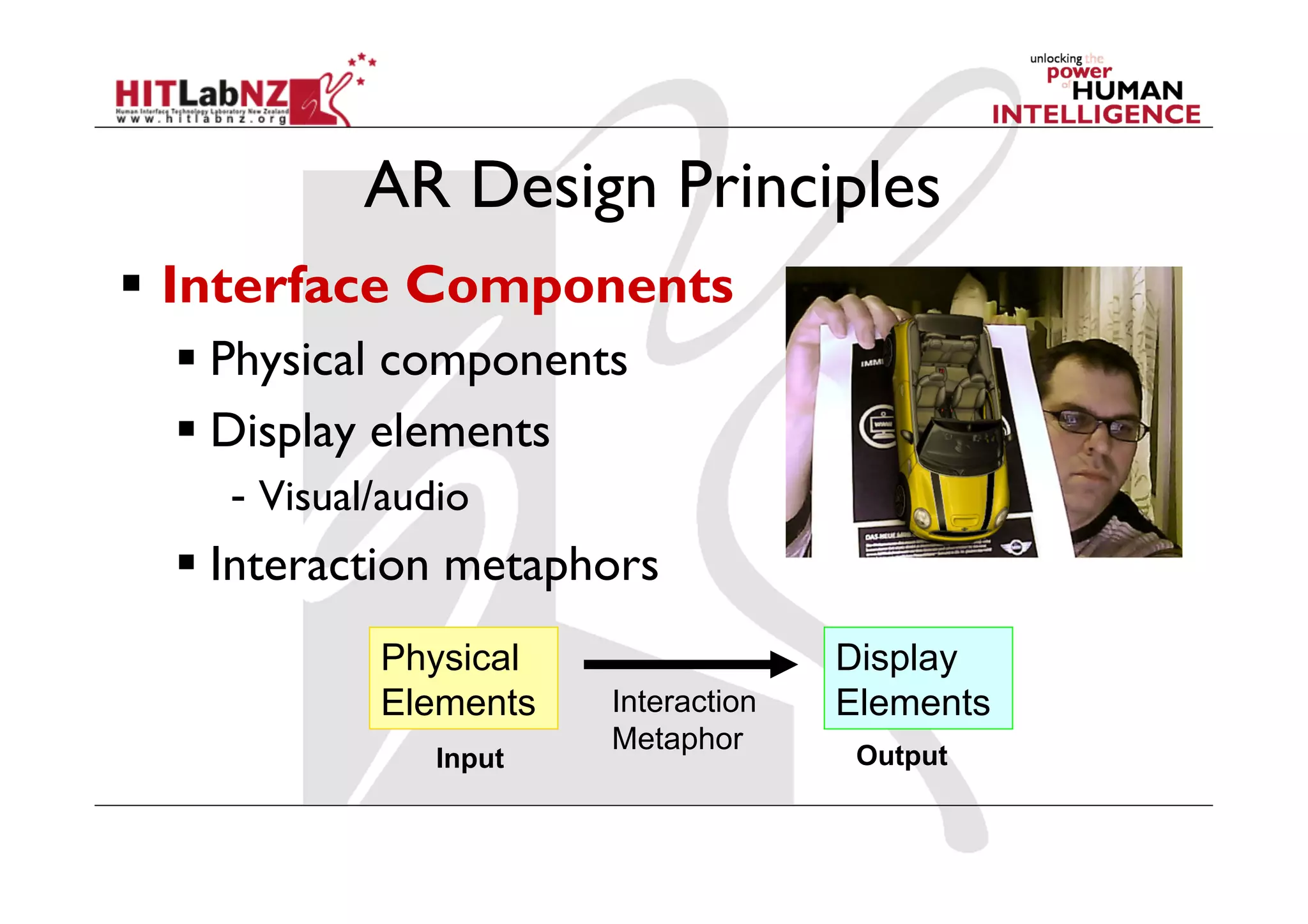
AR Design Principles
  Interface Components
    Physical components
    Display elements
    -  Visual/audio
    Interaction metaphors
             Physical                 Display
             Elements   Interaction   Elements
                        Metaphor
                Input                  Output
Back to the Real World

  AR overcomes limitation of TUIs
    enhance display possibilities
    merge task/display space
    provide public and private views


  TUI + AR = Tangible AR
    Apply TUI methods to AR interface design
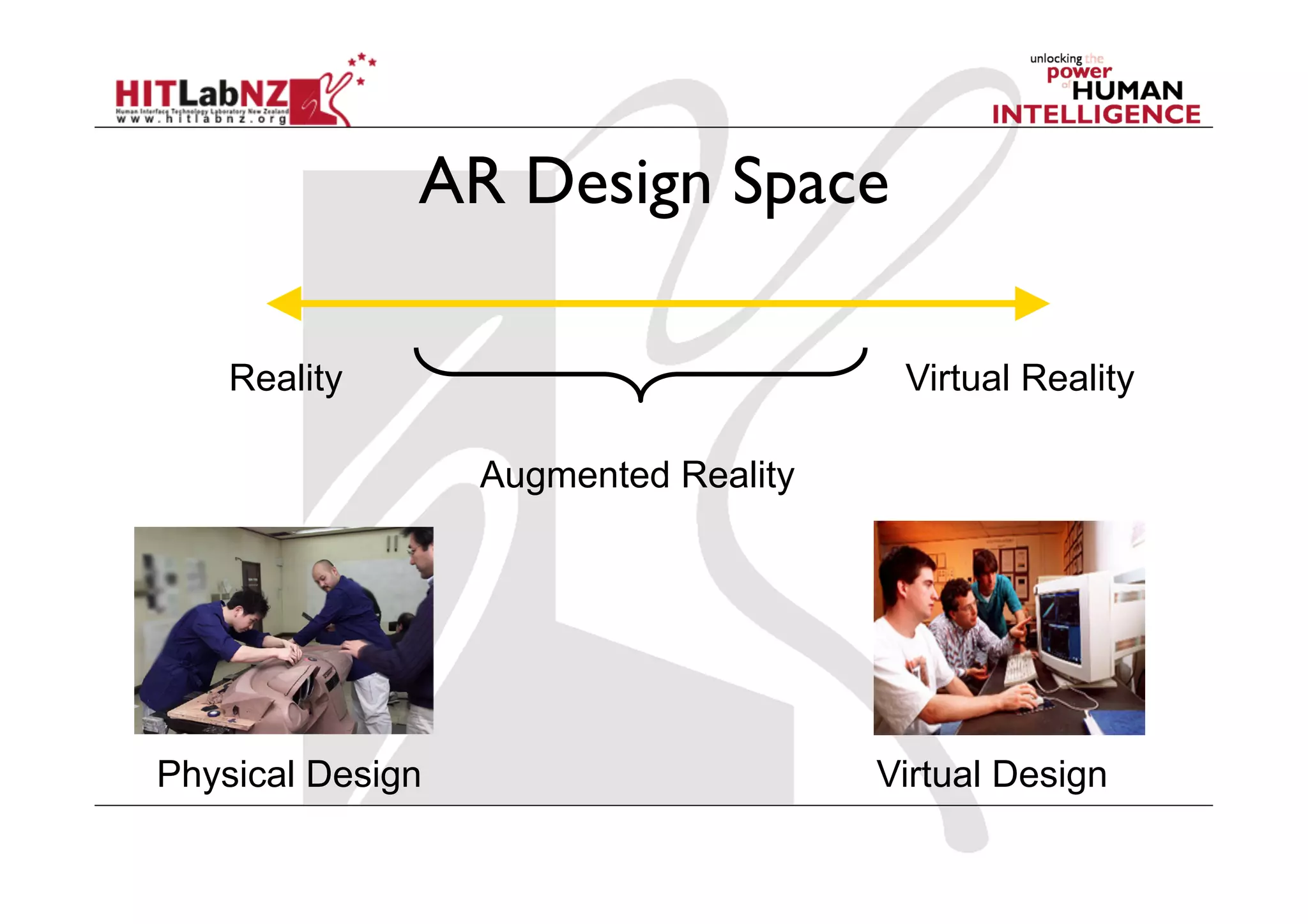
AR Design Space

    Reality                            Virtual Reality

                  Augmented Reality


Physical Design                       Virtual Design
Tangible AR Design Principles
  Tangible AR Interfaces use TUI principles
    Physical controllers for moving virtual content
    Support for spatial 3D interaction techniques
    Time and space multiplexed interaction
    Support for multi-handed interaction
    Match object affordances to task requirements
    Support parallel activity with multiple objects
    Allow collaboration between multiple users
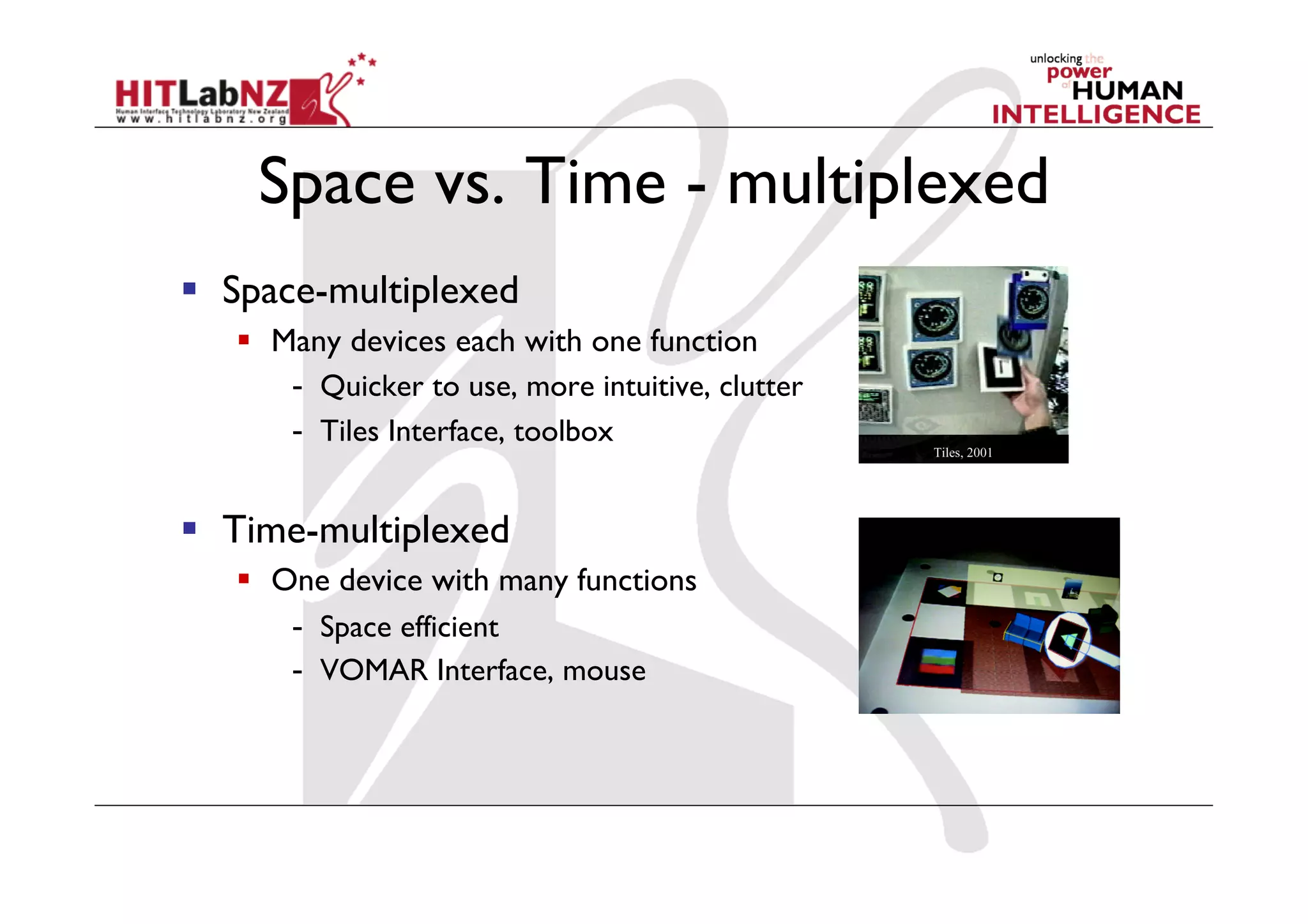
  Space-multiplexed
     Many devices each with one function
       -  Quicker to use, more intuitive, clutter
       -  Tiles Interface, toolbox


  Time-multiplexed
     One device with many functions
       -  Space efficient
       -  VOMAR Interface, mouse
Design of Objects
  Objects
     Purposely built – affordances
     “Found” – repurposed
     Existing – already at use in marketplace
  Make affordances obvious (Norman)
       Object affordances visible
       Give feedback
       Provide constraints
       Use natural mapping
       Use good cognitive model
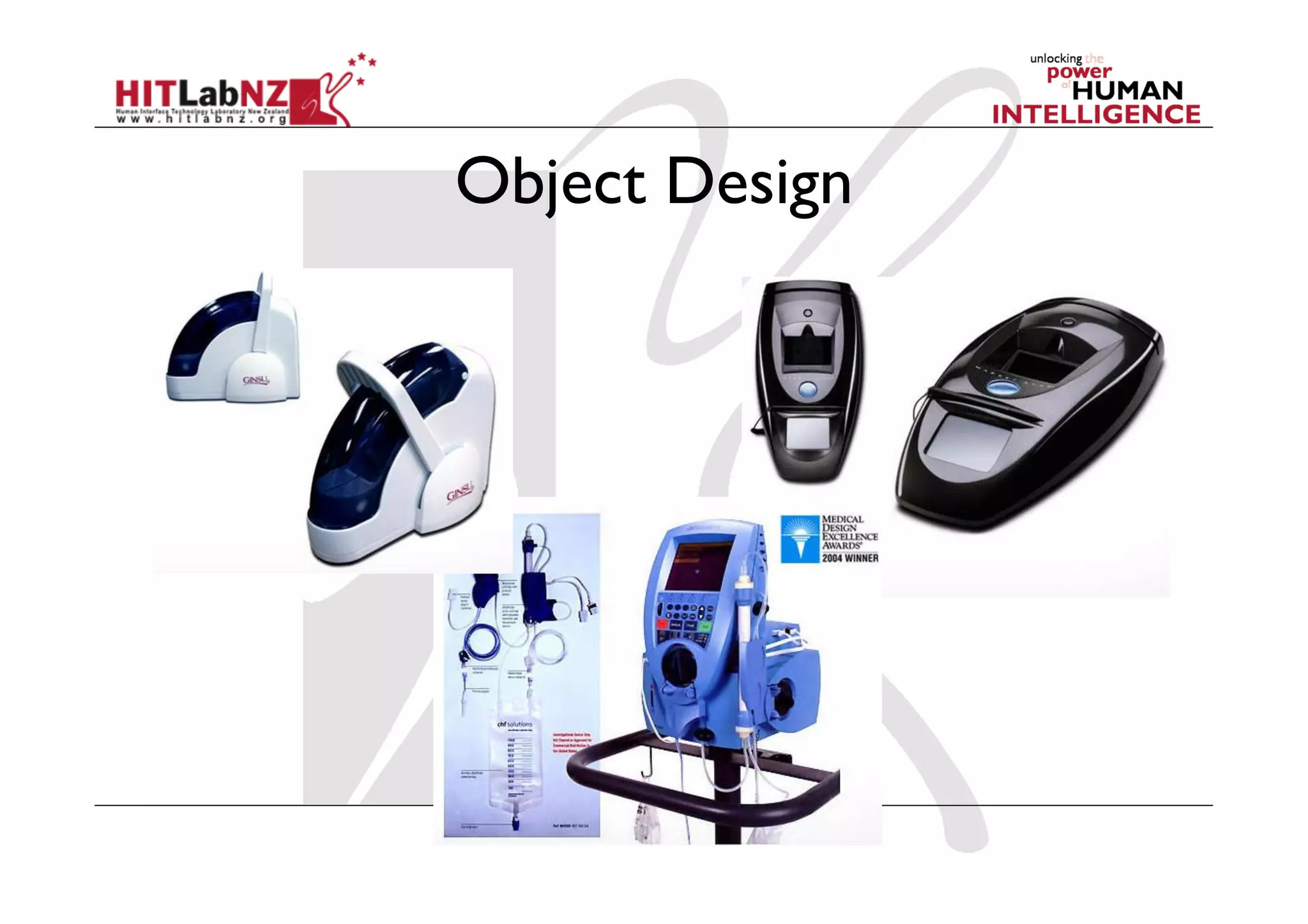
Object Design
Affordances: to give a clue
  Refers to an attribute of an object that allows people to
   know how to use it
     e.g. a mouse button invites pushing, a door handle affords
      pulling

  Norman (1988) used the term to discuss the design of
   everyday objects
  Since has been much popularised in interaction design
   to discuss how to design interface objects
     e.g. scrollbars to afford moving up and down, icons to afford
      clicking on
"...the term affordance refers to the perceived and
    actual properties of the thing, primarily those
    fundamental properties that determine just how the
    thing could possibly be used. [...] Affordances
    provide strong clues to the operations of things.
    Plates are for pushing. Knobs are for turning. Slots
    are for inserting things into. Balls are for throwing or
    bouncing. When affordances are taken advantage of,
    the user knows what to do just by looking: no
    picture, label, or instruction needed."
    (Norman, The Psychology of Everyday Things 1988, p.9)
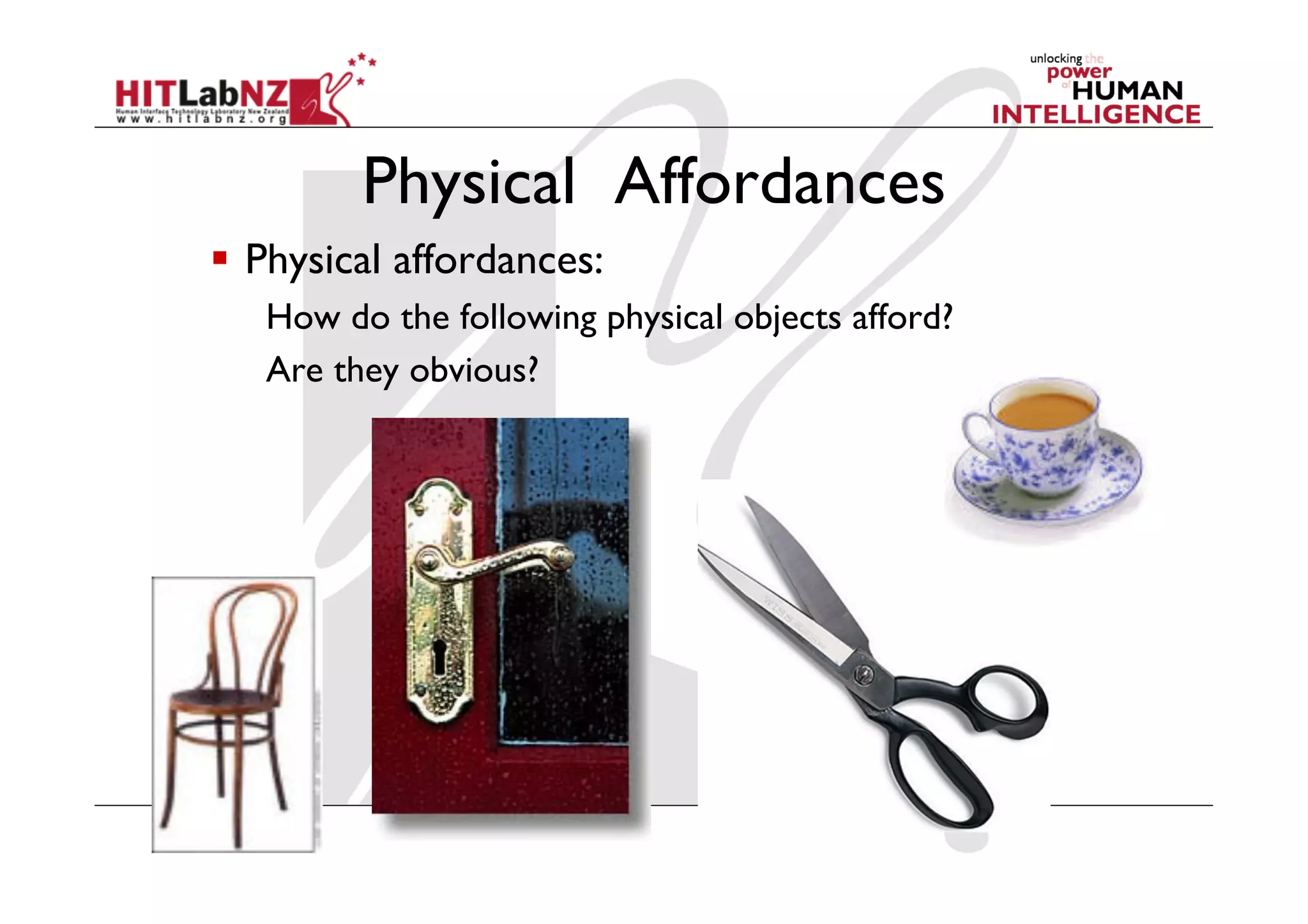
Physical Affordances
  Physical affordances:
   How do the following physical objects afford?
   Are they obvious?
‘Affordance’ and Interface Design?
  Interfaces are virtual and do not have affordances
   like physical objects
  Norman argues it does not make sense to talk
   about interfaces in terms of ‘real’ affordances
  Instead interfaces are better conceptualized as
   ‘perceived’ affordances
     Learned conventions of arbitrary mappings between
      action and effect at the interface
     Some mappings are better than others
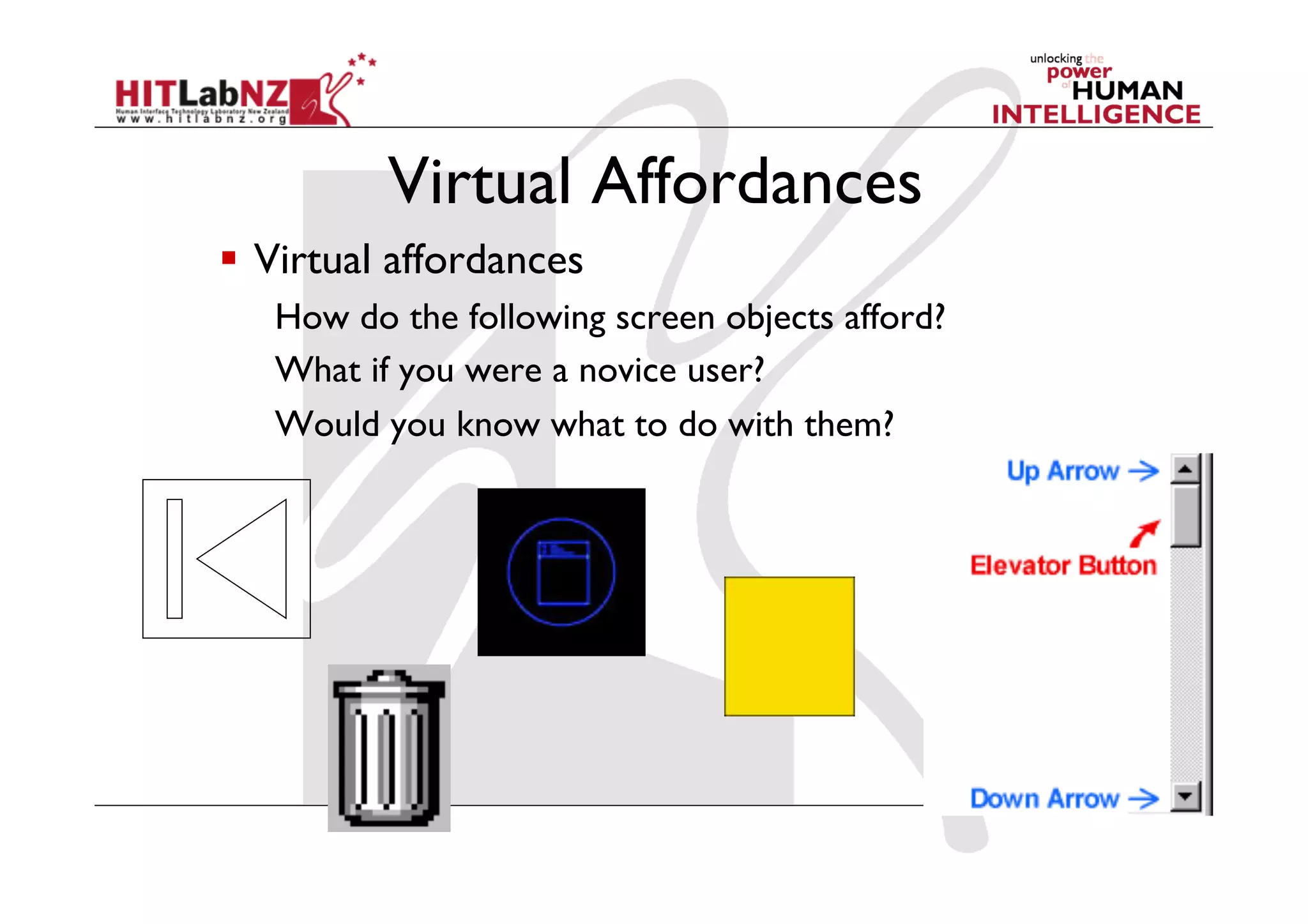
Virtual Affordances
  Virtual affordances
   How do the following screen objects afford?
   What if you were a novice user?
   Would you know what to do with them?
  AR is mixture of physical affordance and
   virtual affordance
  Physical
     Tangible controllers and objects
  Virtual
     Virtual graphics and audio
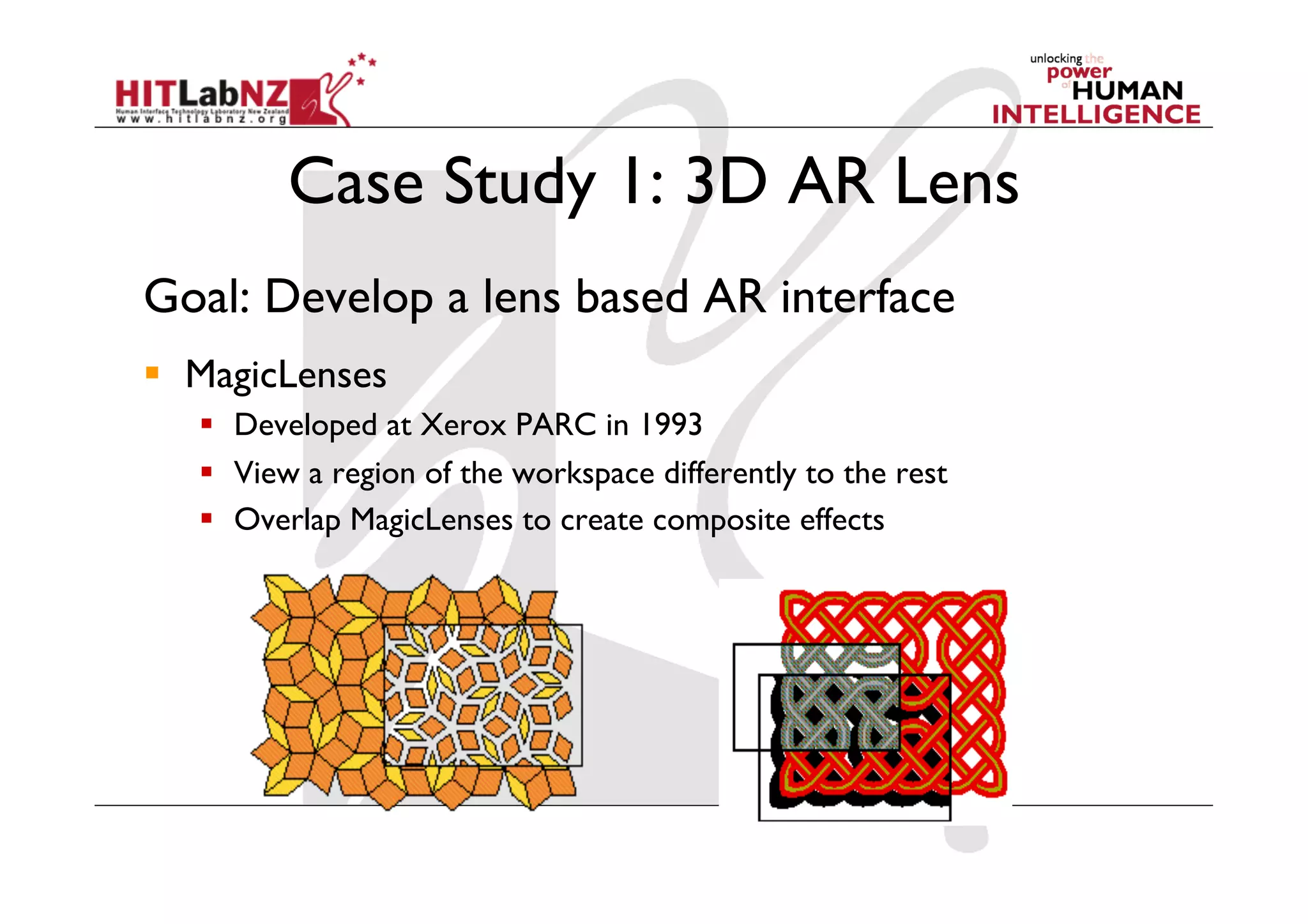
Case Study 1: 3D AR Lens
Goal: Develop a lens based AR interface
  MagicLenses
     Developed at Xerox PARC in 1993
     View a region of the workspace differently to the rest
     Overlap MagicLenses to create composite effects
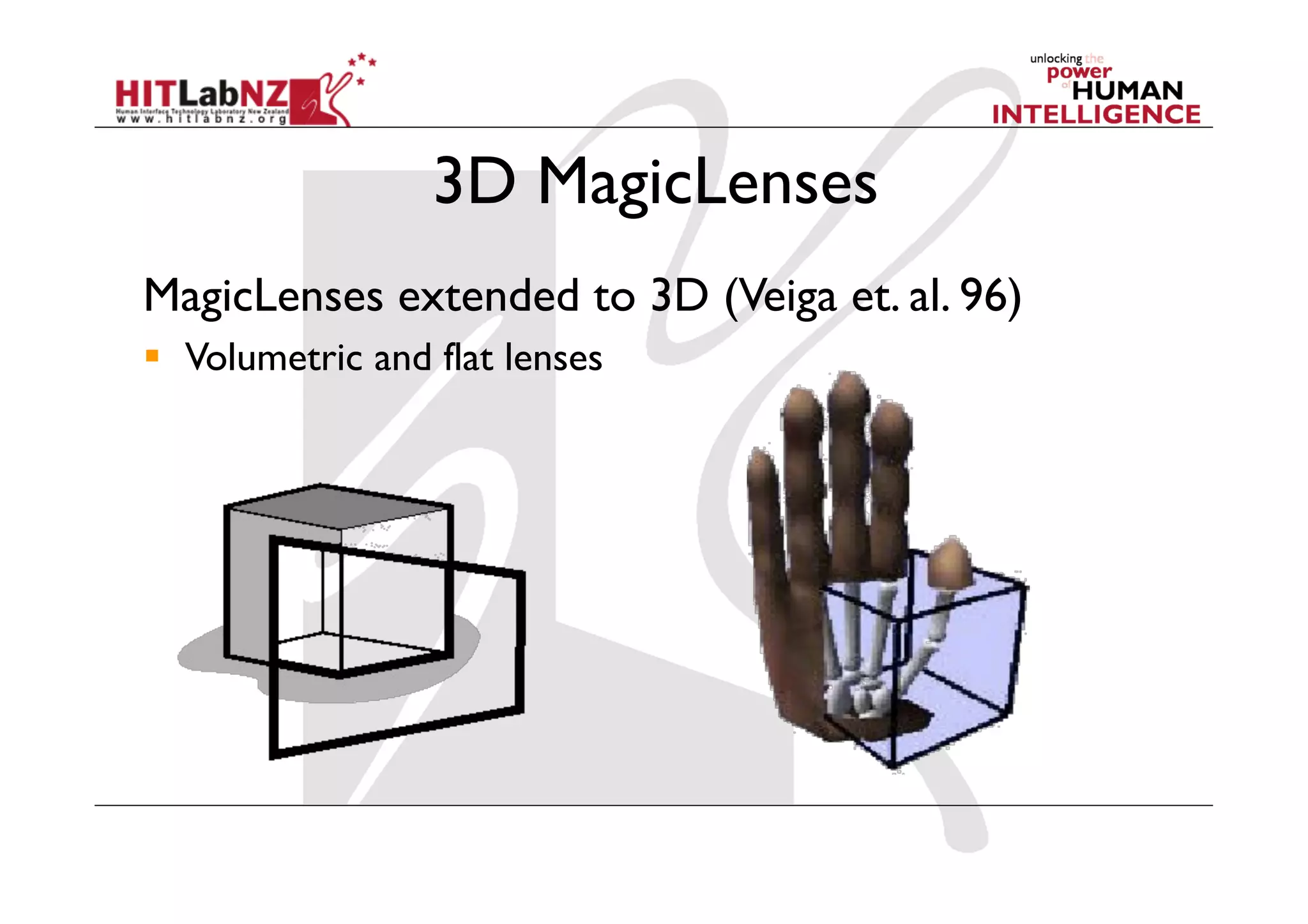
3D MagicLenses
MagicLenses extended to 3D (Veiga et. al. 96)
  Volumetric and flat lenses
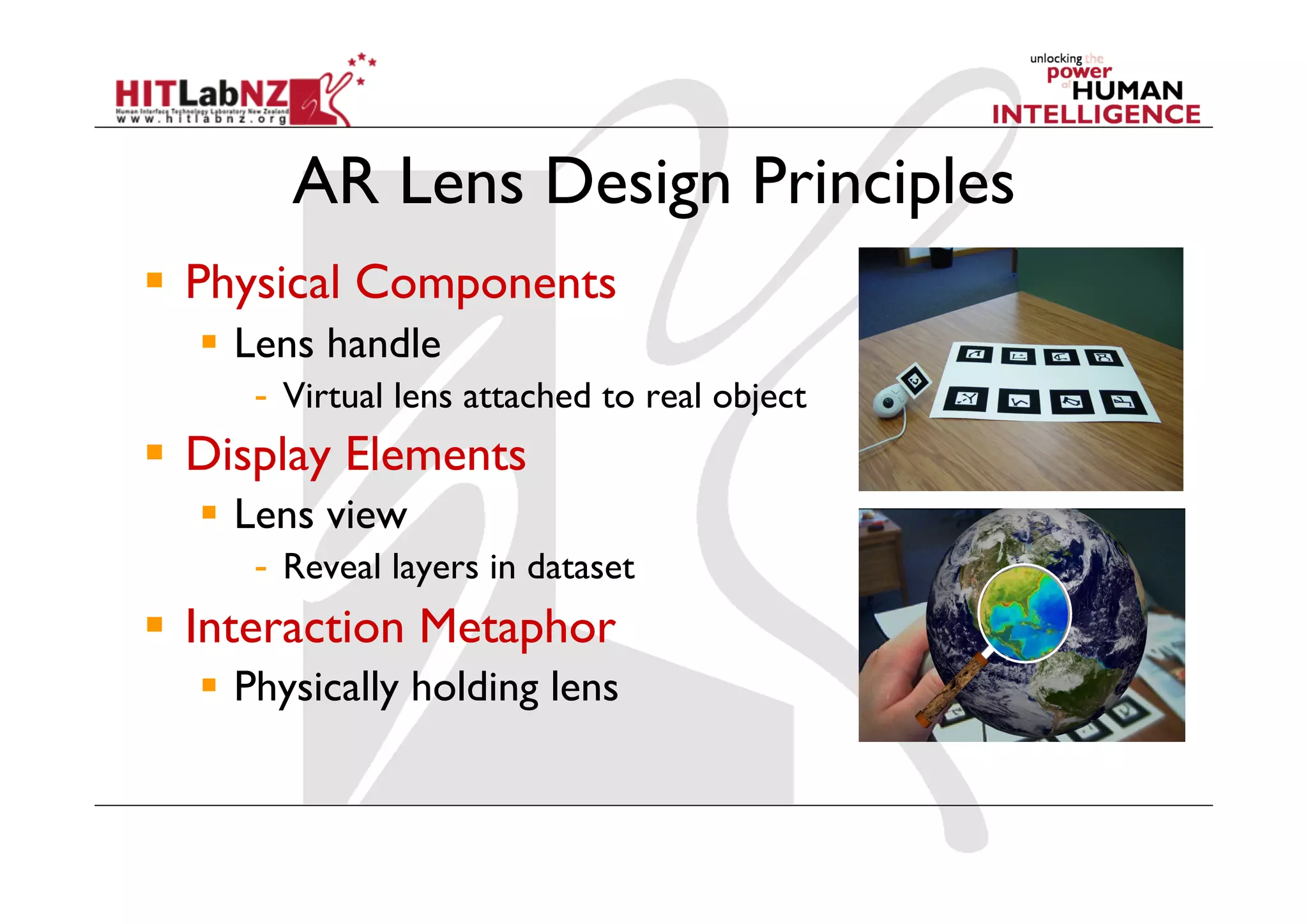
AR Lens Design Principles
  Physical Components
    Lens handle
     -  Virtual lens attached to real object
  Display Elements
    Lens view
     -  Reveal layers in dataset
  Interaction Metaphor
    Physically holding lens
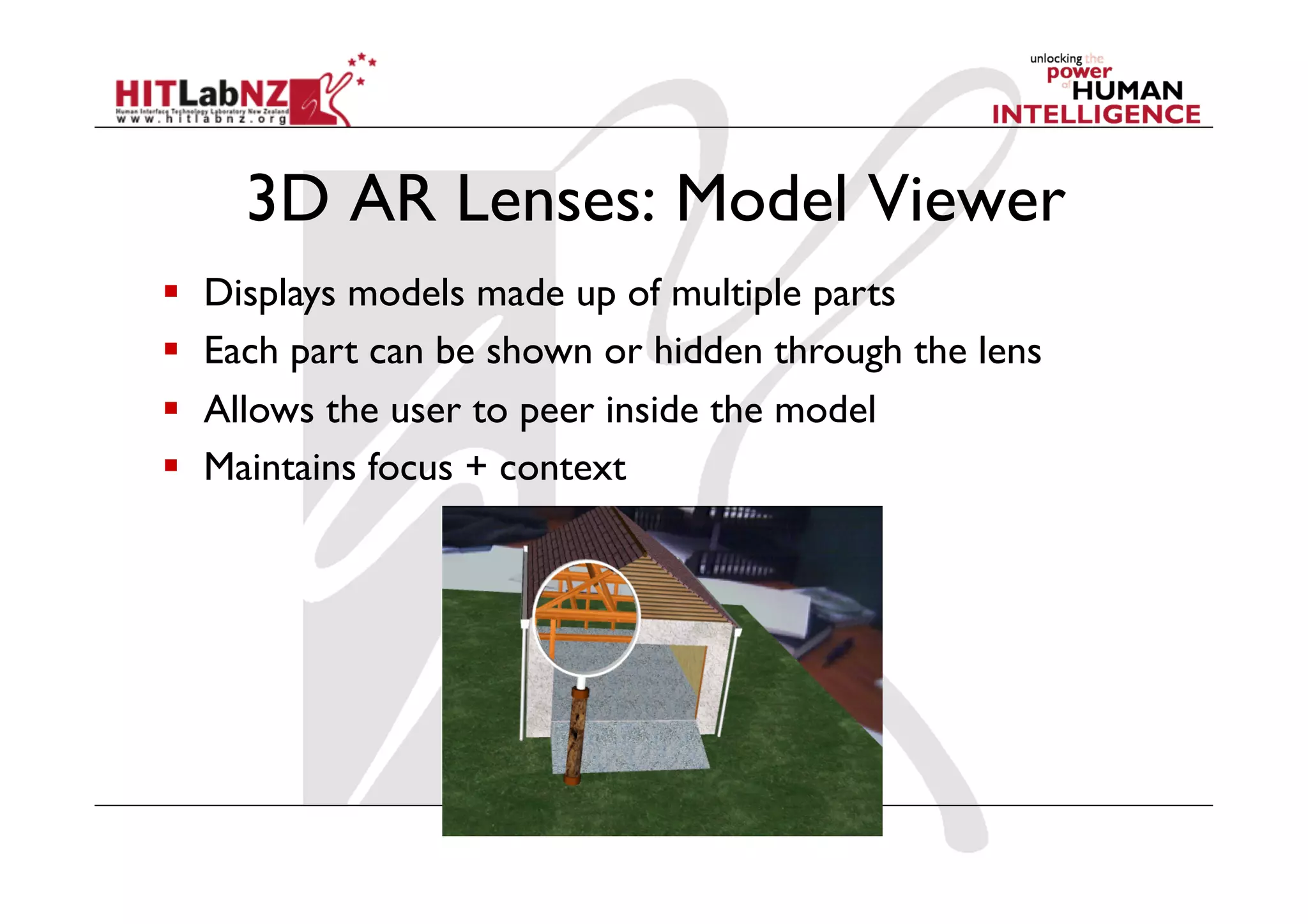
3D AR Lenses: Model Viewer
    Displays models made up of multiple parts
    Each part can be shown or hidden through the lens
    Allows the user to peer inside the model
    Maintains focus + context
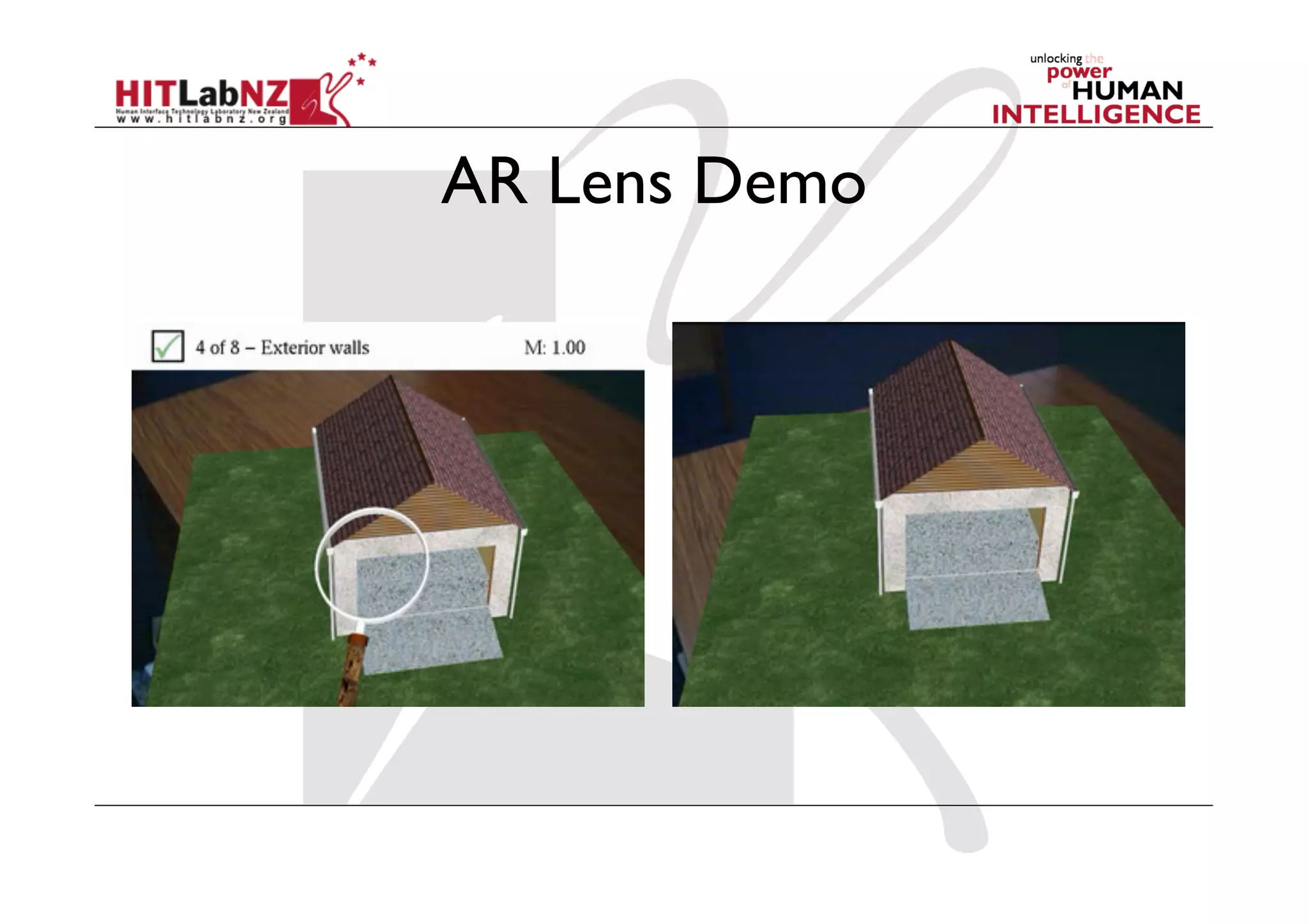
AR Lens Demo
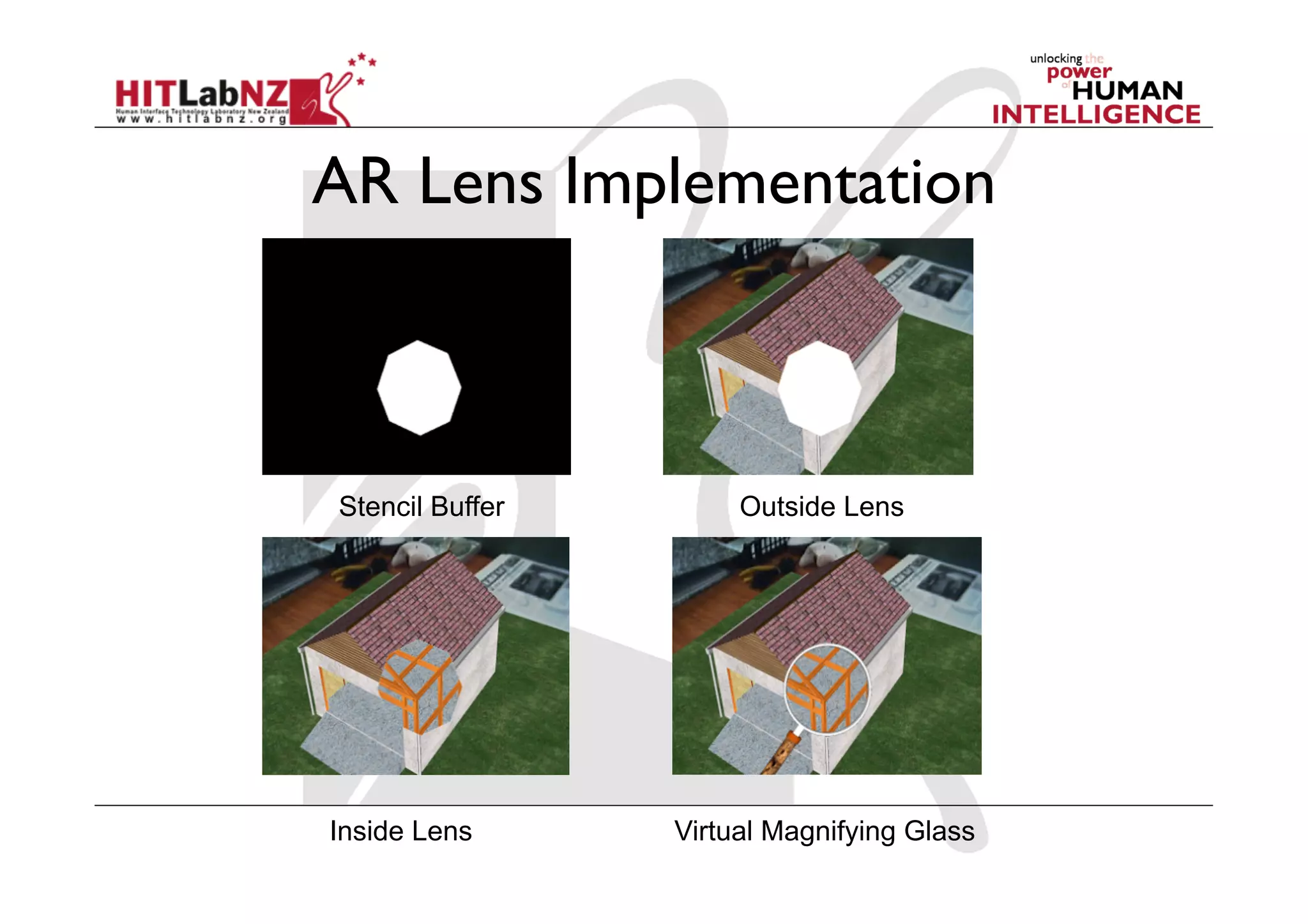
AR Lens Implementation


Stencil Buffer        Outside Lens


Inside Lens      Virtual Magnifying Glass
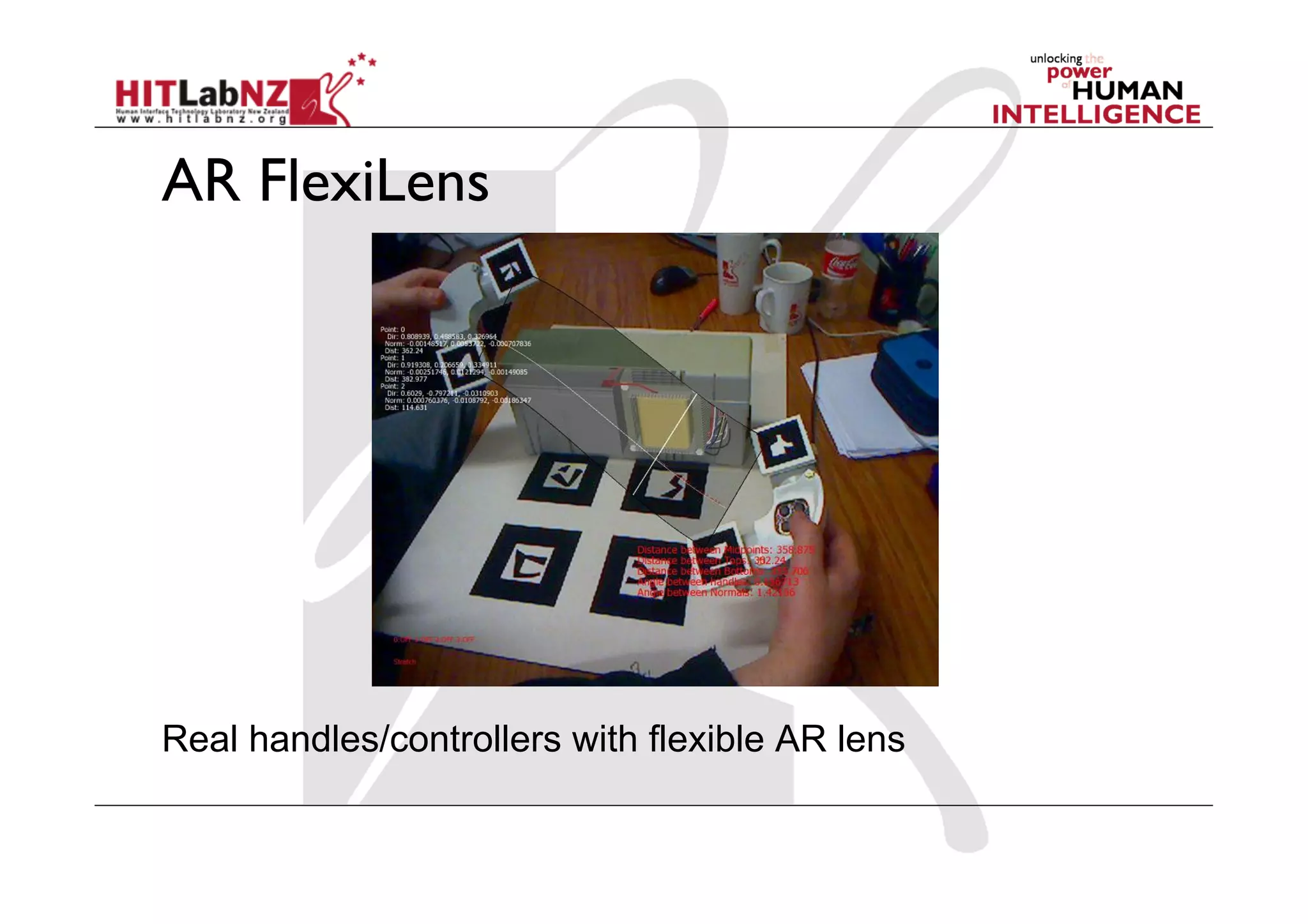
AR FlexiLens


Real handles/controllers with flexible AR lens
Techniques based on AR Lenses
  Object Selection
     Select objects by targeting them with the lens
  Information Filtering
     Show different representations through the lens
     Hide certain content to reduce clutter, look inside things
  Move between AR and VR
     Transition along the reality-virtuality continuum
     Change our viewpoint to suit our needs
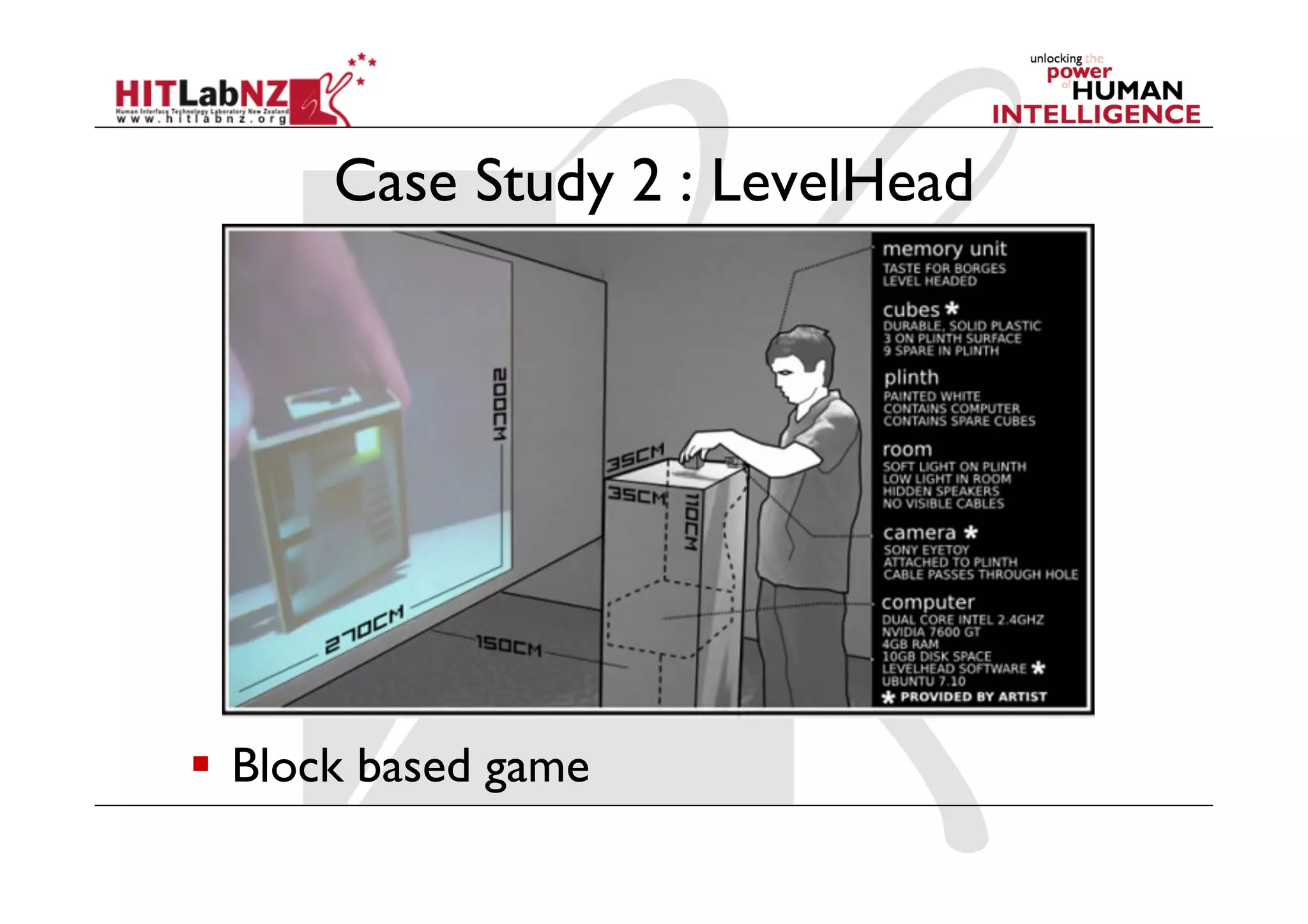
Case Study 2 : LevelHead


  Block based game
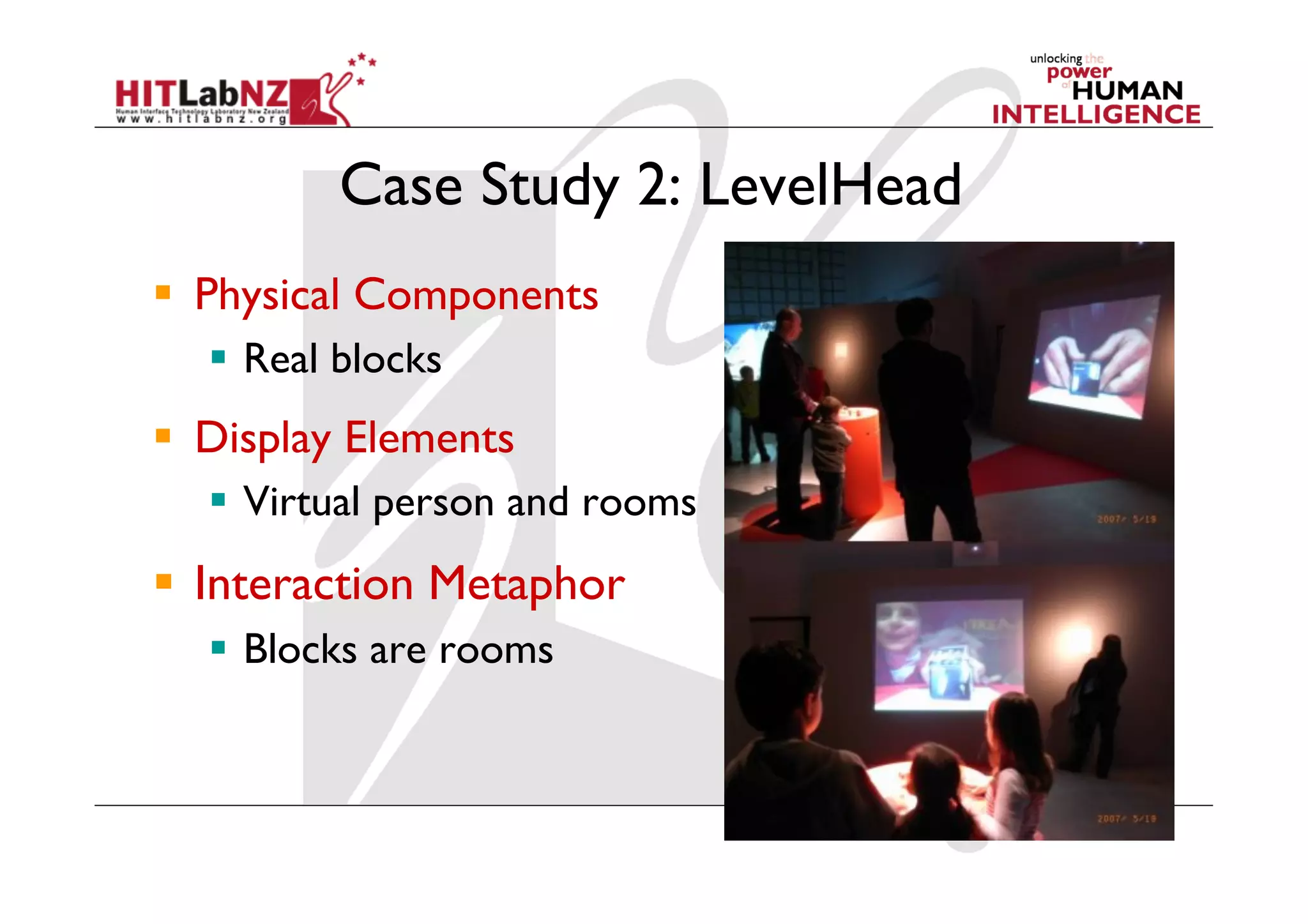
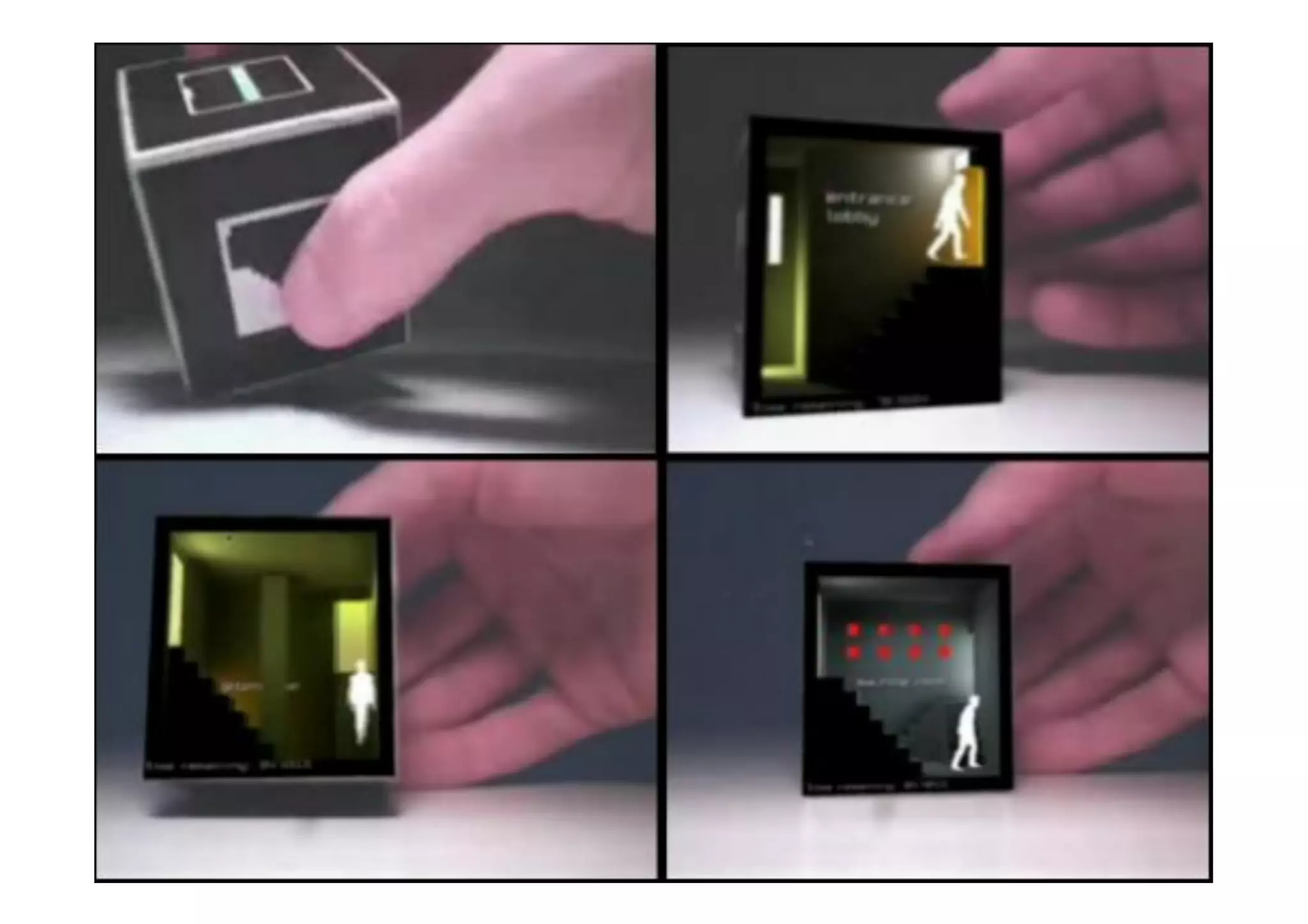
Case Study 2: LevelHead
  Physical Components
    Real blocks
  Display Elements
    Virtual person and rooms
  Interaction Metaphor
    Blocks are rooms
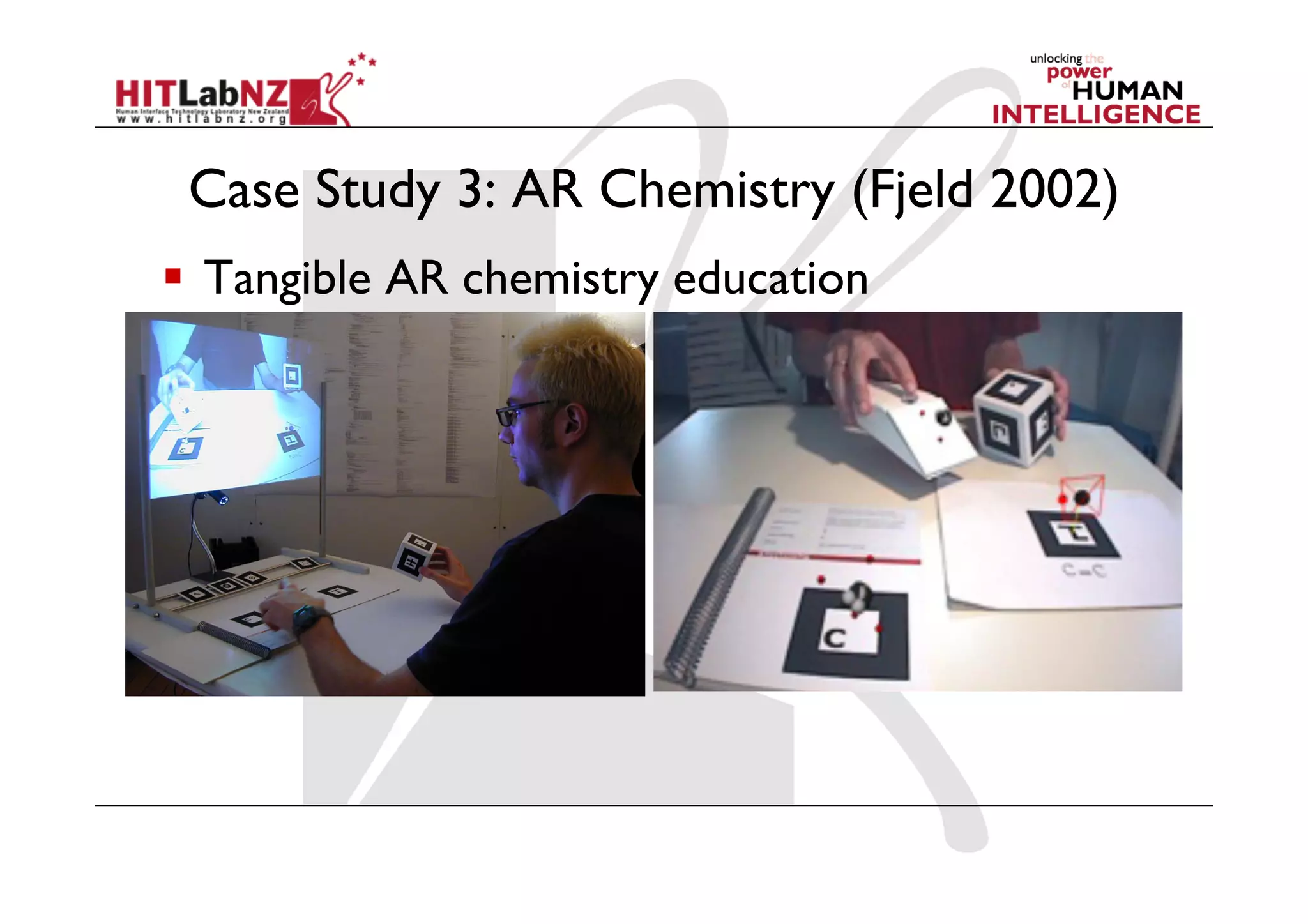
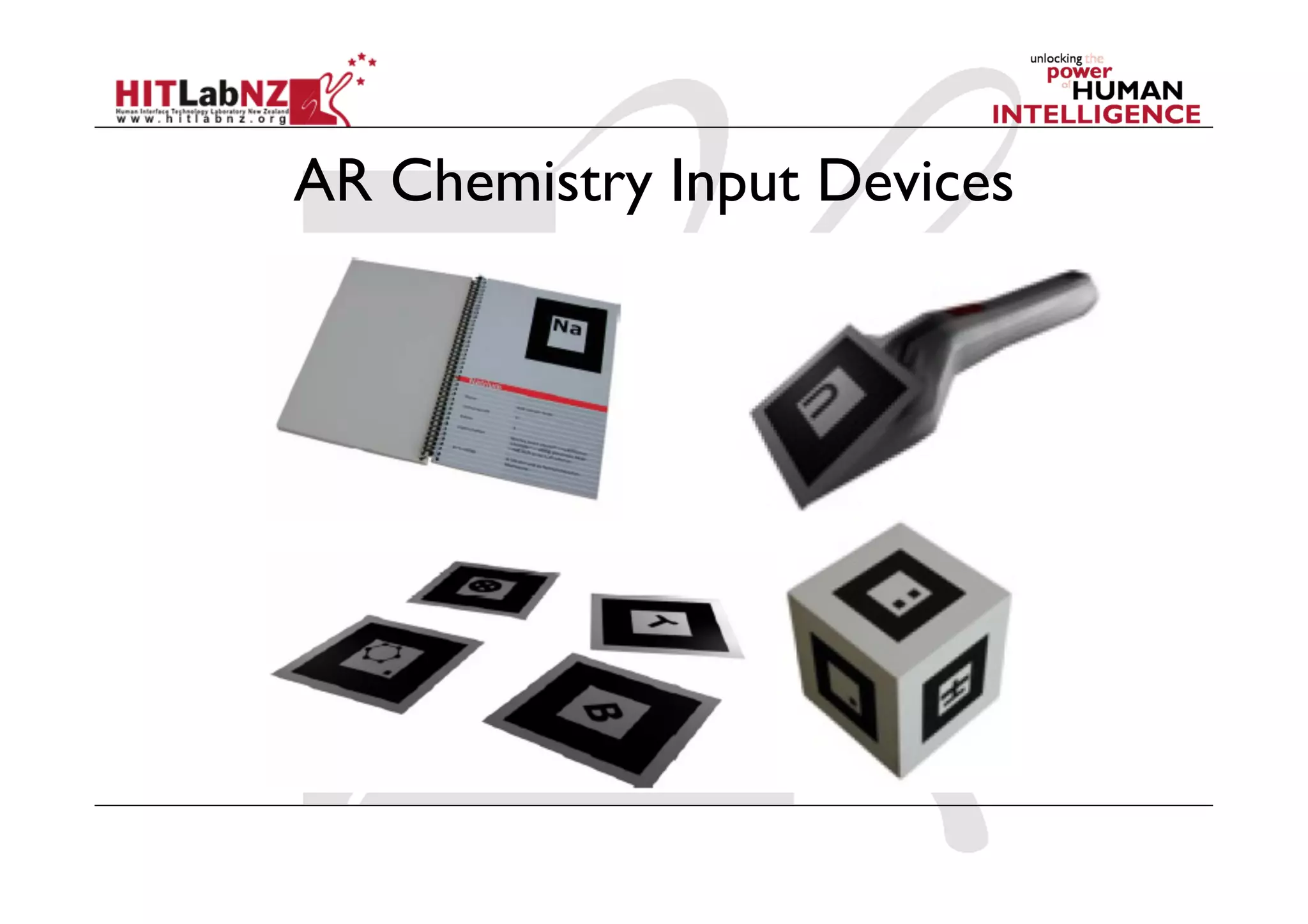
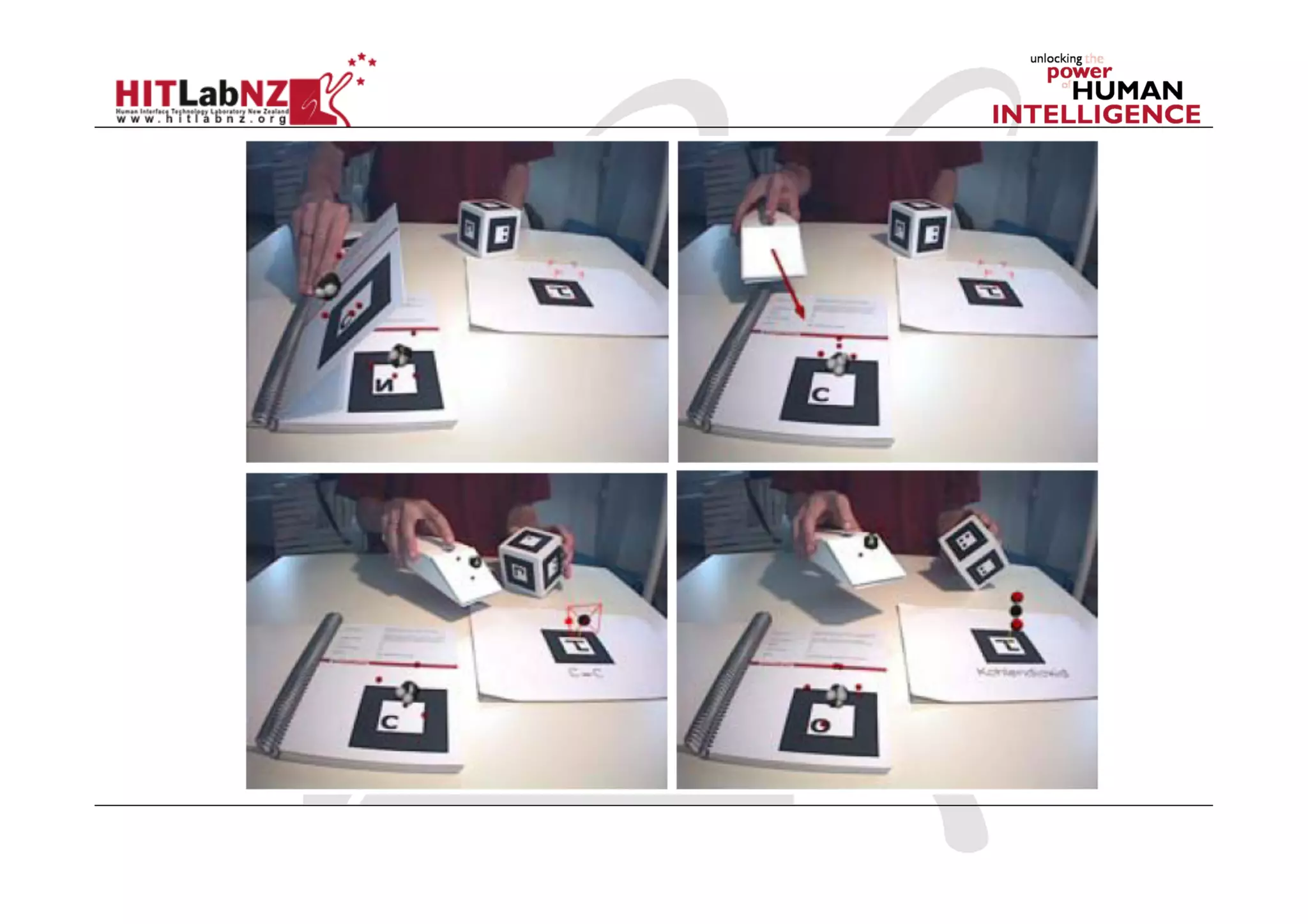
Case Study 3: AR Chemistry (Fjeld 2002)
  Tangible AR chemistry education
Goal: An AR application to test molecular
 structure in chemistry
  Physical Components
    Real book, rotation cube, scoop, tracking markers
  Display Elements
    AR atoms and molecules
  Interaction Metaphor
    Build your own molecule
AR Chemistry Input Devices
Case Study 4: Transitional Interfaces
Goal: An AR interface supporting transitions
 from reality to virtual reality
  Physical Components
    Real book
  Display Elements
    AR and VR content
  Interaction Metaphor
    Book pages hold virtual scenes
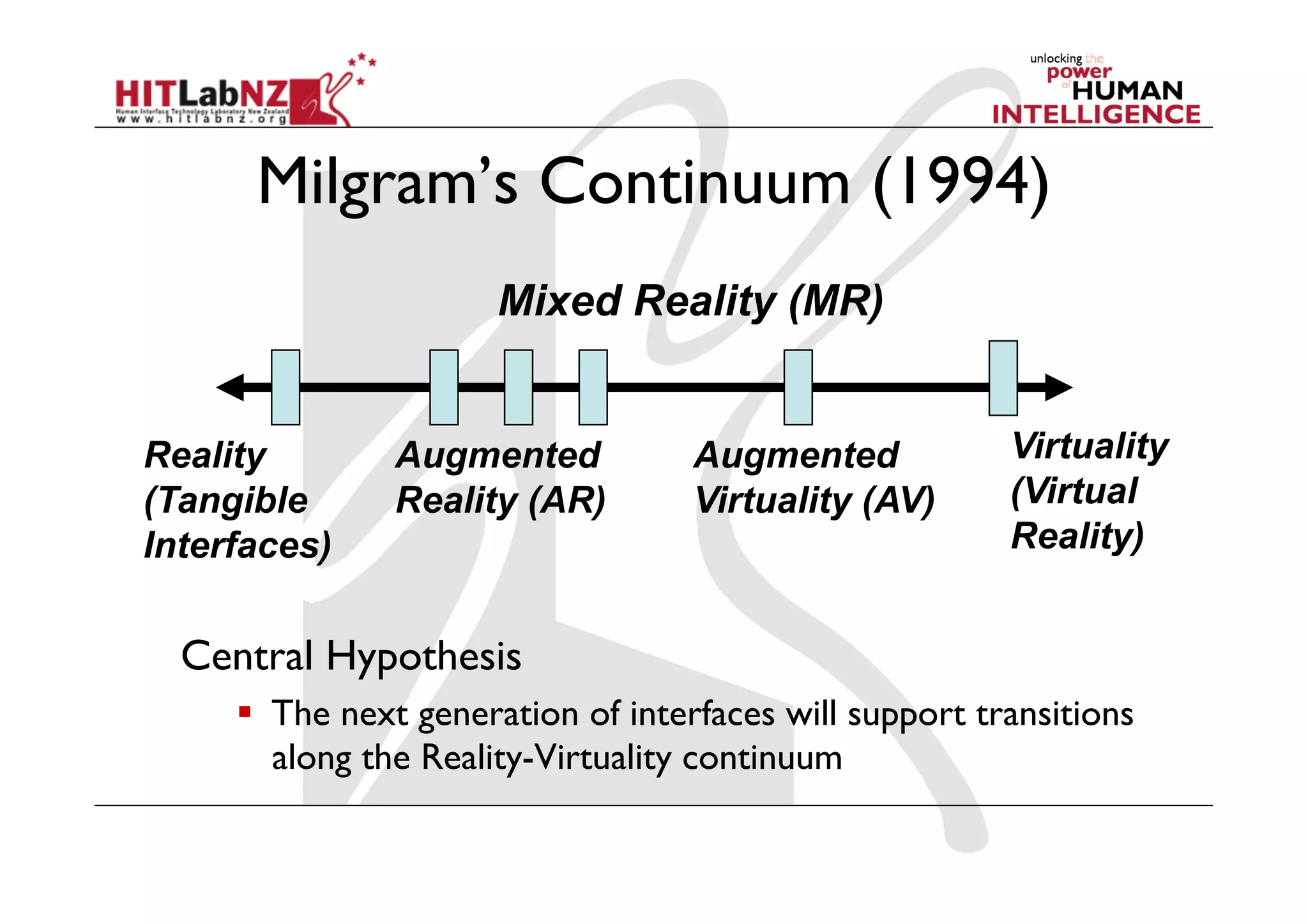
Milgram’s Continuum (1994)
                      Mixed Reality (MR)


Reality        Augmented            Augmented            Virtuality
(Tangible      Reality (AR)         Virtuality (AV)      (Virtual
Interfaces)                                              Reality)


  Central Hypothesis
       The next generation of interfaces will support transitions
        along the Reality-Virtuality continuum
Transitions
  Interfaces of the future will need to support
   transitions along the RV continuum
  Augmented Reality is preferred for:
    co-located collaboration
  Immersive Virtual Reality is preferred for:
    experiencing world immersively (egocentric)
    sharing views
    remote collaboration
The MagicBook
  Design Goals:
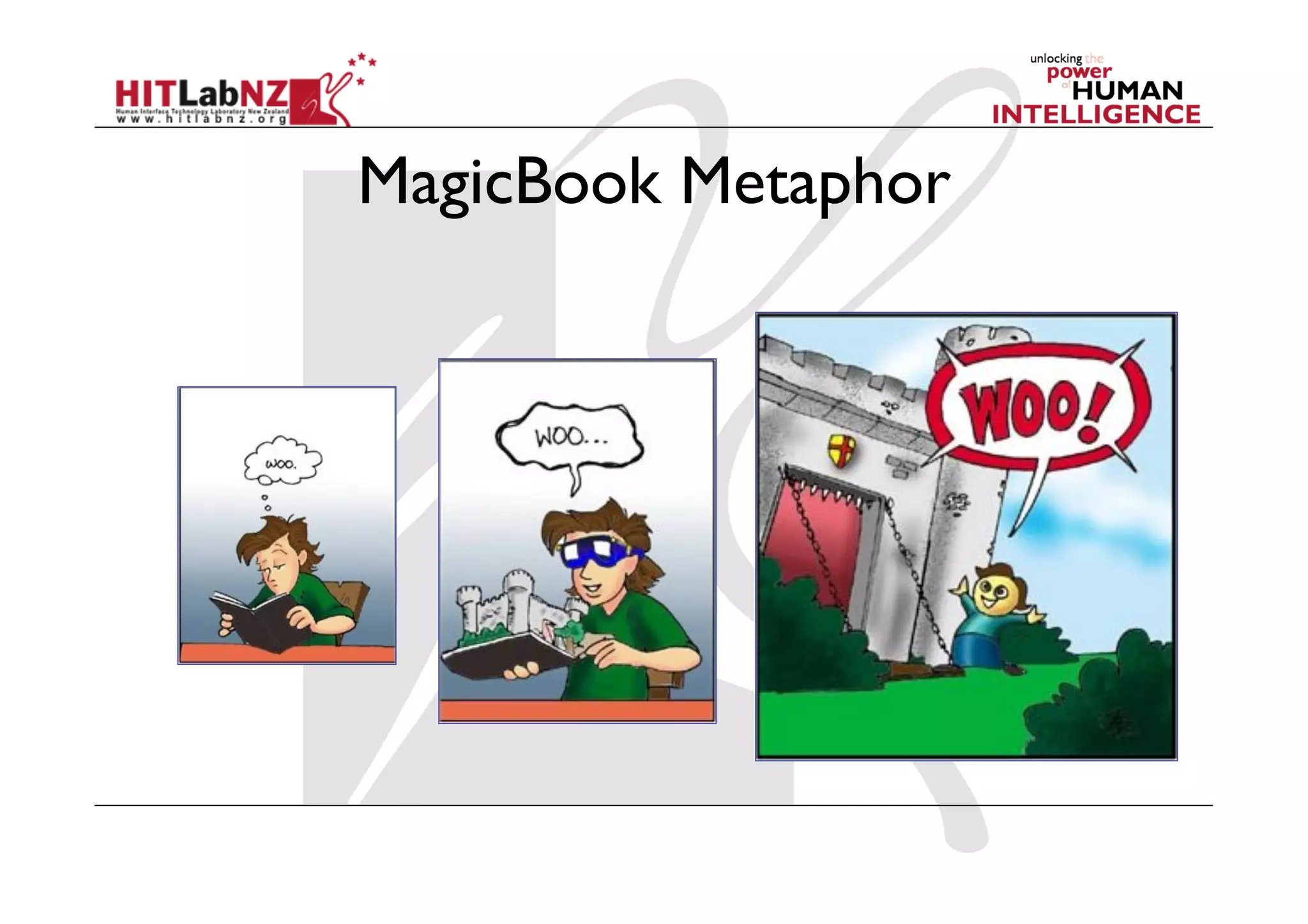
    Allows user to move smoothly between reality
     and virtual reality
    Support collaboration
MagicBook Metaphor
Features
  Seamless transition between Reality and Virtuality
     Reliance on real decreases as virtual increases
  Supports egocentric and exocentric views
     User can pick appropriate view
  Computer becomes invisible
     Consistent interface metaphors
     Virtual content seems real
  Supports collaboration
Collaboration
  Collaboration on multiple levels:
    Physical Object
    AR Object
    Immersive Virtual Space
  Egocentric + exocentric collaboration
    multiple multi-scale users
  Independent Views
    Privacy, role division, scalability
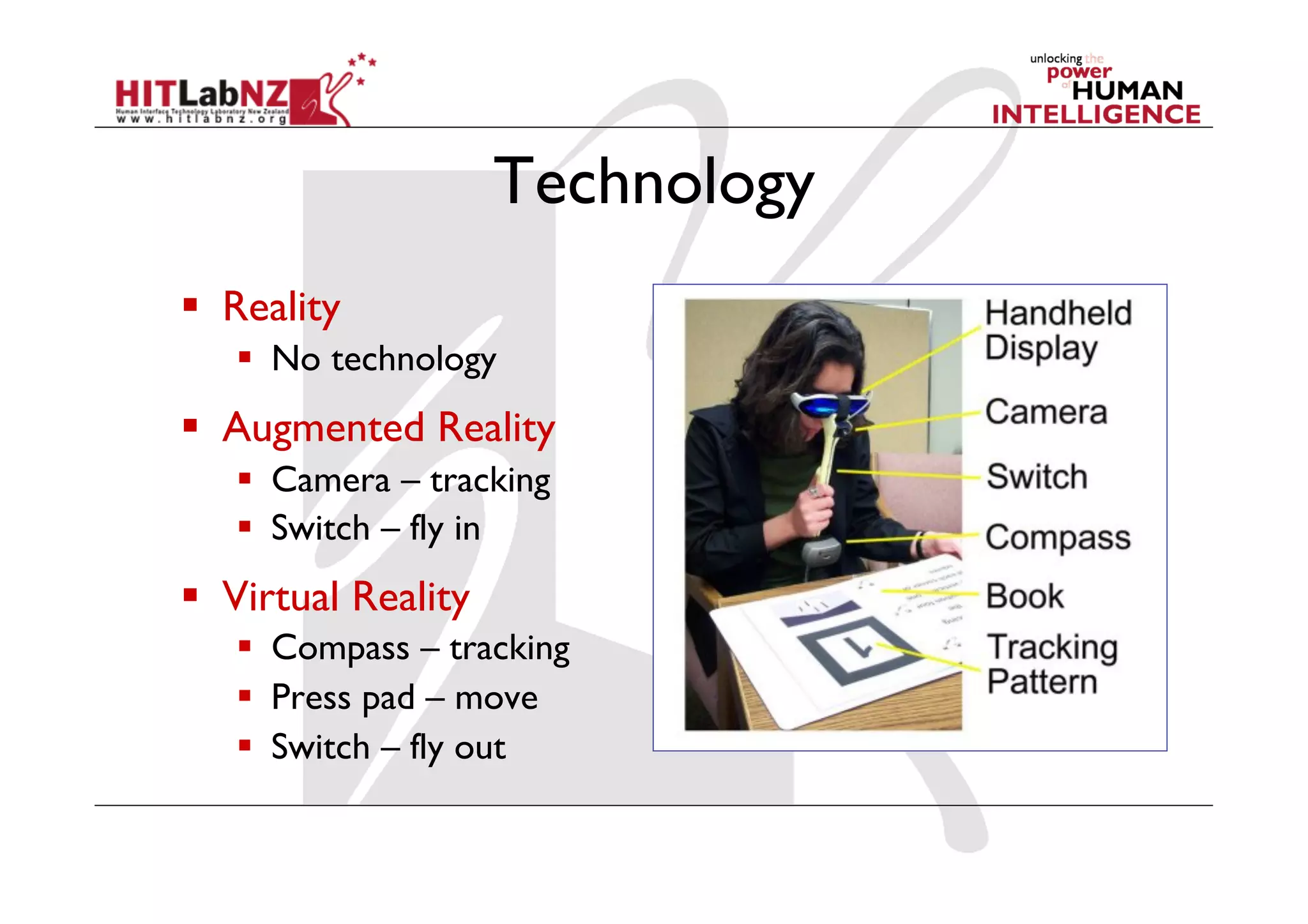
Technology
  Reality
     No technology
  Augmented Reality
     Camera – tracking
     Switch – fly in
  Virtual Reality
     Compass – tracking
     Press pad – move
     Switch – fly out
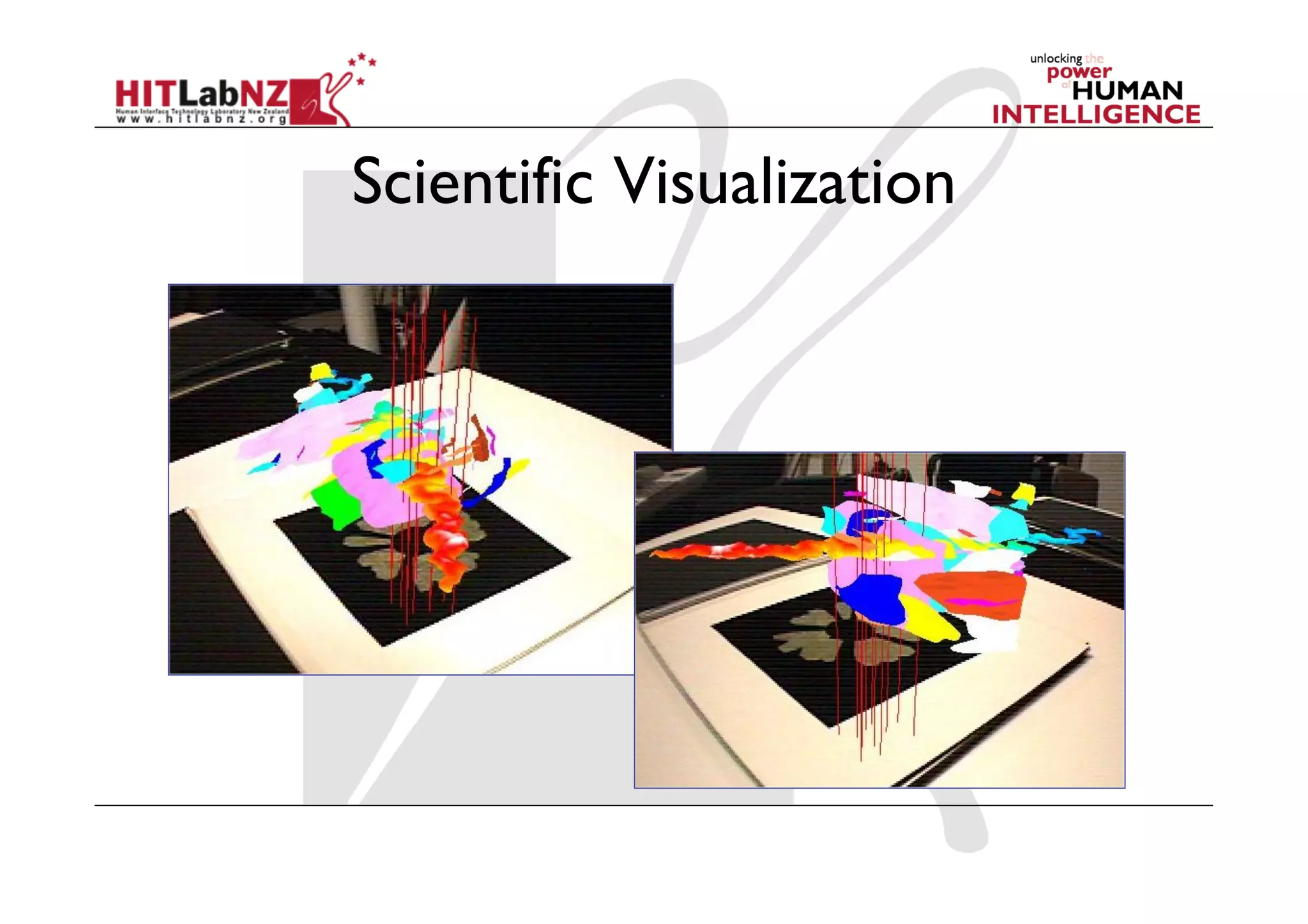
Scientific Visualization
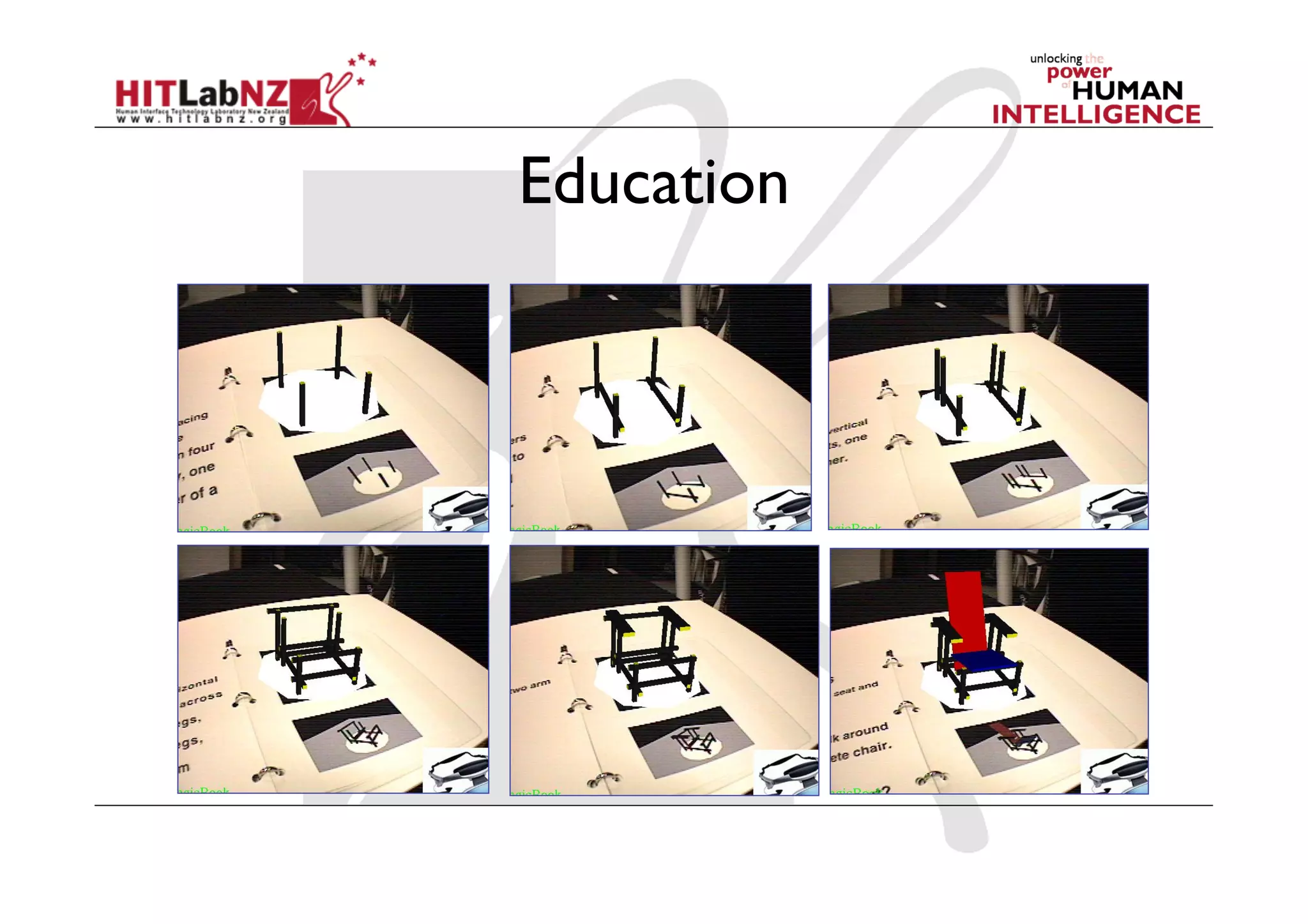
Education
Summary
  When designing AR interfaces, think of:
    Physical Components
     -  Physical affordances
    Virtual Components
     -  Virtual affordances
    Interface Metaphors
OSGART:
From Registration to Interaction
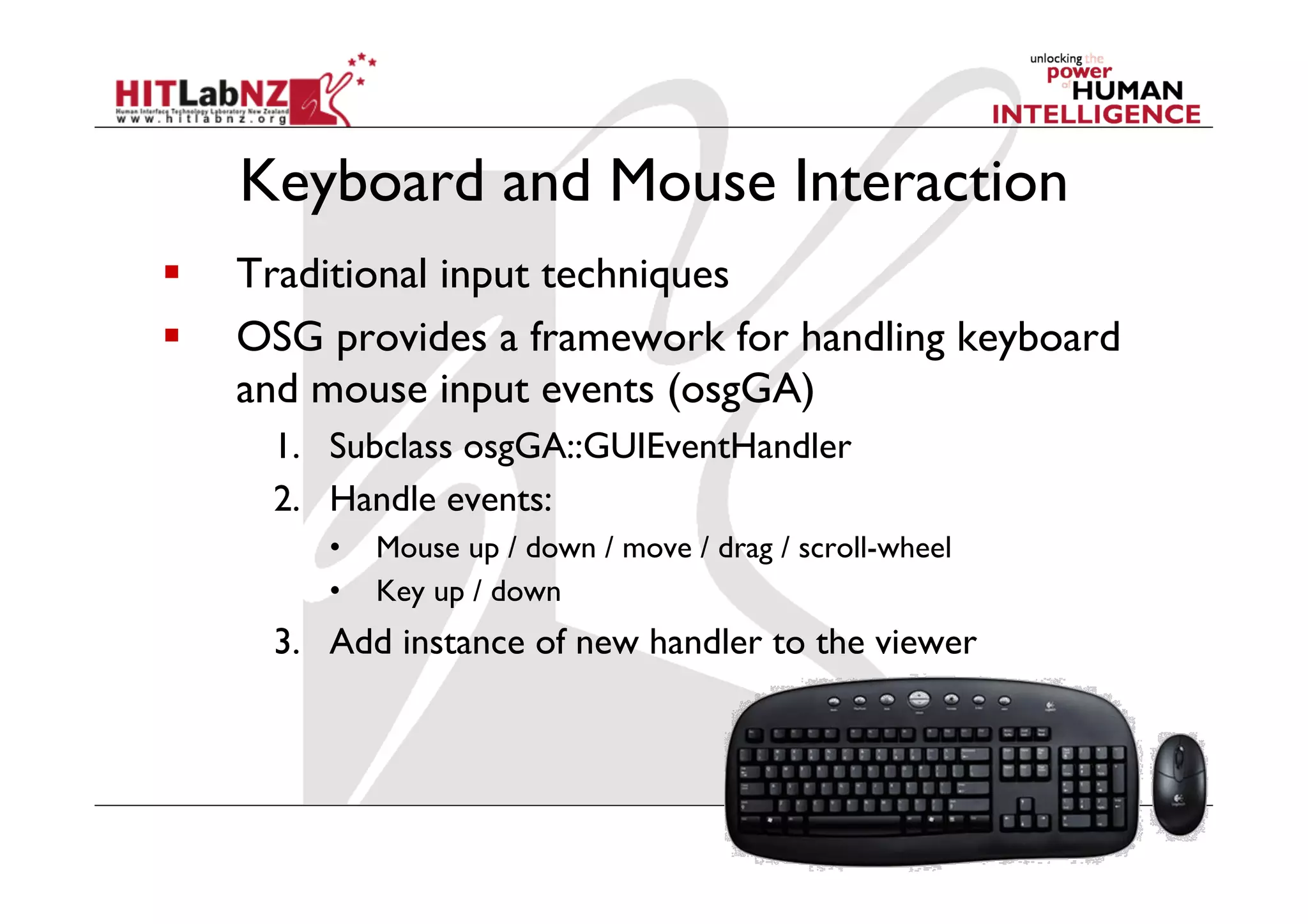
Keyboard and Mouse Interaction
    Traditional input techniques
    OSG provides a framework for handling keyboard
     and mouse input events (osgGA)
      1.  Subclass osgGA::GUIEventHandler
      2.  Handle events:
         •    Mouse up / down / move / drag / scroll-wheel
         •    Key up / down
      3.  Add instance of new handler to the viewer
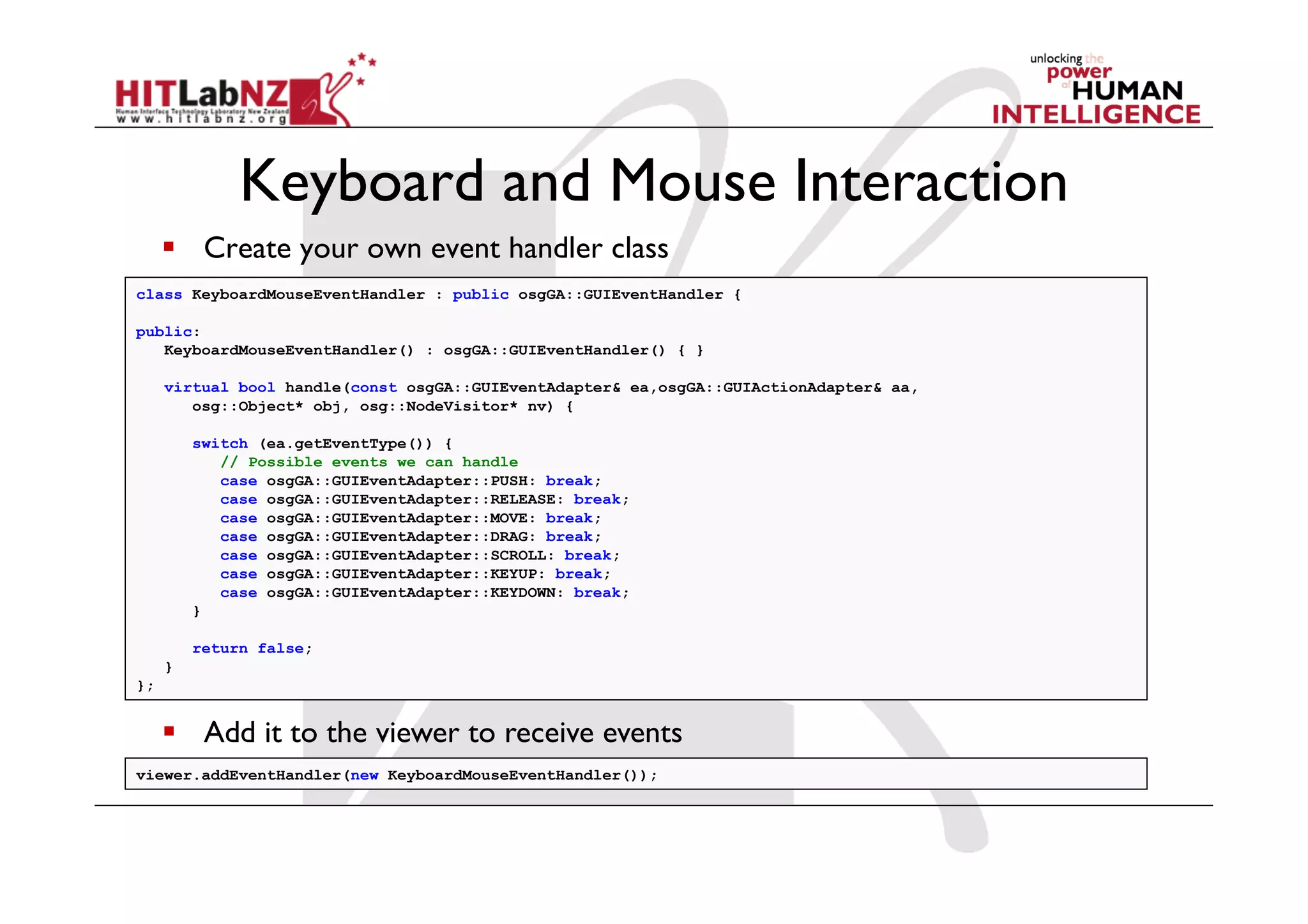
Keyboard and Mouse Interaction
       Create your own event handler class
class KeyboardMouseEventHandler : public osgGA::GUIEventHandler {

public:
   KeyboardMouseEventHandler() : osgGA::GUIEventHandler() { }

     virtual bool handle(const osgGA::GUIEventAdapter& ea,osgGA::GUIActionAdapter& aa,
        osg::Object* obj, osg::NodeVisitor* nv) {

         switch (ea.getEventType()) {
            // Possible events we can handle
            case osgGA::GUIEventAdapter::PUSH: break;
            case osgGA::GUIEventAdapter::RELEASE: break;
            case osgGA::GUIEventAdapter::MOVE: break;
            case osgGA::GUIEventAdapter::DRAG: break;
            case osgGA::GUIEventAdapter::SCROLL: break;
            case osgGA::GUIEventAdapter::KEYUP: break;
            case osgGA::GUIEventAdapter::KEYDOWN: break;
         }

         return false;
     }
};


       Add it to the viewer to receive events
viewer.addEventHandler(new KeyboardMouseEventHandler());
Keyboard Interaction
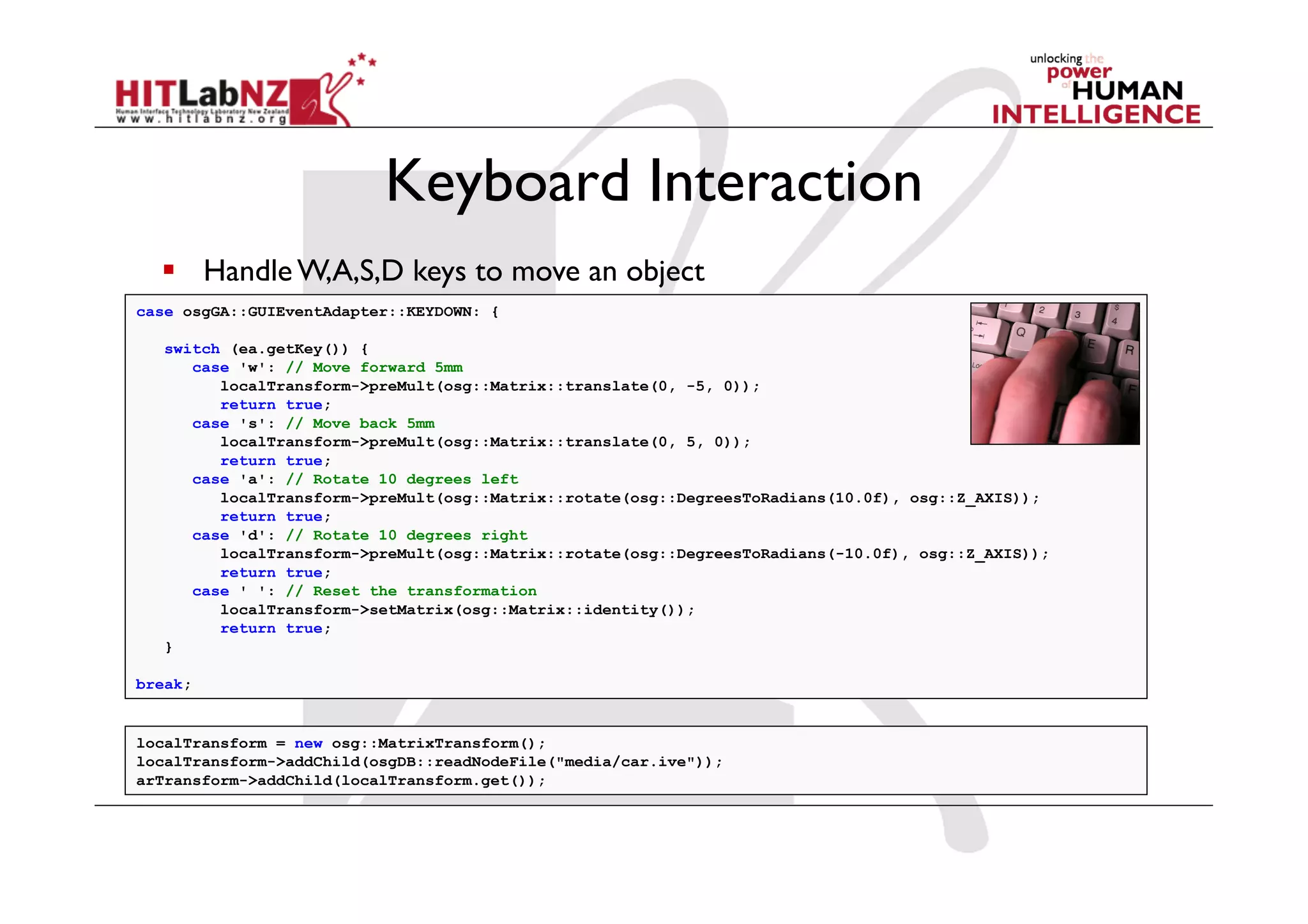
    Handle W,A,S,D keys to move an object
case osgGA::GUIEventAdapter::KEYDOWN: {

   switch (ea.getKey()) {
      case 'w': // Move forward 5mm
         localTransform->preMult(osg::Matrix::translate(0, -5, 0));
         return true;
      case 's': // Move back 5mm
         localTransform->preMult(osg::Matrix::translate(0, 5, 0));
         return true;
      case 'a': // Rotate 10 degrees left
         localTransform->preMult(osg::Matrix::rotate(osg::DegreesToRadians(10.0f), osg::Z_AXIS));
         return true;
      case 'd': // Rotate 10 degrees right
         localTransform->preMult(osg::Matrix::rotate(osg::DegreesToRadians(-10.0f), osg::Z_AXIS));
         return true;
      case ' ': // Reset the transformation
         localTransform->setMatrix(osg::Matrix::identity());
         return true;
   }

break;


localTransform = new osg::MatrixTransform();
localTransform->addChild(osgDB::readNodeFile("media/car.ive"));
arTransform->addChild(localTransform.get());
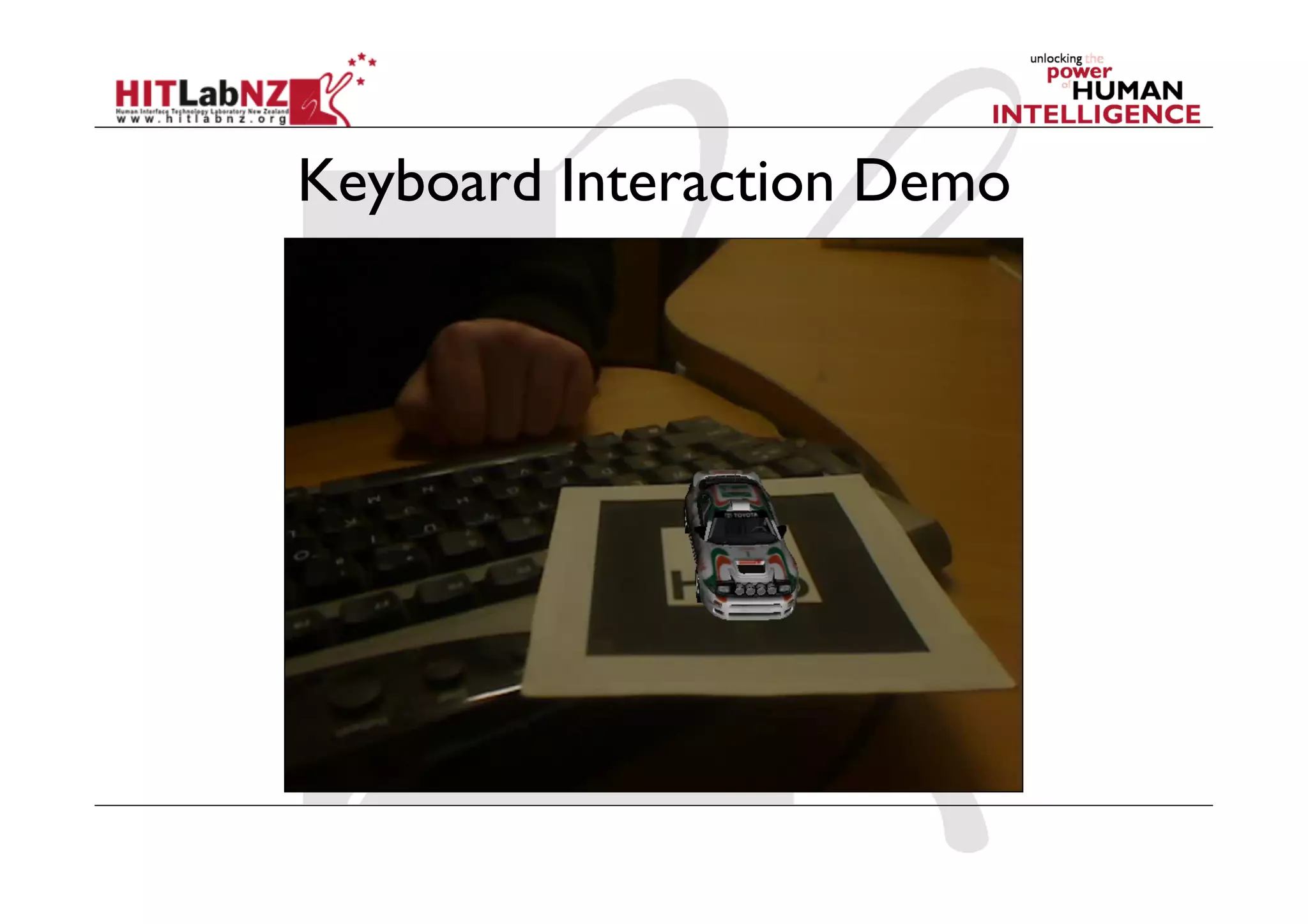
Keyboard Interaction Demo
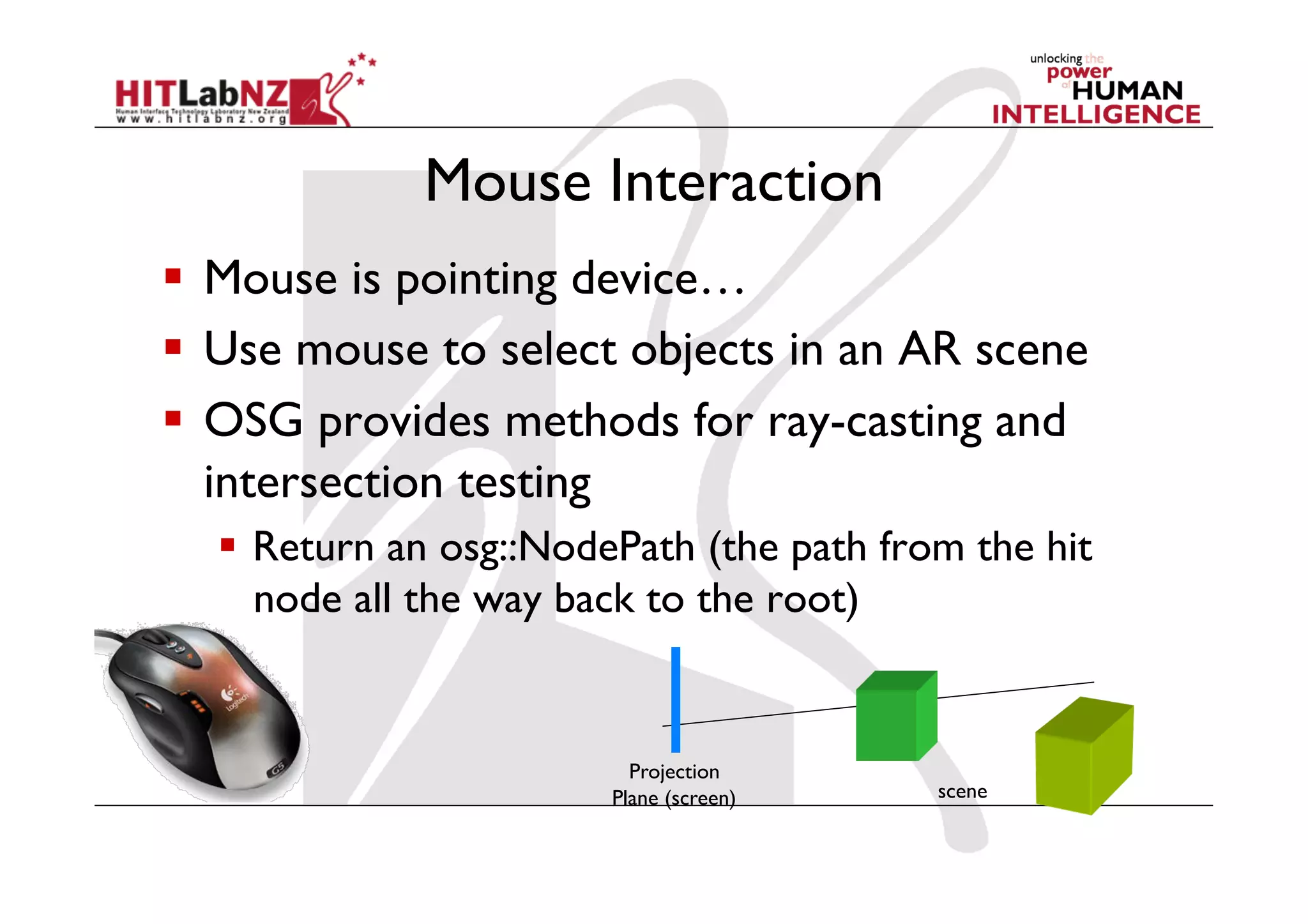
Mouse Interaction
  Mouse is pointing device…
  Use mouse to select objects in an AR scene
  OSG provides methods for ray-casting and
   intersection testing
    Return an osg::NodePath (the path from the hit
     node all the way back to the root)


                          Projection
                        Plane (screen)    scene
Mouse Interaction
  Compute the list of nodes under the clicked position
  Invoke an action on nodes that are hit, e.g. select, delete
case osgGA::GUIEventAdapter::PUSH:

   osgViewer::View* view = dynamic_cast<osgViewer::View*>(&aa);
   osgUtil::LineSegmentIntersector::Intersections intersections;

   // Clear previous selections
   for (unsigned int i = 0; i < targets.size(); i++) {
      targets[i]->setSelected(false);
   }

   // Find new selection based on click position
   if (view && view->computeIntersections(ea.getX(), ea.getY(), intersections)) {
      for (osgUtil::LineSegmentIntersector::Intersections::iterator iter = intersections.begin();
         iter != intersections.end(); iter++) {

            if (Target* target = dynamic_cast<Target*>(iter->nodePath.back())) {
               std::cout << "HIT!" << std::endl;
               target->setSelected(true);
               return true;
            }
       }
   }

   break;
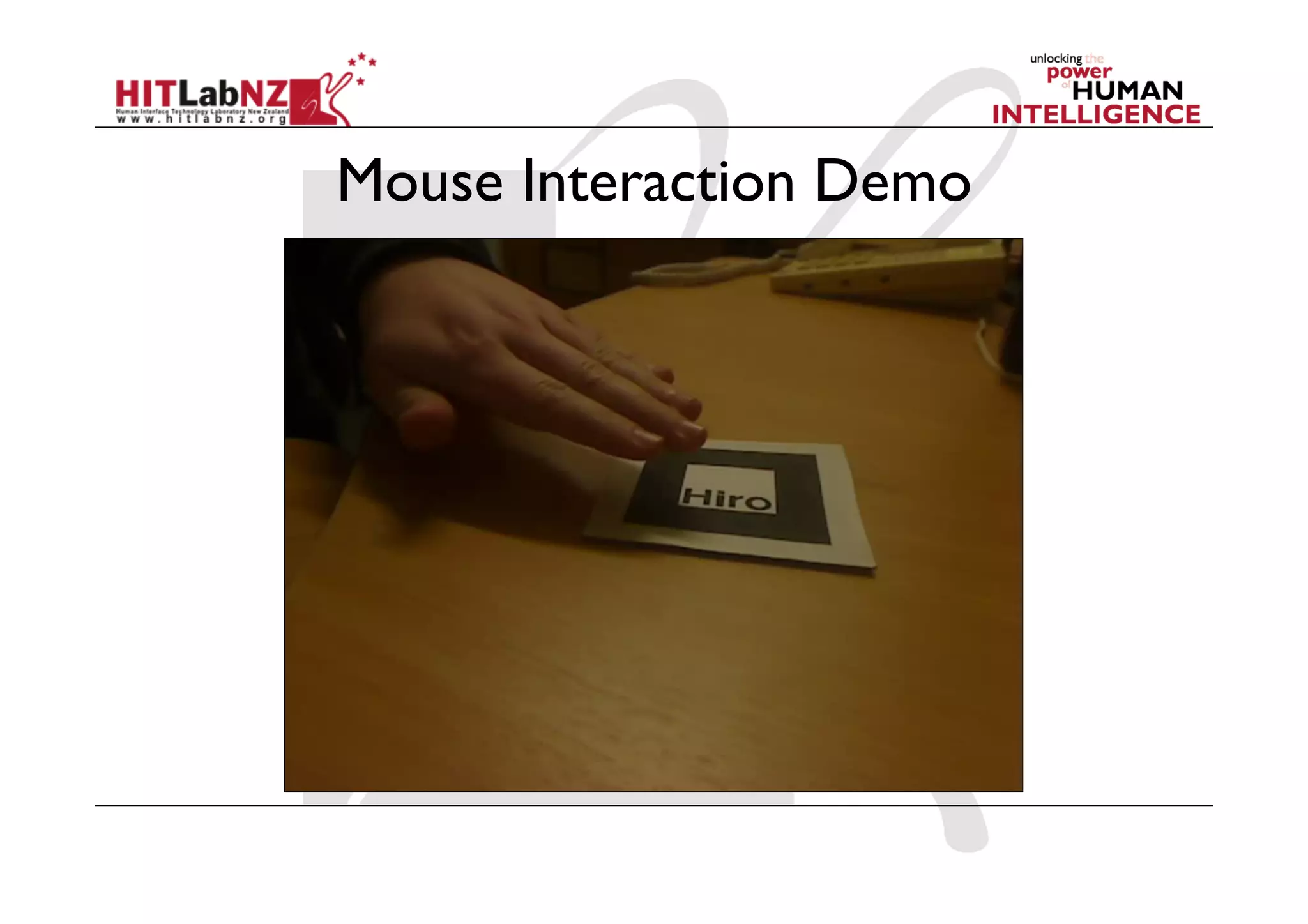
Mouse Interaction Demo
Proximity Techniques
  Interaction based on
    the distance between a marker and the camera
    the distance between multiple markers
Single Marker Techniques: Proximity
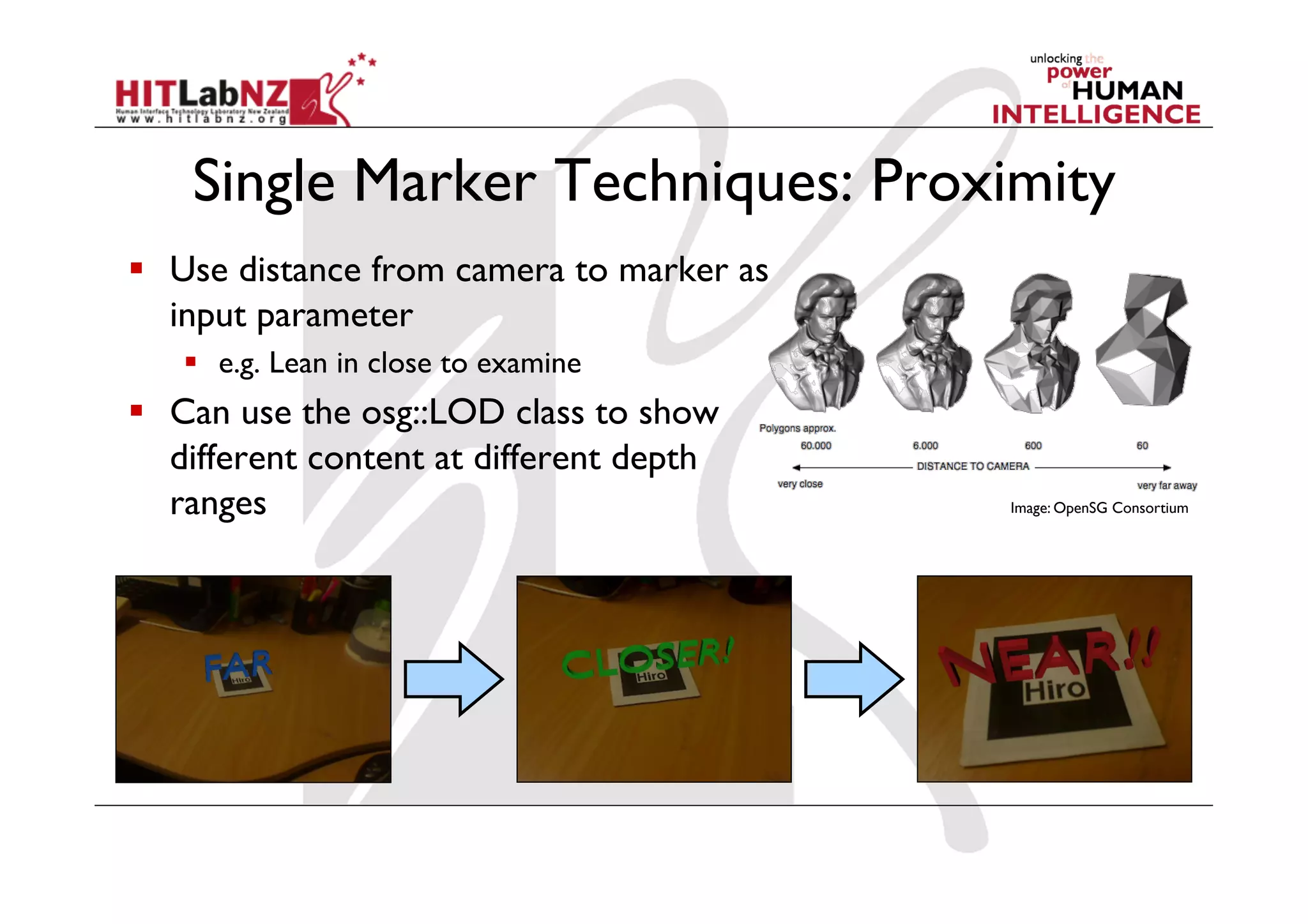
  Use distance from camera to marker as
   input parameter
     e.g. Lean in close to examine
  Can use the osg::LOD class to show
   different content at different depth
   ranges                                  Image: OpenSG Consortium
Single Marker Techniques: Proximity
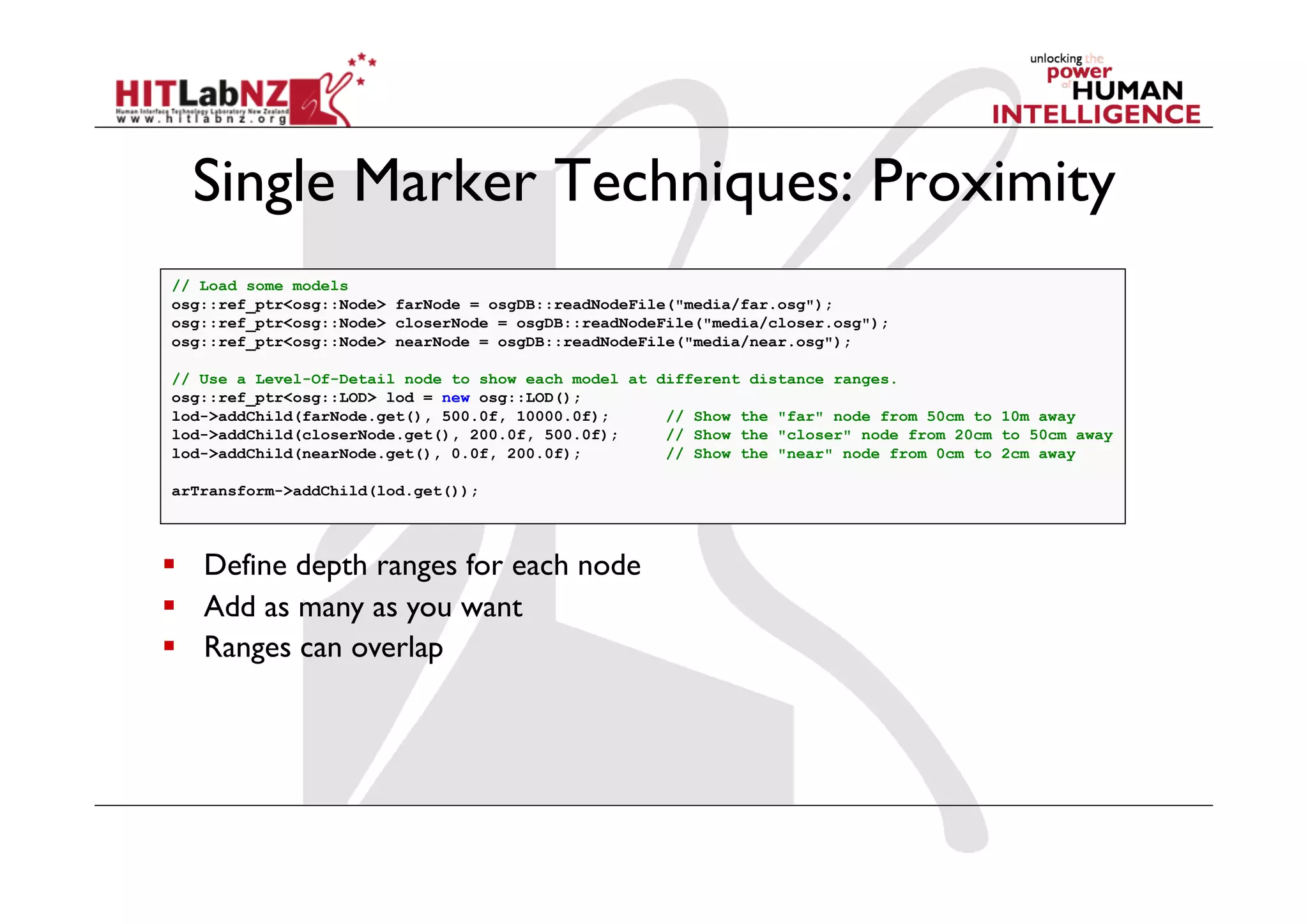
// Load some models
osg::ref_ptr<osg::Node> farNode = osgDB::readNodeFile("media/far.osg");
osg::ref_ptr<osg::Node> closerNode = osgDB::readNodeFile("media/closer.osg");
osg::ref_ptr<osg::Node> nearNode = osgDB::readNodeFile("media/near.osg");

// Use a Level-Of-Detail node to show each model at different distance ranges.
osg::ref_ptr<osg::LOD> lod = new osg::LOD();
lod->addChild(farNode.get(), 500.0f, 10000.0f);      // Show the "far" node from 50cm to 10m away
lod->addChild(closerNode.get(), 200.0f, 500.0f);     // Show the "closer" node from 20cm to 50cm away
lod->addChild(nearNode.get(), 0.0f, 200.0f);         // Show the "near" node from 0cm to 2cm away

arTransform->addChild(lod.get());


  Define depth ranges for each node
  Add as many as you want
  Ranges can overlap
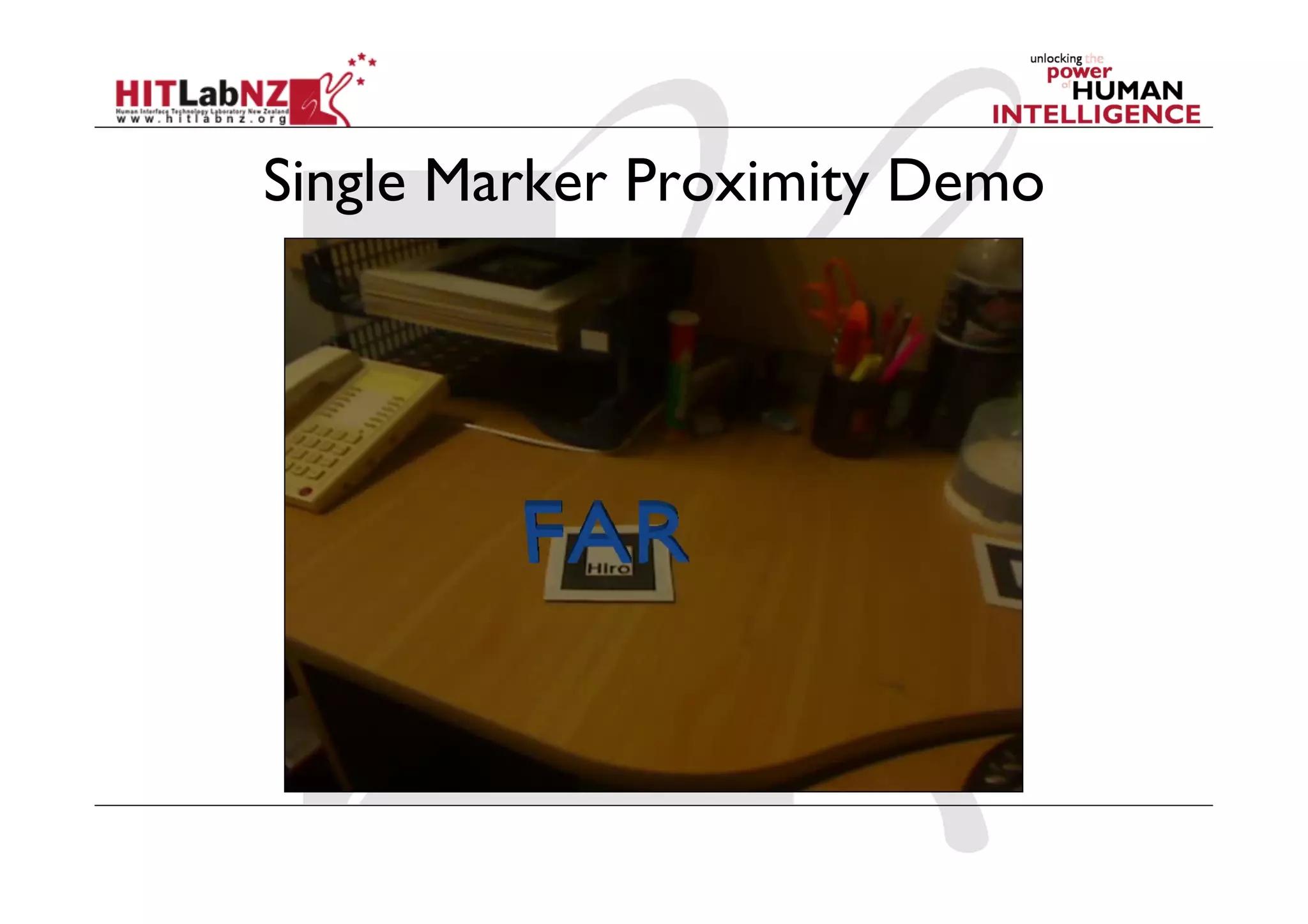
Single Marker Proximity Demo
Multiple Marker Concepts
  Interaction based on the relationship between
   markers
    e.g. When the distance between two markers
     decreases below threshold invoke an action
    Tangible User Interface
  Applications:
    Memory card games
    File operations
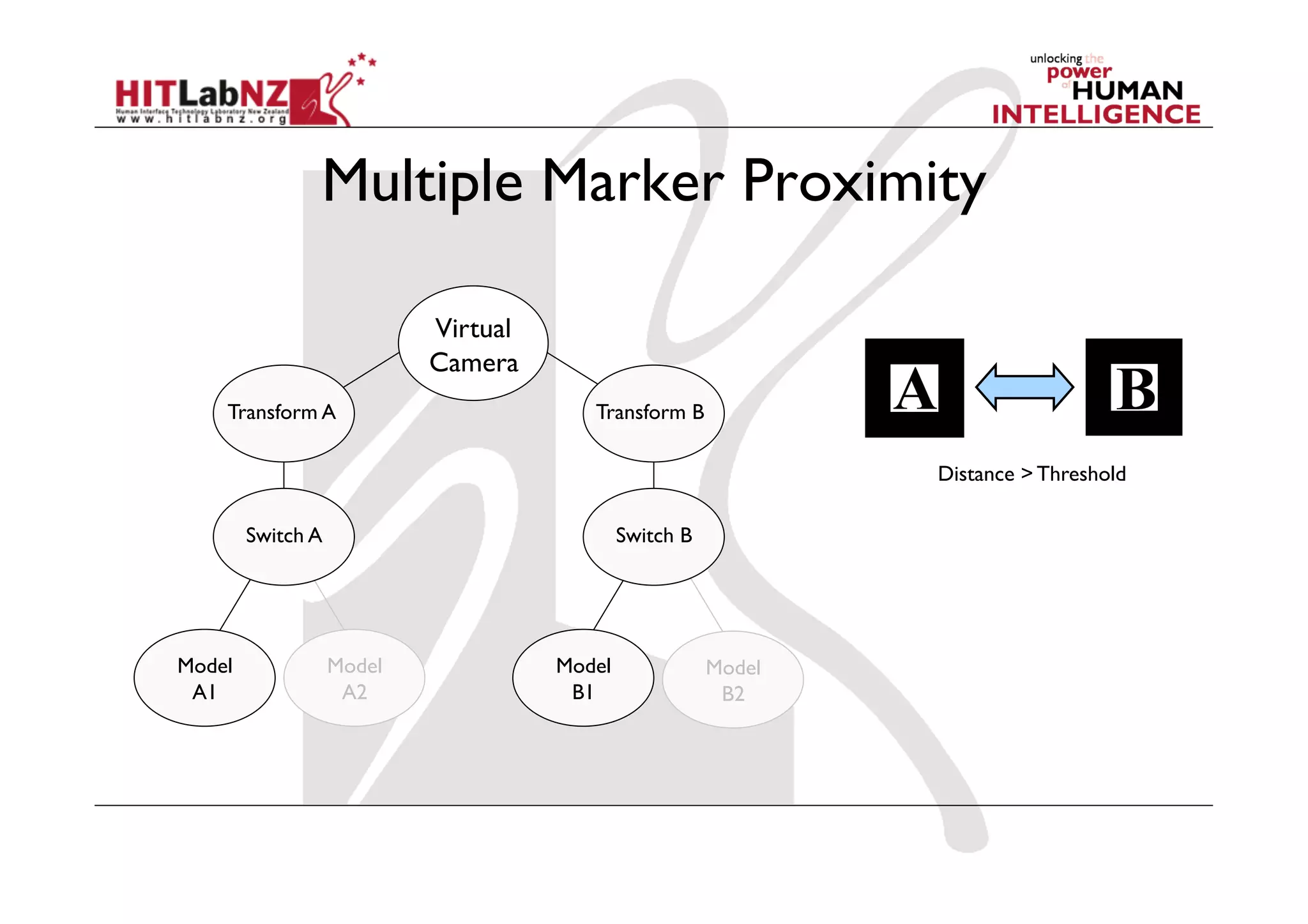
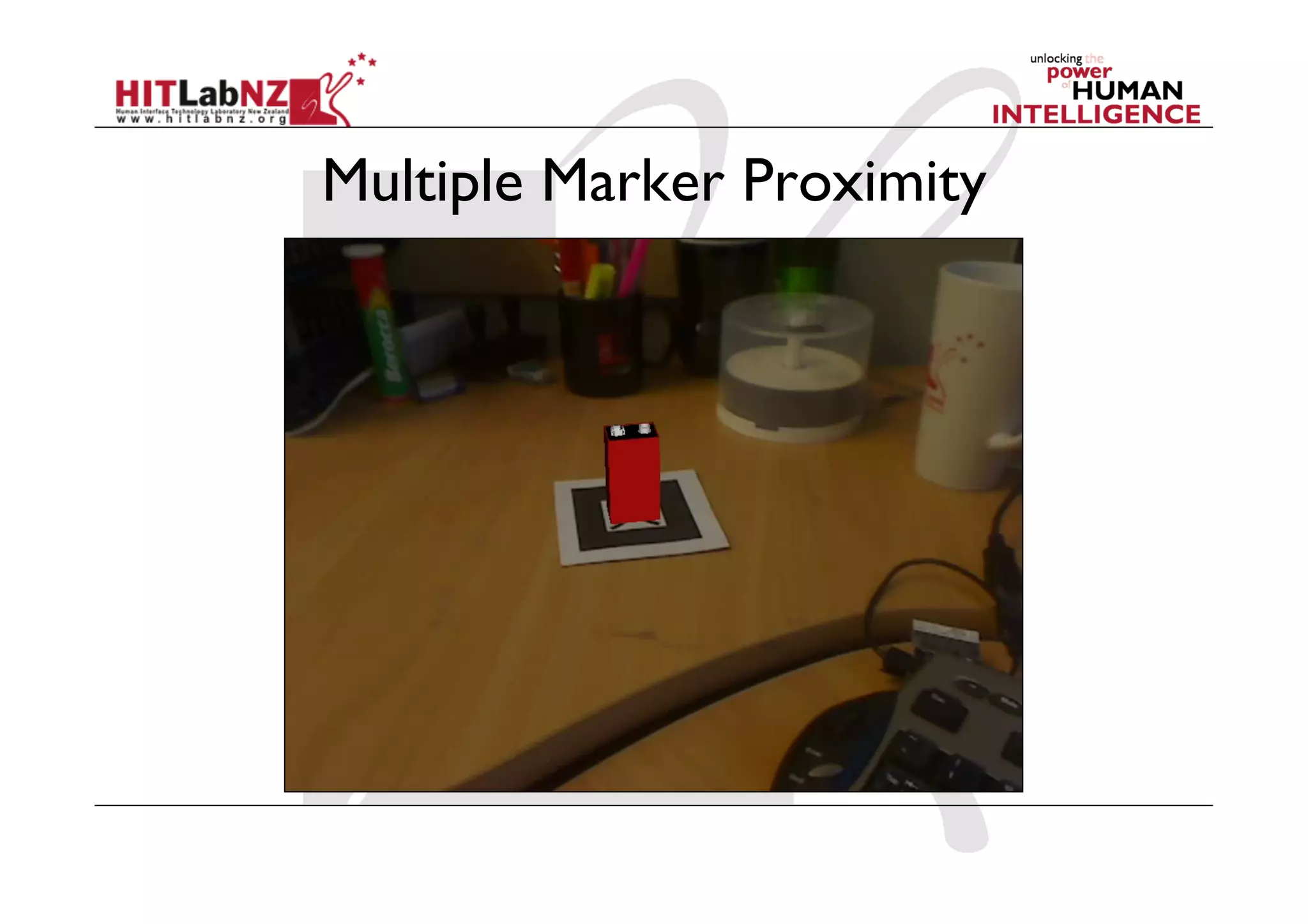
Multiple Marker Proximity

                           Virtual
                           Camera
    Transform A                         Transform B

                                                                Distance > Threshold

        Switch A                             Switch B


Model              Model             Model              Model
 A1                 A2                B1                 B2
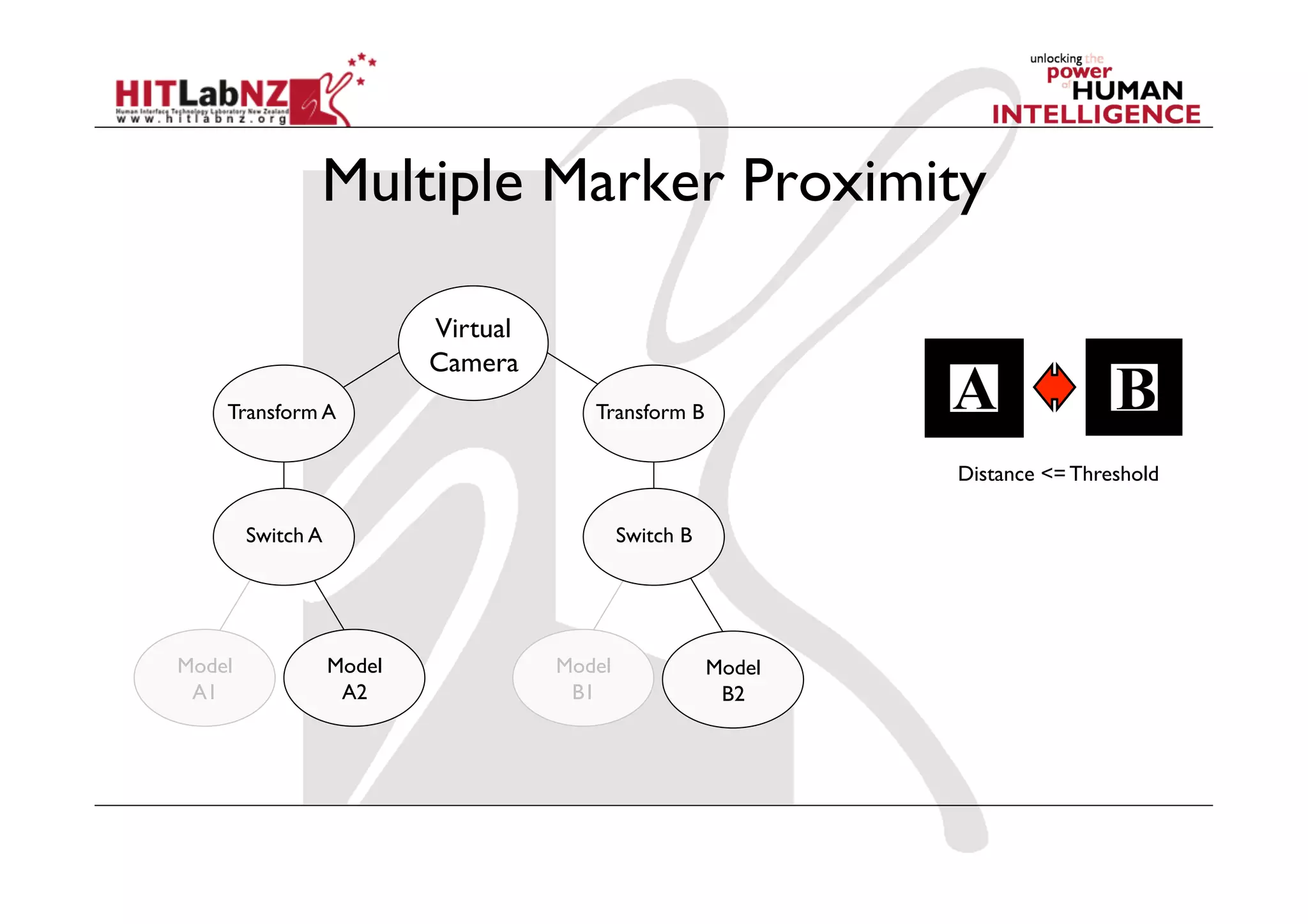
Multiple Marker Proximity

                           Virtual
                           Camera
    Transform A                         Transform B

                                                                Distance <= Threshold

        Switch A                             Switch B


Model              Model             Model              Model
 A1                 A2                B1                 B2
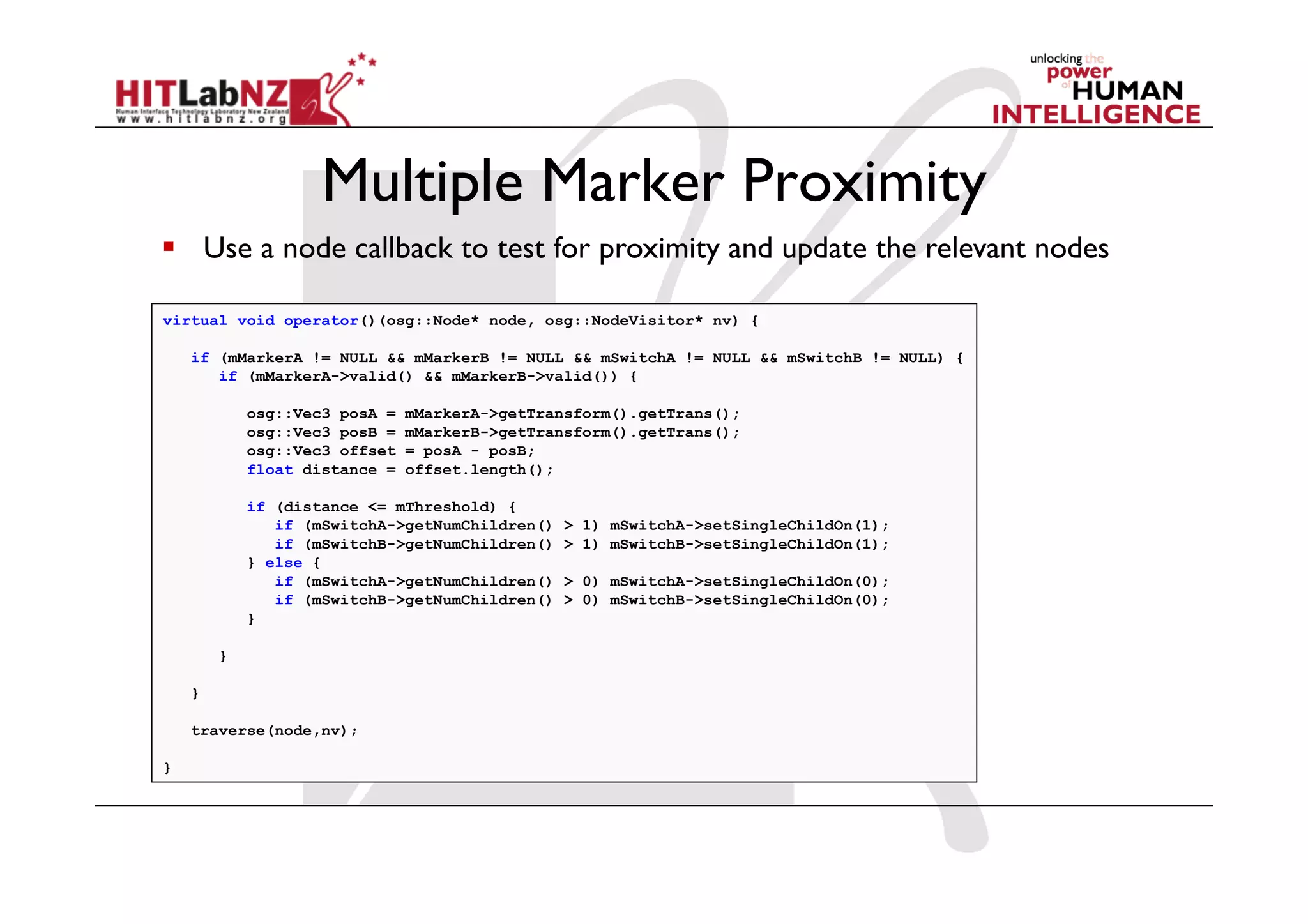
Multiple Marker Proximity
  Use a node callback to test for proximity and update the relevant nodes

virtual void operator()(osg::Node* node, osg::NodeVisitor* nv) {

    if (mMarkerA != NULL && mMarkerB != NULL && mSwitchA != NULL && mSwitchB != NULL) {
       if (mMarkerA->valid() && mMarkerB->valid()) {

            osg::Vec3 posA =   mMarkerA->getTransform().getTrans();
            osg::Vec3 posB =   mMarkerB->getTransform().getTrans();
            osg::Vec3 offset   = posA - posB;
            float distance =   offset.length();

            if (distance <= mThreshold) {
               if (mSwitchA->getNumChildren()   > 1) mSwitchA->setSingleChildOn(1);
               if (mSwitchB->getNumChildren()   > 1) mSwitchB->setSingleChildOn(1);
            } else {
               if (mSwitchA->getNumChildren()   > 0) mSwitchA->setSingleChildOn(0);
               if (mSwitchB->getNumChildren()   > 0) mSwitchB->setSingleChildOn(0);
            }

        }

    }

    traverse(node,nv);

}
Multiple Marker Proximity
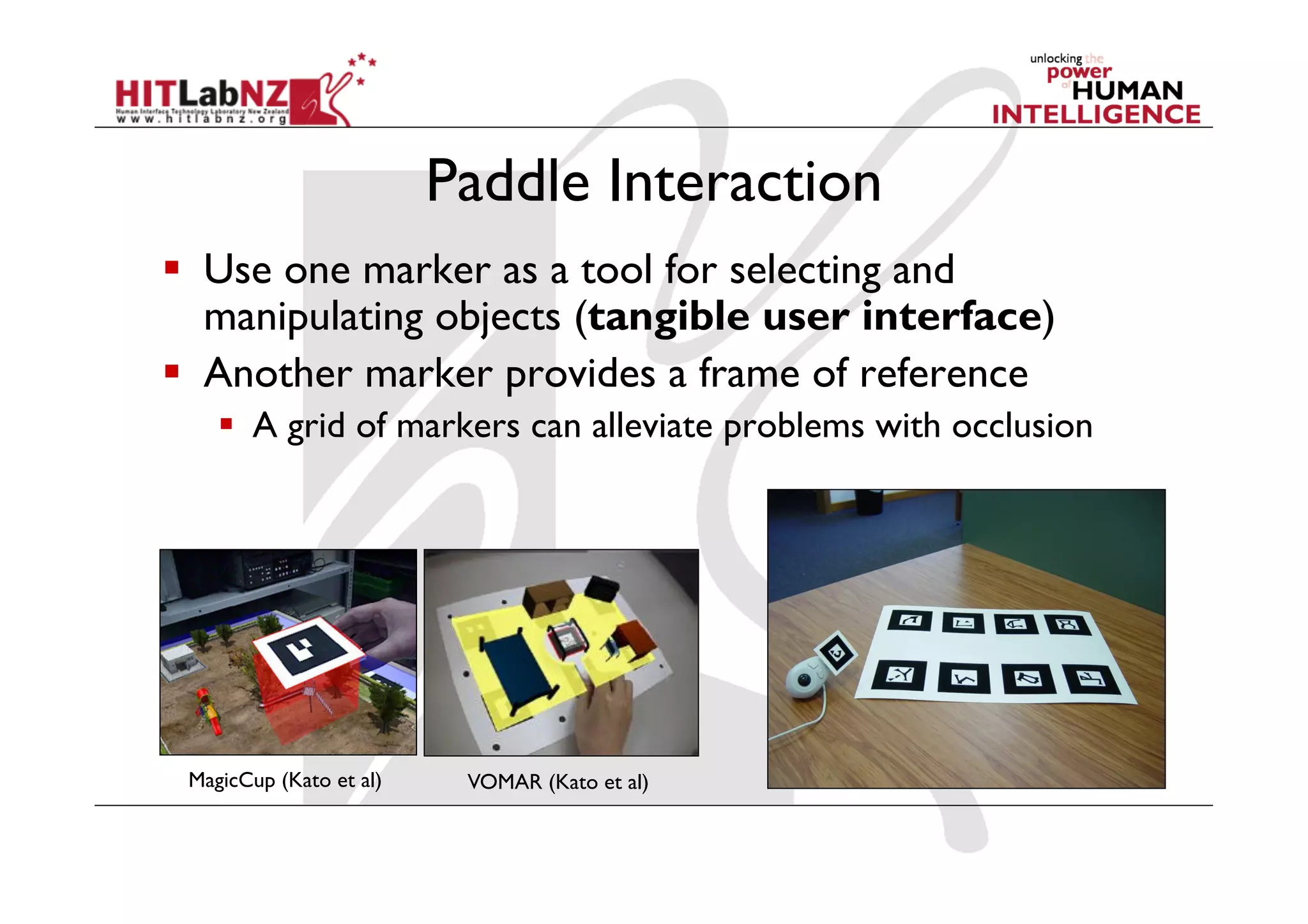
Paddle Interaction
  Use one marker as a tool for selecting and
   manipulating objects (tangible user interface)
  Another marker provides a frame of reference
      A grid of markers can alleviate problems with occlusion


 MagicCup (Kato et al)    VOMAR (Kato et al)
Paddle Interaction
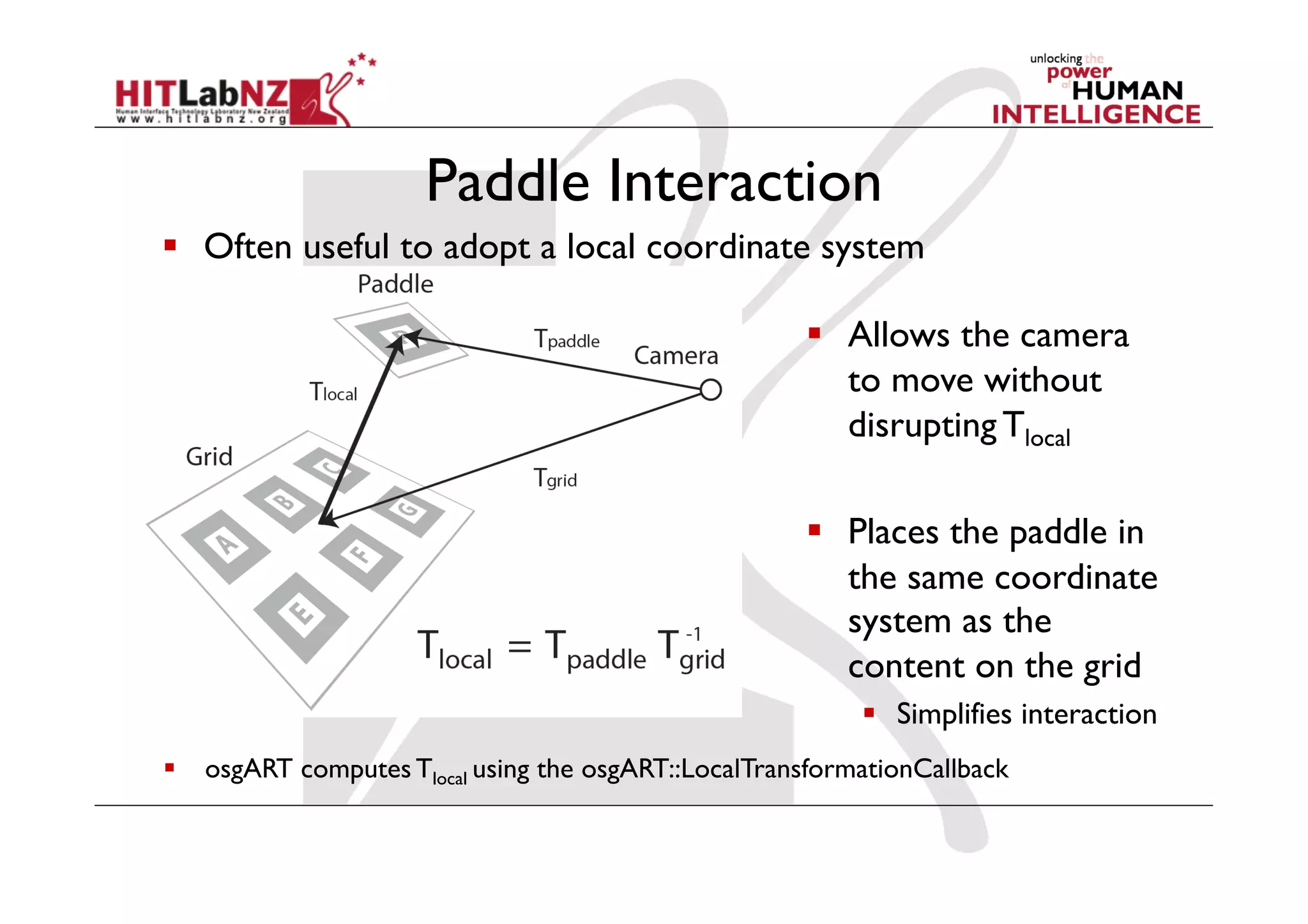
  Often useful to adopt a local coordinate system

                                                       Allows the camera
                                                        to move without
                                                        disrupting Tlocal

                                                       Places the paddle in
                                                        the same coordinate
                                                        system as the
                                                        content on the grid
                                                            Simplifies interaction
  osgART computes Tlocal using the osgART::LocalTransformationCallback
Tilt and Shake Interaction

  Detect types of paddle movement:
    Tilt
      -  gradual change in orientation
    Shake
      -  short, sudden changes in translation
Building Tangible AR Interfaces
        with ARToolKit
Required Code
  Calculating Camera Position
     Range to marker
  Loading Multiple Patterns/Models
  Interaction between objects
     Proximity
     Relative position/orientation
  Occlusion
     Stencil buffering
     Multi-marker tracking
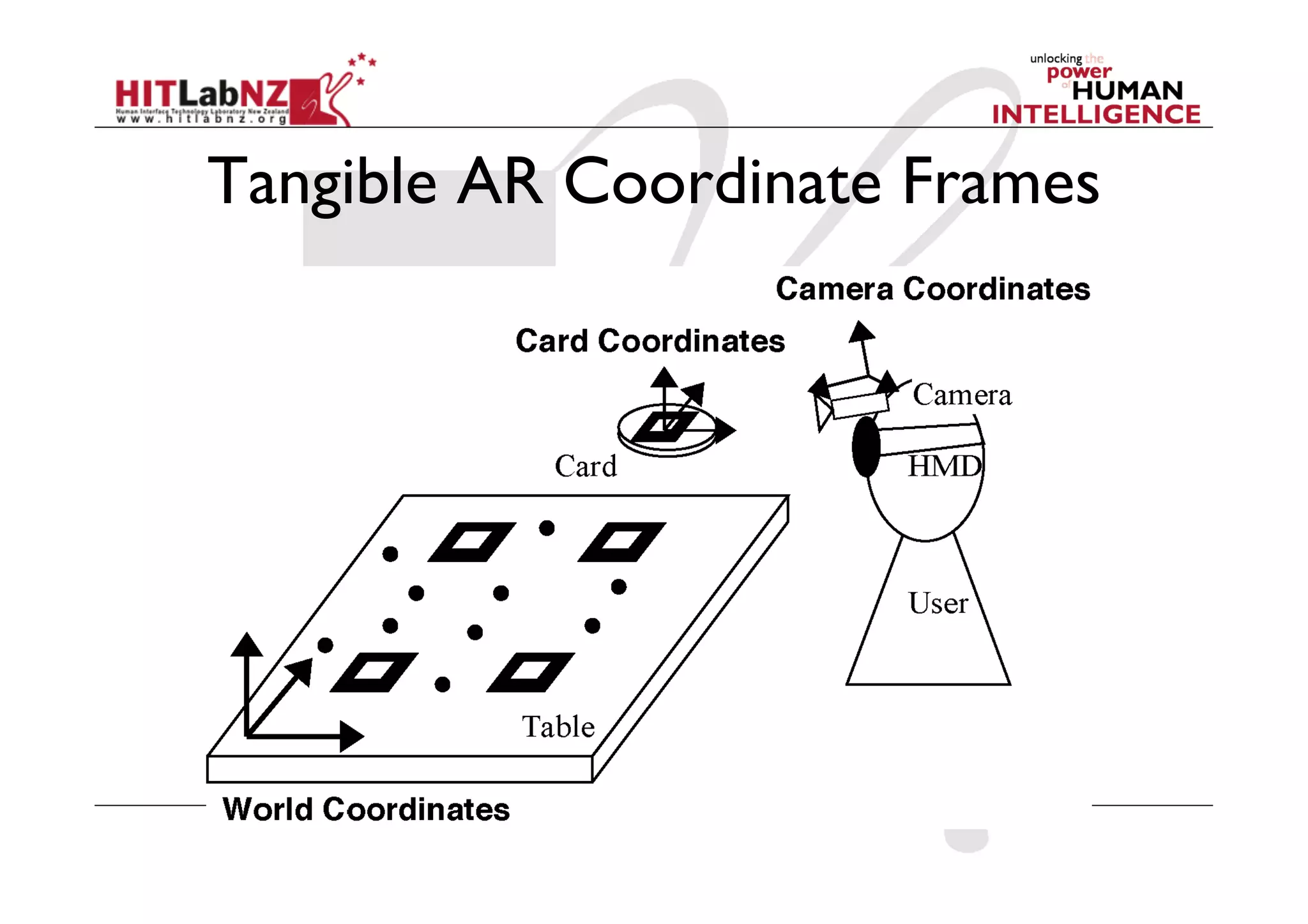
Tangible AR Coordinate Frames
Local vs. Global Interactions
  Local
     Actions determined from single camera to marker
      transform
      -  shaking, appearance, relative position, range
  Global
     Actions determined from two relationships
      -  marker to camera, world to camera coords.
      -  Marker transform determined in world coordinates
           •  object tilt, absolute position, absolute rotation, hitting
Range-based Interaction
  Sample File: RangeTest.c

/* get the camera transformation */
arGetTransMat(&marker_info[k], marker_center,
  marker_width, marker_trans);

/* find the range */
Xpos = marker_trans[0][3];
Ypos = marker_trans[1][3];
Zpos = marker_trans[2][3];
range = sqrt(Xpos*Xpos+Ypos*Ypos+Zpos*Zpos);
Loading Multiple Patterns
  Sample File: LoadMulti.c
     Uses object.c to load
  Object Structure
   typedef struct {
     char       name[256];
     int        id;
     int        visible;
     double     marker_coord[4][2];
     double     trans[3][4];
     double     marker_width;
     double     marker_center[2];
   } ObjectData_T;
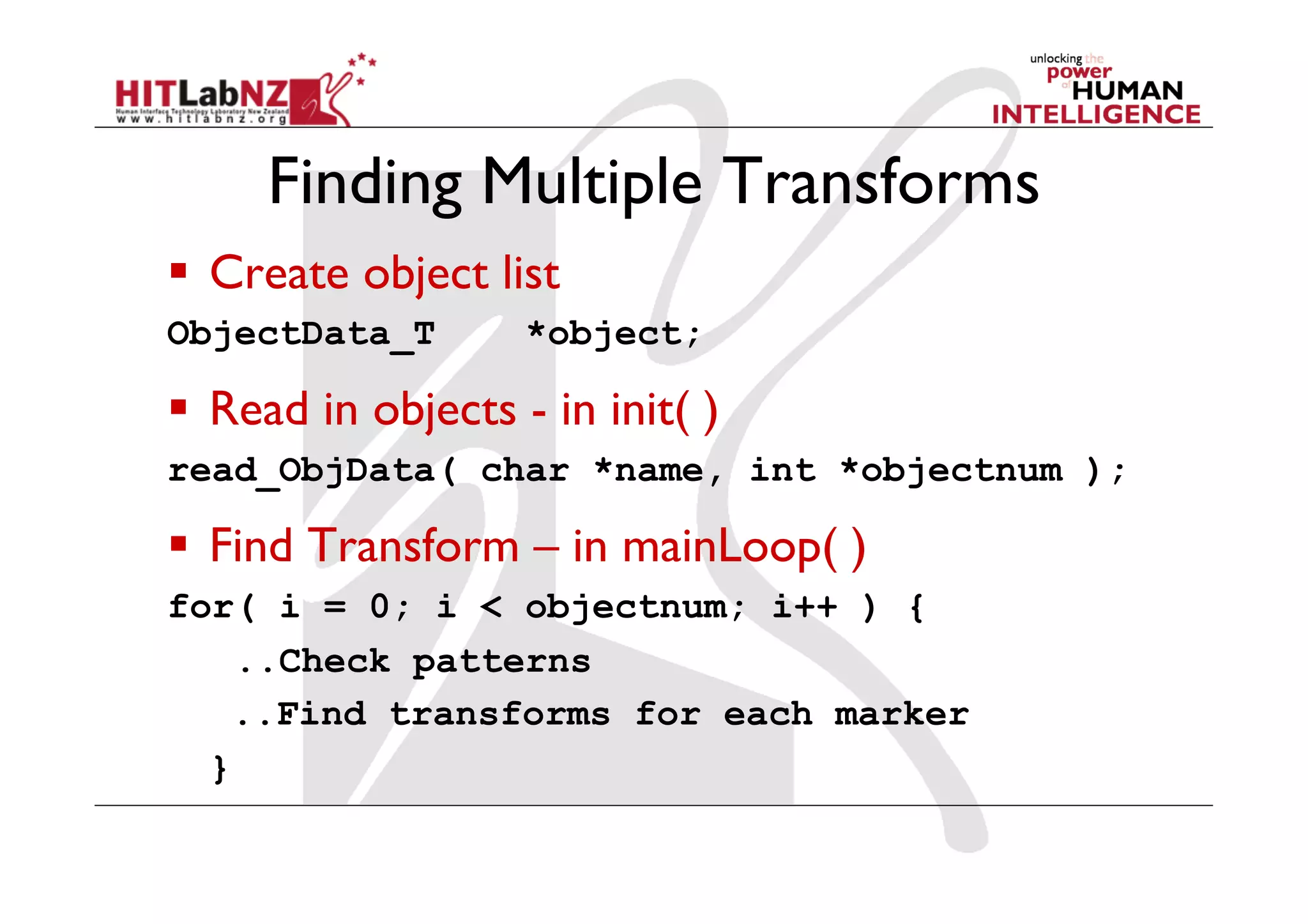
Finding Multiple Transforms
  Create object list
ObjectData_T        *object;

  Read in objects - in init( )
read_ObjData( char *name, int *objectnum );

  Find Transform – in mainLoop( )
for( i = 0; i < objectnum; i++ ) {
    ..Check patterns
    ..Find transforms for each marker
  }
Drawing Multiple Objects
  Send the object list to the draw function
draw( object, objectnum );
  Draw each object individually
for( i = 0; i < objectnum; i++ ) {
   if( object[i].visible == 0 ) continue;
   argConvGlpara(object[i].trans, gl_para);
   draw_object( object[i].id, gl_para);
}
Proximity Based Interaction

  Sample File – CollideTest.c
  Detect distance between markers
  checkCollisions(object[0],object[1], DIST)
  If distance < collide distance
  Then change the model/perform interaction
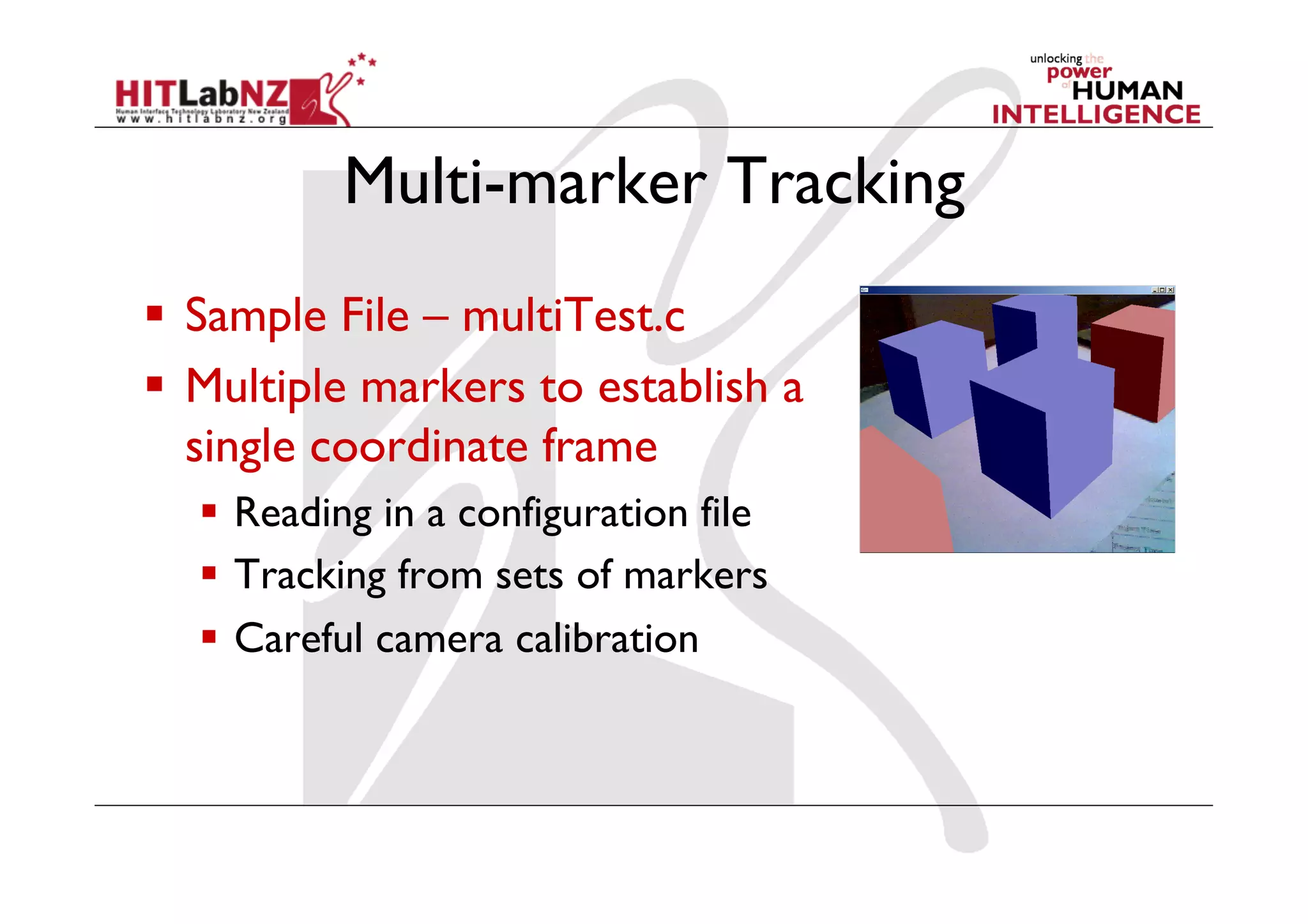
Multi-marker Tracking
  Sample File – multiTest.c
  Multiple markers to establish a
   single coordinate frame
    Reading in a configuration file
    Tracking from sets of markers
    Careful camera calibration
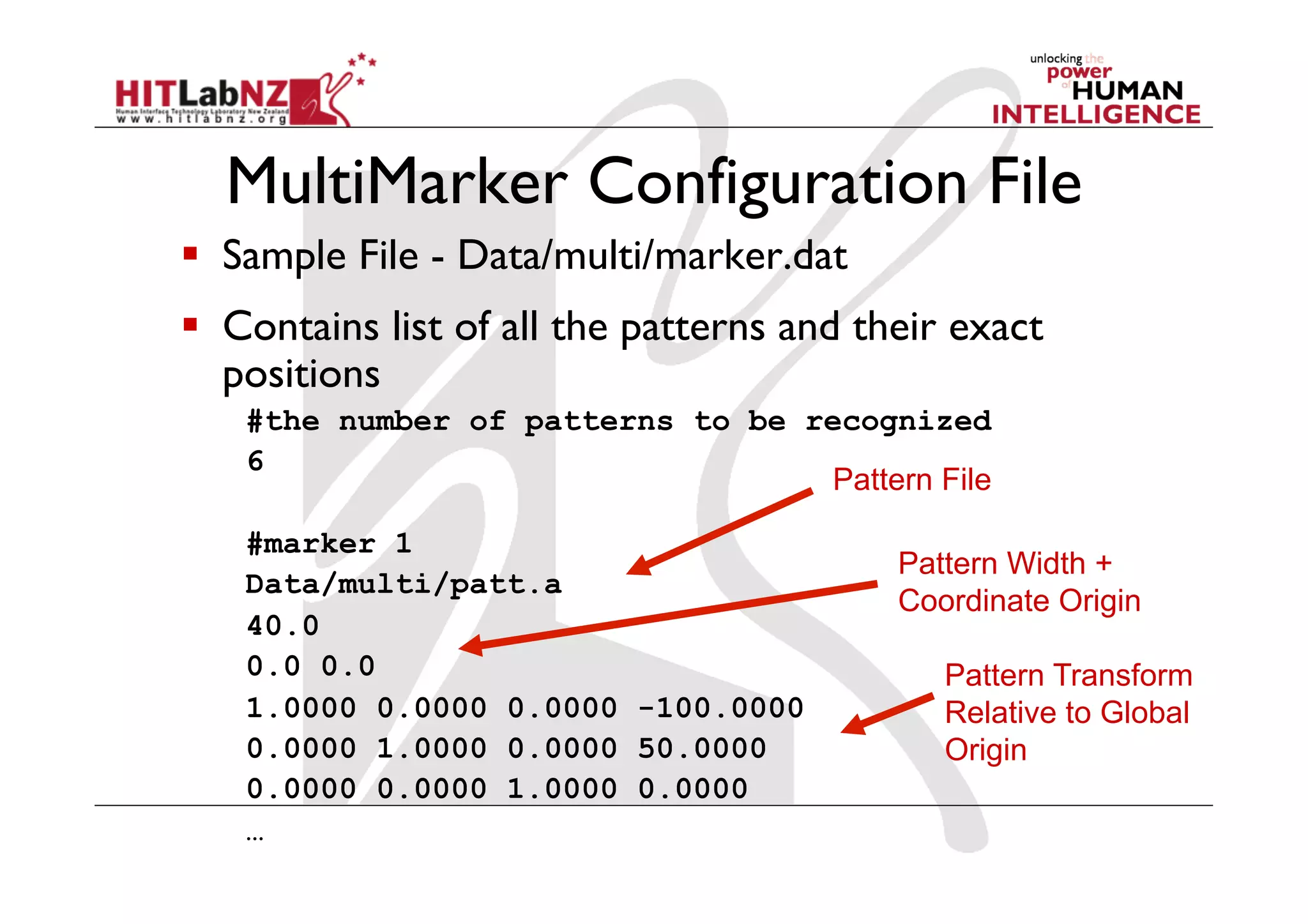
MultiMarker Configuration File
  Sample File - Data/multi/marker.dat
  Contains list of all the patterns and their exact
   positions
   #the number of patterns to be recognized
   6
                                  Pattern File

   #marker 1
                                           Pattern Width +
   Data/multi/patt.a
                                           Coordinate Origin
   40.0
   0.0 0.0                                    Pattern Transform
   1.0000 0.0000 0.0000 -100.0000             Relative to Global
   0.0000 1.0000 0.0000 50.0000               Origin
   0.0000 0.0000 1.0000 0.0000
   …
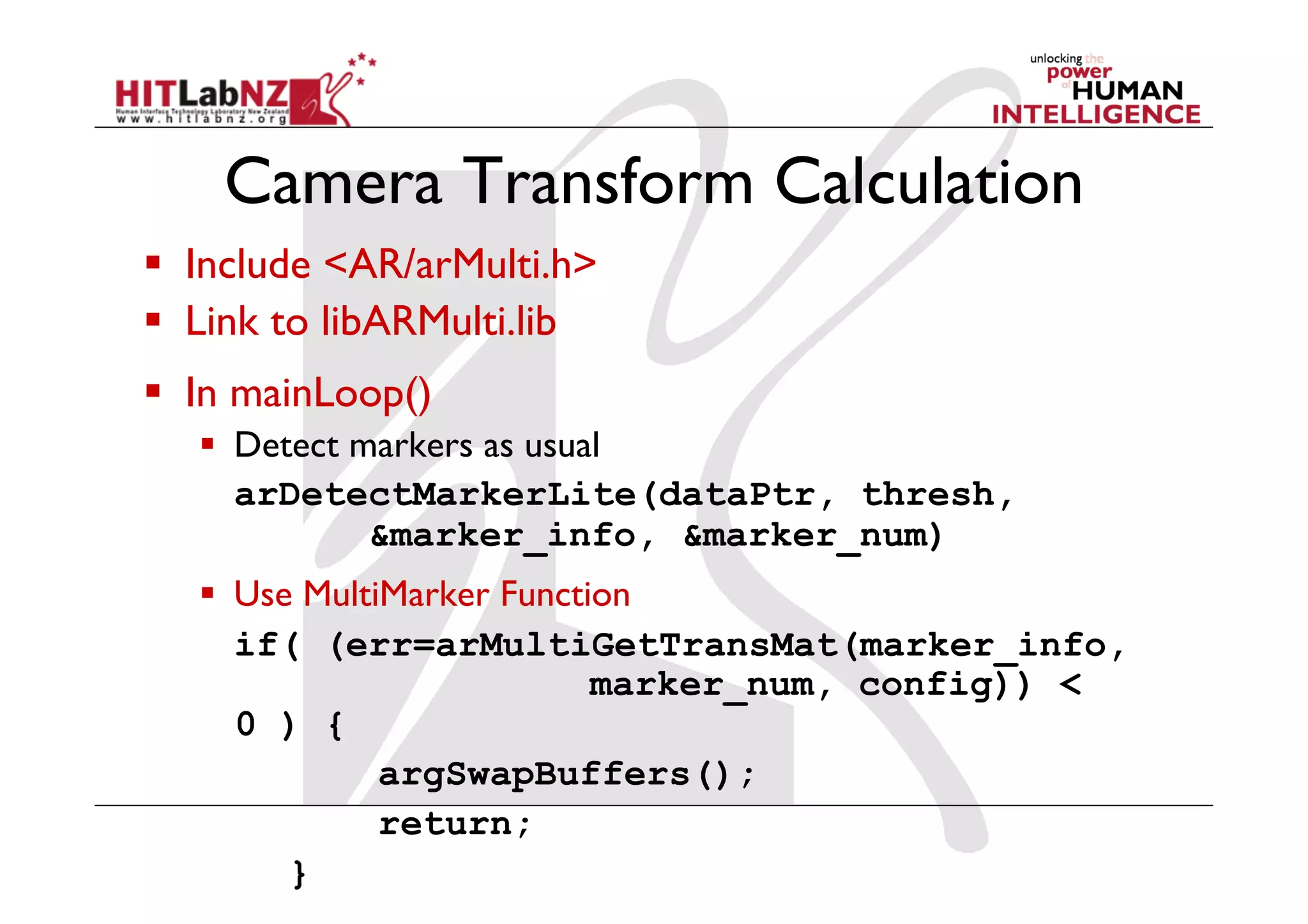
Camera Transform Calculation
  Include <AR/arMulti.h>
  Link to libARMulti.lib
  In mainLoop()
     Detect markers as usual
      arDetectMarkerLite(dataPtr, thresh,
              &marker_info, &marker_num)
     Use MultiMarker Function
      if( (err=arMultiGetTransMat(marker_info,
                            marker_num, config)) <
      0 ) {
               argSwapBuffers();
               return;
         }
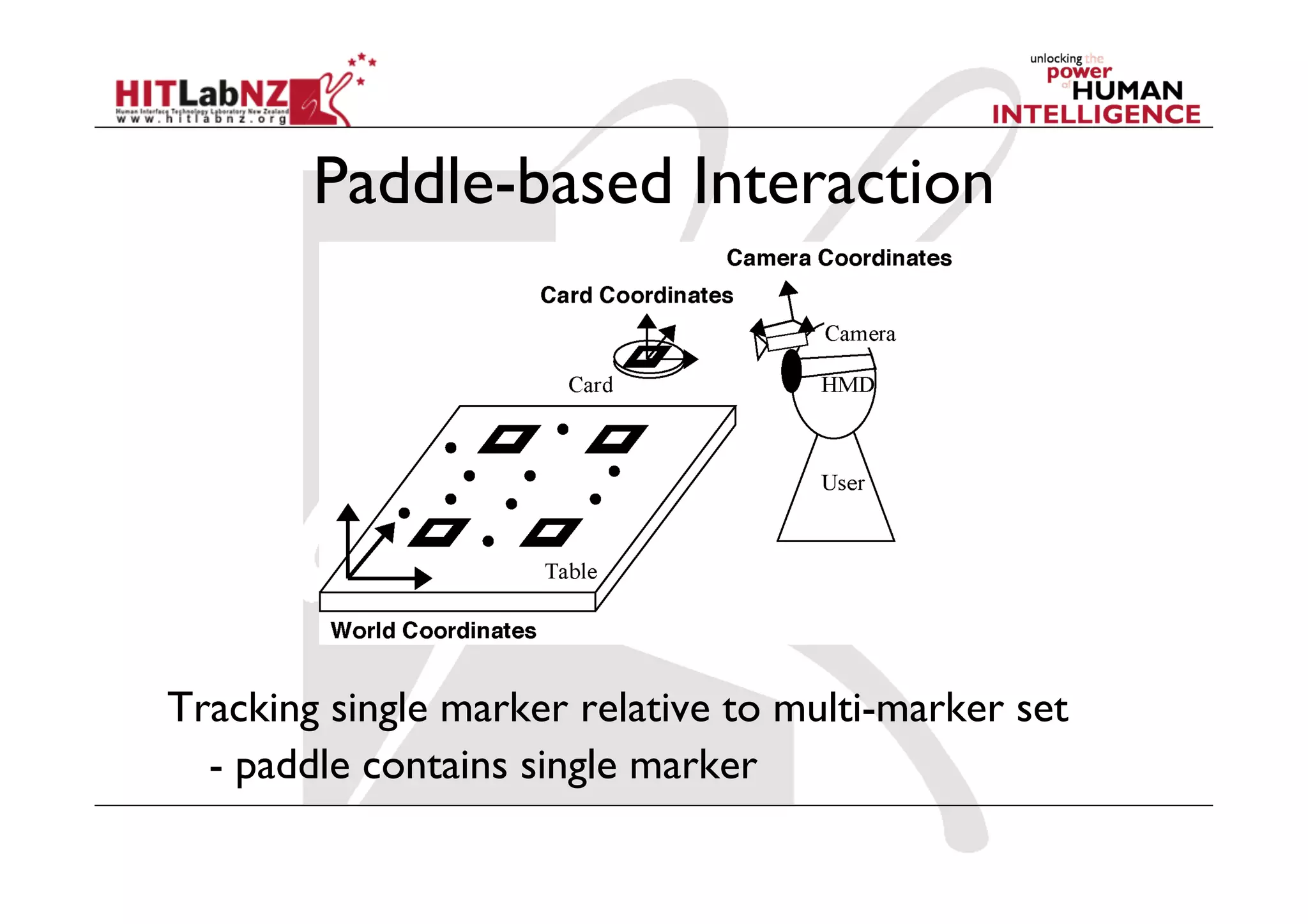
Paddle-based Interaction


Tracking single marker relative to multi-marker set
  - paddle contains single marker
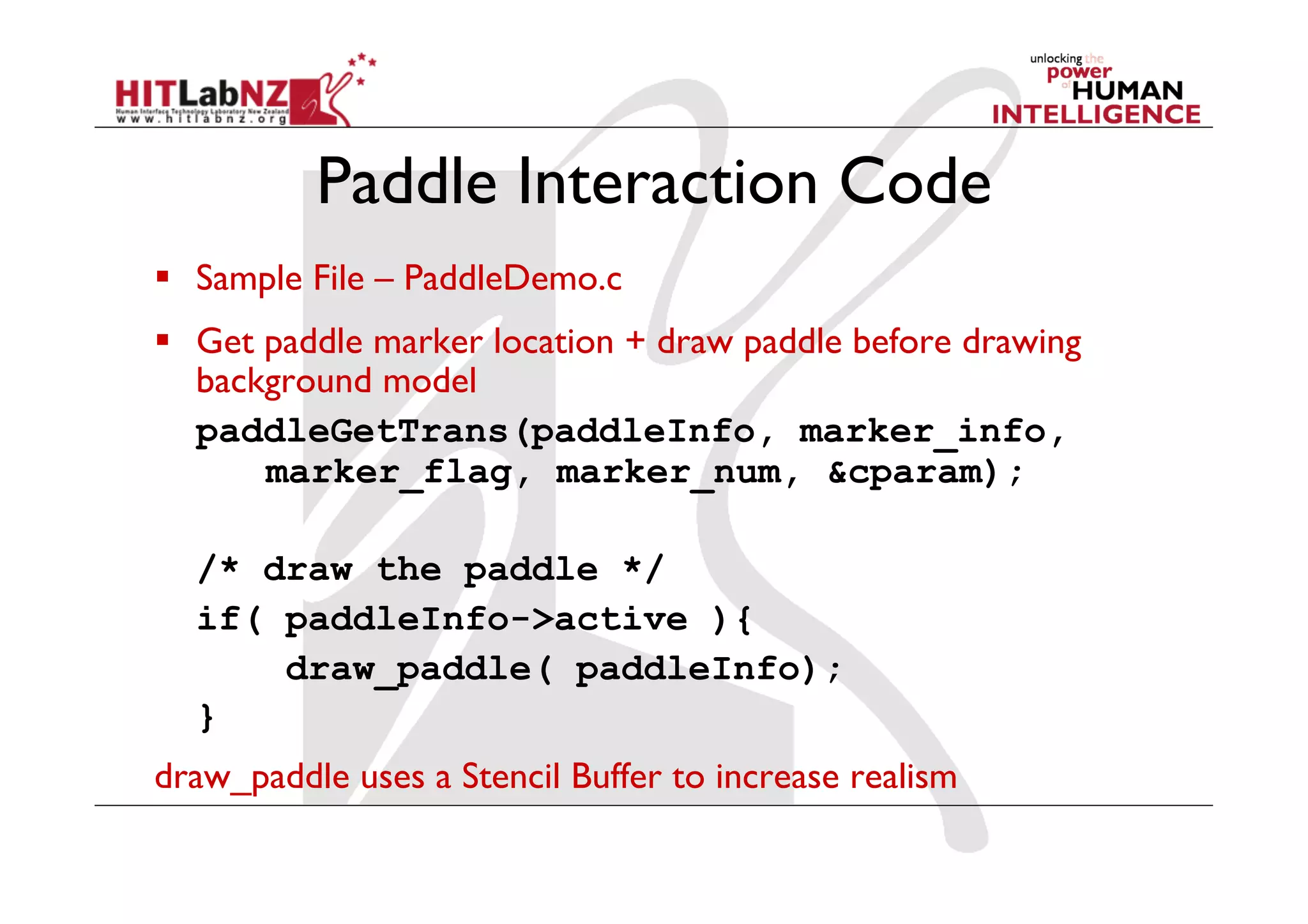
Paddle Interaction Code
  Sample File – PaddleDemo.c
  Get paddle marker location + draw paddle before drawing
   background model
   paddleGetTrans(paddleInfo, marker_info,
       marker_flag, marker_num, &cparam);

  /* draw the paddle */
  if( paddleInfo->active ){
      draw_paddle( paddleInfo);
  }
draw_paddle uses a Stencil Buffer to increase realism
Paddle Interaction Code II
  Sample File – paddleDrawDemo.c
  Finds the paddle position relative to global coordinate frame:
   setBlobTrans(Num,paddle_trans[3][4],base_trans[3][4])
  Sample File – paddleTouch.c
  Finds the paddle position:
   findPaddlePos(&curPadPos,paddleInfo->trans,config->trans);
  Checks for collisions:
   checkCollision(&curPaddlePos,myTarget[i].pos,20.0)
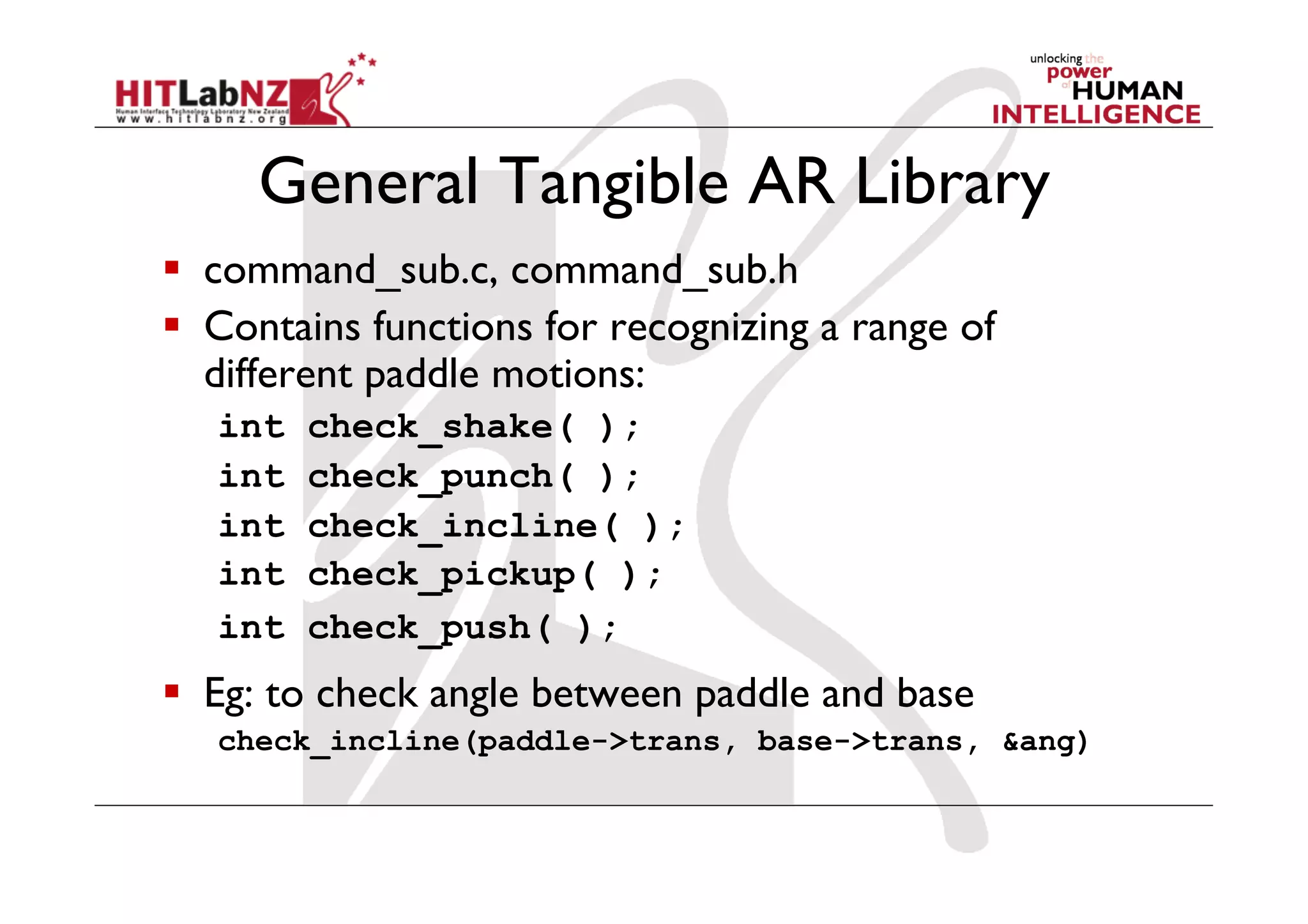
General Tangible AR Library
  command_sub.c, command_sub.h
  Contains functions for recognizing a range of
   different paddle motions:
   int   check_shake( );
   int   check_punch( );
   int   check_incline( );
   int   check_pickup( );
   int   check_push( );
  Eg: to check angle between paddle and base
   check_incline(paddle->trans, base->trans, &ang)

426 lecture 7: Designing AR Interfaces

  • 1.
    COSC 426: AugmentedReality Mark Billinghurst mark.billinghurst@hitlabnz.org Sept 5th 2012 Lecture 7: Designing AR Interfaces
  • 2.
    AR Interfaces   BrowsingInterfaces   simple (conceptually!), unobtrusive   3D AR Interfaces   expressive, creative, require attention   Tangible Interfaces   Embedded into conventional environments   Tangible AR   Combines TUI input + AR display
  • 3.
    AR Interfaces asData Browsers   2D/3D virtual objects are registered in 3D   “VR in Real World”   Interaction   2D/3D virtual viewpoint control   Applications   Visualization, training
  • 4.
    3D AR Interfaces  Virtual objects displayed in 3D physical space and manipulated   HMDs and 6DOF head-tracking   6DOF hand trackers for input   Interaction   Viewpoint control   Traditional 3D user interface Kiyokawa, et al. 2000 interaction: manipulation, selection, etc.
  • 5.
    Augmented Surfaces and TangibleInterfaces   Basic principles   Virtual objects are projected on a surface   Physical objects are used as controls for virtual objects   Support for collaboration
  • 6.
    Tangible Interfaces -Ambient   Dangling String   Jeremijenko 1995   Ambient ethernet monitor   Relies on peripheral cues   Ambient Fixtures   Dahley, Wisneski, Ishii 1998   Use natural material qualities for information display
  • 7.
    Back to theReal World   AR overcomes limitation of TUIs   enhance display possibilities   merge task/display space   provide public and private views   TUI + AR = Tangible AR   Apply TUI methods to AR interface design
  • 8.
      Space-multiplexed   Many devices each with one function -  Quicker to use, more intuitive, clutter -  Real Toolbox   Time-multiplexed   One device with many functions -  Space efficient -  mouse
  • 9.
    Tangible AR: Tiles(Space Multiplexed)   Tiles semantics   data tiles   operation tiles   Operation on tiles   proximity   spatial arrangements   space-multiplexed
  • 10.
    Tangible AR: Time-multiplexedInteraction   Use of natural physical object manipulations to control virtual objects   VOMAR Demo   Catalog book: -  Turn over the page   Paddle operation: -  Push, shake, incline, hit, scoop
  • 11.
    Building Compelling ARExperiences experiences applications Interaction tools Authoring components Tracking, Display Sony CSL © 2004
  • 12.
    Interface Design Path 1/Prototype Demonstration 2/ Adoption of Interaction Techniques from other interface metaphors Augmented Reality 3/ Development of new interface metaphors appropriate to the medium Virtual Reality 4/ Development of formal theoretical models for predicting and modeling user actions Desktop WIMP
  • 13.
    Interface metaphors   Designedto be similar to a physical entity but also has own properties   e.g. desktop metaphor, search engine   Exploit user’s familiar knowledge, helping them to understand ‘the unfamiliar’   Conjures up the essence of the unfamiliar activity, enabling users to leverage of this to understand more aspects of the unfamiliar functionality   People find it easier to learn and talk about what they are doing at the computer interface in terms familiar to them
  • 14.
    Example: The spreadsheet  Analogous to ledger sheet   Interactive and computational   Easy to understand   Greatly extending what accountants and others could do www.bricklin.com/history/refcards.htm
  • 15.
    Why was itso good?   It was simple, clear, and obvious to the users how to use the application and what it could do   “it is just a tool to allow others to work out their ideas and reduce the tedium of repeating the same calculations.”   capitalized on user’s familiarity with ledger sheets   Got the computer to perform a range of different calculations in response to user input
  • 16.
    Another classic   8010Star office system targeted at workers not interested in computing per se   Spent several person-years at beginning working out the conceptual model   Simplified the electronic world, making it seem more familiar, less alien, and easier to learn Johnson et al (1989)
  • 17.
  • 18.
    Benefits of interfacemetaphors   Makes learning new systems easier   Helps users understand the underlying conceptual model   Can be innovative and enable the realm of computers and their applications to be made more accessible to a greater diversity of users
  • 19.
    Problems with interfacemetaphors (Nielson, 1990)   Break conventional and cultural rules   e.g., recycle bin placed on desktop   Can constrain designers in the way they conceptualize a problem   Conflict with design principles   Forces users to only understand the system in terms of the metaphor   Designers can inadvertently use bad existing designs and transfer the bad parts over   Limits designers’ imagination with new conceptual models
  • 21.
  • 23.
      PSDoom –killing processes
  • 24.
    AR Design Principles  Interface Components   Physical components   Display elements -  Visual/audio   Interaction metaphors Physical Display Elements Interaction Elements Metaphor Input Output
  • 25.
    Back to theReal World   AR overcomes limitation of TUIs   enhance display possibilities   merge task/display space   provide public and private views   TUI + AR = Tangible AR   Apply TUI methods to AR interface design
  • 26.
    AR Design Space Reality Virtual Reality Augmented Reality Physical Design Virtual Design
  • 27.
    Tangible AR DesignPrinciples   Tangible AR Interfaces use TUI principles   Physical controllers for moving virtual content   Support for spatial 3D interaction techniques   Time and space multiplexed interaction   Support for multi-handed interaction   Match object affordances to task requirements   Support parallel activity with multiple objects   Allow collaboration between multiple users
  • 28.
      Space-multiplexed   Many devices each with one function -  Quicker to use, more intuitive, clutter -  Tiles Interface, toolbox   Time-multiplexed   One device with many functions -  Space efficient -  VOMAR Interface, mouse
  • 29.
    Design of Objects  Objects   Purposely built – affordances   “Found” – repurposed   Existing – already at use in marketplace   Make affordances obvious (Norman)   Object affordances visible   Give feedback   Provide constraints   Use natural mapping   Use good cognitive model
  • 30.
  • 31.
    Affordances: to givea clue   Refers to an attribute of an object that allows people to know how to use it   e.g. a mouse button invites pushing, a door handle affords pulling   Norman (1988) used the term to discuss the design of everyday objects   Since has been much popularised in interaction design to discuss how to design interface objects   e.g. scrollbars to afford moving up and down, icons to afford clicking on
  • 32.
    "...the term affordance refers tothe perceived and actual properties of the thing, primarily those fundamental properties that determine just how the thing could possibly be used. [...] Affordances provide strong clues to the operations of things. Plates are for pushing. Knobs are for turning. Slots are for inserting things into. Balls are for throwing or bouncing. When affordances are taken advantage of, the user knows what to do just by looking: no picture, label, or instruction needed." (Norman, The Psychology of Everyday Things 1988, p.9)
  • 33.
    Physical Affordances   Physicalaffordances: How do the following physical objects afford? Are they obvious?
  • 34.
    ‘Affordance’ and InterfaceDesign?   Interfaces are virtual and do not have affordances like physical objects   Norman argues it does not make sense to talk about interfaces in terms of ‘real’ affordances   Instead interfaces are better conceptualized as ‘perceived’ affordances   Learned conventions of arbitrary mappings between action and effect at the interface   Some mappings are better than others
  • 35.
    Virtual Affordances   Virtualaffordances How do the following screen objects afford? What if you were a novice user? Would you know what to do with them?
  • 36.
      AR ismixture of physical affordance and virtual affordance   Physical   Tangible controllers and objects   Virtual   Virtual graphics and audio
  • 37.
    Case Study 1:3D AR Lens Goal: Develop a lens based AR interface   MagicLenses   Developed at Xerox PARC in 1993   View a region of the workspace differently to the rest   Overlap MagicLenses to create composite effects
  • 38.
    3D MagicLenses MagicLenses extendedto 3D (Veiga et. al. 96)   Volumetric and flat lenses
  • 39.
    AR Lens DesignPrinciples   Physical Components   Lens handle -  Virtual lens attached to real object   Display Elements   Lens view -  Reveal layers in dataset   Interaction Metaphor   Physically holding lens
  • 40.
    3D AR Lenses:Model Viewer   Displays models made up of multiple parts   Each part can be shown or hidden through the lens   Allows the user to peer inside the model   Maintains focus + context
  • 41.
  • 42.
    AR Lens Implementation StencilBuffer Outside Lens Inside Lens Virtual Magnifying Glass
  • 43.
  • 44.
    Techniques based onAR Lenses   Object Selection   Select objects by targeting them with the lens   Information Filtering   Show different representations through the lens   Hide certain content to reduce clutter, look inside things   Move between AR and VR   Transition along the reality-virtuality continuum   Change our viewpoint to suit our needs
  • 45.
    Case Study 2: LevelHead   Block based game
  • 46.
    Case Study 2:LevelHead   Physical Components   Real blocks   Display Elements   Virtual person and rooms   Interaction Metaphor   Blocks are rooms
  • 48.
    Case Study 3:AR Chemistry (Fjeld 2002)   Tangible AR chemistry education
  • 49.
    Goal: An ARapplication to test molecular structure in chemistry   Physical Components   Real book, rotation cube, scoop, tracking markers   Display Elements   AR atoms and molecules   Interaction Metaphor   Build your own molecule
  • 50.
  • 52.
    Case Study 4:Transitional Interfaces Goal: An AR interface supporting transitions from reality to virtual reality   Physical Components   Real book   Display Elements   AR and VR content   Interaction Metaphor   Book pages hold virtual scenes
  • 53.
    Milgram’s Continuum (1994) Mixed Reality (MR) Reality Augmented Augmented Virtuality (Tangible Reality (AR) Virtuality (AV) (Virtual Interfaces) Reality) Central Hypothesis   The next generation of interfaces will support transitions along the Reality-Virtuality continuum
  • 54.
    Transitions   Interfaces ofthe future will need to support transitions along the RV continuum   Augmented Reality is preferred for:   co-located collaboration   Immersive Virtual Reality is preferred for:   experiencing world immersively (egocentric)   sharing views   remote collaboration
  • 55.
    The MagicBook   DesignGoals:   Allows user to move smoothly between reality and virtual reality   Support collaboration
  • 56.
  • 57.
    Features   Seamless transitionbetween Reality and Virtuality   Reliance on real decreases as virtual increases   Supports egocentric and exocentric views   User can pick appropriate view   Computer becomes invisible   Consistent interface metaphors   Virtual content seems real   Supports collaboration
  • 58.
    Collaboration   Collaboration onmultiple levels:   Physical Object   AR Object   Immersive Virtual Space   Egocentric + exocentric collaboration   multiple multi-scale users   Independent Views   Privacy, role division, scalability
  • 59.
    Technology   Reality   No technology   Augmented Reality   Camera – tracking   Switch – fly in   Virtual Reality   Compass – tracking   Press pad – move   Switch – fly out
  • 60.
  • 61.
  • 62.
    Summary   When designingAR interfaces, think of:   Physical Components -  Physical affordances   Virtual Components -  Virtual affordances   Interface Metaphors
  • 63.
  • 64.
    Keyboard and MouseInteraction   Traditional input techniques   OSG provides a framework for handling keyboard and mouse input events (osgGA) 1.  Subclass osgGA::GUIEventHandler 2.  Handle events: •  Mouse up / down / move / drag / scroll-wheel •  Key up / down 3.  Add instance of new handler to the viewer
  • 65.
    Keyboard and MouseInteraction   Create your own event handler class class KeyboardMouseEventHandler : public osgGA::GUIEventHandler { public: KeyboardMouseEventHandler() : osgGA::GUIEventHandler() { } virtual bool handle(const osgGA::GUIEventAdapter& ea,osgGA::GUIActionAdapter& aa, osg::Object* obj, osg::NodeVisitor* nv) { switch (ea.getEventType()) { // Possible events we can handle case osgGA::GUIEventAdapter::PUSH: break; case osgGA::GUIEventAdapter::RELEASE: break; case osgGA::GUIEventAdapter::MOVE: break; case osgGA::GUIEventAdapter::DRAG: break; case osgGA::GUIEventAdapter::SCROLL: break; case osgGA::GUIEventAdapter::KEYUP: break; case osgGA::GUIEventAdapter::KEYDOWN: break; } return false; } };   Add it to the viewer to receive events viewer.addEventHandler(new KeyboardMouseEventHandler());
  • 66.
    Keyboard Interaction   Handle W,A,S,D keys to move an object case osgGA::GUIEventAdapter::KEYDOWN: { switch (ea.getKey()) { case 'w': // Move forward 5mm localTransform->preMult(osg::Matrix::translate(0, -5, 0)); return true; case 's': // Move back 5mm localTransform->preMult(osg::Matrix::translate(0, 5, 0)); return true; case 'a': // Rotate 10 degrees left localTransform->preMult(osg::Matrix::rotate(osg::DegreesToRadians(10.0f), osg::Z_AXIS)); return true; case 'd': // Rotate 10 degrees right localTransform->preMult(osg::Matrix::rotate(osg::DegreesToRadians(-10.0f), osg::Z_AXIS)); return true; case ' ': // Reset the transformation localTransform->setMatrix(osg::Matrix::identity()); return true; } break; localTransform = new osg::MatrixTransform(); localTransform->addChild(osgDB::readNodeFile("media/car.ive")); arTransform->addChild(localTransform.get());
  • 67.
  • 68.
    Mouse Interaction   Mouseis pointing device…   Use mouse to select objects in an AR scene   OSG provides methods for ray-casting and intersection testing   Return an osg::NodePath (the path from the hit node all the way back to the root) Projection Plane (screen) scene
  • 69.
    Mouse Interaction   Computethe list of nodes under the clicked position   Invoke an action on nodes that are hit, e.g. select, delete case osgGA::GUIEventAdapter::PUSH: osgViewer::View* view = dynamic_cast<osgViewer::View*>(&aa); osgUtil::LineSegmentIntersector::Intersections intersections; // Clear previous selections for (unsigned int i = 0; i < targets.size(); i++) { targets[i]->setSelected(false); } // Find new selection based on click position if (view && view->computeIntersections(ea.getX(), ea.getY(), intersections)) { for (osgUtil::LineSegmentIntersector::Intersections::iterator iter = intersections.begin(); iter != intersections.end(); iter++) { if (Target* target = dynamic_cast<Target*>(iter->nodePath.back())) { std::cout << "HIT!" << std::endl; target->setSelected(true); return true; } } } break;
  • 70.
  • 71.
    Proximity Techniques   Interactionbased on   the distance between a marker and the camera   the distance between multiple markers
  • 72.
    Single Marker Techniques:Proximity   Use distance from camera to marker as input parameter   e.g. Lean in close to examine   Can use the osg::LOD class to show different content at different depth ranges Image: OpenSG Consortium
  • 73.
    Single Marker Techniques:Proximity // Load some models osg::ref_ptr<osg::Node> farNode = osgDB::readNodeFile("media/far.osg"); osg::ref_ptr<osg::Node> closerNode = osgDB::readNodeFile("media/closer.osg"); osg::ref_ptr<osg::Node> nearNode = osgDB::readNodeFile("media/near.osg"); // Use a Level-Of-Detail node to show each model at different distance ranges. osg::ref_ptr<osg::LOD> lod = new osg::LOD(); lod->addChild(farNode.get(), 500.0f, 10000.0f); // Show the "far" node from 50cm to 10m away lod->addChild(closerNode.get(), 200.0f, 500.0f); // Show the "closer" node from 20cm to 50cm away lod->addChild(nearNode.get(), 0.0f, 200.0f); // Show the "near" node from 0cm to 2cm away arTransform->addChild(lod.get());   Define depth ranges for each node   Add as many as you want   Ranges can overlap
  • 74.
  • 75.
    Multiple Marker Concepts  Interaction based on the relationship between markers   e.g. When the distance between two markers decreases below threshold invoke an action   Tangible User Interface   Applications:   Memory card games   File operations
  • 76.
    Multiple Marker Proximity Virtual Camera Transform A Transform B Distance > Threshold Switch A Switch B Model Model Model Model A1 A2 B1 B2
  • 77.
    Multiple Marker Proximity Virtual Camera Transform A Transform B Distance <= Threshold Switch A Switch B Model Model Model Model A1 A2 B1 B2
  • 78.
    Multiple Marker Proximity  Use a node callback to test for proximity and update the relevant nodes virtual void operator()(osg::Node* node, osg::NodeVisitor* nv) { if (mMarkerA != NULL && mMarkerB != NULL && mSwitchA != NULL && mSwitchB != NULL) { if (mMarkerA->valid() && mMarkerB->valid()) { osg::Vec3 posA = mMarkerA->getTransform().getTrans(); osg::Vec3 posB = mMarkerB->getTransform().getTrans(); osg::Vec3 offset = posA - posB; float distance = offset.length(); if (distance <= mThreshold) { if (mSwitchA->getNumChildren() > 1) mSwitchA->setSingleChildOn(1); if (mSwitchB->getNumChildren() > 1) mSwitchB->setSingleChildOn(1); } else { if (mSwitchA->getNumChildren() > 0) mSwitchA->setSingleChildOn(0); if (mSwitchB->getNumChildren() > 0) mSwitchB->setSingleChildOn(0); } } } traverse(node,nv); }
  • 79.
  • 80.
    Paddle Interaction   Useone marker as a tool for selecting and manipulating objects (tangible user interface)   Another marker provides a frame of reference   A grid of markers can alleviate problems with occlusion MagicCup (Kato et al) VOMAR (Kato et al)
  • 81.
    Paddle Interaction   Oftenuseful to adopt a local coordinate system   Allows the camera to move without disrupting Tlocal   Places the paddle in the same coordinate system as the content on the grid   Simplifies interaction   osgART computes Tlocal using the osgART::LocalTransformationCallback
  • 82.
    Tilt and ShakeInteraction   Detect types of paddle movement:   Tilt -  gradual change in orientation   Shake -  short, sudden changes in translation
  • 83.
    Building Tangible ARInterfaces with ARToolKit
  • 84.
    Required Code   CalculatingCamera Position   Range to marker   Loading Multiple Patterns/Models   Interaction between objects   Proximity   Relative position/orientation   Occlusion   Stencil buffering   Multi-marker tracking
  • 85.
  • 86.
    Local vs. GlobalInteractions   Local   Actions determined from single camera to marker transform -  shaking, appearance, relative position, range   Global   Actions determined from two relationships -  marker to camera, world to camera coords. -  Marker transform determined in world coordinates •  object tilt, absolute position, absolute rotation, hitting
  • 87.
    Range-based Interaction   SampleFile: RangeTest.c /* get the camera transformation */ arGetTransMat(&marker_info[k], marker_center, marker_width, marker_trans); /* find the range */ Xpos = marker_trans[0][3]; Ypos = marker_trans[1][3]; Zpos = marker_trans[2][3]; range = sqrt(Xpos*Xpos+Ypos*Ypos+Zpos*Zpos);
  • 88.
    Loading Multiple Patterns  Sample File: LoadMulti.c   Uses object.c to load   Object Structure typedef struct { char name[256]; int id; int visible; double marker_coord[4][2]; double trans[3][4]; double marker_width; double marker_center[2]; } ObjectData_T;
  • 89.
    Finding Multiple Transforms  Create object list ObjectData_T *object;   Read in objects - in init( ) read_ObjData( char *name, int *objectnum );   Find Transform – in mainLoop( ) for( i = 0; i < objectnum; i++ ) { ..Check patterns ..Find transforms for each marker }
  • 90.
    Drawing Multiple Objects  Send the object list to the draw function draw( object, objectnum );   Draw each object individually for( i = 0; i < objectnum; i++ ) { if( object[i].visible == 0 ) continue; argConvGlpara(object[i].trans, gl_para); draw_object( object[i].id, gl_para); }
  • 91.
    Proximity Based Interaction  Sample File – CollideTest.c   Detect distance between markers checkCollisions(object[0],object[1], DIST) If distance < collide distance Then change the model/perform interaction
  • 92.
    Multi-marker Tracking   SampleFile – multiTest.c   Multiple markers to establish a single coordinate frame   Reading in a configuration file   Tracking from sets of markers   Careful camera calibration
  • 93.
    MultiMarker Configuration File  Sample File - Data/multi/marker.dat   Contains list of all the patterns and their exact positions #the number of patterns to be recognized 6 Pattern File #marker 1 Pattern Width + Data/multi/patt.a Coordinate Origin 40.0 0.0 0.0 Pattern Transform 1.0000 0.0000 0.0000 -100.0000 Relative to Global 0.0000 1.0000 0.0000 50.0000 Origin 0.0000 0.0000 1.0000 0.0000 …
  • 94.
    Camera Transform Calculation  Include <AR/arMulti.h>   Link to libARMulti.lib   In mainLoop()   Detect markers as usual arDetectMarkerLite(dataPtr, thresh, &marker_info, &marker_num)   Use MultiMarker Function if( (err=arMultiGetTransMat(marker_info, marker_num, config)) < 0 ) { argSwapBuffers(); return; }
  • 95.
    Paddle-based Interaction Tracking singlemarker relative to multi-marker set - paddle contains single marker
  • 96.
    Paddle Interaction Code  Sample File – PaddleDemo.c   Get paddle marker location + draw paddle before drawing background model paddleGetTrans(paddleInfo, marker_info, marker_flag, marker_num, &cparam); /* draw the paddle */ if( paddleInfo->active ){ draw_paddle( paddleInfo); } draw_paddle uses a Stencil Buffer to increase realism
  • 97.
    Paddle Interaction CodeII   Sample File – paddleDrawDemo.c   Finds the paddle position relative to global coordinate frame: setBlobTrans(Num,paddle_trans[3][4],base_trans[3][4])   Sample File – paddleTouch.c   Finds the paddle position: findPaddlePos(&curPadPos,paddleInfo->trans,config->trans);   Checks for collisions: checkCollision(&curPaddlePos,myTarget[i].pos,20.0)
  • 98.
    General Tangible ARLibrary   command_sub.c, command_sub.h   Contains functions for recognizing a range of different paddle motions: int check_shake( ); int check_punch( ); int check_incline( ); int check_pickup( ); int check_push( );   Eg: to check angle between paddle and base check_incline(paddle->trans, base->trans, &ang)