IT PowerPoint
Understand Information Technology
activities and careers.
What Is A Computer?
• An electronic device that receives data,
processes data, stores data, and
produces a result (output).
Types of Personal Computers
• Desktop computer: designed to be
used on a desktop.
• Notebook/Tablet computer:
designed to be used on a desktop
but still small enough to be portable.
• Laptop computer: designed to be
small enough and light enough to be
used on your lap.
Information
Technology
www.gifanimations.com
Hardware-Physical Parts of
the computer
More Hardware
Digital Cameras, webcams
and Scanners
Picture taking & sending has
never been so easy
DID YOU KNOW??
An Ipod(left) and an MP3
Player (below) are
hardware that can be
connected to your
computer.
More Hardware
Modem- connects your computer to
the Internet
CPU- Central Processing Unit is the
brain of your computer Also called
the tower or hard drive.
Hardware, Hardware
More Hardware
Handwriting & Speech Recognition
Using headsets and tablets with
More Hardware
Personal Digital Assistant
(PDA)
Smart Boards
Become Dynamic with your
presentations
•Interactive whiteboard
•Connected to a computer and a data
projector
•SMARTboard can be used as a computer
•Control the computer by using your
finger
Software-a set of instructions that tells
the computer what to do!
Systems Software - controls the operation
of the whole computer system.
• Example: Windows
Applications Software - performs a
specific task.
• Examples: MS Word, MS Excel, MS
Access, etc…
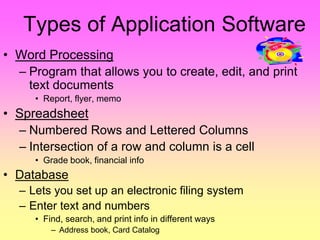
Types of Application Software
• Word Processing
– Program that allows you to create, edit, and print
text documents
• Report, flyer, memo
• Spreadsheet
– Numbered Rows and Lettered Columns
– Intersection of a row and column is a cell
• Grade book, financial info
• Database
– Lets you set up an electronic filing system
– Enter text and numbers
• Find, search, and print info in different ways
– Address book, Card Catalog
Creating PowerPoint
Presentations
Multimedia- the use of audio, video,
animation, or graphics.
Microsoft Publisher
Easily-made flyers, brochures,
business cards, newsletters, signs,
Other Software
Programs
Games
Typing Master
MS Paint
Photoshop
There are tons and tons!!!
“Information
Processing Cycle”
1. Input Device
2. CPU
3. Output Device
Input, Output, & Storage Devices
• Input device:
hardware that
allows you to
communicate with
your computer.
• Output device:
hardware that
allows your
computer to
communicate with
the user
• Storage device:
allows you to store
or retrieve
information
Computer Input Devices
• Keyboard
• Mouse
• Trackball
• Joystick
• Light Pen
• Pointing Stick
• Touchpad
• Touch Screen
• Bar Code Reader
• Scanner
• Microphone
• Graphics Tablet
• Digital Cameras
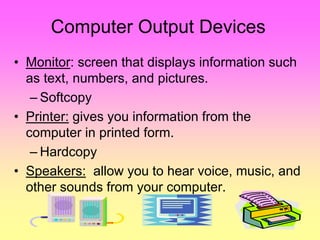
Computer Output Devices
• Monitor: screen that displays information such
as text, numbers, and pictures.
– Softcopy
• Printer: gives you information from the
computer in printed form.
– Hardcopy
• Speakers: allow you to hear voice, music, and
other sounds from your computer.
STORAGE
1. CD-ROM
(Compact Disk- Read Only
Memory)
2. 3 1/2 “
Floppy Disk
(“A” Drive)
Besides saving to the hard drive (the computer),
here are some other ways to save:
3. External Storage
(Jump drive, Flash
Drive, Key Drive,
Memory Stick, etc.)
Memory
• ROM- Read Only Memory
• RAM- Random Access Memory
(Temporary or working memory)
What is a network?
A system of computers, peripherals,
terminals, and databases
connected by communication lines.
What is the Internet?
Electronic information
networks that carry audio,
video, and computer data.
The world’s
Largest computer
Network!
What does the Internet offer?
• Information
• Online shopping
• E-mail
• Instant Messaging
• Chat rooms
• Games
• News
• Videos

4.03 it careers

  • 1.
    IT PowerPoint Understand InformationTechnology activities and careers.
  • 2.
    What Is AComputer? • An electronic device that receives data, processes data, stores data, and produces a result (output).
  • 3.
    Types of PersonalComputers • Desktop computer: designed to be used on a desktop. • Notebook/Tablet computer: designed to be used on a desktop but still small enough to be portable. • Laptop computer: designed to be small enough and light enough to be used on your lap.
  • 4.
  • 5.
  • 6.
    More Hardware Digital Cameras,webcams and Scanners Picture taking & sending has never been so easy
  • 7.
    DID YOU KNOW?? AnIpod(left) and an MP3 Player (below) are hardware that can be connected to your computer. More Hardware
  • 8.
    Modem- connects yourcomputer to the Internet CPU- Central Processing Unit is the brain of your computer Also called the tower or hard drive. Hardware, Hardware
  • 9.
    More Hardware Handwriting &Speech Recognition Using headsets and tablets with
  • 10.
  • 11.
    Smart Boards Become Dynamicwith your presentations •Interactive whiteboard •Connected to a computer and a data projector •SMARTboard can be used as a computer •Control the computer by using your finger
  • 12.
    Software-a set ofinstructions that tells the computer what to do! Systems Software - controls the operation of the whole computer system. • Example: Windows Applications Software - performs a specific task. • Examples: MS Word, MS Excel, MS Access, etc…
  • 13.
    Types of ApplicationSoftware • Word Processing – Program that allows you to create, edit, and print text documents • Report, flyer, memo • Spreadsheet – Numbered Rows and Lettered Columns – Intersection of a row and column is a cell • Grade book, financial info • Database – Lets you set up an electronic filing system – Enter text and numbers • Find, search, and print info in different ways – Address book, Card Catalog
  • 14.
    Creating PowerPoint Presentations Multimedia- theuse of audio, video, animation, or graphics.
  • 15.
    Microsoft Publisher Easily-made flyers,brochures, business cards, newsletters, signs,
  • 16.
    Other Software Programs Games Typing Master MSPaint Photoshop There are tons and tons!!!
  • 17.
    “Information Processing Cycle” 1. InputDevice 2. CPU 3. Output Device
  • 18.
    Input, Output, &Storage Devices • Input device: hardware that allows you to communicate with your computer. • Output device: hardware that allows your computer to communicate with the user • Storage device: allows you to store or retrieve information
  • 19.
    Computer Input Devices •Keyboard • Mouse • Trackball • Joystick • Light Pen • Pointing Stick • Touchpad • Touch Screen • Bar Code Reader • Scanner • Microphone • Graphics Tablet • Digital Cameras
  • 20.
    Computer Output Devices •Monitor: screen that displays information such as text, numbers, and pictures. – Softcopy • Printer: gives you information from the computer in printed form. – Hardcopy • Speakers: allow you to hear voice, music, and other sounds from your computer.
  • 21.
    STORAGE 1. CD-ROM (Compact Disk-Read Only Memory) 2. 3 1/2 “ Floppy Disk (“A” Drive) Besides saving to the hard drive (the computer), here are some other ways to save: 3. External Storage (Jump drive, Flash Drive, Key Drive, Memory Stick, etc.)
  • 22.
    Memory • ROM- ReadOnly Memory • RAM- Random Access Memory (Temporary or working memory)
  • 23.
    What is anetwork? A system of computers, peripherals, terminals, and databases connected by communication lines.
  • 24.
    What is theInternet? Electronic information networks that carry audio, video, and computer data. The world’s Largest computer Network!
  • 25.
    What does theInternet offer? • Information • Online shopping • E-mail • Instant Messaging • Chat rooms • Games • News • Videos