INTRODUCING TODAY’S
TECHNOLOGY
Living in the Information Technology Era and
Discovering Computers 2016
Leslyn Bonachita – Reazol
Living in IT Era Instructor
© 2016 Cengage Learning®. May not be scanned, copied or
duplicated, or posted to a publicly accessible website, in whole
or in part.
Objectives Overview
• Define ICT and trace the evolution of technology,
• Differentiate among laptops, tablets, desktops, and servers
• Describe the purpose and uses of smartphones, digital cameras,
portable and digital media players, e-book readers, wearable devices,
and game devices
• Describe the relationship between data and information
• Briefly explain various input options
• Differentiate the web from the Internet, and describe the relationship
among the web, webpages, websites, and web servers
• Explain the purpose of a browser, a search engine, and an online
social network
© 2016 Cengage Learning®. May not be scanned, copied or duplicated, or posted to a
publicly accessible website, in whole or in part.
Objectives Overview
• Briefly describe digital security risks associated with viruses and other
malware, privacy, your health, and the environment
• Differentiate between an operating system and applications
• Differentiate between wired and wireless technologies, and identify
reasons individuals and businesses use networks
• Discuss how society uses technology in education, government,
finance, retail, entertainment, health care, science, travel, publishing,
and manufacturing
• Identify technology used by home users, small/home office users,
mobile users, power users, and enterprise users
© 2016 Cengage Learning®. May not be scanned, copied or duplicated, or posted to a publicly
accessible website, in whole or in part.
OPENING ACTIVITY
• Group 1 MOBILE PHONE
• Group 2 LAPTOP SPEAKER
• Group 3 POWER BANK
• Group 4 FLASH DRIVE
• Group 5 HEADSET OR EARPHONES
Discuss the use of the device, the frequency of your usage
and your experience in using it. Share your group’s insight
with the class.
Living in the IT Era
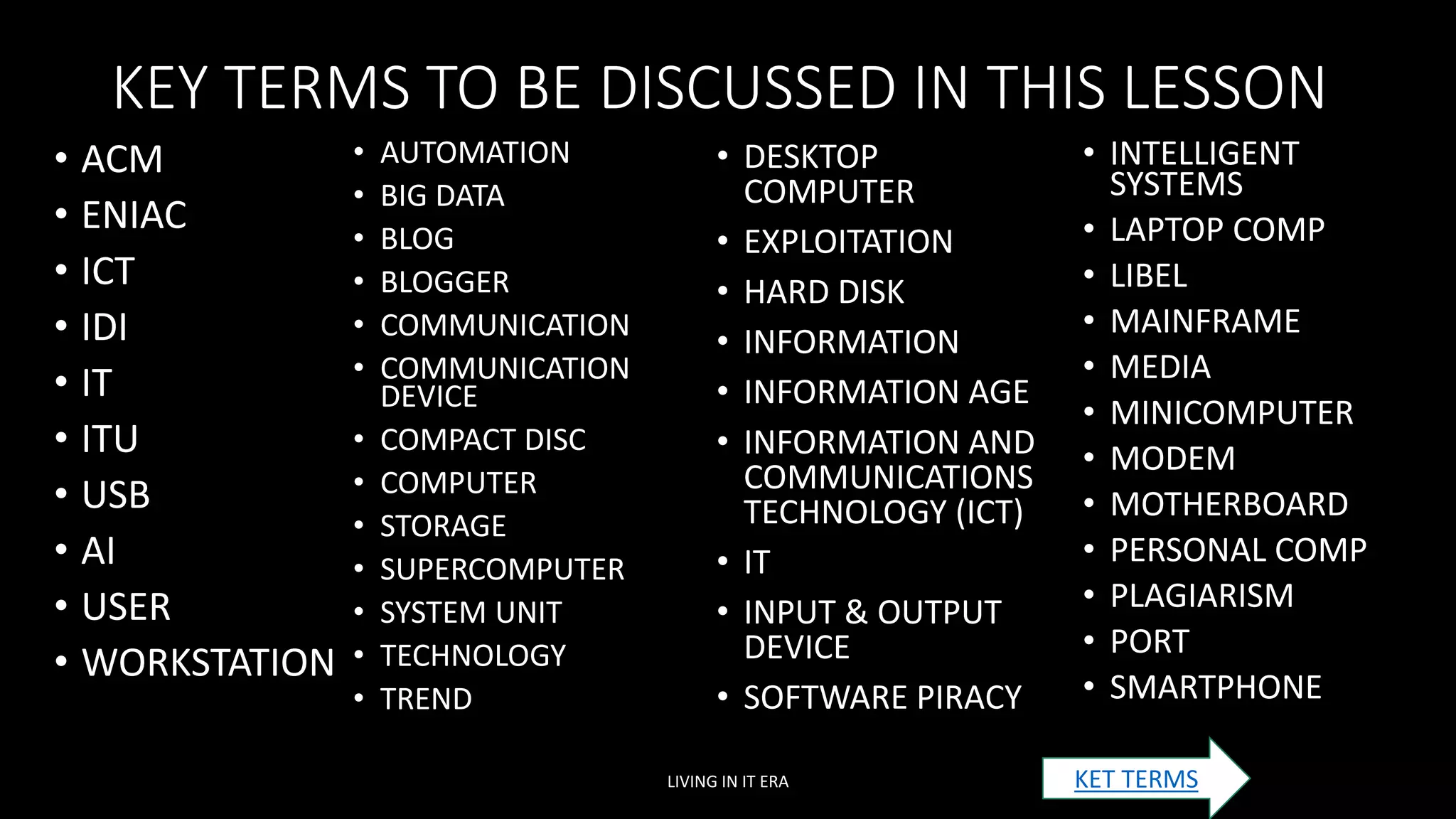
KEY TERMS TO BE DISCUSSED IN THIS LESSON
• ACM
• ENIAC
• ICT
• IDI
• IT
• ITU
• USB
• AI
• USER
• WORKSTATION
LIVING IN IT ERA
• AUTOMATION
• BIG DATA
• BLOG
• BLOGGER
• COMMUNICATION
• COMMUNICATION
DEVICE
• COMPACT DISC
• COMPUTER
• STORAGE
• SUPERCOMPUTER
• SYSTEM UNIT
• TECHNOLOGY
• TREND
• DESKTOP
COMPUTER
• EXPLOITATION
• HARD DISK
• INFORMATION
• INFORMATION AGE
• INFORMATION AND
COMMUNICATIONS
TECHNOLOGY (ICT)
• IT
• INPUT & OUTPUT
DEVICE
• SOFTWARE PIRACY
• INTELLIGENT
SYSTEMS
• LAPTOP COMP
• LIBEL
• MAINFRAME
• MEDIA
• MINICOMPUTER
• MODEM
• MOTHERBOARD
• PERSONAL COMP
• PLAGIARISM
• PORT
• SMARTPHONE
KET TERMS
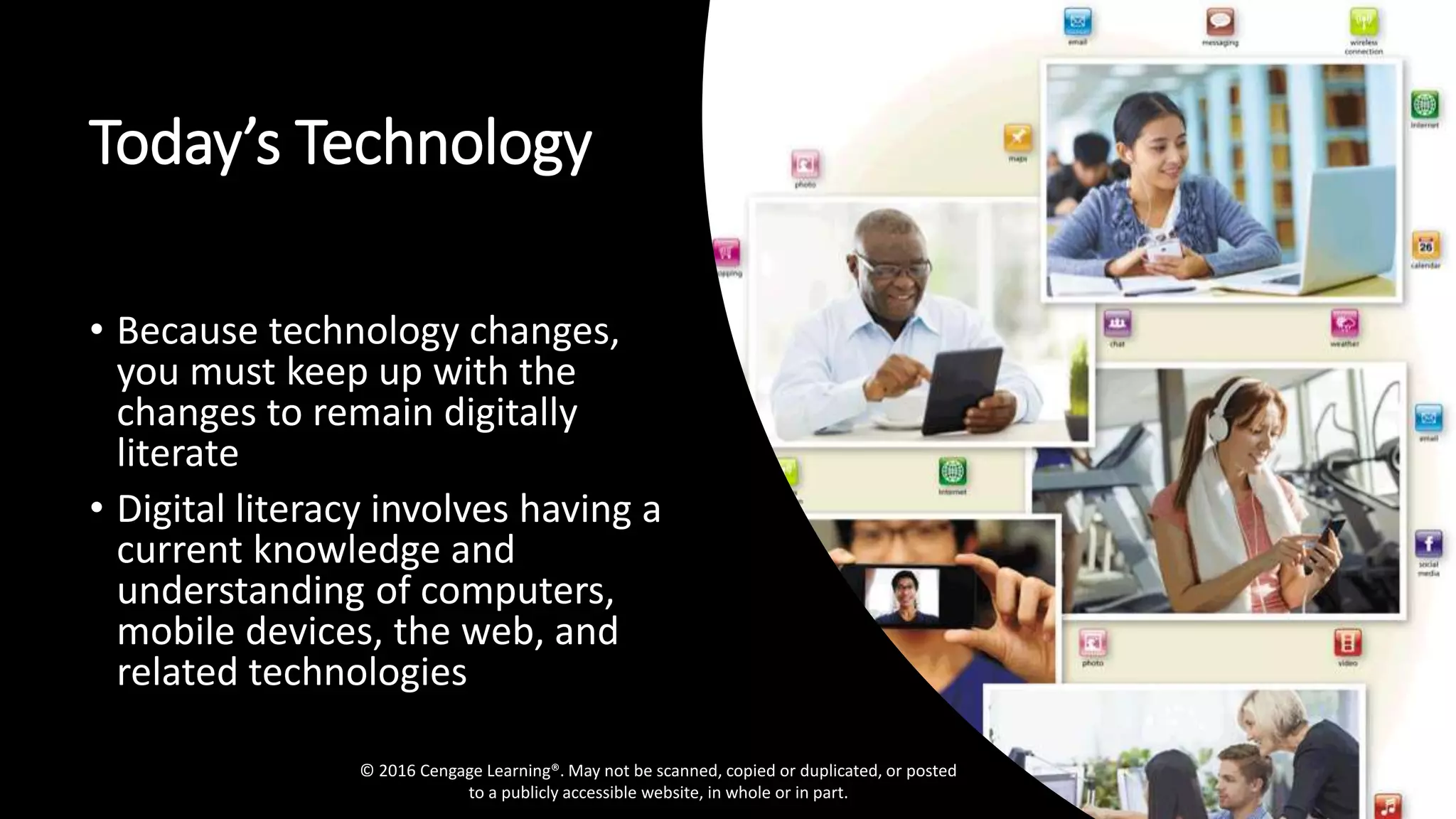
Today’s Technology
• Because technology changes,
you must keep up with the
changes to remain digitally
literate
• Digital literacy involves having a
current knowledge and
understanding of computers,
mobile devices, the web, and
related technologies
© 2016 Cengage Learning®. May not be scanned, copied or duplicated, or posted
to a publicly accessible website, in whole or in part.
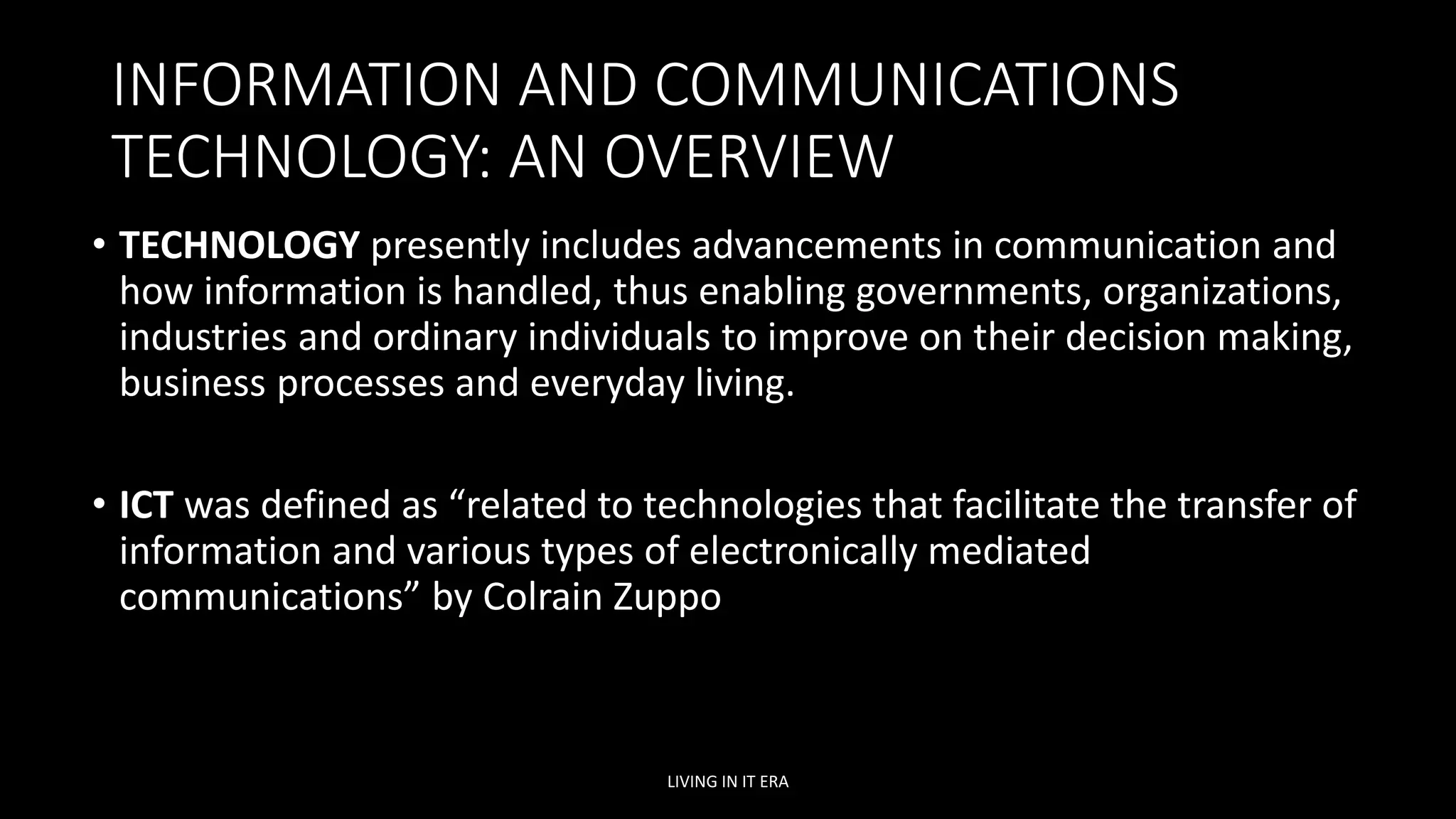
INFORMATION AND COMMUNICATIONS
TECHNOLOGY: AN OVERVIEW
• TECHNOLOGY presently includes advancements in communication and
how information is handled, thus enabling governments, organizations,
industries and ordinary individuals to improve on their decision making,
business processes and everyday living.
• ICT was defined as “related to technologies that facilitate the transfer of
information and various types of electronically mediated
communications” by Colrain Zuppo
LIVING IN IT ERA
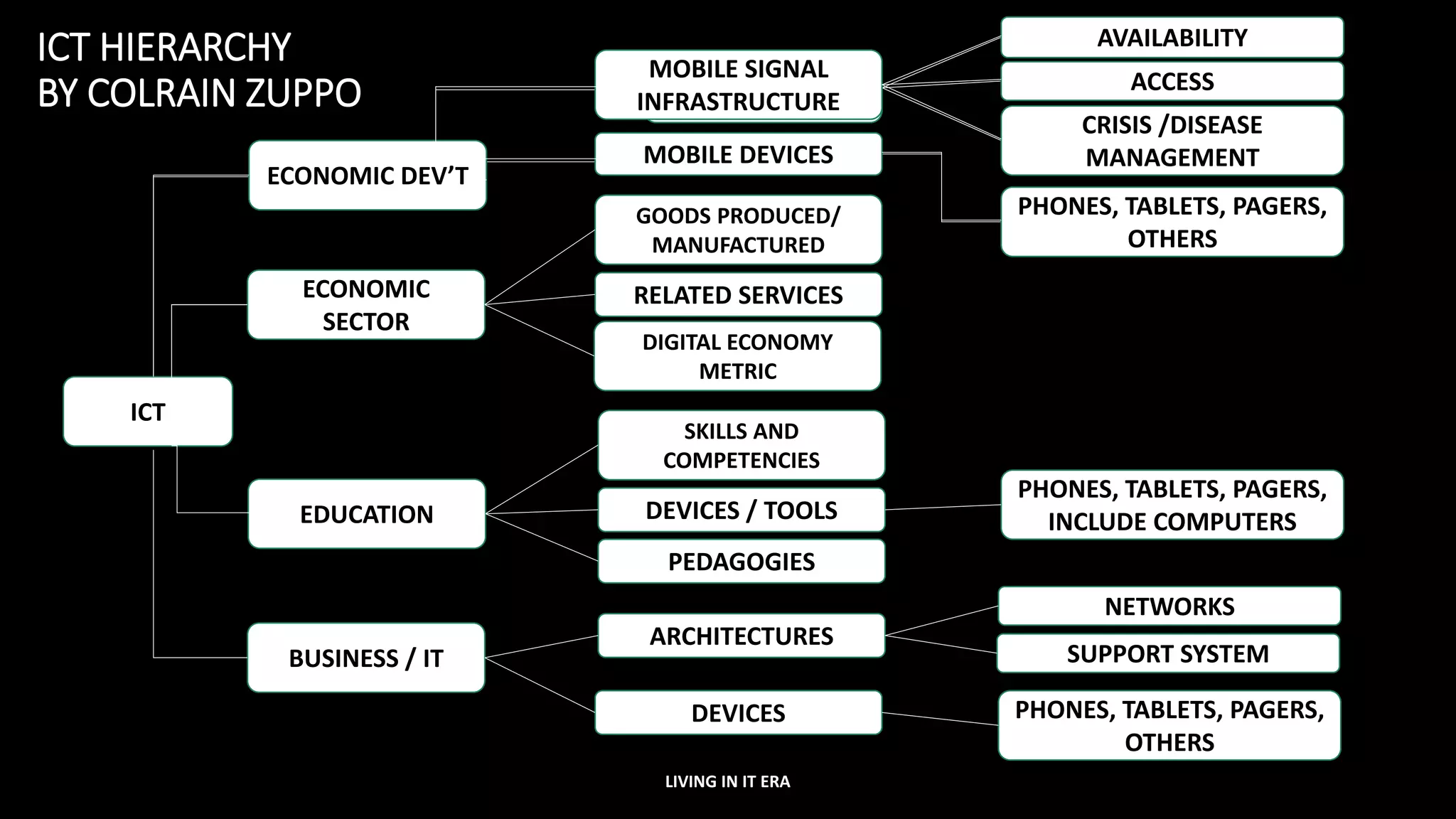
ICT HIERARCHY
BY COLRAIN ZUPPO
LIVING IN IT ERA
MOBILE SIGNAL
INFRASTRUCTURE
ICT
BUSINESS / IT
EDUCATION
ECONOMIC
SECTOR
ECONOMIC DEV’T
MOBILE DEVICES
PHONES, TABLETS, PAGERS,
OTHERS
CRISIS /DISEASE
MANAGEMENT
ACCESS
AVAILABILITY
MOBILE SIGNAL
INFRASTRUCTURE
ARCHITECTURES
DEVICES
NETWORKS
SUPPORT SYSTEM
PHONES, TABLETS, PAGERS,
OTHERS
DEVICES / TOOLS
SKILLS AND
COMPETENCIES
PEDAGOGIES
PHONES, TABLETS, PAGERS,
INCLUDE COMPUTERS
RELATED SERVICES
GOODS PRODUCED/
MANUFACTURED
DIGITAL ECONOMY
METRIC
IT VERSUS ICT
• ICT is used in general sense and is
described as using computers and
other digital technologies to assist
individuals or institutions in handling
or using information.
• It supports activities involving
information such as gathering,
processing, storing and presenting
data.
• IT pertains to the industry that
involves computers, software,
networking, and other IT
infrastructure to hep relay or manage
information important in modern –day
living.
• INFORMATION – the knowledge
obtained from reading, investigation,
study or research. It is needed to make
decisions and to foresee the future.
• Processed information is called
knowledge. It helps to fulfill daily tasks.
• COMMUNICATION – act of transmitting
messages. It is a process in which
information is exchanged between
individuals through verbal and non-
verbal means
• TECHNOLOGY – evolved in ways that
improve people’s activities.
LIVING IN IT ERA
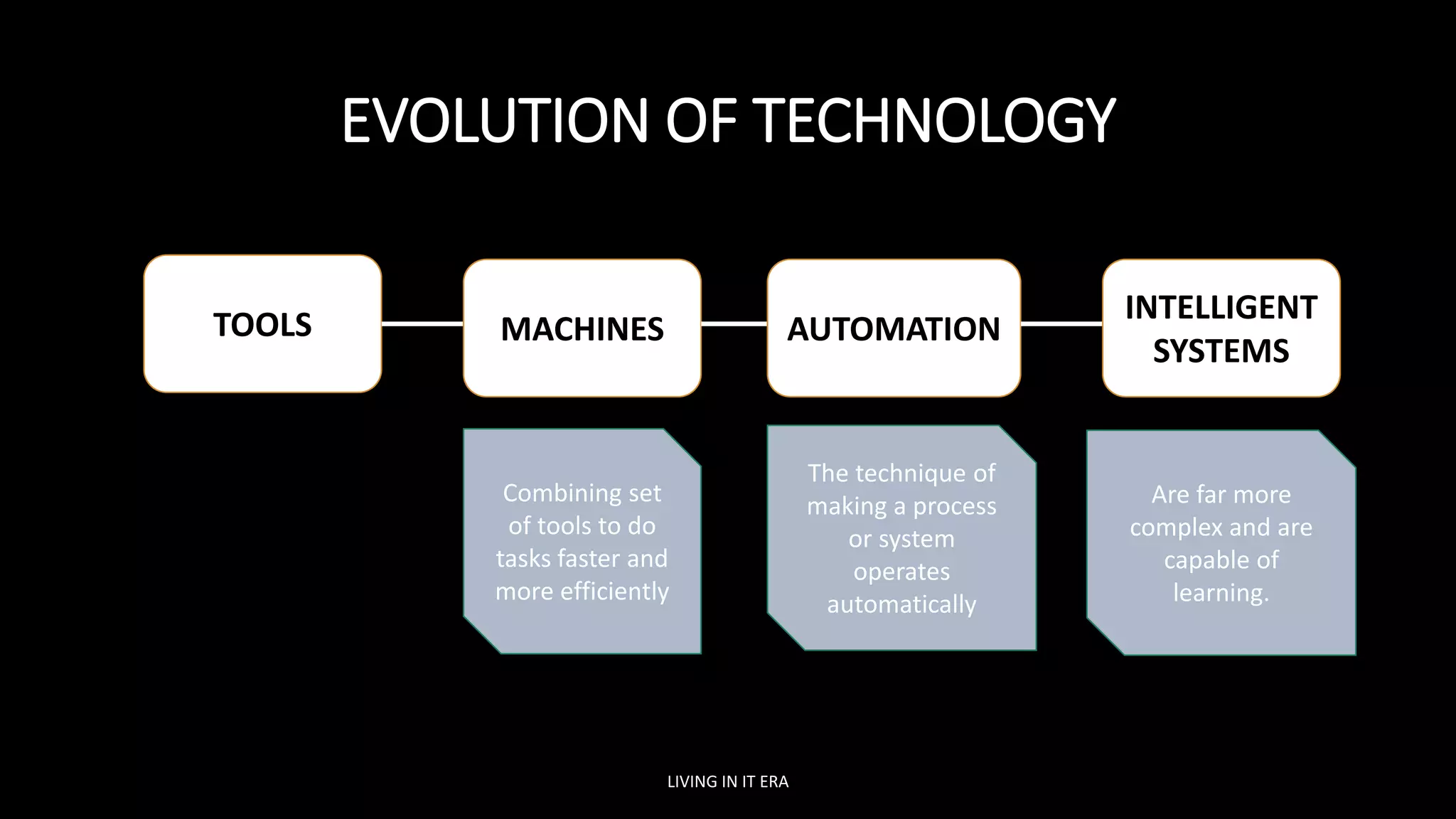
EVOLUTION OF TECHNOLOGY
LIVING IN IT ERA
TOOLS MACHINES
Combining set
of tools to do
tasks faster and
more efficiently
AUTOMATION
The technique of
making a process
or system
operates
automatically
INTELLIGENT
SYSTEMS
Are far more
complex and are
capable of
learning.
HISTORY OF COMPUTERS
ACTIVITY 2
Research about the History of Computers, create a short
summary of the important points in each generation. Please
consider the 1st generation to 5th generation of computers.
LIVING IN IT ERA
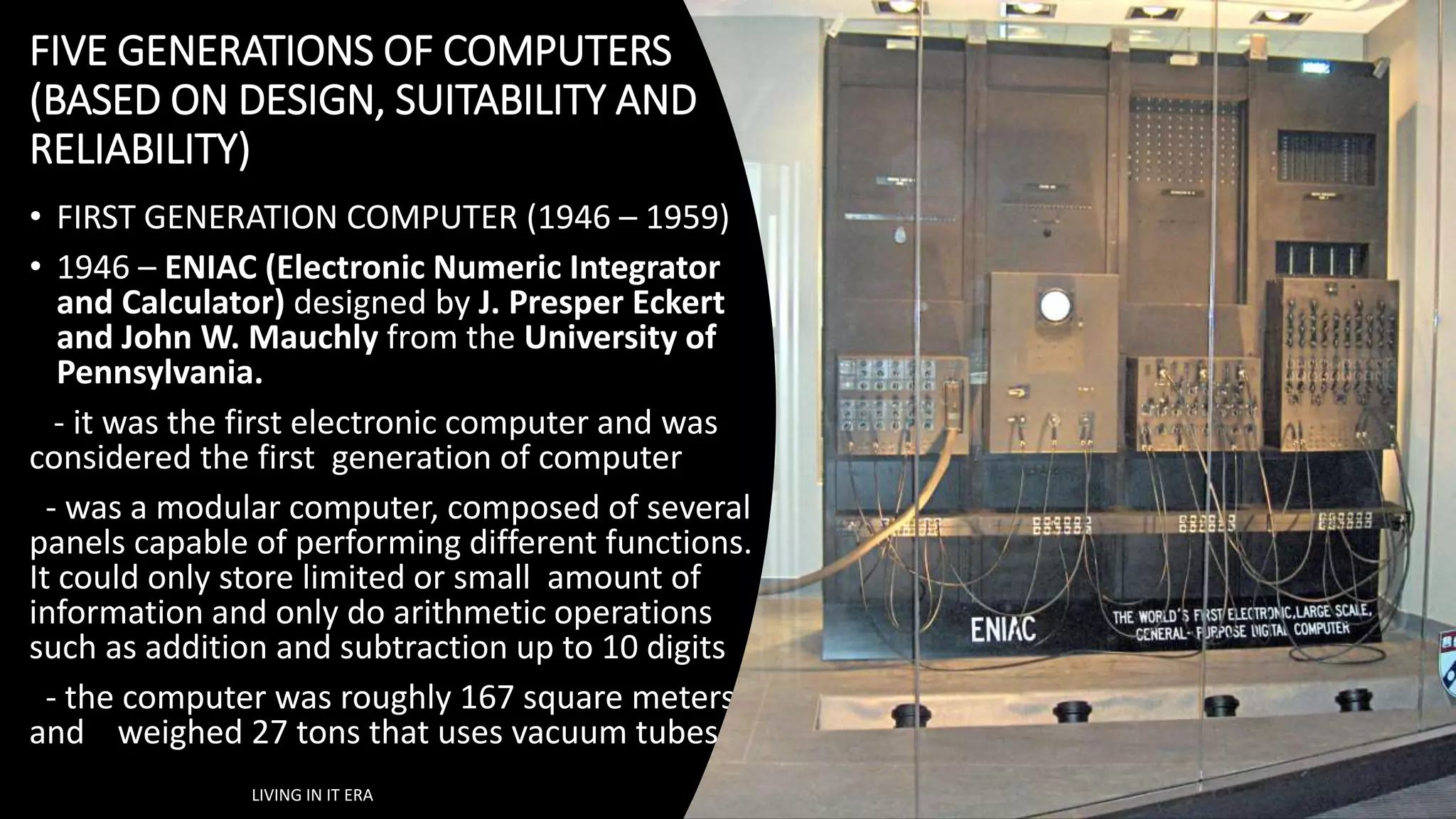
FIVE GENERATIONS OF COMPUTERS
(BASED ON DESIGN, SUITABILITY AND
RELIABILITY)
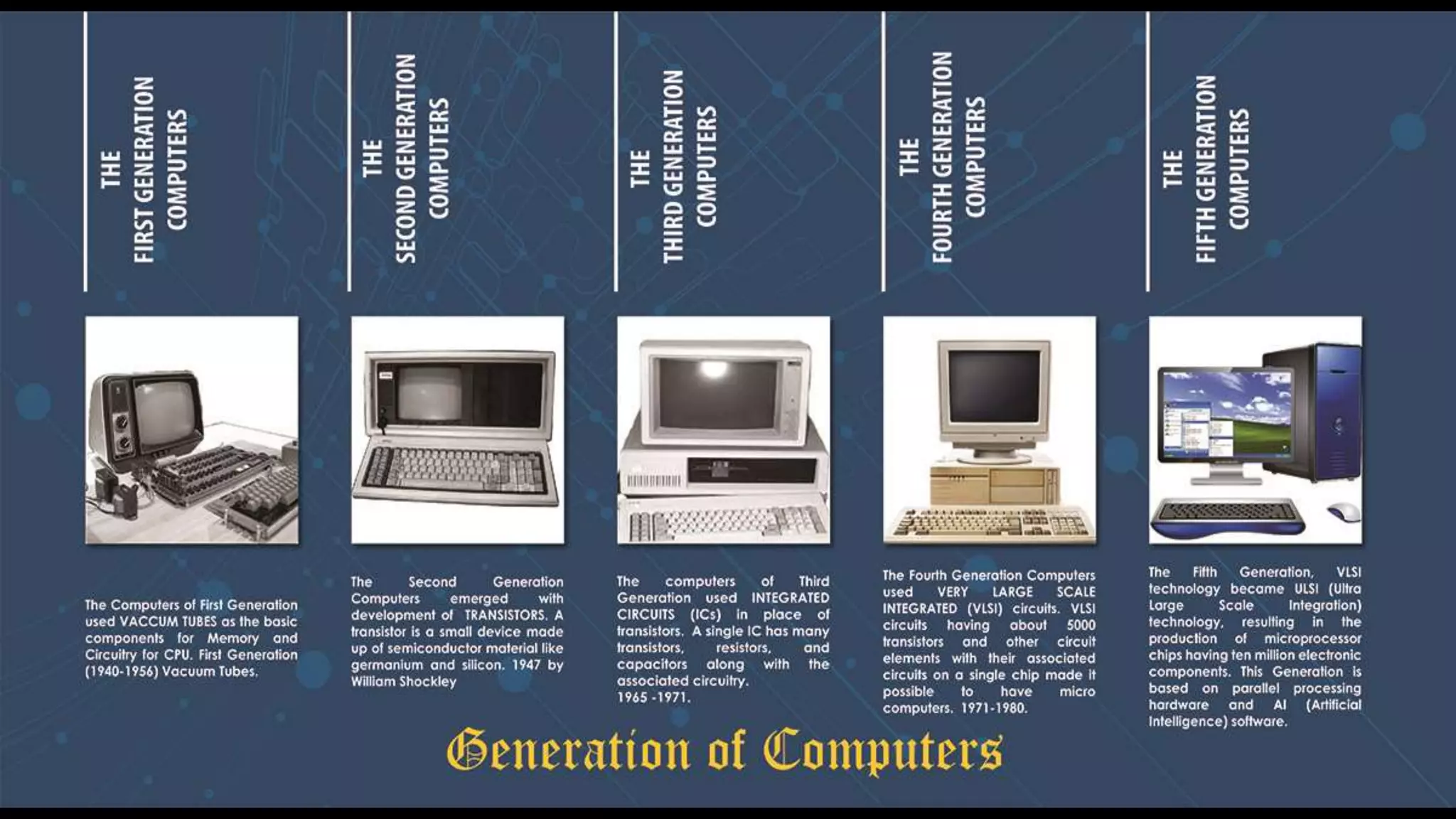
• FIRST GENERATION COMPUTER (1946 – 1959)
• 1946 – ENIAC (Electronic Numeric Integrator
and Calculator) designed by J. Presper Eckert
and John W. Mauchly from the University of
Pennsylvania.
- it was the first electronic computer and was
considered the first generation of computer
- was a modular computer, composed of several
panels capable of performing different functions.
It could only store limited or small amount of
information and only do arithmetic operations
such as addition and subtraction up to 10 digits
- the computer was roughly 167 square meters
and weighed 27 tons that uses vacuum tubes.
LIVING IN IT ERA
FIVE GENERATIONS OF COMPUTERS
(BASED ON DESIGN, SUITABILITY AND RELIABILITY)
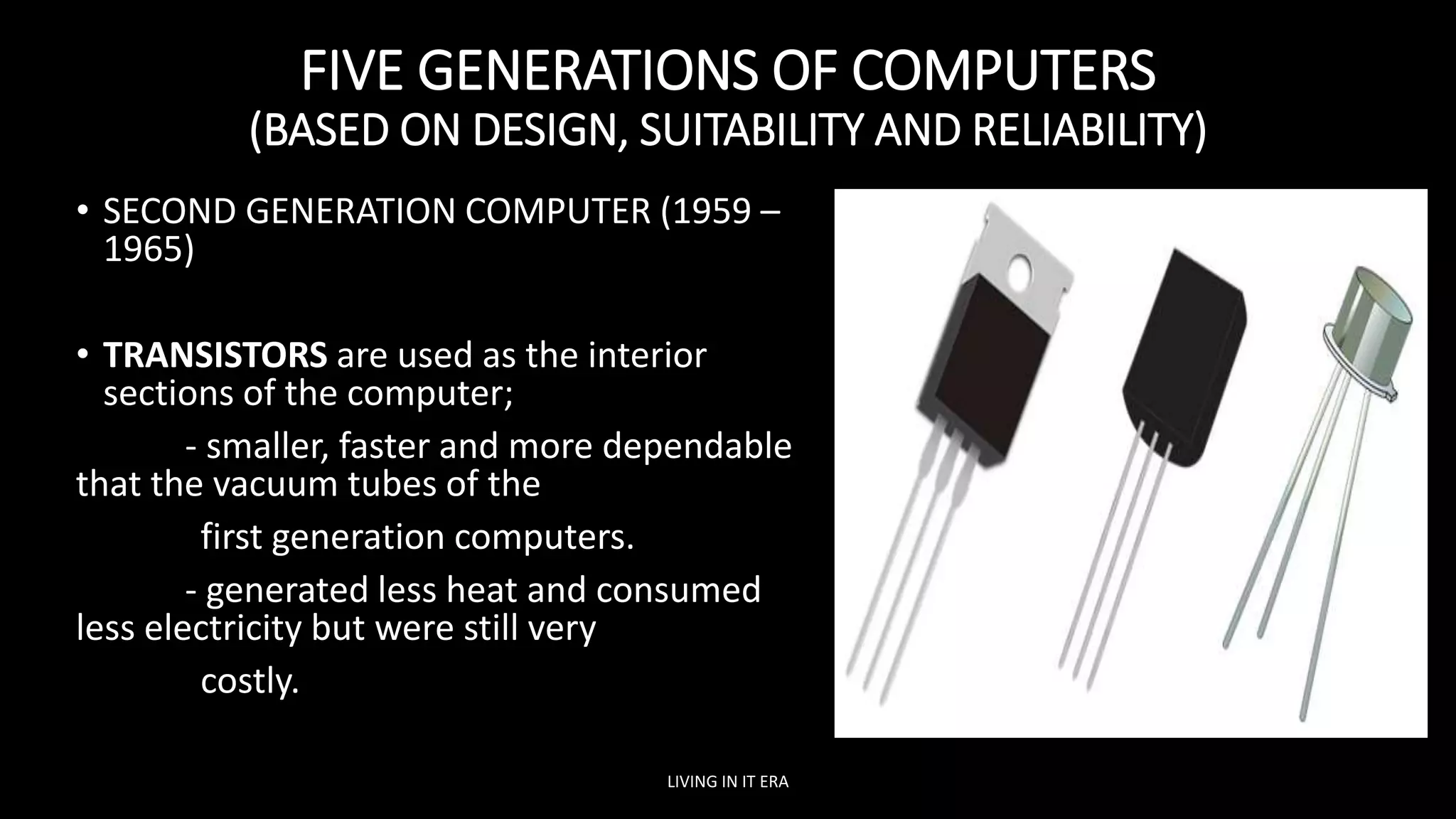
• SECOND GENERATION COMPUTER (1959 –
1965)
• TRANSISTORS are used as the interior
sections of the computer;
- smaller, faster and more dependable
that the vacuum tubes of the
first generation computers.
- generated less heat and consumed
less electricity but were still very
costly.
LIVING IN IT ERA
FIVE GENERATIONS OF COMPUTERS
(BASED ON DESIGN, SUITABILITY AND RELIABILITY)
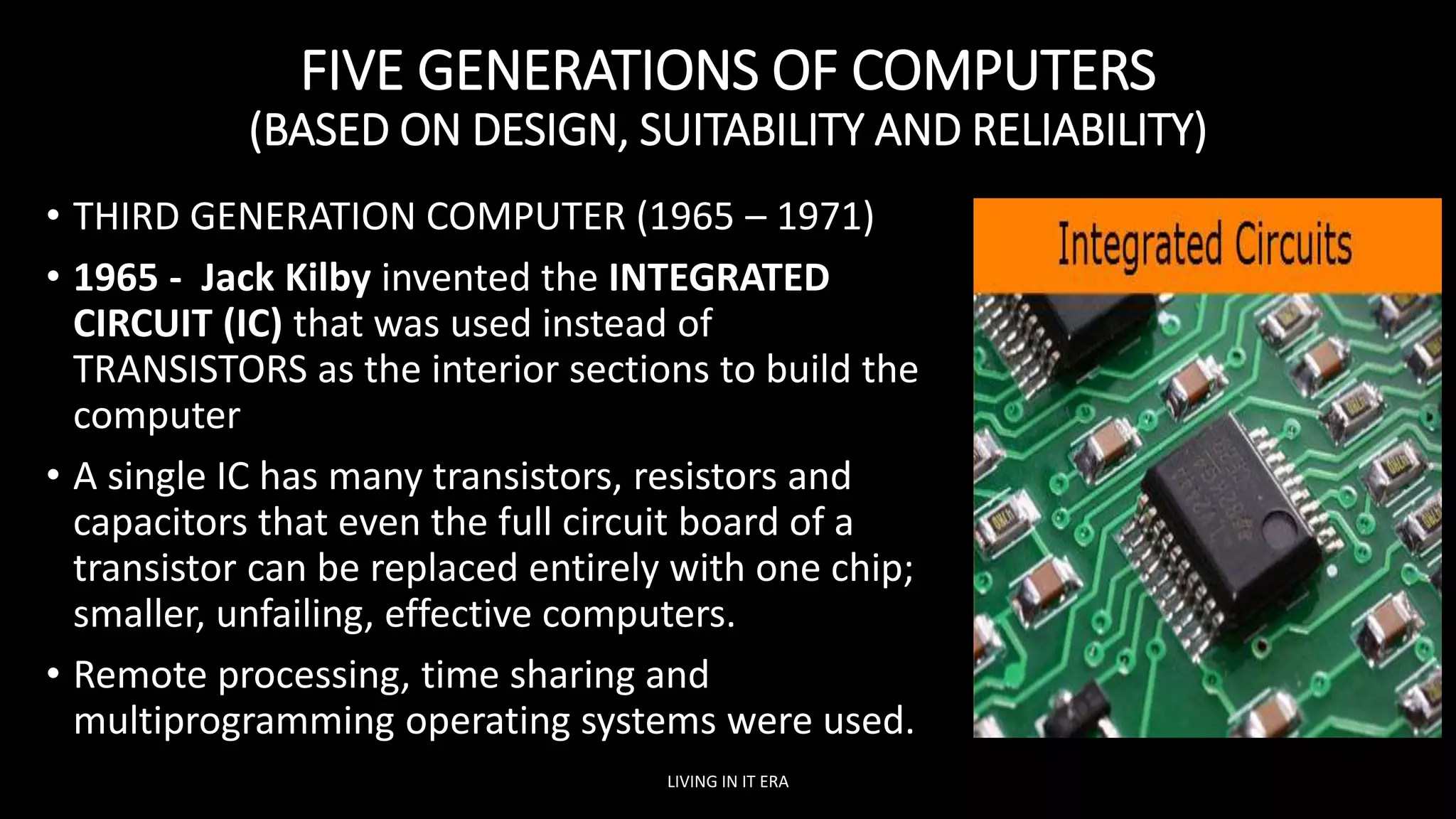
• THIRD GENERATION COMPUTER (1965 – 1971)
• 1965 - Jack Kilby invented the INTEGRATED
CIRCUIT (IC) that was used instead of
TRANSISTORS as the interior sections to build the
computer
• A single IC has many transistors, resistors and
capacitors that even the full circuit board of a
transistor can be replaced entirely with one chip;
smaller, unfailing, effective computers.
• Remote processing, time sharing and
multiprogramming operating systems were used.
LIVING IN IT ERA
FIVE GENERATIONS OF COMPUTERS
(BASED ON DESIGN, SUITABILITY AND RELIABILITY)
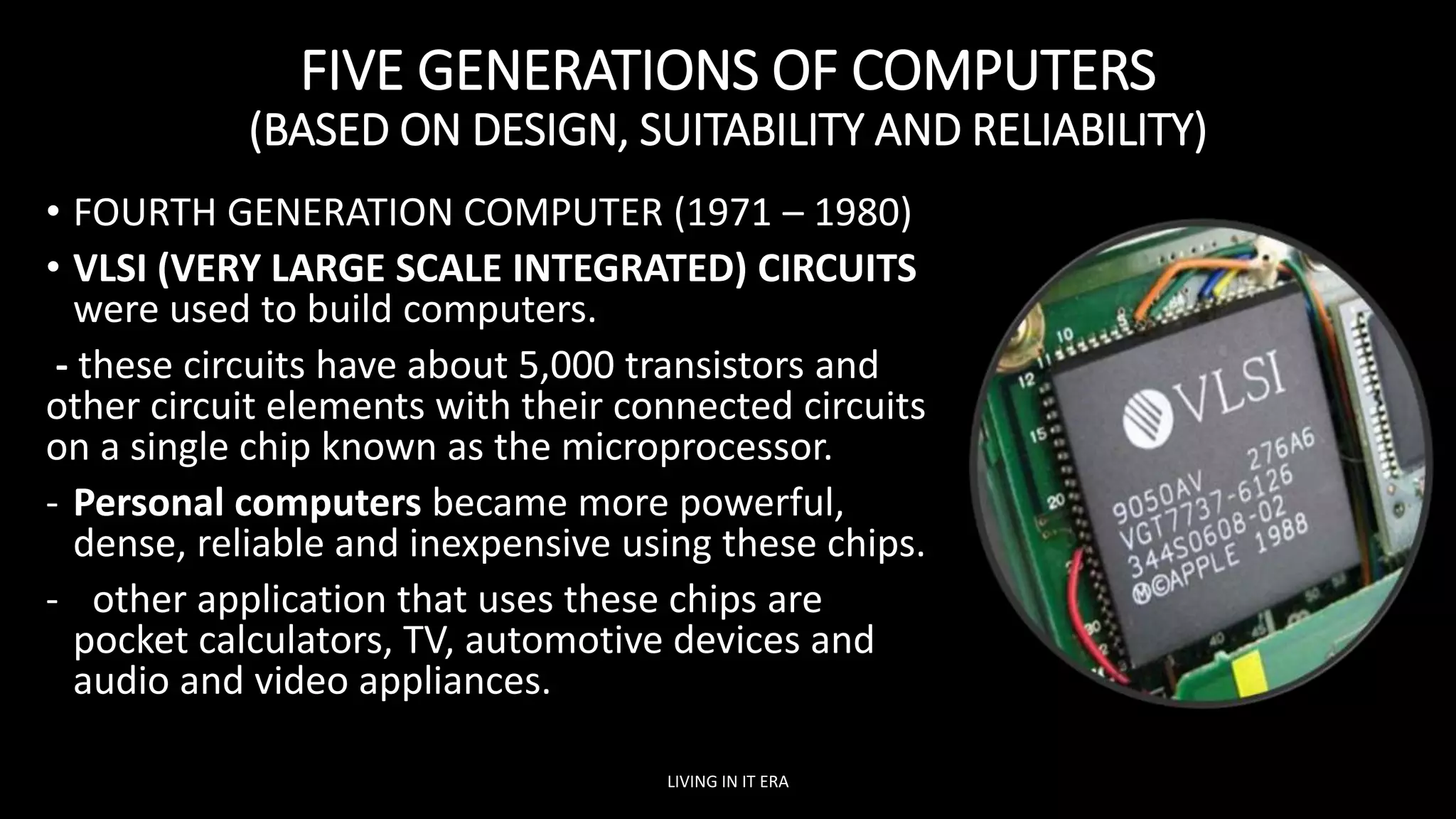
• FOURTH GENERATION COMPUTER (1971 – 1980)
• VLSI (VERY LARGE SCALE INTEGRATED) CIRCUITS
were used to build computers.
- these circuits have about 5,000 transistors and
other circuit elements with their connected circuits
on a single chip known as the microprocessor.
- Personal computers became more powerful,
dense, reliable and inexpensive using these chips.
- other application that uses these chips are
pocket calculators, TV, automotive devices and
audio and video appliances.
LIVING IN IT ERA
FIVE GENERATIONS OF COMPUTERS
(BASED ON DESIGN, SUITABILITY AND RELIABILITY)
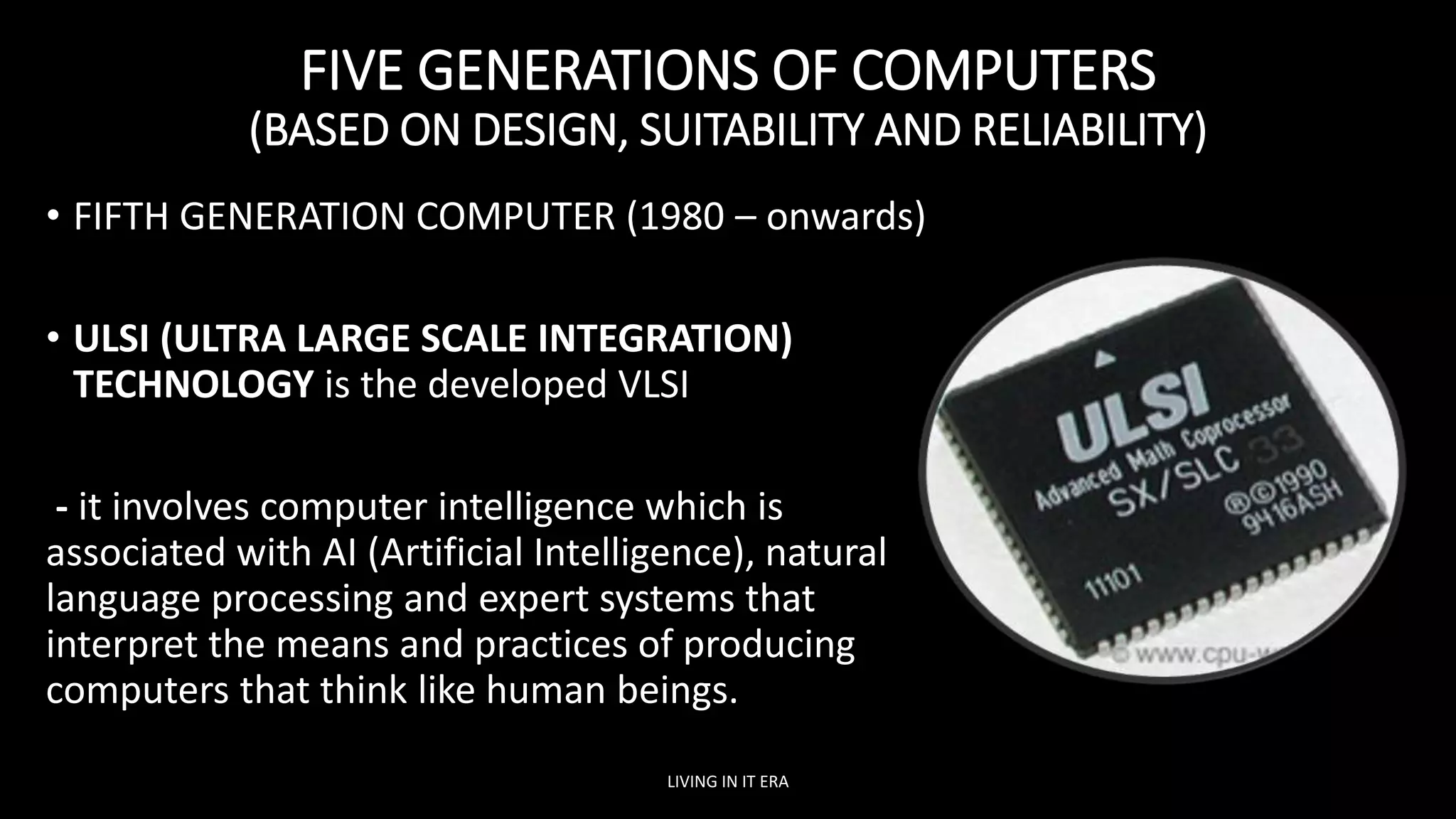
• FIFTH GENERATION COMPUTER (1980 – onwards)
• ULSI (ULTRA LARGE SCALE INTEGRATION)
TECHNOLOGY is the developed VLSI
- it involves computer intelligence which is
associated with AI (Artificial Intelligence), natural
language processing and expert systems that
interpret the means and practices of producing
computers that think like human beings.
LIVING IN IT ERA
COMPUTER
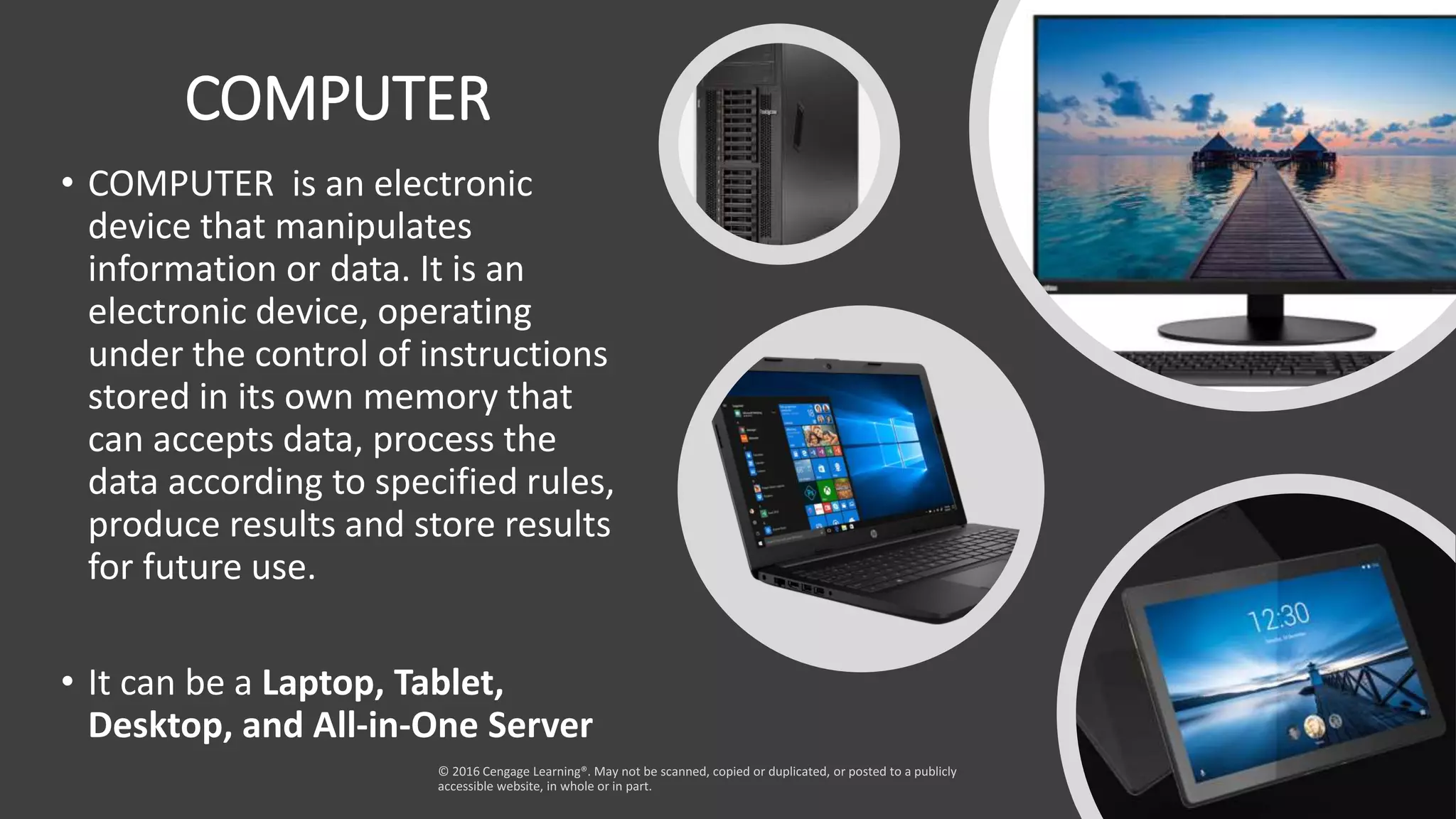
• COMPUTER is an electronic
device that manipulates
information or data. It is an
electronic device, operating
under the control of instructions
stored in its own memory that
can accepts data, process the
data according to specified rules,
produce results and store results
for future use.
• It can be a Laptop, Tablet,
Desktop, and All-in-One Server
WHAT IS A COMPUTER?
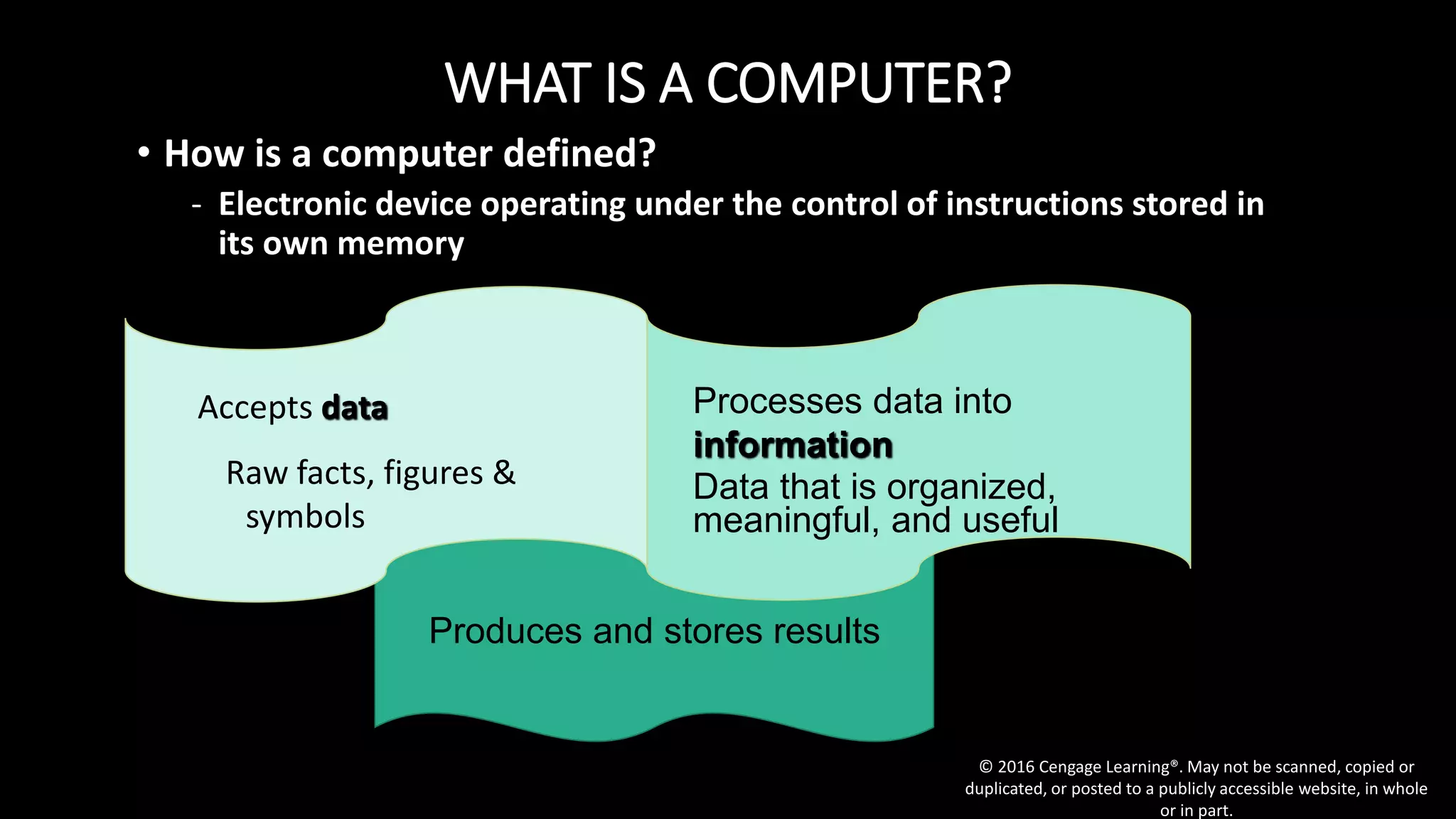
• How is a computer defined?
- Electronic device operating under the control of instructions stored in
its own memory
© 2016 Cengage Learning®. May not be scanned, copied or
duplicated, or posted to a publicly accessible website, in whole
or in part.
Produces and stores results
Accepts data
Raw facts, figures &
symbols
Processes data into
information
Data that is organized,
meaningful, and useful
WHAT IS A COMPUTER?
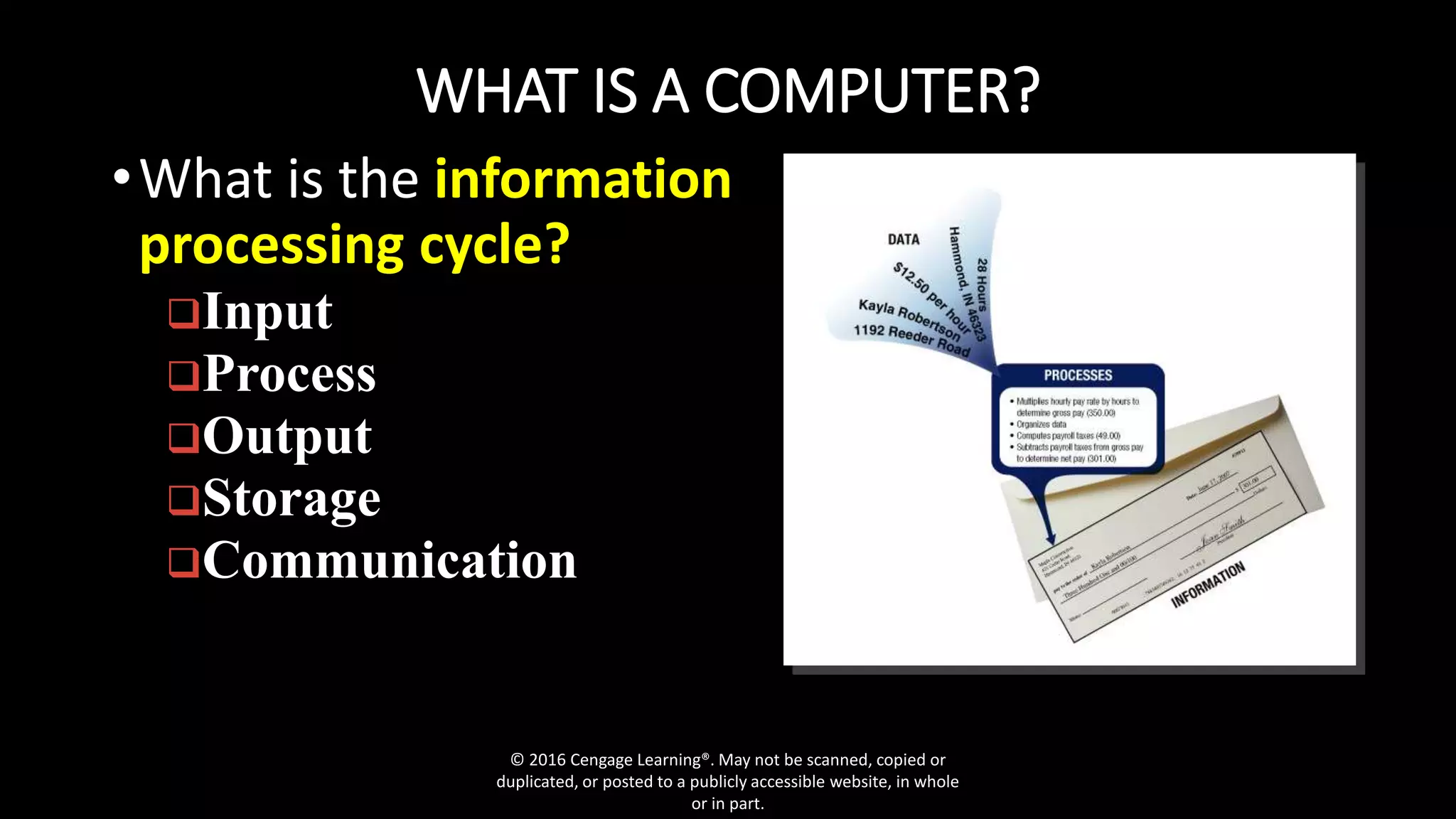
•What is the information
processing cycle?
Input
Process
Output
Storage
Communication
© 2016 Cengage Learning®. May not be scanned, copied or
duplicated, or posted to a publicly accessible website, in whole
or in part.
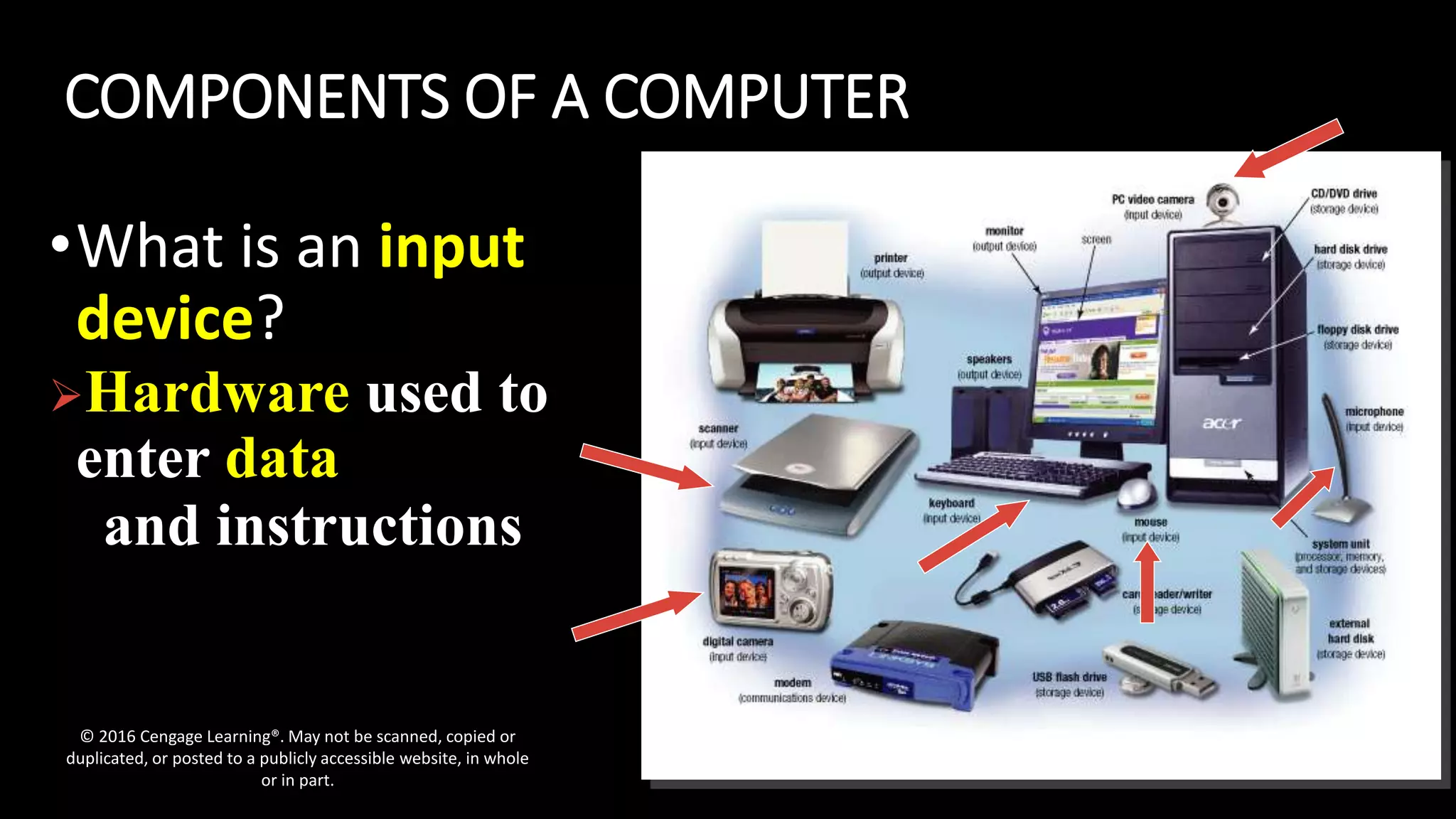
COMPONENTS OF A COMPUTER
•What is an input
device?
Hardware used to
enter data
and instructions
© 2016 Cengage Learning®. May not be scanned, copied or
duplicated, or posted to a publicly accessible website, in whole
or in part.
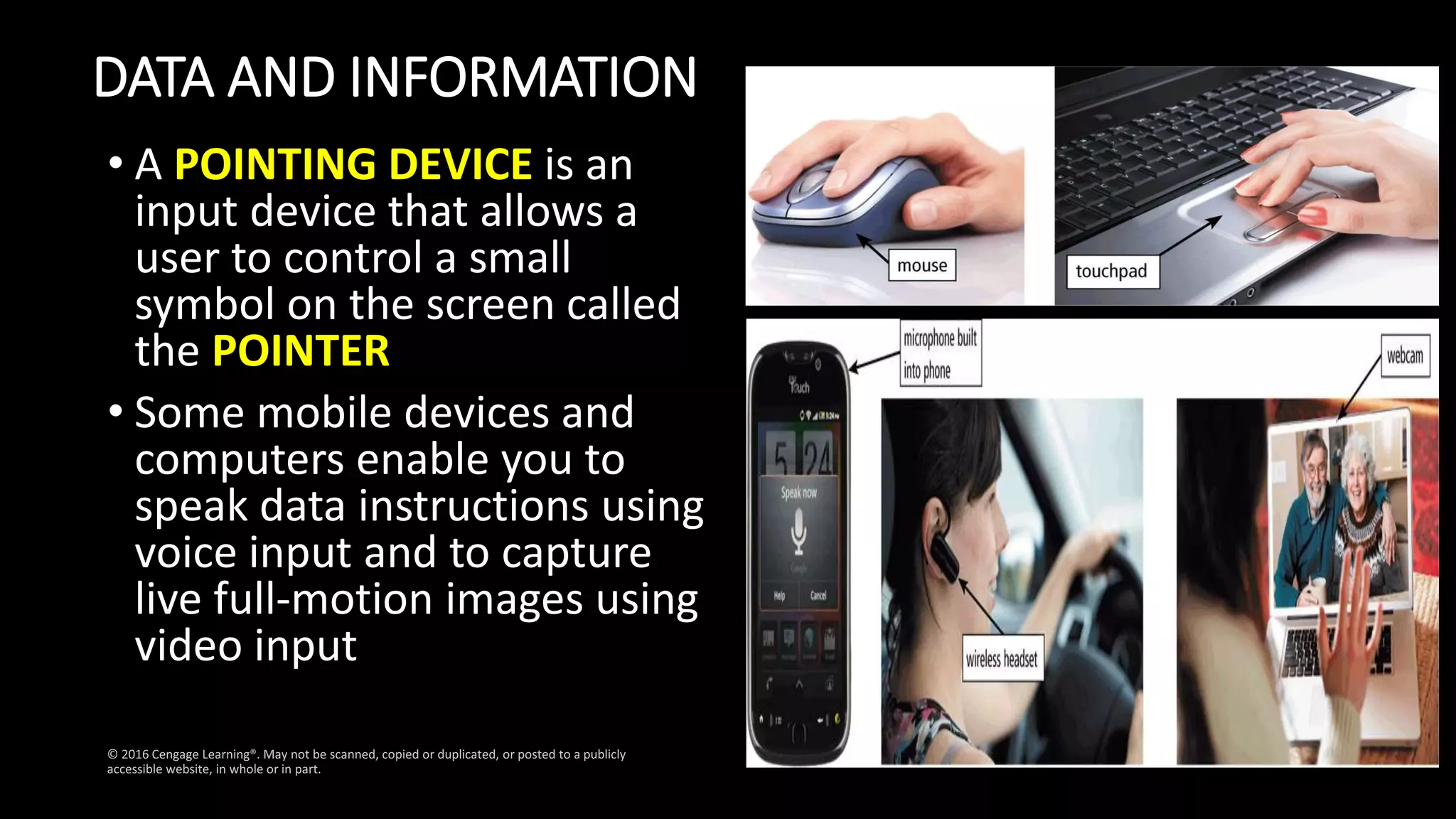
DATA AND INFORMATION
• A POINTING DEVICE is an
input device that allows a
user to control a small
symbol on the screen called
the POINTER
• Some mobile devices and
computers enable you to
speak data instructions using
voice input and to capture
live full-motion images using
video input
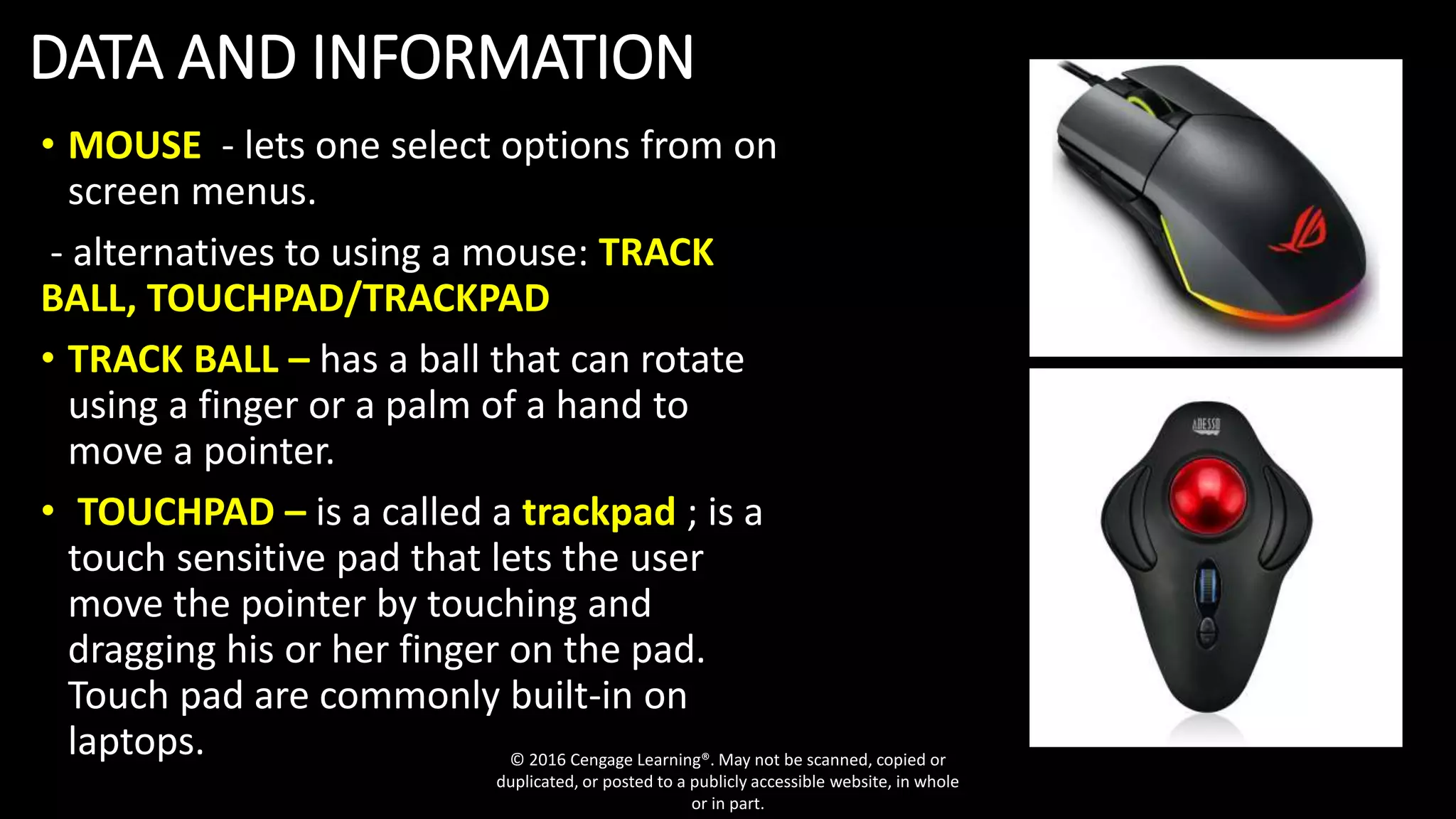
DATA AND INFORMATION
• MOUSE - lets one select options from on
screen menus.
- alternatives to using a mouse: TRACK
BALL, TOUCHPAD/TRACKPAD
• TRACK BALL – has a ball that can rotate
using a finger or a palm of a hand to
move a pointer.
• TOUCHPAD – is a called a trackpad ; is a
touch sensitive pad that lets the user
move the pointer by touching and
dragging his or her finger on the pad.
Touch pad are commonly built-in on
laptops. © 2016 Cengage Learning®. May not be scanned, copied or
duplicated, or posted to a publicly accessible website, in whole
or in part.
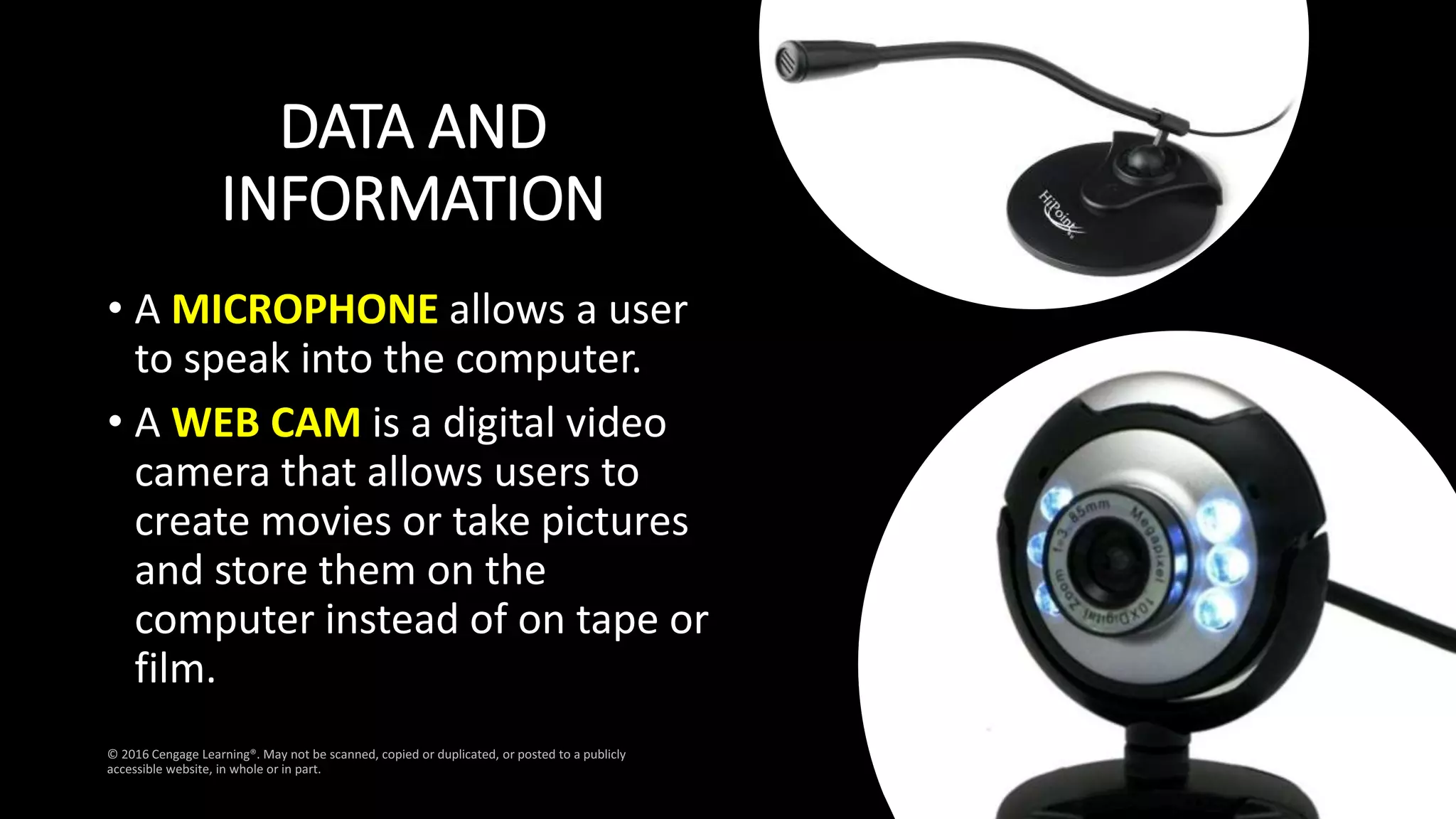
DATA AND
INFORMATION
• A MICROPHONE allows a user
to speak into the computer.
• A WEB CAM is a digital video
camera that allows users to
create movies or take pictures
and store them on the
computer instead of on tape or
film.
DATA AND
INFORMATION
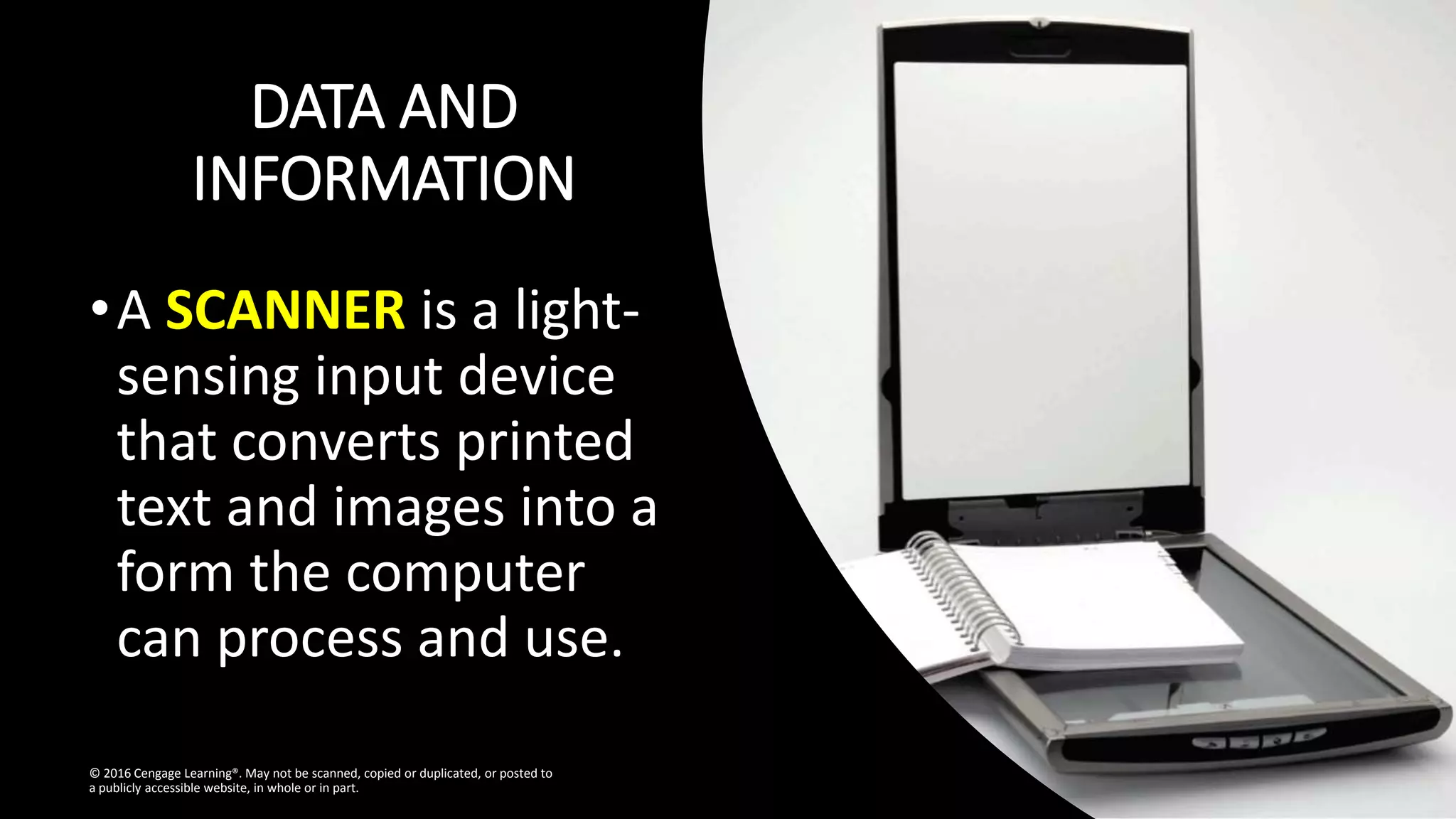
•A SCANNER is a light-
sensing input device
that converts printed
text and images into a
form the computer
can process and use.
© 2016 Cengage Learning®. May not be scanned, copied or duplicated, or posted to
a publicly accessible website, in whole or in part.
DATA AND INFORMATION
• An OUTPUT DEVICE is any hardware component that
conveys information from a computer or mobile
device to one or more people
• A PRINTER is an output device that produces text and
graphics on a physical medium, such as paper or other
material
• A 3-D printer can print solid objects, such as clothing,
prosthetics, eyewear, implants, toys, parts, prototypes,
and more
© 2016 Cengage Learning®. May not be scanned, copied or duplicated, or posted to a publicly
accessible website, in whole or in part.
TWO TYPES OF PRINTER
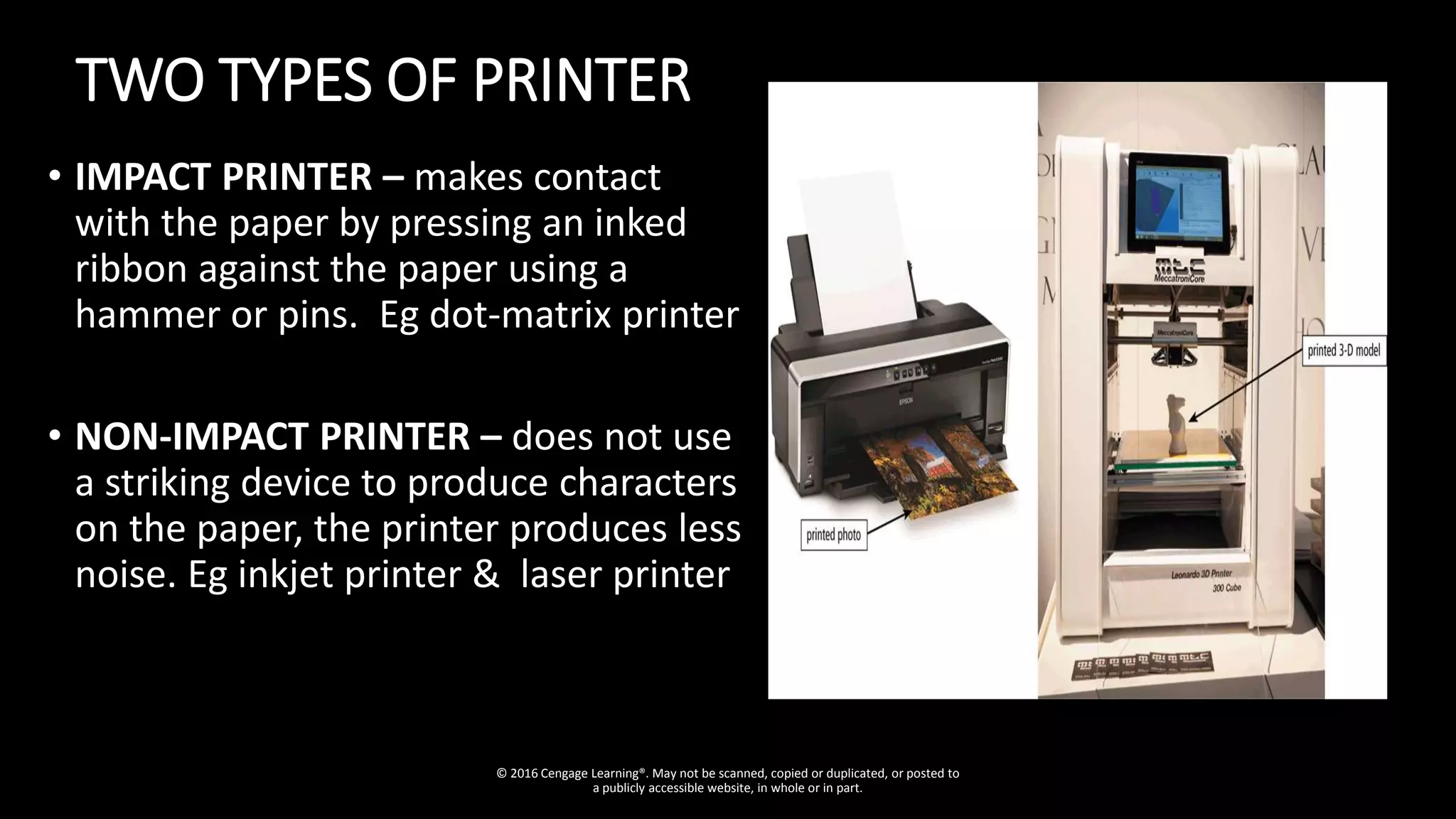
• IMPACT PRINTER – makes contact
with the paper by pressing an inked
ribbon against the paper using a
hammer or pins. Eg dot-matrix printer
• NON-IMPACT PRINTER – does not use
a striking device to produce characters
on the paper, the printer produces less
noise. Eg inkjet printer & laser printer
© 2016 Cengage Learning®. May not be scanned, copied or duplicated, or posted to
a publicly accessible website, in whole or in part.
DATA AND
INFORMATION
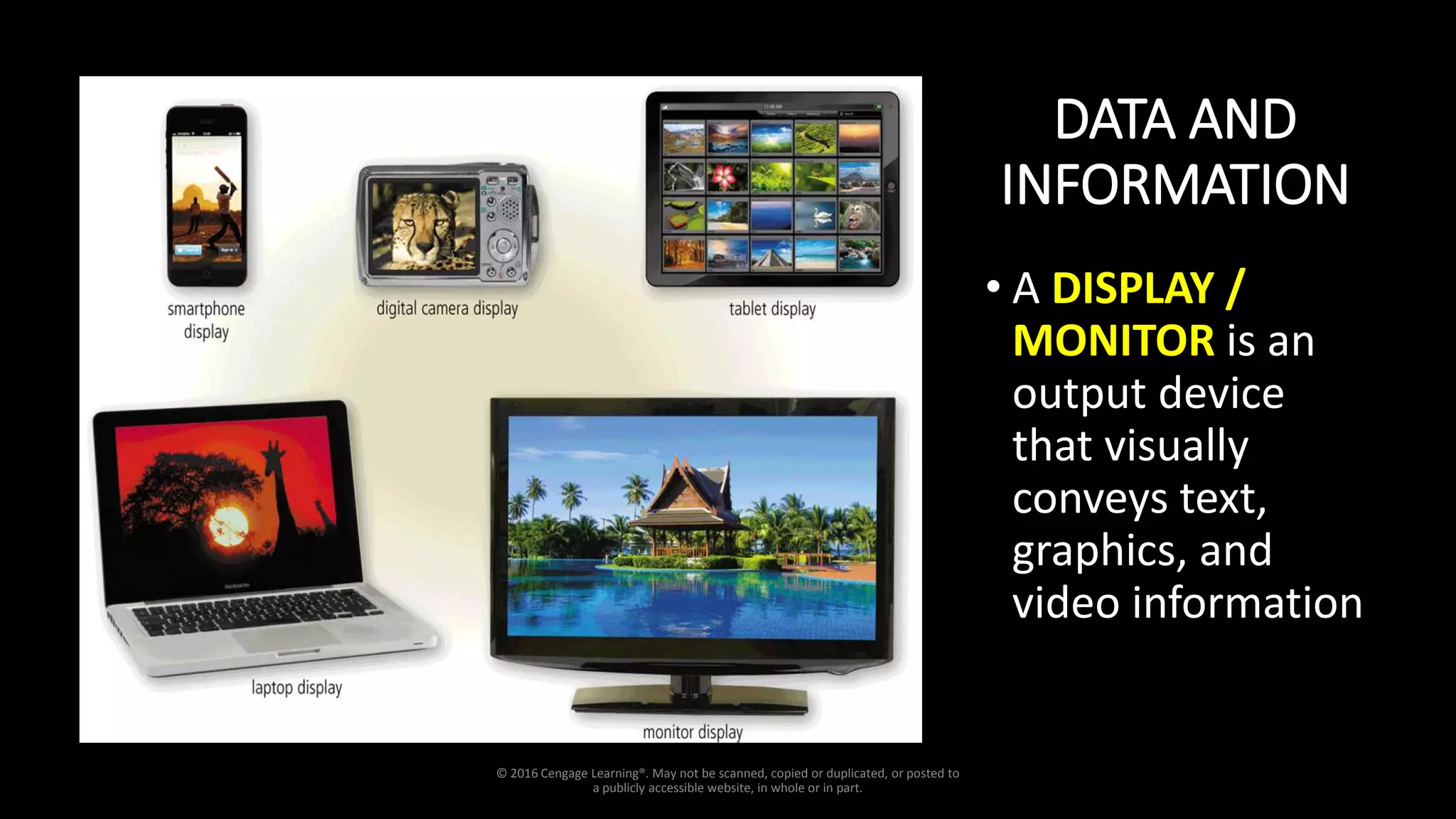
• A DISPLAY /
MONITOR is an
output device
that visually
conveys text,
graphics, and
video information
© 2016 Cengage Learning®. May not be scanned, copied or duplicated, or posted to
a publicly accessible website, in whole or in part.
THREE TYPES OF MONITORS
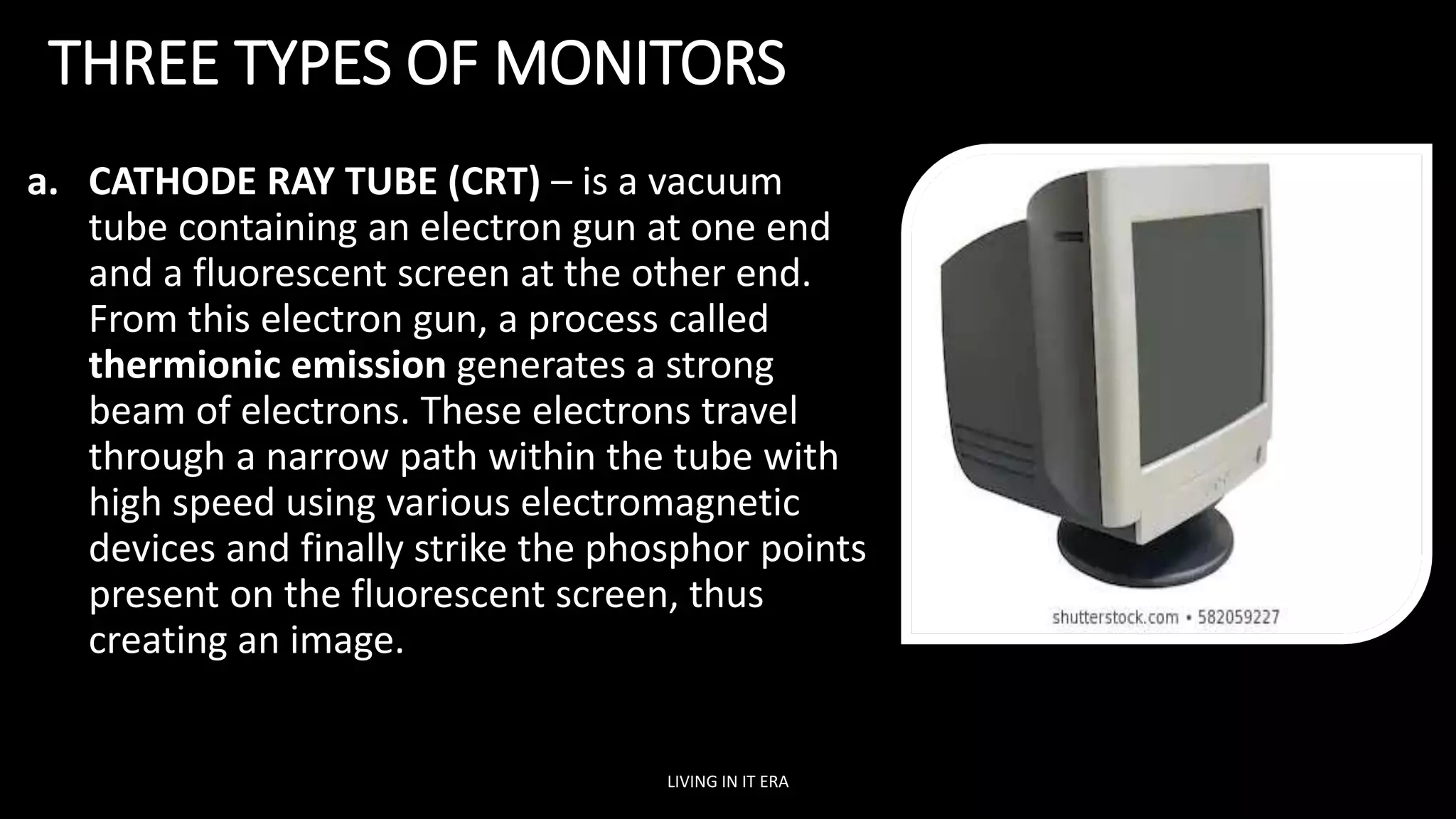
a. CATHODE RAY TUBE (CRT) – is a vacuum
tube containing an electron gun at one end
and a fluorescent screen at the other end.
From this electron gun, a process called
thermionic emission generates a strong
beam of electrons. These electrons travel
through a narrow path within the tube with
high speed using various electromagnetic
devices and finally strike the phosphor points
present on the fluorescent screen, thus
creating an image.
LIVING IN IT ERA
THREE TYPES OF MONITORS
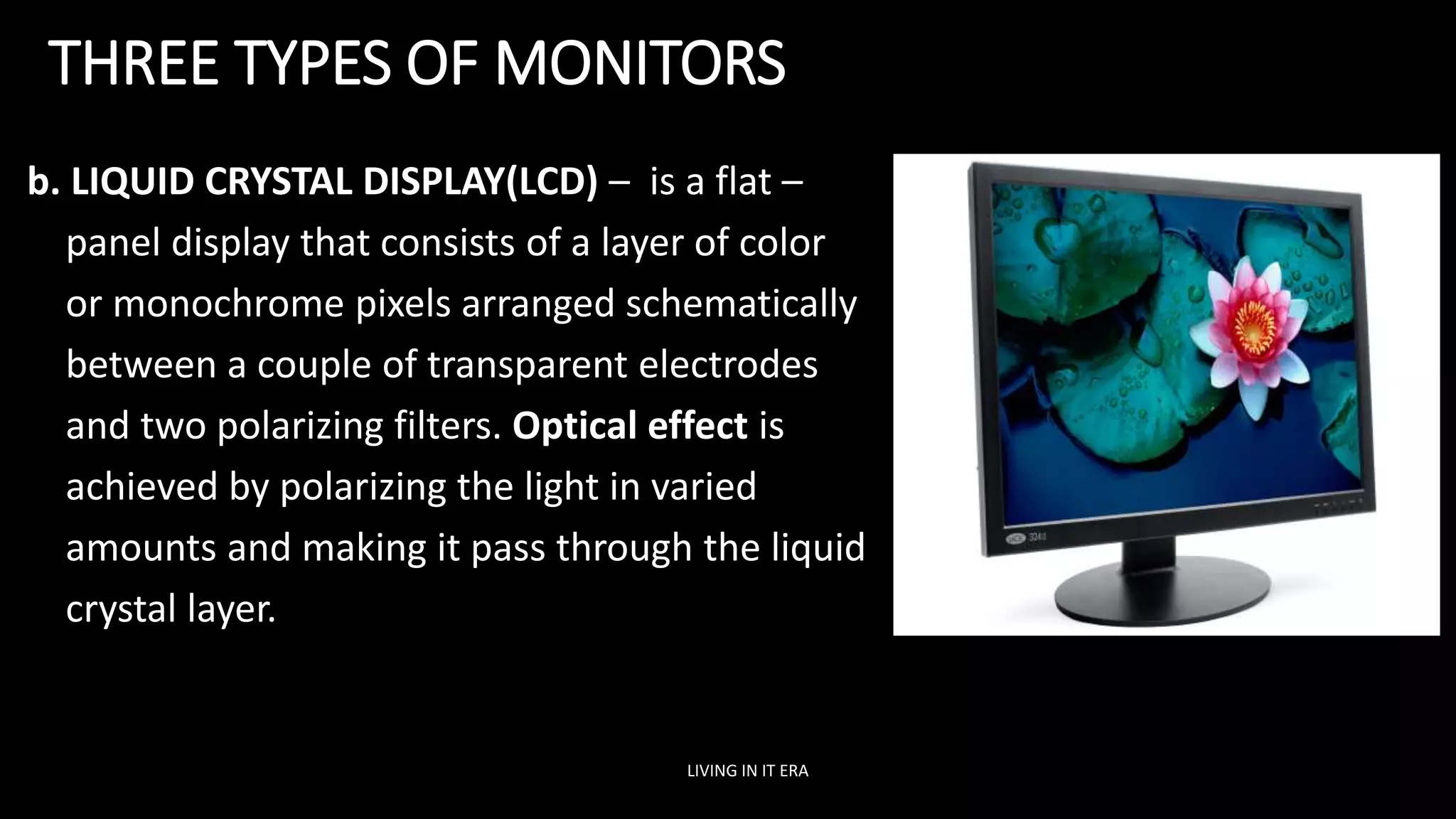
b. LIQUID CRYSTAL DISPLAY(LCD) – is a flat –
panel display that consists of a layer of color
or monochrome pixels arranged schematically
between a couple of transparent electrodes
and two polarizing filters. Optical effect is
achieved by polarizing the light in varied
amounts and making it pass through the liquid
crystal layer.
LIVING IN IT ERA
THREE TYPES OF MONITORS
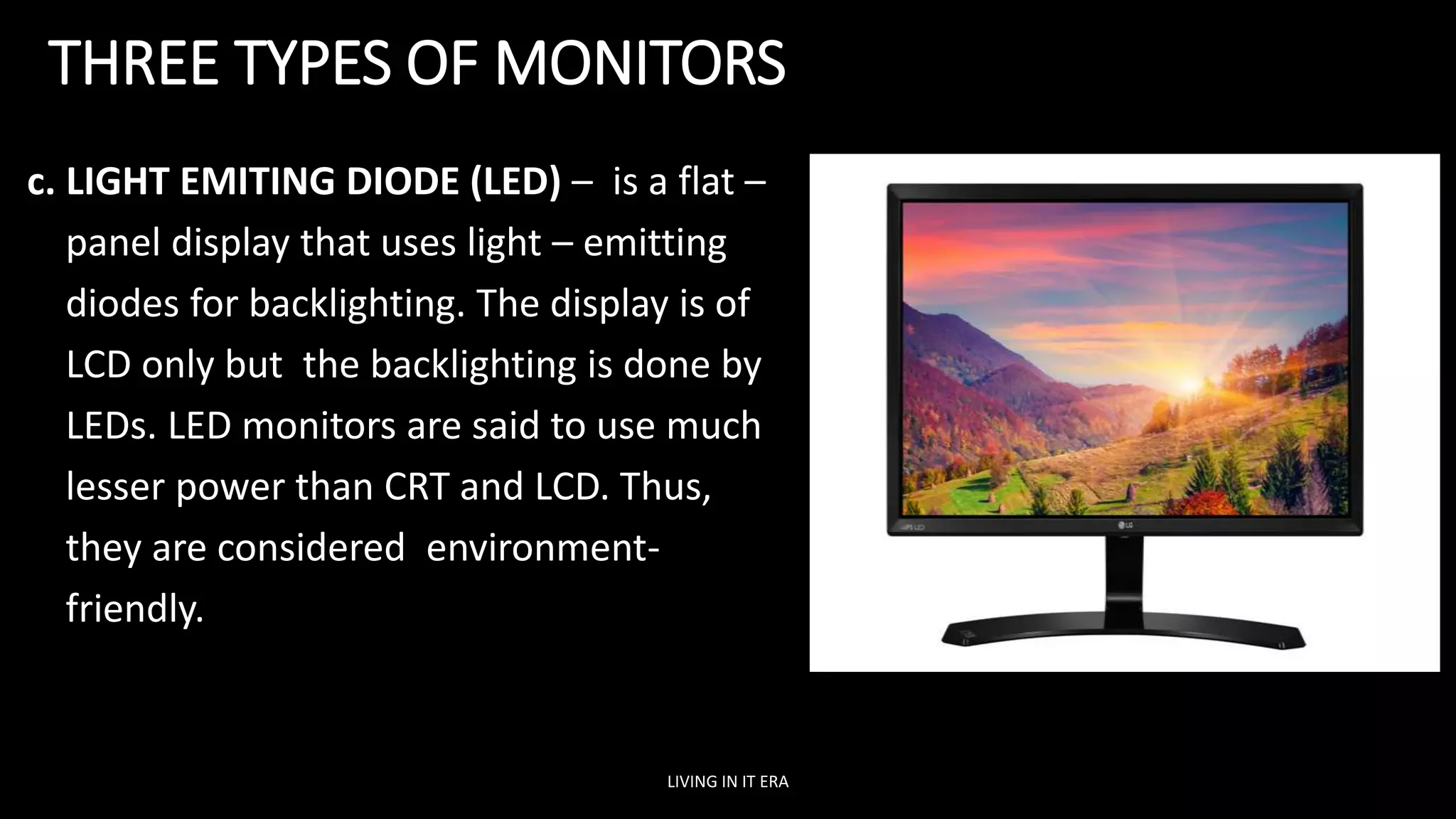
c. LIGHT EMITING DIODE (LED) – is a flat –
panel display that uses light – emitting
diodes for backlighting. The display is of
LCD only but the backlighting is done by
LEDs. LED monitors are said to use much
lesser power than CRT and LCD. Thus,
they are considered environment-
friendly.
LIVING IN IT ERA
DATA AND INFORMATION
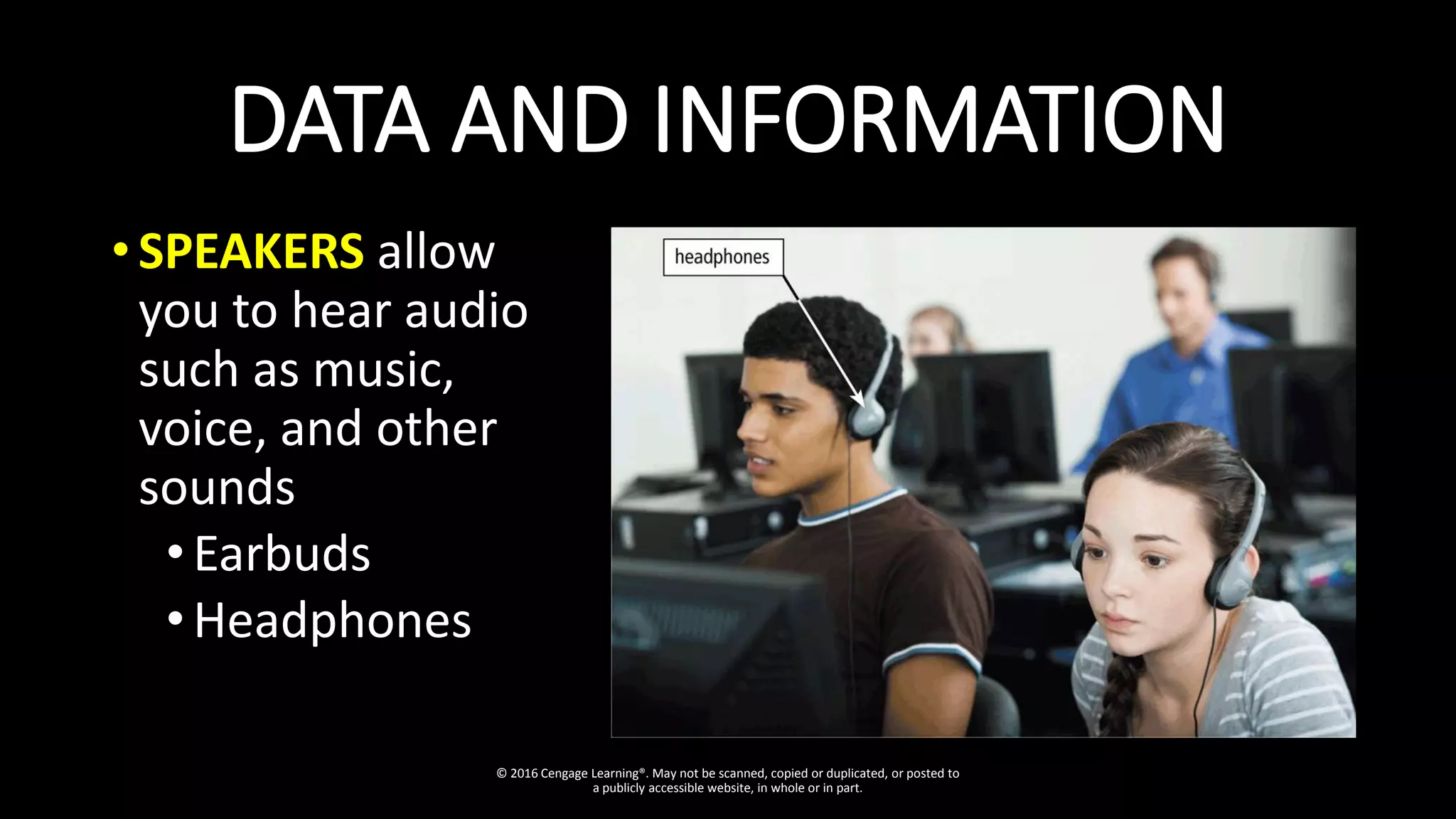
• SPEAKERS allow
you to hear audio
such as music,
voice, and other
sounds
•Earbuds
•Headphones
© 2016 Cengage Learning®. May not be scanned, copied or duplicated, or posted to
a publicly accessible website, in whole or in part.
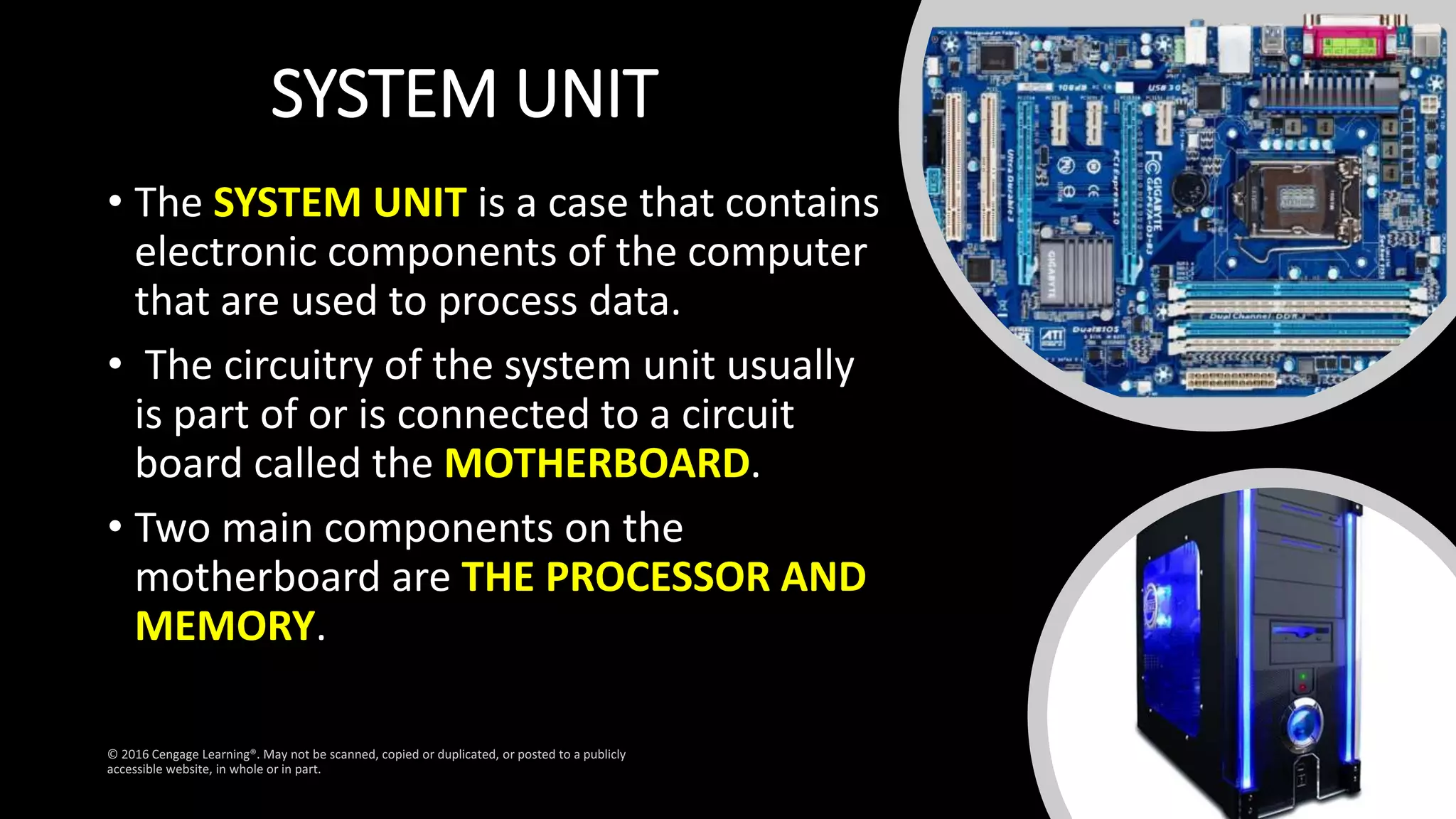
SYSTEM UNIT
• The SYSTEM UNIT is a case that contains
electronic components of the computer
that are used to process data.
• The circuitry of the system unit usually
is part of or is connected to a circuit
board called the MOTHERBOARD.
• Two main components on the
motherboard are THE PROCESSOR AND
MEMORY.
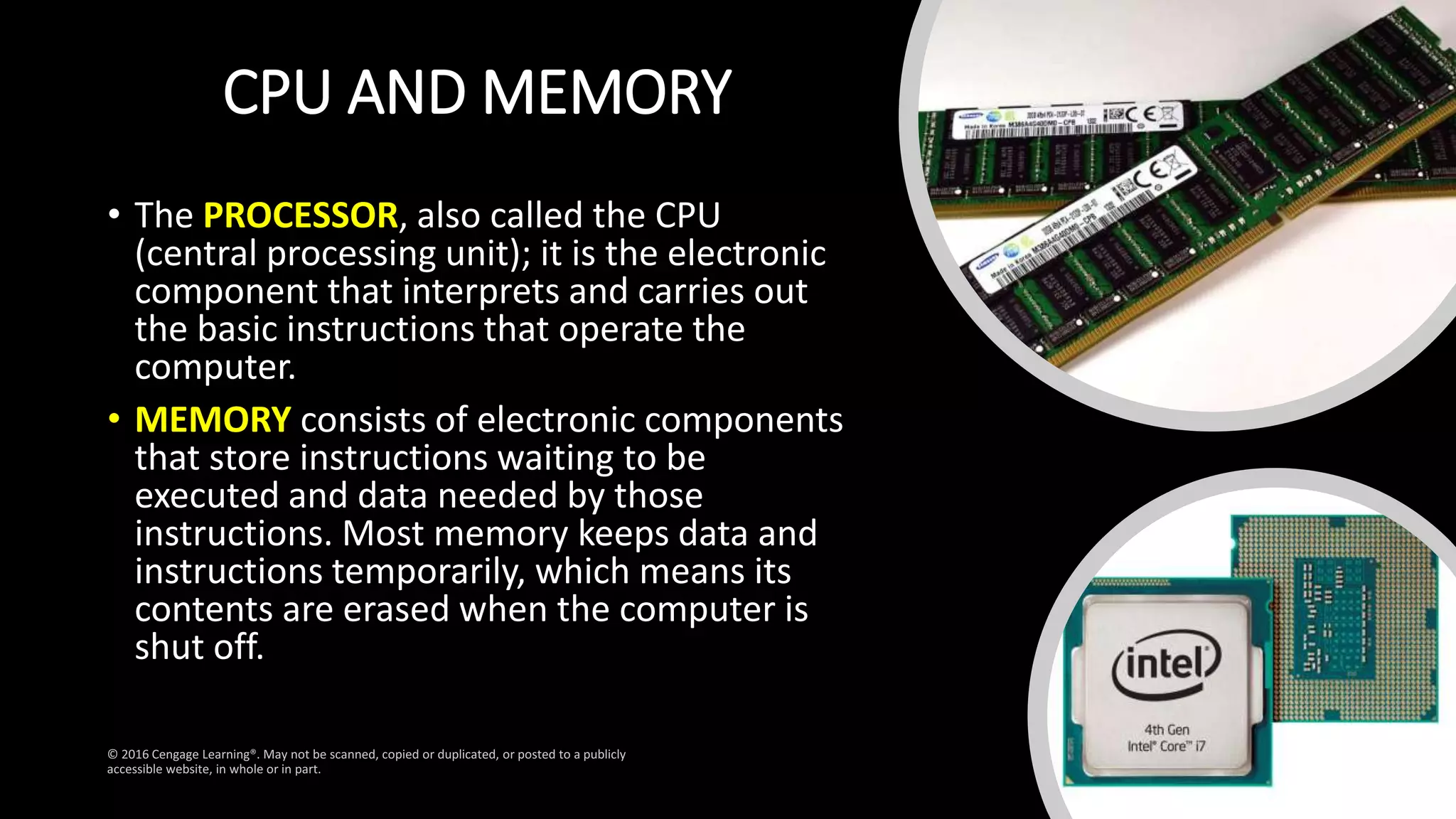
CPU AND MEMORY
• The PROCESSOR, also called the CPU
(central processing unit); it is the electronic
component that interprets and carries out
the basic instructions that operate the
computer.
• MEMORY consists of electronic components
that store instructions waiting to be
executed and data needed by those
instructions. Most memory keeps data and
instructions temporarily, which means its
contents are erased when the computer is
shut off.
DATA AND INFORMATION
• A COMPUTER keeps data, instructions and information on STORAGE
MEDIA
• STORAGE holds data, instructions, and information for future use.
For example, computers can store hundreds or millions of customer
names and addresses. Storage holds these items permanently.
• A STORAGE DEVICE records (writes) and/or retrieves (reads) items
to and from STORAGE MEDIA. Storage devices often function as a
source of input because they transfer items from storage to
memory.
• Examples of storage media are USB flash drives, hard disks, optical
discs, and memory cards.
© 2016 Cengage Learning®. May not be scanned, copied or duplicated, or posted to a publicly accessible website, in whole or in part.
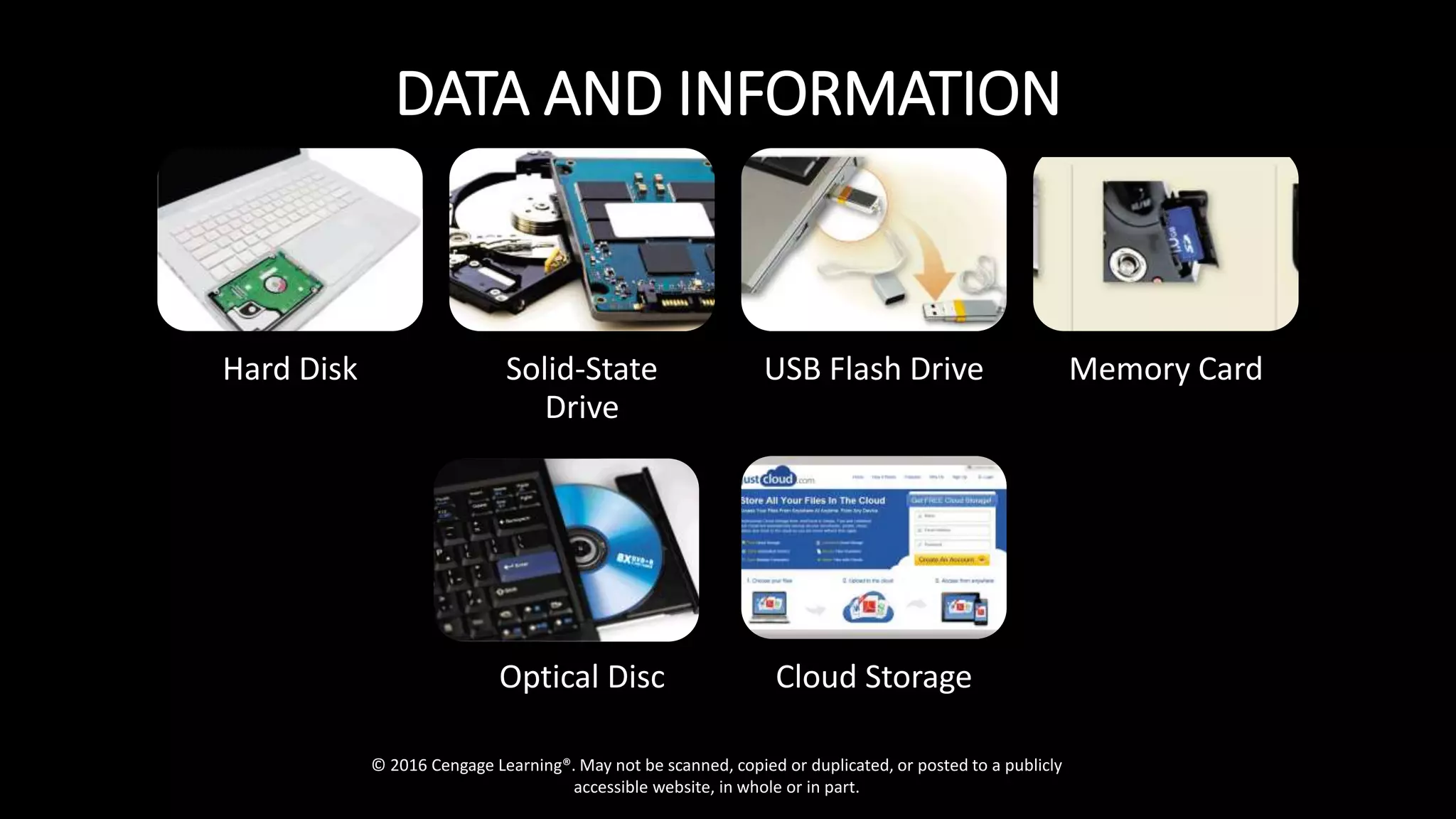
DATA AND INFORMATION
Hard Disk Solid-State
Drive
USB Flash Drive Memory Card
Optical Disc Cloud Storage
© 2016 Cengage Learning®. May not be scanned, copied or duplicated, or posted to a publicly
accessible website, in whole or in part.
DATA AND INFORMATION
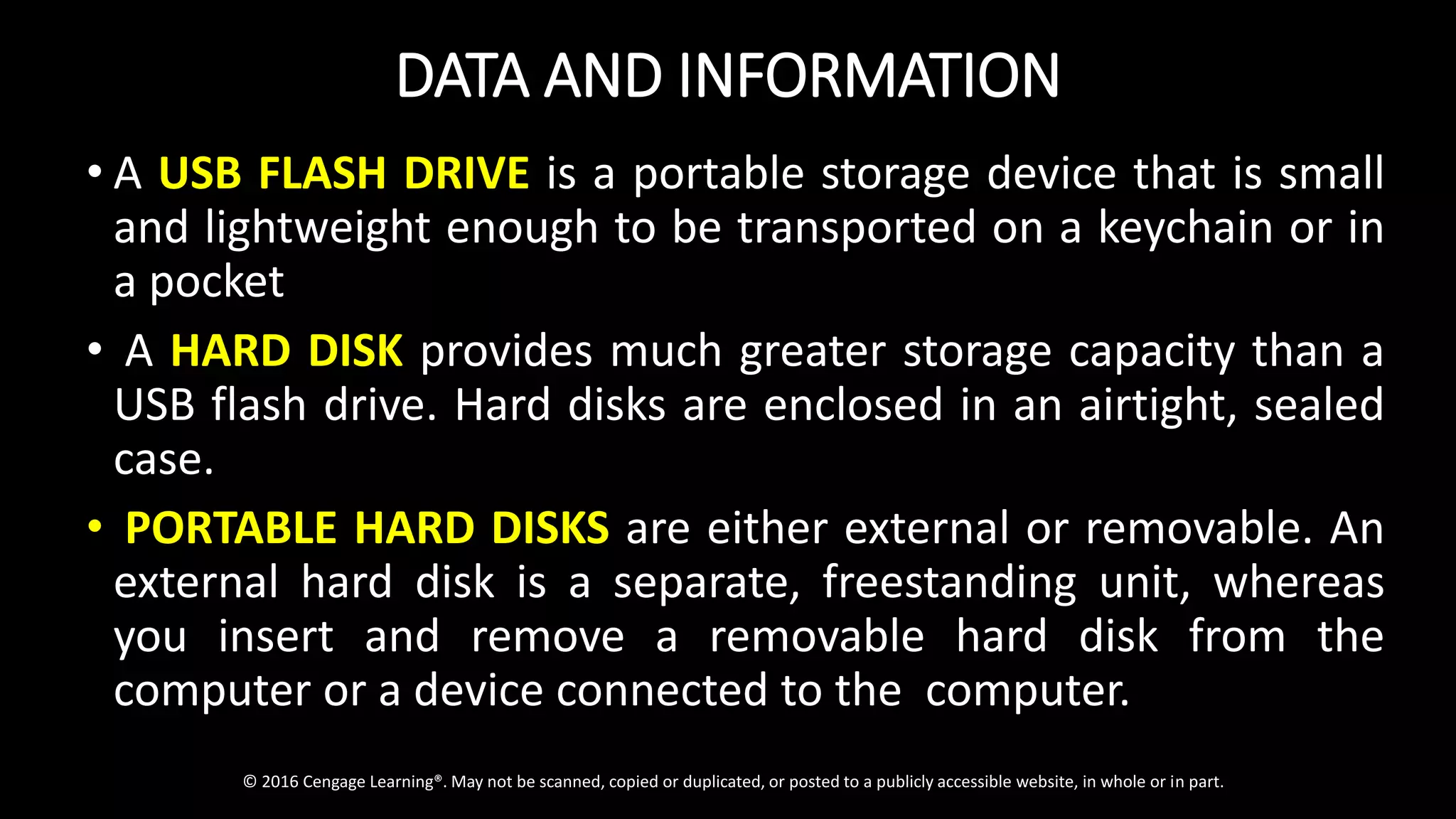
• A USB FLASH DRIVE is a portable storage device that is small
and lightweight enough to be transported on a keychain or in
a pocket
• A HARD DISK provides much greater storage capacity than a
USB flash drive. Hard disks are enclosed in an airtight, sealed
case.
• PORTABLE HARD DISKS are either external or removable. An
external hard disk is a separate, freestanding unit, whereas
you insert and remove a removable hard disk from the
computer or a device connected to the computer.
© 2016 Cengage Learning®. May not be scanned, copied or duplicated, or posted to a publicly accessible website, in whole or in part.
DATA AND INFORMATION
•An OPTICAL DISC is a flat, round, portable metal disc
with a plastic coating. CDs, DVDs, and Blu-ray Discs are
three types of optical discs.
•A CD can hold from 650 million to 1 billion characters.
Some DVDs can store two full-length movies or 17 billion
characters. Blu-ray Discs can store about 46 hours of
standard video, or 100 billion characters.
•Some mobile devices, such as digital cameras, use
MEMORY CARDS as the storage media. You can use a
card reader/writer.
© 2016 Cengage Learning®. May not be scanned, copied or
duplicated, or posted to a publicly accessible website, in whole
or in part.
WHY COMPUTERS ARE POWERFUL
Computers are powerful for a variety of reasons. They work with
remarkable speed, reliability, consistency and accuracy. It is also
used to store large amount of data and is used for
communication.
SPEED – In the system unit, operations get done through
electronic circuits. When data, instructions and information drift
along these circuits, they travel at incredibly fast speeds. Most
computers bring out billion of operations in a single second. The
world’s fastest computer can perform trillions of operations in
one second.
LIVING IN IT ERA
WHY COMPUTERS ARE POWERFUL
RELIABILITY AND CONSISTENCY – The electronic components in a
modern computers are dependable because they have a low
failure rate. The high reliability of components enables the
computer to produce consistent results.
ACCURACY – Computers process large amounts of data and
generate error-free results, provided the data is inputted
correctly and the instructions work properly. If data is
inaccurate, the resulting output is also incorrect. A computing
phrase known as garbage in, garbage out points out that the
accuracy of a computer’s output depends on the accuracy of the
input.
LIVING IN IT ERA
WHY COMPUTERS ARE POWERFUL
COMMUNICATION – happens between two or more people
sending and receiving messages from one another. The one
sending the message is referred to as the sender while the one
receiving the information is known as the receiver.
LIVING IN IT ERA
CLASSIFYING COMPUTERS
Computers can be classified based on size and computing power. The general
classifications of computers are as follows:
• PERSONAL COMPUTER – a small single – user computer based on a microprocessor,
a personal computer has a keyboard for entering data, monitor for displaying
information and a storage device for saving data.
• WORKSTATION – powerful, single-user computer. Just like the PC built has more
powerful microprocessor and a higher quality monitor.
• MINICOMPUTER – multi-user computer capable of supporting from 10 to hundreds
of users simultaneously.
• MAINFRAME – powerful multi-user computer capable of supporting hundreds or
thousands of users simultaneously.
• SUPERCOMPUTER – extremely fast computer that can perform millions of
instructions per second. Example is NASA’s Pleiades supercomputer that has
245,536 CPU cores and a total memory of 935TB.
LIVING IN IT ERA
TYPES OF COMPUTERS
Computers are also categorized into several types according to specific use due to the
introduction of mobile devices and proliferation of internet devices. The different
types of computers are as follows:
• DESKTOP COMPUTERS – designed to be placed on a desk.
• LAPTOP COMPUTERS – are battery-powered computer devices whose portability
makes them possible to use almost anytime, anywhere.
• TABLET COMPUTERS – hand-help computers with touch sensitive screen for typing
and navigation.
• SMARTPHONES – hand-held telephones which can do things that computers can
do, including browsing and searching the internet even playing games.
• WEARABLES – includes fitness trackers and smartwatches that can be worn
throughout the day.
• SMART TVs – are the latest television sets that include applications presents in
computers; videos can be streamed from the internet directly onto the TV. It can be
used as a computer monitor and gaming monitor.
LIVING IN IT ERA
The Web
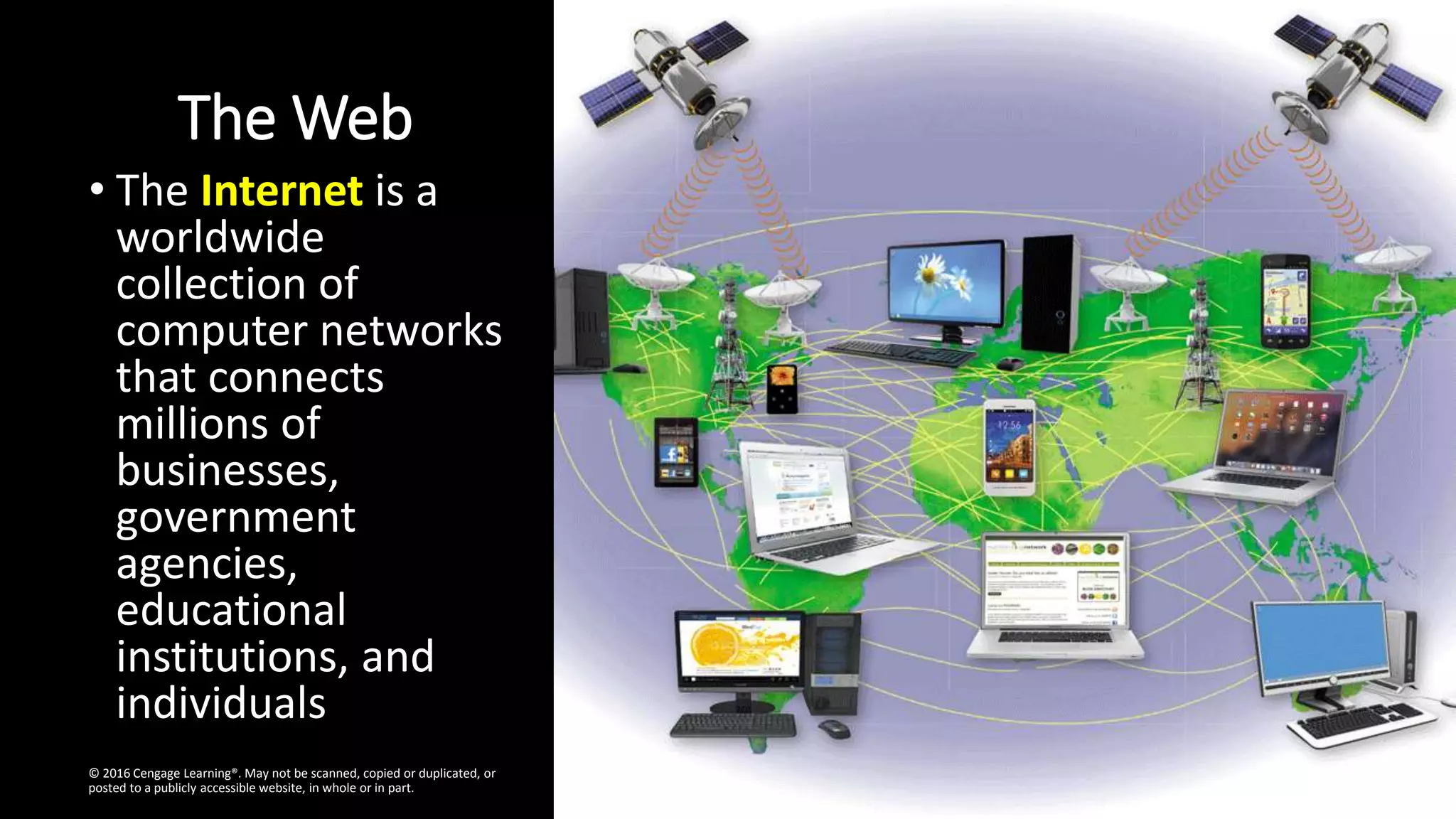
• The Internet is a
worldwide
collection of
computer networks
that connects
millions of
businesses,
government
agencies,
educational
institutions, and
individuals
© 2016 Cengage Learning®. May not be scanned, copied or duplicated, or
posted to a publicly accessible website, in whole or in part.
The
Web
© 2016 Cengage Learning®. May not be scanned, copied or duplicated, or posted to a publicly
accessible website, in whole or in part.
The Web
© 2016 Cengage Learning®. May not be scanned, copied or duplicated, or posted to a publicly accessible website, in whole or in part.
The Web
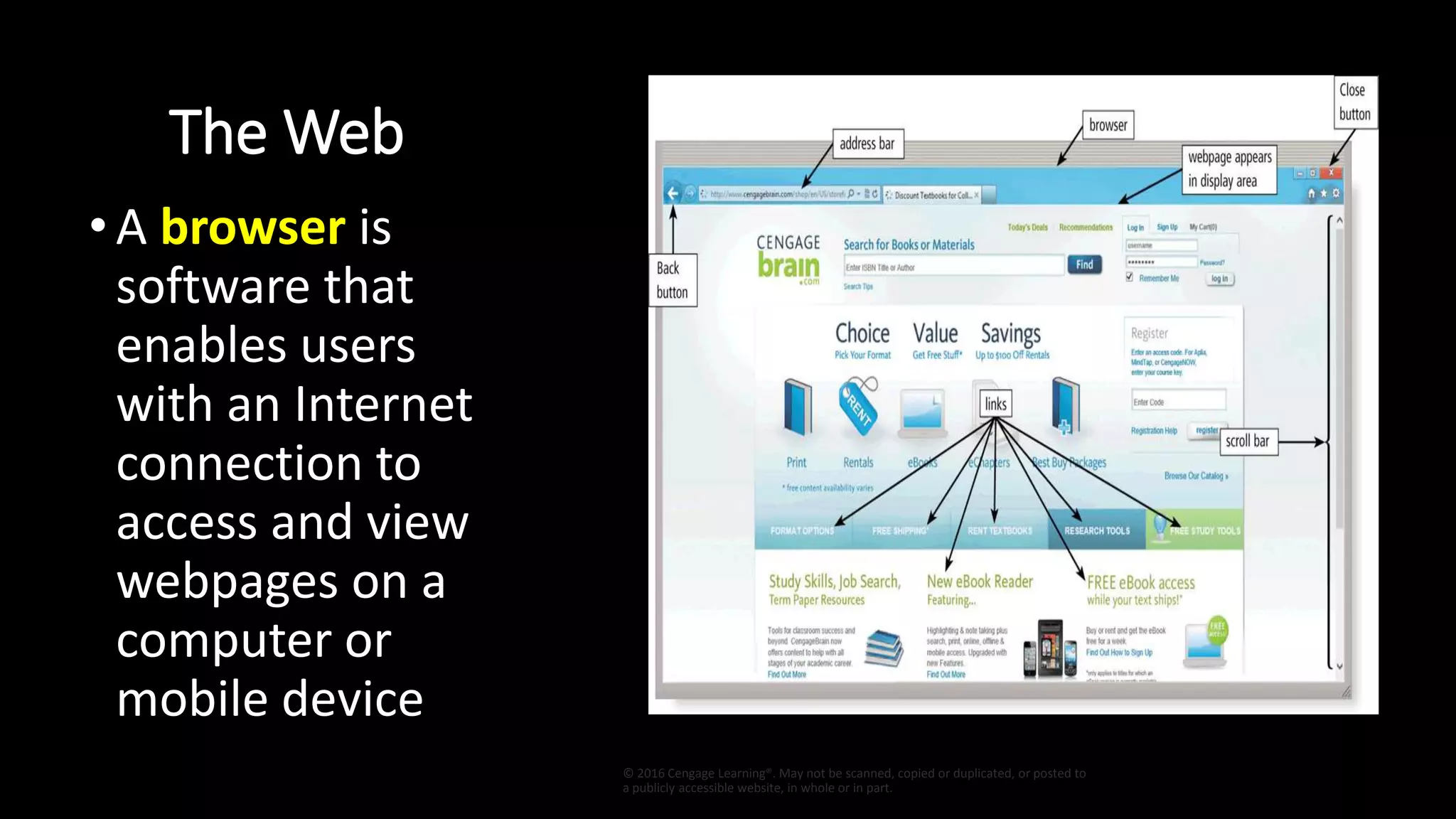
•A browser is
software that
enables users
with an Internet
connection to
access and view
webpages on a
computer or
mobile device
© 2016 Cengage Learning®. May not be scanned, copied or duplicated, or posted to
a publicly accessible website, in whole or in part.
The Web
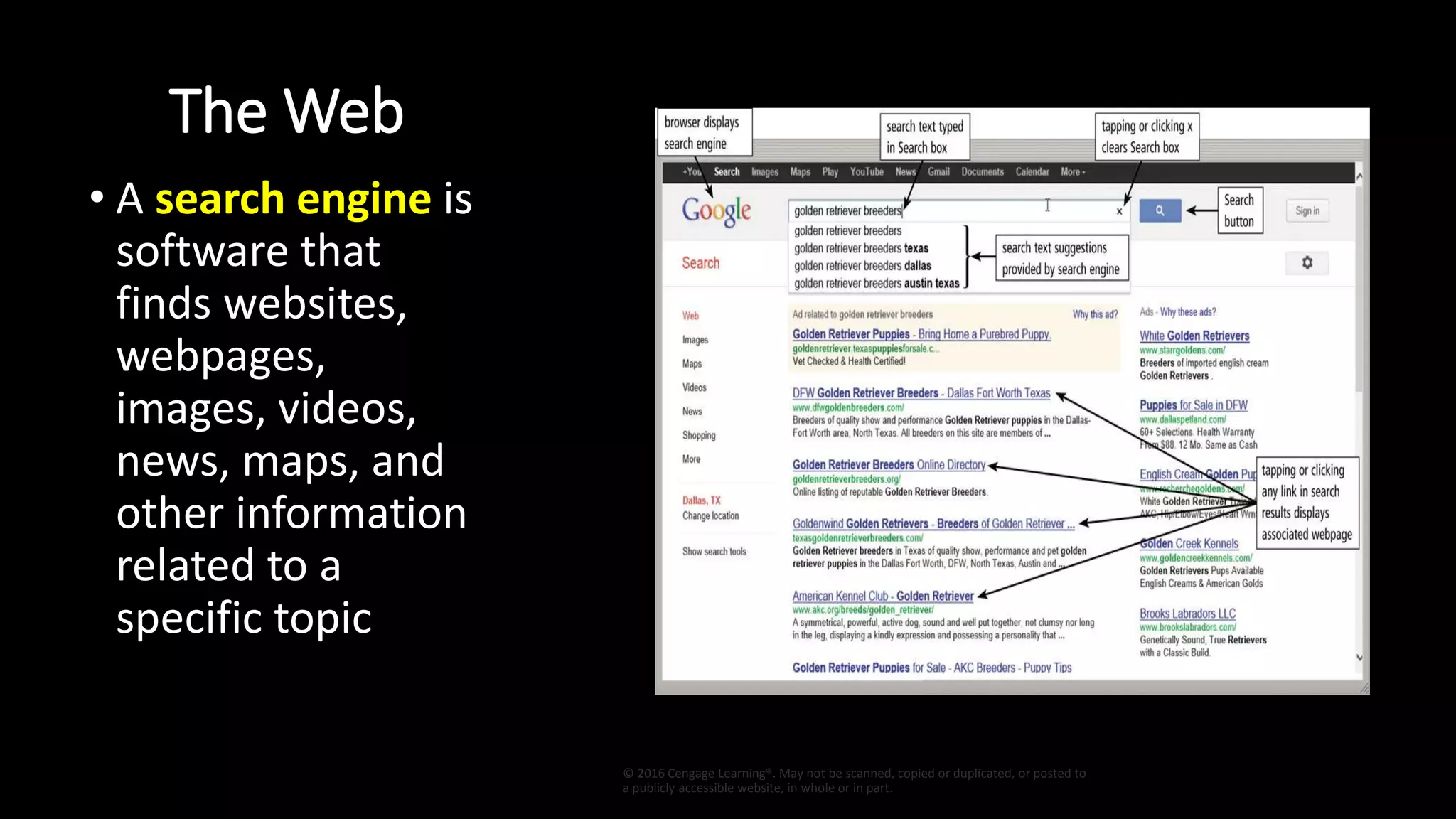
• A search engine is
software that
finds websites,
webpages,
images, videos,
news, maps, and
other information
related to a
specific topic
© 2016 Cengage Learning®. May not be scanned, copied or duplicated, or posted to
a publicly accessible website, in whole or in part.
The Web
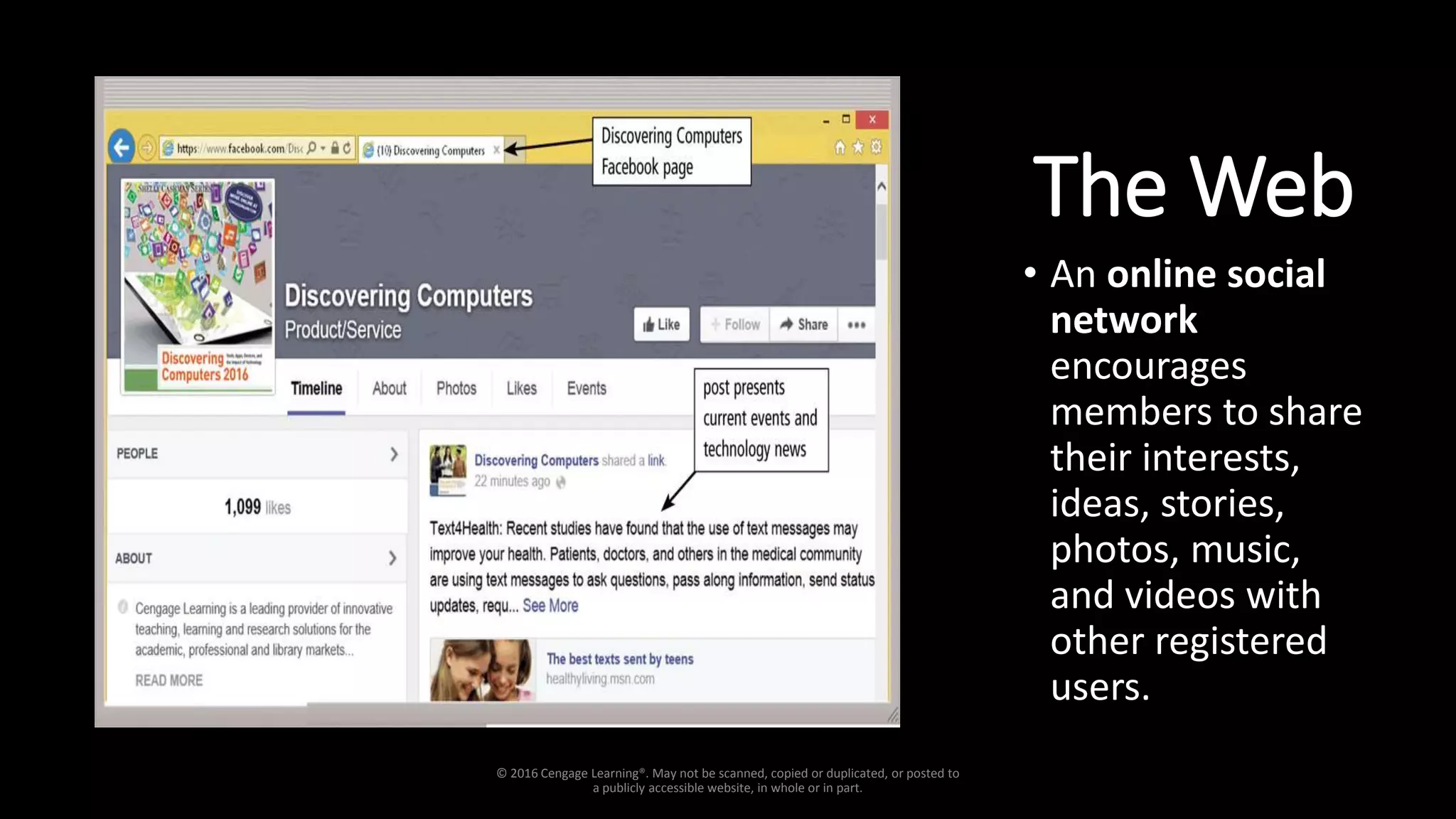
• An online social
network
encourages
members to share
their interests,
ideas, stories,
photos, music,
and videos with
other registered
users.
© 2016 Cengage Learning®. May not be scanned, copied or duplicated, or posted to
a publicly accessible website, in whole or in part.
Digital Safety and Security
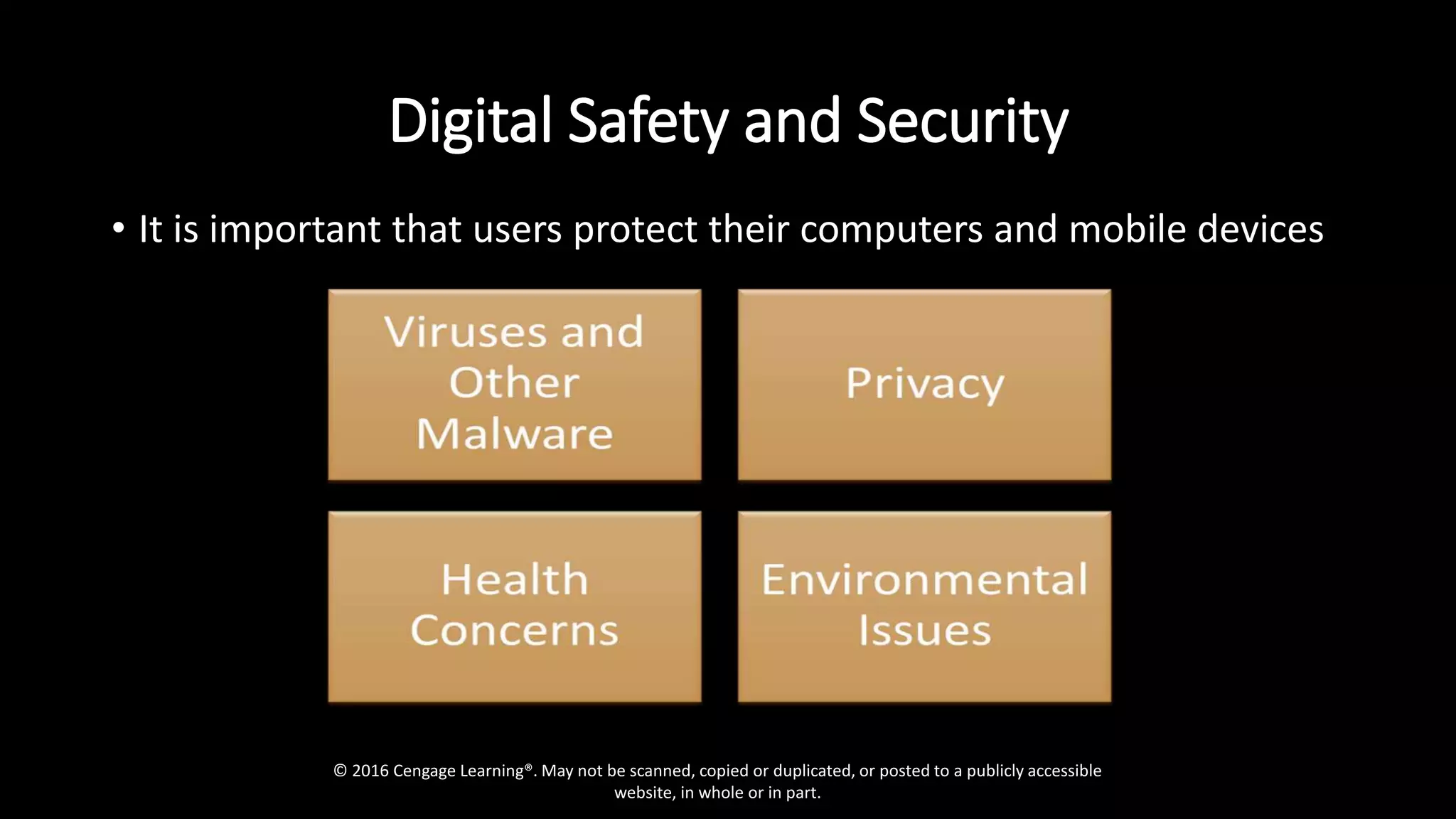
• It is important that users protect their computers and mobile devices
© 2016 Cengage Learning®. May not be scanned, copied or duplicated, or posted to a publicly accessible
website, in whole or in part.
Digital Safety and Security
• Green computing involves reducing the electricity
consumed and environmental waste generated when
using a computer
• Strategies include:
• Recycling
• Using energy efficient hardware and energy saving features
• Regulating manufacturing processes
• Extending the life of computers
• Immediately donating or properly disposing of replaced computers
© 2016 Cengage Learning®. May not be scanned, copied or duplicated, or posted to a publicly accessible website, in whole or in part.
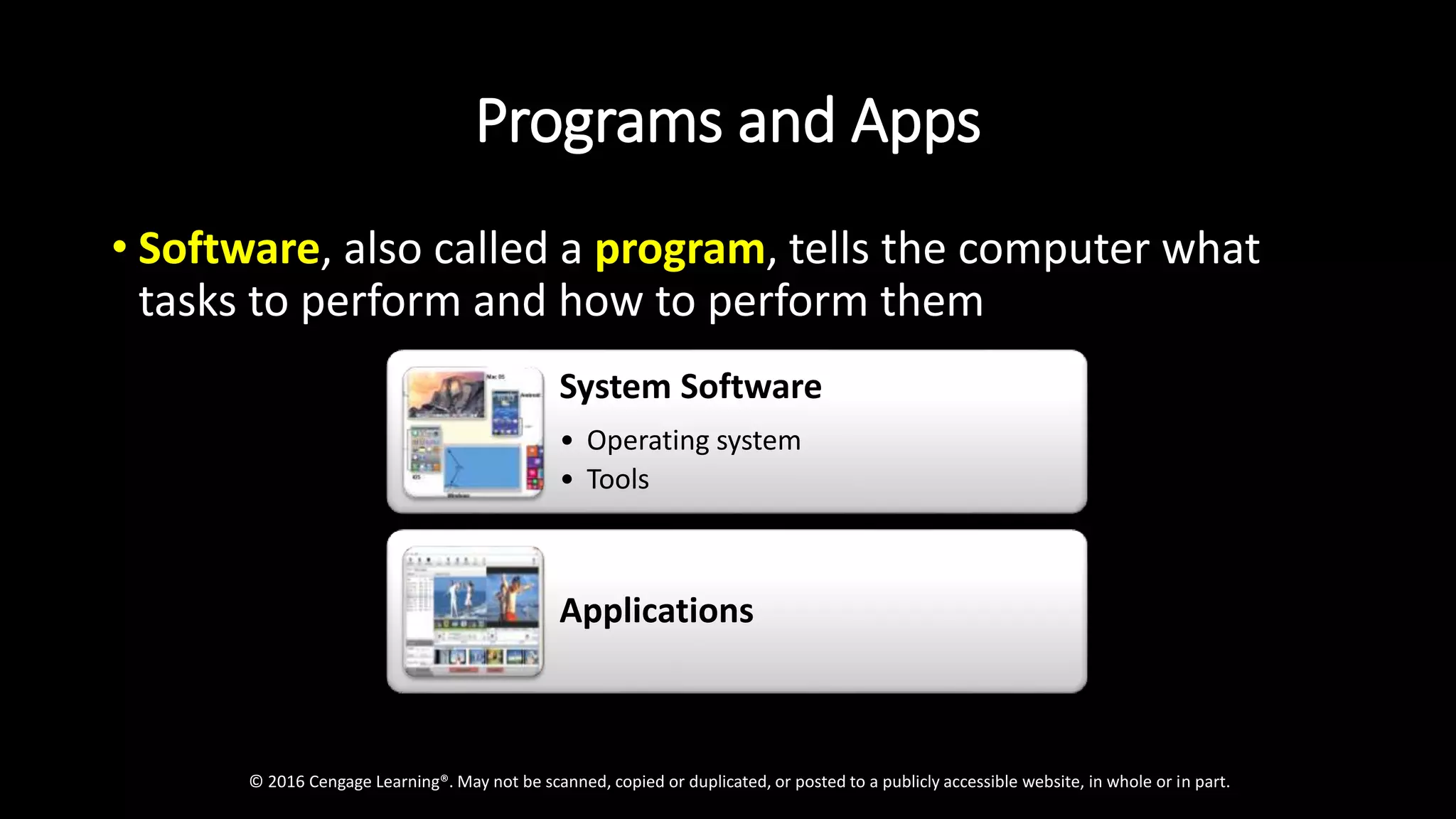
Programs and Apps
• Software, also called a program, tells the computer what
tasks to perform and how to perform them
© 2016 Cengage Learning®. May not be scanned, copied or duplicated, or posted to a publicly accessible website, in whole or in part.
System Software
• Operating system
• Tools
Applications
Programs and Apps
•Installing a program is the process of setting up
the program to work with the computer, mobile
device, printer, and/or other hardware
•Once installed, you can run a program so that
you can interact with it
•You interact with a program through its user
interface
© 2016 Cengage Learning®. May not be scanned, copied or duplicated, or posted to a publicly accessible website, in whole or in part.
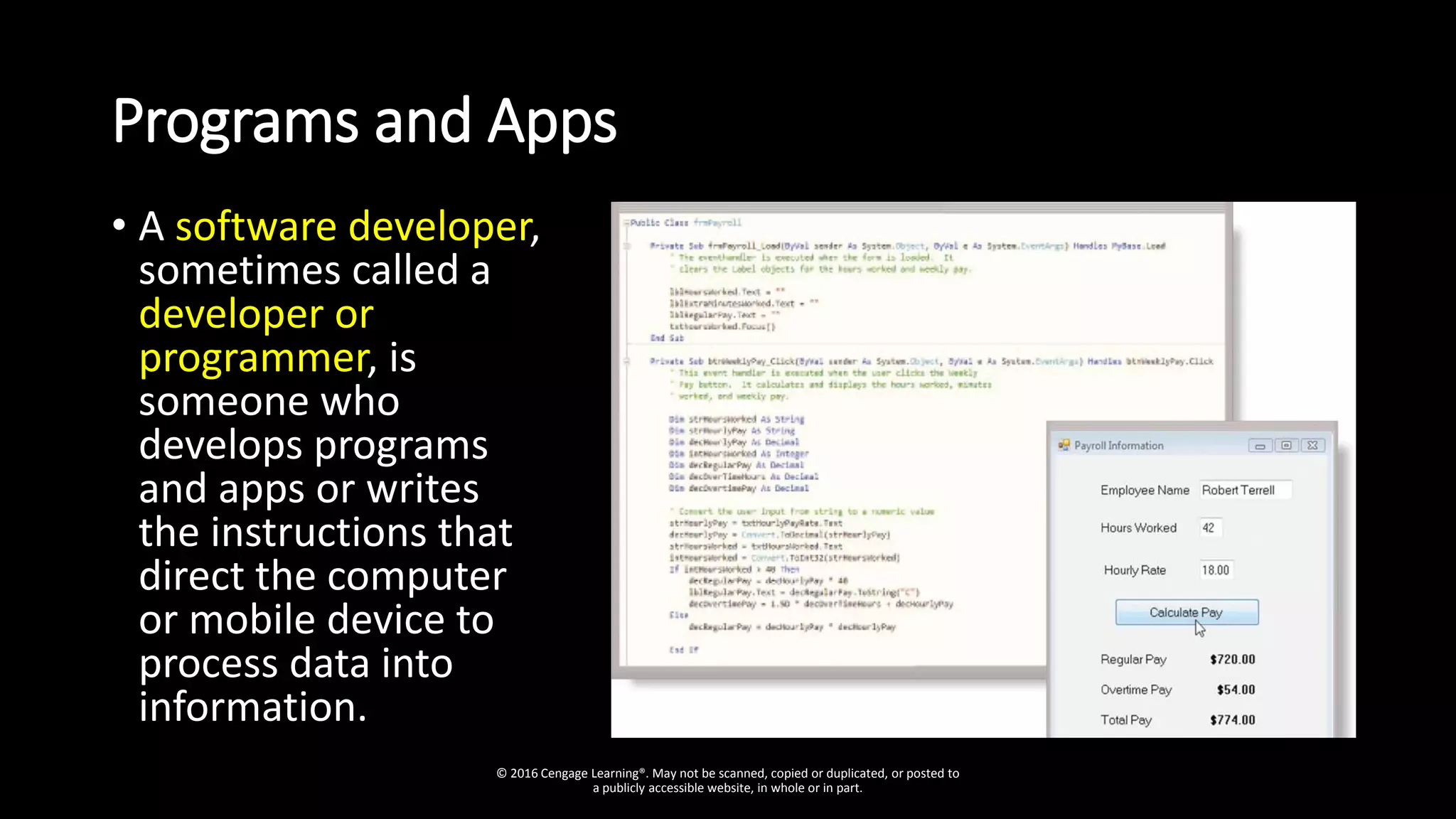
Programs and Apps
• A software developer,
sometimes called a
developer or
programmer, is
someone who
develops programs
and apps or writes
the instructions that
direct the computer
or mobile device to
process data into
information.
© 2016 Cengage Learning®. May not be scanned, copied or duplicated, or posted to
a publicly accessible website, in whole or in part.
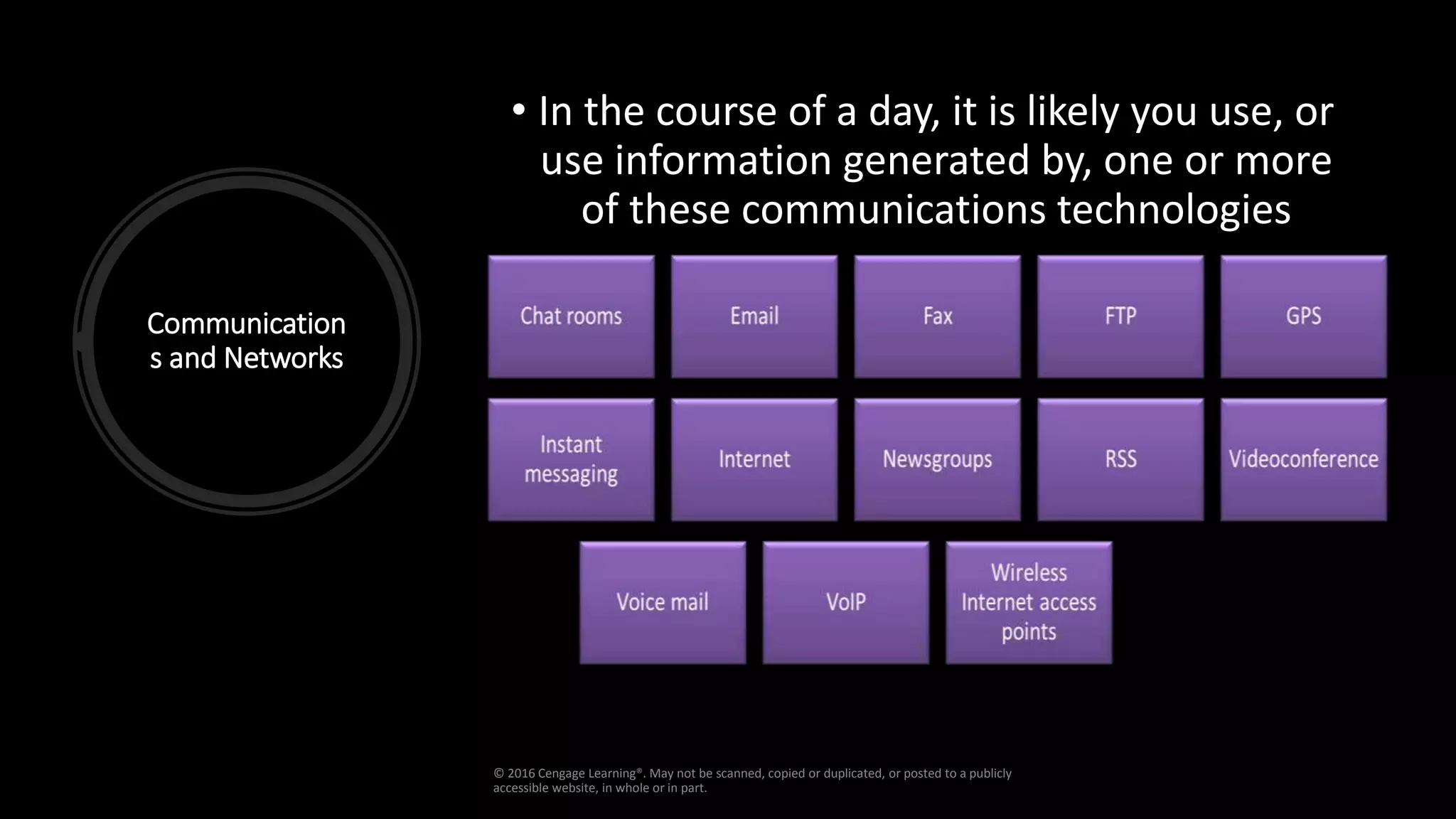
Communication
s and Networks
• In the course of a day, it is likely you use, or
use information generated by, one or more
of these communications technologies
© 2016 Cengage Learning®. May not be scanned, copied or duplicated, or posted to a publicly
accessible website, in whole or in part.
Communications
and Networks
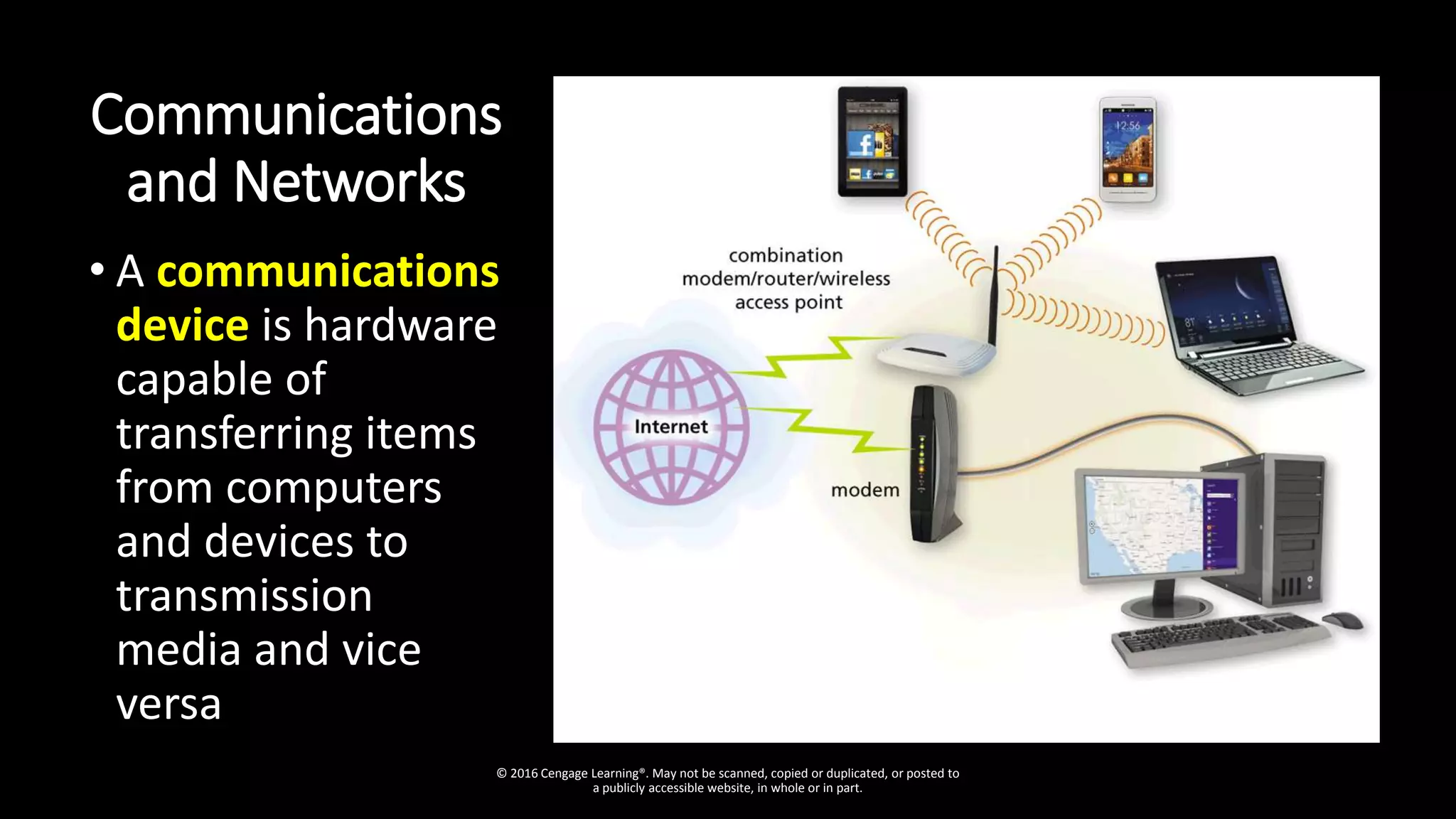
• A communications
device is hardware
capable of
transferring items
from computers
and devices to
transmission
media and vice
versa
© 2016 Cengage Learning®. May not be scanned, copied or duplicated, or posted to
a publicly accessible website, in whole or in part.
Communications and
Networks
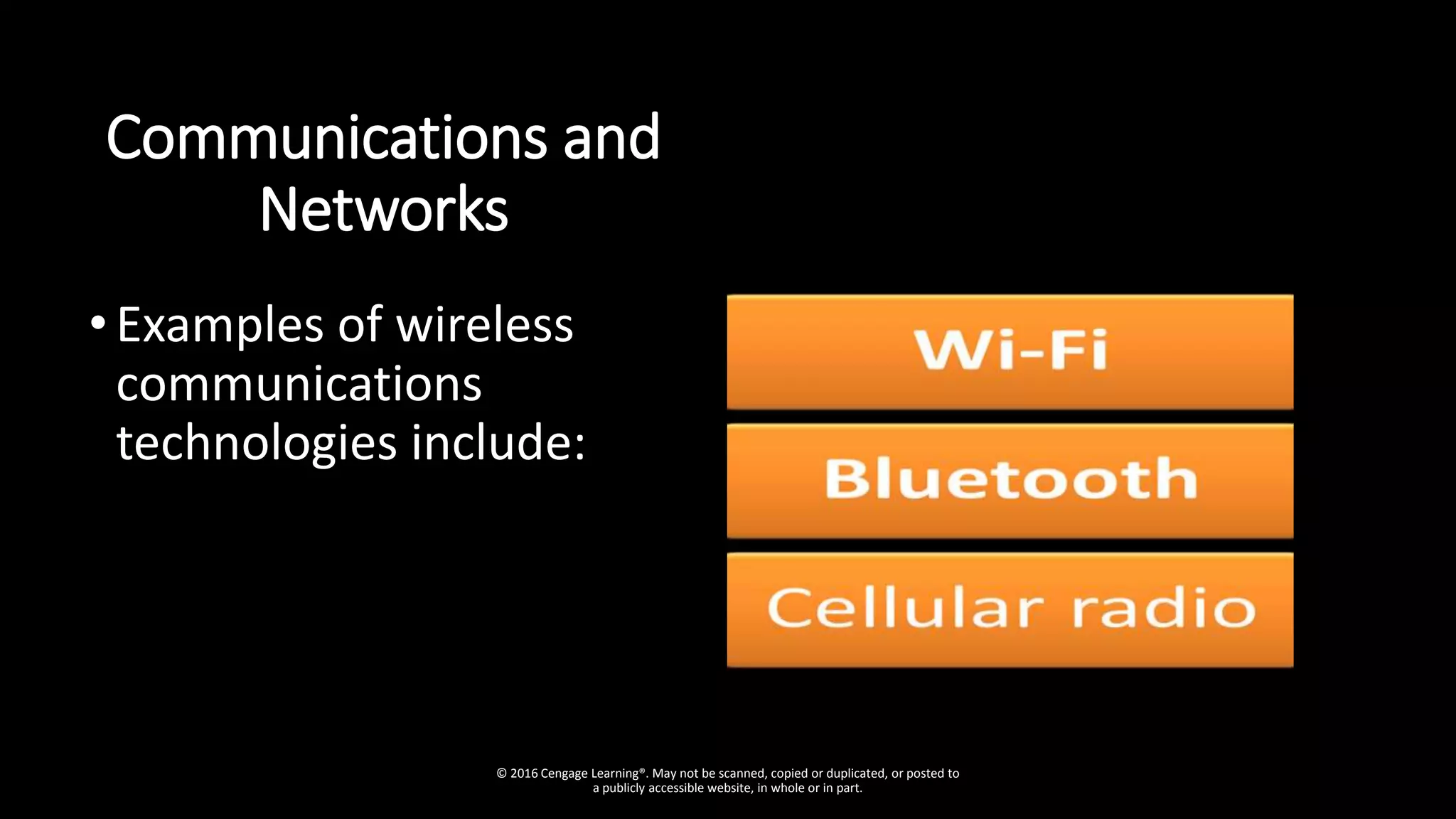
•Examples of wireless
communications
technologies include:
© 2016 Cengage Learning®. May not be scanned, copied or duplicated, or posted to
a publicly accessible website, in whole or in part.
Communications and Networks
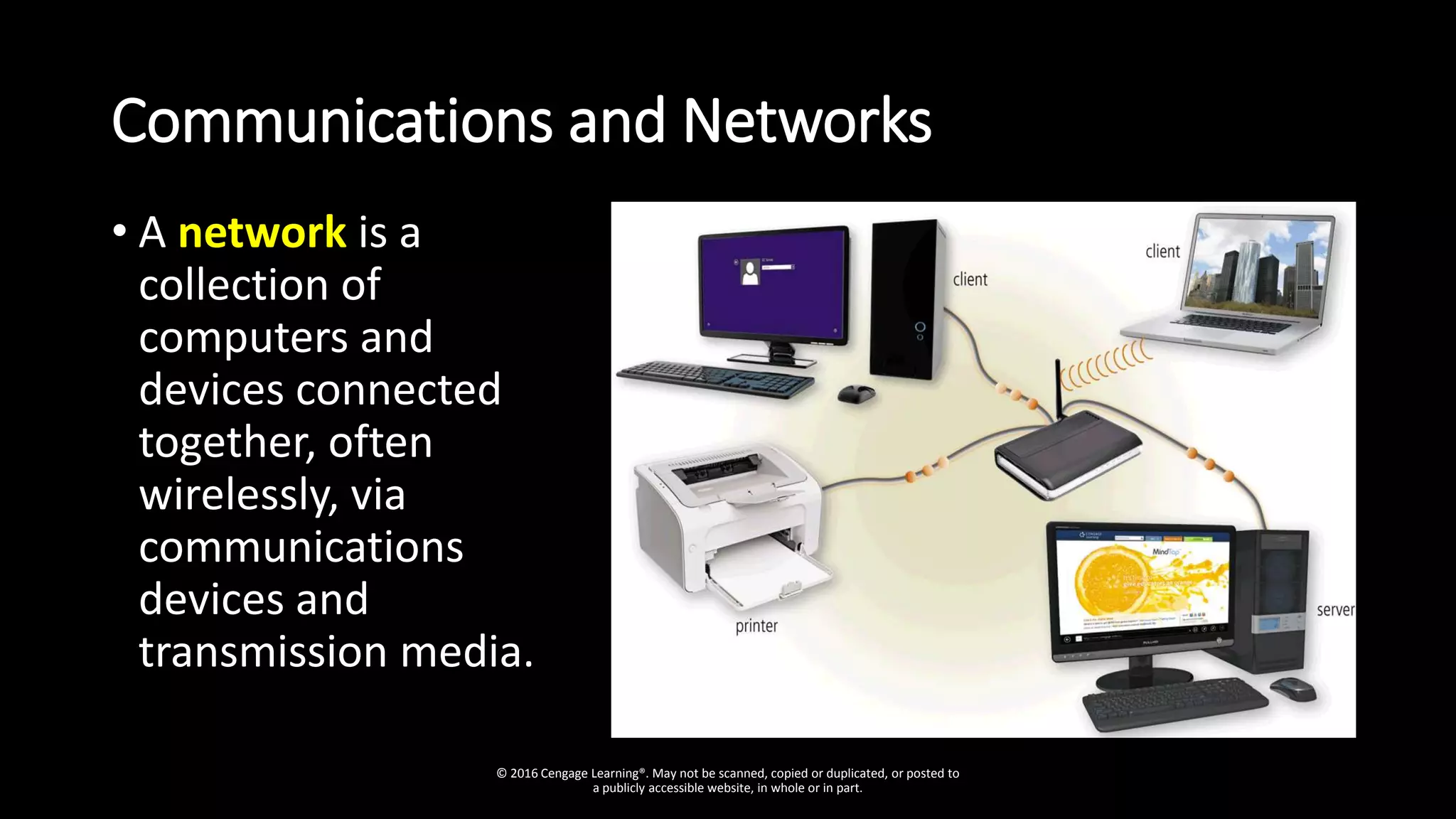
• A network is a
collection of
computers and
devices connected
together, often
wirelessly, via
communications
devices and
transmission media.
© 2016 Cengage Learning®. May not be scanned, copied or duplicated, or posted to
a publicly accessible website, in whole or in part.
Communications and Networks
© 2016 Cengage Learning®. May not be scanned, copied or duplicated, or posted to a publicly accessible website, in whole or in part.
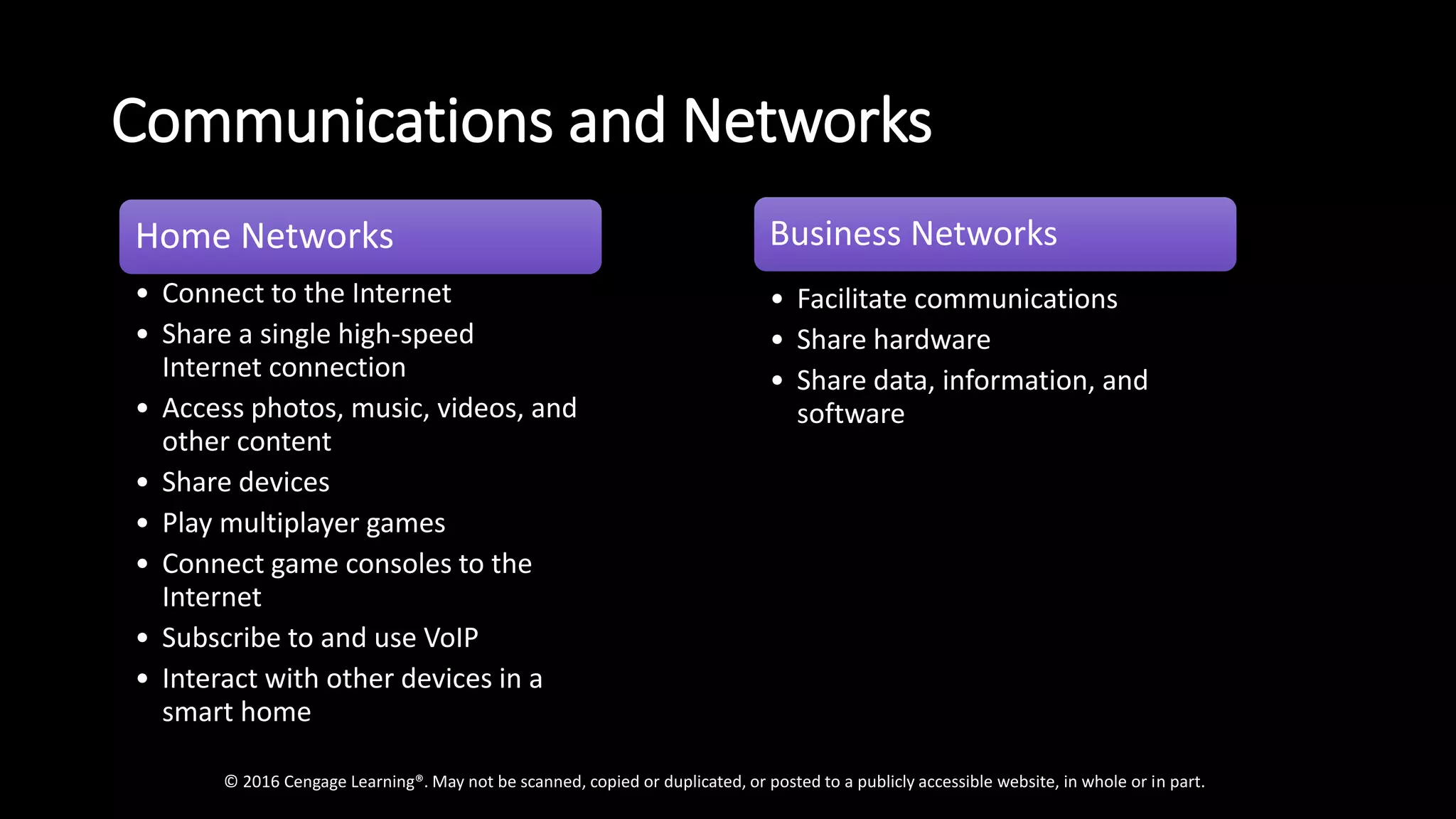
Home Networks
• Connect to the Internet
• Share a single high-speed
Internet connection
• Access photos, music, videos, and
other content
• Share devices
• Play multiplayer games
• Connect game consoles to the
Internet
• Subscribe to and use VoIP
• Interact with other devices in a
smart home
Business Networks
• Facilitate communications
• Share hardware
• Share data, information, and
software
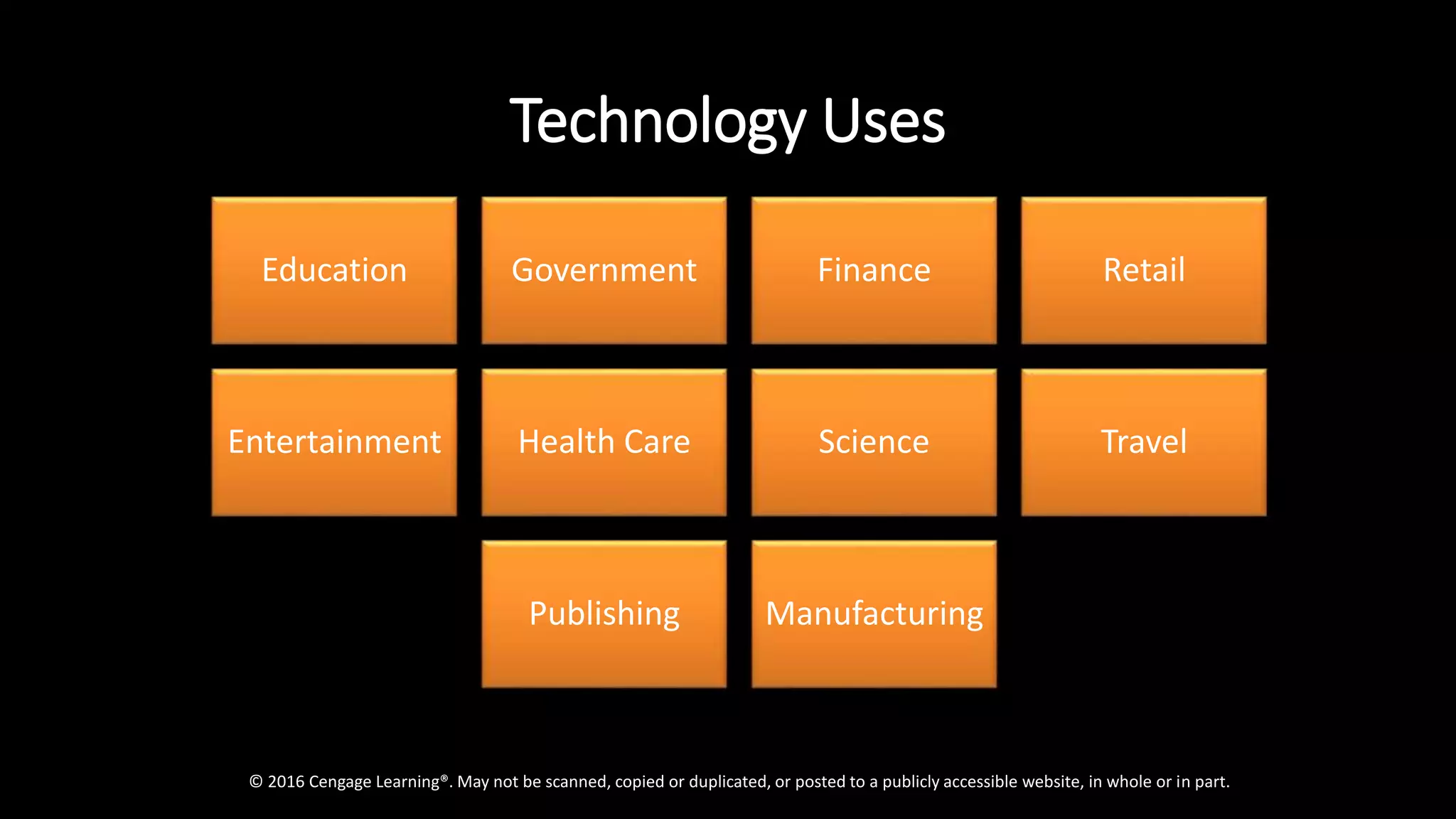
Technology Uses
© 2016 Cengage Learning®. May not be scanned, copied or duplicated, or posted to a publicly accessible website, in whole or in part.
Education Government Finance Retail
Entertainment Health Care Science Travel
Publishing Manufacturing
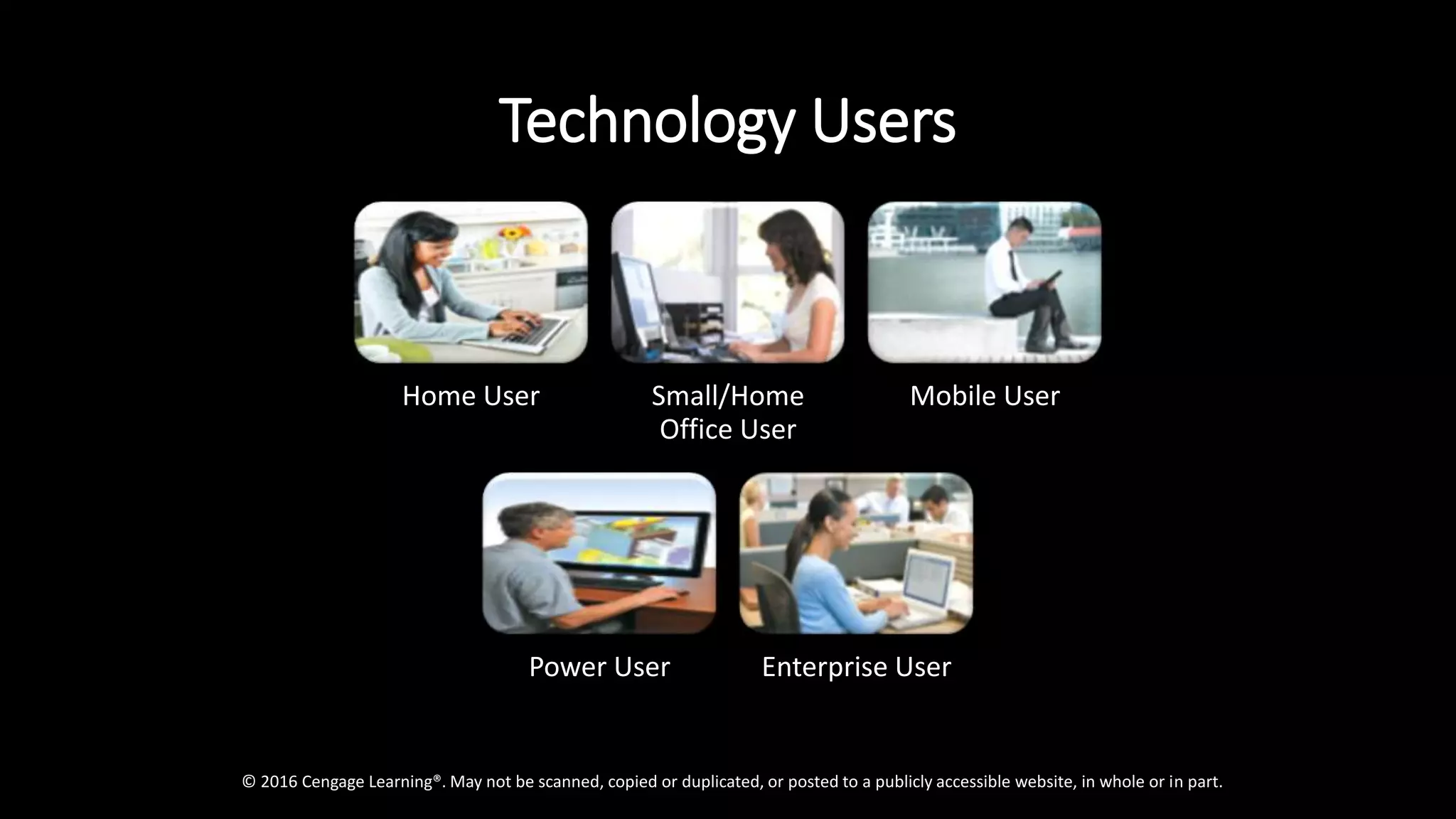
Technology Users
© 2016 Cengage Learning®. May not be scanned, copied or duplicated, or posted to a publicly accessible website, in whole or in part.
Home User Small/Home
Office User
Mobile User
Power User Enterprise User
DIGITAL AGE, INFORMATION AGE, AND
COMPUTER AGE
• MEDIA - refers to the means of communication that uses unique
tools to interconnect among people. The forms of media includes
television, radio, cellular phones, and internet.
• In the digitals age, media can be considered as the message, the
medium and the messenger.
THE MESSAGE
Media is considered to be the message itself for those who create and
own the rights of content. The forms of content can be user-generated
or professionally-produced.
LIVING IN IT ERA
EXAMPLES OF MEDIA TOOLS USED BY
MILLENIALS TO GENERATE CONTENT
• BLOG – it is a combination of two words: WEB and LOG. It is like a
diary or journal, it is used to express one’s thoughts or emotions
through writing, only that in blogging privacy becomes irrelevant
because a blog post cab be seen by anyone online.
• BLOGGER – a person who writes blogs.
Eg. Maine Mendoza “Yaya Dub” in Kalye Serye of Eat Bulaga
- a TV personality who does blogging to further express feelings,
thoughts and opinion.
LIVING IN IT ERA
EXAMPLES OF MEDIA TOOLS USED BY
MILLENIALS TO GENERATE CONTENT
• MICROBLOGS AND VIDEO BLOGS – become popular due to
the rise of Tumblr and Twitter in which users instantly share
limited content or short messages.
• VLOGGERS, YOUTUBEBERS, or SOCIAL MEDIA INFLUENCERS
- uploads videos to blog. They even make money based on
the number of view.
LIVING IN IT ERA
DIGITAL AGE, INFORMATION AGE, AND
COMPUTER AGE
THE MEDIUM
• MEDIUM – refers to the tools used in sending message from the
source to the destination. Eg. (traditional) TV or radio, (today) social
media like TWITTER – users can update others using a certain topic.
THE MESSENGER
• MESSENGER – the one who delivers the message, this why
broadcasters for examples being the messenger of the new are called
“MEDIA”.
LIVING IN IT ERA
EVOLUTION OF MEDIA
• The media has transformed itself based in two things – (1)
how information is presented; and (2) how the connection is
established.
• Woodcut printing on cloth or paper was used in the early
15th century.
• 1436, Johannes Gutenberg - started working on a printing
press which used relief printing and a molding system.
• 1800, TELEGRAPH and TELEPHONE – was developed which makes
two-way communication possible.
LIVING IN IT ERA
EVOLUTION OF MEDIA
• 1900, BROADCASTING and RECORDED MEDIA were introduced;
RADIO and TELEVISION were used to send sound and video to
homes and offices through electromagnetic spectrum or
radiowaves.
• AUDIO (lower frequency band) and VIDEO (higher frequency band)
content can be received depending on the frequency used.
• As communication devices evolved, photo taken using smart
phones can be shared on Facebook, Twitter or Instagram.
• OLX.ph counterpart of Ebay.com, Lazada, Shoppee, let its users buy
and sell items online. This eliminates the need for going to physical
store.
LIVING IN IT ERA
OVERVIEW OF CURRENT TRENDS
• TREND - refers to something hip or popular at a certain point of time. It can
be a particular style in fashion, devices or entertainment.
• In an article from Forbes.com, DeMers (2016) identified seven major
trends in 2017.
1. IoT and SMART HOME TECHNOLOGY
- the so called INTERNET OF THINGS has been trending since 2016. The
vision of IoT has evolved due to the convergence of multiple technologies,
including pervasive wireless communication, data analytics, machine learning
and use of hardware technology such as sensors, mircroprocessors and
microcontrollers. Eg. Controlling home appliances using a mobile phone.
LIVING IN IT ERA
SEVEN MAJOR TRENDS IN 2017
2. AUGMENTED REALITY AND VIRTUAL REALITY
2016, the release of games such as POKEMON GO AND the anticipated VR
headset, OCULUS RIFT, served as a turning point for AR and VR technology.
3. MACHINE LEARNING
Also called ARTIFICIAL INTELLIGENCE, having machines decide for you seems
to be a daunting task and would probably make you think of robots and
talking computers, similar to Iron Man’s Jarvis.
LIVING IN IT ERA
• APPLE’S iPHONE X – iOS intelligent personal assistant , SIRI has also been
upgraded with enhanced learning making the use of iPhone more efficient.
LATEST FEATURES INCLUDE:
• FACE ID – owner’s face is the new password. It is a more secure way to
unlock the phone and keep the data safe.
• A11 BIONIC - claimed to be the most powerful and smartest chip ever in a
smartphone with a neural engine capable of up to 600 billion operations
per second. A neural engine, a type of AI enables computers to learn from
observation.
• WIRELESS CHARGING – a cable is not needed to charge the device
• iOS11 - in its latest OS, one cab scan documents in the notes app, edit live
photos and in the US even pay friends in Messages. SIRI can also translate
languages.
• AUGMENTED REALITY – not just designed for fun. It is also meant for
productivity and efficiency. It allows one to navigate without looking at a
map, visualize industrial equipment and many others.
LIVING IN IT ERA
SEVEN MAJOR TRENDS IN 2017
4. AUTOMATION – eg wearable devices such as step counters and heart rate
monitors used by health-conscious individuals. Information collected is
automatically saved and stored in mobile devices for analysis.
5. BIG DATA
- Describes large and complex volumes of data. But it is not how much data
an organization has it is what they do with it that matters. It can be analyzed
for insights which can help management make better decisions and come up
with more effective strategic plans. Eg WAZE uses big data to determine
traffic, direction, and route estimations.
© 2016 Cengage Learning®. May not be scanned, copied or
duplicated, or posted to a publicly accessible website, in whole
or in part.
SEVEN MAJOR TRENDS IN 2017
6. PHYSICAL – DIGITAL INTEGRATIONS – “paperless company” in
which transactions, reports, services are done using automated
systems . Makes it reliable and environment friendly.
5. EVERYTHING ON DEMAND
- Due to the prevalence of network connectivity, it is possible to
have information on demand. Music, movies, and even drivers (eg
GRAB) are made available through the apps in a smartphone.
LIVING IN IT ERA
IMPACT OF ICT ON INDIVIDUALS, ORGANIZATIONS & SOCIETY
• ICT brings positive and negative effects. It improves education, access to
information and security.
POSITIVE EFFECTS
1. IMPROVED ACCESS TO EDUCATION – use of LMS (learning management
system) which implements educational enhancements such as distance learning
and online tutorials, virtual reality and interactive multimedia.
2. ACCESS TO INFORMATION AND COMMUNICATION – new tools such as VoIP
phone, IM (instant messaging), chat (FB messenger, Google Hangouts, Yahoo
Messenger), video chat (skype, FB video) and emails.
3. SECURITY – Examples of security measure on application are (1) use of
encryption methods to keep and protect data from any malicious software (2)
the use of password for personal information protection (3) development of
physical security such as biometrics in a form fingerprint, facial recognition, (iris
(eye) recognition and voice recognition .
LIVING IN IT ERA
IMPACT OF ICT ON INDIVIDUALS, ORGANIZATIONS & SOCIETY
NEGATIVE EFFECTS
1. REDUCED PERSONAL INTERACTION AND PHYSICAL ACTIVITY – because of
virtual communication, ironically people are less likely to talk to or meet each
other in person. And because of the comfort of working from home and
entertainment that the internet offers, physical activity is reduced leading to
health issues such as obesity and heart disease.
2. JOB LOSS OR INCREASE IN UNEMPLOYMENT –
• MULTIPLE WORKERS – being replaced and reduced by a smaller number of
employees capable of doing the same volume of tasks.
• SHIPPING OR FREIGHT SERVICES – which a certain amount is added to the
operating costs for the physical process of transporting commodities or goods
3. SECURITY – ICT brings threat to security. Internet connection must always be
safeguarded from different attacks such as data modification, identity/IP address
spoofing, password-based attacks, denial of service.
LIVING IN IT ERA
ETHICAL ISSUES IN ICT
• The following are some of the ethical issues in ICT
1. PLAGIARISM – an act of theft in which a person copies another person’s
ideas, words, or writings, etc and pass them off as his or her own. Those
who committed such action may lead to serious legal and ethical
defilements.
2. EXPLOITATION – action in which one deals with a person dishonestly,
unethically, and dishonorably , in order to take advantage of the latter’s
works and /or resources. This lead to unlawful actions.
3. LIBEL – it can either be an insult, slur, or slander. Either written or spoken
or even through actions, it may lead to libel if the accusation is not true
and without any piece of evidence.
• SOFTWARE PIRACY – act of installing or copying a software into the computer in the
absence of an end-user licensing agreement (EULA), and/or producing a copy
disregarding the copyrights.
LIVING IN IT ERA
Q & A
?
Thank you 
© 2016 Cengage Learning®. May not be scanned, copied or
duplicated, or posted to a publicly accessible website, in whole
or in part.
KEY TERMS
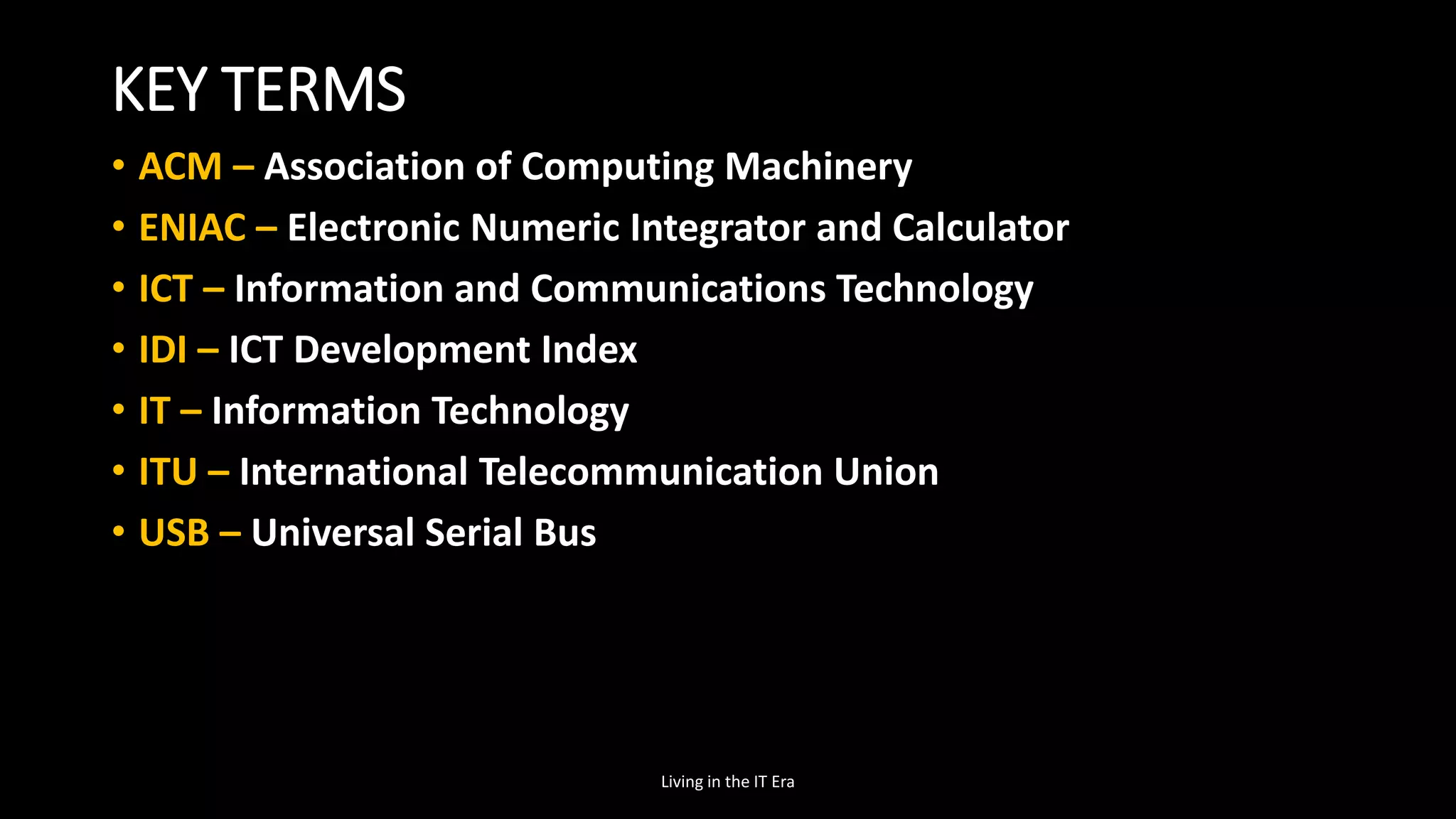
• ACM – Association of Computing Machinery
• ENIAC – Electronic Numeric Integrator and Calculator
• ICT – Information and Communications Technology
• IDI – ICT Development Index
• IT – Information Technology
• ITU – International Telecommunication Union
• USB – Universal Serial Bus
Living in the IT Era
DEFINITION OF TERMS
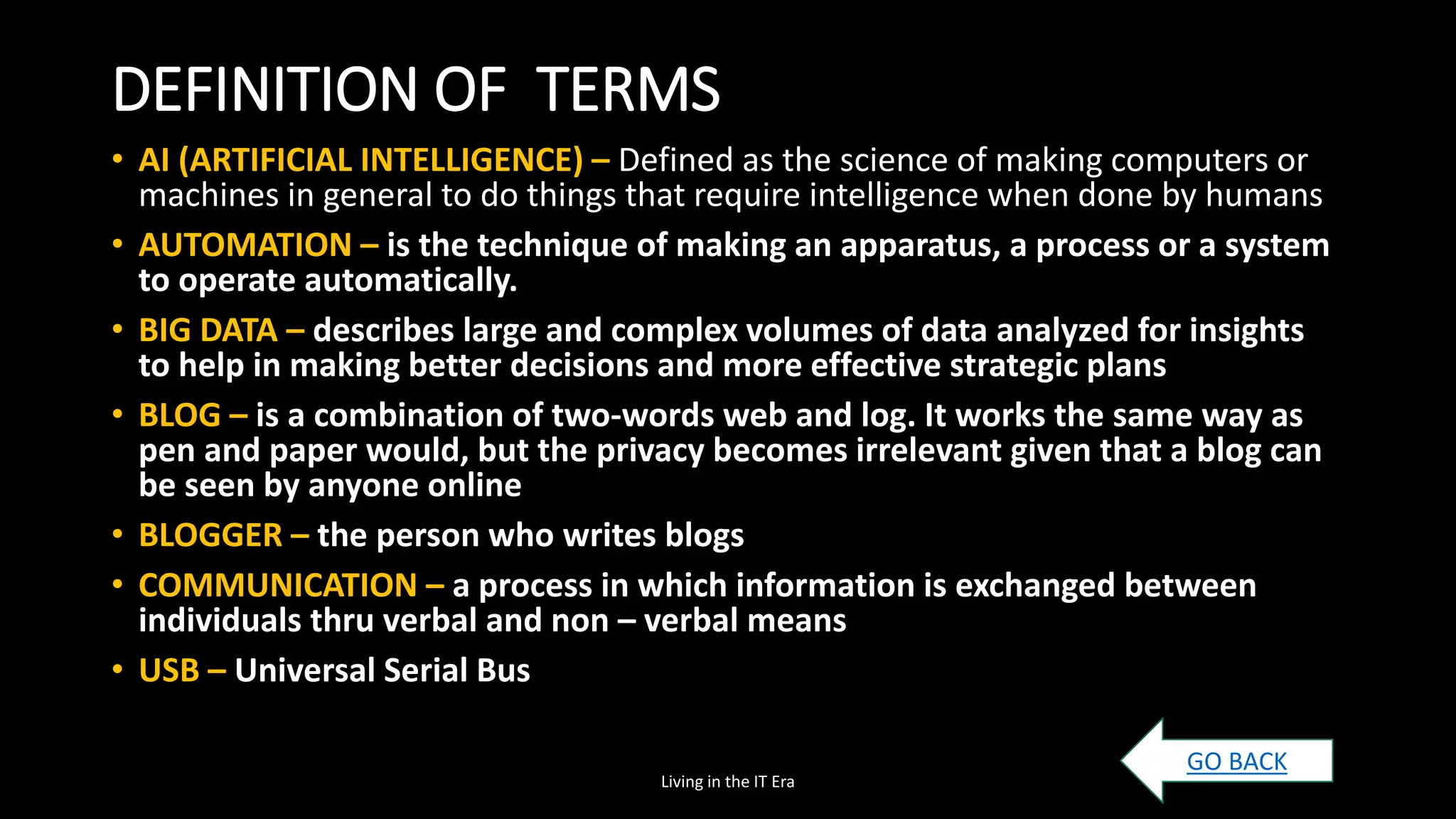
• AI (ARTIFICIAL INTELLIGENCE) – Defined as the science of making computers or
machines in general to do things that require intelligence when done by humans
• AUTOMATION – is the technique of making an apparatus, a process or a system
to operate automatically.
• BIG DATA – describes large and complex volumes of data analyzed for insights
to help in making better decisions and more effective strategic plans
• BLOG – is a combination of two-words web and log. It works the same way as
pen and paper would, but the privacy becomes irrelevant given that a blog can
be seen by anyone online
• BLOGGER – the person who writes blogs
• COMMUNICATION – a process in which information is exchanged between
individuals thru verbal and non – verbal means
• USB – Universal Serial Bus
Living in the IT Era
GO BACK

Chap1 introducing today's technologies

  • 1.
    INTRODUCING TODAY’S TECHNOLOGY Living inthe Information Technology Era and Discovering Computers 2016 Leslyn Bonachita – Reazol Living in IT Era Instructor © 2016 Cengage Learning®. May not be scanned, copied or duplicated, or posted to a publicly accessible website, in whole or in part.
  • 2.
    Objectives Overview • DefineICT and trace the evolution of technology, • Differentiate among laptops, tablets, desktops, and servers • Describe the purpose and uses of smartphones, digital cameras, portable and digital media players, e-book readers, wearable devices, and game devices • Describe the relationship between data and information • Briefly explain various input options • Differentiate the web from the Internet, and describe the relationship among the web, webpages, websites, and web servers • Explain the purpose of a browser, a search engine, and an online social network © 2016 Cengage Learning®. May not be scanned, copied or duplicated, or posted to a publicly accessible website, in whole or in part.
  • 3.
    Objectives Overview • Brieflydescribe digital security risks associated with viruses and other malware, privacy, your health, and the environment • Differentiate between an operating system and applications • Differentiate between wired and wireless technologies, and identify reasons individuals and businesses use networks • Discuss how society uses technology in education, government, finance, retail, entertainment, health care, science, travel, publishing, and manufacturing • Identify technology used by home users, small/home office users, mobile users, power users, and enterprise users © 2016 Cengage Learning®. May not be scanned, copied or duplicated, or posted to a publicly accessible website, in whole or in part.
  • 4.
    OPENING ACTIVITY • Group1 MOBILE PHONE • Group 2 LAPTOP SPEAKER • Group 3 POWER BANK • Group 4 FLASH DRIVE • Group 5 HEADSET OR EARPHONES Discuss the use of the device, the frequency of your usage and your experience in using it. Share your group’s insight with the class. Living in the IT Era
  • 5.
    KEY TERMS TOBE DISCUSSED IN THIS LESSON • ACM • ENIAC • ICT • IDI • IT • ITU • USB • AI • USER • WORKSTATION LIVING IN IT ERA • AUTOMATION • BIG DATA • BLOG • BLOGGER • COMMUNICATION • COMMUNICATION DEVICE • COMPACT DISC • COMPUTER • STORAGE • SUPERCOMPUTER • SYSTEM UNIT • TECHNOLOGY • TREND • DESKTOP COMPUTER • EXPLOITATION • HARD DISK • INFORMATION • INFORMATION AGE • INFORMATION AND COMMUNICATIONS TECHNOLOGY (ICT) • IT • INPUT & OUTPUT DEVICE • SOFTWARE PIRACY • INTELLIGENT SYSTEMS • LAPTOP COMP • LIBEL • MAINFRAME • MEDIA • MINICOMPUTER • MODEM • MOTHERBOARD • PERSONAL COMP • PLAGIARISM • PORT • SMARTPHONE KET TERMS
  • 6.
    Today’s Technology • Becausetechnology changes, you must keep up with the changes to remain digitally literate • Digital literacy involves having a current knowledge and understanding of computers, mobile devices, the web, and related technologies © 2016 Cengage Learning®. May not be scanned, copied or duplicated, or posted to a publicly accessible website, in whole or in part.
  • 7.
    INFORMATION AND COMMUNICATIONS TECHNOLOGY:AN OVERVIEW • TECHNOLOGY presently includes advancements in communication and how information is handled, thus enabling governments, organizations, industries and ordinary individuals to improve on their decision making, business processes and everyday living. • ICT was defined as “related to technologies that facilitate the transfer of information and various types of electronically mediated communications” by Colrain Zuppo LIVING IN IT ERA
  • 8.
    ICT HIERARCHY BY COLRAINZUPPO LIVING IN IT ERA MOBILE SIGNAL INFRASTRUCTURE ICT BUSINESS / IT EDUCATION ECONOMIC SECTOR ECONOMIC DEV’T MOBILE DEVICES PHONES, TABLETS, PAGERS, OTHERS CRISIS /DISEASE MANAGEMENT ACCESS AVAILABILITY MOBILE SIGNAL INFRASTRUCTURE ARCHITECTURES DEVICES NETWORKS SUPPORT SYSTEM PHONES, TABLETS, PAGERS, OTHERS DEVICES / TOOLS SKILLS AND COMPETENCIES PEDAGOGIES PHONES, TABLETS, PAGERS, INCLUDE COMPUTERS RELATED SERVICES GOODS PRODUCED/ MANUFACTURED DIGITAL ECONOMY METRIC
  • 9.
    IT VERSUS ICT •ICT is used in general sense and is described as using computers and other digital technologies to assist individuals or institutions in handling or using information. • It supports activities involving information such as gathering, processing, storing and presenting data. • IT pertains to the industry that involves computers, software, networking, and other IT infrastructure to hep relay or manage information important in modern –day living. • INFORMATION – the knowledge obtained from reading, investigation, study or research. It is needed to make decisions and to foresee the future. • Processed information is called knowledge. It helps to fulfill daily tasks. • COMMUNICATION – act of transmitting messages. It is a process in which information is exchanged between individuals through verbal and non- verbal means • TECHNOLOGY – evolved in ways that improve people’s activities. LIVING IN IT ERA
  • 10.
    EVOLUTION OF TECHNOLOGY LIVINGIN IT ERA TOOLS MACHINES Combining set of tools to do tasks faster and more efficiently AUTOMATION The technique of making a process or system operates automatically INTELLIGENT SYSTEMS Are far more complex and are capable of learning.
  • 11.
    HISTORY OF COMPUTERS ACTIVITY2 Research about the History of Computers, create a short summary of the important points in each generation. Please consider the 1st generation to 5th generation of computers. LIVING IN IT ERA
  • 12.
    FIVE GENERATIONS OFCOMPUTERS (BASED ON DESIGN, SUITABILITY AND RELIABILITY) • FIRST GENERATION COMPUTER (1946 – 1959) • 1946 – ENIAC (Electronic Numeric Integrator and Calculator) designed by J. Presper Eckert and John W. Mauchly from the University of Pennsylvania. - it was the first electronic computer and was considered the first generation of computer - was a modular computer, composed of several panels capable of performing different functions. It could only store limited or small amount of information and only do arithmetic operations such as addition and subtraction up to 10 digits - the computer was roughly 167 square meters and weighed 27 tons that uses vacuum tubes. LIVING IN IT ERA
  • 13.
    FIVE GENERATIONS OFCOMPUTERS (BASED ON DESIGN, SUITABILITY AND RELIABILITY) • SECOND GENERATION COMPUTER (1959 – 1965) • TRANSISTORS are used as the interior sections of the computer; - smaller, faster and more dependable that the vacuum tubes of the first generation computers. - generated less heat and consumed less electricity but were still very costly. LIVING IN IT ERA
  • 14.
    FIVE GENERATIONS OFCOMPUTERS (BASED ON DESIGN, SUITABILITY AND RELIABILITY) • THIRD GENERATION COMPUTER (1965 – 1971) • 1965 - Jack Kilby invented the INTEGRATED CIRCUIT (IC) that was used instead of TRANSISTORS as the interior sections to build the computer • A single IC has many transistors, resistors and capacitors that even the full circuit board of a transistor can be replaced entirely with one chip; smaller, unfailing, effective computers. • Remote processing, time sharing and multiprogramming operating systems were used. LIVING IN IT ERA
  • 15.
    FIVE GENERATIONS OFCOMPUTERS (BASED ON DESIGN, SUITABILITY AND RELIABILITY) • FOURTH GENERATION COMPUTER (1971 – 1980) • VLSI (VERY LARGE SCALE INTEGRATED) CIRCUITS were used to build computers. - these circuits have about 5,000 transistors and other circuit elements with their connected circuits on a single chip known as the microprocessor. - Personal computers became more powerful, dense, reliable and inexpensive using these chips. - other application that uses these chips are pocket calculators, TV, automotive devices and audio and video appliances. LIVING IN IT ERA
  • 16.
    FIVE GENERATIONS OFCOMPUTERS (BASED ON DESIGN, SUITABILITY AND RELIABILITY) • FIFTH GENERATION COMPUTER (1980 – onwards) • ULSI (ULTRA LARGE SCALE INTEGRATION) TECHNOLOGY is the developed VLSI - it involves computer intelligence which is associated with AI (Artificial Intelligence), natural language processing and expert systems that interpret the means and practices of producing computers that think like human beings. LIVING IN IT ERA
  • 18.
    COMPUTER • COMPUTER isan electronic device that manipulates information or data. It is an electronic device, operating under the control of instructions stored in its own memory that can accepts data, process the data according to specified rules, produce results and store results for future use. • It can be a Laptop, Tablet, Desktop, and All-in-One Server
  • 19.
    WHAT IS ACOMPUTER? • How is a computer defined? - Electronic device operating under the control of instructions stored in its own memory © 2016 Cengage Learning®. May not be scanned, copied or duplicated, or posted to a publicly accessible website, in whole or in part. Produces and stores results Accepts data Raw facts, figures & symbols Processes data into information Data that is organized, meaningful, and useful
  • 20.
    WHAT IS ACOMPUTER? •What is the information processing cycle? Input Process Output Storage Communication © 2016 Cengage Learning®. May not be scanned, copied or duplicated, or posted to a publicly accessible website, in whole or in part.
  • 21.
    COMPONENTS OF ACOMPUTER •What is an input device? Hardware used to enter data and instructions © 2016 Cengage Learning®. May not be scanned, copied or duplicated, or posted to a publicly accessible website, in whole or in part.
  • 22.
    DATA AND INFORMATION •A POINTING DEVICE is an input device that allows a user to control a small symbol on the screen called the POINTER • Some mobile devices and computers enable you to speak data instructions using voice input and to capture live full-motion images using video input
  • 23.
    DATA AND INFORMATION •MOUSE - lets one select options from on screen menus. - alternatives to using a mouse: TRACK BALL, TOUCHPAD/TRACKPAD • TRACK BALL – has a ball that can rotate using a finger or a palm of a hand to move a pointer. • TOUCHPAD – is a called a trackpad ; is a touch sensitive pad that lets the user move the pointer by touching and dragging his or her finger on the pad. Touch pad are commonly built-in on laptops. © 2016 Cengage Learning®. May not be scanned, copied or duplicated, or posted to a publicly accessible website, in whole or in part.
  • 24.
    DATA AND INFORMATION • AMICROPHONE allows a user to speak into the computer. • A WEB CAM is a digital video camera that allows users to create movies or take pictures and store them on the computer instead of on tape or film.
  • 25.
    DATA AND INFORMATION •A SCANNERis a light- sensing input device that converts printed text and images into a form the computer can process and use. © 2016 Cengage Learning®. May not be scanned, copied or duplicated, or posted to a publicly accessible website, in whole or in part.
  • 26.
    DATA AND INFORMATION •An OUTPUT DEVICE is any hardware component that conveys information from a computer or mobile device to one or more people • A PRINTER is an output device that produces text and graphics on a physical medium, such as paper or other material • A 3-D printer can print solid objects, such as clothing, prosthetics, eyewear, implants, toys, parts, prototypes, and more © 2016 Cengage Learning®. May not be scanned, copied or duplicated, or posted to a publicly accessible website, in whole or in part.
  • 27.
    TWO TYPES OFPRINTER • IMPACT PRINTER – makes contact with the paper by pressing an inked ribbon against the paper using a hammer or pins. Eg dot-matrix printer • NON-IMPACT PRINTER – does not use a striking device to produce characters on the paper, the printer produces less noise. Eg inkjet printer & laser printer © 2016 Cengage Learning®. May not be scanned, copied or duplicated, or posted to a publicly accessible website, in whole or in part.
  • 28.
    DATA AND INFORMATION • ADISPLAY / MONITOR is an output device that visually conveys text, graphics, and video information © 2016 Cengage Learning®. May not be scanned, copied or duplicated, or posted to a publicly accessible website, in whole or in part.
  • 29.
    THREE TYPES OFMONITORS a. CATHODE RAY TUBE (CRT) – is a vacuum tube containing an electron gun at one end and a fluorescent screen at the other end. From this electron gun, a process called thermionic emission generates a strong beam of electrons. These electrons travel through a narrow path within the tube with high speed using various electromagnetic devices and finally strike the phosphor points present on the fluorescent screen, thus creating an image. LIVING IN IT ERA
  • 30.
    THREE TYPES OFMONITORS b. LIQUID CRYSTAL DISPLAY(LCD) – is a flat – panel display that consists of a layer of color or monochrome pixels arranged schematically between a couple of transparent electrodes and two polarizing filters. Optical effect is achieved by polarizing the light in varied amounts and making it pass through the liquid crystal layer. LIVING IN IT ERA
  • 31.
    THREE TYPES OFMONITORS c. LIGHT EMITING DIODE (LED) – is a flat – panel display that uses light – emitting diodes for backlighting. The display is of LCD only but the backlighting is done by LEDs. LED monitors are said to use much lesser power than CRT and LCD. Thus, they are considered environment- friendly. LIVING IN IT ERA
  • 32.
    DATA AND INFORMATION •SPEAKERS allow you to hear audio such as music, voice, and other sounds •Earbuds •Headphones © 2016 Cengage Learning®. May not be scanned, copied or duplicated, or posted to a publicly accessible website, in whole or in part.
  • 33.
    SYSTEM UNIT • TheSYSTEM UNIT is a case that contains electronic components of the computer that are used to process data. • The circuitry of the system unit usually is part of or is connected to a circuit board called the MOTHERBOARD. • Two main components on the motherboard are THE PROCESSOR AND MEMORY.
  • 34.
    CPU AND MEMORY •The PROCESSOR, also called the CPU (central processing unit); it is the electronic component that interprets and carries out the basic instructions that operate the computer. • MEMORY consists of electronic components that store instructions waiting to be executed and data needed by those instructions. Most memory keeps data and instructions temporarily, which means its contents are erased when the computer is shut off.
  • 35.
    DATA AND INFORMATION •A COMPUTER keeps data, instructions and information on STORAGE MEDIA • STORAGE holds data, instructions, and information for future use. For example, computers can store hundreds or millions of customer names and addresses. Storage holds these items permanently. • A STORAGE DEVICE records (writes) and/or retrieves (reads) items to and from STORAGE MEDIA. Storage devices often function as a source of input because they transfer items from storage to memory. • Examples of storage media are USB flash drives, hard disks, optical discs, and memory cards. © 2016 Cengage Learning®. May not be scanned, copied or duplicated, or posted to a publicly accessible website, in whole or in part.
  • 36.
    DATA AND INFORMATION HardDisk Solid-State Drive USB Flash Drive Memory Card Optical Disc Cloud Storage © 2016 Cengage Learning®. May not be scanned, copied or duplicated, or posted to a publicly accessible website, in whole or in part.
  • 37.
    DATA AND INFORMATION •A USB FLASH DRIVE is a portable storage device that is small and lightweight enough to be transported on a keychain or in a pocket • A HARD DISK provides much greater storage capacity than a USB flash drive. Hard disks are enclosed in an airtight, sealed case. • PORTABLE HARD DISKS are either external or removable. An external hard disk is a separate, freestanding unit, whereas you insert and remove a removable hard disk from the computer or a device connected to the computer. © 2016 Cengage Learning®. May not be scanned, copied or duplicated, or posted to a publicly accessible website, in whole or in part.
  • 38.
    DATA AND INFORMATION •AnOPTICAL DISC is a flat, round, portable metal disc with a plastic coating. CDs, DVDs, and Blu-ray Discs are three types of optical discs. •A CD can hold from 650 million to 1 billion characters. Some DVDs can store two full-length movies or 17 billion characters. Blu-ray Discs can store about 46 hours of standard video, or 100 billion characters. •Some mobile devices, such as digital cameras, use MEMORY CARDS as the storage media. You can use a card reader/writer. © 2016 Cengage Learning®. May not be scanned, copied or duplicated, or posted to a publicly accessible website, in whole or in part.
  • 39.
    WHY COMPUTERS AREPOWERFUL Computers are powerful for a variety of reasons. They work with remarkable speed, reliability, consistency and accuracy. It is also used to store large amount of data and is used for communication. SPEED – In the system unit, operations get done through electronic circuits. When data, instructions and information drift along these circuits, they travel at incredibly fast speeds. Most computers bring out billion of operations in a single second. The world’s fastest computer can perform trillions of operations in one second. LIVING IN IT ERA
  • 40.
    WHY COMPUTERS AREPOWERFUL RELIABILITY AND CONSISTENCY – The electronic components in a modern computers are dependable because they have a low failure rate. The high reliability of components enables the computer to produce consistent results. ACCURACY – Computers process large amounts of data and generate error-free results, provided the data is inputted correctly and the instructions work properly. If data is inaccurate, the resulting output is also incorrect. A computing phrase known as garbage in, garbage out points out that the accuracy of a computer’s output depends on the accuracy of the input. LIVING IN IT ERA
  • 41.
    WHY COMPUTERS AREPOWERFUL COMMUNICATION – happens between two or more people sending and receiving messages from one another. The one sending the message is referred to as the sender while the one receiving the information is known as the receiver. LIVING IN IT ERA
  • 42.
    CLASSIFYING COMPUTERS Computers canbe classified based on size and computing power. The general classifications of computers are as follows: • PERSONAL COMPUTER – a small single – user computer based on a microprocessor, a personal computer has a keyboard for entering data, monitor for displaying information and a storage device for saving data. • WORKSTATION – powerful, single-user computer. Just like the PC built has more powerful microprocessor and a higher quality monitor. • MINICOMPUTER – multi-user computer capable of supporting from 10 to hundreds of users simultaneously. • MAINFRAME – powerful multi-user computer capable of supporting hundreds or thousands of users simultaneously. • SUPERCOMPUTER – extremely fast computer that can perform millions of instructions per second. Example is NASA’s Pleiades supercomputer that has 245,536 CPU cores and a total memory of 935TB. LIVING IN IT ERA
  • 43.
    TYPES OF COMPUTERS Computersare also categorized into several types according to specific use due to the introduction of mobile devices and proliferation of internet devices. The different types of computers are as follows: • DESKTOP COMPUTERS – designed to be placed on a desk. • LAPTOP COMPUTERS – are battery-powered computer devices whose portability makes them possible to use almost anytime, anywhere. • TABLET COMPUTERS – hand-help computers with touch sensitive screen for typing and navigation. • SMARTPHONES – hand-held telephones which can do things that computers can do, including browsing and searching the internet even playing games. • WEARABLES – includes fitness trackers and smartwatches that can be worn throughout the day. • SMART TVs – are the latest television sets that include applications presents in computers; videos can be streamed from the internet directly onto the TV. It can be used as a computer monitor and gaming monitor. LIVING IN IT ERA
  • 44.
    The Web • TheInternet is a worldwide collection of computer networks that connects millions of businesses, government agencies, educational institutions, and individuals © 2016 Cengage Learning®. May not be scanned, copied or duplicated, or posted to a publicly accessible website, in whole or in part.
  • 45.
    The Web © 2016 CengageLearning®. May not be scanned, copied or duplicated, or posted to a publicly accessible website, in whole or in part.
  • 46.
    The Web © 2016Cengage Learning®. May not be scanned, copied or duplicated, or posted to a publicly accessible website, in whole or in part.
  • 47.
    The Web •A browseris software that enables users with an Internet connection to access and view webpages on a computer or mobile device © 2016 Cengage Learning®. May not be scanned, copied or duplicated, or posted to a publicly accessible website, in whole or in part.
  • 48.
    The Web • Asearch engine is software that finds websites, webpages, images, videos, news, maps, and other information related to a specific topic © 2016 Cengage Learning®. May not be scanned, copied or duplicated, or posted to a publicly accessible website, in whole or in part.
  • 49.
    The Web • Anonline social network encourages members to share their interests, ideas, stories, photos, music, and videos with other registered users. © 2016 Cengage Learning®. May not be scanned, copied or duplicated, or posted to a publicly accessible website, in whole or in part.
  • 50.
    Digital Safety andSecurity • It is important that users protect their computers and mobile devices © 2016 Cengage Learning®. May not be scanned, copied or duplicated, or posted to a publicly accessible website, in whole or in part.
  • 51.
    Digital Safety andSecurity • Green computing involves reducing the electricity consumed and environmental waste generated when using a computer • Strategies include: • Recycling • Using energy efficient hardware and energy saving features • Regulating manufacturing processes • Extending the life of computers • Immediately donating or properly disposing of replaced computers © 2016 Cengage Learning®. May not be scanned, copied or duplicated, or posted to a publicly accessible website, in whole or in part.
  • 52.
    Programs and Apps •Software, also called a program, tells the computer what tasks to perform and how to perform them © 2016 Cengage Learning®. May not be scanned, copied or duplicated, or posted to a publicly accessible website, in whole or in part. System Software • Operating system • Tools Applications
  • 53.
    Programs and Apps •Installinga program is the process of setting up the program to work with the computer, mobile device, printer, and/or other hardware •Once installed, you can run a program so that you can interact with it •You interact with a program through its user interface © 2016 Cengage Learning®. May not be scanned, copied or duplicated, or posted to a publicly accessible website, in whole or in part.
  • 54.
    Programs and Apps •A software developer, sometimes called a developer or programmer, is someone who develops programs and apps or writes the instructions that direct the computer or mobile device to process data into information. © 2016 Cengage Learning®. May not be scanned, copied or duplicated, or posted to a publicly accessible website, in whole or in part.
  • 55.
    Communication s and Networks •In the course of a day, it is likely you use, or use information generated by, one or more of these communications technologies © 2016 Cengage Learning®. May not be scanned, copied or duplicated, or posted to a publicly accessible website, in whole or in part.
  • 56.
    Communications and Networks • Acommunications device is hardware capable of transferring items from computers and devices to transmission media and vice versa © 2016 Cengage Learning®. May not be scanned, copied or duplicated, or posted to a publicly accessible website, in whole or in part.
  • 57.
    Communications and Networks •Examples ofwireless communications technologies include: © 2016 Cengage Learning®. May not be scanned, copied or duplicated, or posted to a publicly accessible website, in whole or in part.
  • 58.
    Communications and Networks •A network is a collection of computers and devices connected together, often wirelessly, via communications devices and transmission media. © 2016 Cengage Learning®. May not be scanned, copied or duplicated, or posted to a publicly accessible website, in whole or in part.
  • 59.
    Communications and Networks ©2016 Cengage Learning®. May not be scanned, copied or duplicated, or posted to a publicly accessible website, in whole or in part. Home Networks • Connect to the Internet • Share a single high-speed Internet connection • Access photos, music, videos, and other content • Share devices • Play multiplayer games • Connect game consoles to the Internet • Subscribe to and use VoIP • Interact with other devices in a smart home Business Networks • Facilitate communications • Share hardware • Share data, information, and software
  • 60.
    Technology Uses © 2016Cengage Learning®. May not be scanned, copied or duplicated, or posted to a publicly accessible website, in whole or in part. Education Government Finance Retail Entertainment Health Care Science Travel Publishing Manufacturing
  • 61.
    Technology Users © 2016Cengage Learning®. May not be scanned, copied or duplicated, or posted to a publicly accessible website, in whole or in part. Home User Small/Home Office User Mobile User Power User Enterprise User
  • 62.
    DIGITAL AGE, INFORMATIONAGE, AND COMPUTER AGE • MEDIA - refers to the means of communication that uses unique tools to interconnect among people. The forms of media includes television, radio, cellular phones, and internet. • In the digitals age, media can be considered as the message, the medium and the messenger. THE MESSAGE Media is considered to be the message itself for those who create and own the rights of content. The forms of content can be user-generated or professionally-produced. LIVING IN IT ERA
  • 63.
    EXAMPLES OF MEDIATOOLS USED BY MILLENIALS TO GENERATE CONTENT • BLOG – it is a combination of two words: WEB and LOG. It is like a diary or journal, it is used to express one’s thoughts or emotions through writing, only that in blogging privacy becomes irrelevant because a blog post cab be seen by anyone online. • BLOGGER – a person who writes blogs. Eg. Maine Mendoza “Yaya Dub” in Kalye Serye of Eat Bulaga - a TV personality who does blogging to further express feelings, thoughts and opinion. LIVING IN IT ERA
  • 64.
    EXAMPLES OF MEDIATOOLS USED BY MILLENIALS TO GENERATE CONTENT • MICROBLOGS AND VIDEO BLOGS – become popular due to the rise of Tumblr and Twitter in which users instantly share limited content or short messages. • VLOGGERS, YOUTUBEBERS, or SOCIAL MEDIA INFLUENCERS - uploads videos to blog. They even make money based on the number of view. LIVING IN IT ERA
  • 65.
    DIGITAL AGE, INFORMATIONAGE, AND COMPUTER AGE THE MEDIUM • MEDIUM – refers to the tools used in sending message from the source to the destination. Eg. (traditional) TV or radio, (today) social media like TWITTER – users can update others using a certain topic. THE MESSENGER • MESSENGER – the one who delivers the message, this why broadcasters for examples being the messenger of the new are called “MEDIA”. LIVING IN IT ERA
  • 66.
    EVOLUTION OF MEDIA •The media has transformed itself based in two things – (1) how information is presented; and (2) how the connection is established. • Woodcut printing on cloth or paper was used in the early 15th century. • 1436, Johannes Gutenberg - started working on a printing press which used relief printing and a molding system. • 1800, TELEGRAPH and TELEPHONE – was developed which makes two-way communication possible. LIVING IN IT ERA
  • 67.
    EVOLUTION OF MEDIA •1900, BROADCASTING and RECORDED MEDIA were introduced; RADIO and TELEVISION were used to send sound and video to homes and offices through electromagnetic spectrum or radiowaves. • AUDIO (lower frequency band) and VIDEO (higher frequency band) content can be received depending on the frequency used. • As communication devices evolved, photo taken using smart phones can be shared on Facebook, Twitter or Instagram. • OLX.ph counterpart of Ebay.com, Lazada, Shoppee, let its users buy and sell items online. This eliminates the need for going to physical store. LIVING IN IT ERA
  • 68.
    OVERVIEW OF CURRENTTRENDS • TREND - refers to something hip or popular at a certain point of time. It can be a particular style in fashion, devices or entertainment. • In an article from Forbes.com, DeMers (2016) identified seven major trends in 2017. 1. IoT and SMART HOME TECHNOLOGY - the so called INTERNET OF THINGS has been trending since 2016. The vision of IoT has evolved due to the convergence of multiple technologies, including pervasive wireless communication, data analytics, machine learning and use of hardware technology such as sensors, mircroprocessors and microcontrollers. Eg. Controlling home appliances using a mobile phone. LIVING IN IT ERA
  • 69.
    SEVEN MAJOR TRENDSIN 2017 2. AUGMENTED REALITY AND VIRTUAL REALITY 2016, the release of games such as POKEMON GO AND the anticipated VR headset, OCULUS RIFT, served as a turning point for AR and VR technology. 3. MACHINE LEARNING Also called ARTIFICIAL INTELLIGENCE, having machines decide for you seems to be a daunting task and would probably make you think of robots and talking computers, similar to Iron Man’s Jarvis. LIVING IN IT ERA
  • 70.
    • APPLE’S iPHONEX – iOS intelligent personal assistant , SIRI has also been upgraded with enhanced learning making the use of iPhone more efficient. LATEST FEATURES INCLUDE: • FACE ID – owner’s face is the new password. It is a more secure way to unlock the phone and keep the data safe. • A11 BIONIC - claimed to be the most powerful and smartest chip ever in a smartphone with a neural engine capable of up to 600 billion operations per second. A neural engine, a type of AI enables computers to learn from observation. • WIRELESS CHARGING – a cable is not needed to charge the device • iOS11 - in its latest OS, one cab scan documents in the notes app, edit live photos and in the US even pay friends in Messages. SIRI can also translate languages. • AUGMENTED REALITY – not just designed for fun. It is also meant for productivity and efficiency. It allows one to navigate without looking at a map, visualize industrial equipment and many others. LIVING IN IT ERA
  • 71.
    SEVEN MAJOR TRENDSIN 2017 4. AUTOMATION – eg wearable devices such as step counters and heart rate monitors used by health-conscious individuals. Information collected is automatically saved and stored in mobile devices for analysis. 5. BIG DATA - Describes large and complex volumes of data. But it is not how much data an organization has it is what they do with it that matters. It can be analyzed for insights which can help management make better decisions and come up with more effective strategic plans. Eg WAZE uses big data to determine traffic, direction, and route estimations. © 2016 Cengage Learning®. May not be scanned, copied or duplicated, or posted to a publicly accessible website, in whole or in part.
  • 72.
    SEVEN MAJOR TRENDSIN 2017 6. PHYSICAL – DIGITAL INTEGRATIONS – “paperless company” in which transactions, reports, services are done using automated systems . Makes it reliable and environment friendly. 5. EVERYTHING ON DEMAND - Due to the prevalence of network connectivity, it is possible to have information on demand. Music, movies, and even drivers (eg GRAB) are made available through the apps in a smartphone. LIVING IN IT ERA
  • 73.
    IMPACT OF ICTON INDIVIDUALS, ORGANIZATIONS & SOCIETY • ICT brings positive and negative effects. It improves education, access to information and security. POSITIVE EFFECTS 1. IMPROVED ACCESS TO EDUCATION – use of LMS (learning management system) which implements educational enhancements such as distance learning and online tutorials, virtual reality and interactive multimedia. 2. ACCESS TO INFORMATION AND COMMUNICATION – new tools such as VoIP phone, IM (instant messaging), chat (FB messenger, Google Hangouts, Yahoo Messenger), video chat (skype, FB video) and emails. 3. SECURITY – Examples of security measure on application are (1) use of encryption methods to keep and protect data from any malicious software (2) the use of password for personal information protection (3) development of physical security such as biometrics in a form fingerprint, facial recognition, (iris (eye) recognition and voice recognition . LIVING IN IT ERA
  • 74.
    IMPACT OF ICTON INDIVIDUALS, ORGANIZATIONS & SOCIETY NEGATIVE EFFECTS 1. REDUCED PERSONAL INTERACTION AND PHYSICAL ACTIVITY – because of virtual communication, ironically people are less likely to talk to or meet each other in person. And because of the comfort of working from home and entertainment that the internet offers, physical activity is reduced leading to health issues such as obesity and heart disease. 2. JOB LOSS OR INCREASE IN UNEMPLOYMENT – • MULTIPLE WORKERS – being replaced and reduced by a smaller number of employees capable of doing the same volume of tasks. • SHIPPING OR FREIGHT SERVICES – which a certain amount is added to the operating costs for the physical process of transporting commodities or goods 3. SECURITY – ICT brings threat to security. Internet connection must always be safeguarded from different attacks such as data modification, identity/IP address spoofing, password-based attacks, denial of service. LIVING IN IT ERA
  • 75.
    ETHICAL ISSUES INICT • The following are some of the ethical issues in ICT 1. PLAGIARISM – an act of theft in which a person copies another person’s ideas, words, or writings, etc and pass them off as his or her own. Those who committed such action may lead to serious legal and ethical defilements. 2. EXPLOITATION – action in which one deals with a person dishonestly, unethically, and dishonorably , in order to take advantage of the latter’s works and /or resources. This lead to unlawful actions. 3. LIBEL – it can either be an insult, slur, or slander. Either written or spoken or even through actions, it may lead to libel if the accusation is not true and without any piece of evidence. • SOFTWARE PIRACY – act of installing or copying a software into the computer in the absence of an end-user licensing agreement (EULA), and/or producing a copy disregarding the copyrights. LIVING IN IT ERA
  • 76.
    Q & A ? Thankyou  © 2016 Cengage Learning®. May not be scanned, copied or duplicated, or posted to a publicly accessible website, in whole or in part.
  • 77.
    KEY TERMS • ACM– Association of Computing Machinery • ENIAC – Electronic Numeric Integrator and Calculator • ICT – Information and Communications Technology • IDI – ICT Development Index • IT – Information Technology • ITU – International Telecommunication Union • USB – Universal Serial Bus Living in the IT Era
  • 78.
    DEFINITION OF TERMS •AI (ARTIFICIAL INTELLIGENCE) – Defined as the science of making computers or machines in general to do things that require intelligence when done by humans • AUTOMATION – is the technique of making an apparatus, a process or a system to operate automatically. • BIG DATA – describes large and complex volumes of data analyzed for insights to help in making better decisions and more effective strategic plans • BLOG – is a combination of two-words web and log. It works the same way as pen and paper would, but the privacy becomes irrelevant given that a blog can be seen by anyone online • BLOGGER – the person who writes blogs • COMMUNICATION – a process in which information is exchanged between individuals thru verbal and non – verbal means • USB – Universal Serial Bus Living in the IT Era GO BACK