1
Effective PowerPoint Presentations
It is easy to make a PowerPoint slide show;
however, harder to make an effective presentation
2
Why Use PowerPoint
• PowerPoint allows you to interact with your audience.
Effective Power Point Presentations
• If your presentation is meaningful it will determine
if your subjects will go to sleep or be involved in
what you are saying.
• We will look around the room to see how involved
your participants in the presentation
3
Color Scheme
• Light text on a dark background is most effective.
• As long as you stick to this just make sure that your
colors are pleasing.
• Only change the scheme on certain slides that you want
to emphasize. Such as a green background when you
are referencing money.
• In a business setting you would probably want to use
the colors that the business has adopted, such as Coca-
Cola Red.
6
4
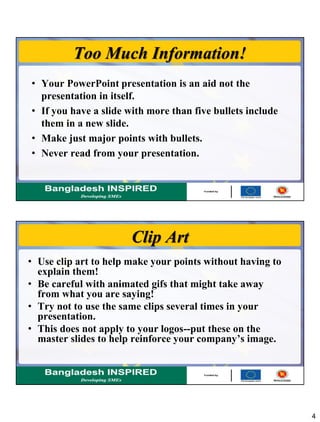
Too Much Information!
• Your PowerPoint presentation is an aid not the
presentation in itself.
• If you have a slide with more than five bullets include
them in a new slide.
• Make just major points with bullets.
• Never read from your presentation.
Clip Art
• Use clip art to help make your points without having to
explain them!
• Be careful with animated gifs that might take away
from what you are saying!
• Try not to use the same clips several times in your
presentation.
• This does not apply to your logos--put these on the
master slides to help reinforce your company’s image.
5
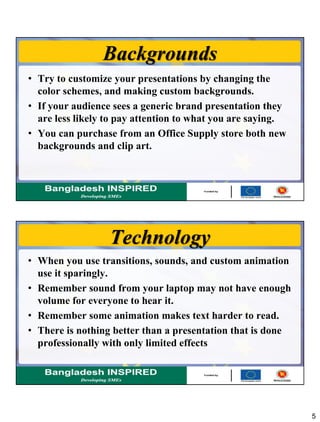
Backgrounds
• Try to customize your presentations by changing the
color schemes, and making custom backgrounds.
• If your audience sees a generic brand presentation they
are less likely to pay attention to what you are saying.
• You can purchase from an Office Supply store both new
backgrounds and clip art.
Technology
• When you use transitions, sounds, and custom animation
use it sparingly.
• Remember sound from your laptop may not have enough
volume for everyone to hear it.
• Remember some animation makes text harder to read.
• There is nothing better than a presentation that is done
professionally with only limited effects
6
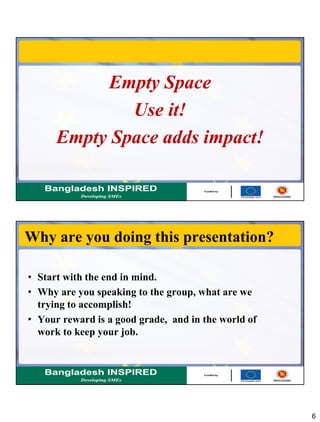
Empty Space
Use it!
Empty Space adds impact!
Why are you doing this presentation?
• Start with the end in mind.
• Why are you speaking to the group, what are we
trying to accomplish!
• Your reward is a good grade, and in the world of
work to keep your job.
7
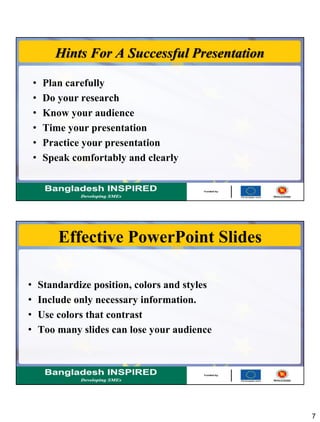
Hints For A Successful Presentation
• Plan carefully
• Do your research
• Know your audience
• Time your presentation
• Practice your presentation
• Speak comfortably and clearly
Effective PowerPoint Slides
• Standardize position, colors and styles
• Include only necessary information.
• Use colors that contrast
• Too many slides can lose your audience
8
Text Guidelines
• Generally no more than 6 words a line
• Avoid long sentences
• Larger fonts indicate more important information
• Be sure text contrast with background
• Fancy fonts can be hard to read
• WORDS IN ALL CAPITAL LETTER ARE HARD TO
READ
Clip Art and Graphics
• Should balance the slide
• Should enhance and complement the text not
overwhelm or take away from it.
• No more than two graphics per slide.
9
THANKS
17

06. effective powerpoint presentation

  • 1.
    1 Effective PowerPoint Presentations EffectivePowerPoint Presentations It is easy to make a PowerPoint slide show; however, harder to make an effective presentation
  • 2.
    2 Why Use PowerPoint •PowerPoint allows you to interact with your audience. Effective Power Point Presentations • If your presentation is meaningful it will determine if your subjects will go to sleep or be involved in what you are saying. • We will look around the room to see how involved your participants in the presentation
  • 3.
    3 Color Scheme • Lighttext on a dark background is most effective. • As long as you stick to this just make sure that your colors are pleasing. • Only change the scheme on certain slides that you want to emphasize. Such as a green background when you are referencing money. • In a business setting you would probably want to use the colors that the business has adopted, such as Coca- Cola Red. 6
  • 4.
    4 Too Much Information! •Your PowerPoint presentation is an aid not the presentation in itself. • If you have a slide with more than five bullets include them in a new slide. • Make just major points with bullets. • Never read from your presentation. Clip Art • Use clip art to help make your points without having to explain them! • Be careful with animated gifs that might take away from what you are saying! • Try not to use the same clips several times in your presentation. • This does not apply to your logos--put these on the master slides to help reinforce your company’s image.
  • 5.
    5 Backgrounds • Try tocustomize your presentations by changing the color schemes, and making custom backgrounds. • If your audience sees a generic brand presentation they are less likely to pay attention to what you are saying. • You can purchase from an Office Supply store both new backgrounds and clip art. Technology • When you use transitions, sounds, and custom animation use it sparingly. • Remember sound from your laptop may not have enough volume for everyone to hear it. • Remember some animation makes text harder to read. • There is nothing better than a presentation that is done professionally with only limited effects
  • 6.
    6 Empty Space Use it! EmptySpace adds impact! Why are you doing this presentation? • Start with the end in mind. • Why are you speaking to the group, what are we trying to accomplish! • Your reward is a good grade, and in the world of work to keep your job.
  • 7.
    7 Hints For ASuccessful Presentation • Plan carefully • Do your research • Know your audience • Time your presentation • Practice your presentation • Speak comfortably and clearly Effective PowerPoint Slides • Standardize position, colors and styles • Include only necessary information. • Use colors that contrast • Too many slides can lose your audience
  • 8.
    8 Text Guidelines • Generallyno more than 6 words a line • Avoid long sentences • Larger fonts indicate more important information • Be sure text contrast with background • Fancy fonts can be hard to read • WORDS IN ALL CAPITAL LETTER ARE HARD TO READ Clip Art and Graphics • Should balance the slide • Should enhance and complement the text not overwhelm or take away from it. • No more than two graphics per slide.
  • 9.