
Making a powerpoint
presentation
Means showcasing yourself !
Who are you ?
• Are you plain as this sheet .
Who are you ?
• Are you basically clean but sometimes
loud
Who are you ?
• Or are you clear, short, crisp and stern!
Who are you ?
• Are you fixed in opinions...
• OR OPEN IN YOUR VIEWS
Who are you ?
• Are you casual today
• Or are you formal today
Do you want your audience / viewer to
feel...
• Easy and relaxed about you and your business
...
Do you want your audience / viewer to
feel...
• Do you want to showcase your achievements
?
Do you want your audience / viewer to
feel...
• Or do you want his to start acting on
something !!!
Do you want to showcase your
achievements only
Or....
Are you also proud of who
you are !
Points to remember when preparing a
presentation :
• Its shows who you are
• It shows your intelligence
• It shows your experience
• It shows your strengths and your weaknesses
• It shows how you think
• It shows you can ...or that you cant !
• It makes you memorable
• It represents your presence
• It shows YOU !
JUST LIKE YOU ,your presentation style
should be :
• Same always
• A little different sometimes
• Predictable / fun / serious ...like you
• Easy to ready
• Easy to remember among other presentations just like
you
• Should remind the viewer of you
• Should confirm the veiwers beliefs of you
• Should help the veiwer understand
• Should help you make your point clearly
• Should flow easily
THE HEROS AND HEROINES
• TITLE
• BACKGROUND
• LAYOUT
• FONT
• COLOR SCHEME
• INDEX
• FLOW AND SEQUENCE OF TOPICS
• FOCUS / BRING TO ATTENTION
• HIGHLIGHTS
• SHOWCASE ...
• HIDE...
• SUMMARISE
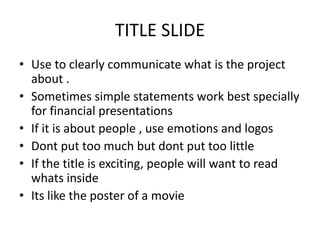
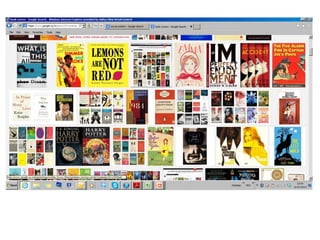
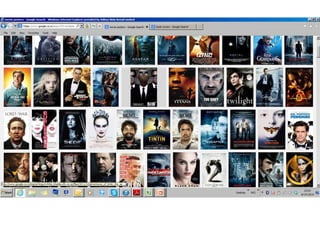
TITLE SLIDE
• Use to clearly communicate what is the project
about .
• Sometimes simple statements work best specially
for financial presentations
• If it is about people , use emotions and logos
• Dont put too much but dont put too little
• If the title is exciting, people will want to read
whats inside
• Its like the poster of a movie
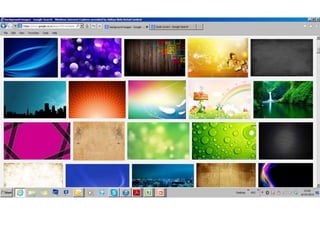
BACKGROUND
• Should add to the interest
• Should connect to the main theme
• Should be soft and not very jarring
• Easily readable text on background
• Make it a watermark
• Make it transparent
• Select dull images
• Take black and white
• Avoid emotions or disturbing images
• Take neutral images – sunset vs sunrise / grass vs water
/ rays vs ripples / horizon vs planets
LAYOUT
• Simple layout for basic communication
• Side by side for comparatives
• Two by one for data and images or graphs
• Insert smart art top or bottom
• Adjust the font of the text
• Everything should be visible from a distance
• Nothing should overlapp
• Be careful and check slide show version always
FONT - Just like your personality.
• The font should be in suitable colors
• Correct font size which can be read
• Font should communicate the mood
• The size of the fonts should change just like our
voice level changes when we are angry or happy
• The font position should change just like your
position in a room among other people
• The font should be
COLOR
• Use colors you like
• If you like pink pls resign right now !
• Use neutral colors
• Avoid bright colors
• Avoid jarring or different colors
• Use complementary colors
• Save a color wheel on your desktop
• Copy color schemes from other presentations
• Use the color schemes from ppt options
• Use dark / bold and light in same slide to be safe
• Use one color to highlight statement – never red unless
critical
INDEX
• Use numbers
• Use sub numbers
• Keep it as small as possible
• Use only max 3 words per line
• Dont explain the index
• Dont make it complicated
• Ensure the flow makes sense
• Make the index like your work day
• Use common sense – an index is not to show how
much you know !
• Keep the page interesting – use image or logos
FLOW AND SEQUENCE
• First write on a paper
• Make changes on paper
• Then copy to index
• Should be logical like your work
• Keep changing till it makes sense
• Take another opinion
• See it three times in one day 1 hour apart
• Make changes in normal layout and in slide show
view
• Use slide sorter view to change sequence
FOCUS – BRING TO ATTENTION
• Not more than one thing per page to be
highlighted
• Highlight in any way – underline , change color ,
bold, italic, box, smart art , clipart, image , graph
• Write text so as to close a statement
• Show reason logic and result
• Use small to big font
• Avoid exclamations unless its a strong point
• Avoid ..., ,,,, and other gimmicks
HIGHLIGHTS
• Use boxes, color, fonts and space to create
highlights on every page
• Reader should know what is the focus on this
page
• Leave space around what is important
• Highlights can be created with data / graphs /
images and smart art on same page carefully
• Be very clear on what is important on the
page
SHOWCASE
• Sometimes you can use one page in the middle of
all slides to showcase specials
• Always insert a new slide and change layout
• Use very diff modes of color layout and font
• Go back to same layout once done to maintain
continuity
• Never copy from other ppt as formats wont copy
• Always showcase in the middle , never in the start
or the end
HIDE
• Ppts cant hide anything
• They can only be avoided
• If you want to hide anything dont create fancy
presentations
• Create a simple layout and put in the facts
• Colorful mistakes are still mistakes
SUMMARISE
• Always take the highlighted points and make a
summary page towards the end
• Have an actionables page
• Us excel to show action / fpr/ date
• Show commitment
• Show planning
• Show skills of management
• Show strengths.
Using the MS Powerpoint options
• Home
• Insert
• Design
• Animations
• Slide show
• Review
• View
• Format
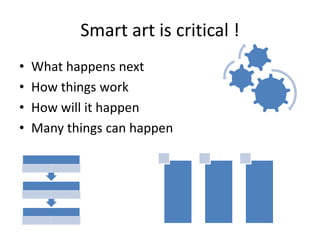
Smart art is critical !
• What happens next
• How things work
• How will it happen
• Many things can happen
Using excel and word
• If you want to make changes and your boss
likes dynamic excel sheets – always paste as
excel link
• Else always save as bitmap
• For heavy files – save as hyperlink and save file
in same folder as ppt
• Convert heavier ppts into pdf files
• Word docs can be pasted as images or simple
text
Using the NET .
• Images- google images
• Statements – type names of famous people
• Quotes- google quotes or quote dictonaries
• Backdrops – pictures
• Logos- brands
• Clips – youtube links
• Cliparts – word or ppt
• Videos – youtube
• Hyperlinks- wed site address / url
How to start
• Is it necessary or can it be done in excel or
word
• How many slides
• what do you want to communicate
• How do you want to communicate
• What do you want showcased
• Remember this is a part of you .
How to start
• Choose the layout
• Choose / fix / appy and save the background or plain
• Apply and save the common images, logos,
• Make a title / working title 1st sheet
• Write the index on paper
• Create the required no of slides
• Select the individual slide layouts
• Fill in all headers as per index paper
• Start from slide 1
• Go sequentially from 1 onwards
• Change as you go
• Change index immediately
• Dont use colors till the basic text is done
• Keep collection of images / clips ready in pictures folder and use when needed
• Check spellings per slide before moving on / keep spell check on
• Keep same layout for common message slides
• Change layout when message changes
• Apply colors when basic work is done
• Position images suitably
• Complete all work without animation
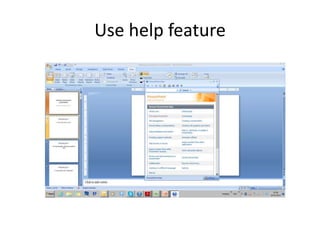
Use help feature

basics of making a ppt

  • 1.
  • 2.
    Who are you? • Are you plain as this sheet .
  • 3.
    Who are you? • Are you basically clean but sometimes loud
  • 4.
    Who are you? • Or are you clear, short, crisp and stern!
  • 5.
    Who are you? • Are you fixed in opinions... • OR OPEN IN YOUR VIEWS
  • 6.
    Who are you? • Are you casual today • Or are you formal today
  • 7.
    Do you wantyour audience / viewer to feel... • Easy and relaxed about you and your business ...
  • 8.
    Do you wantyour audience / viewer to feel... • Do you want to showcase your achievements ?
  • 9.
    Do you wantyour audience / viewer to feel... • Or do you want his to start acting on something !!!
  • 10.
    Do you wantto showcase your achievements only Or.... Are you also proud of who you are !
  • 11.
    Points to rememberwhen preparing a presentation : • Its shows who you are • It shows your intelligence • It shows your experience • It shows your strengths and your weaknesses • It shows how you think • It shows you can ...or that you cant ! • It makes you memorable • It represents your presence • It shows YOU !
  • 12.
    JUST LIKE YOU,your presentation style should be : • Same always • A little different sometimes • Predictable / fun / serious ...like you • Easy to ready • Easy to remember among other presentations just like you • Should remind the viewer of you • Should confirm the veiwers beliefs of you • Should help the veiwer understand • Should help you make your point clearly • Should flow easily
  • 13.
    THE HEROS ANDHEROINES • TITLE • BACKGROUND • LAYOUT • FONT • COLOR SCHEME • INDEX • FLOW AND SEQUENCE OF TOPICS • FOCUS / BRING TO ATTENTION • HIGHLIGHTS • SHOWCASE ... • HIDE... • SUMMARISE
  • 14.
    TITLE SLIDE • Useto clearly communicate what is the project about . • Sometimes simple statements work best specially for financial presentations • If it is about people , use emotions and logos • Dont put too much but dont put too little • If the title is exciting, people will want to read whats inside • Its like the poster of a movie
  • 18.
    BACKGROUND • Should addto the interest • Should connect to the main theme • Should be soft and not very jarring • Easily readable text on background • Make it a watermark • Make it transparent • Select dull images • Take black and white • Avoid emotions or disturbing images • Take neutral images – sunset vs sunrise / grass vs water / rays vs ripples / horizon vs planets
  • 20.
    LAYOUT • Simple layoutfor basic communication • Side by side for comparatives • Two by one for data and images or graphs • Insert smart art top or bottom • Adjust the font of the text • Everything should be visible from a distance • Nothing should overlapp • Be careful and check slide show version always
  • 21.
    FONT - Justlike your personality. • The font should be in suitable colors • Correct font size which can be read • Font should communicate the mood • The size of the fonts should change just like our voice level changes when we are angry or happy • The font position should change just like your position in a room among other people • The font should be
  • 22.
    COLOR • Use colorsyou like • If you like pink pls resign right now ! • Use neutral colors • Avoid bright colors • Avoid jarring or different colors • Use complementary colors • Save a color wheel on your desktop • Copy color schemes from other presentations • Use the color schemes from ppt options • Use dark / bold and light in same slide to be safe • Use one color to highlight statement – never red unless critical
  • 23.
    INDEX • Use numbers •Use sub numbers • Keep it as small as possible • Use only max 3 words per line • Dont explain the index • Dont make it complicated • Ensure the flow makes sense • Make the index like your work day • Use common sense – an index is not to show how much you know ! • Keep the page interesting – use image or logos
  • 24.
    FLOW AND SEQUENCE •First write on a paper • Make changes on paper • Then copy to index • Should be logical like your work • Keep changing till it makes sense • Take another opinion • See it three times in one day 1 hour apart • Make changes in normal layout and in slide show view • Use slide sorter view to change sequence
  • 25.
    FOCUS – BRINGTO ATTENTION • Not more than one thing per page to be highlighted • Highlight in any way – underline , change color , bold, italic, box, smart art , clipart, image , graph • Write text so as to close a statement • Show reason logic and result • Use small to big font • Avoid exclamations unless its a strong point • Avoid ..., ,,,, and other gimmicks
  • 26.
    HIGHLIGHTS • Use boxes,color, fonts and space to create highlights on every page • Reader should know what is the focus on this page • Leave space around what is important • Highlights can be created with data / graphs / images and smart art on same page carefully • Be very clear on what is important on the page
  • 27.
    SHOWCASE • Sometimes youcan use one page in the middle of all slides to showcase specials • Always insert a new slide and change layout • Use very diff modes of color layout and font • Go back to same layout once done to maintain continuity • Never copy from other ppt as formats wont copy • Always showcase in the middle , never in the start or the end
  • 28.
    HIDE • Ppts canthide anything • They can only be avoided • If you want to hide anything dont create fancy presentations • Create a simple layout and put in the facts • Colorful mistakes are still mistakes
  • 29.
    SUMMARISE • Always takethe highlighted points and make a summary page towards the end • Have an actionables page • Us excel to show action / fpr/ date • Show commitment • Show planning • Show skills of management • Show strengths.
  • 30.
    Using the MSPowerpoint options • Home • Insert • Design • Animations • Slide show • Review • View • Format
  • 31.
    Smart art iscritical ! • What happens next • How things work • How will it happen • Many things can happen
  • 32.
    Using excel andword • If you want to make changes and your boss likes dynamic excel sheets – always paste as excel link • Else always save as bitmap • For heavy files – save as hyperlink and save file in same folder as ppt • Convert heavier ppts into pdf files • Word docs can be pasted as images or simple text
  • 33.
    Using the NET. • Images- google images • Statements – type names of famous people • Quotes- google quotes or quote dictonaries • Backdrops – pictures • Logos- brands • Clips – youtube links • Cliparts – word or ppt • Videos – youtube • Hyperlinks- wed site address / url
  • 34.
    How to start •Is it necessary or can it be done in excel or word • How many slides • what do you want to communicate • How do you want to communicate • What do you want showcased • Remember this is a part of you .
  • 35.
    How to start •Choose the layout • Choose / fix / appy and save the background or plain • Apply and save the common images, logos, • Make a title / working title 1st sheet • Write the index on paper • Create the required no of slides • Select the individual slide layouts • Fill in all headers as per index paper • Start from slide 1 • Go sequentially from 1 onwards • Change as you go • Change index immediately • Dont use colors till the basic text is done • Keep collection of images / clips ready in pictures folder and use when needed • Check spellings per slide before moving on / keep spell check on • Keep same layout for common message slides • Change layout when message changes • Apply colors when basic work is done • Position images suitably • Complete all work without animation
  • 36.