CSS POSITIONING
& FLOATING
Advanced CSS techniques
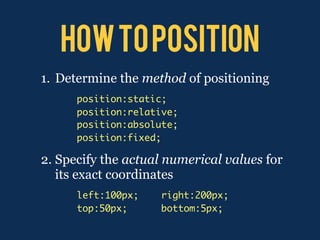
how to position
1. Determine the method of positioning
      position:static;
      position:relative;
      position:absolute;
      position:fixed;

2. Specify the actual numerical values for
   its exact coordinates
      left:100px;    right:200px;
      top:50px;      bottom:5px;
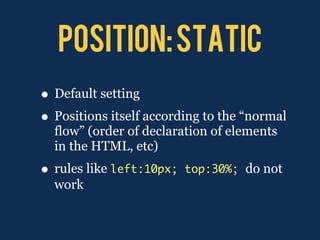
POSITION: STATIC
• Default setting
• Positions itself according to the “normal
  flow” (order of declaration of elements
  in the HTML, etc)
• rules like left:10px;   top:30%; do not
  work
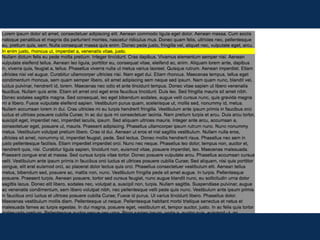
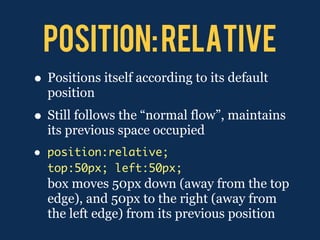
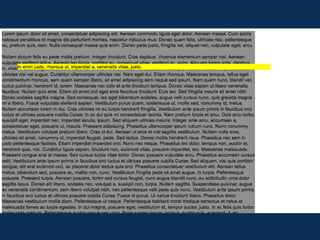
POSITION: RELATIVE
• Positions itself according to its default
    position
• Still follows the “normal flow”, maintains
    its previous space occupied
•   position:relative;
    top:50px; left:50px;
    box moves 50px down (away from the top
    edge), and 50px to the right (away from
    the left edge) from its previous position
position: absolute
• Element is removed/lifted from the
    container element, and positioned
    according to the edges of the canvas
•   position:absolute;
    top:0px; left:0px;
    box is attached to the upper-left corner of
    the canvas, not the container element
position: fixed
• Positioned according to the browser
• Remains fixed, does not scroll with the
    content
•   position:fixed;
    left:0; top:0;
    box attaches to the top-left corner, and
    does not move with the content when
    scrolled
floating

• Floating makes objects line up in one
  side of its container element, and
  allowing other elements to flow around
  it
• First used to wrap text around images
More on Floating

• Objects will only float as far as its
  container element
• When floating block-elements, always
  define a width
floating boxes
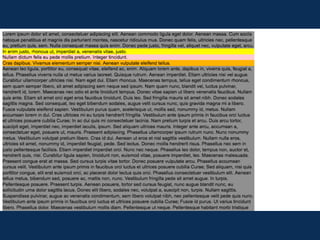
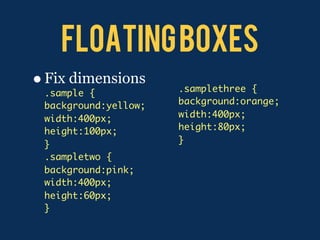
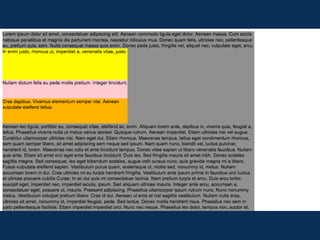
• Fix dimensions
 .sample {            .samplethree {
 background:yellow;   background:orange;
 width:400px;         width:400px;
 height:100px;        height:80px;
 }                    }
 .sampletwo {
 background:pink;
 width:400px;
 height:60px;
 }
Floating with text
• Add float property to the last box
  .samplethree {
  background-color:orange;
  width:400px;
  height:80px;
  float:left;
  }
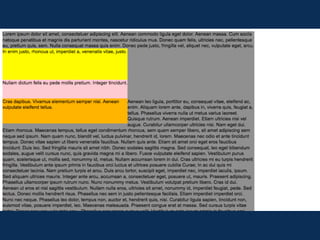
floating boxes
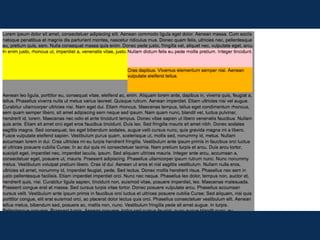
•   Add float property   .sampletwo {
                         background:pink;
    also to the first
                         width:400px;
    two                  height:100px;
                         float:left
    .sample {            }
    background:yellow;
    width:400px;
    height:100px;
    float:left;
    }
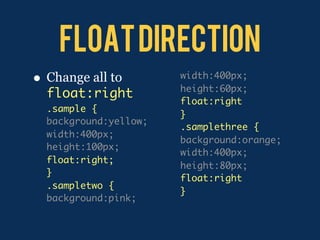
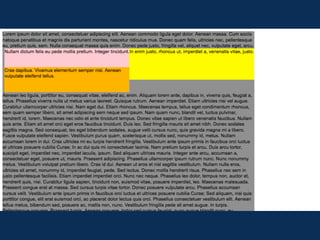
Float Direction
•   Change all to        width:400px;
                         height:60px;
    float:right
                         float:right
    .sample {
                         }
    background:yellow;
                         .samplethree {
    width:400px;
                         background:orange;
    height:100px;
                         width:400px;
    float:right;
                         height:80px;
    }
                         float:right
    .sampletwo {
                         }
    background:pink;
Clear property
• Clearing an object will turn-off the
  floating, thus it will appear below an
  element that is floated in that direction
  clear:left;
  clear:right;
  clear:both;
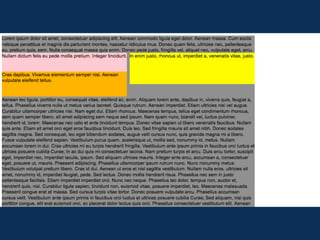
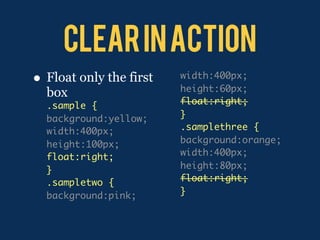
Clear in action
•   Float only the first   width:400px;
                           height:60px;
    box
    .sample {              float:right;
    background:yellow;     }
    width:400px;           .samplethree {
    height:100px;          background:orange;
    float:right;           width:400px;
    }                      height:80px;
    .sampletwo {           float:right;
    background:pink;       }
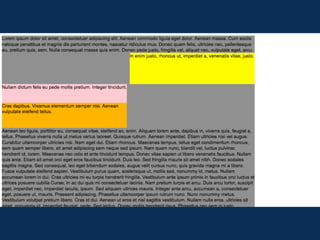
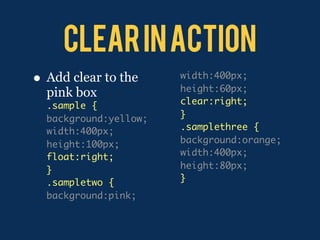
Clear in action
•   Add clear to the     width:400px;
                         height:60px;
    pink box
    .sample {            clear:right;
    background:yellow;   }
    width:400px;         .samplethree {
    height:100px;        background:orange;
    float:right;         width:400px;
    }                    height:80px;
    .sampletwo {         }
    background:pink;

Css positioning

  • 1.
  • 2.
    how to position 1.Determine the method of positioning position:static; position:relative; position:absolute; position:fixed; 2. Specify the actual numerical values for its exact coordinates left:100px; right:200px; top:50px; bottom:5px;
  • 3.
    POSITION: STATIC • Defaultsetting • Positions itself according to the “normal flow” (order of declaration of elements in the HTML, etc) • rules like left:10px; top:30%; do not work
  • 5.
    POSITION: RELATIVE • Positionsitself according to its default position • Still follows the “normal flow”, maintains its previous space occupied • position:relative; top:50px; left:50px; box moves 50px down (away from the top edge), and 50px to the right (away from the left edge) from its previous position
  • 7.
    position: absolute • Elementis removed/lifted from the container element, and positioned according to the edges of the canvas • position:absolute; top:0px; left:0px; box is attached to the upper-left corner of the canvas, not the container element
  • 9.
    position: fixed • Positionedaccording to the browser • Remains fixed, does not scroll with the content • position:fixed; left:0; top:0; box attaches to the top-left corner, and does not move with the content when scrolled
  • 12.
    floating • Floating makesobjects line up in one side of its container element, and allowing other elements to flow around it • First used to wrap text around images
  • 14.
    More on Floating •Objects will only float as far as its container element • When floating block-elements, always define a width
  • 16.
    floating boxes • Fixdimensions .sample { .samplethree { background:yellow; background:orange; width:400px; width:400px; height:100px; height:80px; } } .sampletwo { background:pink; width:400px; height:60px; }
  • 18.
    Floating with text •Add float property to the last box .samplethree { background-color:orange; width:400px; height:80px; float:left; }
  • 20.
    floating boxes • Add float property .sampletwo { background:pink; also to the first width:400px; two height:100px; float:left .sample { } background:yellow; width:400px; height:100px; float:left; }
  • 22.
    Float Direction • Change all to width:400px; height:60px; float:right float:right .sample { } background:yellow; .samplethree { width:400px; background:orange; height:100px; width:400px; float:right; height:80px; } float:right .sampletwo { } background:pink;
  • 24.
    Clear property • Clearingan object will turn-off the floating, thus it will appear below an element that is floated in that direction clear:left; clear:right; clear:both;
  • 26.
    Clear in action • Float only the first width:400px; height:60px; box .sample { float:right; background:yellow; } width:400px; .samplethree { height:100px; background:orange; float:right; width:400px; } height:80px; .sampletwo { float:right; background:pink; }
  • 28.
    Clear in action • Add clear to the width:400px; height:60px; pink box .sample { clear:right; background:yellow; } width:400px; .samplethree { height:100px; background:orange; float:right; width:400px; } height:80px; .sampletwo { } background:pink;