LAYOUT WITH STYLES
HTML5 & CSS Visual Quickstart Guide
Chapter 11
A Bit of History
• The ―old‖ way of page layout was using tables
• CSS provides a new way, with several advantages:
  • Good for creating liquid layouts that can expand or shrink
    depending on the size of your visitor’s monitor
  • Keeping content separate from layout means you can easily apply
    the same layout to multiple pages
  • CSS + HTML combination tends to produce smaller file sizes
  • Since CSS and HTML are current standards, pages that adhere to
    their rules are guaranteed to be supported in future browsers
Considerations When Beginning a Layout
• Always separate your content (HTML) and presentation
  (CSS)
• Think about different browsers
  • Not everyone uses the same browser, operating system, or even
    device
  • Test your pages on a range of browsers before going live
  • As you continue developing, keep testing pages in a few browsers
    so you’ll have fewer issues to address at the end of development
Considerations, Part 2
• Decide on a type of layout
  • Fixed layout has pixel-based widths
  • Fluid layout uses percentages, allowing page to shrink and expand
  • An elastic layout uses ems for width and other property sizes, so
    page scales according to user’s font-size settings
• No single layout is right for every circumstance
• There are even hybrid approaches to layout!
  • We will make a hybrid of a fluid and fixed layout
    • Columns are fluid, with percentage-based widths so they grow & shrink
    • Overall page width has a fixed maximum width
Structuring Your Pages
• Divide your page into logical sections.
  • masthead, main, sidebar, footer, etc. Use divs only when no other
    semantic element seems appropriate
• Put your content in an order that would be most useful if
 not using CSS
  • This allows browsers that don’t support CSS, such as many mobile
    browsers, to display the content before less important elements,
    like a header
• Use heading elements (h1, h2, etc.) consistently to
  identify and prioritize information
• Use comments to identify different areas of your page and
  their contents. It’s even a good idea to comment closing
  </div> tags to keep them straight.
The Box Model
• Every element in your Web page is enclosed in an
  invisible box
• Each box has 4 important properties:
  • The content area
  • The padding
  • The border
  • The margin
• Each property can be controlled using CSS.
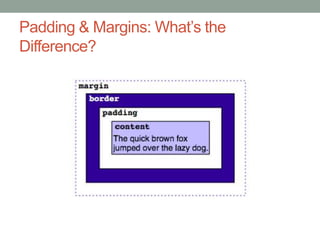
Padding & Margins: What’s the
Difference?
Changing the Background
• Refers not to the background of the entire page, but to the
  background of a particular element
• You can change the background of any element—images,
  form elements, tables, and even the body itself
• background-image, background-repeat, background-
  attachment, background-position, background-color
• Or just use background to change multiple background
  properties at once
Setting the Height or Width for an Element
• width: w, where w is the width of the element’s content
  area
• height: h, where h is the height of the element’s content
  area
• If not set, defaults to auto
  • auto value for width is calculated from width of the containing box
    minus the padding, borders, and margins
  • auto value for height is calculated based on the length of the
    content
Setting the Margins around an Element
• Type margin: x, where x is the amount of desired space to
  be added
• Can specify as a length, percentage, or auto
• #wrap {margin: 20px auto;}
  • Would set the top and bottom margins to 20px, and automatic
    margins for left and right
  • If you use one value for margin, that value is applied to all four
    sides equally
• Can add –top, -bottom, -left, -right to the margin property
 to adjust the margin for a particular side. For example:
  • margin-top: 10px
Adding Padding around an Element
• Type padding: x, where x is the amount of desired
    padding.
•   As with margins, value can be specified in units or as a
    percentage
•   If you use 1 value, applies to all
•   2 values, first applies to top/bottom, second to left/right
•   3 values: 1st applies to top, 2nd applies to left/right, 3rd
    applies to bottom
•   4 values: top, right, bottom, and left (clockwise)
    • padding: 10px
    • padding: 10px 20px
    • padding: 10px 20px 15px
    • padding: 5px 10px 15px 10px
Making Elements Float
• You can make elements float, such as when you want text
  to wrap around images or figures
• When you float an element to a side, content that would
  normally display after it flows around it instead
• Do this using float property
  • float: left;
     • would cause the element to float to the left, and the rest of the page
       after that element to flow to the right of the element
     • The direction you choose applies to the element you’re floating, not to
       the elements that flow around it
Controlling Where Elements Float
• You often need to control which elements an element can
  float next to and which it cannot
• To keep an element from floating next to something you
  don’t want it to, use the clear property
  • clear: both;
    • will clear floating on both sides
Setting the Border
• You can create a border around or on individual sides of
    an element
•   Can set the thickness, style, and color of the border
•   border-style: type (none, dotted, dashed, solid, double,
    groove, ridge, inset, or outset)
•   border-width
•   border-color
•   border: 1px solid green;
•   border-right: 2px dashed green;
•   (also border-top, border-bottom, border-left)
Offsetting Elements in the Natural Flow
• Each element has a natural location in a page’s flow
• Moving the element with respect to this original location is
  called relative positioning
• Surrounding elements are totally unaffected
• Use position: relative; top: -1.1em (for example)
• To see this in action, look at Figure 11.25 and Figure
  11.26 on page 178
Positioning Elements Absolutely
• Natural flow of the page is top to bottom, left to right
• So, if the img tag comes before the p, the image appears
  before the paragraph
• You can take elements out of the normal flow by
  specifying their precise position with respect to the
  nearest positioned ancestor or to the body.
• For example:
  • .photo {position: absolute; left: -112px; top: 3px;}
Positioning Elements in 3D
• Once you start using relative, absolute, or fixed
  positioning, it’s easy to get yourself in a situation where
  elements are overlapping
• CSS allows you to choose which element should display
  on top, using z-index property
• The higher the z-index value, the higher up the element
  will be in the stack (the closer to the top)
• Property only applies to elements positioned as absolute,
  relative, or fixed
Determining How to Treat Overflow
• Sometimes, elements will spill out of their ―boxes‖
  • The container might not be big enough
  • You might have positioned the content outside of the box, using:
    • negative margins
    • absolute positioning

• When this happens, you may need to control the area
 outside the element’s box
The overflow Property
• The overflow property allows this control
  • overflow: visible expands the box (default)
  • overflow: hidden hides content that doesn’t fit in the box
  • overflow: scroll adds scroll bars to the element
  • overflow: auto adds scroll bars only when necessary
• The overflow property can also be used to stop floats
Aligning Elements Vertically
• By default, elements (such as images) align to the bottom
  of the line
• The vertical-align property overrides this default
• Important notes:
  • The vertical-align property will only work on elements displayed
   inline, not elements displayed as a block
Possible Values of vertical-align
• baseline: align element’s baseline with parent’s baseline
• middle: aligns the middle of the element with the middle of the
    parent
•   sub: positions the element as a subscript of the parent
•   super: positions the element as a superscript of the parent
•   text-top: aligns the top of the element with the top of the parent
•   text-bottom: aligns the top of the element with the top of the
    parent
•   top: aligns the top of the element with the top of the tallest
    element on the line
•   bottom: aligns the bottom of the element to the bottom of the
    lowest element on the line
•   Or, type a percentage of the line height of the element, which
    may be positive or negative
Changing the Cursor
• Browsers change cursor shape based on what visitor is
 pointing at
  • Usually an arrow
  • Pointing finger to highlight links
  • ―I‖ shaped cursor for text input
  • Etc.
• CSS allows you control over this using cursor property
• For example, changing the pointer to not indicate a link for
 navigation button to current page
Possible Values of cursor
• cursor: pointer for links
• cursor: default for an arrow
• cursor: crosshair
• cursor: move
• cursor: wait
• cursor: help
• cursor: text
• cursor: progress
• cursor: auto
• cursor: x-resize
Displaying and Hiding Elements
• display property overrides element’s natural display type
   • Change from inline to block or vice versa
• Can also prevent an element and its content from
  occupying visual space in the page
• Values:
  • inline
  • block
  • inline-block allows element to appear on same line as other
    content, but otherwise behaves like block-level element
  • none
The visibility Property
• Primary purpose is to control whether an element is
  visible
• When you hide an element with visibility, a blank space
  shows where the element and its content would otherwise
  appear

Castro Chapter 11

  • 1.
    LAYOUT WITH STYLES HTML5& CSS Visual Quickstart Guide Chapter 11
  • 2.
    A Bit ofHistory • The ―old‖ way of page layout was using tables • CSS provides a new way, with several advantages: • Good for creating liquid layouts that can expand or shrink depending on the size of your visitor’s monitor • Keeping content separate from layout means you can easily apply the same layout to multiple pages • CSS + HTML combination tends to produce smaller file sizes • Since CSS and HTML are current standards, pages that adhere to their rules are guaranteed to be supported in future browsers
  • 3.
    Considerations When Beginninga Layout • Always separate your content (HTML) and presentation (CSS) • Think about different browsers • Not everyone uses the same browser, operating system, or even device • Test your pages on a range of browsers before going live • As you continue developing, keep testing pages in a few browsers so you’ll have fewer issues to address at the end of development
  • 4.
    Considerations, Part 2 •Decide on a type of layout • Fixed layout has pixel-based widths • Fluid layout uses percentages, allowing page to shrink and expand • An elastic layout uses ems for width and other property sizes, so page scales according to user’s font-size settings • No single layout is right for every circumstance • There are even hybrid approaches to layout! • We will make a hybrid of a fluid and fixed layout • Columns are fluid, with percentage-based widths so they grow & shrink • Overall page width has a fixed maximum width
  • 5.
    Structuring Your Pages •Divide your page into logical sections. • masthead, main, sidebar, footer, etc. Use divs only when no other semantic element seems appropriate • Put your content in an order that would be most useful if not using CSS • This allows browsers that don’t support CSS, such as many mobile browsers, to display the content before less important elements, like a header • Use heading elements (h1, h2, etc.) consistently to identify and prioritize information • Use comments to identify different areas of your page and their contents. It’s even a good idea to comment closing </div> tags to keep them straight.
  • 6.
    The Box Model •Every element in your Web page is enclosed in an invisible box • Each box has 4 important properties: • The content area • The padding • The border • The margin • Each property can be controlled using CSS.
  • 7.
    Padding & Margins:What’s the Difference?
  • 8.
    Changing the Background •Refers not to the background of the entire page, but to the background of a particular element • You can change the background of any element—images, form elements, tables, and even the body itself • background-image, background-repeat, background- attachment, background-position, background-color • Or just use background to change multiple background properties at once
  • 9.
    Setting the Heightor Width for an Element • width: w, where w is the width of the element’s content area • height: h, where h is the height of the element’s content area • If not set, defaults to auto • auto value for width is calculated from width of the containing box minus the padding, borders, and margins • auto value for height is calculated based on the length of the content
  • 10.
    Setting the Marginsaround an Element • Type margin: x, where x is the amount of desired space to be added • Can specify as a length, percentage, or auto • #wrap {margin: 20px auto;} • Would set the top and bottom margins to 20px, and automatic margins for left and right • If you use one value for margin, that value is applied to all four sides equally • Can add –top, -bottom, -left, -right to the margin property to adjust the margin for a particular side. For example: • margin-top: 10px
  • 11.
    Adding Padding aroundan Element • Type padding: x, where x is the amount of desired padding. • As with margins, value can be specified in units or as a percentage • If you use 1 value, applies to all • 2 values, first applies to top/bottom, second to left/right • 3 values: 1st applies to top, 2nd applies to left/right, 3rd applies to bottom • 4 values: top, right, bottom, and left (clockwise) • padding: 10px • padding: 10px 20px • padding: 10px 20px 15px • padding: 5px 10px 15px 10px
  • 12.
    Making Elements Float •You can make elements float, such as when you want text to wrap around images or figures • When you float an element to a side, content that would normally display after it flows around it instead • Do this using float property • float: left; • would cause the element to float to the left, and the rest of the page after that element to flow to the right of the element • The direction you choose applies to the element you’re floating, not to the elements that flow around it
  • 13.
    Controlling Where ElementsFloat • You often need to control which elements an element can float next to and which it cannot • To keep an element from floating next to something you don’t want it to, use the clear property • clear: both; • will clear floating on both sides
  • 14.
    Setting the Border •You can create a border around or on individual sides of an element • Can set the thickness, style, and color of the border • border-style: type (none, dotted, dashed, solid, double, groove, ridge, inset, or outset) • border-width • border-color • border: 1px solid green; • border-right: 2px dashed green; • (also border-top, border-bottom, border-left)
  • 15.
    Offsetting Elements inthe Natural Flow • Each element has a natural location in a page’s flow • Moving the element with respect to this original location is called relative positioning • Surrounding elements are totally unaffected • Use position: relative; top: -1.1em (for example) • To see this in action, look at Figure 11.25 and Figure 11.26 on page 178
  • 16.
    Positioning Elements Absolutely •Natural flow of the page is top to bottom, left to right • So, if the img tag comes before the p, the image appears before the paragraph • You can take elements out of the normal flow by specifying their precise position with respect to the nearest positioned ancestor or to the body. • For example: • .photo {position: absolute; left: -112px; top: 3px;}
  • 17.
    Positioning Elements in3D • Once you start using relative, absolute, or fixed positioning, it’s easy to get yourself in a situation where elements are overlapping • CSS allows you to choose which element should display on top, using z-index property • The higher the z-index value, the higher up the element will be in the stack (the closer to the top) • Property only applies to elements positioned as absolute, relative, or fixed
  • 18.
    Determining How toTreat Overflow • Sometimes, elements will spill out of their ―boxes‖ • The container might not be big enough • You might have positioned the content outside of the box, using: • negative margins • absolute positioning • When this happens, you may need to control the area outside the element’s box
  • 19.
    The overflow Property •The overflow property allows this control • overflow: visible expands the box (default) • overflow: hidden hides content that doesn’t fit in the box • overflow: scroll adds scroll bars to the element • overflow: auto adds scroll bars only when necessary • The overflow property can also be used to stop floats
  • 20.
    Aligning Elements Vertically •By default, elements (such as images) align to the bottom of the line • The vertical-align property overrides this default • Important notes: • The vertical-align property will only work on elements displayed inline, not elements displayed as a block
  • 21.
    Possible Values ofvertical-align • baseline: align element’s baseline with parent’s baseline • middle: aligns the middle of the element with the middle of the parent • sub: positions the element as a subscript of the parent • super: positions the element as a superscript of the parent • text-top: aligns the top of the element with the top of the parent • text-bottom: aligns the top of the element with the top of the parent • top: aligns the top of the element with the top of the tallest element on the line • bottom: aligns the bottom of the element to the bottom of the lowest element on the line • Or, type a percentage of the line height of the element, which may be positive or negative
  • 22.
    Changing the Cursor •Browsers change cursor shape based on what visitor is pointing at • Usually an arrow • Pointing finger to highlight links • ―I‖ shaped cursor for text input • Etc. • CSS allows you control over this using cursor property • For example, changing the pointer to not indicate a link for navigation button to current page
  • 23.
    Possible Values ofcursor • cursor: pointer for links • cursor: default for an arrow • cursor: crosshair • cursor: move • cursor: wait • cursor: help • cursor: text • cursor: progress • cursor: auto • cursor: x-resize
  • 24.
    Displaying and HidingElements • display property overrides element’s natural display type • Change from inline to block or vice versa • Can also prevent an element and its content from occupying visual space in the page • Values: • inline • block • inline-block allows element to appear on same line as other content, but otherwise behaves like block-level element • none
  • 25.
    The visibility Property •Primary purpose is to control whether an element is visible • When you hide an element with visibility, a blank space shows where the element and its content would otherwise appear