Introduction to HTML
            By Amit Tyagi
HTML
•   What is HTML?
•   HTML is a language for describing web pages.
•   HTML stands for Hyper Text Markup Language
•   HTML is not a programming language, it is
    a markup language
HTML Tags
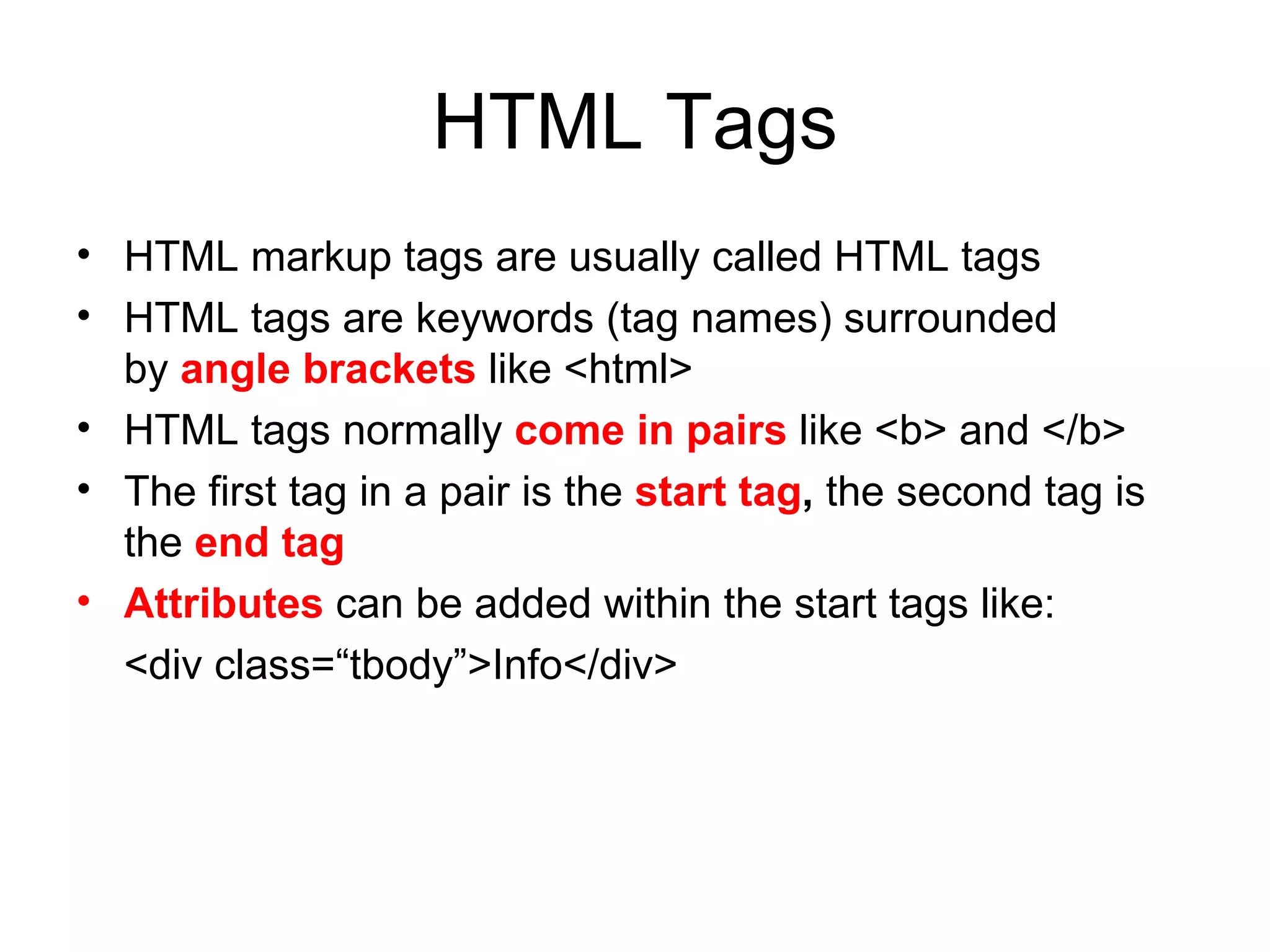
• HTML markup tags are usually called HTML tags
• HTML tags are keywords (tag names) surrounded
  by angle brackets like <html>
• HTML tags normally come in pairs like <b> and </b>
• The first tag in a pair is the start tag, the second tag is
  the end tag
• Attributes can be added within the start tags like:
  <div class=“tbody”>Info</div>
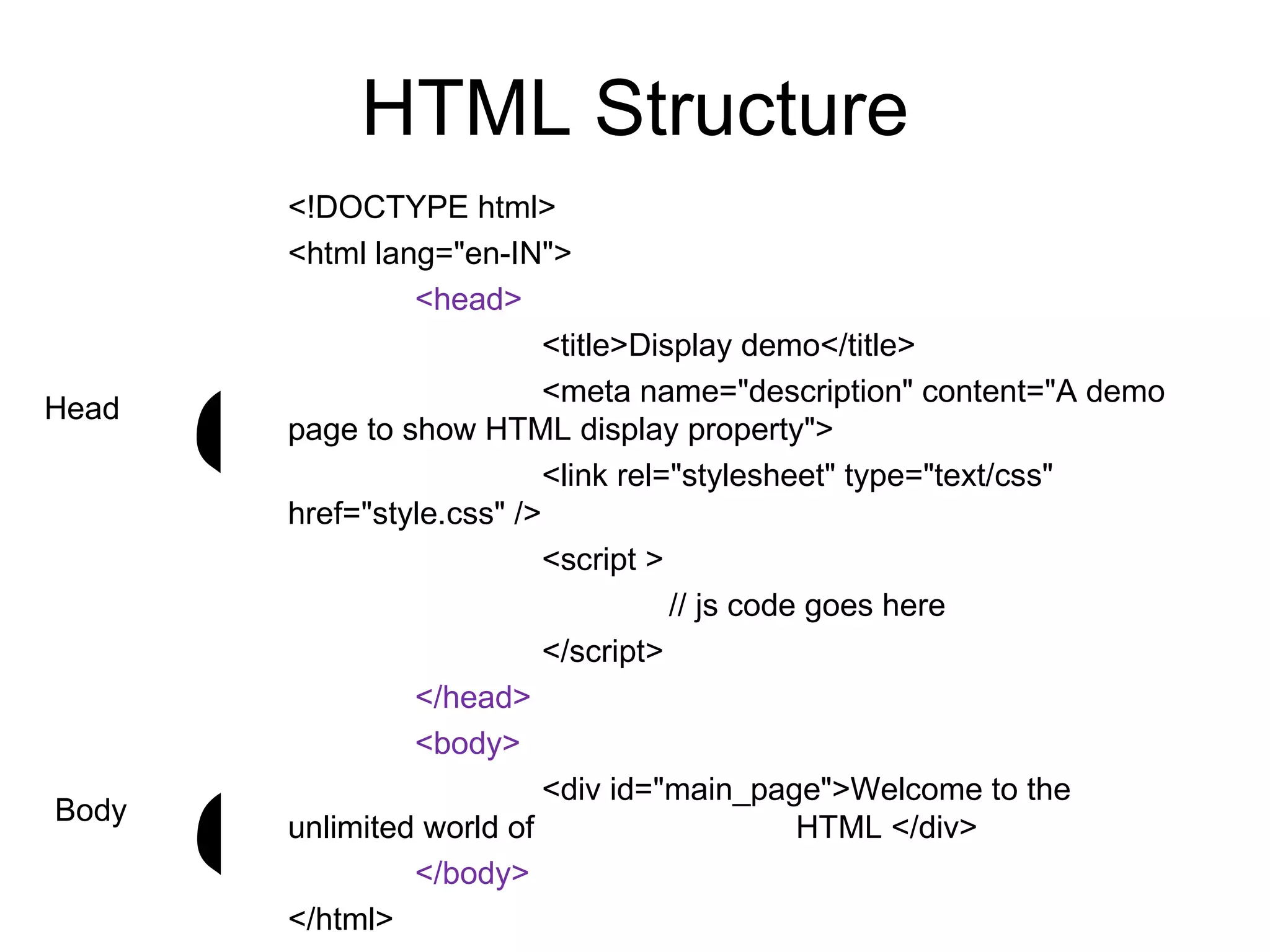
HTML Structure
           <!DOCTYPE html>
           <html lang="en-IN">
                    <head>
                               <title>Display demo</title>
                               <meta name="description" content="A demo
Head
       {   page to show HTML display property">

           href="style.css" />
                               <link rel="stylesheet" type="text/css"

                               <script >
                                         // js code goes here
                               </script>
                    </head>
                    <body>
                               <div id="main_page">Welcome to the
Body
       {   unlimited world of

           </html>
                    </body>
                                                   HTML </div>
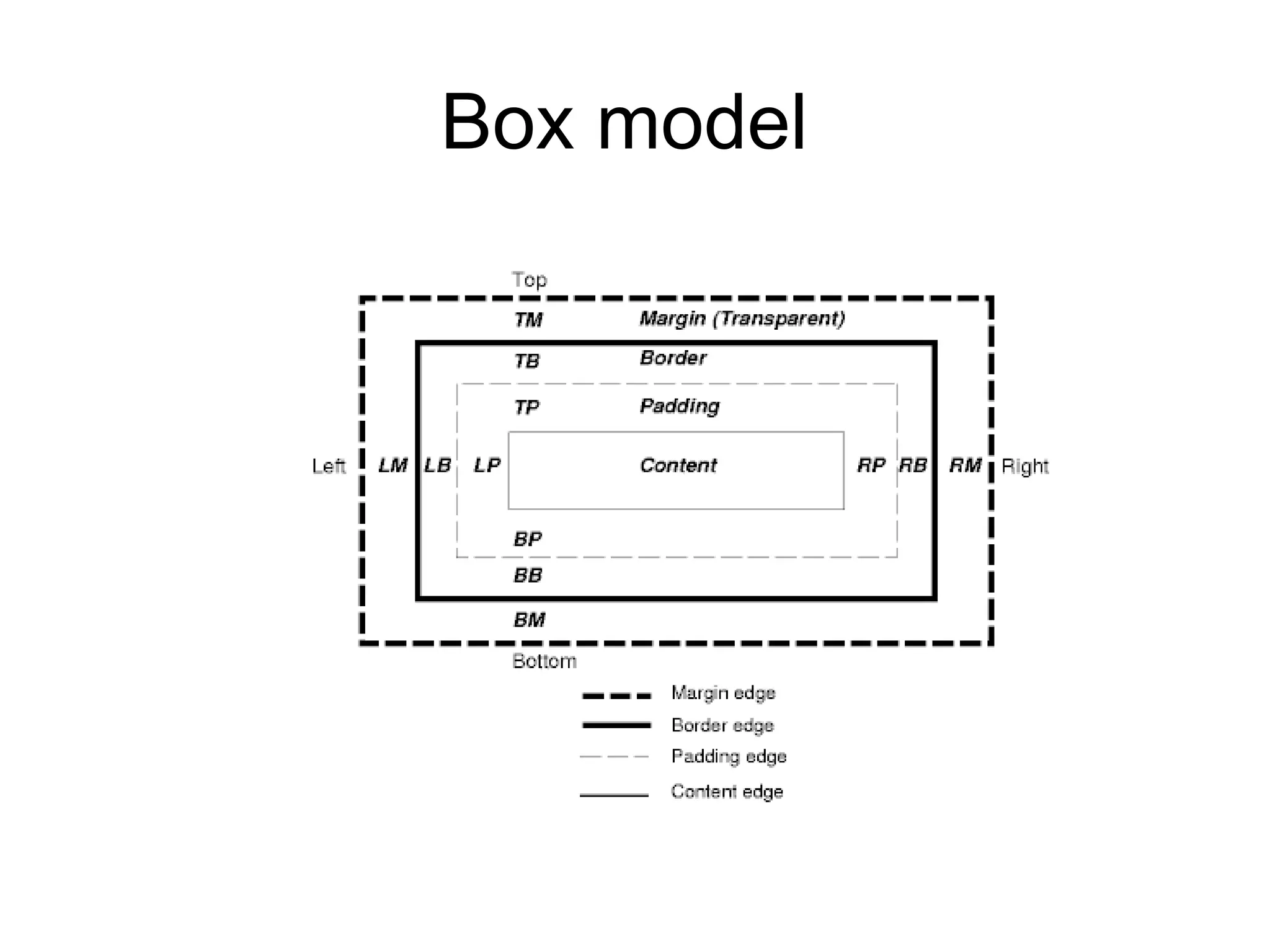
Box model
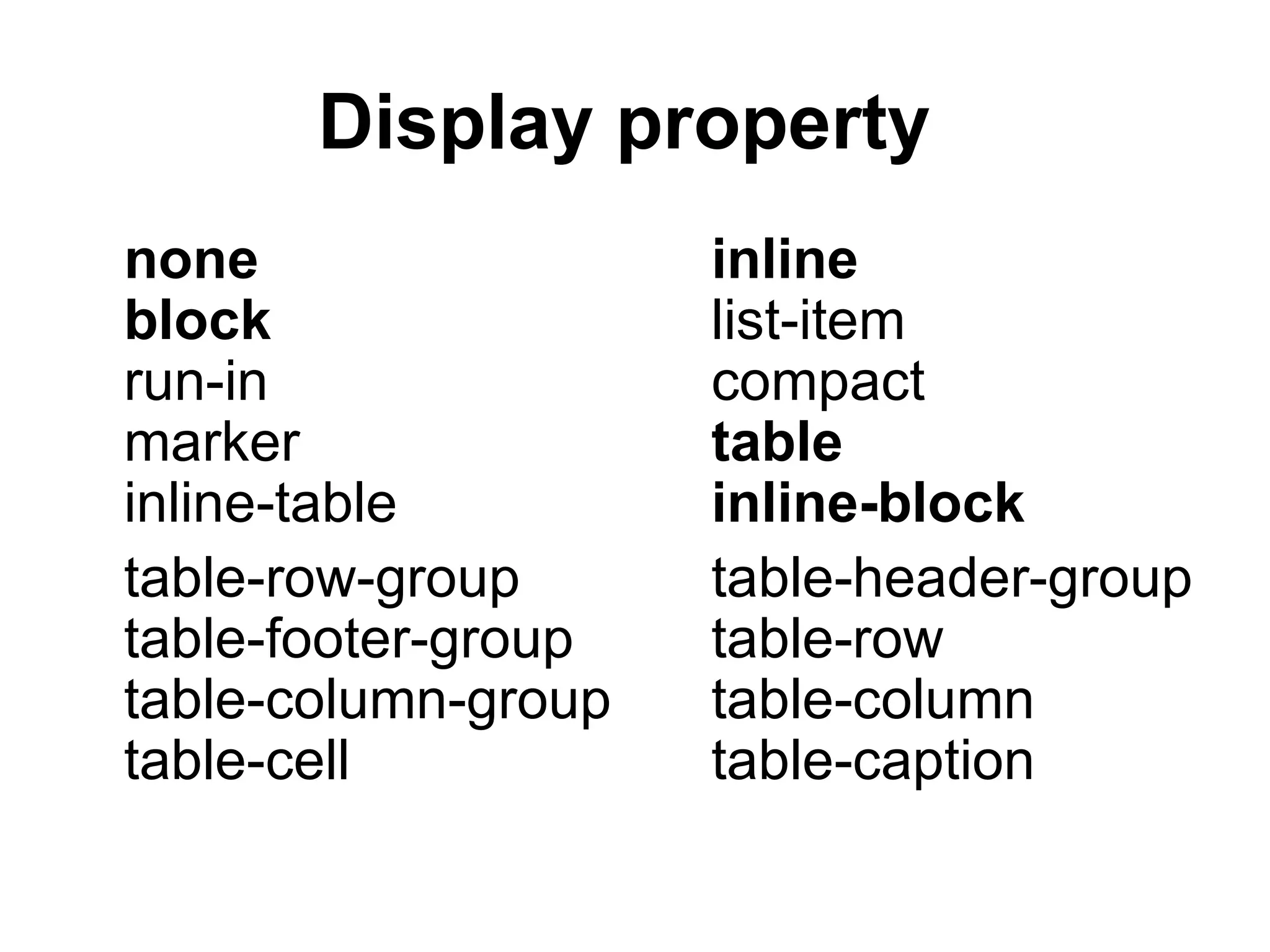
Display property
none                 inline
block                list-item
run-in               compact
marker               table
inline-table         inline-block
table-row-group      table-header-group
table-footer-group   table-row
table-column-group   table-column
table-cell           table-caption
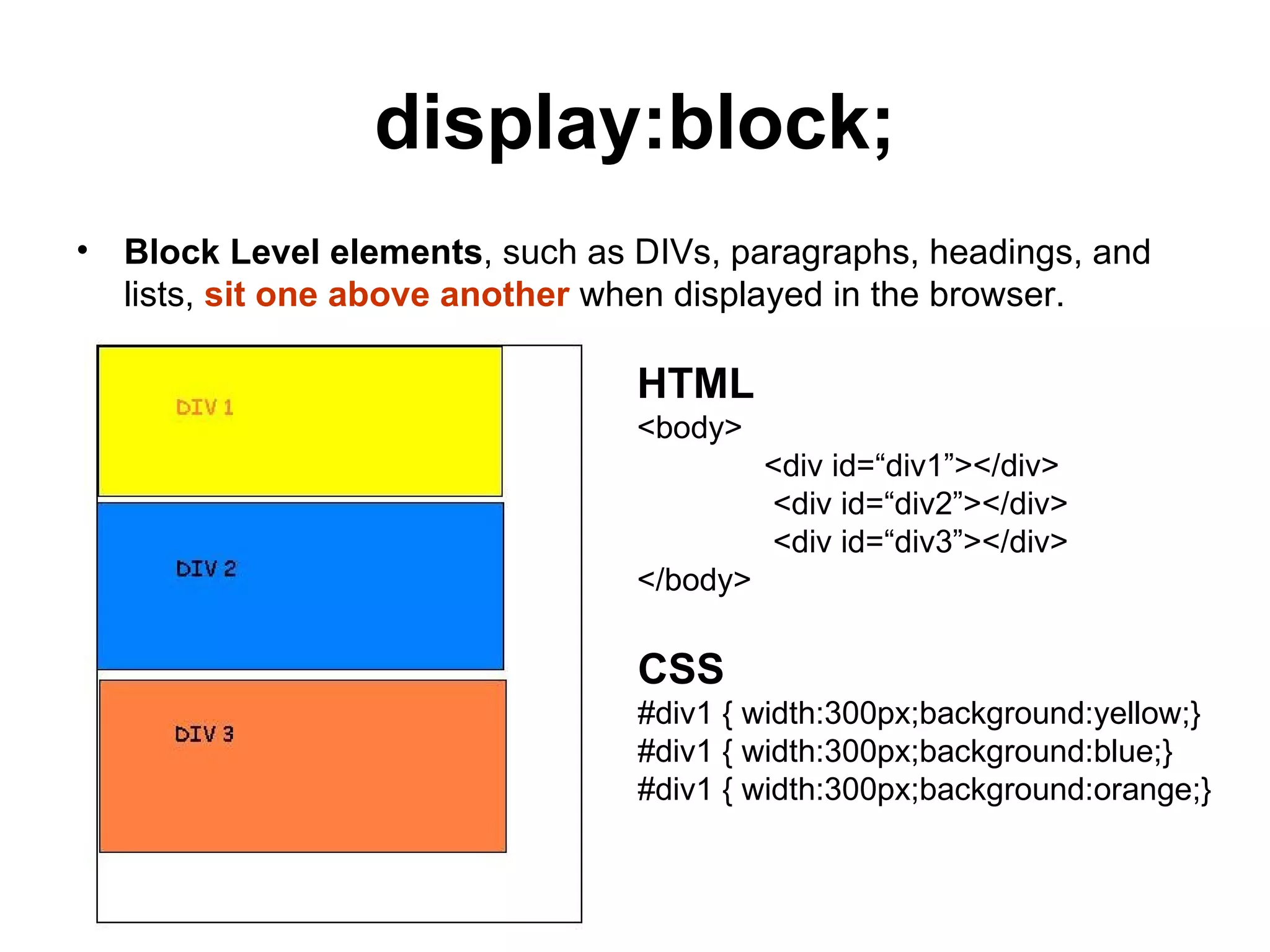
display:block;
•   Block Level elements, such as DIVs, paragraphs, headings, and
    lists, sit one above another when displayed in the browser.

                                  HTML
                                  <body>
                                            <div id=“div1”></div>
                                            <div id=“div2”></div>
                                            <div id=“div3”></div>
                                  </body>

                                  CSS
                                  #div1 { width:300px;background:yellow;}
                                  #div1 { width:300px;background:blue;}
                                  #div1 { width:300px;background:orange;}
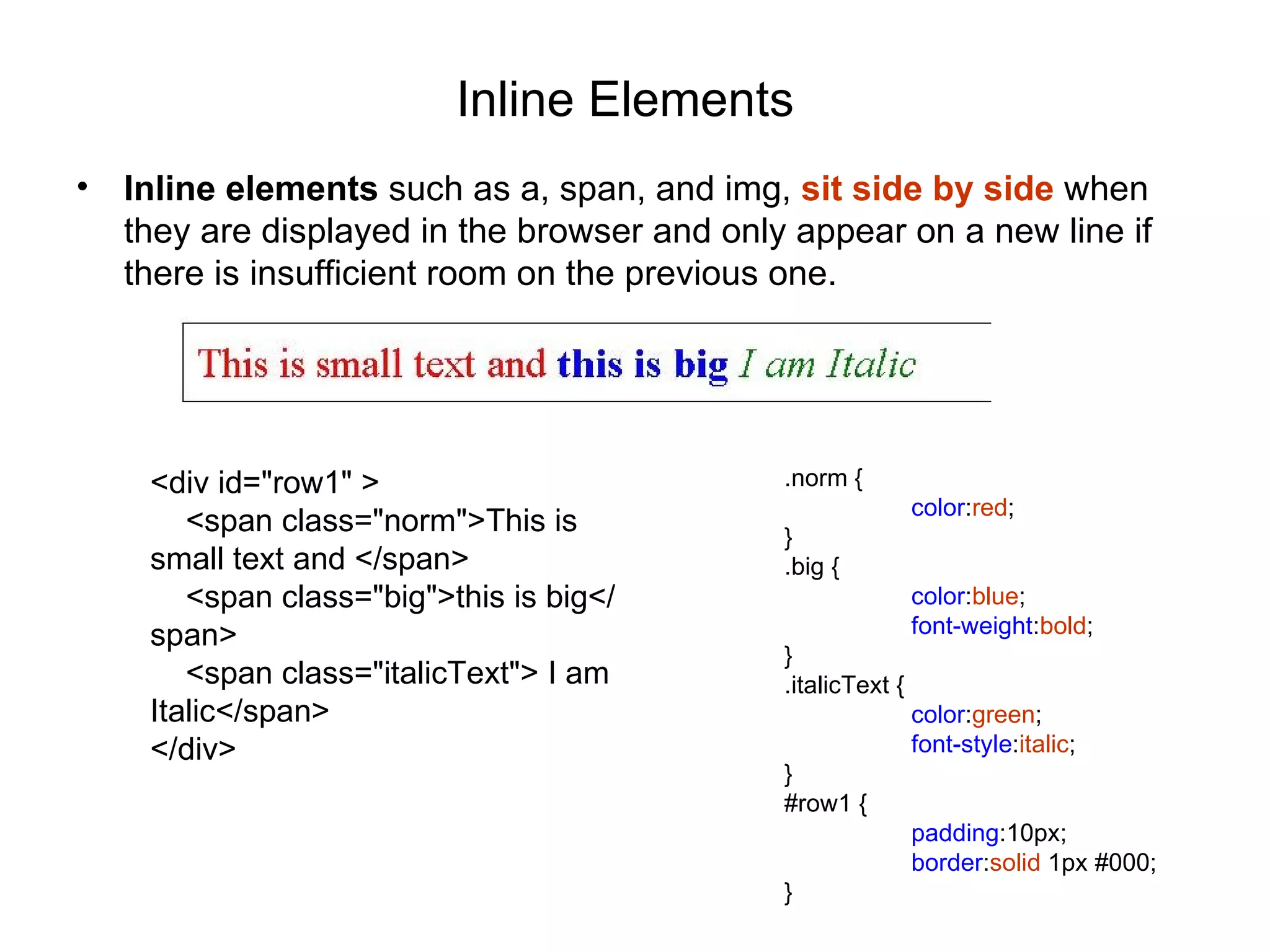
Inline Elements
•   Inline elements such as a, span, and img, sit side by side when
    they are displayed in the browser and only appear on a new line if
    there is insufficient room on the previous one.


     <div id="row1" >                         .norm {
                                                              color:red;
        <span class="norm">This is            }
     small text and </span>                   .big {
        <span class="big">this is big</                       color:blue;
     span>                                                    font-weight:bold;
                                              }
        <span class="italicText"> I am        .italicText {
     Italic</span>                                            color:green;
     </div>                                                   font-style:italic;
                                              }
                                              #row1 {
                                                              padding:10px;
                                                              border:solid 1px #000;
                                              }
Visibility
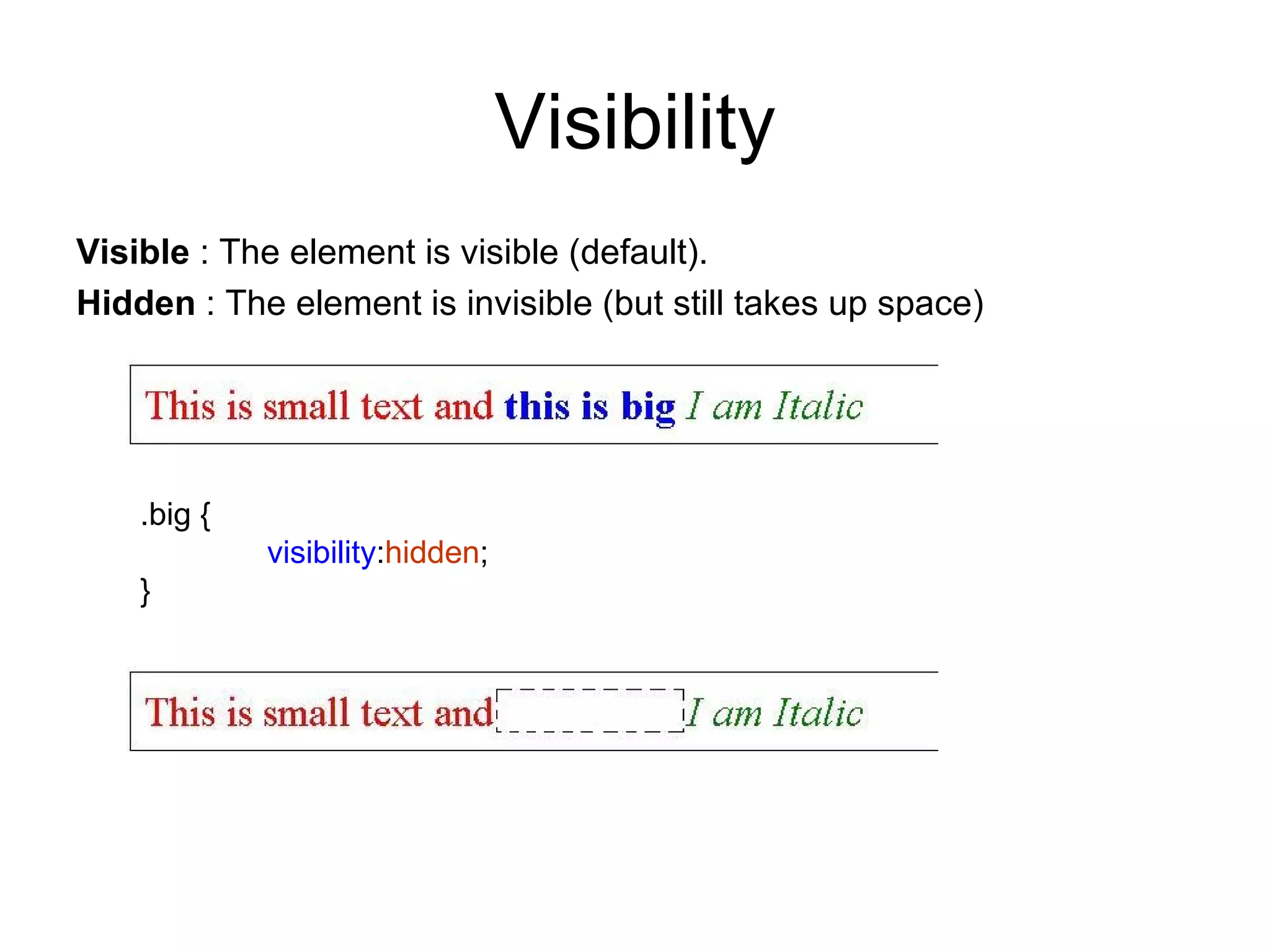
Visible : The element is visible (default).
Hidden : The element is invisible (but still takes up space)


    .big {
             visibility:hidden;
    }
z-index
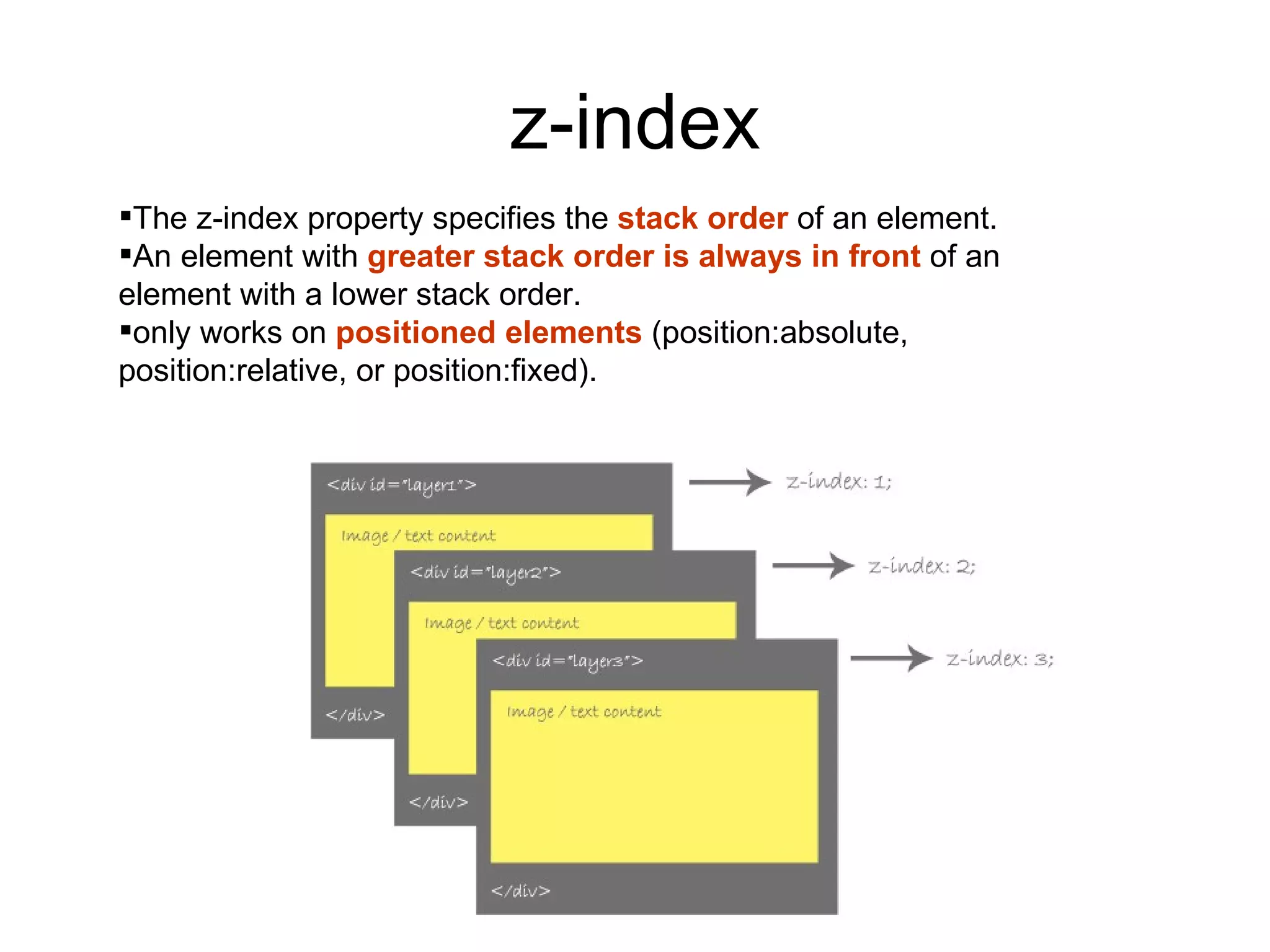
The z-index property specifies the stack order of an element.
An element with greater stack order is always in front of an
element with a lower stack order.
only works on positioned elements (position:absolute,
position:relative, or position:fixed).
Default page flow
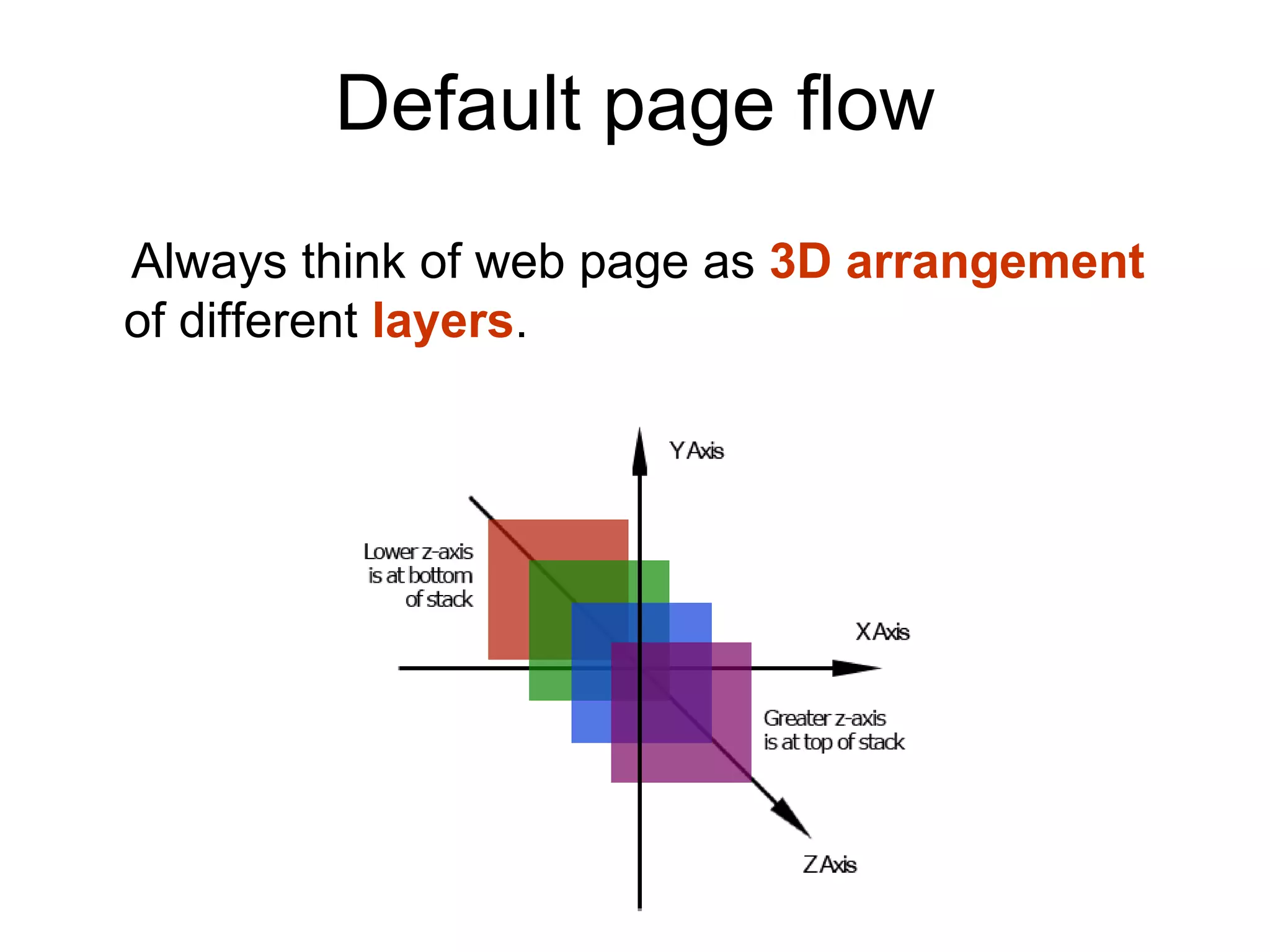
Always think of web page as 3D arrangement
of different layers.
Floating
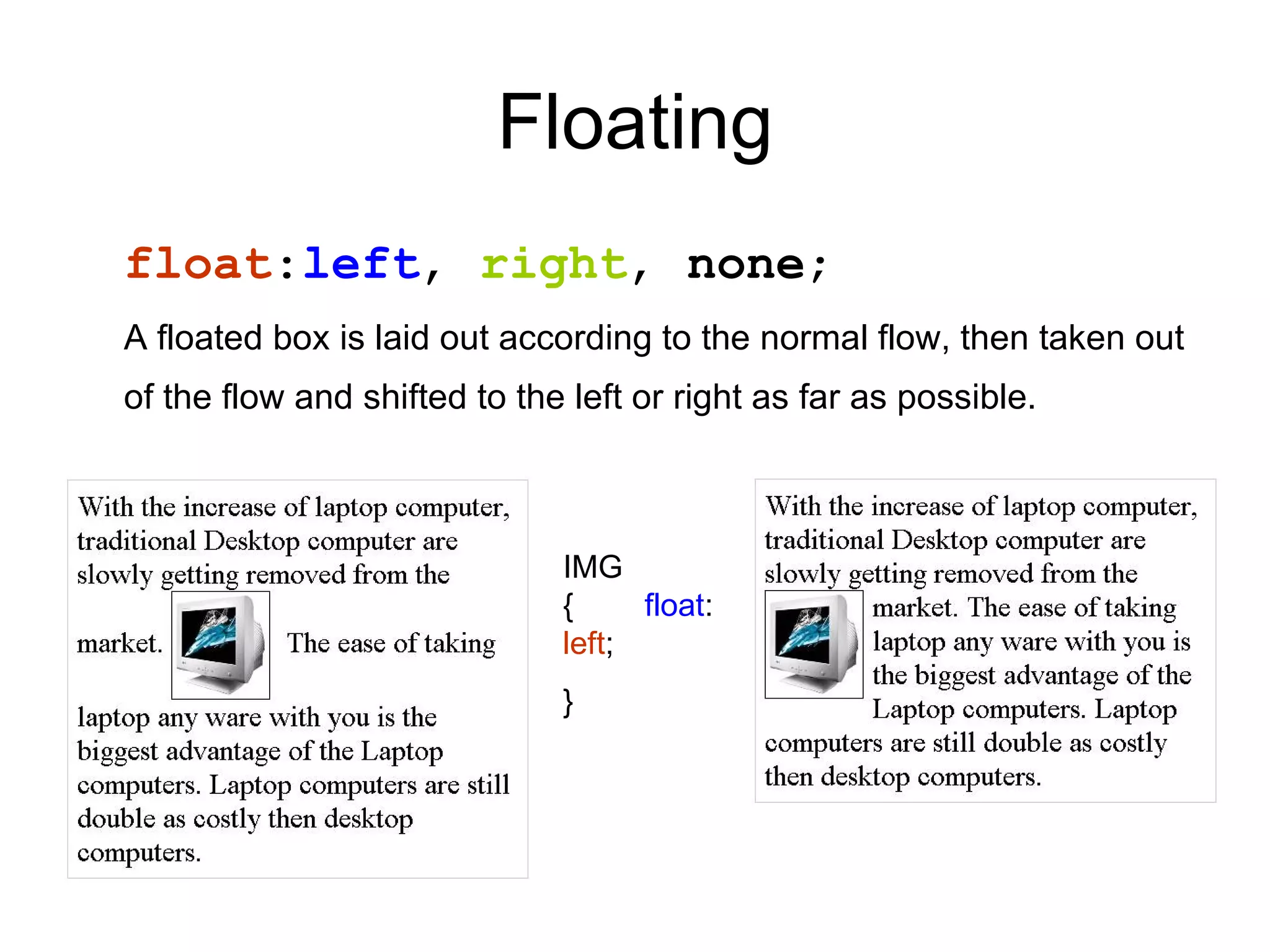
float:left, right, none;
A floated box is laid out according to the normal flow, then taken out
of the flow and shifted to the left or right as far as possible.


                              IMG
                              {     float:
                              left;
                              }
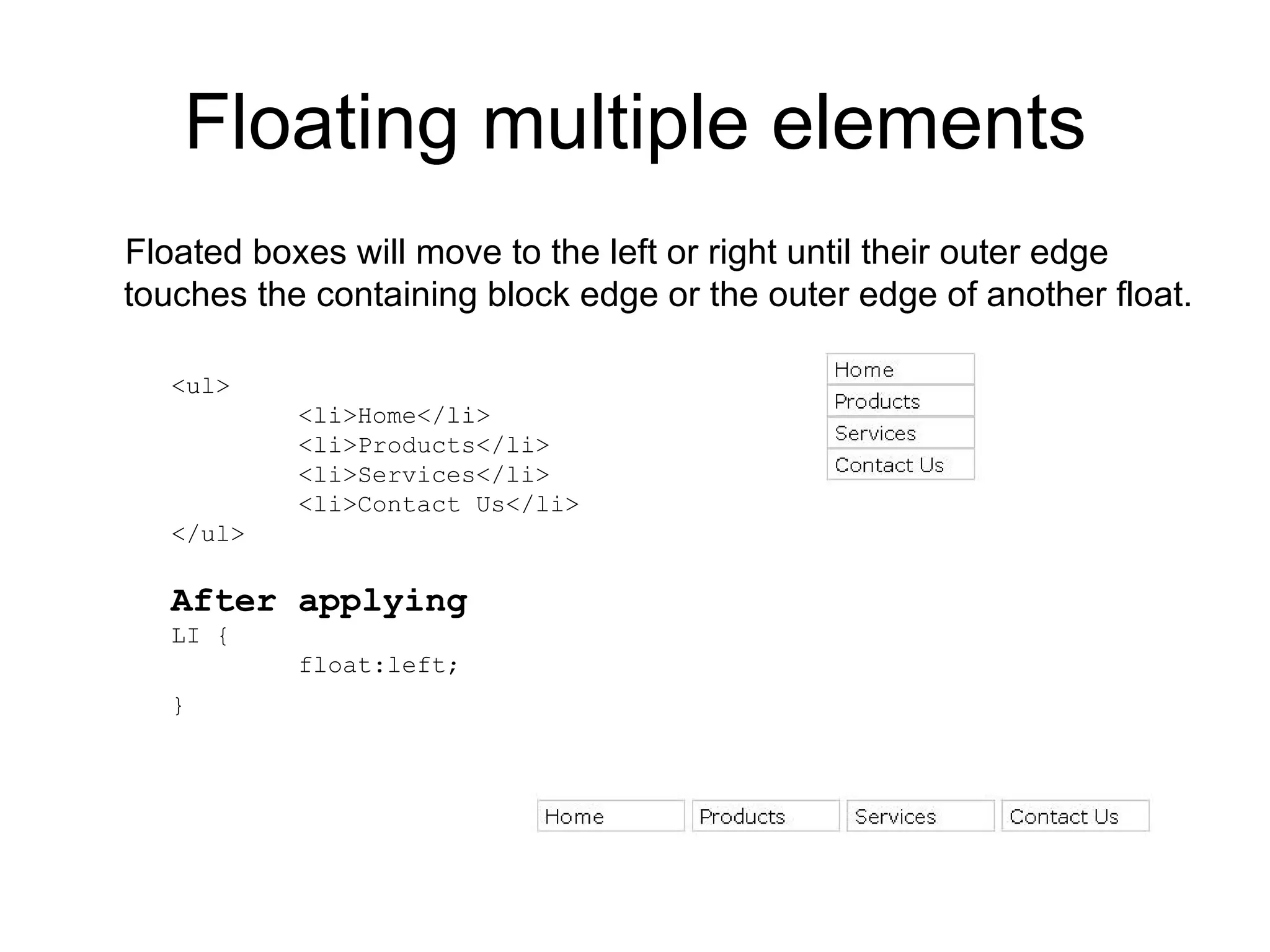
Floating multiple elements
Floated boxes will move to the left or right until their outer edge
touches the containing block edge or the outer edge of another float.

   <ul>
           <li>Home</li>
           <li>Products</li>
           <li>Services</li>
           <li>Contact Us</li>
   </ul>

   After applying
   LI {
           float:left;
   }
Clearing Floats
Clear:both ;
Or
<style type="text/css">
    .clearfix:after {
           content: "."; display: block; height: 0; clear: both; visibility: hidden; }
           .clearfix {display: inline-block;} /* for IE/Mac */
</style>
<!--[if IE]><style type="text/css">
    .clearfix { zoom: 1; display: block; }
</style> <![endif]-->
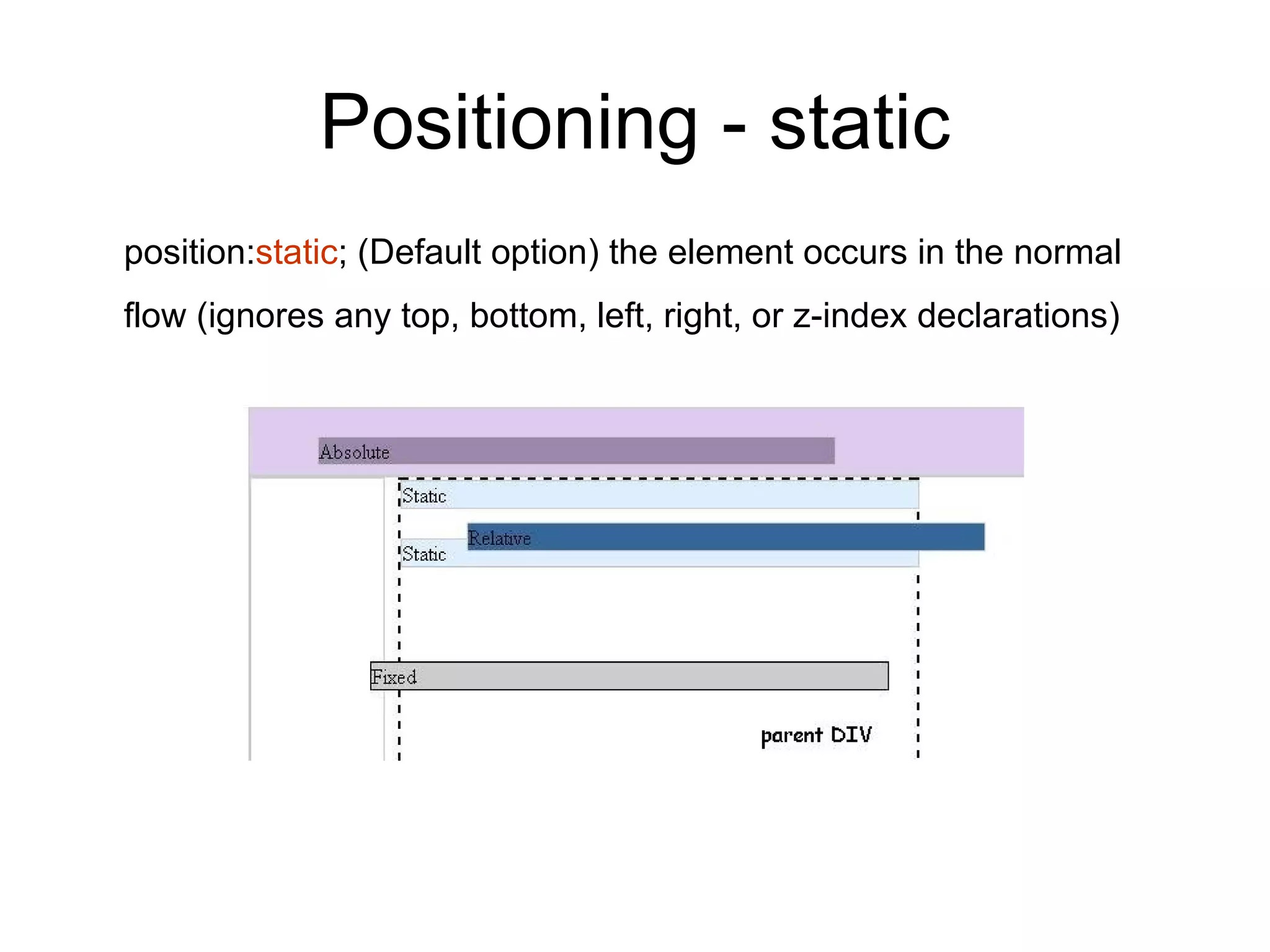
Positioning - static
position:static; (Default option) the element occurs in the normal
flow (ignores any top, bottom, left, right, or z-index declarations)
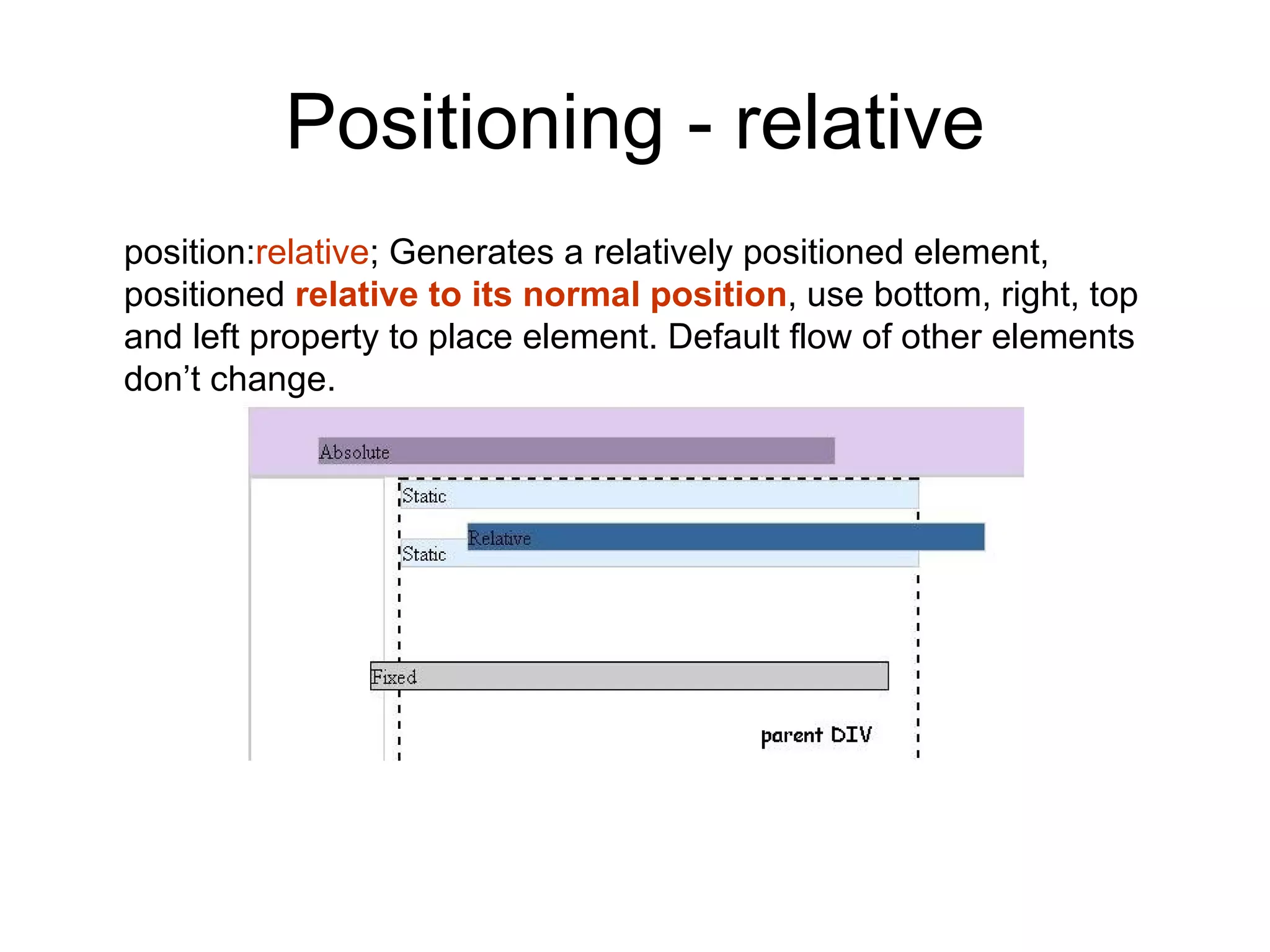
Positioning - relative
position:relative; Generates a relatively positioned element,
positioned relative to its normal position, use bottom, right, top
and left property to place element. Default flow of other elements
don’t change.
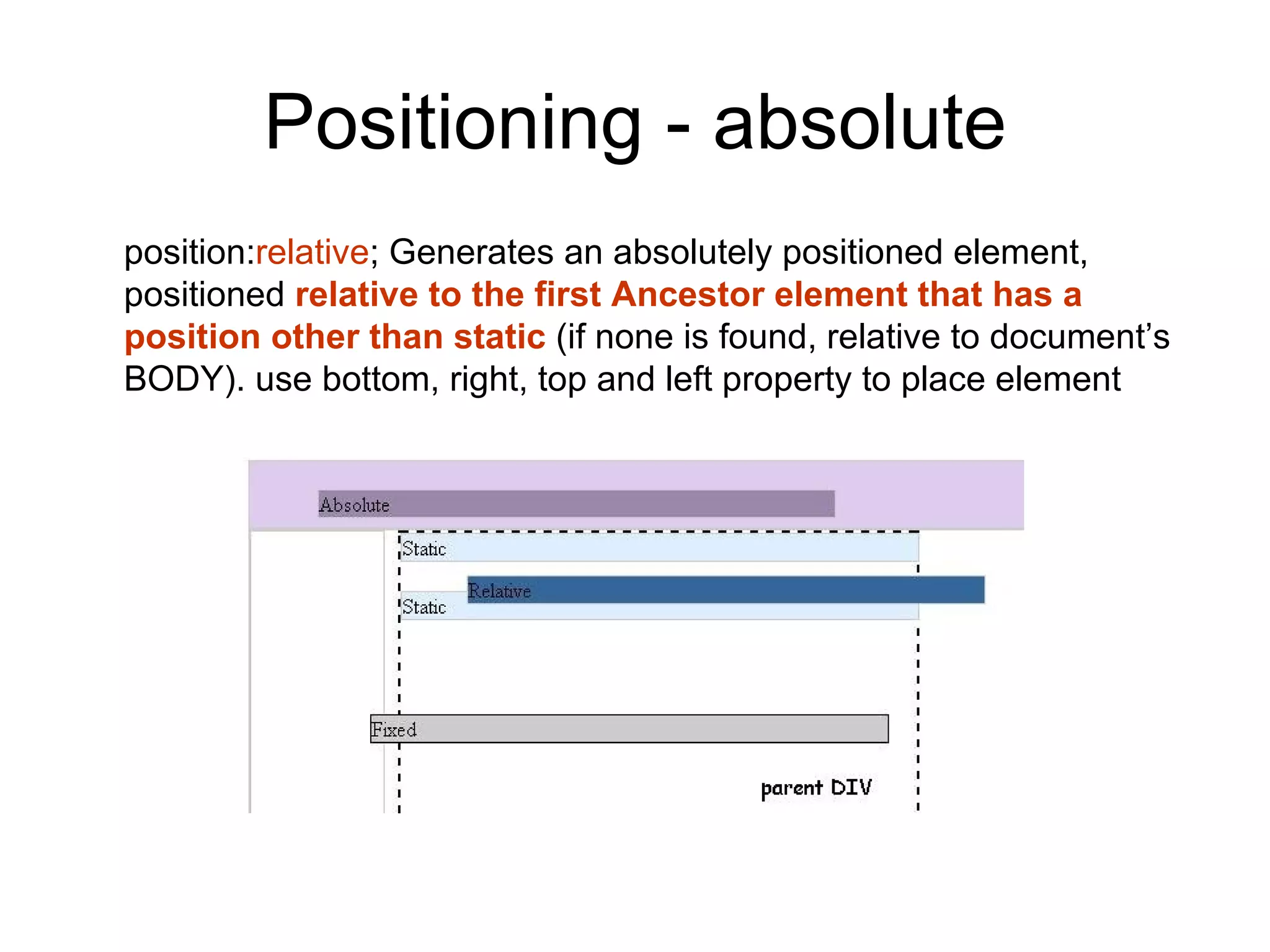
Positioning - absolute
position:relative; Generates an absolutely positioned element,
positioned relative to the first Ancestor element that has a
position other than static (if none is found, relative to document’s
BODY). use bottom, right, top and left property to place element
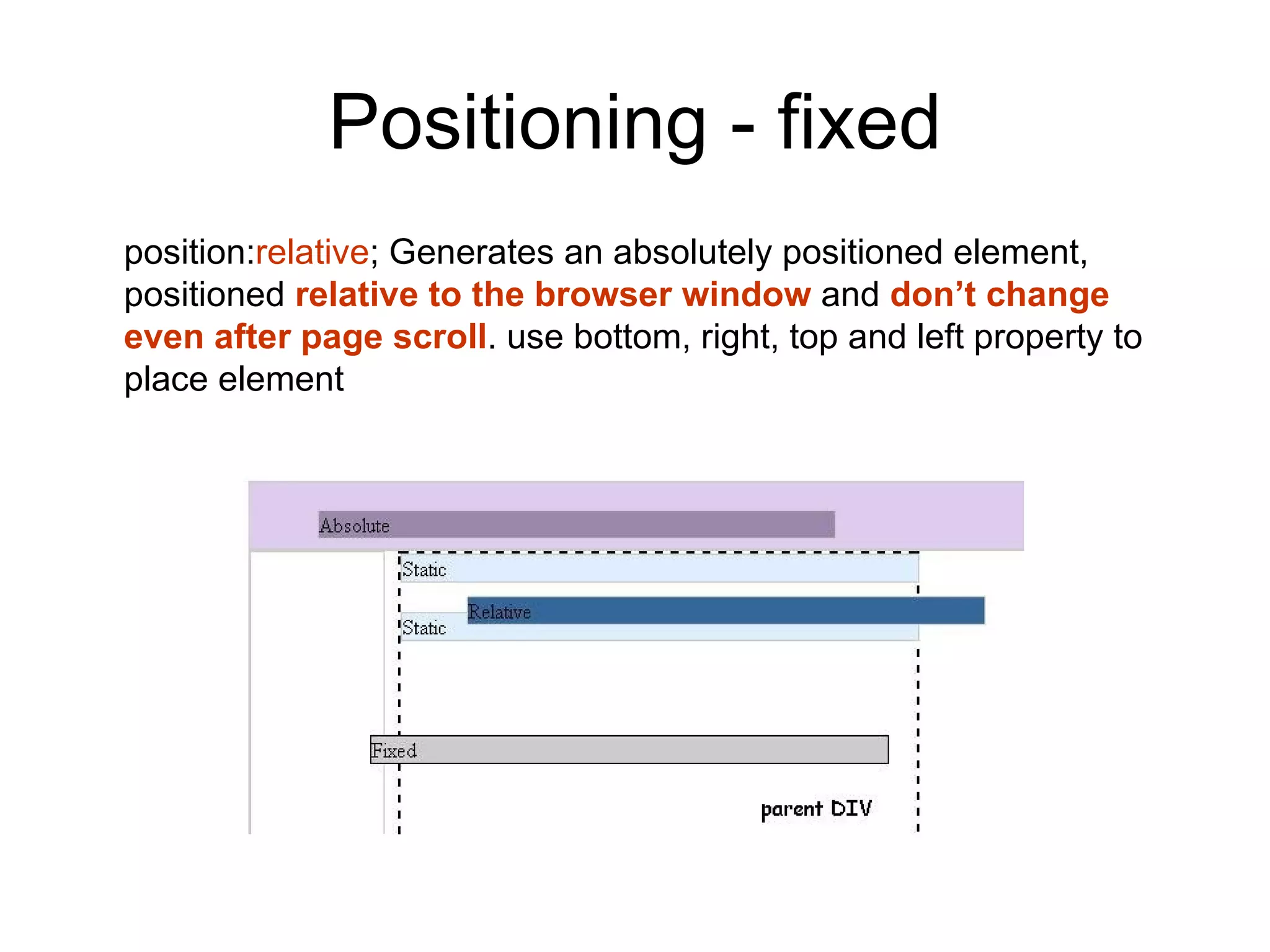
Positioning - fixed
position:relative; Generates an absolutely positioned element,
positioned relative to the browser window and don’t change
even after page scroll. use bottom, right, top and left property to
place element
Refrences
• www.w3schools.com
• www.w3.org
• World wide web

Introduction to HTML

  • 1.
    Introduction to HTML By Amit Tyagi
  • 2.
    HTML • What is HTML? • HTML is a language for describing web pages. • HTML stands for Hyper Text Markup Language • HTML is not a programming language, it is a markup language
  • 3.
    HTML Tags • HTMLmarkup tags are usually called HTML tags • HTML tags are keywords (tag names) surrounded by angle brackets like <html> • HTML tags normally come in pairs like <b> and </b> • The first tag in a pair is the start tag, the second tag is the end tag • Attributes can be added within the start tags like: <div class=“tbody”>Info</div>
  • 4.
    HTML Structure <!DOCTYPE html> <html lang="en-IN"> <head> <title>Display demo</title> <meta name="description" content="A demo Head { page to show HTML display property"> href="style.css" /> <link rel="stylesheet" type="text/css" <script > // js code goes here </script> </head> <body> <div id="main_page">Welcome to the Body { unlimited world of </html> </body> HTML </div>
  • 5.
  • 6.
    Display property none inline block list-item run-in compact marker table inline-table inline-block table-row-group table-header-group table-footer-group table-row table-column-group table-column table-cell table-caption
  • 7.
    display:block; • Block Level elements, such as DIVs, paragraphs, headings, and lists, sit one above another when displayed in the browser. HTML <body> <div id=“div1”></div> <div id=“div2”></div> <div id=“div3”></div> </body> CSS #div1 { width:300px;background:yellow;} #div1 { width:300px;background:blue;} #div1 { width:300px;background:orange;}
  • 8.
    Inline Elements • Inline elements such as a, span, and img, sit side by side when they are displayed in the browser and only appear on a new line if there is insufficient room on the previous one. <div id="row1" > .norm { color:red; <span class="norm">This is } small text and </span> .big { <span class="big">this is big</ color:blue; span> font-weight:bold; } <span class="italicText"> I am .italicText { Italic</span> color:green; </div> font-style:italic; } #row1 { padding:10px; border:solid 1px #000; }
  • 9.
    Visibility Visible : Theelement is visible (default). Hidden : The element is invisible (but still takes up space) .big { visibility:hidden; }
  • 10.
    z-index The z-index propertyspecifies the stack order of an element. An element with greater stack order is always in front of an element with a lower stack order. only works on positioned elements (position:absolute, position:relative, or position:fixed).
  • 11.
    Default page flow Alwaysthink of web page as 3D arrangement of different layers.
  • 12.
    Floating float:left, right, none; Afloated box is laid out according to the normal flow, then taken out of the flow and shifted to the left or right as far as possible. IMG { float: left; }
  • 13.
    Floating multiple elements Floatedboxes will move to the left or right until their outer edge touches the containing block edge or the outer edge of another float. <ul> <li>Home</li> <li>Products</li> <li>Services</li> <li>Contact Us</li> </ul> After applying LI { float:left; }
  • 14.
    Clearing Floats Clear:both ; Or <styletype="text/css"> .clearfix:after { content: "."; display: block; height: 0; clear: both; visibility: hidden; } .clearfix {display: inline-block;} /* for IE/Mac */ </style> <!--[if IE]><style type="text/css"> .clearfix { zoom: 1; display: block; } </style> <![endif]-->
  • 15.
    Positioning - static position:static;(Default option) the element occurs in the normal flow (ignores any top, bottom, left, right, or z-index declarations)
  • 16.
    Positioning - relative position:relative;Generates a relatively positioned element, positioned relative to its normal position, use bottom, right, top and left property to place element. Default flow of other elements don’t change.
  • 17.
    Positioning - absolute position:relative;Generates an absolutely positioned element, positioned relative to the first Ancestor element that has a position other than static (if none is found, relative to document’s BODY). use bottom, right, top and left property to place element
  • 18.
    Positioning - fixed position:relative;Generates an absolutely positioned element, positioned relative to the browser window and don’t change even after page scroll. use bottom, right, top and left property to place element
  • 21.