1
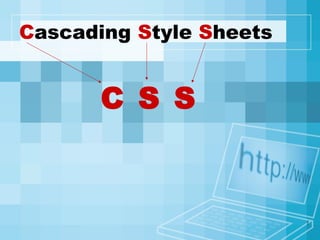
Cascading Style Sheets
C S S
2
What is CSS?
• A simple mechanism for controlling the style
of a Web document without compromising its
structure.
• It allows you to separate visual design
elements (layout, fonts, colors, margins, and
so on) from the contents of a Web page.
• Allows for faster downloads, streamlined site
maintenance, and global control of design
attributes across multiple pages.
3
CSS vs. just HTML
• What can we do with CSS that we can’t do
with HTML?
– Control of backgrounds.
– Set font size to the exact height you want.
– Highlight words, entire paragraphs, headings
or even individual letters with background
colors.
– Overlap words and make logo-type headers
without making images.
– Precise positioning.
– Linked style sheets to control the look of a
whole website from one single location.
– And more.
4
How to write CSS?
• Selector
– HTML element tags
(examples: p, h2, body, img, table)
– class and ID names
• Property (examples: color, font-size)
• Value (examples: red, 14pt)
5
How to write CSS:
• The basic syntax of a CSS rule:
selector {property 1: value 1; property 2:
value 2}
Example:
p {font-size: 8pt; color: red}
Notice the { } around the rule and the : before
each value!
6
Three ways to include CSS:
1. Local (Inline)
2. Global (Embedded, or Internal)
3. Linked (External)
7
1. Local
• Inline style sheet.
• Placed inside tags.
• Specific to a single instance of an html
tag on a page.
• Must be used instead of <font> tags to
specify font size, color, and typeface
and to define margins, etc.
• Use to override an external or
embedded style specification.
8
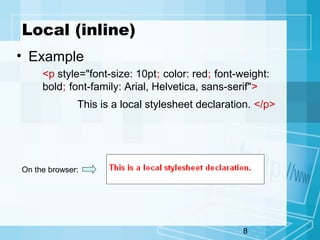
Local (inline)
• Example
<p style="font-size: 10pt; color: red; font-weight:
bold; font-family: Arial, Helvetica, sans-serif">
This is a local stylesheet declaration. </p>
On the browser:
9
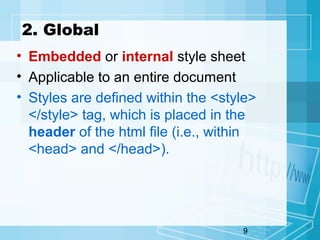
2. Global
• Embedded or internal style sheet
• Applicable to an entire document
• Styles are defined within the <style>
</style> tag, which is placed in the
header of the html file (i.e., within
<head> and </head>).
10
Global (Internal)
• Example:
<html>
<head>
<title>Title</title>
<style type="text/css">
<!--[STYLE INFORMATION GOES HERE] -->
</style>
</head>
<body>
[DOCUMENT BODY GOES HERE]
</body>
</html>
11
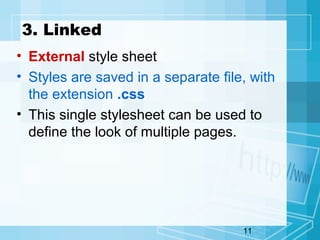
3. Linked
• External style sheet
• Styles are saved in a separate file, with
the extension .css
• This single stylesheet can be used to
define the look of multiple pages.
12
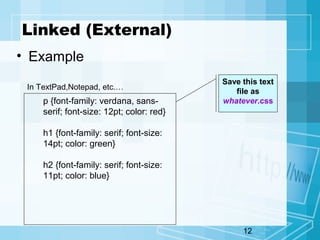
Linked (External)
• Example
p {font-family: verdana, sans-
serif; font-size: 12pt; color: red}
h1 {font-family: serif; font-size:
14pt; color: green}
h2 {font-family: serif; font-size:
11pt; color: blue}
Save this text
file as
whatever.css
In TextPad,Notepad, etc.…
13
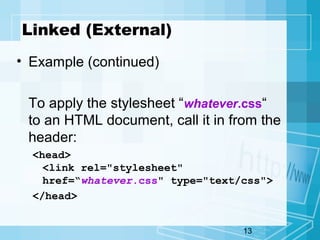
Linked (External)
• Example (continued)
To apply the stylesheet “whatever.css“
to an HTML document, call it in from the
header:
<head>
<link rel="stylesheet"
href=“whatever.css" type="text/css">
</head>
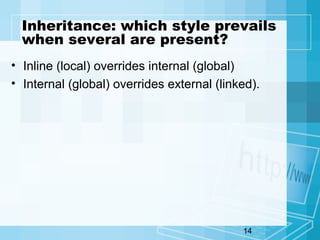
14
Inheritance: which style prevails
when several are present?
• Inline (local) overrides internal (global)
• Internal (global) overrides external (linked).
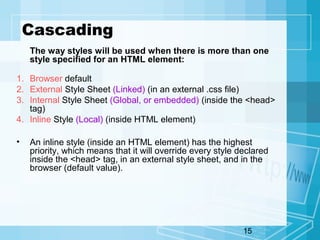
15
Cascading
The way styles will be used when there is more than one
style specified for an HTML element:
1. Browser default
2. External Style Sheet (Linked) (in an external .css file)
3. Internal Style Sheet (Global, or embedded) (inside the <head>
tag)
4. Inline Style (Local) (inside HTML element)
• An inline style (inside an HTML element) has the highest
priority, which means that it will override every style declared
inside the <head> tag, in an external style sheet, and in the
browser (default value).
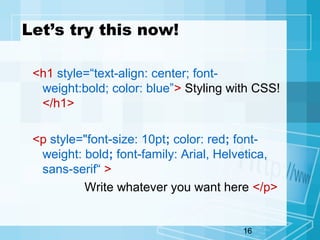
16
Let’s try this now!
<h1 style=“text-align: center; font-
weight:bold; color: blue”> Styling with CSS!
</h1>
<p style="font-size: 10pt; color: red; font-
weight: bold; font-family: Arial, Helvetica,
sans-serif“ >
Write whatever you want here </p>
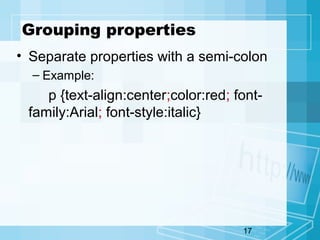
17
Grouping properties
• Separate properties with a semi-colon
– Example:
p {text-align:center;color:red; font-
family:Arial; font-style:italic}
18
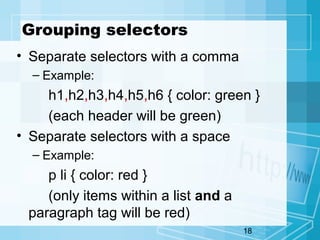
Grouping selectors
• Separate selectors with a comma
– Example:
h1,h2,h3,h4,h5,h6 { color: green }
(each header will be green)
• Separate selectors with a space
– Example:
p li { color: red }
(only items within a list and a
paragraph tag will be red)
19
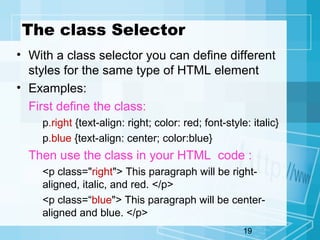
The class Selector
• With a class selector you can define different
styles for the same type of HTML element
• Examples:
First define the class:
p.right {text-align: right; color: red; font-style: italic}
p.blue {text-align: center; color:blue}
Then use the class in your HTML code :
<p class="right"> This paragraph will be right-
aligned, italic, and red. </p>
<p class=“blue"> This paragraph will be center-
aligned and blue. </p>
20
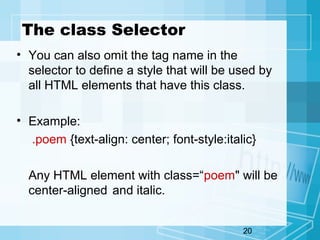
The class Selector
• You can also omit the tag name in the
selector to define a style that will be used by
all HTML elements that have this class.
• Example:
.poem {text-align: center; font-style:italic}
Any HTML element with class=“poem" will be
center-aligned and italic.
21
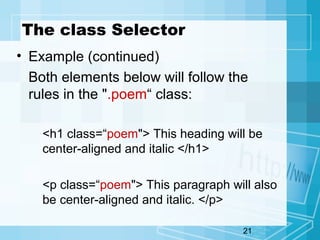
The class Selector
• Example (continued)
Both elements below will follow the
rules in the ".poem“ class:
<h1 class=“poem"> This heading will be
center-aligned and italic </h1>
<p class=“poem"> This paragraph will also
be center-aligned and italic. </p>
22
Class Example
<style>
p {font-family: sans-serif; font-size: 10pt}
h1 {font-family: serif; font-size: 30pt}
h2 {font-family: serif; font-size: 24pt}
.boldred {color: red; font-weight: bold}
.green {color: green}
.tinyblue {color: blue; font-size: 8pt}
</style>
The tags and classes can then be used in combination:
<h1 class=“boldred">This is rendered as 30-point red serif bold
text.</h1>
<p class=“boldred">This is rendered as 10-point red sans-serif bold
text.</p>
23
Applying styles to portions of
a document:
• <div>
– A division tag: to “package” a block of
document into one unit. It defines a block
element.
– Causes a line break, like <br> and <p>.
• <span>
– “Wraps” a portion of text into a unit, but
doesn't cause a line break. Allows styles to
be applied to an 'elemental' region (such
as a portion of a paragraph).
24
Example
<p><span class="foo">This text is rendered
as foo-style</span> and this is not. </p>
<div class="foo">
<p>The "foo" style will be applied to this text,
and to <a href="page.html">this text</a> as
well.
</div>
25
List of style Selectors and
their Properties and Values:
• From WDG:
http://www.htmlhelp.com/reference/css/properties.html
26
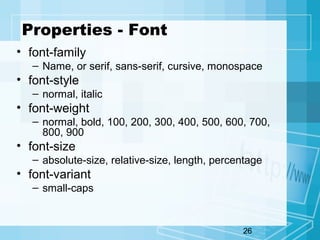
Properties - Font
• font-family
– Name, or serif, sans-serif, cursive, monospace
• font-style
– normal, italic
• font-weight
– normal, bold, 100, 200, 300, 400, 500, 600, 700,
800, 900
• font-size
– absolute-size, relative-size, length, percentage
• font-variant
– small-caps
27
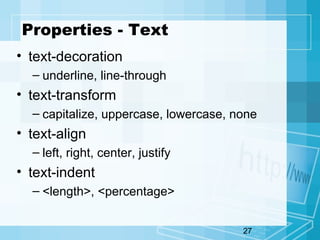
Properties - Text
• text-decoration
– underline, line-through
• text-transform
– capitalize, uppercase, lowercase, none
• text-align
– left, right, center, justify
• text-indent
– <length>, <percentage>
28
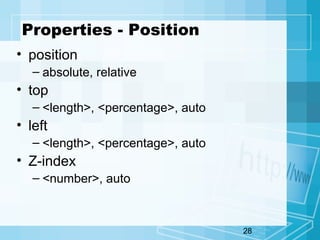
Properties - Position
• position
– absolute, relative
• top
– <length>, <percentage>, auto
• left
– <length>, <percentage>, auto
• Z-index
– <number>, auto
29
A few more details
about positioning
30
Positioning
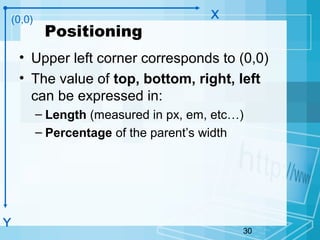
• Upper left corner corresponds to (0,0)
• The value of top, bottom, right, left
can be expressed in:
– Length (measured in px, em, etc…)
– Percentage of the parent’s width
(0,0)
Y
X
31
The z-index
• stacking order is called the z-index.
• If elements overlap each other, the one
with the higher z-index appears on top.
• Example:
.topElement {position: absolute; z-index=2;
top:0px; left:0px; font-size:36pt; color:red}
32
CSS Examples:
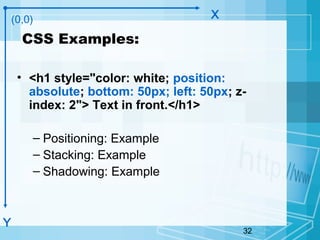
• <h1 style="color: white; position:
absolute; bottom: 50px; left: 50px; z-
index: 2"> Text in front.</h1>
– Positioning: Example
– Stacking: Example
– Shadowing: Example
(0,0)
Y
X
33
Using Boxes and Positioning for
layout
34
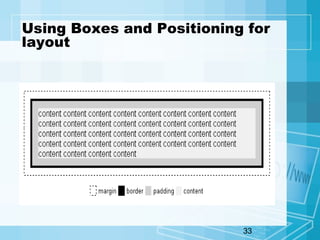
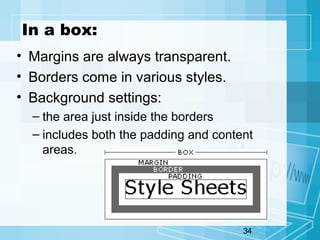
In a box:
• Margins are always transparent.
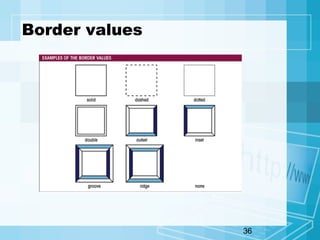
• Borders come in various styles.
• Background settings:
– the area just inside the borders
– includes both the padding and content
areas.
35
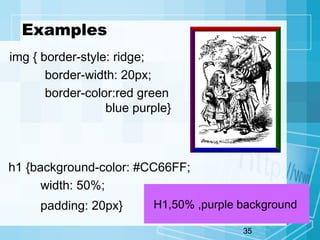
Examples
img { border-style: ridge;
border-width: 20px;
border-color:red green
blue purple}
h1 {background-color: #CC66FF;
width: 50%;
padding: 20px} H1,50% ,purple background
36
Border values
37
More fun stuff with CSS
38
Backgrounds
• background-color
– Hex
• background-image
– URL(image.jpg)
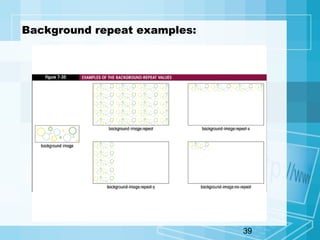
• background-repeat
– No-repeat, repeat-x, repeat-y
• background-attachment
– Fixed, scroll
• background-position
– Top, left
• p { background-position: 70px 10px; background-repeat: repeat-
y; background-image: url(background.gif) }
Example
39
Background repeat examples:
40
Scroll Bar Color
• Example:
<style>
body { color:black;
background-color:#a0a0a0;
scrollbar-face-color:#903030;
scrollbar-arrow-color:#FFFFFF;
scrollbar-track-color:#C0B0B0;
scrollbar-shadow-color:rgb(0,0,0)}
</style>
• CSS generator for scrollbars:
http://www.spectrum-research.com/V2/generators/scr
41
Link Style
• a:link {color: #FFFFFF; text-decoration: none}
• a:visited {color: #808080; text-decoration:
none}
• a:hover {color: red; text-decoration: none}
42
Cursor
• The cursor property specifies the type
of cursor to be displayed when pointing
on an element.
– Crosshair, hand, move, text, wait, etc.
• Complete demo (cursor styles):
http://www.w3schools.com/css/tryit.asp?filenam
43
How-To Examples
(source: w3c)
– examples/css-examples.html
44
Linked CSS example:
• You can download these and try on your
own!
• One html file: css_files/htmlcss7.htm
• The external stylesheet:
– css_files/stylecss.css
• The html file can call any stylesheet one
at a time for a different design each time.
45
CSS Resources
46
Demos
• http://www.w3schools.com/css/demo_default.h
47
CSS templates and tutorials
• http://positioniseverything.net/
• http://positioniseverything.net/guests/3colcom
plex.html
• http://intensivstation.ch/css/en/template.php
• http://www.benmeadowcroft.com/webdev/
48
More CSS links
• To create a navigation list design:
http://www.accessify.com/tools-and-
wizards/list-o-matic/list-o-matic.asp
• To create boxes for layout:
http://www.thenoodleincident.com/tutori
als/box_lesson/boxes.html

CSS

  • 1.
  • 2.
    2 What is CSS? •A simple mechanism for controlling the style of a Web document without compromising its structure. • It allows you to separate visual design elements (layout, fonts, colors, margins, and so on) from the contents of a Web page. • Allows for faster downloads, streamlined site maintenance, and global control of design attributes across multiple pages.
  • 3.
    3 CSS vs. justHTML • What can we do with CSS that we can’t do with HTML? – Control of backgrounds. – Set font size to the exact height you want. – Highlight words, entire paragraphs, headings or even individual letters with background colors. – Overlap words and make logo-type headers without making images. – Precise positioning. – Linked style sheets to control the look of a whole website from one single location. – And more.
  • 4.
    4 How to writeCSS? • Selector – HTML element tags (examples: p, h2, body, img, table) – class and ID names • Property (examples: color, font-size) • Value (examples: red, 14pt)
  • 5.
    5 How to writeCSS: • The basic syntax of a CSS rule: selector {property 1: value 1; property 2: value 2} Example: p {font-size: 8pt; color: red} Notice the { } around the rule and the : before each value!
  • 6.
    6 Three ways toinclude CSS: 1. Local (Inline) 2. Global (Embedded, or Internal) 3. Linked (External)
  • 7.
    7 1. Local • Inlinestyle sheet. • Placed inside tags. • Specific to a single instance of an html tag on a page. • Must be used instead of <font> tags to specify font size, color, and typeface and to define margins, etc. • Use to override an external or embedded style specification.
  • 8.
    8 Local (inline) • Example <pstyle="font-size: 10pt; color: red; font-weight: bold; font-family: Arial, Helvetica, sans-serif"> This is a local stylesheet declaration. </p> On the browser:
  • 9.
    9 2. Global • Embeddedor internal style sheet • Applicable to an entire document • Styles are defined within the <style> </style> tag, which is placed in the header of the html file (i.e., within <head> and </head>).
  • 10.
    10 Global (Internal) • Example: <html> <head> <title>Title</title> <styletype="text/css"> <!--[STYLE INFORMATION GOES HERE] --> </style> </head> <body> [DOCUMENT BODY GOES HERE] </body> </html>
  • 11.
    11 3. Linked • Externalstyle sheet • Styles are saved in a separate file, with the extension .css • This single stylesheet can be used to define the look of multiple pages.
  • 12.
    12 Linked (External) • Example p{font-family: verdana, sans- serif; font-size: 12pt; color: red} h1 {font-family: serif; font-size: 14pt; color: green} h2 {font-family: serif; font-size: 11pt; color: blue} Save this text file as whatever.css In TextPad,Notepad, etc.…
  • 13.
    13 Linked (External) • Example(continued) To apply the stylesheet “whatever.css“ to an HTML document, call it in from the header: <head> <link rel="stylesheet" href=“whatever.css" type="text/css"> </head>
  • 14.
    14 Inheritance: which styleprevails when several are present? • Inline (local) overrides internal (global) • Internal (global) overrides external (linked).
  • 15.
    15 Cascading The way styleswill be used when there is more than one style specified for an HTML element: 1. Browser default 2. External Style Sheet (Linked) (in an external .css file) 3. Internal Style Sheet (Global, or embedded) (inside the <head> tag) 4. Inline Style (Local) (inside HTML element) • An inline style (inside an HTML element) has the highest priority, which means that it will override every style declared inside the <head> tag, in an external style sheet, and in the browser (default value).
  • 16.
    16 Let’s try thisnow! <h1 style=“text-align: center; font- weight:bold; color: blue”> Styling with CSS! </h1> <p style="font-size: 10pt; color: red; font- weight: bold; font-family: Arial, Helvetica, sans-serif“ > Write whatever you want here </p>
  • 17.
    17 Grouping properties • Separateproperties with a semi-colon – Example: p {text-align:center;color:red; font- family:Arial; font-style:italic}
  • 18.
    18 Grouping selectors • Separateselectors with a comma – Example: h1,h2,h3,h4,h5,h6 { color: green } (each header will be green) • Separate selectors with a space – Example: p li { color: red } (only items within a list and a paragraph tag will be red)
  • 19.
    19 The class Selector •With a class selector you can define different styles for the same type of HTML element • Examples: First define the class: p.right {text-align: right; color: red; font-style: italic} p.blue {text-align: center; color:blue} Then use the class in your HTML code : <p class="right"> This paragraph will be right- aligned, italic, and red. </p> <p class=“blue"> This paragraph will be center- aligned and blue. </p>
  • 20.
    20 The class Selector •You can also omit the tag name in the selector to define a style that will be used by all HTML elements that have this class. • Example: .poem {text-align: center; font-style:italic} Any HTML element with class=“poem" will be center-aligned and italic.
  • 21.
    21 The class Selector •Example (continued) Both elements below will follow the rules in the ".poem“ class: <h1 class=“poem"> This heading will be center-aligned and italic </h1> <p class=“poem"> This paragraph will also be center-aligned and italic. </p>
  • 22.
    22 Class Example <style> p {font-family:sans-serif; font-size: 10pt} h1 {font-family: serif; font-size: 30pt} h2 {font-family: serif; font-size: 24pt} .boldred {color: red; font-weight: bold} .green {color: green} .tinyblue {color: blue; font-size: 8pt} </style> The tags and classes can then be used in combination: <h1 class=“boldred">This is rendered as 30-point red serif bold text.</h1> <p class=“boldred">This is rendered as 10-point red sans-serif bold text.</p>
  • 23.
    23 Applying styles toportions of a document: • <div> – A division tag: to “package” a block of document into one unit. It defines a block element. – Causes a line break, like <br> and <p>. • <span> – “Wraps” a portion of text into a unit, but doesn't cause a line break. Allows styles to be applied to an 'elemental' region (such as a portion of a paragraph).
  • 24.
    24 Example <p><span class="foo">This textis rendered as foo-style</span> and this is not. </p> <div class="foo"> <p>The "foo" style will be applied to this text, and to <a href="page.html">this text</a> as well. </div>
  • 25.
    25 List of styleSelectors and their Properties and Values: • From WDG: http://www.htmlhelp.com/reference/css/properties.html
  • 26.
    26 Properties - Font •font-family – Name, or serif, sans-serif, cursive, monospace • font-style – normal, italic • font-weight – normal, bold, 100, 200, 300, 400, 500, 600, 700, 800, 900 • font-size – absolute-size, relative-size, length, percentage • font-variant – small-caps
  • 27.
    27 Properties - Text •text-decoration – underline, line-through • text-transform – capitalize, uppercase, lowercase, none • text-align – left, right, center, justify • text-indent – <length>, <percentage>
  • 28.
    28 Properties - Position •position – absolute, relative • top – <length>, <percentage>, auto • left – <length>, <percentage>, auto • Z-index – <number>, auto
  • 29.
    29 A few moredetails about positioning
  • 30.
    30 Positioning • Upper leftcorner corresponds to (0,0) • The value of top, bottom, right, left can be expressed in: – Length (measured in px, em, etc…) – Percentage of the parent’s width (0,0) Y X
  • 31.
    31 The z-index • stackingorder is called the z-index. • If elements overlap each other, the one with the higher z-index appears on top. • Example: .topElement {position: absolute; z-index=2; top:0px; left:0px; font-size:36pt; color:red}
  • 32.
    32 CSS Examples: • <h1style="color: white; position: absolute; bottom: 50px; left: 50px; z- index: 2"> Text in front.</h1> – Positioning: Example – Stacking: Example – Shadowing: Example (0,0) Y X
  • 33.
    33 Using Boxes andPositioning for layout
  • 34.
    34 In a box: •Margins are always transparent. • Borders come in various styles. • Background settings: – the area just inside the borders – includes both the padding and content areas.
  • 35.
    35 Examples img { border-style:ridge; border-width: 20px; border-color:red green blue purple} h1 {background-color: #CC66FF; width: 50%; padding: 20px} H1,50% ,purple background
  • 36.
  • 37.
  • 38.
    38 Backgrounds • background-color – Hex •background-image – URL(image.jpg) • background-repeat – No-repeat, repeat-x, repeat-y • background-attachment – Fixed, scroll • background-position – Top, left • p { background-position: 70px 10px; background-repeat: repeat- y; background-image: url(background.gif) } Example

  • 39.
  • 40.
    40 Scroll Bar Color •Example: <style> body { color:black; background-color:#a0a0a0; scrollbar-face-color:#903030; scrollbar-arrow-color:#FFFFFF; scrollbar-track-color:#C0B0B0; scrollbar-shadow-color:rgb(0,0,0)} </style> • CSS generator for scrollbars: http://www.spectrum-research.com/V2/generators/scr
  • 41.
    41 Link Style • a:link{color: #FFFFFF; text-decoration: none} • a:visited {color: #808080; text-decoration: none} • a:hover {color: red; text-decoration: none}
  • 42.
    42 Cursor • The cursorproperty specifies the type of cursor to be displayed when pointing on an element. – Crosshair, hand, move, text, wait, etc. • Complete demo (cursor styles): http://www.w3schools.com/css/tryit.asp?filenam
  • 43.
    43 How-To Examples (source: w3c) –examples/css-examples.html
  • 44.
    44 Linked CSS example: •You can download these and try on your own! • One html file: css_files/htmlcss7.htm • The external stylesheet: – css_files/stylecss.css • The html file can call any stylesheet one at a time for a different design each time.
  • 45.
  • 46.
  • 47.
    47 CSS templates andtutorials • http://positioniseverything.net/ • http://positioniseverything.net/guests/3colcom plex.html • http://intensivstation.ch/css/en/template.php • http://www.benmeadowcroft.com/webdev/
  • 48.
    48 More CSS links •To create a navigation list design: http://www.accessify.com/tools-and- wizards/list-o-matic/list-o-matic.asp • To create boxes for layout: http://www.thenoodleincident.com/tutori als/box_lesson/boxes.html