13
COLORS AND BACKGROUNDS
OVERVIEW
• CSS color names
• RGB and HSL color values
• Foreground and background colors
• Tiling background images
• More selectors and external style sheets
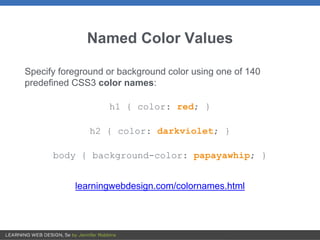
Named Color Values
Specify foreground or background color using one of 140
predefined CSS3 color names:
h1 { color: red; }
h2 { color: darkviolet; }
body { background-color: papayawhip; }
learningwebdesign.com/colornames.html
Numeric Color Values
For more control, define colors numerically using one of these
color models:
• RGB (combination of red, green, and blue light values)
• RGBa (RGB plus alpha transparency)
• HSL (hue, saturation, and luminosity)
• HSLa (HSL plus alpha transparency)
RGB Color
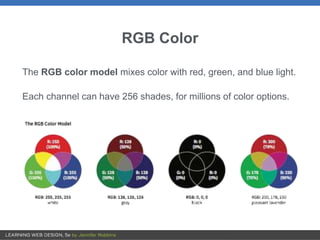
The RGB color model mixes color with red, green, and blue light.
Each channel can have 256 shades, for millions of color options.
RGB Values in Style Rules
There are four formats for providing RGB color values:
• RGB values (0 to 255): rgb(200,178,230)
• Percentage values: rgb(78%,70%,90%)
• Hexadecimal values: #C8B2E6
• Condensed hexadecimal values (for double-digits only):
#F06 is the same as #FF0066
Hexadecimal RGB Values
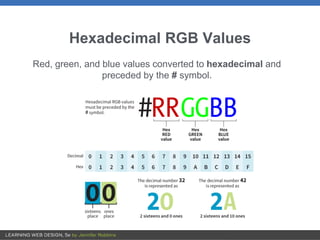
Red, green, and blue values converted to hexadecimal and
preceded by the # symbol.
RGBa Color
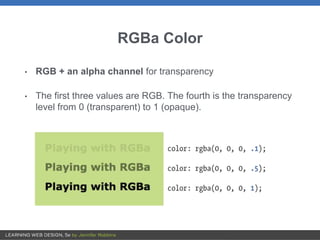
• RGB + an alpha channel for transparency
• The first three values are RGB. The fourth is the transparency
level from 0 (transparent) to 1 (opaque).
HSL and HSLa
• Colors described by values for hue (°), saturation (%), and
luminosity (%):
hsl(180,50%,75%)
• Hue specifies the position on a color wheel (in degrees) that
has red at 0°, green at 120°, and blue at 240°.
• HSL is less commonly used than RGB, but some find it more
intuitive.
• HSLa adds an alpha value for transparency.
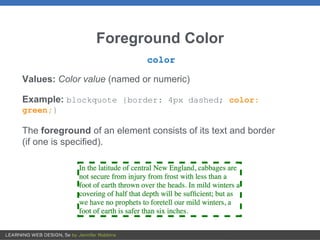
Foreground Color
color
Values: Color value (named or numeric)
Example: blockquote {border: 4px dashed; color:
green;}
The foreground of an element consists of its text and border
(if one is specified).
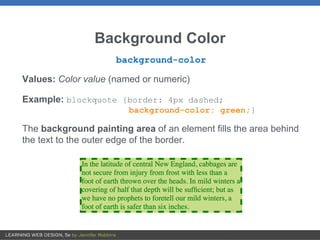
Background Color
background-color
Values: Color value (named or numeric)
Example: blockquote {border: 4px dashed;
background-color: green;}
The background painting area of an element fills the area behind
the text to the outer edge of the border.
Clipping the Background
background-clip
Values: border-box, padding-box, content-box
Specifies where the background painting area ends.
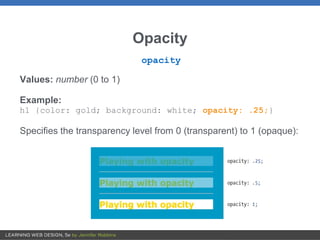
Opacity
opacity
Values: number (0 to 1)
Example:
h1 {color: gold; background: white; opacity: .25;}
Specifies the transparency level from 0 (transparent) to 1 (opaque):
Tiling Background Images
background-image
Values: url(location of image), none
Example: body {background-image: url(star.png);}
Locates an image to be used as a tiling background image behind an
element. By default, it starts at the top, left corner and repeats
horizontally and vertically:
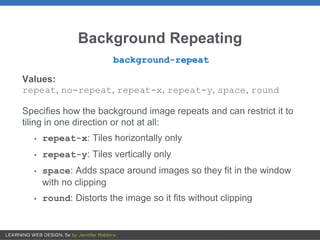
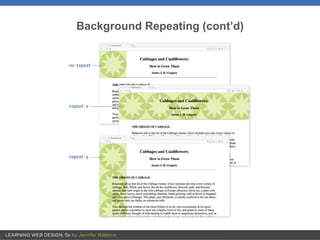
Background Repeating
background-repeat
Values:
repeat, no-repeat, repeat-x, repeat-y, space, round
Specifies how the background image repeats and can restrict it to
tiling in one direction or not at all:
• repeat-x: Tiles horizontally only
• repeat-y: Tiles vertically only
• space: Adds space around images so they fit in the window
with no clipping
• round: Distorts the image so it fits without clipping
Background Repeating (cont’d)
Background Position
background-position
Values:
Length, percentage, left, center, right, top, bottom
Specifies the position of the origin image, the first image that is
placed in the background from which tiling images extend.
Examples (horizontal position goes first):
background-position: left bottom;
background-position: 300px 100px;
background-position: 25% 100%;
Background Position (cont’d)
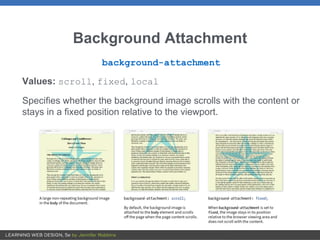
Background Attachment
background-attachment
Values: scroll, fixed, local
Specifies whether the background image scrolls with the content or
stays in a fixed position relative to the viewport.
Background Size
background-size
Values:
Length, percentage, auto, cover, contain
Specifies the size of the tiling image:
Shorthand background Property
background
Values:
background-color background-image background-repeat
background-attachment background-position background-clip
background-origin background-size
• Specifies all background properties in one declaration
background: white url(star.png) no-repeat top
center fixed;
• Properties are optional and may appear in any order
• Properties not represented reset to their defaults—be careful it
doesn’t overwrite previous background settings.
Multiple Background Images
You can place more than one background image in a single
image (separated by commas):
body {
background:
url(image1.png) left top no-repeat,
url(image2.png) center center no-repeat,
url(image3.png) right bottom no-repeat;
}
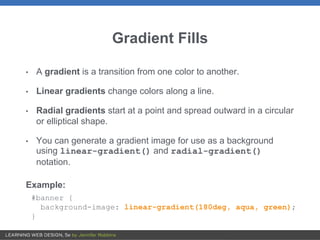
Gradient Fills
• A gradient is a transition from one color to another.
• Linear gradients change colors along a line.
• Radial gradients start at a point and spread outward in a circular
or elliptical shape.
• You can generate a gradient image for use as a background
using linear-gradient() and radial-gradient()
notation.
Example:
#banner {
background-image: linear-gradient(180deg, aqua, green);
}
Linear Gradient
The linear-gradient()
notation provides the angle of a
gradient line and the colors the
line passes through.
It is specified in degrees (deg) or
keywords (to top, to right,
to bottom, to left).
Radial Gradients
The radial-gradient()
notation provides the color
values and optional size, shape,
and position information.
Gradient Vendor Prefixes
Because the gradient spec has changed over time, gradients require significant
prefixing and alternate values:
background: #ffff00; /* Old browsers */
background: -moz-linear-gradient(top, #ffff00 0%, #00ff00 100%);
/* FF3.6+ */
background: -webkit-gradient(linear, left top, left bottom, color-stop(0%,#ffff00), color-
stop(100%,#00ff00));
/* Chrome,Safari4+ */
background: -webkit-linear-gradient(top, #ffff00 0%,#00ff00 100%);
/* Chrome10+,Safari5.1+ */
background: -o-linear-gradient(top, #ffff00 0%,#00ff00 100%);
/* Opera 11.10+ */
background: -ms-linear-gradient(top, #ffff00 0%,#00ff00 100%);
/* IE10+ */
background: linear-gradient(to bottom, #ffff00 0%,#00ff00 100%);
/* W3C Standard */
filter: progid:DXImageTransform.Microsoft.gradient( startColorstr='#ffff00',
endColorstr='#00ff00',GradientType=0 );
/* IE6-9 */
TIP: Use a tool like Ultimate CSS Gradient Generator:
www.colorzilla.com/gradient-editor.
Vendor Prefixes
Browsers once kept experimental implementations of properties
separate from the final release by adding a vendor prefix.
Example:
Property name:
shape-outside
Vendor-prefixed for Safari, Chrome, and Android:
-webkit-shape-outside
Vendor Prefixes (cont’d)
Prefix Organization Most popular browsers
-ms- Microsoft Internet Explorer
-moz- Mozilla
Foundation
Firefox, Camino, SeaMonkey
-o- Opera Software Opera, Opera Mini, Opera Mobile
-webkit- Originally Apple;
now open
source
Safari, Chrome, Android, Silk, BlackBerry,
WebOS, and many others
NOTE: Browser vendors no longer use the prefix system, but some
properties from that era still require them.
ShouldIPrefix.com is a good place to check for properties that still
require prefixes.
More Selector Types
Pseudo-class selectors
Pseudo-element selectors
Attribute selectors
Pseudo-Class Selectors
Treat elements in a certain state as belonging to the same class
Link Pseudo-classes
:link Applies style to unvisited (unclicked) links
:visited Applies style to visited links
User Action Pseudo-classes
:focus Applies when element is selected for input
:hover Applies when the mouse pointer is over the element
:active Applies when the element (such as a link or button) is
in the process of being clicked or tapped
Pseudo-classes (cont’d)
a { text-decoration: none; } /* turns underlines off for all links */
a:link { color: maroon; }
a:visited { color: gray; }
a:focus { color: maroon; background-color: #ffd9d9; }
a:hover { color: maroon; background-color: #ffd9d9; }
a:active { color: red; background-color: #ffd9d9; }
Pseudo-classes must appear in the following order:
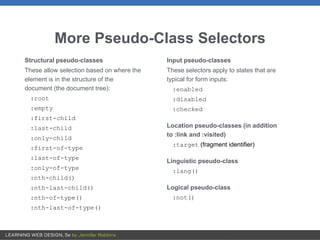
More Pseudo-Class Selectors
Structural pseudo-classes
These allow selection based on where the
element is in the structure of the
document (the document tree):
:root
:empty
:first-child
:last-child
:only-child
:first-of-type
:last-of-type
:only-of-type
:nth-child()
:nth-last-child()
:nth-of-type()
:nth-last-of-type()
Input pseudo-classes
These selectors apply to states that are
typical for form inputs:
:enabled
:disabled
:checked
Location pseudo-classes (in addition
to :link and :visited)
:target (fragment identifier)
Linguistic pseudo-class
:lang()
Logical pseudo-class
:not()
Pseudo-Element Selectors
Applies styles to elements not explicitly marked up in the source.
::first-line
Applies a style to the first line of an element:
p:first-line {letter-spacing: 9px;}
::first-letter
Applies a style to the first letter of an element:
p:first-letter { font-size 300%; color: orange;}
Pseudo-Element Selectors (cont’d.)
The ::before and ::after pseudo-elements insert generated
content before or after a specified element.
::before
Inserts copy (provided with the content property) before an
element and applies style properties to it as specified
::after
Inserts copy (provided with the content property) after an
element and applies style properties to it as specified
Generated Content Example
The style sheet:
p.warning::before {
content: url(exclamation.png);
margin-right: 6px;
}
p.warning::after {
content: " Thank you.";
color: red;
}
The markup:
<p class="warning">We are required to warn you that
undercooked food is a health risk.</p>
Attribute Selectors
Targets elements based on attribute names or values. There
are eight types:
Simple attribute selector
Matches an element with a given attribute:
E[attribute]
img[title] { border: 3px solid;}
(Matches every img element that has a title attribute)
Attribute Selectors (cont’d)
Exact attribute value selector
Matches an element with a specific value for an attribute:
E[attribute="exact value"]
img[title="first grade"] {border: 3px solid;}
(matches only if the title value is "first grade")
Partial attribute value selector (~)
Matches an element by one part of an attribute value.:
E[attribute~="value"]
img[title~="grade"] {border: 3px solid;}
(matches "first grade", "second grade", and so on)
Attribute Selectors (cont’d.)
Hyphen-separated attribute value selector (|)
Targets hyphen-separated values:
E[attribute|="value"]
Beginning substring attribute value selector (^)
Matches an element with attribute values that start with the given string of
characters:
E[attribute^="first part of a value"]
Ending substring attribute value selector ($)
Matches an element with attribute values that end with the given string of
characters:
E[attribute$="last part of a value"]
Arbitrary substring attribute value selector (*)
Looks for the text string in any part of the attribute value:
E[attribute*="any part of the value"]
External Style Sheets
• Store styles in a separate .css file and attach to the document
via <link> or @import
• Most efficient method: Change styles in multiple documents by
editing one .css file
• A .css document is a simple text document (may begin with
@charset to identify character set)
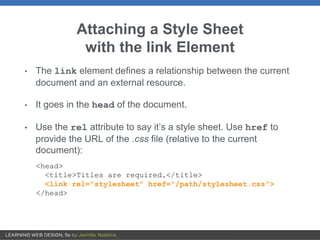
Attaching a Style Sheet
with the link Element
• The link element defines a relationship between the current
document and an external resource.
• It goes in the head of the document.
• Use the rel attribute to say it’s a style sheet. Use href to
provide the URL of the .css file (relative to the current
document):
<head>
<title>Titles are required.</title>
<link rel="stylesheet" href="/path/stylesheet.css">
</head>
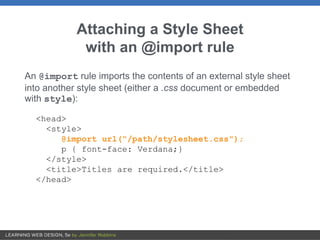
Attaching a Style Sheet
with an @import rule
An @import rule imports the contents of an external style sheet
into another style sheet (either a .css document or embedded
with style):
<head>
<style>
@import url("/path/stylesheet.css");
p { font-face: Verdana;}
</style>
<title>Titles are required.</title>
</head>

Chapter 13: Colors and Backgrounds

  • 1.
  • 2.
    OVERVIEW • CSS colornames • RGB and HSL color values • Foreground and background colors • Tiling background images • More selectors and external style sheets
  • 3.
    Named Color Values Specifyforeground or background color using one of 140 predefined CSS3 color names: h1 { color: red; } h2 { color: darkviolet; } body { background-color: papayawhip; } learningwebdesign.com/colornames.html
  • 4.
    Numeric Color Values Formore control, define colors numerically using one of these color models: • RGB (combination of red, green, and blue light values) • RGBa (RGB plus alpha transparency) • HSL (hue, saturation, and luminosity) • HSLa (HSL plus alpha transparency)
  • 5.
    RGB Color The RGBcolor model mixes color with red, green, and blue light. Each channel can have 256 shades, for millions of color options.
  • 6.
    RGB Values inStyle Rules There are four formats for providing RGB color values: • RGB values (0 to 255): rgb(200,178,230) • Percentage values: rgb(78%,70%,90%) • Hexadecimal values: #C8B2E6 • Condensed hexadecimal values (for double-digits only): #F06 is the same as #FF0066
  • 7.
    Hexadecimal RGB Values Red,green, and blue values converted to hexadecimal and preceded by the # symbol.
  • 8.
    RGBa Color • RGB+ an alpha channel for transparency • The first three values are RGB. The fourth is the transparency level from 0 (transparent) to 1 (opaque).
  • 9.
    HSL and HSLa •Colors described by values for hue (°), saturation (%), and luminosity (%): hsl(180,50%,75%) • Hue specifies the position on a color wheel (in degrees) that has red at 0°, green at 120°, and blue at 240°. • HSL is less commonly used than RGB, but some find it more intuitive. • HSLa adds an alpha value for transparency.
  • 10.
    Foreground Color color Values: Colorvalue (named or numeric) Example: blockquote {border: 4px dashed; color: green;} The foreground of an element consists of its text and border (if one is specified).
  • 11.
    Background Color background-color Values: Colorvalue (named or numeric) Example: blockquote {border: 4px dashed; background-color: green;} The background painting area of an element fills the area behind the text to the outer edge of the border.
  • 12.
    Clipping the Background background-clip Values:border-box, padding-box, content-box Specifies where the background painting area ends.
  • 13.
    Opacity opacity Values: number (0to 1) Example: h1 {color: gold; background: white; opacity: .25;} Specifies the transparency level from 0 (transparent) to 1 (opaque):
  • 14.
    Tiling Background Images background-image Values:url(location of image), none Example: body {background-image: url(star.png);} Locates an image to be used as a tiling background image behind an element. By default, it starts at the top, left corner and repeats horizontally and vertically:
  • 15.
    Background Repeating background-repeat Values: repeat, no-repeat,repeat-x, repeat-y, space, round Specifies how the background image repeats and can restrict it to tiling in one direction or not at all: • repeat-x: Tiles horizontally only • repeat-y: Tiles vertically only • space: Adds space around images so they fit in the window with no clipping • round: Distorts the image so it fits without clipping
  • 16.
  • 17.
    Background Position background-position Values: Length, percentage,left, center, right, top, bottom Specifies the position of the origin image, the first image that is placed in the background from which tiling images extend. Examples (horizontal position goes first): background-position: left bottom; background-position: 300px 100px; background-position: 25% 100%;
  • 18.
  • 19.
    Background Attachment background-attachment Values: scroll,fixed, local Specifies whether the background image scrolls with the content or stays in a fixed position relative to the viewport.
  • 20.
    Background Size background-size Values: Length, percentage,auto, cover, contain Specifies the size of the tiling image:
  • 21.
    Shorthand background Property background Values: background-colorbackground-image background-repeat background-attachment background-position background-clip background-origin background-size • Specifies all background properties in one declaration background: white url(star.png) no-repeat top center fixed; • Properties are optional and may appear in any order • Properties not represented reset to their defaults—be careful it doesn’t overwrite previous background settings.
  • 22.
    Multiple Background Images Youcan place more than one background image in a single image (separated by commas): body { background: url(image1.png) left top no-repeat, url(image2.png) center center no-repeat, url(image3.png) right bottom no-repeat; }
  • 23.
    Gradient Fills • Agradient is a transition from one color to another. • Linear gradients change colors along a line. • Radial gradients start at a point and spread outward in a circular or elliptical shape. • You can generate a gradient image for use as a background using linear-gradient() and radial-gradient() notation. Example: #banner { background-image: linear-gradient(180deg, aqua, green); }
  • 24.
    Linear Gradient The linear-gradient() notationprovides the angle of a gradient line and the colors the line passes through. It is specified in degrees (deg) or keywords (to top, to right, to bottom, to left).
  • 25.
    Radial Gradients The radial-gradient() notationprovides the color values and optional size, shape, and position information.
  • 26.
    Gradient Vendor Prefixes Becausethe gradient spec has changed over time, gradients require significant prefixing and alternate values: background: #ffff00; /* Old browsers */ background: -moz-linear-gradient(top, #ffff00 0%, #00ff00 100%); /* FF3.6+ */ background: -webkit-gradient(linear, left top, left bottom, color-stop(0%,#ffff00), color- stop(100%,#00ff00)); /* Chrome,Safari4+ */ background: -webkit-linear-gradient(top, #ffff00 0%,#00ff00 100%); /* Chrome10+,Safari5.1+ */ background: -o-linear-gradient(top, #ffff00 0%,#00ff00 100%); /* Opera 11.10+ */ background: -ms-linear-gradient(top, #ffff00 0%,#00ff00 100%); /* IE10+ */ background: linear-gradient(to bottom, #ffff00 0%,#00ff00 100%); /* W3C Standard */ filter: progid:DXImageTransform.Microsoft.gradient( startColorstr='#ffff00', endColorstr='#00ff00',GradientType=0 ); /* IE6-9 */ TIP: Use a tool like Ultimate CSS Gradient Generator: www.colorzilla.com/gradient-editor.
  • 27.
    Vendor Prefixes Browsers oncekept experimental implementations of properties separate from the final release by adding a vendor prefix. Example: Property name: shape-outside Vendor-prefixed for Safari, Chrome, and Android: -webkit-shape-outside
  • 28.
    Vendor Prefixes (cont’d) PrefixOrganization Most popular browsers -ms- Microsoft Internet Explorer -moz- Mozilla Foundation Firefox, Camino, SeaMonkey -o- Opera Software Opera, Opera Mini, Opera Mobile -webkit- Originally Apple; now open source Safari, Chrome, Android, Silk, BlackBerry, WebOS, and many others NOTE: Browser vendors no longer use the prefix system, but some properties from that era still require them. ShouldIPrefix.com is a good place to check for properties that still require prefixes.
  • 29.
    More Selector Types Pseudo-classselectors Pseudo-element selectors Attribute selectors
  • 30.
    Pseudo-Class Selectors Treat elementsin a certain state as belonging to the same class Link Pseudo-classes :link Applies style to unvisited (unclicked) links :visited Applies style to visited links User Action Pseudo-classes :focus Applies when element is selected for input :hover Applies when the mouse pointer is over the element :active Applies when the element (such as a link or button) is in the process of being clicked or tapped
  • 31.
    Pseudo-classes (cont’d) a {text-decoration: none; } /* turns underlines off for all links */ a:link { color: maroon; } a:visited { color: gray; } a:focus { color: maroon; background-color: #ffd9d9; } a:hover { color: maroon; background-color: #ffd9d9; } a:active { color: red; background-color: #ffd9d9; } Pseudo-classes must appear in the following order:
  • 32.
    More Pseudo-Class Selectors Structuralpseudo-classes These allow selection based on where the element is in the structure of the document (the document tree): :root :empty :first-child :last-child :only-child :first-of-type :last-of-type :only-of-type :nth-child() :nth-last-child() :nth-of-type() :nth-last-of-type() Input pseudo-classes These selectors apply to states that are typical for form inputs: :enabled :disabled :checked Location pseudo-classes (in addition to :link and :visited) :target (fragment identifier) Linguistic pseudo-class :lang() Logical pseudo-class :not()
  • 33.
    Pseudo-Element Selectors Applies stylesto elements not explicitly marked up in the source. ::first-line Applies a style to the first line of an element: p:first-line {letter-spacing: 9px;} ::first-letter Applies a style to the first letter of an element: p:first-letter { font-size 300%; color: orange;}
  • 34.
    Pseudo-Element Selectors (cont’d.) The::before and ::after pseudo-elements insert generated content before or after a specified element. ::before Inserts copy (provided with the content property) before an element and applies style properties to it as specified ::after Inserts copy (provided with the content property) after an element and applies style properties to it as specified
  • 35.
    Generated Content Example Thestyle sheet: p.warning::before { content: url(exclamation.png); margin-right: 6px; } p.warning::after { content: " Thank you."; color: red; } The markup: <p class="warning">We are required to warn you that undercooked food is a health risk.</p>
  • 36.
    Attribute Selectors Targets elementsbased on attribute names or values. There are eight types: Simple attribute selector Matches an element with a given attribute: E[attribute] img[title] { border: 3px solid;} (Matches every img element that has a title attribute)
  • 37.
    Attribute Selectors (cont’d) Exactattribute value selector Matches an element with a specific value for an attribute: E[attribute="exact value"] img[title="first grade"] {border: 3px solid;} (matches only if the title value is "first grade") Partial attribute value selector (~) Matches an element by one part of an attribute value.: E[attribute~="value"] img[title~="grade"] {border: 3px solid;} (matches "first grade", "second grade", and so on)
  • 38.
    Attribute Selectors (cont’d.) Hyphen-separatedattribute value selector (|) Targets hyphen-separated values: E[attribute|="value"] Beginning substring attribute value selector (^) Matches an element with attribute values that start with the given string of characters: E[attribute^="first part of a value"] Ending substring attribute value selector ($) Matches an element with attribute values that end with the given string of characters: E[attribute$="last part of a value"] Arbitrary substring attribute value selector (*) Looks for the text string in any part of the attribute value: E[attribute*="any part of the value"]
  • 39.
    External Style Sheets •Store styles in a separate .css file and attach to the document via <link> or @import • Most efficient method: Change styles in multiple documents by editing one .css file • A .css document is a simple text document (may begin with @charset to identify character set)
  • 40.
    Attaching a StyleSheet with the link Element • The link element defines a relationship between the current document and an external resource. • It goes in the head of the document. • Use the rel attribute to say it’s a style sheet. Use href to provide the URL of the .css file (relative to the current document): <head> <title>Titles are required.</title> <link rel="stylesheet" href="/path/stylesheet.css"> </head>
  • 41.
    Attaching a StyleSheet with an @import rule An @import rule imports the contents of an external style sheet into another style sheet (either a .css document or embedded with style): <head> <style> @import url("/path/stylesheet.css"); p { font-face: Verdana;} </style> <title>Titles are required.</title> </head>