CSS3 Refresher
         Ivano Malavolta
    ivano.malavolta@univaq.it
http://www.di.univaq.it/malavolta
Roadmap

•   Intro
•   Basics
•   Selectors
•   Box Model
•   Positioning & Floats
•   Fonts
•   Visual Effects
•   Media Queries
Intro

CSS3 is the presentation companion of HTML5
Intro
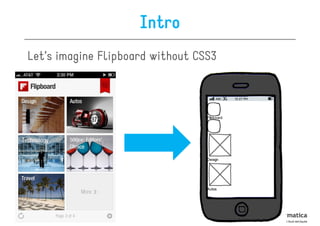
Let’s imagine Flipboard without CSS3
Intro


Its features are
supported by almost any
mobile browser
CSS3 Main Drivers
Simplicity
  –   less images
  –   less markup
  –   less Javascript
  –   less Flash
Better performance
  – fewer HTTP requests
Better Search Engine Placement
  – text as real text, not images or Flash
  – speed
Roadmap

•   Intro
•   Basics
•   Selectors
•   Box Model
•   Positioning & Floats
•   Fonts
•   Visual Effects
•   Media Queries
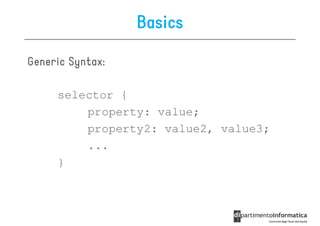
Basics

Generic Syntax:
        Syntax:

     selector {
         property: value;
         property2: value2, value3;
         ...
     }
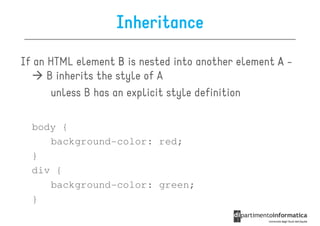
Inheritance

If an HTML element B is nested into another element A -
      B inherits the style of A
       unless B has an explicit style definition

  body {
     background-color: red;
  }
  div {
     background-color: green;
  }
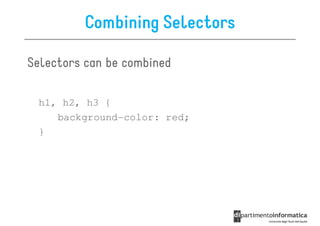
Combining Selectors

Selectors can be combined

 h1, h2, h3 {
    background-color: red;
 }
Lists
div {
   list-style-image: url(image.png);
   list-style-position: inside;
   list-style-style: circle;
}
                        Style
                     disc | circle
                   square | decimal
      Position      lower-roman |
  inside | outside  upper-roman |
                    lower-alpha |
                    upper-alpha |
                         none
Backgrounds

You can style a background of any element

div {
  background:url(img.png), url(img2.png);
  background-size:80px 60px;
  background-repeat:no-repeat;
  background-origin:content-box;
}                             origin
                        top left | top center | top right |
      repeat            center left | border-box | content-box
no-repeat | repeat      etc.
repeat-x | repeat-y
Background & Colors
div {
  background-color: blue;
  background-color: rgba(0, 0, 255, 0.2);
  background-color: hsla(240, 100%, 50%, 0.2);
}

           HSL            RGBA = RGB + opacity
           hue
       saturation
        lightness         HSLA = HSL + opacity
Gradients

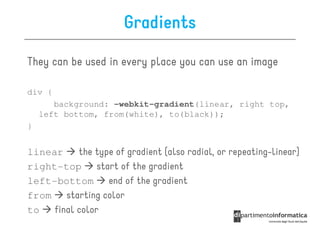
They can be used in every place you can use an image

div {
       background: -webkit-gradient(linear, right top,
    left bottom, from(white), to(black));
}


linear     the type of gradient (also radial, or repeating-linear)
right-top       start of the gradient
left-bottom        end of the gradient
from    starting color
to   final color
Text
p {                                  Text-align
  color: grey;                      left | right
  letter-spacing: 5px;            center | justify
  text-align: center;
  text-decoration: underline;
  text-indent: 10px;
  text-transform: capitalize;       Text-decoration
  word-spacing: 10px;                      none
                                        underline
}
             text-transform              overline
            None | capitalize |       line through
          Lowercase | uppercase
Text Effects
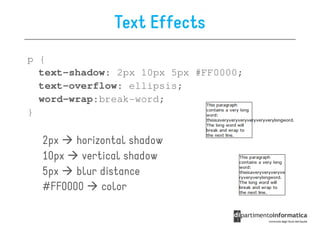
p {
  text-shadow: 2px 10px 5px #FF0000;
  text-overflow: ellipsis;
  word-wrap:break-word;
}

  2px   horizontal shadow
  10px   vertical shadow
  5px   blur distance
  #FF0000    color
Other Text Properties
Roadmap

•   Intro
•   Basics
•   Selectors
•   Box Model
•   Positioning & Floats
•   Fonts
•   Visual Effects
•   Media Queries
Selectors
Classical ways to select elements in CSS2:

• by type
      a { color: red; }
• by id
      #redLink { color: red; }
• by class
      .redLink { color: red; }
Other Selectors from CSS1 & CSS2

• div p    all <p> elements inside a <div>
• div>p    all <p> elements where the parent is a <div>
• div+p    all <p> elements that are placed immediately
  after <div>
• [target]     all elements with a target attribute
• [target=_blank]      all elements with target=
  "_blank“
• p:first-child
  p:first-          every <p> element that is the first
  child of its parent
Some selectors introduced in CSS3
• a[src^="https"]
  a[src^="https"]
    src                 every <a> element whose src
  attribute value begins with "https”
  a[src$=".pdf
    src$=".pdf"]
• a[src$=".pdf"]      every <a> element whose src attribute
  value ends with ".pdf”
  a[src
    src*=“mobile"]
• a[src*=“mobile"]       every <a> element whose src
  attribute value contains the substring “mobile“
  p:nth-
• p:nth-child(2)      every <p> element that is the second
  child of its parent
  p:nth-last-
• p:nth-last-child(2)       every <p> element that is the
  second child of its parent, counting from the last child
• :not(p)     every element that is not a <p> element
Roadmap

•   Intro
•   Basics
•   Selectors
•   Box Model
•   Positioning & Floats
•   Fonts
•   Visual Effects
•   Media Queries
The Box Model

All HTML elements can be considered as boxes
Borders & dimensions
div {
  width: 100px;
  height: 40px;
  padding: 10px;
  border: 5px solid gray;
  margin: 10px;
  border-radius: 10px;
  box-shadow: 10px 10px 5px red;
}
Images as borders
div {
  border-image:url(border.png) 30 30 round;
}
Roadmap

•   Intro
•   Basics
•   Selectors
•   Box Model
•   Positioning & Floats
•   Fonts
•   Visual Effects
•   Media Queries
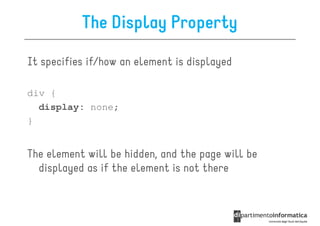
The Display Property

It specifies if/how an element is displayed

div {
  display: none;
}


The element will be hidden, and the page will be
  displayed as if the element is not there
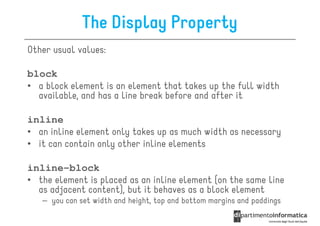
The Display Property
Other usual values:

block
• a block element is an element that takes up the full width
  available, and has a line break before and after it

inline
• an inline element only takes up as much width as necessary
• it can contain only other inline elements

inline-block
• the element is placed as an inline element (on the same line
  as adjacent content), but it behaves as a block element
   – you can set width and height, top and bottom margins and paddings
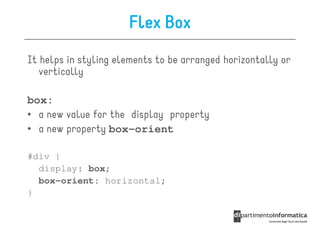
Flex Box
It helps in styling elements to be arranged horizontally or
   vertically

box:
• a new value for the display property
• a new property box-orient

#div {
  display: box;
  box-orient: horizontal;
}
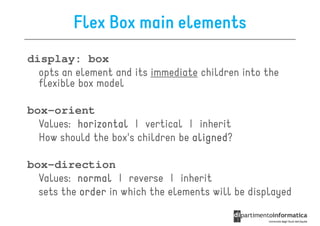
Flex Box main elements
display: box
  opts an element and its immediate children into the
  flexible box model

box-orient
  Values: horizontal | vertical | inherit
  How should the box's children be aligned
                                   aligned?

box-direction
  Values: normal | reverse | inherit
  sets the order in which the elements will be displayed
Flex Box main elements
box-pack
  Values: start | end | center | justify
  Sets the alignment of the box along the box-
  orient axis

                             box-orient: horizontal;
                             box-pack: end;
Flex Box main elements
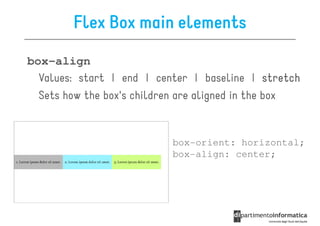
box-align
  Values: start | end | center | baseline | stretch
  Sets how the box's children are aligned in the box


                           box-orient: horizontal;
                           box-align: center;
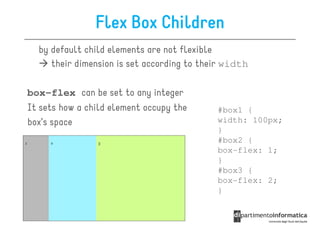
Flex Box Children
  by default child elements are not flexible
     their dimension is set according to their width

box-flex can be set to any integer
It sets how a child element occupy the      #box1 {
box’s space                                 width: 100px;
                                            }
                                            #box2 {
                                            box-flex: 1;
                                            }
                                            #box3 {
                                            box-flex: 2;
                                            }
The visibility Property
It specifies if an element should be visible or hidden

div.hidden {
  visibility: hidden;
}

The element will be hidden, but still affect the layout

It can also be set to
visible, collapse, inherit
Positioning

•   Static
•   Relative
•   Absolute
•   Fixed
•   Inherit
Static Positioning

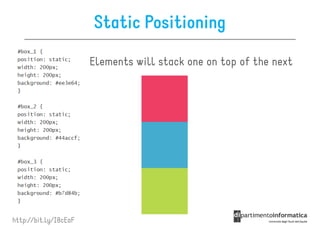
                       Elements will stack one on top of the next


http://bit.ly/I8cEaF
Relative Positioning
    Elements behave exactly the same
    way as statically positioned elements

    we can adjust a relatively positioned
    element with offset properties:
    top, right, bottom, and left


http://bit.ly/I8cEaF
Relative Positioning

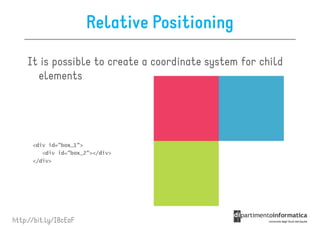
    It is possible to create a coordinate system for child
      elements


http://bit.ly/I8cEaF
Absolute Positioning

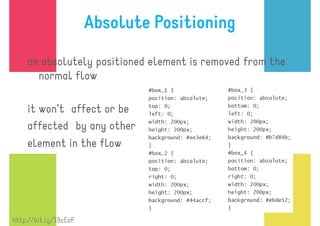
    an absolutely positioned element is removed from the
      normal flow

    it won’t affect or be
    affected by any other
    element in the flow


http://bit.ly/I8cEaF

                       Fixed Positioning

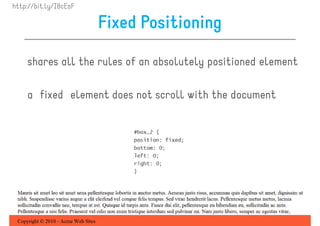
    shares all the rules of an absolutely positioned element

    a fixed element does not scroll with the document
Inherit Positioning

  The element inherits the value of its parent element

  Typically, position property elements do not naturally
    inherit their parent’s values   the static value is
    assigned if no position value is given


http://bit.ly/I8cEaF
Float

A floated element will move as far to the left or
  right as it can

Elements are floated only horizontally

The float CSS property can accept one of 4 values:
           left, right, none, and inherit
Float
The elements before the floating element will not be
  affected

The elements after the floating element will flow around it
  - to avoid this, use the clear property

Generally, a floated element should have an explicitly set
  width

For a deeper explanation of CSS float: http://bit.ly/I8cAb5
Roadmap

•   Intro
•   Basics
•   Selectors
•   Box Model
•   Positioning & Floats
•   Fonts
•   Visual Effects
•   Media Queries
Fonts
Before CSS3, web designers had to use fonts that were
  already installed on the user's device

With CSS3, web designers can use whatever font they like

@font-face {                                   font-weight
  font-family: NAME;                             normal
  src: url(Dimbo.ttf);                             bold
  font-weight: normal;                             100
  font-style: normal;          font-style          200
}                                normal             …
                                  italic
                                 oblique
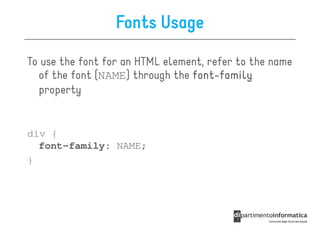
Fonts Usage

To use the font for an HTML element, refer to the name
  of the font (NAME) through the font-family
                                 font-
  property


div {
  font-family: NAME;
}
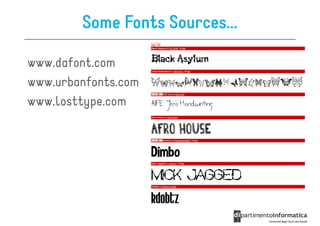
Some Fonts Sources...

www.dafont.com
www.urbanfonts.com
www.losttype.com
Roadmap

•   Intro
•   Basics
•   Selectors
•   Box Model
•   Positioning & Floats
•   Fonts
•   Visual Effects
•   Media Queries
Visual Effects

Three main mechanisms:

1. Transforms (both 2D and 3D)
2. Transitions
3. Animations
Transforms

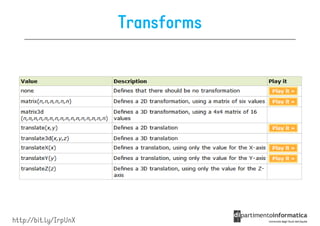
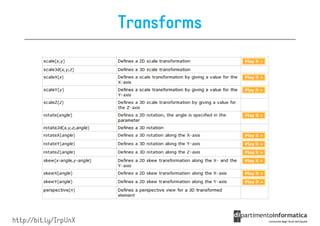
    A transform is an effect that lets an element
    change shape, size, position …
                        position,

    You can transform your elements using 2D or 3D
      transformations


http://bit.ly/IroJ7S
Transforms


http://bit.ly/IrpUnX
Transforms


http://bit.ly/IrpUnX
Transitions
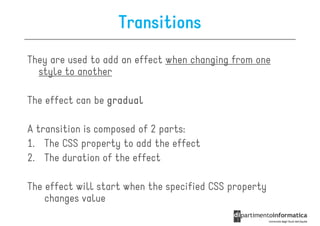
They are used to add an effect when changing from one
  style to another

The effect can be gradual

A transition is composed of 2 parts:
1. The CSS property to add the effect
2. The duration of the effect

The effect will start when the specified CSS property
    changes value
Transition syntax

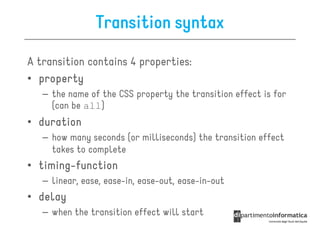
A transition contains 4 properties:
• property
   – the name of the CSS property the transition effect is for
     (can be all)
• duration
   – how many seconds (or milliseconds) the transition effect
     takes to complete
• timing-function
  timing-
   – linear, ease, ease-in, ease-out, ease-in-out
• delay
   – when the transition effect will start
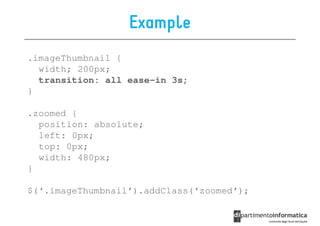
Example
.imageThumbnail {
  width; 200px;
  transition: all ease-in 3s;
}

.zoomed {
  position: absolute;
  left: 0px;
  top: 0px;
  width: 480px;
}

$(‘.imageThumbnail’).addClass(‘zoomed’);
Animations
An animation is an effect that lets an element gradually
  change from one style to another

You can change style in loop, repeating, etc.

To bind an animation to an element, you have to specify at
   least:
1. Name of the animation
2. Duration of the animation
  div {
    animation: test 5s ease-in;
  }
Animation Definition
An animation is defined in a keyframe

It splits the animation into parts, and assign a specific style
   to each part

The various steps within an animation are given as percentuals

0%   beginning of the animation (from)
100%   end of the animation (to)
Example
@keyframes test{
  0%   {background:   red; left:0px; top:0px;}
  25% {background:    yellow; left:200px; top:0px;}
  50% {background:    blue; left:200px; top:200px;}
  75% {background:    green; left:0px; top:200px;}
  100% {background:   red; left:0px; top:0px;}
}


                     results in
                http://bit.ly/IrtfTY
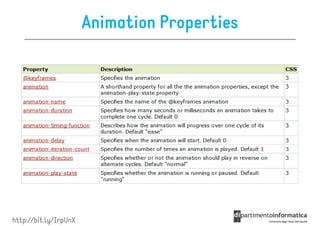
Animation Properties


http://bit.ly/IrpUnX
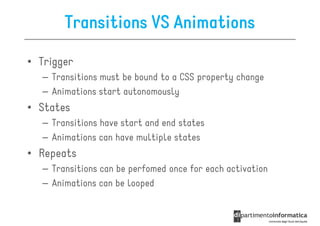
Transitions VS Animations

• Trigger
  – Transitions must be bound to a CSS property change
  – Animations start autonomously
• States
  – Transitions have start and end states
  – Animations can have multiple states
• Repeats
  – Transitions can be perfomed once for each activation
  – Animations can be looped
Roadmap

•   Intro
•   Basics
•   Selectors
•   Box Model
•   Positioning & Floats
•   Fonts
•   Visual Effects
•   Media Queries
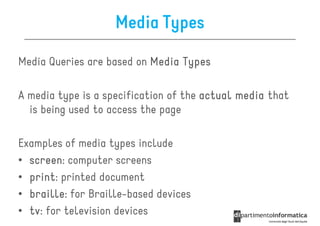
Media Types

Media Queries are based on Media Types

A media type is a specification of the actual media that
  is being used to access the page

Examples of media types include
• screen computer screens
  screen:
• print printed document
  print:
• braille for Braille-based devices
  braille:
• tv for television devices
  tv:
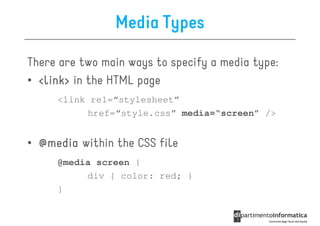
Media Types

There are two main ways to specify a media type:
• <link> in the HTML page
     <link rel=“stylesheet”
          href=“style.css” media=“screen” />


• @media within the CSS file
     @media screen {
          div { color: red; }
     }
Media Queries

They allow you to to change style based on specific
  conditions

For example, they can be about
• device’s display size
• orientation of the device
• Resolution of the display
• ...
Example


http://bit.ly/I5mR1u
Media Queries
A media query is a boolean expression

The CSS associated with the media query expression is
  applied only if it evaluates to true

A media query consists of
1. a media type
2. a set of media features

      @media screen and orientation: portrait
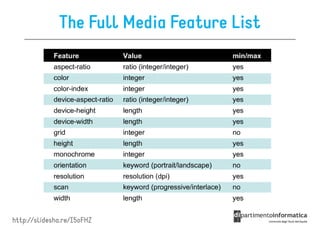
The Full Media Feature List


http://slidesha.re/I5oFHZ
The AND operator

You can combine multiple expressions by using
  the and operator

@media screen and (max-device-width: 480px){
  /* your style */
}
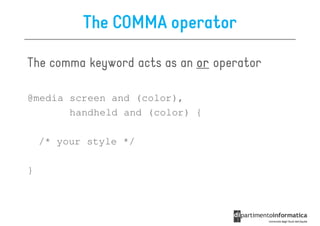
The COMMA operator

The comma keyword acts as an or operator

@media screen and (color),
       handheld and (color) {

    /* your style */

}
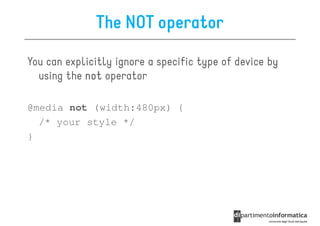
The NOT operator

You can explicitly ignore a specific type of device by
  using the not operator

@media not (width:480px) {
  /* your style */
}
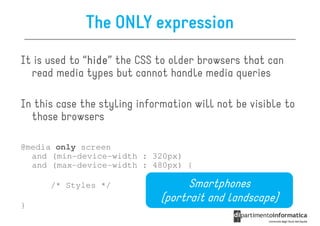
The ONLY expression
It is used to “hide the CSS to older browsers that can
               hide”
               hide
  read media types but cannot handle media queries

In this case the styling information will not be visible to
  those browsers

@media only screen
  and (min-device-width : 320px)
  and (max-device-width : 480px) {

      /* Styles */                  Smartphones
                              (portrait and landscape)
}
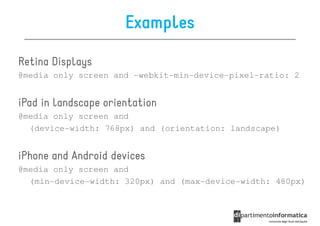
Examples

Retina Displays
@media only screen and -webkit-min-device-pixel-ratio: 2


iPad in landscape orientation
@media only screen and
  (device-width: 768px) and (orientation: landscape)


iPhone and Android devices
@media only screen and
  (min-device-width: 320px) and (max-device-width: 480px)
References
http://www.w3schools.com

CSS3 Refresher

  • 1.
    CSS3 Refresher Ivano Malavolta ivano.malavolta@univaq.it http://www.di.univaq.it/malavolta
  • 2.
    Roadmap • Intro • Basics • Selectors • Box Model • Positioning & Floats • Fonts • Visual Effects • Media Queries
  • 3.
    Intro CSS3 is thepresentation companion of HTML5
  • 4.
  • 5.
    Intro Its features are supportedby almost any mobile browser
  • 6.
    CSS3 Main Drivers Simplicity – less images – less markup – less Javascript – less Flash Better performance – fewer HTTP requests Better Search Engine Placement – text as real text, not images or Flash – speed
  • 7.
    Roadmap • Intro • Basics • Selectors • Box Model • Positioning & Floats • Fonts • Visual Effects • Media Queries
  • 8.
    Basics Generic Syntax: Syntax: selector { property: value; property2: value2, value3; ... }
  • 9.
    Inheritance If an HTMLelement B is nested into another element A - B inherits the style of A unless B has an explicit style definition body { background-color: red; } div { background-color: green; }
  • 10.
    Combining Selectors Selectors canbe combined h1, h2, h3 { background-color: red; }
  • 11.
    Lists div { list-style-image: url(image.png); list-style-position: inside; list-style-style: circle; } Style disc | circle square | decimal Position lower-roman | inside | outside upper-roman | lower-alpha | upper-alpha | none
  • 12.
    Backgrounds You can stylea background of any element div { background:url(img.png), url(img2.png); background-size:80px 60px; background-repeat:no-repeat; background-origin:content-box; } origin top left | top center | top right | repeat center left | border-box | content-box no-repeat | repeat etc. repeat-x | repeat-y
  • 13.
    Background & Colors div{ background-color: blue; background-color: rgba(0, 0, 255, 0.2); background-color: hsla(240, 100%, 50%, 0.2); } HSL RGBA = RGB + opacity hue saturation lightness HSLA = HSL + opacity
  • 14.
    Gradients They can beused in every place you can use an image div { background: -webkit-gradient(linear, right top, left bottom, from(white), to(black)); } linear the type of gradient (also radial, or repeating-linear) right-top start of the gradient left-bottom end of the gradient from starting color to final color
  • 15.
    Text p { Text-align color: grey; left | right letter-spacing: 5px; center | justify text-align: center; text-decoration: underline; text-indent: 10px; text-transform: capitalize; Text-decoration word-spacing: 10px; none underline } text-transform overline None | capitalize | line through Lowercase | uppercase
  • 16.
    Text Effects p { text-shadow: 2px 10px 5px #FF0000; text-overflow: ellipsis; word-wrap:break-word; } 2px horizontal shadow 10px vertical shadow 5px blur distance #FF0000 color
  • 17.
  • 18.
    Roadmap • Intro • Basics • Selectors • Box Model • Positioning & Floats • Fonts • Visual Effects • Media Queries
  • 19.
    Selectors Classical ways toselect elements in CSS2: • by type a { color: red; } • by id #redLink { color: red; } • by class .redLink { color: red; }
  • 20.
    Other Selectors fromCSS1 & CSS2 • div p all <p> elements inside a <div> • div>p all <p> elements where the parent is a <div> • div+p all <p> elements that are placed immediately after <div> • [target] all elements with a target attribute • [target=_blank] all elements with target= "_blank“ • p:first-child p:first- every <p> element that is the first child of its parent
  • 21.
    Some selectors introducedin CSS3 • a[src^="https"] a[src^="https"] src every <a> element whose src attribute value begins with "https” a[src$=".pdf src$=".pdf"] • a[src$=".pdf"] every <a> element whose src attribute value ends with ".pdf” a[src src*=“mobile"] • a[src*=“mobile"] every <a> element whose src attribute value contains the substring “mobile“ p:nth- • p:nth-child(2) every <p> element that is the second child of its parent p:nth-last- • p:nth-last-child(2) every <p> element that is the second child of its parent, counting from the last child • :not(p) every element that is not a <p> element
  • 22.
    Roadmap • Intro • Basics • Selectors • Box Model • Positioning & Floats • Fonts • Visual Effects • Media Queries
  • 23.
    The Box Model AllHTML elements can be considered as boxes
  • 24.
    Borders & dimensions div{ width: 100px; height: 40px; padding: 10px; border: 5px solid gray; margin: 10px; border-radius: 10px; box-shadow: 10px 10px 5px red; }
  • 25.
    Images as borders div{ border-image:url(border.png) 30 30 round; }
  • 26.
    Roadmap • Intro • Basics • Selectors • Box Model • Positioning & Floats • Fonts • Visual Effects • Media Queries
  • 27.
    The Display Property Itspecifies if/how an element is displayed div { display: none; } The element will be hidden, and the page will be displayed as if the element is not there
  • 28.
    The Display Property Otherusual values: block • a block element is an element that takes up the full width available, and has a line break before and after it inline • an inline element only takes up as much width as necessary • it can contain only other inline elements inline-block • the element is placed as an inline element (on the same line as adjacent content), but it behaves as a block element – you can set width and height, top and bottom margins and paddings
  • 29.
    Flex Box It helpsin styling elements to be arranged horizontally or vertically box: • a new value for the display property • a new property box-orient #div { display: box; box-orient: horizontal; }
  • 30.
    Flex Box mainelements display: box opts an element and its immediate children into the flexible box model box-orient Values: horizontal | vertical | inherit How should the box's children be aligned aligned? box-direction Values: normal | reverse | inherit sets the order in which the elements will be displayed
  • 31.
    Flex Box mainelements box-pack Values: start | end | center | justify Sets the alignment of the box along the box- orient axis box-orient: horizontal; box-pack: end;
  • 32.
    Flex Box mainelements box-align Values: start | end | center | baseline | stretch Sets how the box's children are aligned in the box box-orient: horizontal; box-align: center;
  • 33.
    Flex Box Children by default child elements are not flexible their dimension is set according to their width box-flex can be set to any integer It sets how a child element occupy the #box1 { box’s space width: 100px; } #box2 { box-flex: 1; } #box3 { box-flex: 2; }
  • 34.
    The visibility Property Itspecifies if an element should be visible or hidden div.hidden { visibility: hidden; } The element will be hidden, but still affect the layout It can also be set to visible, collapse, inherit
  • 35.
    Positioning • Static • Relative • Absolute • Fixed • Inherit
  • 36.
    Static Positioning Elements will stack one on top of the next http://bit.ly/I8cEaF
  • 37.
    Relative Positioning Elements behave exactly the same way as statically positioned elements we can adjust a relatively positioned element with offset properties: top, right, bottom, and left http://bit.ly/I8cEaF
  • 38.
    Relative Positioning It is possible to create a coordinate system for child elements http://bit.ly/I8cEaF
  • 39.
    Absolute Positioning an absolutely positioned element is removed from the normal flow it won’t affect or be affected by any other element in the flow http://bit.ly/I8cEaF
  • 40.
    http://bit.ly/I8cEaF Fixed Positioning shares all the rules of an absolutely positioned element a fixed element does not scroll with the document
  • 41.
    Inherit Positioning The element inherits the value of its parent element Typically, position property elements do not naturally inherit their parent’s values the static value is assigned if no position value is given http://bit.ly/I8cEaF
  • 42.
    Float A floated elementwill move as far to the left or right as it can Elements are floated only horizontally The float CSS property can accept one of 4 values: left, right, none, and inherit
  • 43.
    Float The elements beforethe floating element will not be affected The elements after the floating element will flow around it - to avoid this, use the clear property Generally, a floated element should have an explicitly set width For a deeper explanation of CSS float: http://bit.ly/I8cAb5
  • 44.
    Roadmap • Intro • Basics • Selectors • Box Model • Positioning & Floats • Fonts • Visual Effects • Media Queries
  • 45.
    Fonts Before CSS3, webdesigners had to use fonts that were already installed on the user's device With CSS3, web designers can use whatever font they like @font-face { font-weight font-family: NAME; normal src: url(Dimbo.ttf); bold font-weight: normal; 100 font-style: normal; font-style 200 } normal … italic oblique
  • 46.
    Fonts Usage To usethe font for an HTML element, refer to the name of the font (NAME) through the font-family font- property div { font-family: NAME; }
  • 47.
  • 48.
    Roadmap • Intro • Basics • Selectors • Box Model • Positioning & Floats • Fonts • Visual Effects • Media Queries
  • 49.
    Visual Effects Three mainmechanisms: 1. Transforms (both 2D and 3D) 2. Transitions 3. Animations
  • 50.
    Transforms A transform is an effect that lets an element change shape, size, position … position, You can transform your elements using 2D or 3D transformations http://bit.ly/IroJ7S
  • 51.
  • 52.
  • 53.
    Transitions They are usedto add an effect when changing from one style to another The effect can be gradual A transition is composed of 2 parts: 1. The CSS property to add the effect 2. The duration of the effect The effect will start when the specified CSS property changes value
  • 54.
    Transition syntax A transitioncontains 4 properties: • property – the name of the CSS property the transition effect is for (can be all) • duration – how many seconds (or milliseconds) the transition effect takes to complete • timing-function timing- – linear, ease, ease-in, ease-out, ease-in-out • delay – when the transition effect will start
  • 55.
    Example .imageThumbnail { width; 200px; transition: all ease-in 3s; } .zoomed { position: absolute; left: 0px; top: 0px; width: 480px; } $(‘.imageThumbnail’).addClass(‘zoomed’);
  • 56.
    Animations An animation isan effect that lets an element gradually change from one style to another You can change style in loop, repeating, etc. To bind an animation to an element, you have to specify at least: 1. Name of the animation 2. Duration of the animation div { animation: test 5s ease-in; }
  • 57.
    Animation Definition An animationis defined in a keyframe It splits the animation into parts, and assign a specific style to each part The various steps within an animation are given as percentuals 0% beginning of the animation (from) 100% end of the animation (to)
  • 58.
    Example @keyframes test{ 0% {background: red; left:0px; top:0px;} 25% {background: yellow; left:200px; top:0px;} 50% {background: blue; left:200px; top:200px;} 75% {background: green; left:0px; top:200px;} 100% {background: red; left:0px; top:0px;} } results in http://bit.ly/IrtfTY
  • 59.
  • 60.
    Transitions VS Animations •Trigger – Transitions must be bound to a CSS property change – Animations start autonomously • States – Transitions have start and end states – Animations can have multiple states • Repeats – Transitions can be perfomed once for each activation – Animations can be looped
  • 61.
    Roadmap • Intro • Basics • Selectors • Box Model • Positioning & Floats • Fonts • Visual Effects • Media Queries
  • 62.
    Media Types Media Queriesare based on Media Types A media type is a specification of the actual media that is being used to access the page Examples of media types include • screen computer screens screen: • print printed document print: • braille for Braille-based devices braille: • tv for television devices tv:
  • 63.
    Media Types There aretwo main ways to specify a media type: • <link> in the HTML page <link rel=“stylesheet” href=“style.css” media=“screen” /> • @media within the CSS file @media screen { div { color: red; } }
  • 64.
    Media Queries They allowyou to to change style based on specific conditions For example, they can be about • device’s display size • orientation of the device • Resolution of the display • ...
  • 65.
  • 66.
    Media Queries A mediaquery is a boolean expression The CSS associated with the media query expression is applied only if it evaluates to true A media query consists of 1. a media type 2. a set of media features @media screen and orientation: portrait
  • 67.
    The Full MediaFeature List http://slidesha.re/I5oFHZ
  • 68.
    The AND operator Youcan combine multiple expressions by using the and operator @media screen and (max-device-width: 480px){ /* your style */ }
  • 69.
    The COMMA operator Thecomma keyword acts as an or operator @media screen and (color), handheld and (color) { /* your style */ }
  • 70.
    The NOT operator Youcan explicitly ignore a specific type of device by using the not operator @media not (width:480px) { /* your style */ }
  • 71.
    The ONLY expression Itis used to “hide the CSS to older browsers that can hide” hide read media types but cannot handle media queries In this case the styling information will not be visible to those browsers @media only screen and (min-device-width : 320px) and (max-device-width : 480px) { /* Styles */ Smartphones (portrait and landscape) }
  • 72.
    Examples Retina Displays @media onlyscreen and -webkit-min-device-pixel-ratio: 2 iPad in landscape orientation @media only screen and (device-width: 768px) and (orientation: landscape) iPhone and Android devices @media only screen and (min-device-width: 320px) and (max-device-width: 480px)
  • 73.