This document provides an overview of digital storytelling and its implementation in the classroom. It discusses:
1) The benefits of digital storytelling for student learning such as developing multimedia literacy, communication skills, and motivation.
2) The steps involved in creating a digital documentary (digidoc) including selecting topics, conducting research and interviews, gathering media, developing a narrative, and sharing the final product.
3) Software such as Windows Movie Maker that can be used to edit video, audio, images and create transitions/effects.
Many educators believein the ‘exceptionality’ of computers, viewing them as instructional talismans that can do for student learning what other reforms cannot. “ Tools for the Mind” – Mary Burns
3.
Technology & StudentLearning This has resulted in the narrow focus on technology at the expense of the more important pillars of learning . . . cognition, instruction, assessment, and curriculum.
4.
We are nolonger teaching if what we teach is more important than who we teach or how we teach. (Carol Ann Tomlinson 2003)
What is digitalstorytelling? Digital storytelling is the process of writing about a story, and adding the multimedia elements of voice, imagery, and music to create a visual story.
8.
What do studentslearn? The process of digital storytelling provides a high-quality learning experience because the learning experience honors the writing process first. The inclusion of the technology into the process represents a “value-added” approach where the inclusion of the technology extends the learning experience beyond what could be accomplished without technology.
9.
Digital Storytelling .. . develops visual and multimedia literacy in students. addresses the development of the interpretation of digital media and the application of that interpretation to a personal message or story.
10.
Digital Storytelling .. . provides students with a competitive and compelling voice by enlarging the boundaries of who students can communicate with and by increasing the depth and power of that communication.
11.
Digital Storytelling .. . permits students to recapture creativity, develop it and intensify it, apply it, extend it… helps students write more effectively by permitting the visualization of the writing, resulting in an additional level of perception that extends the writing process to a place seldom reached.
12.
Digital Storytelling .. . provides an authentic personal learning experience- as such; student investment is greatly increased resulting in greatly improved motivation and end product.
13.
Digital Storytelling .. . teaches elements of technology and information literacy-students use many different computer applications and must be conversant about locating and managing visuals and video, as well as being able to do so in the context of copyright and fair use.
Differentiating Instruction Digitaldocumentaries and digital storytelling tap into student interests and specific learning profile and allow teachers to customize content, process, & product according to students' readiness with background information and technological proficiencies.
16.
I hear andI forget. I see and I remember. I do and I understand. - Confucius
17.
Tell me andI forget. Teach me and remember. Involve me and I learn. - Benjamin Franklin
18.
Enduring Understanding Welearn. . . 10% of what we READ 20% of what we HEAR 30% of what we SEE 40% of what we both SEE and HEAR 70% of what is DISCUSSED with others 80% of what we EXPERIENCE personally 95% of what we TEACH someone else --William Glasser
19.
Why Digi Docs?One of the ways to move from data to understanding is to tell the story and make the relevant connections Students sew the information together in an organized way that forces students to think about the entire body of information
20.
Higher-Order Applications Digitalvideo editing programs are higher-order applications The nature of digital videos overcomes the limitations of more static demonstration software that can be episodic and disjointed
21.
According to BernajeanPorter Author of DigiTales: The Art of Telling Digital Stories A documentary uses an abundant amount of primary sources Multiple points of view are presented The students make a personal connection and draw from a wider, global view
The Steps inCreating a DigiDoc Select and research a topic identify topic and resources for research gather research and maintain a working/annotated bibliography analyze and select information for inclusion
24.
The Steps inCreating a DigiDoc Prepare for interviews conduct background research prepare interview questions conduct, record, and analyze the interview
25.
The Steps inCreating a DigiDoc Gather media resources still-frame imagery video audio
26.
The Steps inCreating a DigiDoc Tell the story create storyboard (narrative/script, visual, audio, etc.) develop “point of view” identify and cite supporting documentation
27.
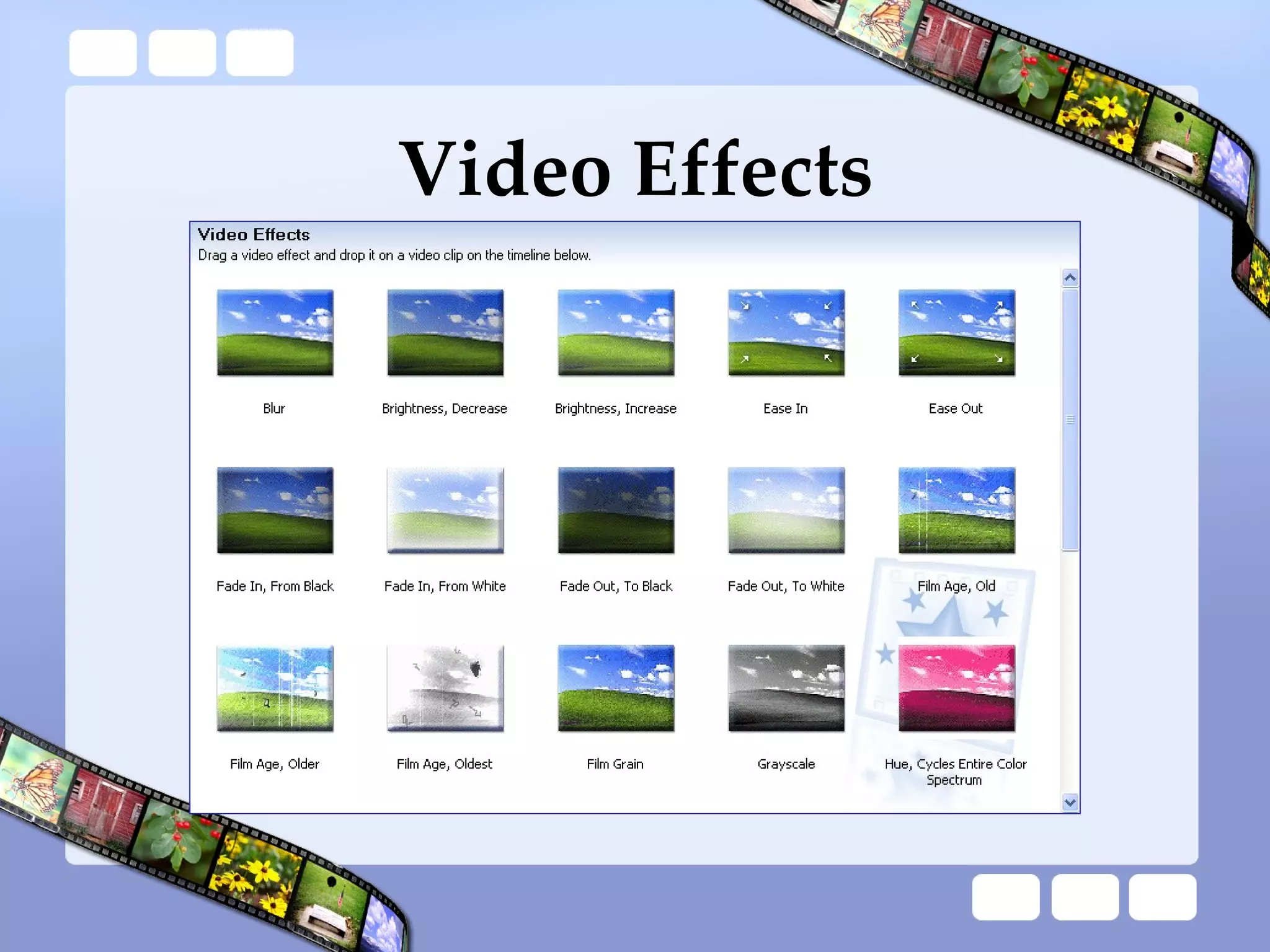
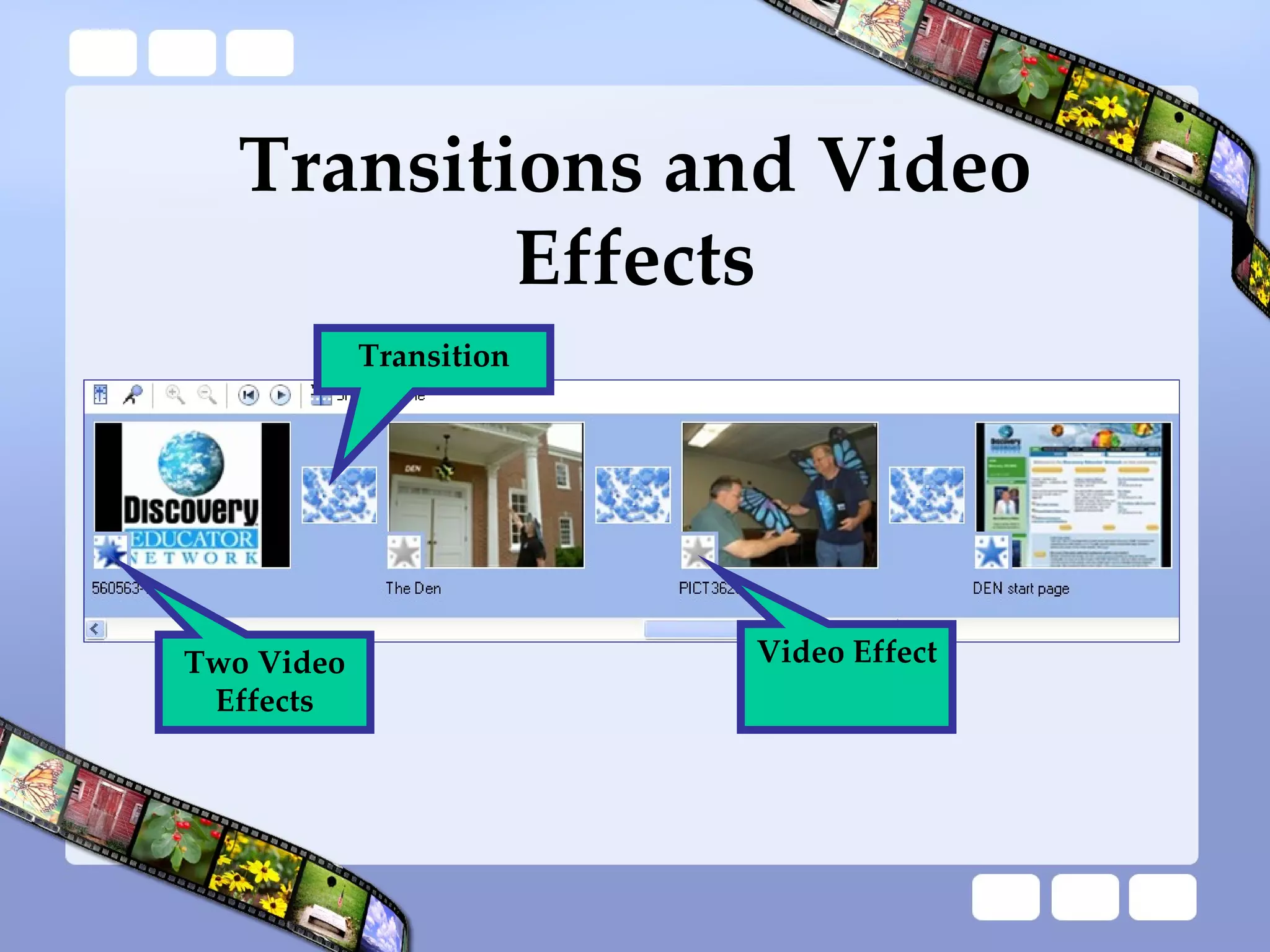
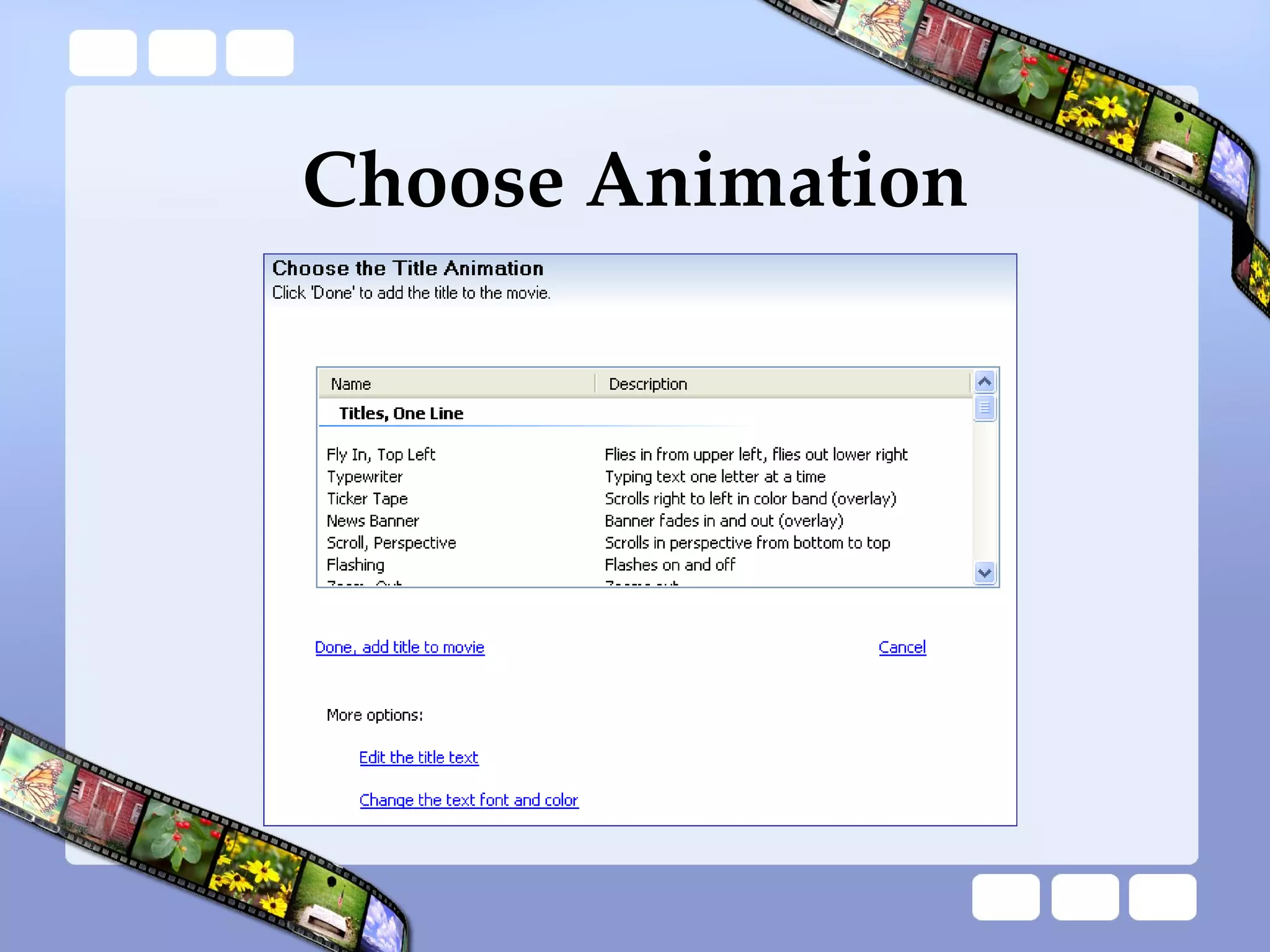
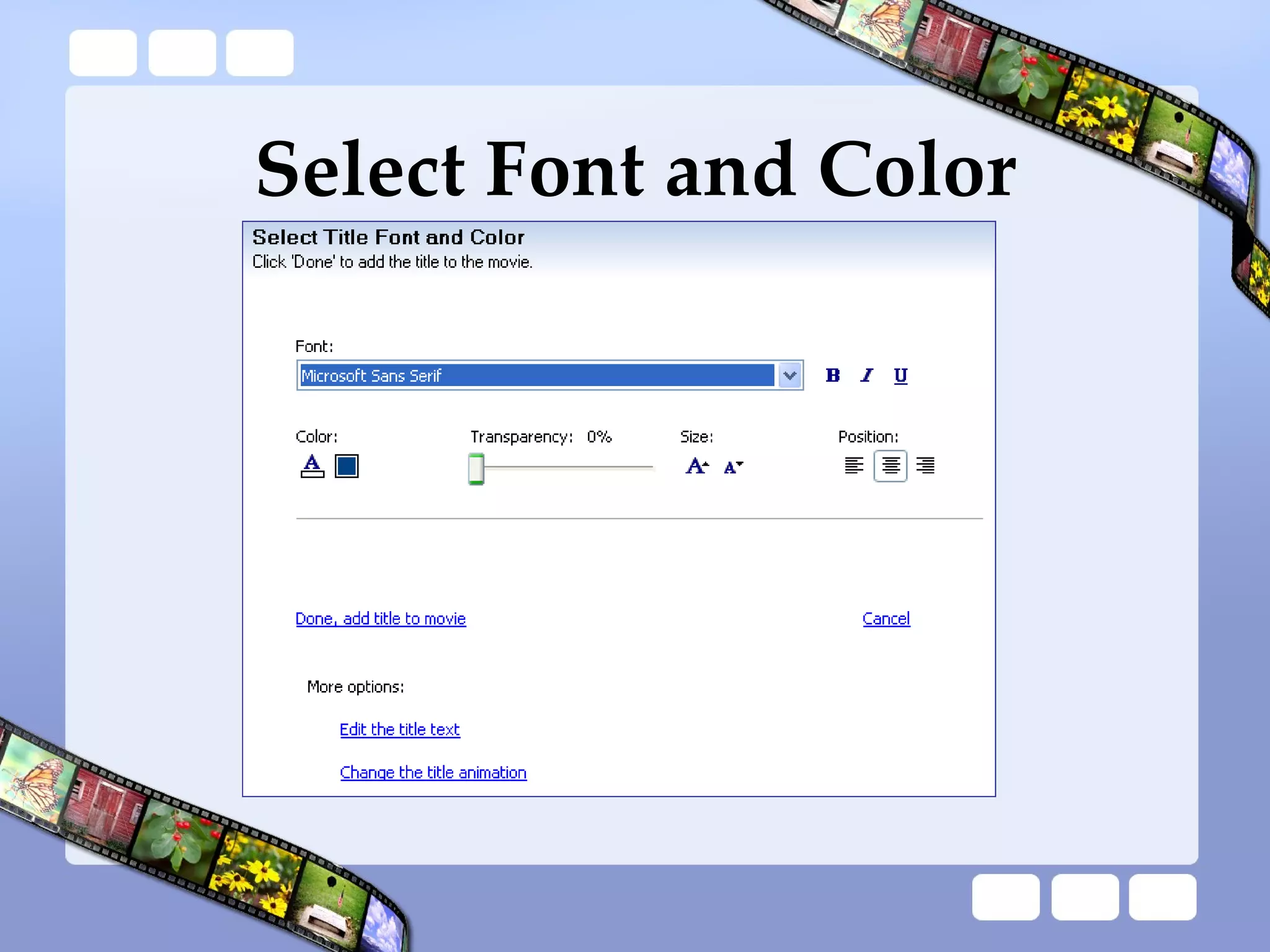
The Steps inCreating a DigiDoc Production create film rough draft add special media effects, transitions, audiovisual extras, etc. edit final film
28.
The Steps inCreating a DigiDoc Share the final products premier films and enjoy the hard work of all filmmakers
29.
30.
Assessing a DigitalStory http://www.digitales.us/evaluating/scoring_guide.php
31.
Scaffolding Steps Storiesfrom one image Stories from a sequence of images Stories from a sequence of images with specified persona Stories from a muted video clip Stories from a muted video clip or sequence of images with background sound Stories with student-found images and set narrative Stories with student-found images and student-created narrative
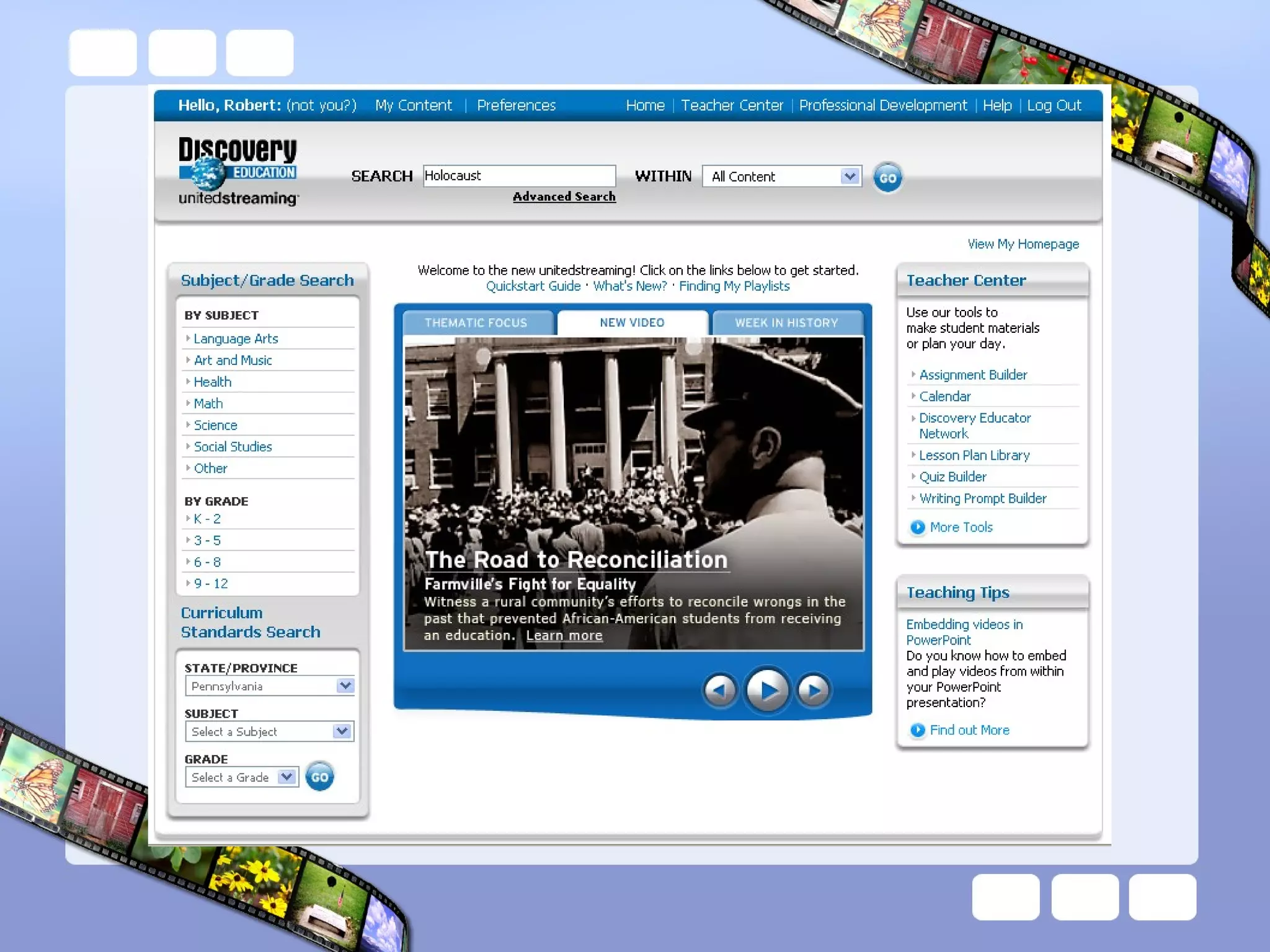
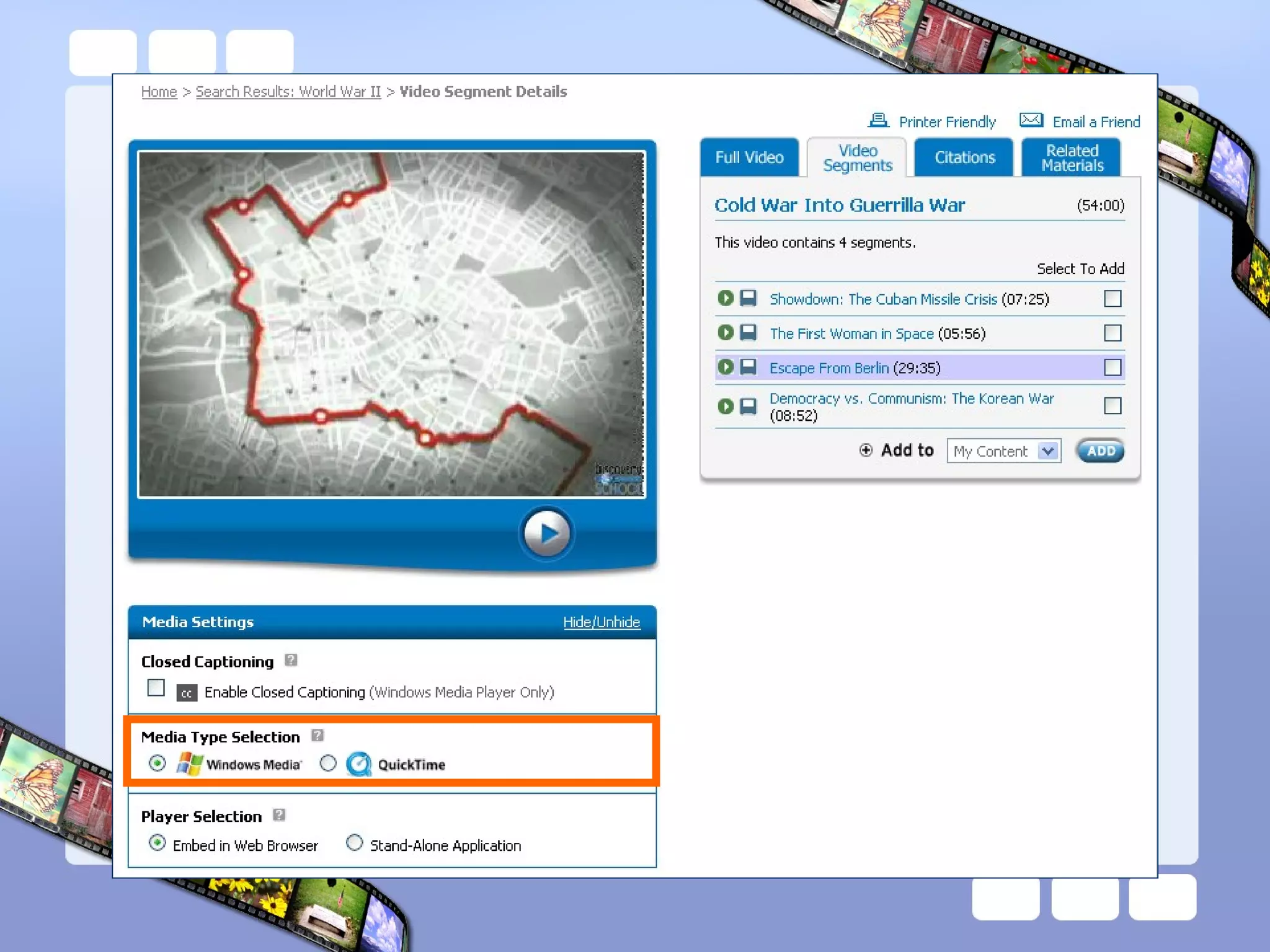
unitedstreaming Search foreditable clips Video .asf files Audio .mp3 files Images .jpeg files Import media into Windows Movie Maker
39.
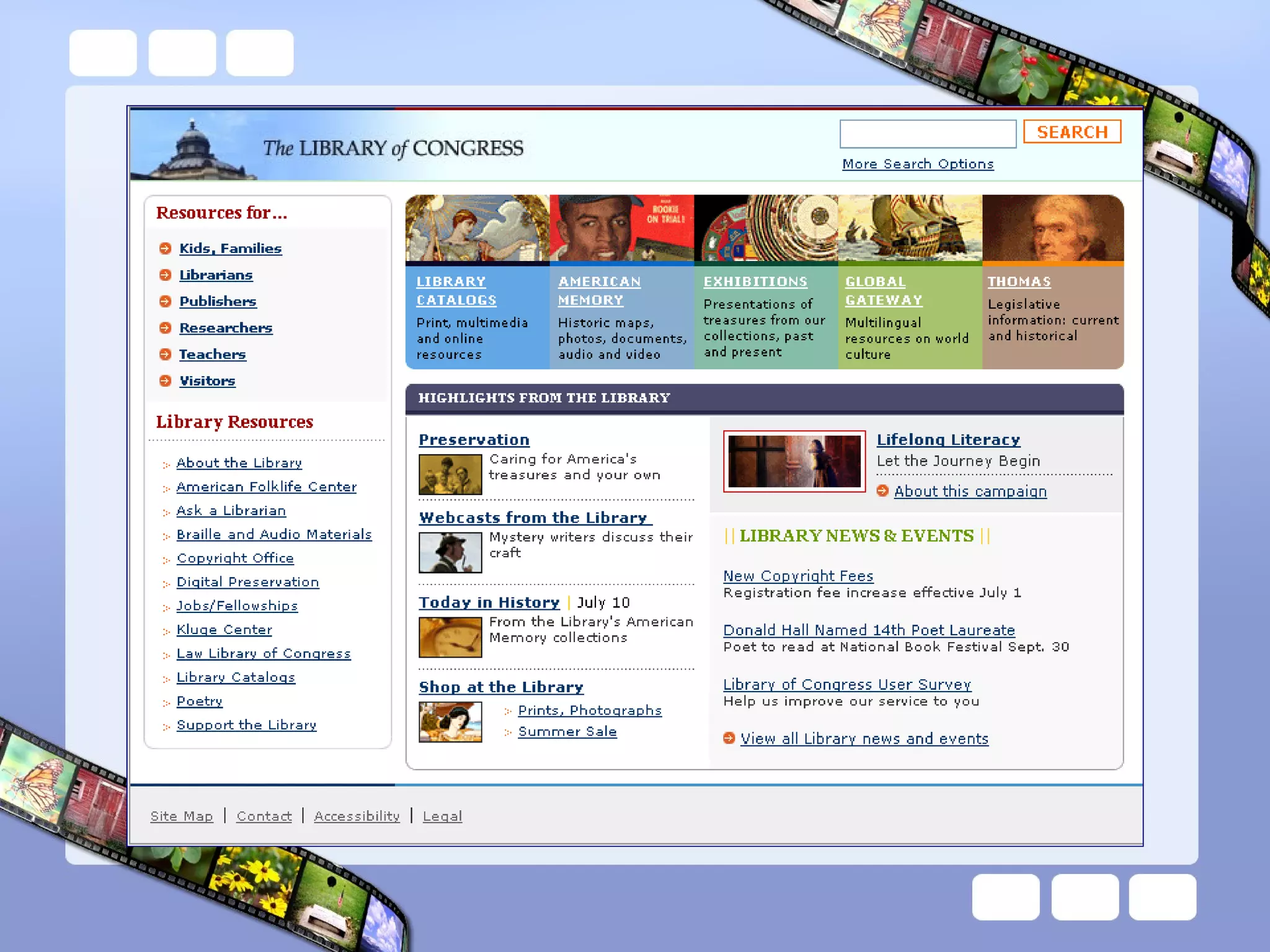
Library of CongressThe Library of Congress has Image Libraries, Video Libraries, and Exhibitions online http://www.loc.gov/index.html American Memory Collection contains historic media
Getting Started HardwareDigital cameras for still and video images Scanners Microphones Computers with internal or external video/audio conversion interface devices Software Video editing software Word processing software Image editing software Internet access
47.
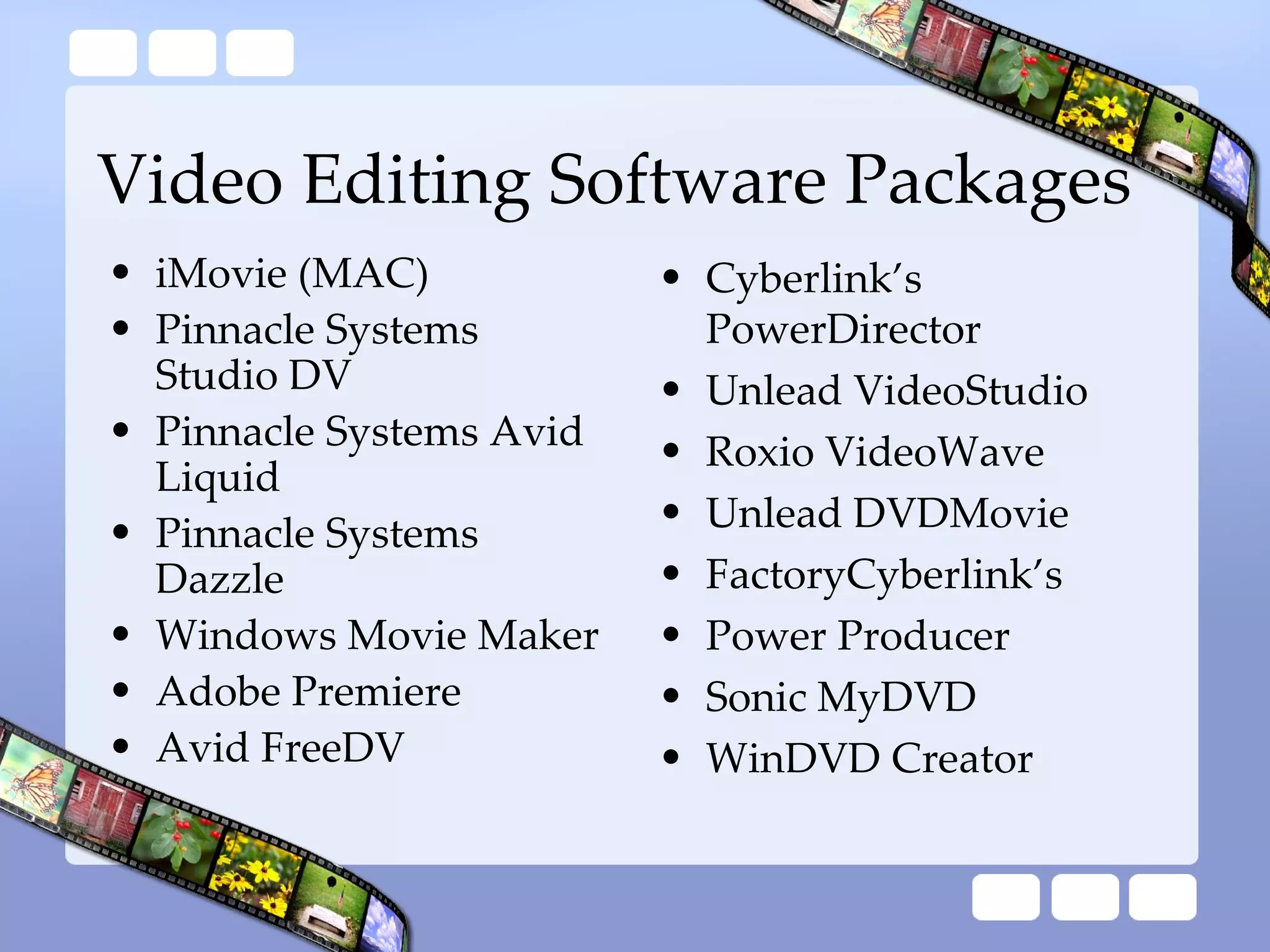
Video Editing SoftwarePackages iMovie (MAC) Pinnacle Systems Studio DV Pinnacle Systems Avid Liquid Pinnacle Systems Dazzle Windows Movie Maker Adobe Premiere Avid FreeDV Cyberlink’s PowerDirector Unlead VideoStudio Roxio VideoWave Unlead DVDMovie FactoryCyberlink’s Power Producer Sonic MyDVD WinDVD Creator
Project A projectcontains the arrangement and timing information of audio and video clips, video transitions, video effects, and titles you have added to the storyboard/timeline. A saved project file in Windows Movie Maker has an . mswmm file name extension. By saving your projects, you can open the project file later and begin editing it in Windows Movie Maker from where you last saved.
52.
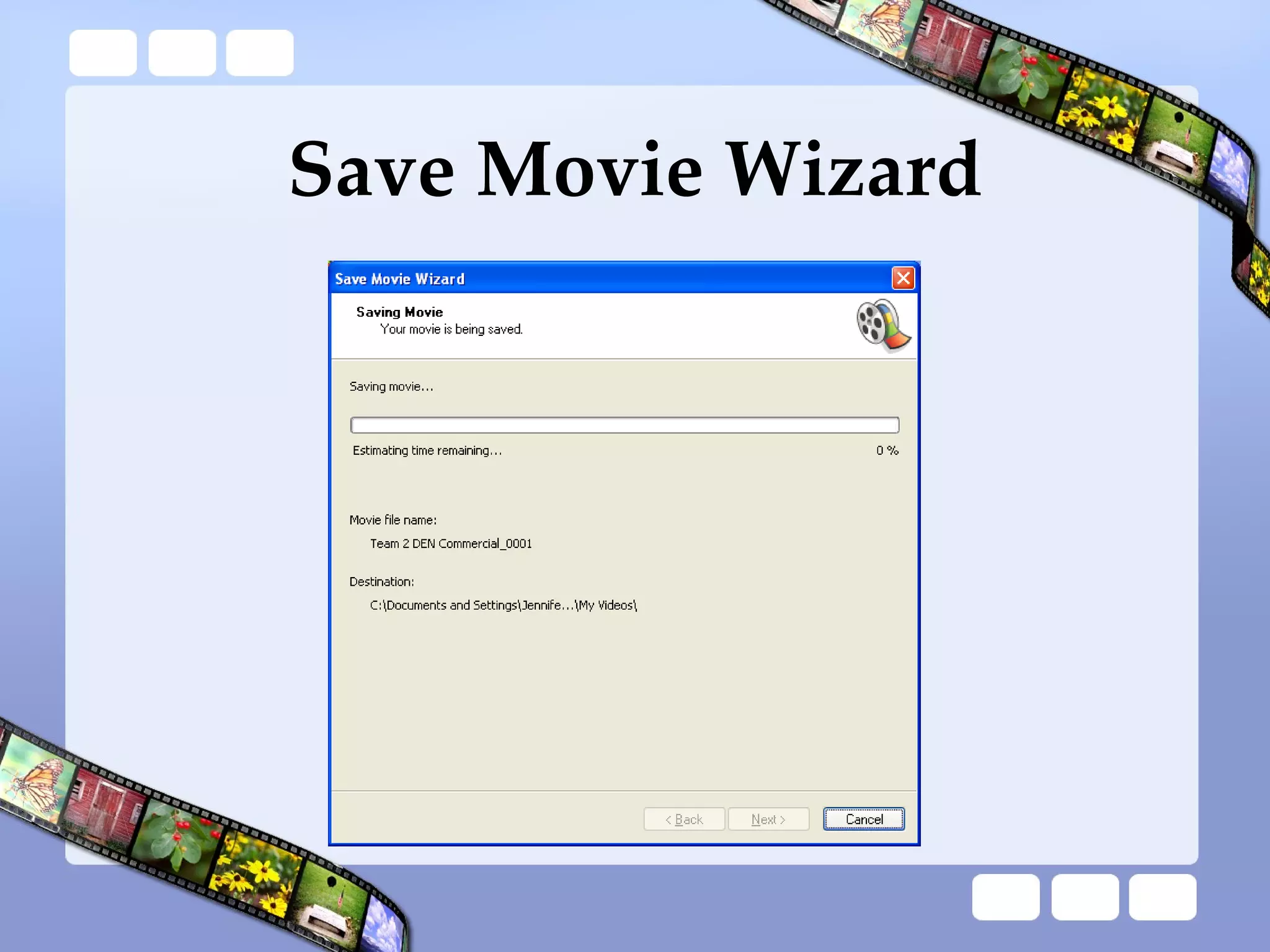
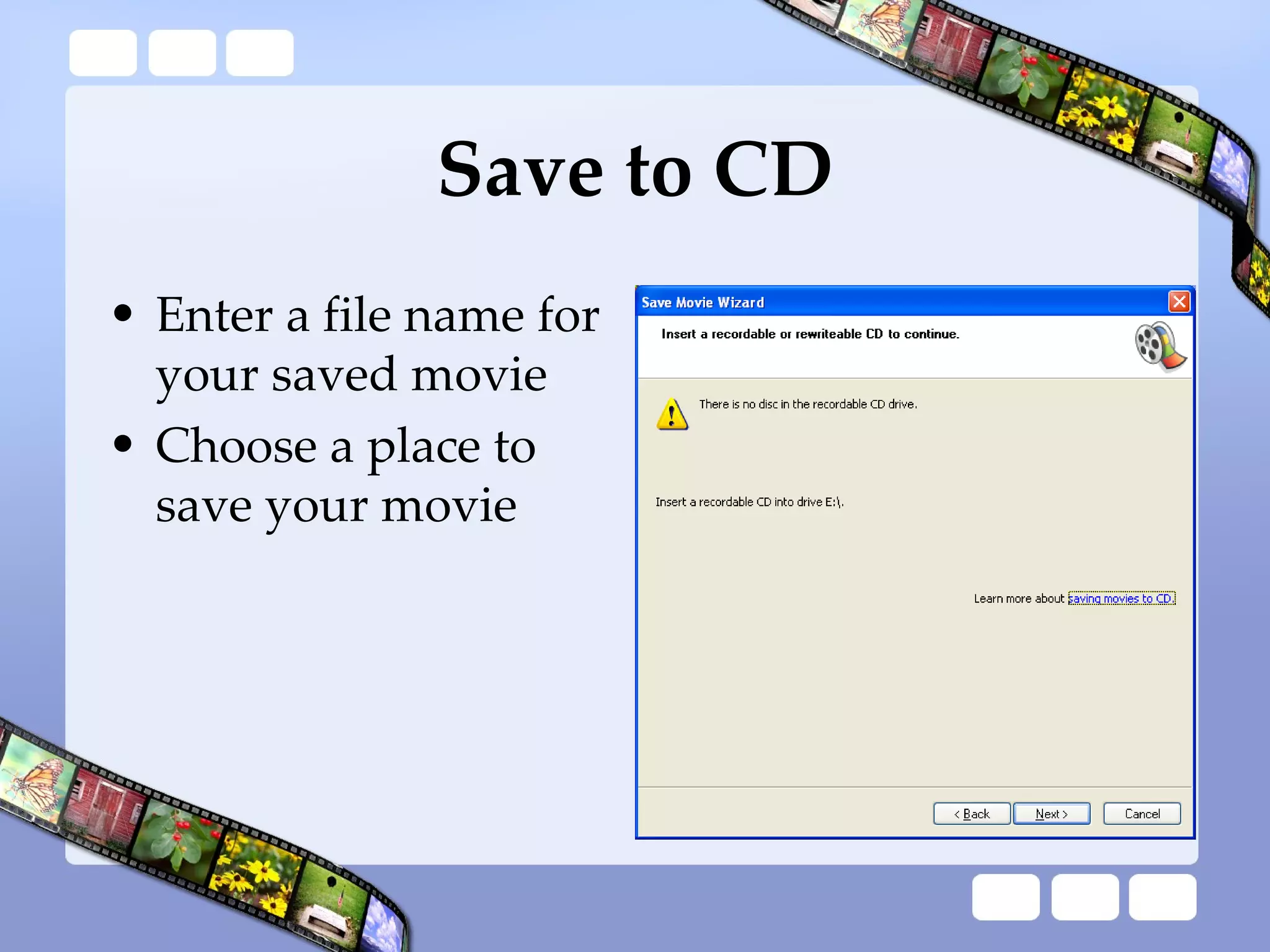
Movie A movieis the final project you save by using the Save Movie Wizard. You can save a movie to your computer or to a recordable CD, send it as an attachment in an e-mail message, or save and send it to the Web. The saved movie can be watched in a media player, such as Microsoft Windows Media® Player, or in a Web browser.
53.
Rules of ThumbBe sure to keep all your source files in one folder. If you need to open your project on another computer, you need both your source files folder and Windows Movie Maker project file .
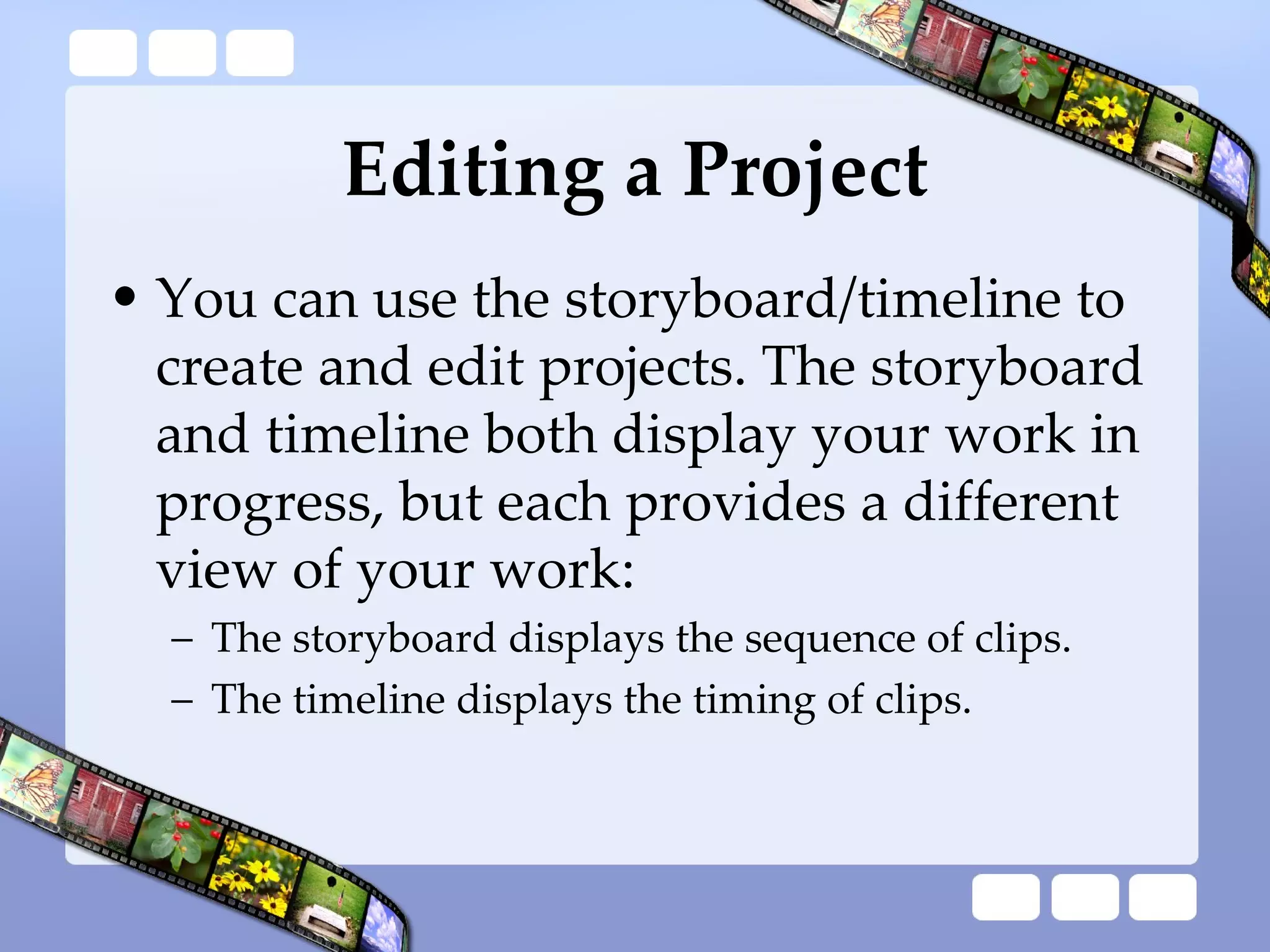
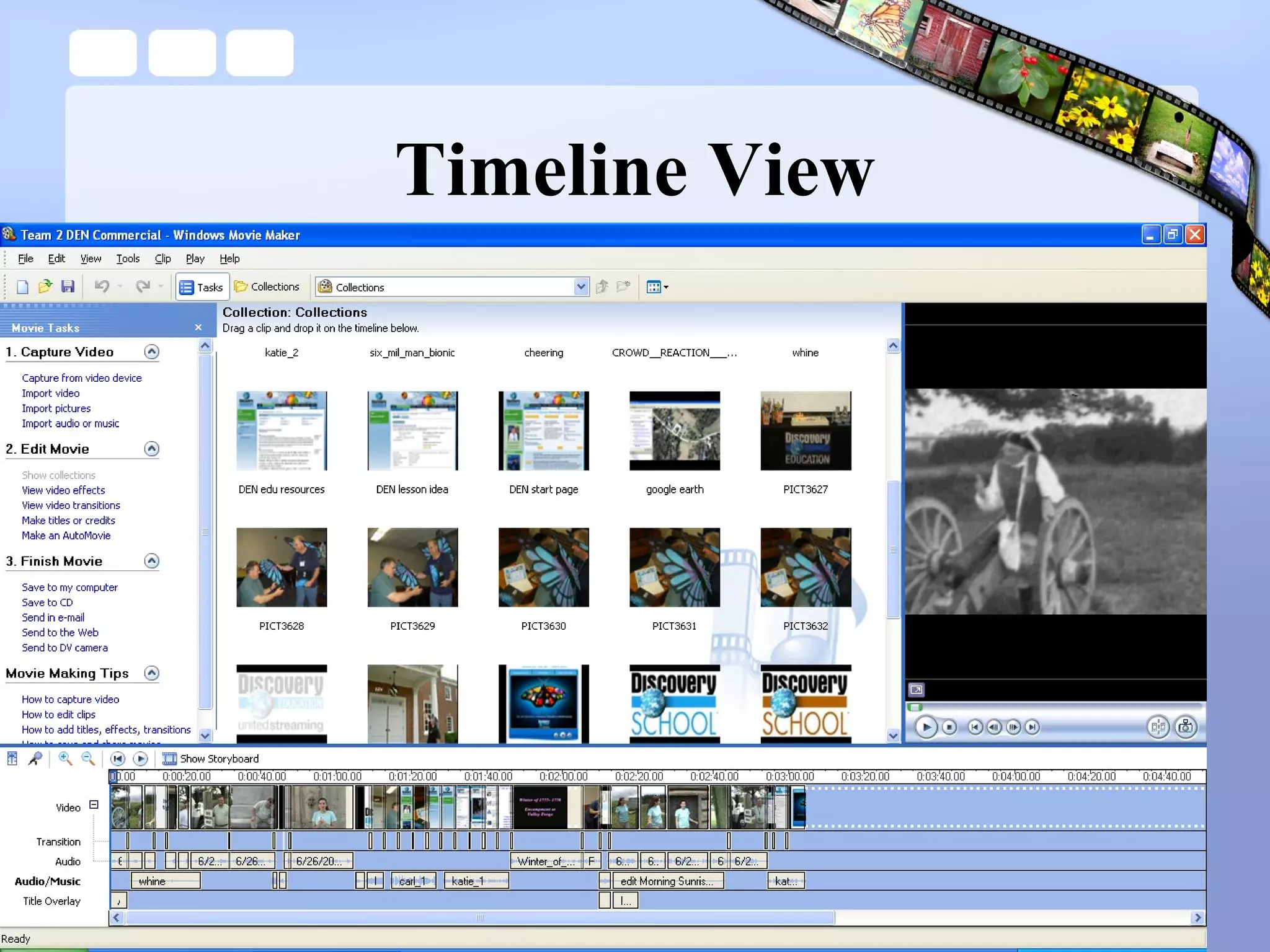
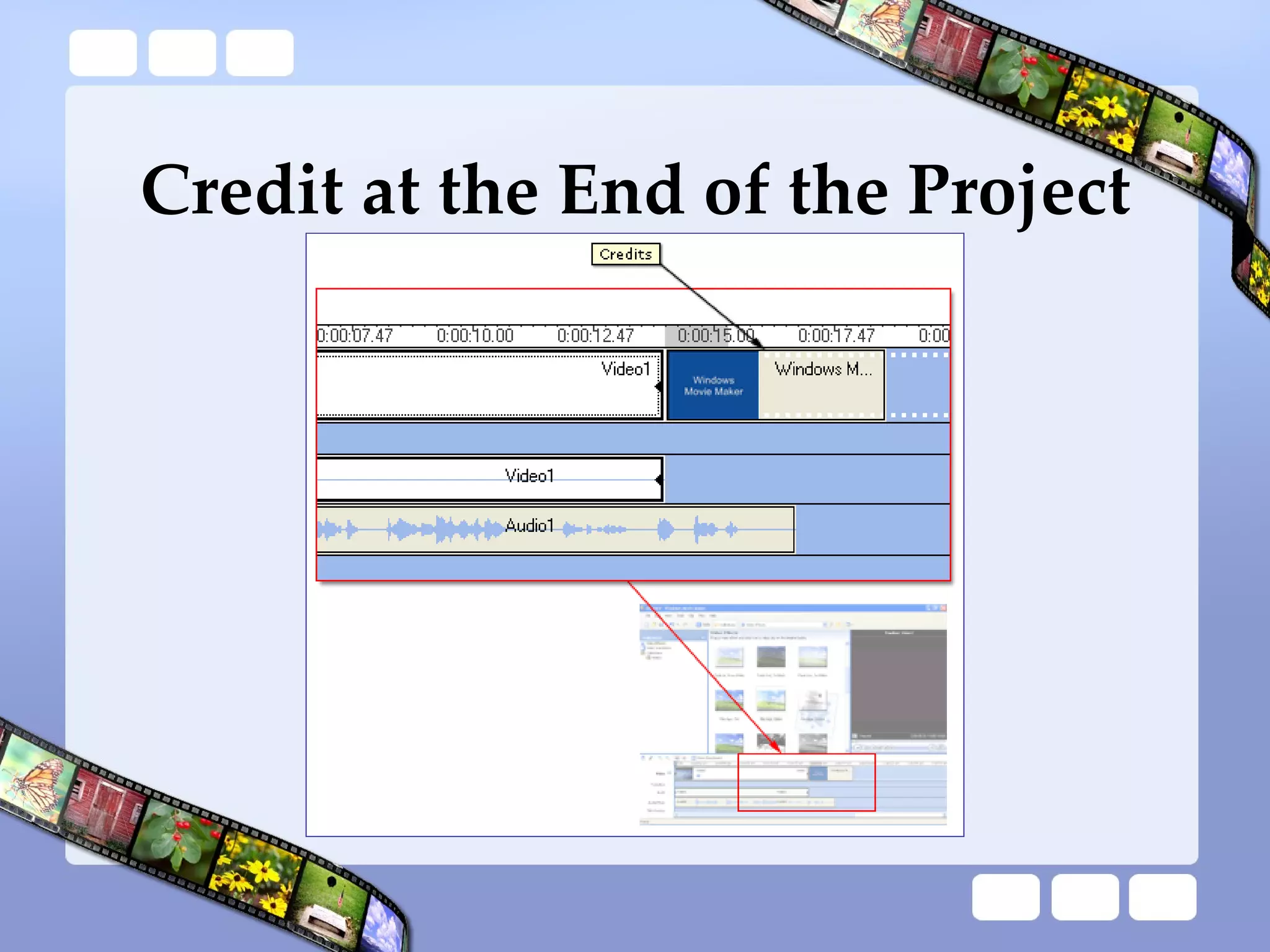
Editing a ProjectYou can use the storyboard/timeline to create and edit projects. The storyboard and timeline both display your work in progress, but each provides a different view of your work: The storyboard displays the sequence of clips. The timeline displays the timing of clips.
61.
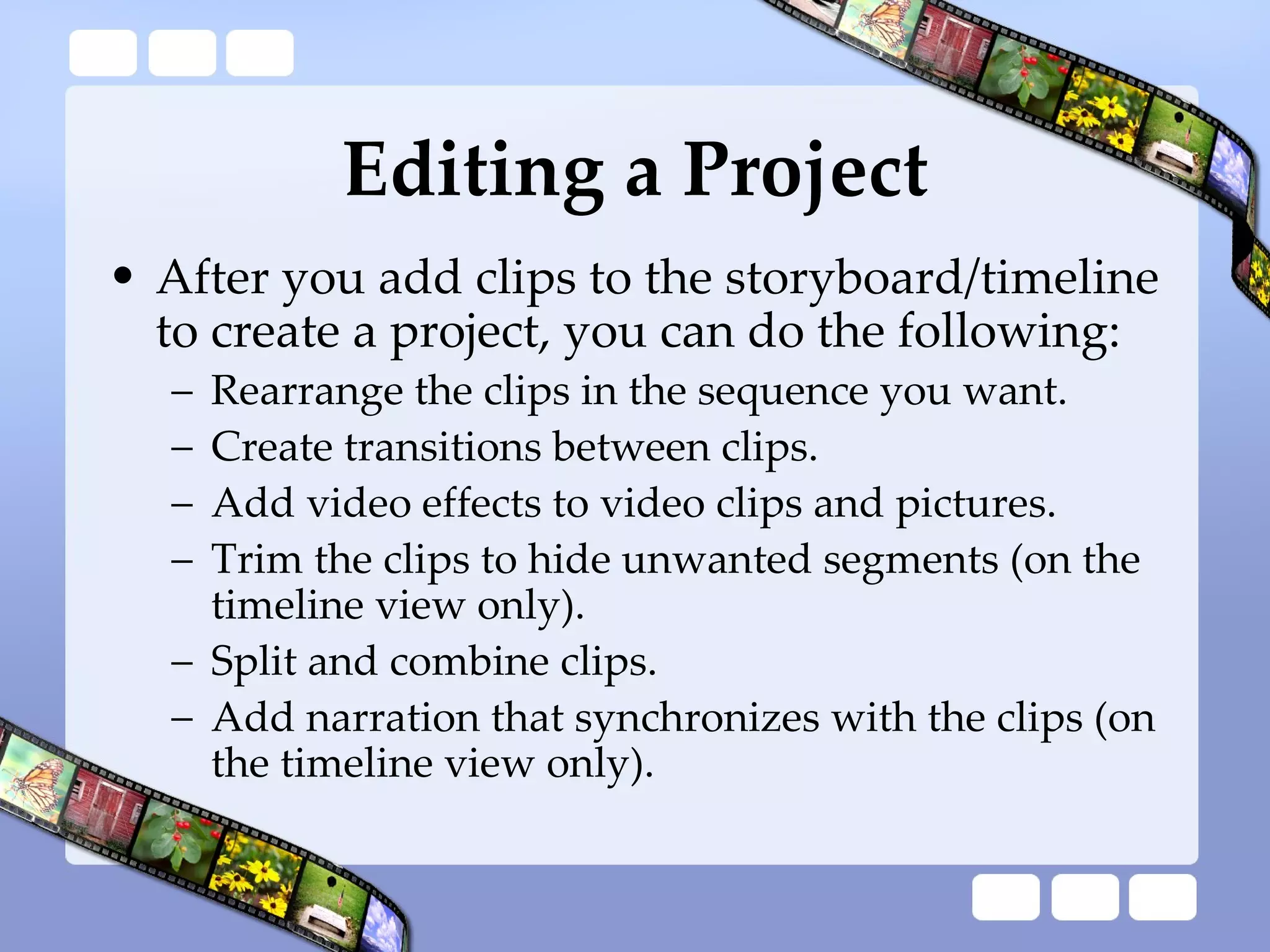
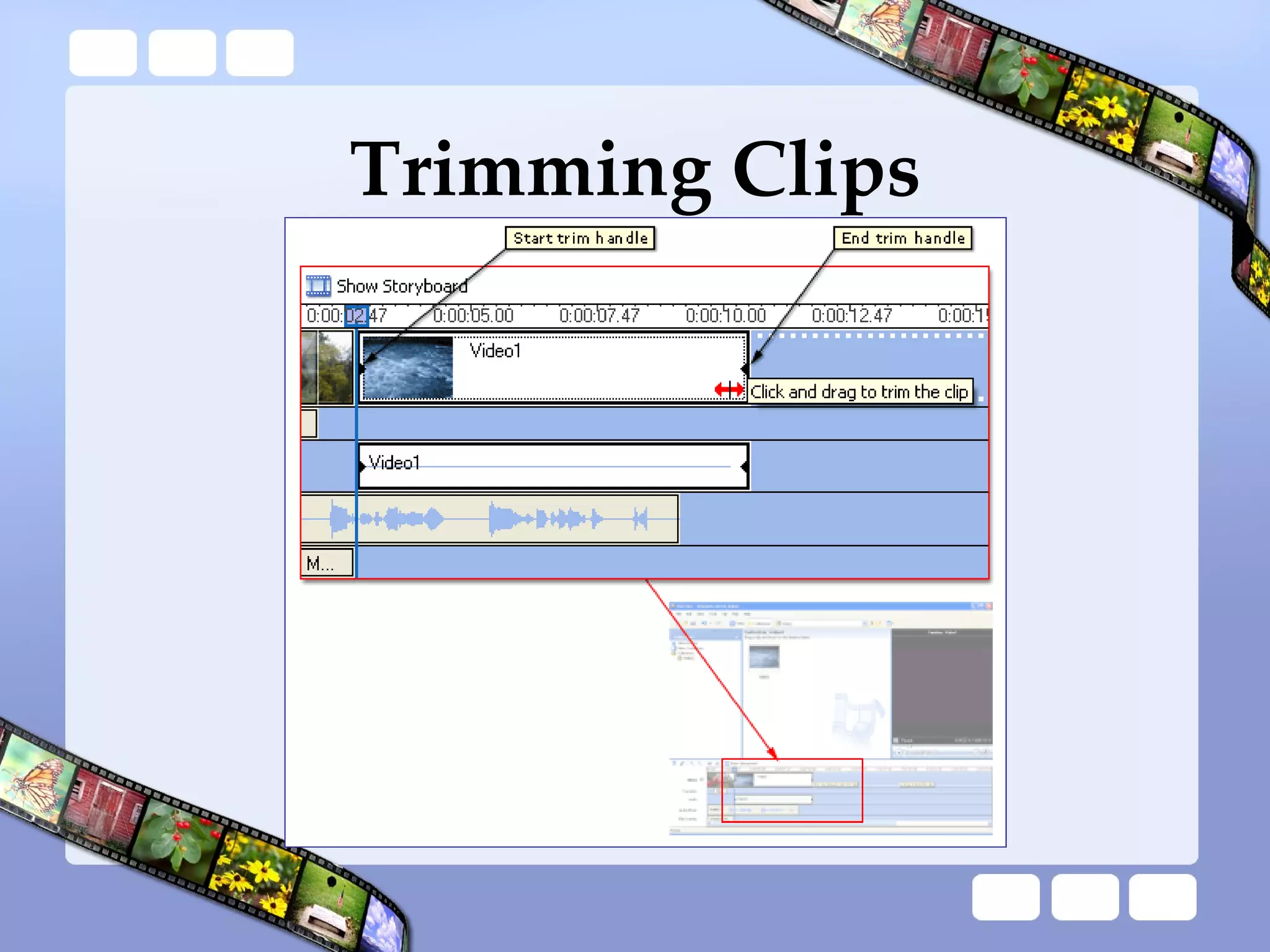
Editing a ProjectAfter you add clips to the storyboard/timeline to create a project, you can do the following: Rearrange the clips in the sequence you want. Create transitions between clips. Add video effects to video clips and pictures. Trim the clips to hide unwanted segments (on the timeline view only). Split and combine clips. Add narration that synchronizes with the clips (on the timeline view only).
Audio Options Someof the different audio-related tasks you can perform in Windows Movie Maker include the following. Narrate the timeline. Adjust audio levels. Add audio effects. Adjust the volume of audio clips.
Alternative Narration Insteadof recording narration directly into Windows Movie Maker, you can record your narration with another audio editing program and import audio tracks as you would with music files. Audacity Tutorial
90.
Adjusting Audio LevelsYou can adjust the audio levels between the Audio and Audio/Music tracks (the audio that was captured as part of a video clip on the Audio track, and the audio that was captured or imported and added to the Audio/Music track). Adjusting the audio levels determines which audio will play louder than the other in your movie.