Differentiated Instruction Made Simple with DEJennifer DormanJennifer_Dorman@Discovery.com
Differentiating Content
						DID YOU KNOW?DE streaming PLUS contains LOTS more than just videos?
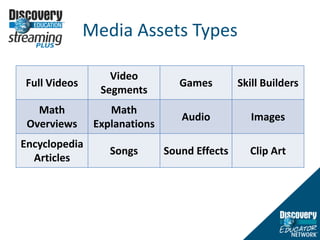
Media Assets Types
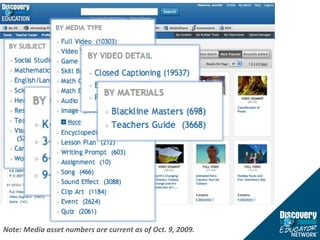
Note: Media asset numbers are current as of Oct. 9, 2009.
						DID YOU KNOW?You can search for DE streaming content by grade level and subject area.
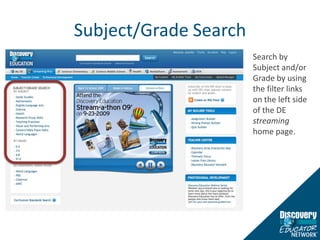
Subject/Grade SearchSearch by Subject and/or Grade by using the filter links on the left side of the DE streaming home page.
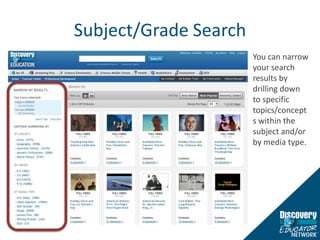
Subject/Grade SearchYou can narrow your search results by drilling down to specific topics/concepts within the subject and/or by media type.
						DID YOU KNOW?You can search for DE streaming media content by state curriculum standards.
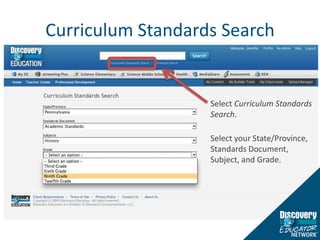
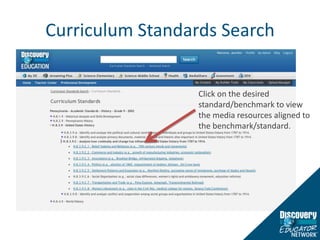
Curriculum Standards SearchSelect Curriculum Standards Search.Select your State/Province, Standards Document, Subject, and Grade.
Curriculum Standards SearchClick on the desired standard/benchmark to view the media resources aligned to the benchmark/standard.
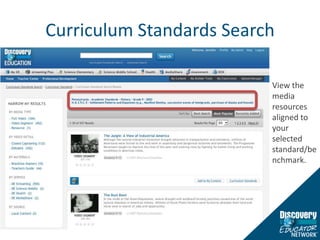
Curriculum Standards SearchView the media resources aligned to your selected standard/benchmark.
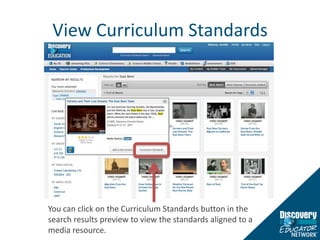
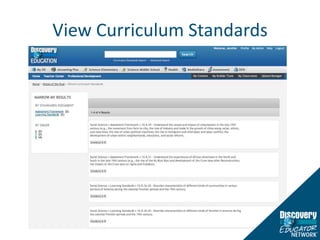
View Curriculum StandardsYou can click on the Curriculum Standards button in the search results preview to view the standards aligned to a media resource.
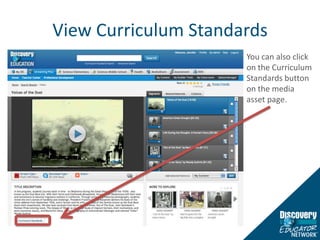
View Curriculum StandardsYou can also click on the Curriculum Standards button on the media asset page.
View Curriculum Standards
						DID YOU KNOW?The DE streaming library contains hundreds of speeches with transcripts and encyclopedia articles that can be used with creative web applications to help students identify main ideas, concepts, and themes.
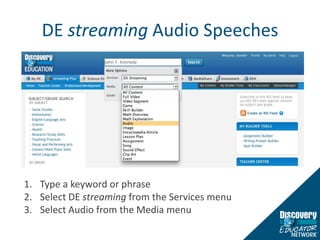
DE streaming Audio SpeechesType a keyword or phraseSelect DE streaming from the Services menuSelect Audio from the Media menu
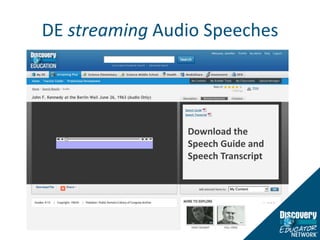
DE streaming Audio SpeechesMouse over the grid search results to read a short synopsis of the speech and view supporting materials (speech guide, speech transcript, etc.)
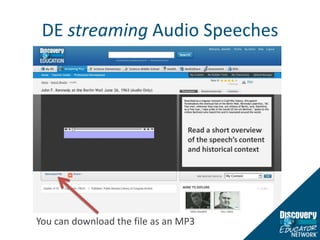
DE streaming Audio SpeechesRead a short overview of the speech’s content and historical contextYou can download the file as an MP3
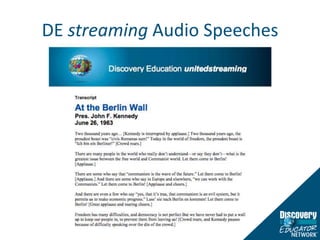
DE streaming Audio SpeechesDownload the Speech Guide and Speech Transcript
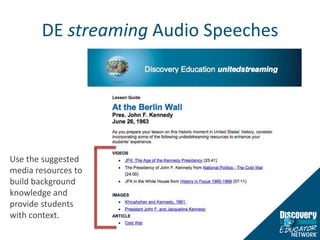
DE streaming Audio SpeechesUse the suggested media resources to build background knowledge and provide students with context.
DE streaming Audio Speeches
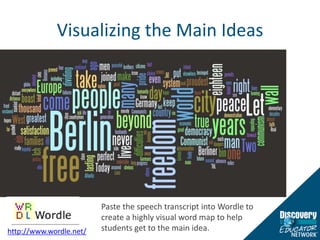
Visualizing the Main IdeasPaste the speech transcript into Wordle to create a highly visual word map to help students get to the main idea.http://www.wordle.net/
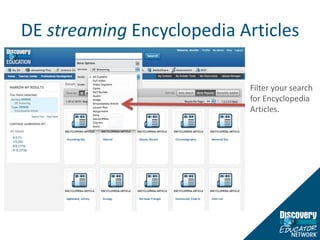
DE streaming Encyclopedia ArticlesFilter your search for Encyclopedia Articles.
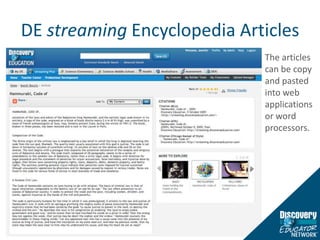
DE streaming Encyclopedia ArticlesThe articles can be copy and pasted into web applications or word processors.
Getting the PointTagCrowd is similar to Wordle.  The TagCrowds are embeddable into blogs, wikis, DE streaming Builders and other websites. http://www.tagcrowd.com/
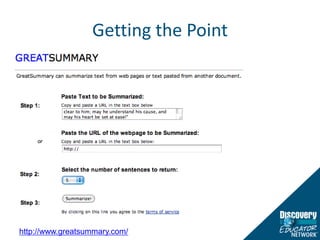
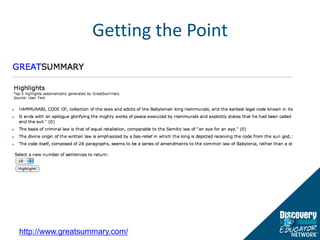
Getting the Pointhttp://www.greatsummary.com/
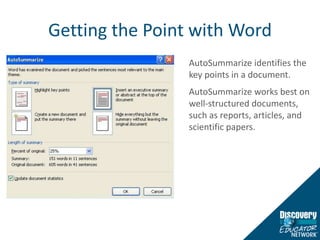
Getting the Point with WordAutoSummarize identifies the key points in a document. AutoSummarize works best on well-structured documents, such as reports, articles, and scientific papers.
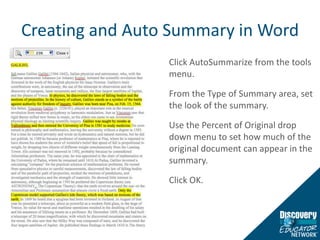
Creating and Auto Summary in WordClick AutoSummarize from the tools menu.From the Type of Summary area, set the look of the summary.Use the Percent of Original drop down menu to set how much of the original document can appear in the summary.Click OK.
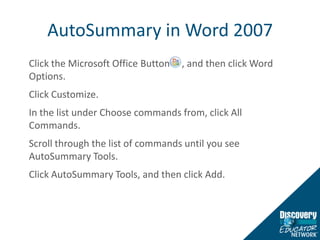
AutoSummary in Word 2007Click the Microsoft Office Button     , and then click Word Options. Click Customize.In the list under Choose commands from, click All Commands.Scroll through the list of commands until you see AutoSummary Tools.Click AutoSummary Tools, and then click Add.
AutoSummary in Word 2007On the Quick Access Toolbar, click AutoSummary Tools, and then click AutoSummarize.Select the type of summary that you want.In the Percent of original box, type or select the level of detail to include in the summary. Select a higher percentage of the original document to include more detail.
						DID YOU KNOW?You can provide Closed Captioning support for your students with DE streaming videos.
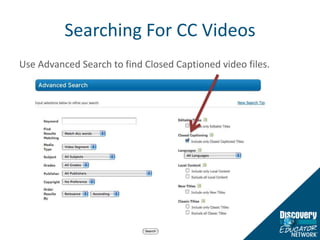
Searching For CC VideosUse Advanced Search to find Closed Captioned video files.
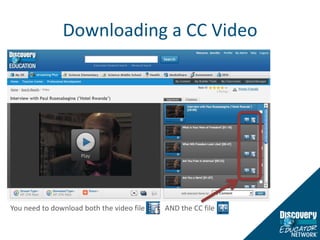
Downloading a CC VideoYou need to download both the video file           AND the CC file
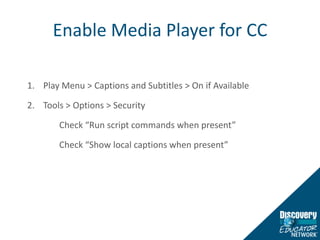
Enable Media Player for CC1.	Play Menu > Captions and Subtitles > On if Available2.	Tools > Options > Security	Check “Run script commands when present”	Check “Show local captions when present”
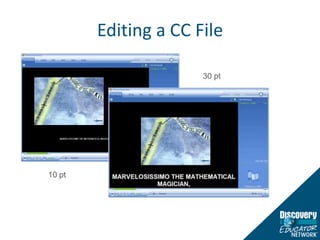
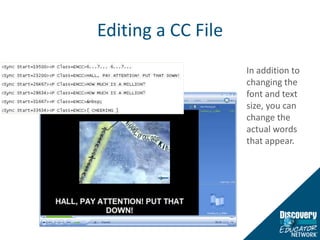
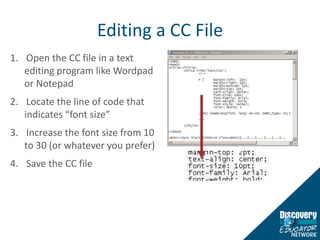
Editing a CC FileOpen the CC file in a text editing program like Wordpad or NotepadLocate the line of code that indicates “font size”Increase the font size from 10 to 30 (or whatever you prefer)Save the CC file
Editing a CC File30 pt10 pt
Editing a CC FileIn addition to changing the font and text size, you can change the actual words that appear.
						DID YOU KNOW?You can annotate, share, discuss, and collaborate on web content with Diigo.
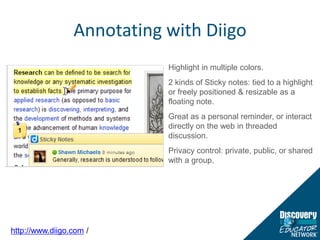
Annotating with DiigoHighlight in multiple colors.2 kinds of Sticky notes: tied to a highlight or freely positioned & resizable as a floating note.Great as a personal reminder, or interact directly on the web in threaded discussion.Privacy control: private, public, or shared with a group.http://www.diigo.com /
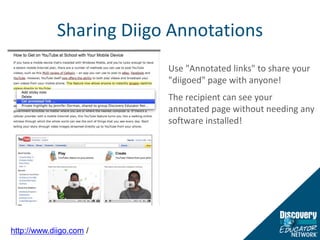
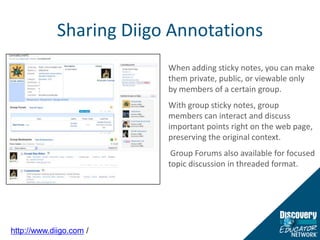
Sharing Diigo AnnotationsUse "Annotated links" to share your "diigoed" page with anyone! The recipient can see your annotated page without needing any software installed!http://www.diigo.com /
Sharing Diigo AnnotationsWhen adding sticky notes, you can make them private, public, or viewable only by members of a certain group. With group sticky notes, group members can interact and discuss important points right on the web page, preserving the original context. Group Forums also available for focused topic discussion in threaded format.http://www.diigo.com /
Differentiating Process
						DID YOU KNOW?Your students can access targeted DE streaming media content, assignments, quizzes, and writing prompts through the new DE Student Center?
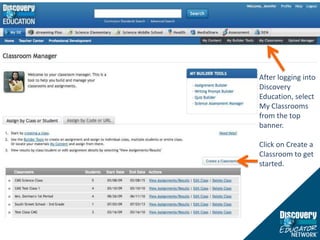
After logging into Discovery Education, select My Classrooms from the top banner.Click on Create a Classroom to get started.
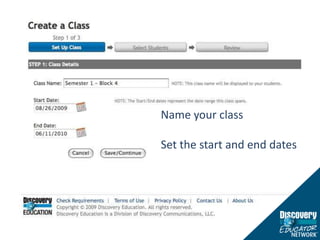
Name your classSet the start and end dates
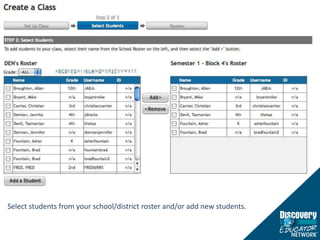
Select students from your school/district roster and/or add new students.
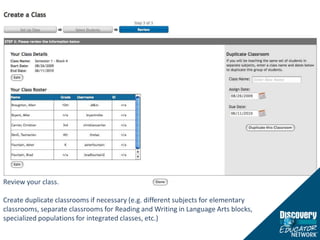
Review your class.Create duplicate classrooms if necessary (e.g. different subjects for elementary classrooms, separate classrooms for Reading and Writing in Language Arts blocks, specialized populations for integrated classes, etc.)
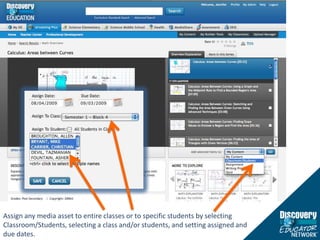
Assign any media asset to entire classes or to specific students by selecting Classroom/Students, selecting a class and/or students, and setting assigned and due dates.
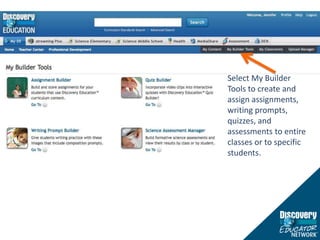
Select My Builder Tools to create and assign assignments, writing prompts, quizzes, and assessments to entire classes or to specific students.
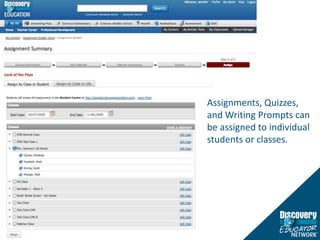
Assignments, Quizzes, and Writing Prompts can be assigned to individual students or classes.
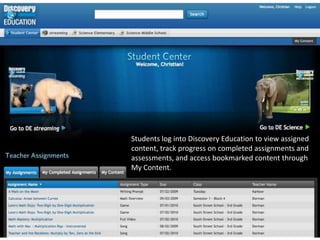
Students log into Discovery Education to view assigned content, track progress on completed assignments and assessments, and access bookmarked content through My Content.
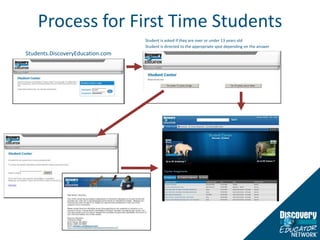
Process for First Time StudentsStudent is asked if they are over or under 13 years oldStudent is directed to the appropriate spot depending on the answerStudents.DiscoveryEducation.comStudents log into Discovery Education to view assigned content, track progress on completed assignments and assessments, and access bookmarked content through My Content.
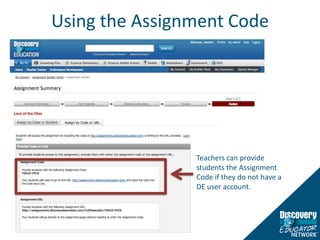
Using the Assignment CodeTeachers can provide students the Assignment Code if they do not have a DE user account.
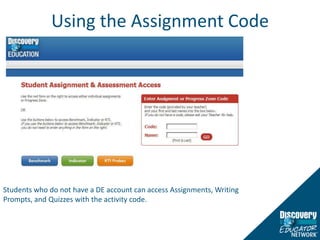
Using the Assignment CodeStudents log into Discovery Education to view assigned content, track progress on completed assignments and assessments, and access bookmarked content through My Content.Students who do not have a DE account can access Assignments, Writing Prompts, and Quizzes with the activity code.
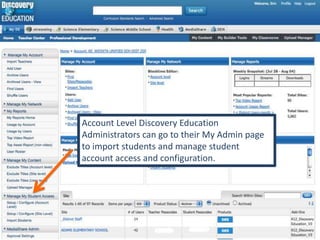
Account Level Discovery Education Administrators can go to their My Admin page to import students and manage student account access and configuration.
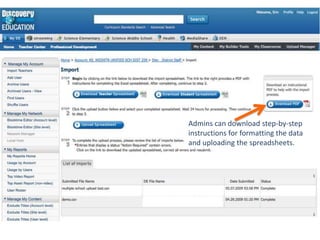
Admins can download step-by-step instructions for formatting the data and uploading the spreadsheets.
						DID YOU KNOW?You can create Quizzes, Writing Prompts, and Assignments in DE streaming.
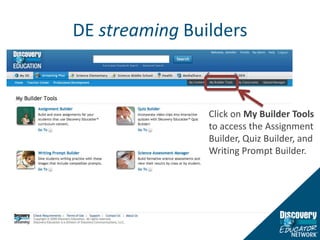
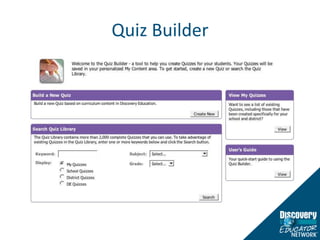
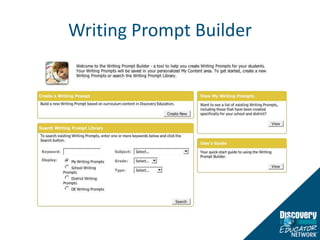
DE streaming BuildersClick on My Builder Tools to access the Assignment Builder, Quiz Builder, and Writing Prompt Builder.
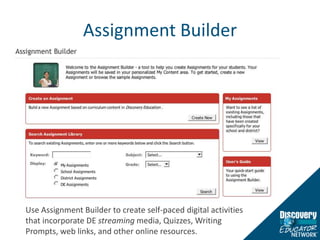
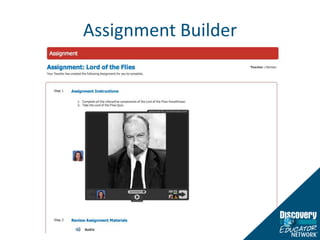
Assignment BuilderUse Assignment Builder to create self-paced digital activities that incorporate DE streaming media, Quizzes, Writing Prompts, web links, and other online resources.
Assignment Builder
Quiz Builder
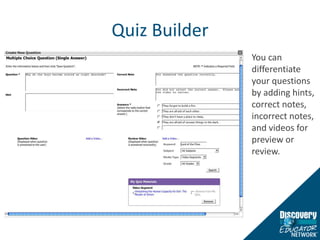
Quiz BuilderYou can differentiate your questions by adding hints, correct notes, incorrect notes, and videos for preview or review.
Writing Prompt Builder
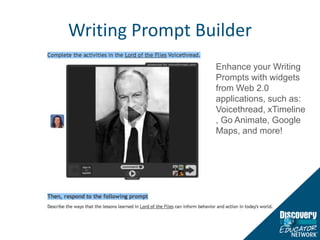
Writing Prompt BuilderEnhance your Writing Prompts with widgets from Web 2.0 applications, such as: Voicethread, xTimeline, Go Animate, Google Maps, and more!
						DID YOU KNOW?You can use DE streaming and Google Earth to create your own virtual field trip.
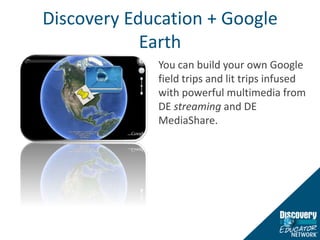
Discovery Education + Google EarthYou can build your own Google field trips and lit trips infused with powerful multimedia from DE streaming and DE MediaShare.
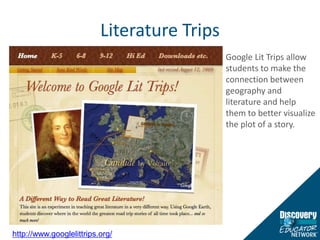
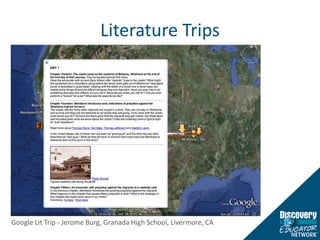
Literature TripsGoogle Lit Trips allow students to make the connection between geography and literature and help them to better visualize the plot of a story.http://www.googlelittrips.org/
Literature TripsGoogle Lit Trip - Jerome Burg, Granada High School, Livermore, CA
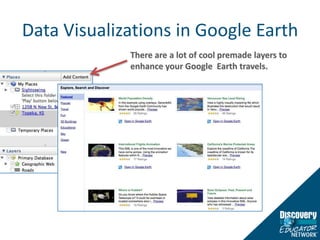
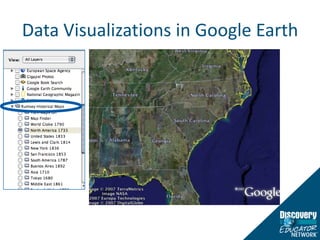
Data Visualizations in Google EarthThere are a lot of cool premade layers to enhance your Google  Earth travels.
Data Visualizations in Google Earth
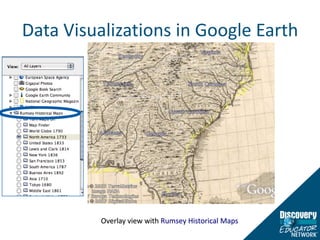
Data Visualizations in Google EarthOverlay view with Rumsey Historical Maps
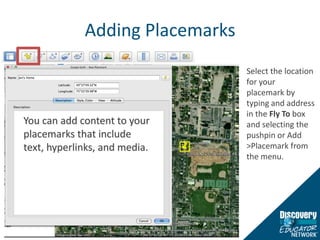
Adding PlacemarksSelect the location for your placemark by typing and address in the Fly To box and selecting the pushpin or Add > Placemark from the menu.  You can add content to your placemarks that include text, hyperlinks, and media.
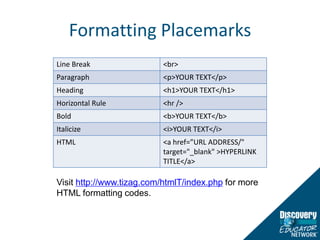
Formatting PlacemarksVisit http://www.tizag.com/htmlT/index.php for more HTML formatting codes.
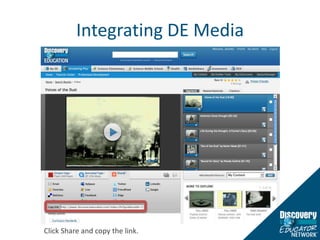
Integrating DE MediaClick Share and copy the link.
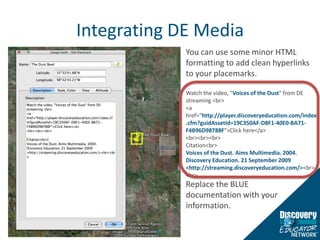
Integrating DE MediaYou can use some minor HTML formatting to add clean hyperlinks to your placemarks.  Watch the video, "Voices of the Dust" from DE streaming <br><a href=“http://player.discoveryeducation.com/index.cfm?guidAssetId=19C350AF-D8F1-40E0-BA71-F4B96D98788F">Click here</a><br><br><br>Citation<br>Voices of the Dust. Aims Multimedia. 2004.Discovery Education. 21 September 2009<http://streaming.discoveryeducation.com/><br><br>Replace the BLUE documentation with your information.
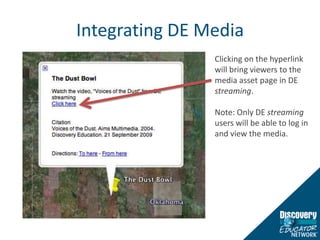
Integrating DE MediaClicking on the hyperlink will bring viewers to the media asset page in DE streaming.Note: Only DE streaming users will be able to log in and view the media.
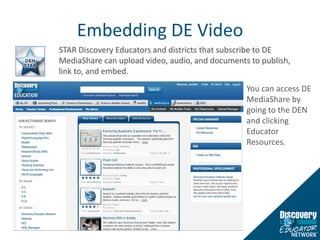
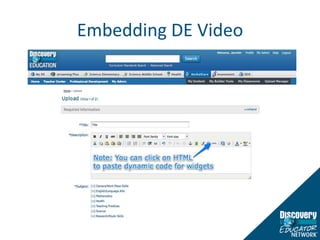
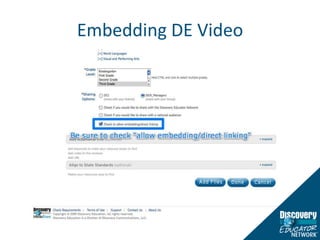
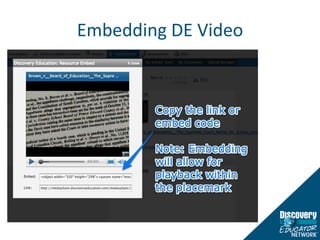
Embedding DE VideoSTAR Discovery Educators and districts that subscribe to DE MediaShare can upload video, audio, and documents to publish, link to, and embed. You can access DE MediaShare by going to the DEN and clicking Educator Resources.
Embedding DE Video
Embedding DE Video
Embedding DE Video
Embedding DE Video
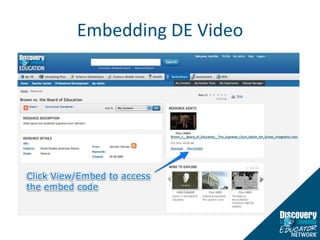
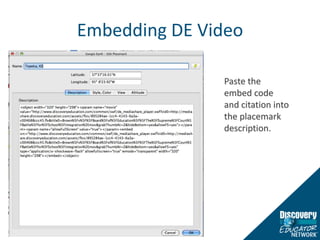
Embedding DE VideoPaste the embed code and citation into the placemark description.
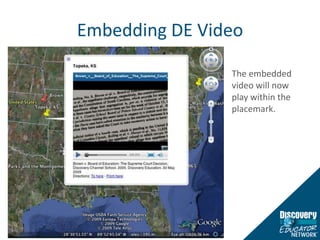
Embedding DE VideoThe embedded video will now play within the placemark.
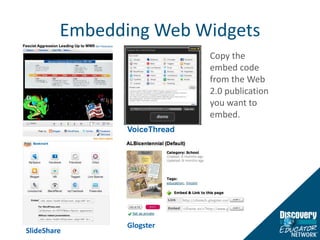
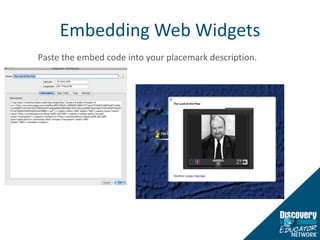
Embedding Web WidgetsCopy the embed code from the Web 2.0 publication you want to embed.VoiceThreadGlogsterSlideShare
Embedding Web WidgetsPaste the embed code into your placemark description.
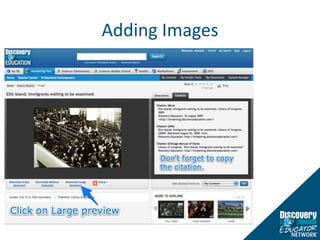
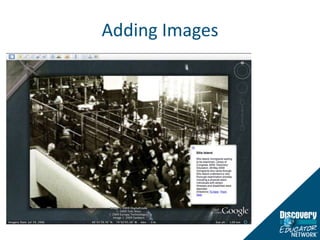
Adding Images
Adding Images
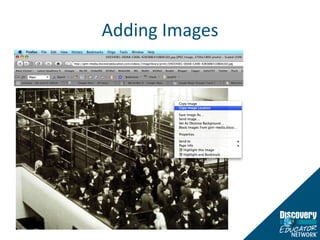
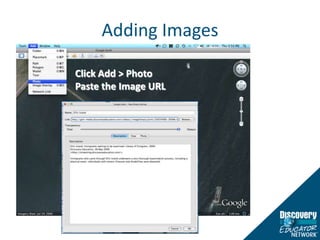
Adding ImagesClick Add > PhotoPaste the Image URL
Adding Images
Differentiating Product
						DID YOU KNOW?You and your students can use DE streamingimages to create original digital stories and documentaries.
Digital Stories with PhotostoryMicrosoft PhotostoryDownload images from streaming to import into PhotostoryDownload audio from streaming to import into PhotostoryAdd voiceover narration, text, transitions, and special effectsExport as a WMV movie filehttp://www.microsoft.com/windowsxp/using/digitalphotography/PhotoStory/default.mspx
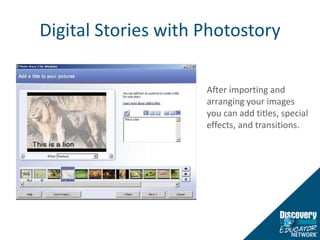
Digital Stories with PhotostoryAfter importing and arranging your images you can add titles, special effects, and transitions.
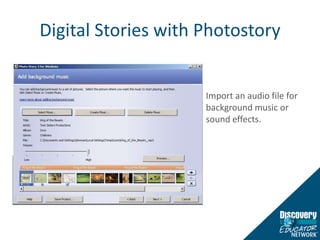
Digital Stories with PhotostoryImport an audio file for background music or sound effects.
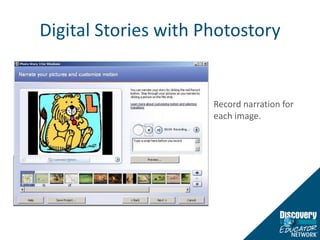
Digital Stories with PhotostoryRecord narration for each image.
Digital Documentaries with Movie MakerDE streaming audio, songs, images, and video can be used as the raw material for student-created digital documentaries.
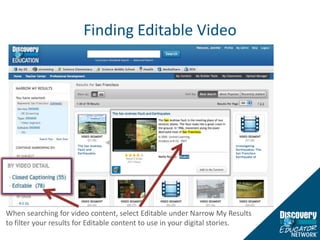
Finding Editable VideoWhen searching for video content, select Editable under Narrow My Results to filter your results for Editable content to use in your digital stories.
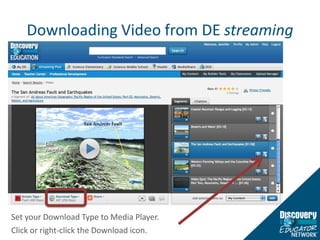
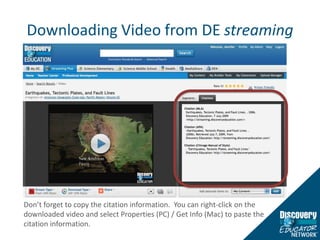
Downloading Video from DE streamingSet your Download Type to Media Player.Click or right-click the Download icon.
Downloading Video from DE streamingDon’t forget to copy the citation information.  You can right-click on the downloaded video and select Properties (PC) / Get Info (Mac) to paste the citation information.
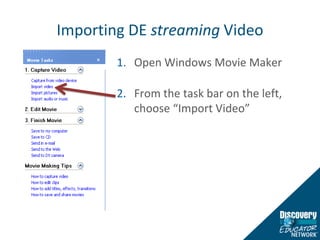
Importing DE streaming VideoOpen Windows Movie MakerFrom the task bar on the left, choose “Import Video”
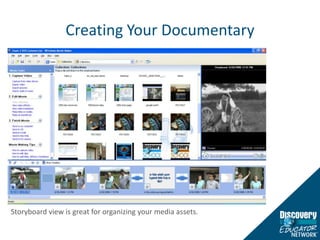
Creating Your DocumentaryStoryboard view is great for organizing your media assets.
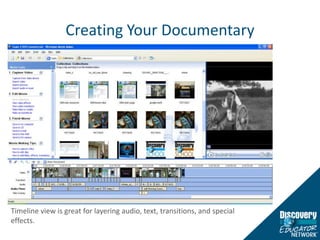
Creating Your DocumentaryTimeline view is great for layering audio, text, transitions, and special effects.
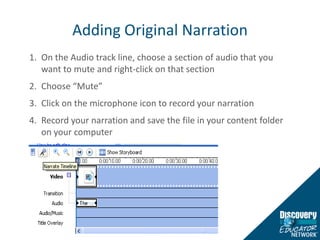
Adding Original NarrationOn the Audio track line, choose a section of audio that you want to mute and right-click on that sectionChoose “Mute”Click on the microphone icon to record your narrationRecord your narration and save the file in your content folder on your computer
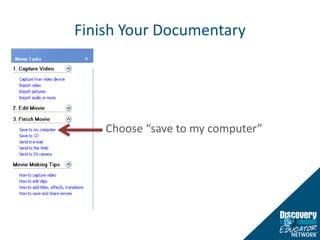
Finish Your DocumentaryChoose “save to my computer”
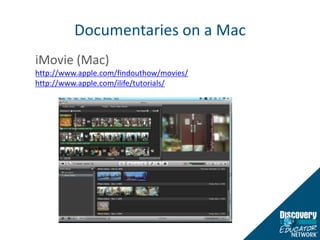
Documentaries on a MaciMovie (Mac) http://www.apple.com/findouthow/movies/http://www.apple.com/ilife/tutorials/
						DID YOU KNOW?DE streaming media can be incorporated into interactive Web 2.0 applications to allow students to express their learning through different modalities.
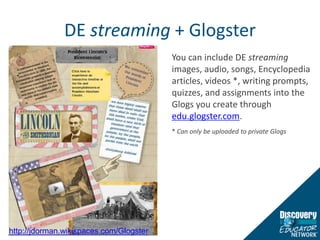
DE streaming + Glogster You can include DE streaming images, audio, songs, Encyclopedia articles, videos *, writing prompts, quizzes, and assignments into the Glogs you create through edu.glogster.com.* Can only be uploaded to private Glogs  http://jdorman.wikispaces.com/Glogster
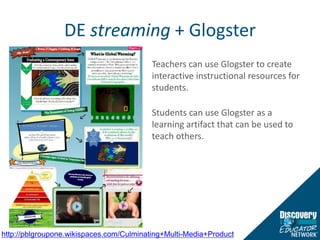
DE streaming + Glogster Teachers can use Glogster to create interactive instructional resources for students.Students can use Glogster as a learning artifact that can be used to teach others. http://pblgroupone.wikispaces.com/Culminating+Multi-Media+Product
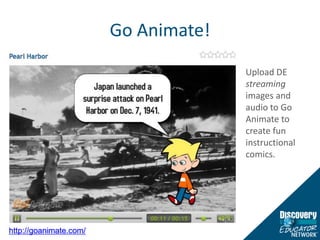
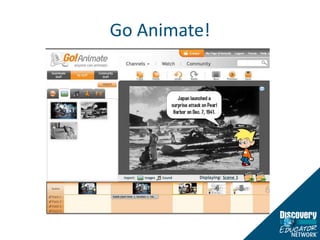
Go Animate! Upload DE streaming images and audio to Go Animate to create fun instructional comics.http://goanimate.com/
Go Animate!
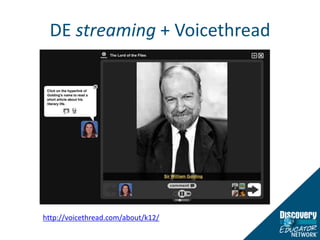
DE streaming + Voicethreadhttp://voicethread.com/about/k12/
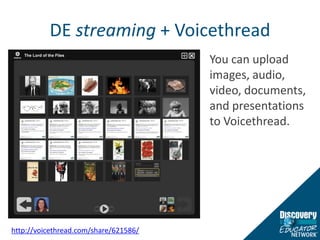
DE streaming + VoicethreadYou can upload images, audio, video, documents, and presentations to Voicethread.http://voicethread.com/share/621586/
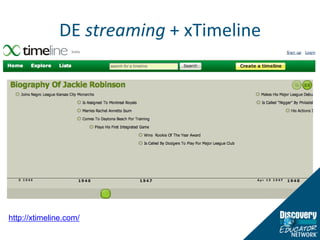
DE streaming + xTimelinehttp://xtimeline.com/
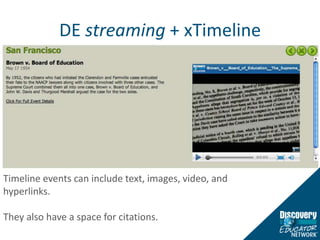
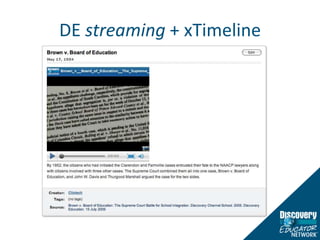
DE streaming + xTimelineTimeline events can include text, images, video, and hyperlinks.  They also have a space for citations.
DE streaming + xTimeline
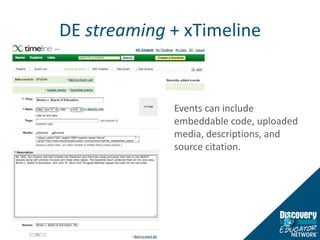
DE streaming + xTimelineEvents can include embeddable code, uploaded media, descriptions, and source citation.
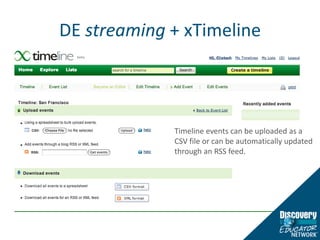
DE streaming + xTimelineTimeline events can be uploaded as a CSV file or can be automatically updated through an RSS feed.
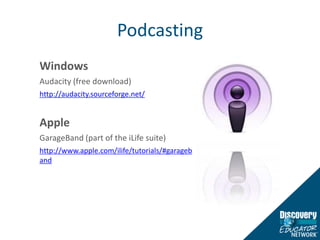
PodcastingWindowsAudacity (free download)http://audacity.sourceforge.net/AppleGarageBand (part of the iLife suite)http://www.apple.com/ilife/tutorials/#garageband
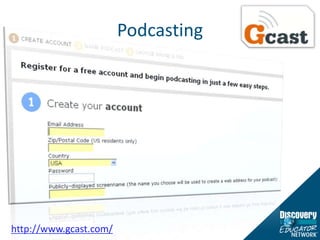
Podcastinghttp://www.gcast.com/
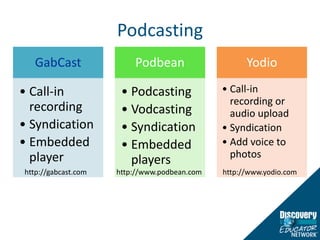
Podcastinghttp://www.podbean.comhttp://gabcast.comhttp://www.yodio.com
Visit dencommunity.com to connect to inspiring educators from around the world! Jennifer DormanJennifer_Dorman@Discovery.com

Differentiated Instruction Made Simple

  • 1.
    Differentiated Instruction MadeSimple with DEJennifer DormanJennifer_Dorman@Discovery.com
  • 3.
  • 4.
    DID YOU KNOW?DEstreaming PLUS contains LOTS more than just videos?
  • 5.
  • 6.
    Note: Media assetnumbers are current as of Oct. 9, 2009.
  • 7.
    DID YOU KNOW?Youcan search for DE streaming content by grade level and subject area.
  • 8.
    Subject/Grade SearchSearch bySubject and/or Grade by using the filter links on the left side of the DE streaming home page.
  • 9.
    Subject/Grade SearchYou cannarrow your search results by drilling down to specific topics/concepts within the subject and/or by media type.
  • 10.
    DID YOU KNOW?Youcan search for DE streaming media content by state curriculum standards.
  • 11.
    Curriculum Standards SearchSelectCurriculum Standards Search.Select your State/Province, Standards Document, Subject, and Grade.
  • 12.
    Curriculum Standards SearchClickon the desired standard/benchmark to view the media resources aligned to the benchmark/standard.
  • 13.
    Curriculum Standards SearchViewthe media resources aligned to your selected standard/benchmark.
  • 14.
    View Curriculum StandardsYoucan click on the Curriculum Standards button in the search results preview to view the standards aligned to a media resource.
  • 15.
    View Curriculum StandardsYoucan also click on the Curriculum Standards button on the media asset page.
  • 16.
  • 17.
    DID YOU KNOW?TheDE streaming library contains hundreds of speeches with transcripts and encyclopedia articles that can be used with creative web applications to help students identify main ideas, concepts, and themes.
  • 18.
    DE streaming AudioSpeechesType a keyword or phraseSelect DE streaming from the Services menuSelect Audio from the Media menu
  • 19.
    DE streaming AudioSpeechesMouse over the grid search results to read a short synopsis of the speech and view supporting materials (speech guide, speech transcript, etc.)
  • 20.
    DE streaming AudioSpeechesRead a short overview of the speech’s content and historical contextYou can download the file as an MP3
  • 21.
    DE streaming AudioSpeechesDownload the Speech Guide and Speech Transcript
  • 22.
    DE streaming AudioSpeechesUse the suggested media resources to build background knowledge and provide students with context.
  • 23.
  • 24.
    Visualizing the MainIdeasPaste the speech transcript into Wordle to create a highly visual word map to help students get to the main idea.http://www.wordle.net/
  • 25.
    DE streaming EncyclopediaArticlesFilter your search for Encyclopedia Articles.
  • 26.
    DE streaming EncyclopediaArticlesThe articles can be copy and pasted into web applications or word processors.
  • 27.
    Getting the PointTagCrowdis similar to Wordle. The TagCrowds are embeddable into blogs, wikis, DE streaming Builders and other websites. http://www.tagcrowd.com/
  • 28.
  • 29.
  • 30.
    Getting the Pointwith WordAutoSummarize identifies the key points in a document. AutoSummarize works best on well-structured documents, such as reports, articles, and scientific papers.
  • 31.
    Creating and AutoSummary in WordClick AutoSummarize from the tools menu.From the Type of Summary area, set the look of the summary.Use the Percent of Original drop down menu to set how much of the original document can appear in the summary.Click OK.
  • 32.
    AutoSummary in Word2007Click the Microsoft Office Button , and then click Word Options. Click Customize.In the list under Choose commands from, click All Commands.Scroll through the list of commands until you see AutoSummary Tools.Click AutoSummary Tools, and then click Add.
  • 33.
    AutoSummary in Word2007On the Quick Access Toolbar, click AutoSummary Tools, and then click AutoSummarize.Select the type of summary that you want.In the Percent of original box, type or select the level of detail to include in the summary. Select a higher percentage of the original document to include more detail.
  • 34.
    DID YOU KNOW?Youcan provide Closed Captioning support for your students with DE streaming videos.
  • 35.
    Searching For CCVideosUse Advanced Search to find Closed Captioned video files.
  • 36.
    Downloading a CCVideoYou need to download both the video file AND the CC file
  • 37.
    Enable Media Playerfor CC1. Play Menu > Captions and Subtitles > On if Available2. Tools > Options > Security Check “Run script commands when present” Check “Show local captions when present”
  • 38.
    Editing a CCFileOpen the CC file in a text editing program like Wordpad or NotepadLocate the line of code that indicates “font size”Increase the font size from 10 to 30 (or whatever you prefer)Save the CC file
  • 39.
    Editing a CCFile30 pt10 pt
  • 40.
    Editing a CCFileIn addition to changing the font and text size, you can change the actual words that appear.
  • 41.
    DID YOU KNOW?Youcan annotate, share, discuss, and collaborate on web content with Diigo.
  • 42.
    Annotating with DiigoHighlightin multiple colors.2 kinds of Sticky notes: tied to a highlight or freely positioned & resizable as a floating note.Great as a personal reminder, or interact directly on the web in threaded discussion.Privacy control: private, public, or shared with a group.http://www.diigo.com /
  • 43.
    Sharing Diigo AnnotationsUse"Annotated links" to share your "diigoed" page with anyone! The recipient can see your annotated page without needing any software installed!http://www.diigo.com /
  • 44.
    Sharing Diigo AnnotationsWhenadding sticky notes, you can make them private, public, or viewable only by members of a certain group. With group sticky notes, group members can interact and discuss important points right on the web page, preserving the original context. Group Forums also available for focused topic discussion in threaded format.http://www.diigo.com /
  • 45.
  • 46.
    DID YOU KNOW?Yourstudents can access targeted DE streaming media content, assignments, quizzes, and writing prompts through the new DE Student Center?
  • 47.
    After logging intoDiscovery Education, select My Classrooms from the top banner.Click on Create a Classroom to get started.
  • 48.
    Name your classSetthe start and end dates
  • 49.
    Select students fromyour school/district roster and/or add new students.
  • 50.
    Review your class.Createduplicate classrooms if necessary (e.g. different subjects for elementary classrooms, separate classrooms for Reading and Writing in Language Arts blocks, specialized populations for integrated classes, etc.)
  • 51.
    Assign any mediaasset to entire classes or to specific students by selecting Classroom/Students, selecting a class and/or students, and setting assigned and due dates.
  • 52.
    Select My BuilderTools to create and assign assignments, writing prompts, quizzes, and assessments to entire classes or to specific students.
  • 53.
    Assignments, Quizzes, andWriting Prompts can be assigned to individual students or classes.
  • 54.
    Students log intoDiscovery Education to view assigned content, track progress on completed assignments and assessments, and access bookmarked content through My Content.
  • 55.
    Process for FirstTime StudentsStudent is asked if they are over or under 13 years oldStudent is directed to the appropriate spot depending on the answerStudents.DiscoveryEducation.comStudents log into Discovery Education to view assigned content, track progress on completed assignments and assessments, and access bookmarked content through My Content.
  • 56.
    Using the AssignmentCodeTeachers can provide students the Assignment Code if they do not have a DE user account.
  • 57.
    Using the AssignmentCodeStudents log into Discovery Education to view assigned content, track progress on completed assignments and assessments, and access bookmarked content through My Content.Students who do not have a DE account can access Assignments, Writing Prompts, and Quizzes with the activity code.
  • 58.
    Account Level DiscoveryEducation Administrators can go to their My Admin page to import students and manage student account access and configuration.
  • 59.
    Admins can downloadstep-by-step instructions for formatting the data and uploading the spreadsheets.
  • 60.
    DID YOU KNOW?Youcan create Quizzes, Writing Prompts, and Assignments in DE streaming.
  • 61.
    DE streaming BuildersClickon My Builder Tools to access the Assignment Builder, Quiz Builder, and Writing Prompt Builder.
  • 62.
    Assignment BuilderUse AssignmentBuilder to create self-paced digital activities that incorporate DE streaming media, Quizzes, Writing Prompts, web links, and other online resources.
  • 63.
  • 64.
  • 65.
    Quiz BuilderYou candifferentiate your questions by adding hints, correct notes, incorrect notes, and videos for preview or review.
  • 66.
  • 67.
    Writing Prompt BuilderEnhanceyour Writing Prompts with widgets from Web 2.0 applications, such as: Voicethread, xTimeline, Go Animate, Google Maps, and more!
  • 68.
    DID YOU KNOW?Youcan use DE streaming and Google Earth to create your own virtual field trip.
  • 69.
    Discovery Education +Google EarthYou can build your own Google field trips and lit trips infused with powerful multimedia from DE streaming and DE MediaShare.
  • 70.
    Literature TripsGoogle LitTrips allow students to make the connection between geography and literature and help them to better visualize the plot of a story.http://www.googlelittrips.org/
  • 71.
    Literature TripsGoogle LitTrip - Jerome Burg, Granada High School, Livermore, CA
  • 72.
    Data Visualizations inGoogle EarthThere are a lot of cool premade layers to enhance your Google Earth travels.
  • 73.
  • 74.
    Data Visualizations inGoogle EarthOverlay view with Rumsey Historical Maps
  • 75.
    Adding PlacemarksSelect thelocation for your placemark by typing and address in the Fly To box and selecting the pushpin or Add > Placemark from the menu. You can add content to your placemarks that include text, hyperlinks, and media.
  • 76.
  • 77.
    Integrating DE MediaClickShare and copy the link.
  • 78.
    Integrating DE MediaYoucan use some minor HTML formatting to add clean hyperlinks to your placemarks. Watch the video, "Voices of the Dust" from DE streaming <br><a href=“http://player.discoveryeducation.com/index.cfm?guidAssetId=19C350AF-D8F1-40E0-BA71-F4B96D98788F">Click here</a><br><br><br>Citation<br>Voices of the Dust. Aims Multimedia. 2004.Discovery Education. 21 September 2009<http://streaming.discoveryeducation.com/><br><br>Replace the BLUE documentation with your information.
  • 79.
    Integrating DE MediaClickingon the hyperlink will bring viewers to the media asset page in DE streaming.Note: Only DE streaming users will be able to log in and view the media.
  • 80.
    Embedding DE VideoSTARDiscovery Educators and districts that subscribe to DE MediaShare can upload video, audio, and documents to publish, link to, and embed. You can access DE MediaShare by going to the DEN and clicking Educator Resources.
  • 81.
  • 82.
  • 83.
  • 84.
  • 85.
    Embedding DE VideoPastethe embed code and citation into the placemark description.
  • 86.
    Embedding DE VideoTheembedded video will now play within the placemark.
  • 87.
    Embedding Web WidgetsCopythe embed code from the Web 2.0 publication you want to embed.VoiceThreadGlogsterSlideShare
  • 88.
    Embedding Web WidgetsPastethe embed code into your placemark description.
  • 89.
  • 90.
  • 91.
    Adding ImagesClick Add> PhotoPaste the Image URL
  • 92.
  • 93.
  • 94.
    DID YOU KNOW?Youand your students can use DE streamingimages to create original digital stories and documentaries.
  • 95.
    Digital Stories withPhotostoryMicrosoft PhotostoryDownload images from streaming to import into PhotostoryDownload audio from streaming to import into PhotostoryAdd voiceover narration, text, transitions, and special effectsExport as a WMV movie filehttp://www.microsoft.com/windowsxp/using/digitalphotography/PhotoStory/default.mspx
  • 96.
    Digital Stories withPhotostoryAfter importing and arranging your images you can add titles, special effects, and transitions.
  • 97.
    Digital Stories withPhotostoryImport an audio file for background music or sound effects.
  • 98.
    Digital Stories withPhotostoryRecord narration for each image.
  • 99.
    Digital Documentaries withMovie MakerDE streaming audio, songs, images, and video can be used as the raw material for student-created digital documentaries.
  • 100.
    Finding Editable VideoWhensearching for video content, select Editable under Narrow My Results to filter your results for Editable content to use in your digital stories.
  • 101.
    Downloading Video fromDE streamingSet your Download Type to Media Player.Click or right-click the Download icon.
  • 102.
    Downloading Video fromDE streamingDon’t forget to copy the citation information. You can right-click on the downloaded video and select Properties (PC) / Get Info (Mac) to paste the citation information.
  • 103.
    Importing DE streamingVideoOpen Windows Movie MakerFrom the task bar on the left, choose “Import Video”
  • 104.
    Creating Your DocumentaryStoryboardview is great for organizing your media assets.
  • 105.
    Creating Your DocumentaryTimelineview is great for layering audio, text, transitions, and special effects.
  • 106.
    Adding Original NarrationOnthe Audio track line, choose a section of audio that you want to mute and right-click on that sectionChoose “Mute”Click on the microphone icon to record your narrationRecord your narration and save the file in your content folder on your computer
  • 107.
    Finish Your DocumentaryChoose“save to my computer”
  • 108.
    Documentaries on aMaciMovie (Mac) http://www.apple.com/findouthow/movies/http://www.apple.com/ilife/tutorials/
  • 109.
    DID YOU KNOW?DEstreaming media can be incorporated into interactive Web 2.0 applications to allow students to express their learning through different modalities.
  • 110.
    DE streaming +Glogster You can include DE streaming images, audio, songs, Encyclopedia articles, videos *, writing prompts, quizzes, and assignments into the Glogs you create through edu.glogster.com.* Can only be uploaded to private Glogs http://jdorman.wikispaces.com/Glogster
  • 111.
    DE streaming +Glogster Teachers can use Glogster to create interactive instructional resources for students.Students can use Glogster as a learning artifact that can be used to teach others. http://pblgroupone.wikispaces.com/Culminating+Multi-Media+Product
  • 112.
    Go Animate! UploadDE streaming images and audio to Go Animate to create fun instructional comics.http://goanimate.com/
  • 113.
  • 114.
    DE streaming +Voicethreadhttp://voicethread.com/about/k12/
  • 115.
    DE streaming +VoicethreadYou can upload images, audio, video, documents, and presentations to Voicethread.http://voicethread.com/share/621586/
  • 116.
    DE streaming +xTimelinehttp://xtimeline.com/
  • 117.
    DE streaming +xTimelineTimeline events can include text, images, video, and hyperlinks. They also have a space for citations.
  • 118.
  • 119.
    DE streaming +xTimelineEvents can include embeddable code, uploaded media, descriptions, and source citation.
  • 120.
    DE streaming +xTimelineTimeline events can be uploaded as a CSV file or can be automatically updated through an RSS feed.
  • 121.
    PodcastingWindowsAudacity (free download)http://audacity.sourceforge.net/AppleGarageBand(part of the iLife suite)http://www.apple.com/ilife/tutorials/#garageband
  • 122.
  • 123.
  • 124.
    Visit dencommunity.com toconnect to inspiring educators from around the world! Jennifer DormanJennifer_Dorman@Discovery.com