Dialing in the Digital Compass DE  streaming  and Social Studies Jennifer Dorman [email_address]
DID YOU KNOW? You can search for DE  streaming  content by grade level and subject area.
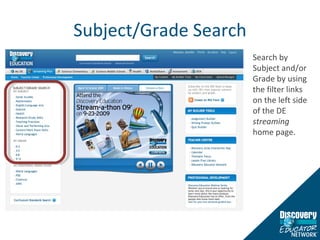
Subject/Grade Search Search by Subject and/or Grade by using the filter links on the left side of the DE  streaming  home page.
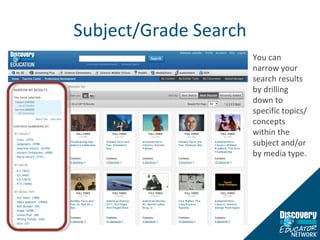
Subject/Grade Search You can narrow your search results by drilling down to specific topics/concepts within the subject and/or by media type.
DID YOU KNOW? You can search for DE  streaming  media content by state curriculum standards.
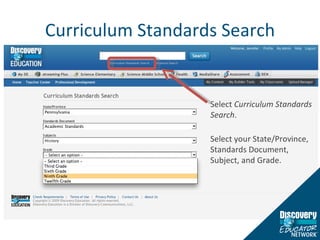
Curriculum Standards Search Select  Curriculum Standards Search . Select your State/Province, Standards Document, Subject, and Grade.
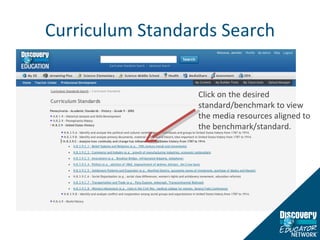
Curriculum Standards Search Click on the desired standard/benchmark to view the media resources aligned to the benchmark/standard.
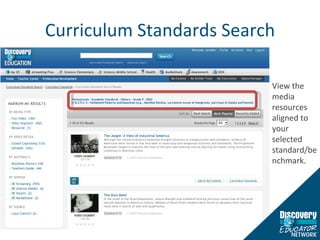
Curriculum Standards Search View the media resources aligned to your selected standard/benchmark.
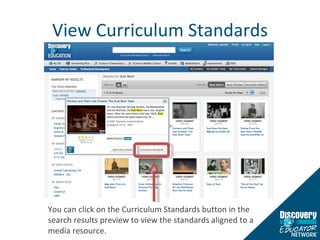
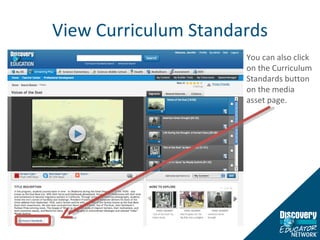
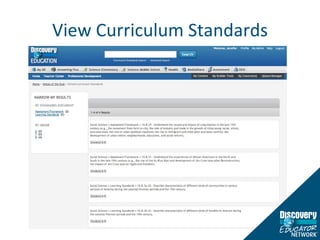
View Curriculum Standards You can click on the Curriculum Standards button in the search results preview to view the standards aligned to a media resource.
View Curriculum Standards You can also click on the Curriculum Standards button on the media asset page.
View Curriculum Standards
DID YOU KNOW? DE  streaming  has thousands of great primary source images.
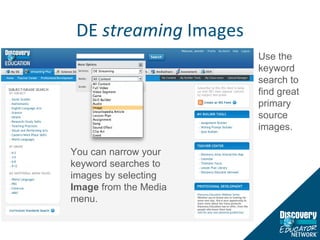
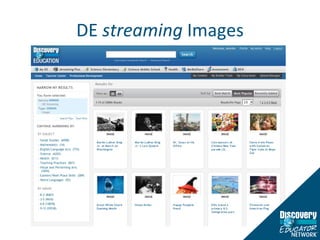
DE  streaming  Images You can narrow your keyword searches to images by selecting  Image  from the Media menu.  Use the keyword search to find great primary source images.
DE  streaming  Images
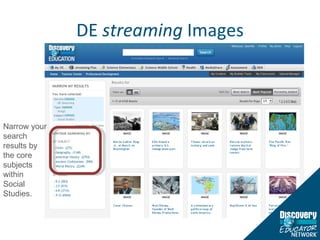
DE  streaming  Images Narrow your search results by the core subjects within Social Studies.
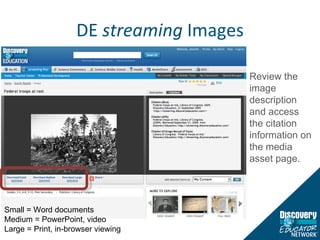
DE  streaming  Images Review the image description and access the citation information on the media asset page.  Small = Word documents Medium = PowerPoint, video Large = Print, in-browser viewing
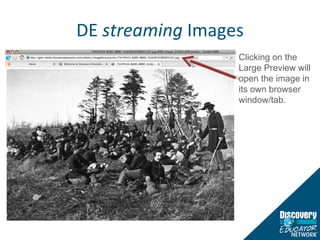
DE  streaming  Images Clicking on the Large Preview will open the image in its own browser window/tab.
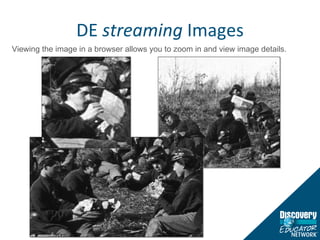
DE  streaming  Images Viewing the image in a browser allows you to zoom in and view image details.
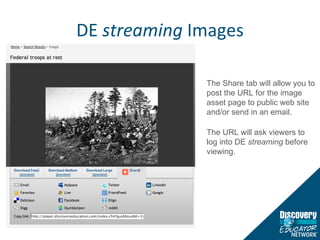
DE  streaming  Images The Share tab will allow you to post the URL for the image asset page to public web site and/or send in an email.  The URL will ask viewers to log into DE  streaming  before viewing.
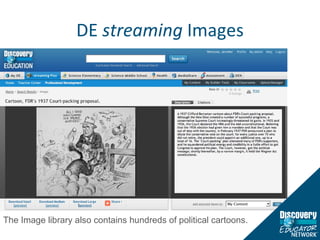
DE  streaming  Images The Image library also contains hundreds of political cartoons.
DID YOU KNOW? The DE  streaming  Atlas can be used to reinforce social studies knowledge and skills.
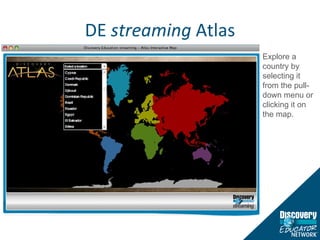
DE  streaming  Atlas
DE  streaming  Atlas Explore a country by selecting it from the pull-down menu or clicking it on the map.
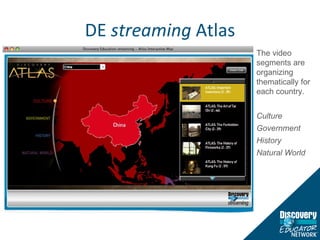
DE  streaming  Atlas The video segments are organizing thematically for each country. Culture Government History Natural World
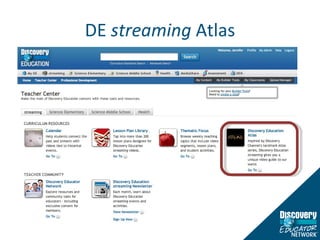
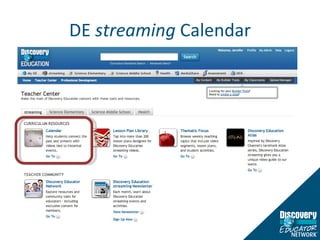
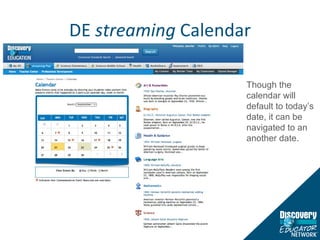
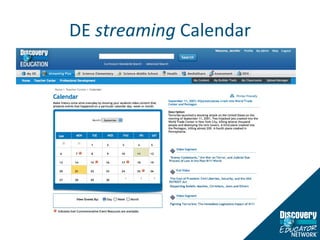
DID YOU KNOW? The DE  streaming  Calendar contains important historical events for every day of the year.
DE  streaming  Calendar
DE  streaming  Calendar Though the calendar will default to today’s date, it can be navigated to an  another date.
DE  streaming  Calendar
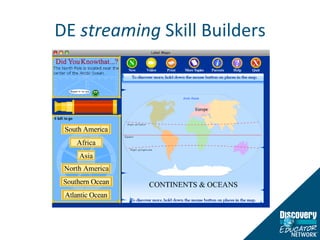
DID YOU KNOW? The DE  streaming  PLUS users now have access to 50+ Skill Builders that reinforce geography skills.
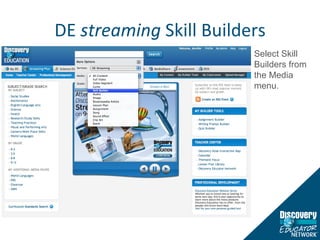
DE  streaming  Skill Builders Select Skill Builders from the Media menu.
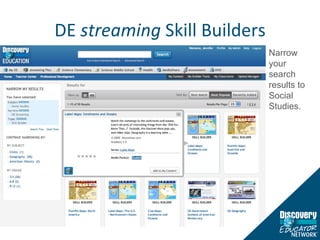
DE  streaming  Skill Builders Narrow your search results to Social Studies.
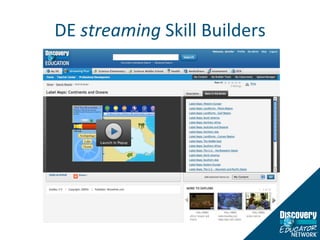
DE  streaming  Skill Builders
DID YOU KNOW? The DE  streaming  library contains hundreds of speeches.
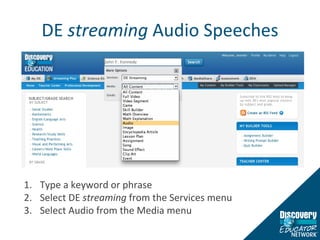
DE  streaming  Audio Speeches Type a keyword or phrase Select DE  streaming  from the Services menu Select Audio from the Media menu
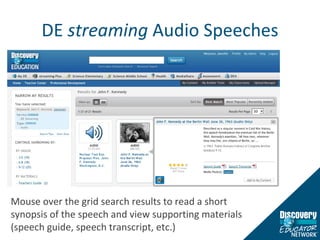
DE  streaming  Audio Speeches Mouse over the grid search results to read a short synopsis of the speech and view supporting materials (speech guide, speech transcript, etc.)
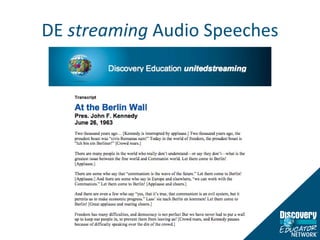
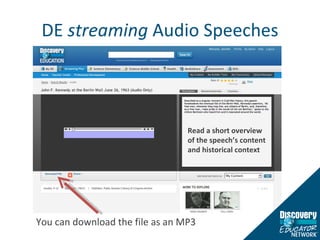
DE  streaming  Audio Speeches You can download the file as an MP3 Read a short overview of the speech’s content and historical context
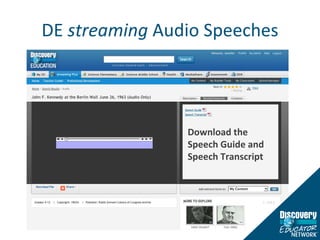
DE  streaming  Audio Speeches Download the Speech Guide and Speech Transcript
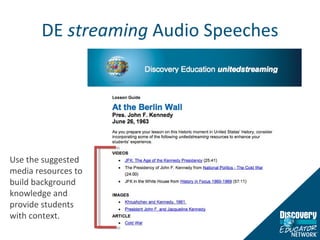
DE  streaming  Audio Speeches Use the suggested media resources to build background knowledge and provide students with context.
DE  streaming  Audio Speeches
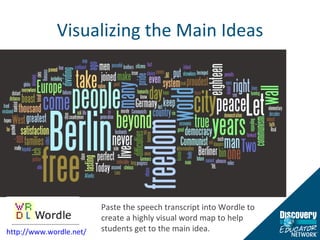
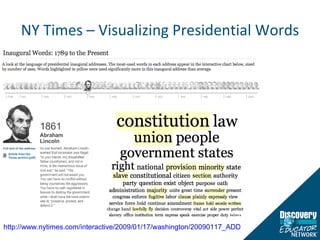
Visualizing the Main Ideas Paste the speech transcript into Wordle to create a highly visual word map to help students get to the main idea. http://www.wordle.net/
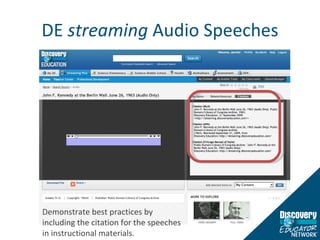
DE  streaming  Audio Speeches Demonstrate best practices by including the citation for the speeches in instructional materials.
NY Times – Visualizing Presidential Words http://www.nytimes.com/interactive/2009/01/17/washington/20090117_ADDRESSES.html
DID YOU KNOW? DE  streaming  includes the entire Funk & Wagnalls encyclopedia series.
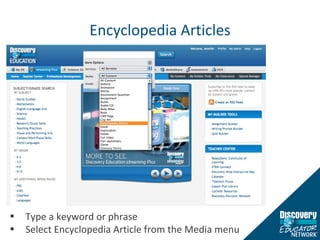
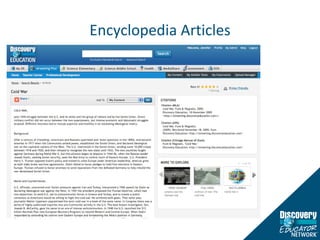
Encyclopedia Articles Type a keyword or phrase Select Encyclopedia Article from the Media menu
Encyclopedia Articles
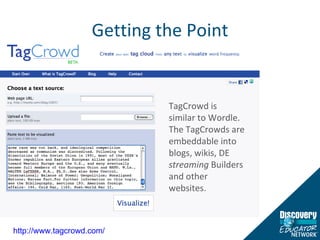
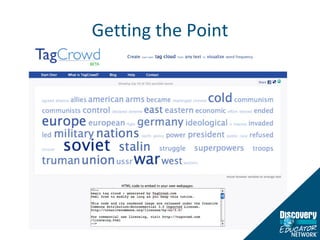
Getting the Point http://www.tagcrowd.com/   TagCrowd is similar to Wordle.  The TagCrowds are embeddable into blogs, wikis, DE  streaming  Builders and other websites.
Getting the Point
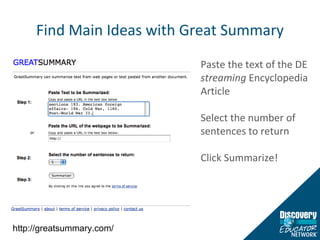
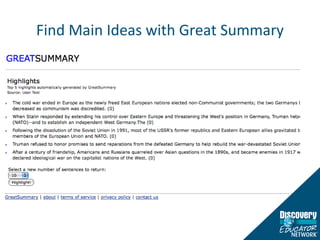
Find Main Ideas with Great Summary Paste the text of the DE  streaming  Encyclopedia Article Select the number of sentences to return Click Summarize! http://greatsummary.com/
Find Main Ideas with Great Summary
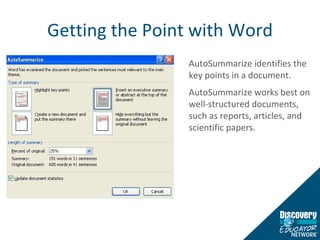
Getting the Point with Word AutoSummarize identifies the key points in a document.  AutoSummarize works best on well-structured documents, such as reports, articles, and scientific papers.
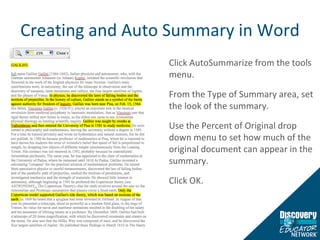
Creating and Auto Summary in Word Click AutoSummarize from the tools menu. From the Type of Summary area, set the look of the summary. Use the Percent of Original drop down menu to set how much of the original document can appear in the summary. Click OK.
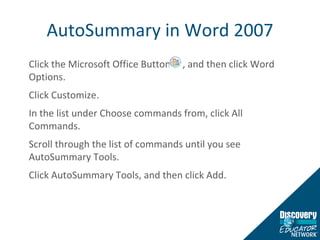
AutoSummary in Word 2007 Click the Microsoft Office Button  , and then click Word Options.  Click Customize. In the list under Choose commands from, click All Commands. Scroll through the list of commands until you see AutoSummary Tools. Click AutoSummary Tools, and then click Add.
AutoSummary in Word 2007 On the Quick Access Toolbar, click AutoSummary Tools, and then click AutoSummarize. Select the type of summary that you want. In the Percent of original box, type or select the level of detail to include in the summary.  Select a higher percentage of the original document to include more detail.
DID YOU KNOW? DE  streaming  media can be incorporated into interactive Web 2.0 applications.
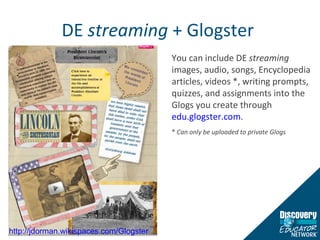
DE  streaming  + Glogster  You can include DE  streaming  images, audio, songs, Encyclopedia articles, videos *, writing prompts, quizzes, and assignments into the Glogs you create through  edu.glogster.com . *  Can only be uploaded to private Glogs  http://jdorman.wikispaces.com/Glogster
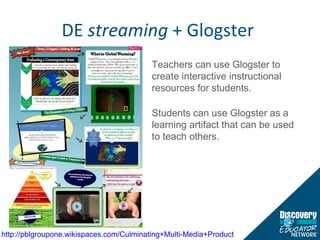
DE  streaming  + Glogster  http://pblgroupone.wikispaces.com/Culminating+Multi-Media+Product   Teachers can use Glogster to create interactive instructional resources for students. Students can use Glogster as a learning artifact that can be used to teach others.
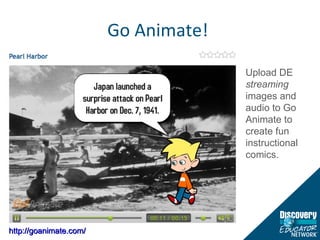
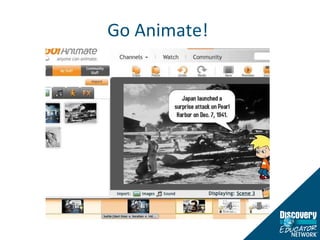
Go Animate!  Upload DE  streaming  images and audio to Go Animate to create fun instructional comics. http://goanimate.com/
Go Animate!
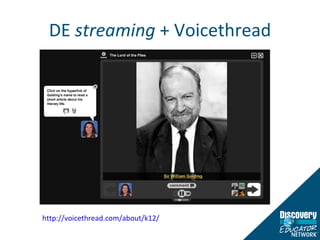
DE  streaming  + Voicethread http://voicethread.com/about/k12/
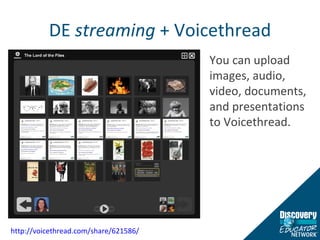
DE  streaming  + Voicethread http://voicethread.com/share/621586/   You can upload images, audio, video, documents, and presentations to Voicethread.
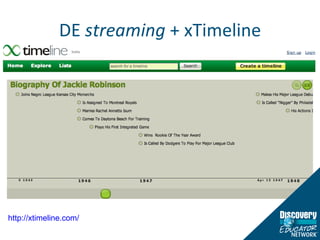
DE  streaming  + xTimeline http://xtimeline.com/
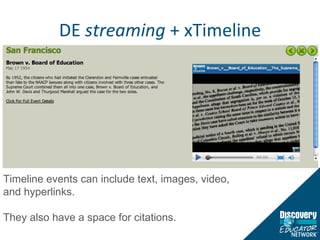
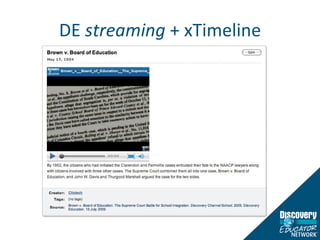
DE  streaming  + xTimeline Timeline events can include text, images, video, and hyperlinks.  They also have a space for citations.
DE  streaming  + xTimeline
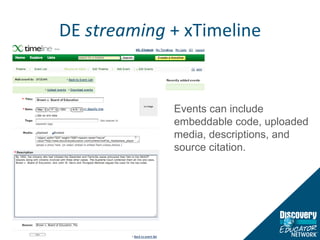
DE  streaming  + xTimeline Events can include embeddable code, uploaded media, descriptions, and source citation.
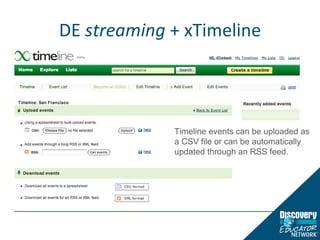
DE  streaming  + xTimeline Timeline events can be uploaded as a CSV file or can be automatically updated through an RSS feed.
DID YOU KNOW? You can create Quizzes, Writing Prompts, and Assignments in DE  streaming .
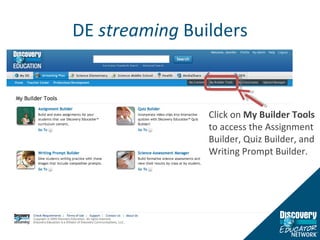
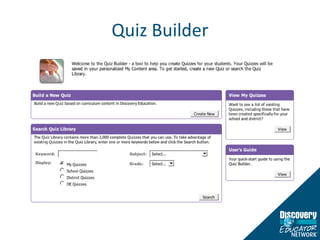
DE  streaming  Builders Click on  My Builder Tools  to access the Assignment Builder, Quiz Builder, and Writing Prompt Builder.
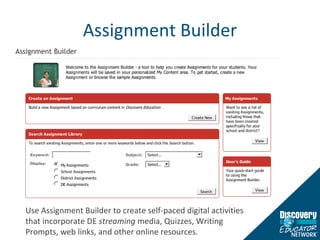
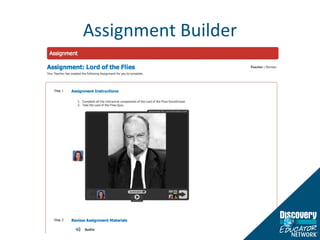
Assignment Builder Use Assignment Builder to create self-paced digital activities that incorporate DE  streaming  media, Quizzes, Writing Prompts, web links, and other online resources.
Assignment Builder
Quiz Builder
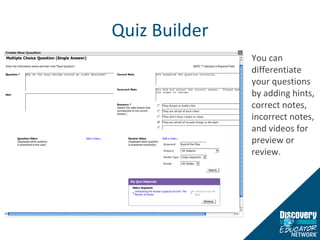
Quiz Builder You can differentiate your questions by adding hints, correct notes, incorrect notes, and videos for preview or review.
Writing Prompt Builder
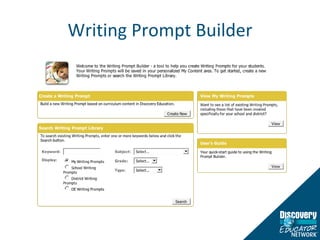
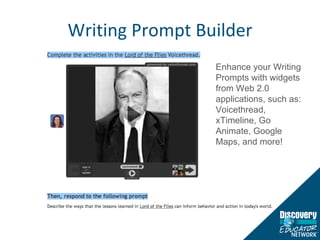
Writing Prompt Builder Enhance your Writing Prompts with widgets from Web 2.0 applications, such as: Voicethread, xTimeline, Go Animate, Google Maps, and more!
DID YOU KNOW? You can use DE  streaming  and Google Maps to allow students to collaborate on the creation of engaging multimedia maps.
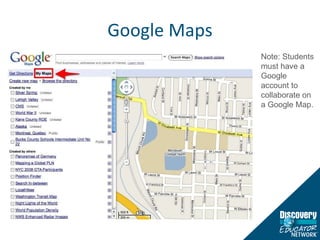
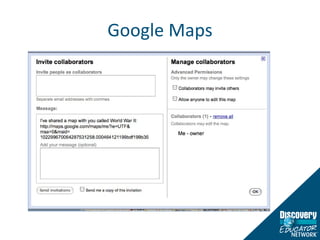
Google Maps Note: Students must have a Google account to collaborate on a Google Map.
Google Maps
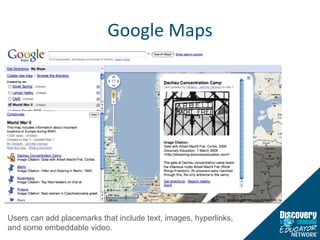
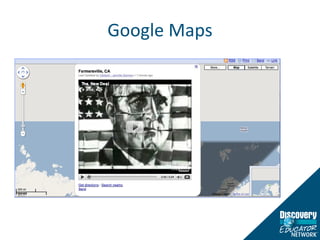
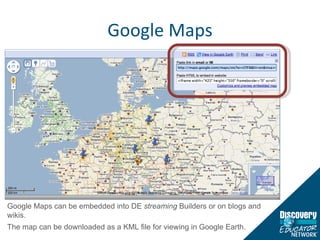
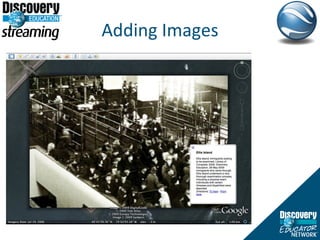
Google Maps Users can add placemarks that include text, images, hyperlinks, and some embeddable video.
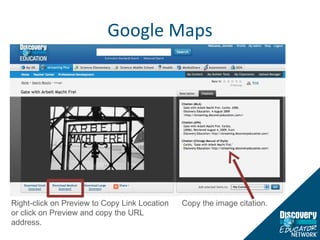
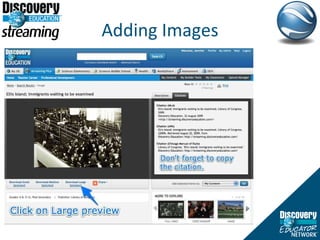
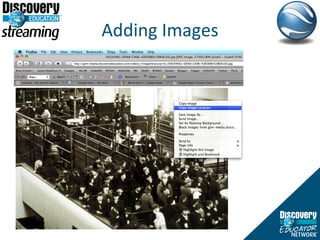
Google Maps Right-click on Preview to Copy Link Location or click on Preview and copy the URL address. Copy the image citation.
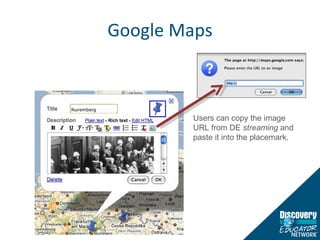
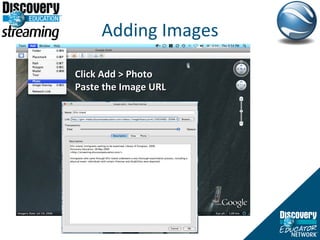
Google Maps Users can copy the image URL from DE  streaming  and paste it into the placemark.
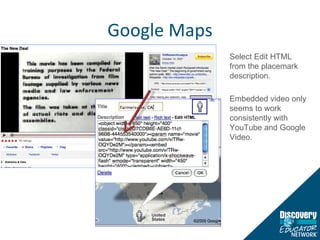
Google Maps Select Edit HTML from the placemark description. Embedded video only seems to work consistently with YouTube and Google Video.
Google Maps
Google Maps Google Maps can be embedded into DE  streaming  Builders or on blogs and wikis.  The map can be downloaded as a KML file for viewing in Google Earth.
DID YOU KNOW? You can use DE  streaming  and Google Earth to create your own virtual field trip.
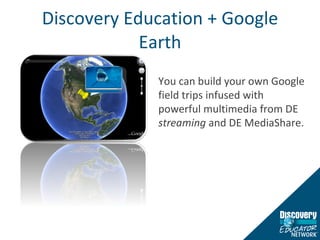
Discovery Education + Google Earth You can build your own Google field trips infused with powerful multimedia from DE  streaming  and DE MediaShare.
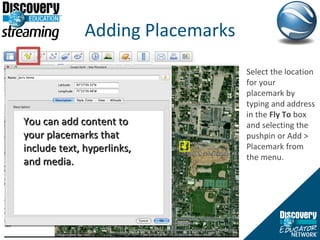
Adding Placemarks You can add content to your placemarks that include text, hyperlinks, and media. Select the location for your placemark by typing and address in the  Fly To  box and selecting the pushpin or Add > Placemark from the menu.
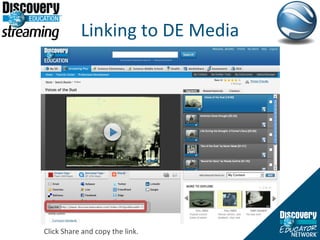
Linking to DE Media Click Share and copy the link.
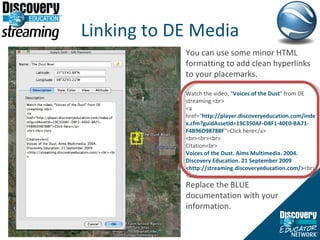
Linking to DE Media You can use some minor HTML formatting to add clean hyperlinks to your placemarks.  Watch the video, &quot; Voices of the Dust &quot; from DE streaming <br> <a href=“ http://player.discoveryeducation.com/index.cfm?guidAssetId=19C350AF-D8F1-40E0-BA71-F4B96D98788F &quot;>Click here</a> <br><br><br> Citation<br> Voices of the Dust. Aims Multimedia. 2004. Discovery Education. 21 September 2009 <http://streaming.discoveryeducation.com/> <br><br> Replace the BLUE documentation with your information.
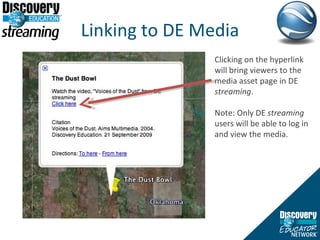
Linking to DE Media Clicking on the hyperlink will bring viewers to the media asset page in DE  streaming . Note: Only DE  streaming  users will be able to log in and view the media.
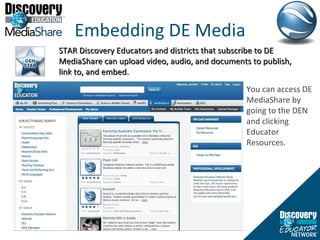
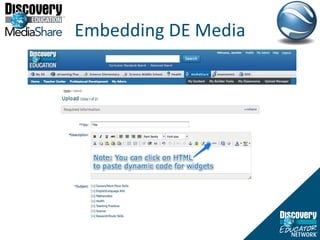
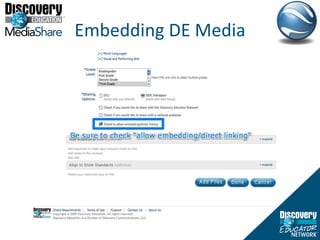
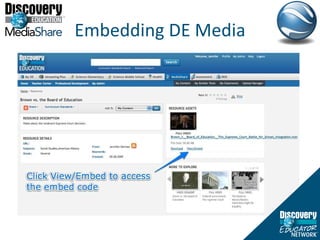
Embedding DE Media STAR Discovery Educators and districts that subscribe to DE MediaShare can upload video, audio, and documents to publish, link to, and embed.  You can access DE MediaShare by going to the DEN and clicking Educator Resources.
Embedding DE Media
Embedding DE Media
Embedding DE Media
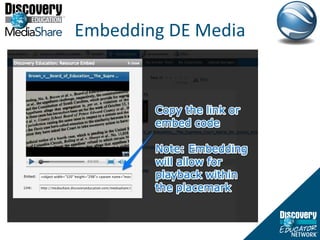
Embedding DE Media
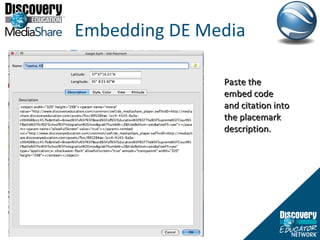
Embedding DE Media Paste the embed code and citation into the placemark description.
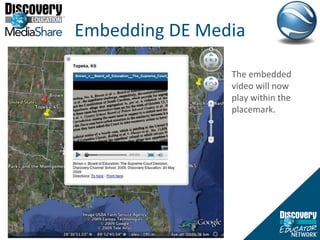
Embedding DE Media The embedded video will now play within the placemark.
Adding Images
Adding Images
Adding Images Click Add > Photo Paste the Image URL
Adding Images
DID YOU KNOW? You and your students can use DE  streaming  images to create original digital stories and documentaries.
Digital Stories with Photostory Microsoft Photostory Download images from  streaming  to import into Photostory Download audio from  streaming  to import into Photostory Add voiceover narration, text, transitions, and special effects Export as a WMV movie file http://www.microsoft.com/windowsxp/using/digitalphotography/PhotoStory/default.mspx
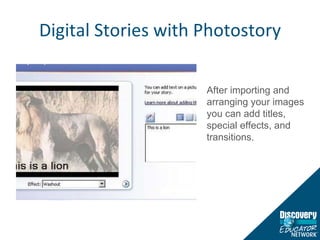
Digital Stories with Photostory After importing and arranging your images you can add titles, special effects, and transitions.
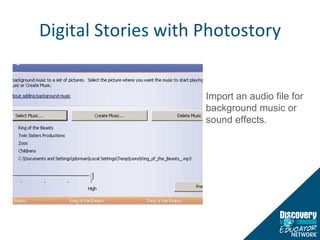
Digital Stories with Photostory Import an audio file for background music or sound effects.
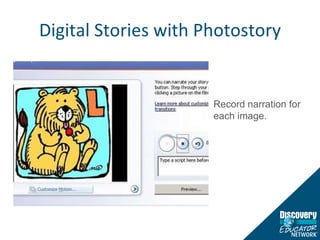
Digital Stories with Photostory Record narration for each image.
Digital Documentaries with Movie Maker DE  streaming  audio, songs, images, and video can be used as the raw material for student-created digital documentaries.
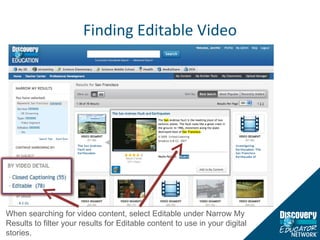
Finding Editable Video When searching for video content, select Editable under Narrow My Results to filter your results for Editable content to use in your digital stories.
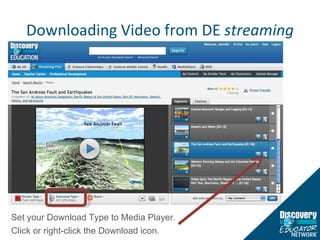
Downloading Video from DE  streaming Set your Download Type to Media Player. Click or right-click the Download icon.
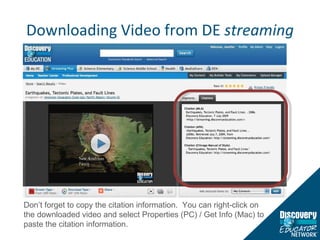
Downloading Video from DE  streaming Don’t forget to copy the citation information.  You can right-click on the downloaded video and select Properties (PC) / Get Info (Mac) to paste the citation information.
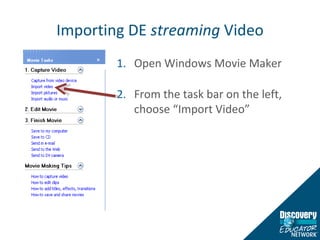
Importing DE  streaming  Video Open Windows Movie Maker From the task bar on the left, choose “Import Video”
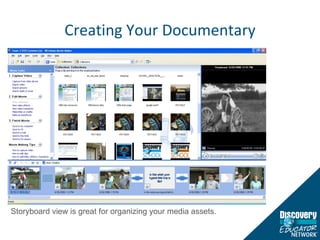
Creating Your Documentary Storyboard view is great for organizing your media assets.
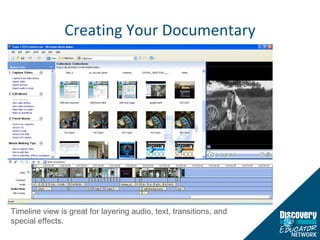
Creating Your Documentary Timeline view is great for layering audio, text, transitions, and special effects.
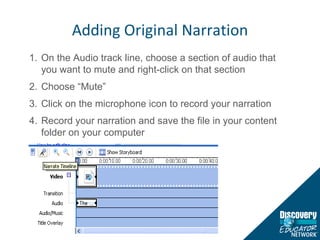
Adding Original Narration On the Audio track line, choose a section of audio that you want to mute and right-click on that section Choose “Mute” Click on the microphone icon to record your narration Record your narration and save the file in your content folder on your computer
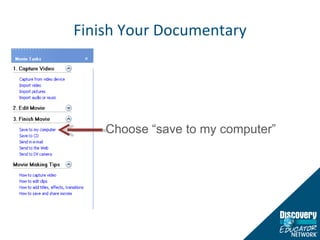
Finish Your Documentary Choose “save to my computer”
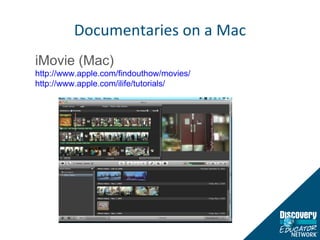
Documentaries on a Mac iMovie (Mac)  http://www.apple.com/findouthow/movies/ http://www.apple.com/ilife/tutorials/
Visit dencommunity.com to connect to inspiring educators from around the world!  Jennifer Dorman [email_address]

Dialing the Digital Compass with Disovery Education streaming

  • 1.
    Dialing in theDigital Compass DE streaming and Social Studies Jennifer Dorman [email_address]
  • 2.
    DID YOU KNOW?You can search for DE streaming content by grade level and subject area.
  • 3.
    Subject/Grade Search Searchby Subject and/or Grade by using the filter links on the left side of the DE streaming home page.
  • 4.
    Subject/Grade Search Youcan narrow your search results by drilling down to specific topics/concepts within the subject and/or by media type.
  • 5.
    DID YOU KNOW?You can search for DE streaming media content by state curriculum standards.
  • 6.
    Curriculum Standards SearchSelect Curriculum Standards Search . Select your State/Province, Standards Document, Subject, and Grade.
  • 7.
    Curriculum Standards SearchClick on the desired standard/benchmark to view the media resources aligned to the benchmark/standard.
  • 8.
    Curriculum Standards SearchView the media resources aligned to your selected standard/benchmark.
  • 9.
    View Curriculum StandardsYou can click on the Curriculum Standards button in the search results preview to view the standards aligned to a media resource.
  • 10.
    View Curriculum StandardsYou can also click on the Curriculum Standards button on the media asset page.
  • 11.
  • 12.
    DID YOU KNOW?DE streaming has thousands of great primary source images.
  • 13.
    DE streaming Images You can narrow your keyword searches to images by selecting Image from the Media menu. Use the keyword search to find great primary source images.
  • 14.
    DE streaming Images
  • 15.
    DE streaming Images Narrow your search results by the core subjects within Social Studies.
  • 16.
    DE streaming Images Review the image description and access the citation information on the media asset page. Small = Word documents Medium = PowerPoint, video Large = Print, in-browser viewing
  • 17.
    DE streaming Images Clicking on the Large Preview will open the image in its own browser window/tab.
  • 18.
    DE streaming Images Viewing the image in a browser allows you to zoom in and view image details.
  • 19.
    DE streaming Images The Share tab will allow you to post the URL for the image asset page to public web site and/or send in an email. The URL will ask viewers to log into DE streaming before viewing.
  • 20.
    DE streaming Images The Image library also contains hundreds of political cartoons.
  • 21.
    DID YOU KNOW?The DE streaming Atlas can be used to reinforce social studies knowledge and skills.
  • 22.
  • 23.
    DE streaming Atlas Explore a country by selecting it from the pull-down menu or clicking it on the map.
  • 24.
    DE streaming Atlas The video segments are organizing thematically for each country. Culture Government History Natural World
  • 25.
    DID YOU KNOW?The DE streaming Calendar contains important historical events for every day of the year.
  • 26.
    DE streaming Calendar
  • 27.
    DE streaming Calendar Though the calendar will default to today’s date, it can be navigated to an another date.
  • 28.
    DE streaming Calendar
  • 29.
    DID YOU KNOW?The DE streaming PLUS users now have access to 50+ Skill Builders that reinforce geography skills.
  • 30.
    DE streaming Skill Builders Select Skill Builders from the Media menu.
  • 31.
    DE streaming Skill Builders Narrow your search results to Social Studies.
  • 32.
    DE streaming Skill Builders
  • 33.
    DE streaming Skill Builders
  • 34.
    DID YOU KNOW?The DE streaming library contains hundreds of speeches.
  • 35.
    DE streaming Audio Speeches Type a keyword or phrase Select DE streaming from the Services menu Select Audio from the Media menu
  • 36.
    DE streaming Audio Speeches Mouse over the grid search results to read a short synopsis of the speech and view supporting materials (speech guide, speech transcript, etc.)
  • 37.
    DE streaming Audio Speeches You can download the file as an MP3 Read a short overview of the speech’s content and historical context
  • 38.
    DE streaming Audio Speeches Download the Speech Guide and Speech Transcript
  • 39.
    DE streaming Audio Speeches Use the suggested media resources to build background knowledge and provide students with context.
  • 40.
    DE streaming Audio Speeches
  • 41.
    Visualizing the MainIdeas Paste the speech transcript into Wordle to create a highly visual word map to help students get to the main idea. http://www.wordle.net/
  • 42.
    DE streaming Audio Speeches Demonstrate best practices by including the citation for the speeches in instructional materials.
  • 43.
    NY Times –Visualizing Presidential Words http://www.nytimes.com/interactive/2009/01/17/washington/20090117_ADDRESSES.html
  • 44.
    DID YOU KNOW?DE streaming includes the entire Funk & Wagnalls encyclopedia series.
  • 45.
    Encyclopedia Articles Typea keyword or phrase Select Encyclopedia Article from the Media menu
  • 46.
  • 47.
    Getting the Pointhttp://www.tagcrowd.com/ TagCrowd is similar to Wordle. The TagCrowds are embeddable into blogs, wikis, DE streaming Builders and other websites.
  • 48.
  • 49.
    Find Main Ideaswith Great Summary Paste the text of the DE streaming Encyclopedia Article Select the number of sentences to return Click Summarize! http://greatsummary.com/
  • 50.
    Find Main Ideaswith Great Summary
  • 51.
    Getting the Pointwith Word AutoSummarize identifies the key points in a document. AutoSummarize works best on well-structured documents, such as reports, articles, and scientific papers.
  • 52.
    Creating and AutoSummary in Word Click AutoSummarize from the tools menu. From the Type of Summary area, set the look of the summary. Use the Percent of Original drop down menu to set how much of the original document can appear in the summary. Click OK.
  • 53.
    AutoSummary in Word2007 Click the Microsoft Office Button , and then click Word Options. Click Customize. In the list under Choose commands from, click All Commands. Scroll through the list of commands until you see AutoSummary Tools. Click AutoSummary Tools, and then click Add.
  • 54.
    AutoSummary in Word2007 On the Quick Access Toolbar, click AutoSummary Tools, and then click AutoSummarize. Select the type of summary that you want. In the Percent of original box, type or select the level of detail to include in the summary. Select a higher percentage of the original document to include more detail.
  • 55.
    DID YOU KNOW?DE streaming media can be incorporated into interactive Web 2.0 applications.
  • 56.
    DE streaming + Glogster You can include DE streaming images, audio, songs, Encyclopedia articles, videos *, writing prompts, quizzes, and assignments into the Glogs you create through edu.glogster.com . * Can only be uploaded to private Glogs http://jdorman.wikispaces.com/Glogster
  • 57.
    DE streaming + Glogster http://pblgroupone.wikispaces.com/Culminating+Multi-Media+Product Teachers can use Glogster to create interactive instructional resources for students. Students can use Glogster as a learning artifact that can be used to teach others.
  • 58.
    Go Animate! Upload DE streaming images and audio to Go Animate to create fun instructional comics. http://goanimate.com/
  • 59.
  • 60.
    DE streaming + Voicethread http://voicethread.com/about/k12/
  • 61.
    DE streaming + Voicethread http://voicethread.com/share/621586/ You can upload images, audio, video, documents, and presentations to Voicethread.
  • 62.
    DE streaming + xTimeline http://xtimeline.com/
  • 63.
    DE streaming + xTimeline Timeline events can include text, images, video, and hyperlinks. They also have a space for citations.
  • 64.
    DE streaming + xTimeline
  • 65.
    DE streaming + xTimeline Events can include embeddable code, uploaded media, descriptions, and source citation.
  • 66.
    DE streaming + xTimeline Timeline events can be uploaded as a CSV file or can be automatically updated through an RSS feed.
  • 67.
    DID YOU KNOW?You can create Quizzes, Writing Prompts, and Assignments in DE streaming .
  • 68.
    DE streaming Builders Click on My Builder Tools to access the Assignment Builder, Quiz Builder, and Writing Prompt Builder.
  • 69.
    Assignment Builder UseAssignment Builder to create self-paced digital activities that incorporate DE streaming media, Quizzes, Writing Prompts, web links, and other online resources.
  • 70.
  • 71.
  • 72.
    Quiz Builder Youcan differentiate your questions by adding hints, correct notes, incorrect notes, and videos for preview or review.
  • 73.
  • 74.
    Writing Prompt BuilderEnhance your Writing Prompts with widgets from Web 2.0 applications, such as: Voicethread, xTimeline, Go Animate, Google Maps, and more!
  • 75.
    DID YOU KNOW?You can use DE streaming and Google Maps to allow students to collaborate on the creation of engaging multimedia maps.
  • 76.
    Google Maps Note:Students must have a Google account to collaborate on a Google Map.
  • 77.
  • 78.
    Google Maps Userscan add placemarks that include text, images, hyperlinks, and some embeddable video.
  • 79.
    Google Maps Right-clickon Preview to Copy Link Location or click on Preview and copy the URL address. Copy the image citation.
  • 80.
    Google Maps Userscan copy the image URL from DE streaming and paste it into the placemark.
  • 81.
    Google Maps SelectEdit HTML from the placemark description. Embedded video only seems to work consistently with YouTube and Google Video.
  • 82.
  • 83.
    Google Maps GoogleMaps can be embedded into DE streaming Builders or on blogs and wikis. The map can be downloaded as a KML file for viewing in Google Earth.
  • 84.
    DID YOU KNOW?You can use DE streaming and Google Earth to create your own virtual field trip.
  • 85.
    Discovery Education +Google Earth You can build your own Google field trips infused with powerful multimedia from DE streaming and DE MediaShare.
  • 86.
    Adding Placemarks Youcan add content to your placemarks that include text, hyperlinks, and media. Select the location for your placemark by typing and address in the Fly To box and selecting the pushpin or Add > Placemark from the menu.
  • 87.
    Linking to DEMedia Click Share and copy the link.
  • 88.
    Linking to DEMedia You can use some minor HTML formatting to add clean hyperlinks to your placemarks. Watch the video, &quot; Voices of the Dust &quot; from DE streaming <br> <a href=“ http://player.discoveryeducation.com/index.cfm?guidAssetId=19C350AF-D8F1-40E0-BA71-F4B96D98788F &quot;>Click here</a> <br><br><br> Citation<br> Voices of the Dust. Aims Multimedia. 2004. Discovery Education. 21 September 2009 <http://streaming.discoveryeducation.com/> <br><br> Replace the BLUE documentation with your information.
  • 89.
    Linking to DEMedia Clicking on the hyperlink will bring viewers to the media asset page in DE streaming . Note: Only DE streaming users will be able to log in and view the media.
  • 90.
    Embedding DE MediaSTAR Discovery Educators and districts that subscribe to DE MediaShare can upload video, audio, and documents to publish, link to, and embed. You can access DE MediaShare by going to the DEN and clicking Educator Resources.
  • 91.
  • 92.
  • 93.
  • 94.
  • 95.
    Embedding DE MediaPaste the embed code and citation into the placemark description.
  • 96.
    Embedding DE MediaThe embedded video will now play within the placemark.
  • 97.
  • 98.
  • 99.
    Adding Images ClickAdd > Photo Paste the Image URL
  • 100.
  • 101.
    DID YOU KNOW?You and your students can use DE streaming images to create original digital stories and documentaries.
  • 102.
    Digital Stories withPhotostory Microsoft Photostory Download images from streaming to import into Photostory Download audio from streaming to import into Photostory Add voiceover narration, text, transitions, and special effects Export as a WMV movie file http://www.microsoft.com/windowsxp/using/digitalphotography/PhotoStory/default.mspx
  • 103.
    Digital Stories withPhotostory After importing and arranging your images you can add titles, special effects, and transitions.
  • 104.
    Digital Stories withPhotostory Import an audio file for background music or sound effects.
  • 105.
    Digital Stories withPhotostory Record narration for each image.
  • 106.
    Digital Documentaries withMovie Maker DE streaming audio, songs, images, and video can be used as the raw material for student-created digital documentaries.
  • 107.
    Finding Editable VideoWhen searching for video content, select Editable under Narrow My Results to filter your results for Editable content to use in your digital stories.
  • 108.
    Downloading Video fromDE streaming Set your Download Type to Media Player. Click or right-click the Download icon.
  • 109.
    Downloading Video fromDE streaming Don’t forget to copy the citation information. You can right-click on the downloaded video and select Properties (PC) / Get Info (Mac) to paste the citation information.
  • 110.
    Importing DE streaming Video Open Windows Movie Maker From the task bar on the left, choose “Import Video”
  • 111.
    Creating Your DocumentaryStoryboard view is great for organizing your media assets.
  • 112.
    Creating Your DocumentaryTimeline view is great for layering audio, text, transitions, and special effects.
  • 113.
    Adding Original NarrationOn the Audio track line, choose a section of audio that you want to mute and right-click on that section Choose “Mute” Click on the microphone icon to record your narration Record your narration and save the file in your content folder on your computer
  • 114.
    Finish Your DocumentaryChoose “save to my computer”
  • 115.
    Documentaries on aMac iMovie (Mac) http://www.apple.com/findouthow/movies/ http://www.apple.com/ilife/tutorials/
  • 116.
    Visit dencommunity.com toconnect to inspiring educators from around the world! Jennifer Dorman [email_address]