OUTLINE
Introduction
Uses of File I/0 VIs and functions
Division of File I/0 Vis Palettes
Types of File I/O VIs
File I/0 Formats
How to Incorporate File I/O into a VI
Conclusion
Uses of file I/O VIs and functions.
File I/O VIs are used to handle all aspects of file I/O,
which includes the following:
 Opening and closing files
 Reading from or writing to files including
spreadsheets
 Managing files (moving, renaming, or changing file
characteristics)
 Managing configuration files (creating, modifying,
and reading)
 Changing file characteristics
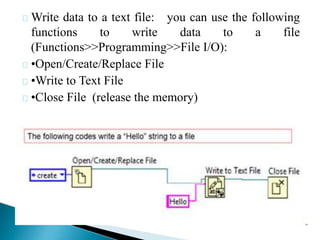
Write data to a text file: you can use the following
functions to write data to a file
(Functions>>Programming>>File I/O):
•Open/Create/Replace File
•Write to Text File
•Close File (release the memory)
The following codes write a “Hello” string to a file
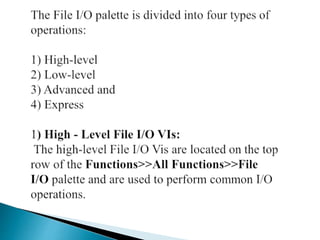
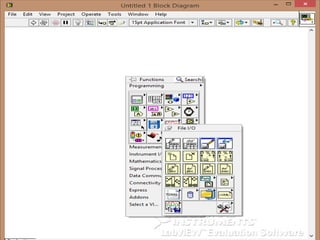
Division of the File I/O palette
 The high-level VIs perform read or write operations
in addition to opening and closing the file.
 If an error occurs, the high-level VIs display a dialog
box that describes the error.
 You can choose to halt execution or to continue.
However, because high-level VIs encapsulate the
entire file operation into one VI, they are difficult to
customize to any use other than the one intended
2) Low-Level and Advanced File I/O VIs and
Functions:
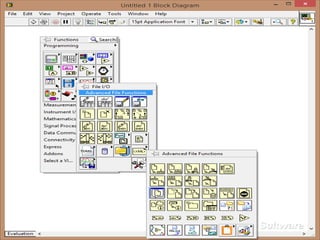
The low-level File I/O VIs and functions are located on
the middle row of the Functions>>All Functions>>File
I/O palette and the Advanced File I/O functions are
located on the Functions>>All Functions>>File
I/O>>Advanced File Functions palette to control each
file I/O operation individually.
 Use the principal low-level functions to create or
open a file,
 write data to or read data from the file, and close the
file.
 The low-level VIs and functions can handle most file
I/O needs..
 Use low-level VIs for more specific tasks.
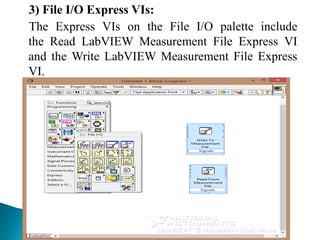
3) File I/O Express VIs:
The Express VIs on the File I/O palette include
the Read LabVIEW Measurement File Express VI
and the Write LabVIEW Measurement File Express
VI.
The LabVIEW measurement data file (.lvm) is a tab-delimited
text file you can open with a spreadsheet application or a text-
editing application. In addition to the data an Express
VI generates, the .lvm file includes information about the
data, such as the date and time the data was generated.
TYPES OF FILE I/O VIs
There are two types of file I/O Vis that exist which
include High Levels and Low Levels.
1) High Level: Performs common I/O operations all in
one VI (i.e. opens, reads, and closes file).
 These VIs can be accessed in the Functions Palette: •
Functions Palette → File I/O
 These VIs can perform operations from the following
data types:
a. Characters to and from text files
b. Lines from text files
c. Arrays of single-precision numerics to and from
spreadsheet text files
d. Arrays of single-precision numerics or signed 16-bit
integers to and from binary files High-level VIs
always need a file path input and if one is not
assigned, an error message will appear prompting for
the file path.
2) Low Levels: Performs only one I/O operation (i.e.
reads file)
FILE I/O FORMATS
File I/O formats depend on the type of files being
used .There are three (3) types of formats exist:
 text
 binary and
 data log.
Some basic guidelines for choosing a data type are:
i. Text files are the most common and should be used
if the data will be used in programs such as Word
and Excel.
ii. ii. Binary files are more efficient than text files
with respect to disk space and speed and should be
used if memory and speed is crucial.
iii. Datalog files are the best way to store data if the
data will only be accessed in LabVIEW and if the
data structure is complex.
How to incorporate file I/O’s into a VI.
 Access File I/O operations by:
 Functions Palette → All-Functions → File I/O
 In addition to the File I/O operations, the user will
need to identify the File Path so that the VI knows
where the file can be accessed. Insert a File Path
Control or Indicator by:
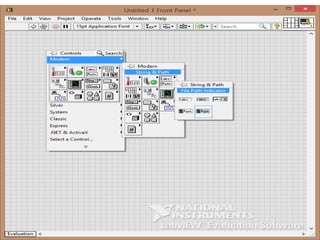
 Controls Palette → All-Controls → String & Path
→ File Path Control or File Path Indicator
CONCLUSION:
The presentation describes the uses of file I/O Vis,
division of file I/O palette, types as well as file I/O
formats and lastly how to incorporate file I/O`s into a
VI.
THANKS FOR LISTENING
END
OF
PRESENTATION

Virtual instrumentation

  • 2.
    OUTLINE Introduction Uses of FileI/0 VIs and functions Division of File I/0 Vis Palettes Types of File I/O VIs File I/0 Formats How to Incorporate File I/O into a VI Conclusion
  • 4.
    Uses of fileI/O VIs and functions.
  • 5.
    File I/O VIsare used to handle all aspects of file I/O, which includes the following:  Opening and closing files  Reading from or writing to files including spreadsheets  Managing files (moving, renaming, or changing file characteristics)  Managing configuration files (creating, modifying, and reading)  Changing file characteristics
  • 6.
    Write data toa text file: you can use the following functions to write data to a file (Functions>>Programming>>File I/O): •Open/Create/Replace File •Write to Text File •Close File (release the memory) The following codes write a “Hello” string to a file
  • 7.
    Division of theFile I/O palette
  • 10.
     The high-levelVIs perform read or write operations in addition to opening and closing the file.  If an error occurs, the high-level VIs display a dialog box that describes the error.  You can choose to halt execution or to continue. However, because high-level VIs encapsulate the entire file operation into one VI, they are difficult to customize to any use other than the one intended
  • 11.
    2) Low-Level andAdvanced File I/O VIs and Functions: The low-level File I/O VIs and functions are located on the middle row of the Functions>>All Functions>>File I/O palette and the Advanced File I/O functions are located on the Functions>>All Functions>>File I/O>>Advanced File Functions palette to control each file I/O operation individually.
  • 13.
     Use theprincipal low-level functions to create or open a file,  write data to or read data from the file, and close the file.  The low-level VIs and functions can handle most file I/O needs..  Use low-level VIs for more specific tasks.
  • 14.
    3) File I/OExpress VIs: The Express VIs on the File I/O palette include the Read LabVIEW Measurement File Express VI and the Write LabVIEW Measurement File Express VI.
  • 15.
    The LabVIEW measurementdata file (.lvm) is a tab-delimited text file you can open with a spreadsheet application or a text- editing application. In addition to the data an Express VI generates, the .lvm file includes information about the data, such as the date and time the data was generated.
  • 16.
  • 17.
    There are twotypes of file I/O Vis that exist which include High Levels and Low Levels. 1) High Level: Performs common I/O operations all in one VI (i.e. opens, reads, and closes file).  These VIs can be accessed in the Functions Palette: • Functions Palette → File I/O  These VIs can perform operations from the following data types: a. Characters to and from text files b. Lines from text files c. Arrays of single-precision numerics to and from spreadsheet text files
  • 18.
    d. Arrays ofsingle-precision numerics or signed 16-bit integers to and from binary files High-level VIs always need a file path input and if one is not assigned, an error message will appear prompting for the file path. 2) Low Levels: Performs only one I/O operation (i.e. reads file)
  • 19.
  • 20.
    File I/O formatsdepend on the type of files being used .There are three (3) types of formats exist:  text  binary and  data log. Some basic guidelines for choosing a data type are: i. Text files are the most common and should be used if the data will be used in programs such as Word and Excel. ii. ii. Binary files are more efficient than text files with respect to disk space and speed and should be used if memory and speed is crucial.
  • 21.
    iii. Datalog filesare the best way to store data if the data will only be accessed in LabVIEW and if the data structure is complex.
  • 22.
    How to incorporatefile I/O’s into a VI.
  • 23.
     Access FileI/O operations by:  Functions Palette → All-Functions → File I/O  In addition to the File I/O operations, the user will need to identify the File Path so that the VI knows where the file can be accessed. Insert a File Path Control or Indicator by:  Controls Palette → All-Controls → String & Path → File Path Control or File Path Indicator
  • 25.
    CONCLUSION: The presentation describesthe uses of file I/O Vis, division of file I/O palette, types as well as file I/O formats and lastly how to incorporate file I/O`s into a VI.
  • 26.