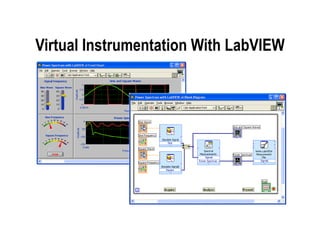
Virtual Instrumentation With LabVIEW
Course Goals Understand the components of a Virtual Instrument Introduce LabVIEW and common LabVIEW functions  Build a simple data acquisition application Create a subroutine in LabVIEW Work with Arrays, Clusters, and Structures Learn About Printing & Documentation Features Develop in Basic Programming Architectures Publish VIs on the Web
Section I LabVIEW terms Components of a LabVIEW application LabVIEW programming tools Creating an application in LabVIEW
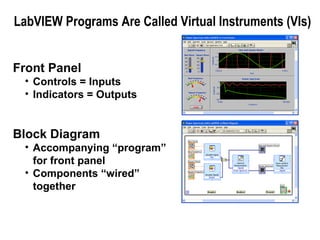
LabVIEW Programs Are Called Virtual Instruments (VIs) Front Panel Controls = Inputs Indicators = Outputs Block Diagram Accompanying “program” for front panel Components “wired”  together
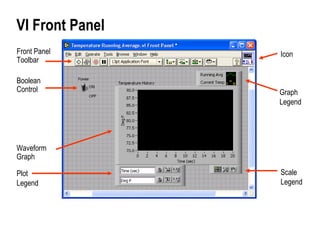
VI Front Panel Front Panel  Toolbar Graph Legend Boolean Control Waveform Graph Icon Plot Legend Scale Legend
VI Block Diagram Wire  Data Graph Terminal SubVI While Loop Structure Block Diagram Toolbar Divide Function Numeric  Constant Timing  Function Boolean Control  Terminal
Express VIs, VIs and Functions Express VIs : interactive VIs with configurable dialog page Standard VIs : modularized VIs customized by wiring Functions:  fundamental operating elements of  LabVIEW; no front panel or block diagram Express VI Standard VI Function
Controls and Functions Palettes Controls Palette (Front Panel Window) Functions Palette (Block Diagram Window)
Tools Palette Operating Tool Positioning/Resizing Tool Labeling Tool Wiring Tool Shortcut Menu Tool Floating Palette Used to operate and modify front panel and block diagram objects. Scrolling Tool Breakpoint Tool Probe Tool Color Copy Tool Coloring Tool Automatic Selection Tool
Status Toolbar Run Button  Continuous Run Button Abort Execution Pause/Continue Button Text Settings Align Objects Distribute Objects Reorder Resize front panel objects Execution Highlighting Button Step Into Button Step Over Button Step Out Button Additional Buttons on the Diagram Toolbar
Open and Run a Virtual Instrument Example finder
Creating a VI Control Terminals  Block Diagram Window Front Panel Window Indicator  Terminals
Creating a VI – Block Diagram
Wiring Tips – Block Diagram Wiring “Hot Spot” Clean Up Wiring Use Automatic Wire Routing Click To Select Wires
Block diagram executes dependent on the flow of data; block diagram does NOT execute left to right Node executes when data is available to ALL input terminals Nodes supply data to all output terminals when done Dataflow Programming
Help Options Context Help Online help Lock help Simple/Complex Diagram help Ctrl + H Online reference All menus online Pop up on functions in diagram to access online info directly
Debugging Techniques Finding Errors Execution Highlighting Probe Click on broken Run button Window showing error appears Click on Execution Highlighting button; data flow is animated using bubbles. Values are  displayed on wires. Right-click on wire to display probe and it shows data as it flows through wire segment You can also select Probe tool from Tools palette and click on wire
Section II – SubVIs What is a subVI? Making an icon and connector for a subVI Using a VI as a subVI
Block Diagram Nodes Icon  Expandable Node   Expanded Node  Function Generator VI Same VI, viewed three different ways Yellow field designates a standard VI Blue field designates an Express VI
SubVIs A SubVI is a VI that can be used within another VI Similar to a subroutine Advantages Modular Easier to debug Don’t have to recreate code Require less memory
Icon and Connector An icon represents a VI in other block diagrams A connector shows available terminals for data transfer Icon Connector Terminals
SubVIs Sub VIs
Steps to Create a SubVI Create the Icon Create the Connector Assign Terminals Save the VI Insert the VI into a Top Level VI
Create the Icon Right-click on the icon in the block diagram or front panel
Create the Connector Right click on the icon pane (front panel only)
Assign Terminals
Save The VI Choose an Easy to Remember Location Organize by Functionality Save Similar VIs into one directory (e.g. Math Utilities) Organize by Application Save all VIs Used for a Specific Application into one directory  or library file (e.g. Lab 1 – Frequency Response) Library Files (.llbs) combine many VI’s into a single file, ideal for transferring entire applications across computers
Insert the SubVI into a Top Level VI Accessing user-made subVIs Functions >>All Functions >> Select a VI Or  Drag icon onto target diagram
Tips for Working in LabVIEW Keystroke Shortcuts <Ctrl-H> – Activate/Deactivate Context Help Window <Ctrl-B> – Remove Broken Wires From Block Diagram <Ctrl-E> – Toggle Between Front Panel and Block Diagram <Ctrl-Z> – Undo (Also in Edit Menu) Tools » Options… – Set Preferences in LabVIEW VI Properties – Configure VI Appearance, Documentation, etc.
Section III – Data Acquisition Data acquisition (DAQ) basics Connecting Signals Simple DAQ application Computer DAQ Device Terminal Block Cable Sensors
Data Acquisition in LabVIEW Traditional NI-DAQ Specific VIs for performing: Analog Input Analog Output Digital I/O Counter operations NI-DAQmx Next generation driver:  VIs for performing a  task One set of VIs for all  measurement types
DAQ – Data Acquisition Temperature Acquisition using the DAQ Assistant
Data Acquisition Terminology Resolution  - Determines How Many Different Voltage Changes Can Be Measured Larger Resolution    More Precise Representation of Signal Range  - Minimum and Maximum Voltages Smaller range    More Precise Representation of Signal Gain  - Amplifies or Attenuates Signal for Best Fit in Range
Hardware Connections BNC-2120 SCB-68 NI-ELVIS SC-2075
Section IV – Loops and Charts For Loop While Loop Charts Multiplots
Loops While Loops Have Iteration Terminal Always Run at least Once Run According to Conditional Terminal For Loops Have Iteration Terminal Run According to input  N  of Count Terminal
Loops (cont.) 1. Select the loop 2. Enclose code to be repeated 3. Drop or drag additional nodes and then wire
Charts Waveform chart – special numeric indicator that can display a history of values Controls >> Graph Indicators >>  Waveform Chart
Wiring Data into Charts Single Plot Charts Multiplot Charts
Section V – Arrays & File I/O Build arrays manually Have LabVIEW build arrays automatically Write to a spreadsheet file Read from a spreadsheet file
Adding an Array to the Front Panel From the  Controls >> All Controls >> Array and Cluster  subpalette, select the  Array Shell   Drop it on the screen.
Adding an Array (cont.) Place data object into shell (i.e. Numeric Control)
Creating an Array with a Loop Loops accumulate arrays at their boundaries
Creating 2D Arrays
File I/O File I/O  – passing data to and from files - Files can be binary, text, or spreadsheet - Write/Read LabVIEW Measurements file (*.lvm) Writing to LVM file Reading from LVM file
Write LabVIEW Measurement File Includes the open, write, close and error handling functions  Handles formatting the string with either a tab or comma delimiter  Merge Signals function is used to combine data into the dynamic data type
Section VI – Array Functions & Graphs Basic Array Functions Use graphs Create multiplots with graphs
Array Functions – Basics Functions >> All functions>> Array
Array Functions – Build Array
Graphs Selected from the Graph palette of Controls menu Controls>>All Controls>>Graphs Waveform Graph  – Plot an array of numbers against their indices Express XY Graph  – Plot one array against another Digital Waveform Graph  – Plot bits from binary data
Graphs Right-Click on the Graph and choose Properties to Interactively Customize
Section VII – Strings, Clusters, & Error Handling Strings Creating Clusters Cluster Functions Error I/O
Strings A string is a sequence of displayable or nondisplayable characters (ASCII) Many uses – displaying messages, instrument control, file I/O String control/indicator is in the  Controls »Text Control  or  Text Indicator
Clusters Data structure that groups data together Data may be of different types Analogous to  struct  in C Elements must be either all controls or all indicators Thought of as wires bundled into a cable
Creating a Cluster Select a  Cluster  shell Controls >> All Controls >> Array & Cluster 2. Place objects inside the shell
Cluster Functions In the  Cluster  subpalette of the  Functions>>All functions  palette Can also be accessed by right-clicking on the cluster terminal Bundle (Terminal labels reflect data type) Bundle By Name
Cluster Functions Unbundle Unbundle By Name Unbundled cluster in the diagram
Error Clusters Error cluster contains the following information: Boolean  to report whether error occurred Integer  to report a specific error code String  to give information about the error
Error Handling Techniques Error information is passed from one subVI to the next If an error occurs in one subVI, all subsequent subVIs are not executed in the usual manner Error Clusters contain all error conditions Automatic Error Handling error clusters
Section VIII - Case & Sequence Structures, Formula Nodes
Case Structures In the Structures subpalette of Functions palette Enclose nodes or drag them inside the structure Stacked like a deck of cards, only one case visible Functions >> Execution control
Exercise 6 – Error Clusters & Handling
Sequence Structures In the  Execution Control  subpalette of Functions palette Executes diagrams sequentially Right-click to add new frame
Formula Nodes In the Structures subpalette  Implement complicated equations Variables created at border Variable names are case sensitive Each statement must terminate with a semicolon (;) Context Help Window shows available functions Note semicolon
Section IX – Printing & Documentation Print From File Menu to Printer, HTML, Rich Text File Programmatically Print Graphs or Front Panel Images Document VIs in VI Properties » Documentation Dialog Add Comments Using Free Labels on Front Panel & Block Diagram
Printing File » Print … Gives Many Printing Options Choose to Print Icon, Front Panel, Block Diagram, VI Hierarchy, Included SubVIs, VI History Print Panel.vi (Programmatically Prints a Front Panel)  Functions » All Functions » Application Control Generate & Print Reports ( Functions » Output » Report )
Documenting VIs VI Properties » Documentation Provide a Description and Help Information for a VI VI Properties » Revision History Track Changes Between Versions of a VI Individual Controls » Description and Tip… Right Click to Provide Description and Tip Strip Use Labeling Tool to Document Front Panels & Block Diagrams
Section XI – Remote Front Panels View & Control LabVIEW Front Panels from a Web Browser Requires no programming Remote clients see “live” front panel updates Multiple clients can view the same panel simultaneously Only one client can control the front panel at a time
Remote Panel Web Publishing Tool Tools » Web Publishing Tool … Click Save to Disk and VI is embedded into an HTML file After file is saved, it can be reopened and customized in any HTML editor
Remote Front Panels - Resources NI Developer Zone (zone.ni.com) Search for Remote Front Panel Tutorials & Instructions Are Available for Download Information on Incorporating Web Cameras into Remote Panel Applications
Where Do I Go From Here? Example programs (Help» Find Examples…) LabVIEW Student Edition (www.ni.com/labviewse) Web resources (ni.com) NI Developer Zone (zone.ni.com) Application Notes  Info-labview newsgroup (www.info-labview.org/) Instrument Driver Library (www.ni.com/idnet)

Labview Introduction

  • 1.
  • 2.
    Course Goals Understandthe components of a Virtual Instrument Introduce LabVIEW and common LabVIEW functions Build a simple data acquisition application Create a subroutine in LabVIEW Work with Arrays, Clusters, and Structures Learn About Printing & Documentation Features Develop in Basic Programming Architectures Publish VIs on the Web
  • 3.
    Section I LabVIEWterms Components of a LabVIEW application LabVIEW programming tools Creating an application in LabVIEW
  • 4.
    LabVIEW Programs AreCalled Virtual Instruments (VIs) Front Panel Controls = Inputs Indicators = Outputs Block Diagram Accompanying “program” for front panel Components “wired” together
  • 5.
    VI Front PanelFront Panel Toolbar Graph Legend Boolean Control Waveform Graph Icon Plot Legend Scale Legend
  • 6.
    VI Block DiagramWire Data Graph Terminal SubVI While Loop Structure Block Diagram Toolbar Divide Function Numeric Constant Timing Function Boolean Control Terminal
  • 7.
    Express VIs, VIsand Functions Express VIs : interactive VIs with configurable dialog page Standard VIs : modularized VIs customized by wiring Functions: fundamental operating elements of LabVIEW; no front panel or block diagram Express VI Standard VI Function
  • 8.
    Controls and FunctionsPalettes Controls Palette (Front Panel Window) Functions Palette (Block Diagram Window)
  • 9.
    Tools Palette OperatingTool Positioning/Resizing Tool Labeling Tool Wiring Tool Shortcut Menu Tool Floating Palette Used to operate and modify front panel and block diagram objects. Scrolling Tool Breakpoint Tool Probe Tool Color Copy Tool Coloring Tool Automatic Selection Tool
  • 10.
    Status Toolbar RunButton Continuous Run Button Abort Execution Pause/Continue Button Text Settings Align Objects Distribute Objects Reorder Resize front panel objects Execution Highlighting Button Step Into Button Step Over Button Step Out Button Additional Buttons on the Diagram Toolbar
  • 11.
    Open and Runa Virtual Instrument Example finder
  • 12.
    Creating a VIControl Terminals Block Diagram Window Front Panel Window Indicator Terminals
  • 13.
    Creating a VI– Block Diagram
  • 14.
    Wiring Tips –Block Diagram Wiring “Hot Spot” Clean Up Wiring Use Automatic Wire Routing Click To Select Wires
  • 15.
    Block diagram executesdependent on the flow of data; block diagram does NOT execute left to right Node executes when data is available to ALL input terminals Nodes supply data to all output terminals when done Dataflow Programming
  • 16.
    Help Options ContextHelp Online help Lock help Simple/Complex Diagram help Ctrl + H Online reference All menus online Pop up on functions in diagram to access online info directly
  • 17.
    Debugging Techniques FindingErrors Execution Highlighting Probe Click on broken Run button Window showing error appears Click on Execution Highlighting button; data flow is animated using bubbles. Values are displayed on wires. Right-click on wire to display probe and it shows data as it flows through wire segment You can also select Probe tool from Tools palette and click on wire
  • 18.
    Section II –SubVIs What is a subVI? Making an icon and connector for a subVI Using a VI as a subVI
  • 19.
    Block Diagram NodesIcon Expandable Node Expanded Node Function Generator VI Same VI, viewed three different ways Yellow field designates a standard VI Blue field designates an Express VI
  • 20.
    SubVIs A SubVIis a VI that can be used within another VI Similar to a subroutine Advantages Modular Easier to debug Don’t have to recreate code Require less memory
  • 21.
    Icon and ConnectorAn icon represents a VI in other block diagrams A connector shows available terminals for data transfer Icon Connector Terminals
  • 22.
  • 23.
    Steps to Createa SubVI Create the Icon Create the Connector Assign Terminals Save the VI Insert the VI into a Top Level VI
  • 24.
    Create the IconRight-click on the icon in the block diagram or front panel
  • 25.
    Create the ConnectorRight click on the icon pane (front panel only)
  • 26.
  • 27.
    Save The VIChoose an Easy to Remember Location Organize by Functionality Save Similar VIs into one directory (e.g. Math Utilities) Organize by Application Save all VIs Used for a Specific Application into one directory or library file (e.g. Lab 1 – Frequency Response) Library Files (.llbs) combine many VI’s into a single file, ideal for transferring entire applications across computers
  • 28.
    Insert the SubVIinto a Top Level VI Accessing user-made subVIs Functions >>All Functions >> Select a VI Or Drag icon onto target diagram
  • 29.
    Tips for Workingin LabVIEW Keystroke Shortcuts <Ctrl-H> – Activate/Deactivate Context Help Window <Ctrl-B> – Remove Broken Wires From Block Diagram <Ctrl-E> – Toggle Between Front Panel and Block Diagram <Ctrl-Z> – Undo (Also in Edit Menu) Tools » Options… – Set Preferences in LabVIEW VI Properties – Configure VI Appearance, Documentation, etc.
  • 30.
    Section III –Data Acquisition Data acquisition (DAQ) basics Connecting Signals Simple DAQ application Computer DAQ Device Terminal Block Cable Sensors
  • 31.
    Data Acquisition inLabVIEW Traditional NI-DAQ Specific VIs for performing: Analog Input Analog Output Digital I/O Counter operations NI-DAQmx Next generation driver: VIs for performing a task One set of VIs for all measurement types
  • 32.
    DAQ – DataAcquisition Temperature Acquisition using the DAQ Assistant
  • 33.
    Data Acquisition TerminologyResolution - Determines How Many Different Voltage Changes Can Be Measured Larger Resolution  More Precise Representation of Signal Range - Minimum and Maximum Voltages Smaller range  More Precise Representation of Signal Gain - Amplifies or Attenuates Signal for Best Fit in Range
  • 34.
    Hardware Connections BNC-2120SCB-68 NI-ELVIS SC-2075
  • 35.
    Section IV –Loops and Charts For Loop While Loop Charts Multiplots
  • 36.
    Loops While LoopsHave Iteration Terminal Always Run at least Once Run According to Conditional Terminal For Loops Have Iteration Terminal Run According to input N of Count Terminal
  • 37.
    Loops (cont.) 1.Select the loop 2. Enclose code to be repeated 3. Drop or drag additional nodes and then wire
  • 38.
    Charts Waveform chart– special numeric indicator that can display a history of values Controls >> Graph Indicators >> Waveform Chart
  • 39.
    Wiring Data intoCharts Single Plot Charts Multiplot Charts
  • 40.
    Section V –Arrays & File I/O Build arrays manually Have LabVIEW build arrays automatically Write to a spreadsheet file Read from a spreadsheet file
  • 41.
    Adding an Arrayto the Front Panel From the Controls >> All Controls >> Array and Cluster subpalette, select the Array Shell Drop it on the screen.
  • 42.
    Adding an Array(cont.) Place data object into shell (i.e. Numeric Control)
  • 43.
    Creating an Arraywith a Loop Loops accumulate arrays at their boundaries
  • 44.
  • 45.
    File I/O FileI/O – passing data to and from files - Files can be binary, text, or spreadsheet - Write/Read LabVIEW Measurements file (*.lvm) Writing to LVM file Reading from LVM file
  • 46.
    Write LabVIEW MeasurementFile Includes the open, write, close and error handling functions Handles formatting the string with either a tab or comma delimiter Merge Signals function is used to combine data into the dynamic data type
  • 47.
    Section VI –Array Functions & Graphs Basic Array Functions Use graphs Create multiplots with graphs
  • 48.
    Array Functions –Basics Functions >> All functions>> Array
  • 49.
  • 50.
    Graphs Selected fromthe Graph palette of Controls menu Controls>>All Controls>>Graphs Waveform Graph – Plot an array of numbers against their indices Express XY Graph – Plot one array against another Digital Waveform Graph – Plot bits from binary data
  • 51.
    Graphs Right-Click onthe Graph and choose Properties to Interactively Customize
  • 52.
    Section VII –Strings, Clusters, & Error Handling Strings Creating Clusters Cluster Functions Error I/O
  • 53.
    Strings A stringis a sequence of displayable or nondisplayable characters (ASCII) Many uses – displaying messages, instrument control, file I/O String control/indicator is in the Controls »Text Control or Text Indicator
  • 54.
    Clusters Data structurethat groups data together Data may be of different types Analogous to struct in C Elements must be either all controls or all indicators Thought of as wires bundled into a cable
  • 55.
    Creating a ClusterSelect a Cluster shell Controls >> All Controls >> Array & Cluster 2. Place objects inside the shell
  • 56.
    Cluster Functions Inthe Cluster subpalette of the Functions>>All functions palette Can also be accessed by right-clicking on the cluster terminal Bundle (Terminal labels reflect data type) Bundle By Name
  • 57.
    Cluster Functions UnbundleUnbundle By Name Unbundled cluster in the diagram
  • 58.
    Error Clusters Errorcluster contains the following information: Boolean to report whether error occurred Integer to report a specific error code String to give information about the error
  • 59.
    Error Handling TechniquesError information is passed from one subVI to the next If an error occurs in one subVI, all subsequent subVIs are not executed in the usual manner Error Clusters contain all error conditions Automatic Error Handling error clusters
  • 60.
    Section VIII -Case & Sequence Structures, Formula Nodes
  • 61.
    Case Structures Inthe Structures subpalette of Functions palette Enclose nodes or drag them inside the structure Stacked like a deck of cards, only one case visible Functions >> Execution control
  • 62.
    Exercise 6 –Error Clusters & Handling
  • 63.
    Sequence Structures Inthe Execution Control subpalette of Functions palette Executes diagrams sequentially Right-click to add new frame
  • 64.
    Formula Nodes Inthe Structures subpalette Implement complicated equations Variables created at border Variable names are case sensitive Each statement must terminate with a semicolon (;) Context Help Window shows available functions Note semicolon
  • 65.
    Section IX –Printing & Documentation Print From File Menu to Printer, HTML, Rich Text File Programmatically Print Graphs or Front Panel Images Document VIs in VI Properties » Documentation Dialog Add Comments Using Free Labels on Front Panel & Block Diagram
  • 66.
    Printing File »Print … Gives Many Printing Options Choose to Print Icon, Front Panel, Block Diagram, VI Hierarchy, Included SubVIs, VI History Print Panel.vi (Programmatically Prints a Front Panel) Functions » All Functions » Application Control Generate & Print Reports ( Functions » Output » Report )
  • 67.
    Documenting VIs VIProperties » Documentation Provide a Description and Help Information for a VI VI Properties » Revision History Track Changes Between Versions of a VI Individual Controls » Description and Tip… Right Click to Provide Description and Tip Strip Use Labeling Tool to Document Front Panels & Block Diagrams
  • 68.
    Section XI –Remote Front Panels View & Control LabVIEW Front Panels from a Web Browser Requires no programming Remote clients see “live” front panel updates Multiple clients can view the same panel simultaneously Only one client can control the front panel at a time
  • 69.
    Remote Panel WebPublishing Tool Tools » Web Publishing Tool … Click Save to Disk and VI is embedded into an HTML file After file is saved, it can be reopened and customized in any HTML editor
  • 70.
    Remote Front Panels- Resources NI Developer Zone (zone.ni.com) Search for Remote Front Panel Tutorials & Instructions Are Available for Download Information on Incorporating Web Cameras into Remote Panel Applications
  • 71.
    Where Do IGo From Here? Example programs (Help» Find Examples…) LabVIEW Student Edition (www.ni.com/labviewse) Web resources (ni.com) NI Developer Zone (zone.ni.com) Application Notes Info-labview newsgroup (www.info-labview.org/) Instrument Driver Library (www.ni.com/idnet)